> ## Documentation Index
> Fetch the complete documentation index at: https://trainings.air.athelas.com/llms.txt
> Use this file to discover all available pages before exploring further.
# Care Team Communications
Care Team Communications lets your staff build a patient's care team once and then send the chart note to everyone on that team automatically — by fax, by email, or both — the moment the note is signed and submitted. A care team can include a primary care physician, a podiatrist, an attorney, a workers' comp adjuster, a nurse case manager, a DME supplier, or an entire facility.
## Overview
With Care Team Communications you can:
* Build a patient's care team from a searchable **Contact Book** of providers, facilities, and hand-entered contacts.
* Decide, per contact and per case, who receives the note and by which channel.
* Review and adjust recipients inside the chart note before you sign.
* Track per-recipient delivery status and keep a record of who was sent what, and when.
**Note:** Care Team Communications is enabled per site. If the **External Communications** section does not appear in your chart notes yet, contact your account manager for access.
The Contact Book holds the patient's *external* care team — the people and organizations outside your practice. Related Persons on the patient portal is a different list, covering family members and responsible parties, and the patient lists used for outreach campaigns are different again.
Your practice decides what leaves the building. Email is not encrypted end to end, so set each contact's channel and document deliberately and keep your own HIPAA policies in force. Air gives you per-contact channel settings, a document selector, and a delivery record to work with.
## Key terms
| **Term** | **Meaning** |
| :---------------------------- | :----------------------------------------------------------------------------------------------------------------------- |
| **Contact Book** | Opened from a patient chart, this panel holds every contact across two tabs. |
| **Patient contacts tab** | The first tab. It is named for the patient you are viewing and lists that patient's contacts. |
| **Site-wide Contacts** | Every contact your site has created. A contact you add for one patient appears here automatically and can be reused. |
| **Care team member** | A contact set to receive this patient's chart notes. Each one has a single contact type, phone, email, fax, and address. |
| **Communication Defaults** | The patient-level settings for a contact: whether **Fax** and **Email** are on, and which document goes out. |
| **Settings per patient case** | Per-case overrides of those defaults, for patients whose cases need different recipients. |
| **External Communications** | The section inside the chart note where you review, add, or adjust recipients before signing. |
## Build a patient's care team
Care team members are added and managed in the Contact Book. Open a patient chart and click the book icon in the toolbar above the chart tabs.
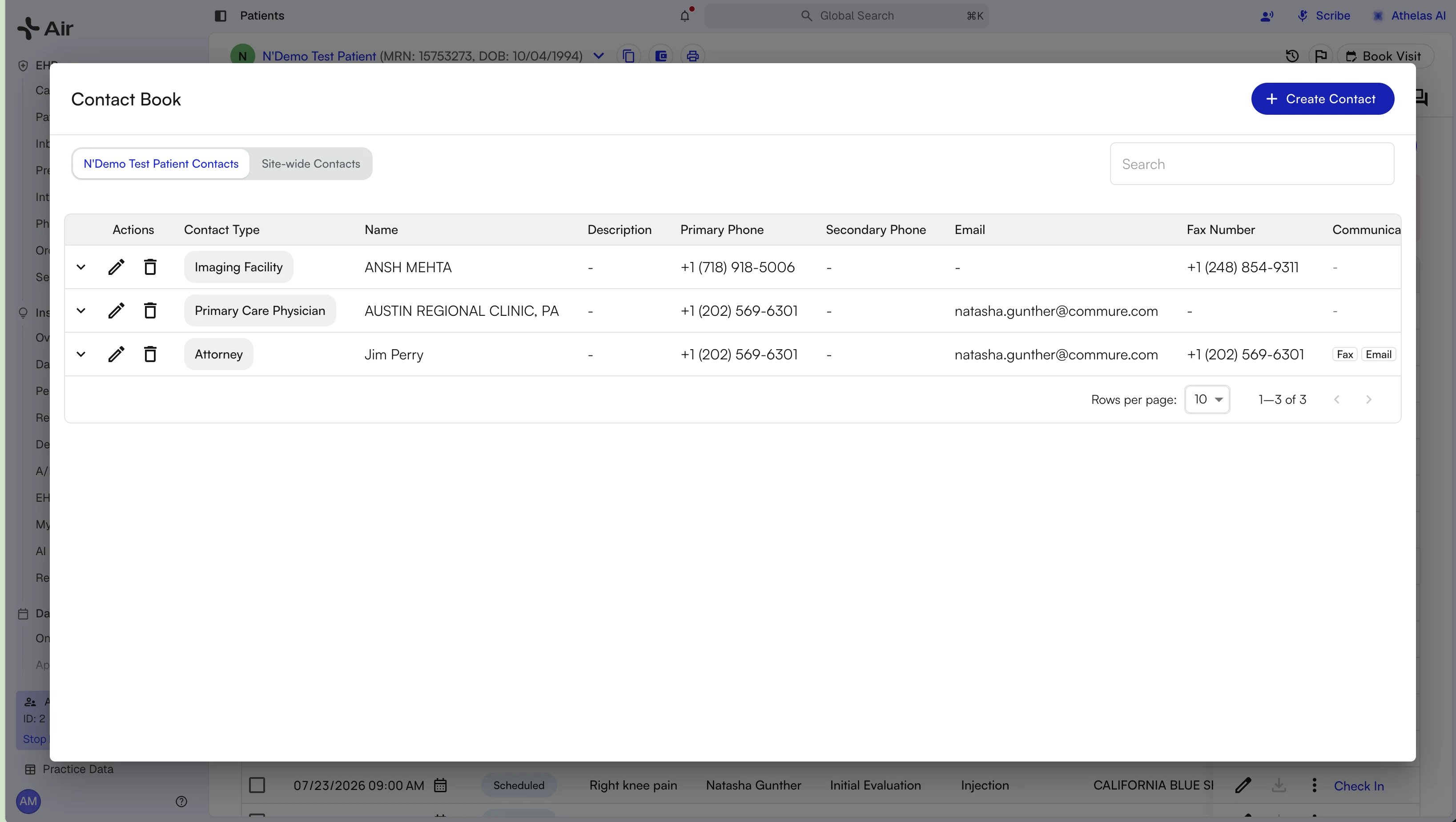
 The Contact Book opens on the patient's own tab and lists each contact with its contact type, name, phone numbers, email, fax number, and communication defaults. Switch to **Site-wide Contacts** to see everything your site has created, or click **Create Contact** to add someone new.
 ### Add a provider by search
Searching is the recommended path, because it fills in the contact details for you.
1. Click **Create Contact** and choose the **Contact Type**.
2. Start typing the provider's name in **Contact Name**. Results are grouped under **Site contacts**, which your site already has on file, and **NPI registry**, the same registry Air draws referring providers from.
3. Pick the right result. Name, phone, and fax populate from the record, so there is nothing to type by hand.
4. Review the details and save.
### Add a provider by search
Searching is the recommended path, because it fills in the contact details for you.
1. Click **Create Contact** and choose the **Contact Type**.
2. Start typing the provider's name in **Contact Name**. Results are grouped under **Site contacts**, which your site already has on file, and **NPI registry**, the same registry Air draws referring providers from.
3. Pick the right result. Name, phone, and fax populate from the record, so there is nothing to type by hand.
4. Review the details and save.
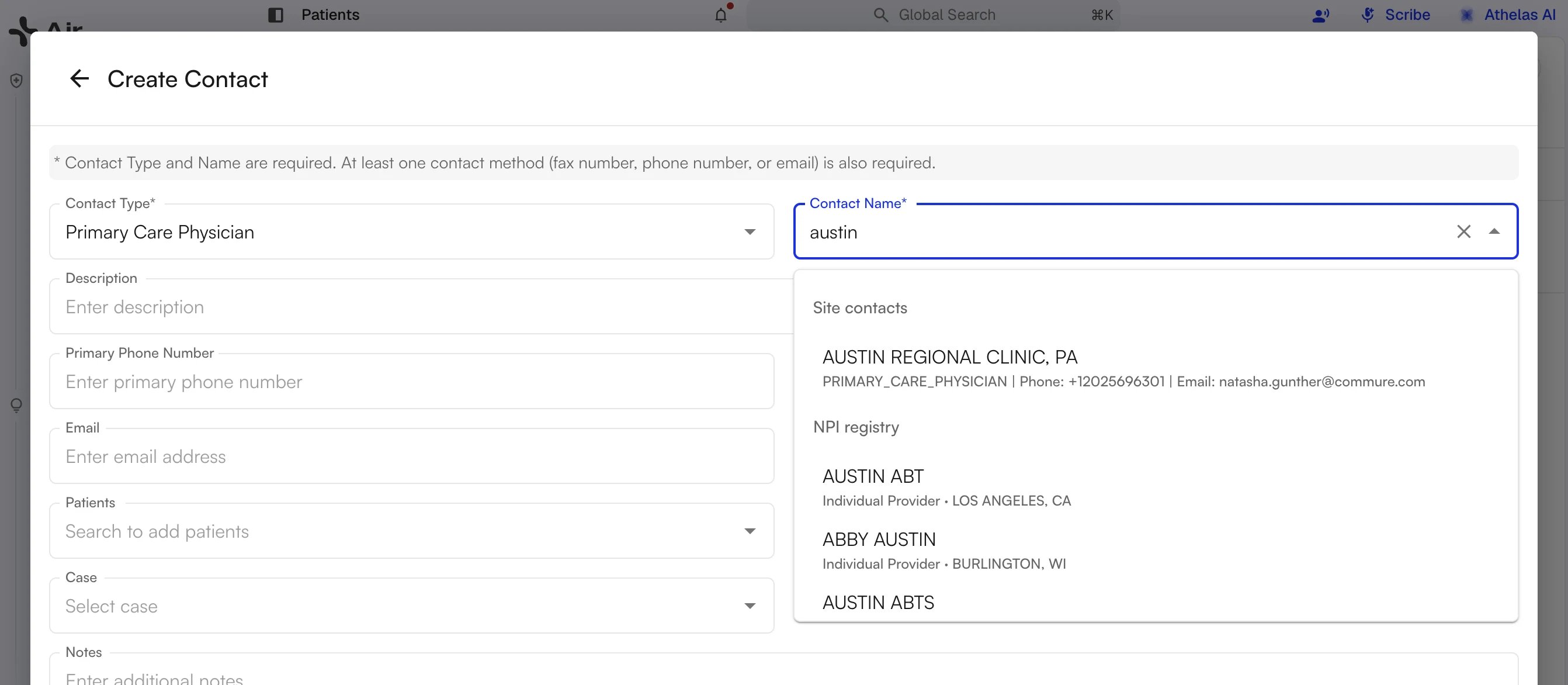 **Note:** Contact Type and Contact Name are required, and so is at least one contact method — a fax number, a phone number, or an email address.
### Add a whole facility
You can add an entire organization, such as a clinic or a surgery center, as a single recipient instead of a named person.
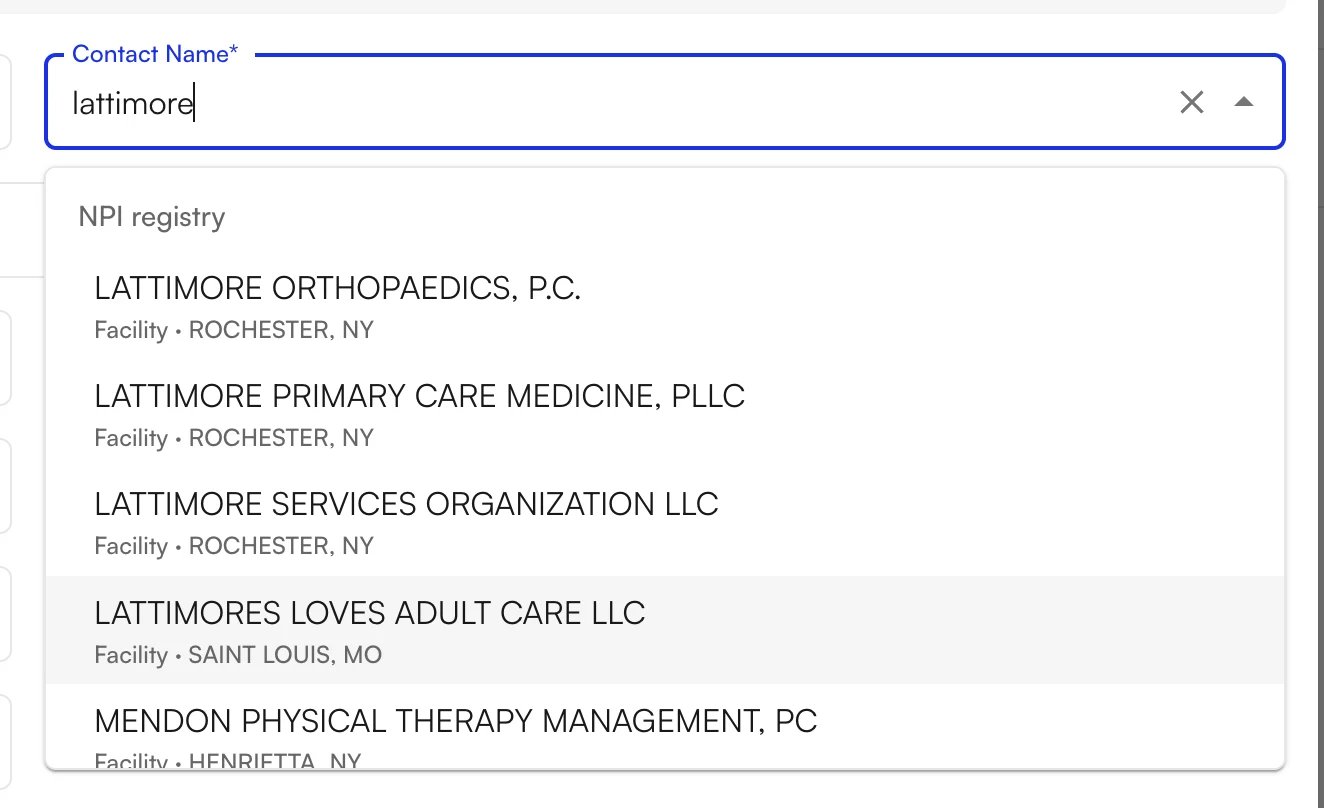
1. Search the facility name in **Contact Name**. The search covers the whole NPI registry rather than just your own facilities, and labels each result **Facility** with its city and state.
2. Check the city and state to confirm you have the right location.
3. Save. A facility behaves like any other contact: one contact type, one phone, one email, one fax, and one address.
**Note:** Contact Type and Contact Name are required, and so is at least one contact method — a fax number, a phone number, or an email address.
### Add a whole facility
You can add an entire organization, such as a clinic or a surgery center, as a single recipient instead of a named person.
1. Search the facility name in **Contact Name**. The search covers the whole NPI registry rather than just your own facilities, and labels each result **Facility** with its city and state.
2. Check the city and state to confirm you have the right location.
3. Save. A facility behaves like any other contact: one contact type, one phone, one email, one fax, and one address.
 ### Add a contact who is not in the registry
Attorneys, workers' comp adjusters, nurse case managers, and DME suppliers have no NPI record, so a workers' comp case would stall if the registry were the only way in. Enter these contacts by hand instead.
1. In **Create Contact**, choose the **Contact Type**. The list covers roles such as **Attorney**, **Case Manager**, **DME Supplier**, **Imaging Facility**, **Authorized Representative**, and **Other**.
2. Type the name into **Contact Name** rather than picking a search result. This path stays open even when the search does return matches.
3. Fill in the contact fields — the same ones a searched contact requires — and save.
### Reuse a contact across patients
Every contact you create is added to **Site-wide Contacts** automatically, so a primary care physician you entered for one patient never has to be entered again. Adding a contact from a patient chart does not lock the contact to that patient.
1. Open the Contact Book and switch to **Site-wide Contacts**.
### Add a contact who is not in the registry
Attorneys, workers' comp adjusters, nurse case managers, and DME suppliers have no NPI record, so a workers' comp case would stall if the registry were the only way in. Enter these contacts by hand instead.
1. In **Create Contact**, choose the **Contact Type**. The list covers roles such as **Attorney**, **Case Manager**, **DME Supplier**, **Imaging Facility**, **Authorized Representative**, and **Other**.
2. Type the name into **Contact Name** rather than picking a search result. This path stays open even when the search does return matches.
3. Fill in the contact fields — the same ones a searched contact requires — and save.
### Reuse a contact across patients
Every contact you create is added to **Site-wide Contacts** automatically, so a primary care physician you entered for one patient never has to be entered again. Adding a contact from a patient chart does not lock the contact to that patient.
1. Open the Contact Book and switch to **Site-wide Contacts**.
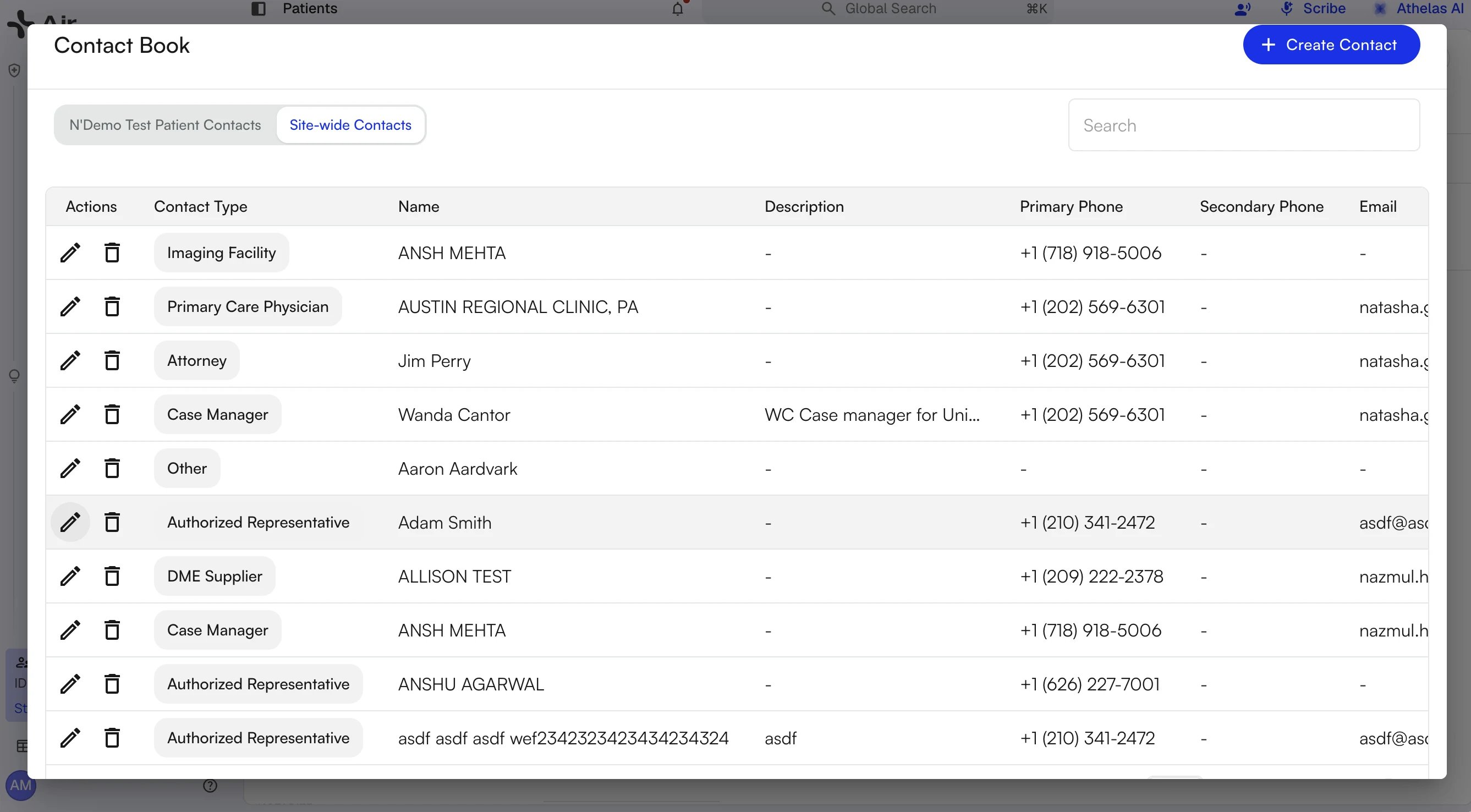 2. Click the pencil icon on the contact you want to reuse.
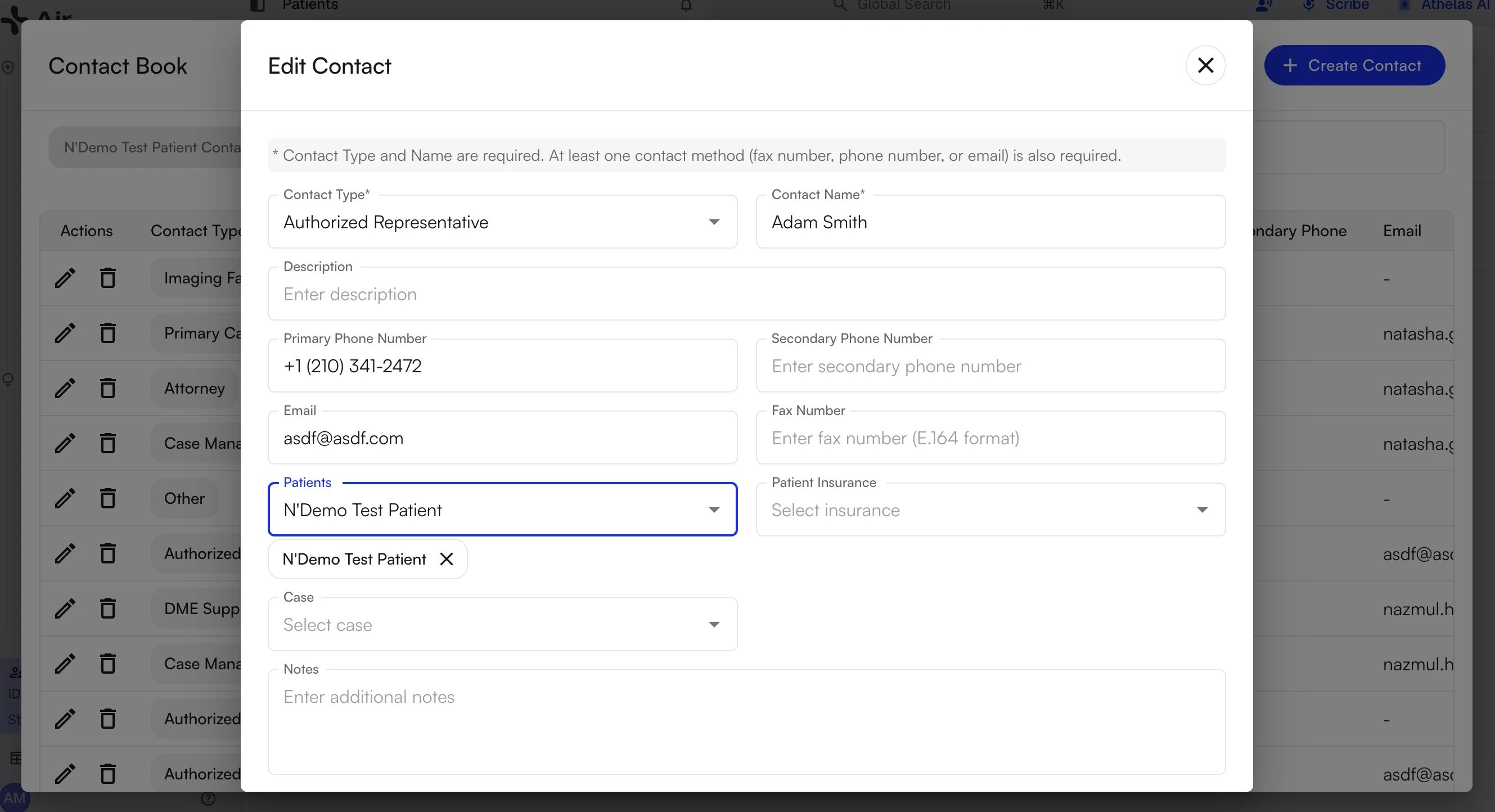
3. In **Edit Contact**, add the patient in the **Patients** field. Each patient you pick appears as a chip below the field. Use **Case** if the contact is relevant to only one of that patient's cases.
4. Save. Every detail on the contact carries over, with no re-entry.
2. Click the pencil icon on the contact you want to reuse.
3. In **Edit Contact**, add the patient in the **Patients** field. Each patient you pick appears as a chip below the field. Use **Case** if the contact is relevant to only one of that patient's cases.
4. Save. Every detail on the contact carries over, with no re-entry.
 ## Choose who gets what
For each care team member you decide two things: which channels to use, and which document to send. Set a patient-level default first, then override it on the cases where that default does not fit.
### Communication Defaults
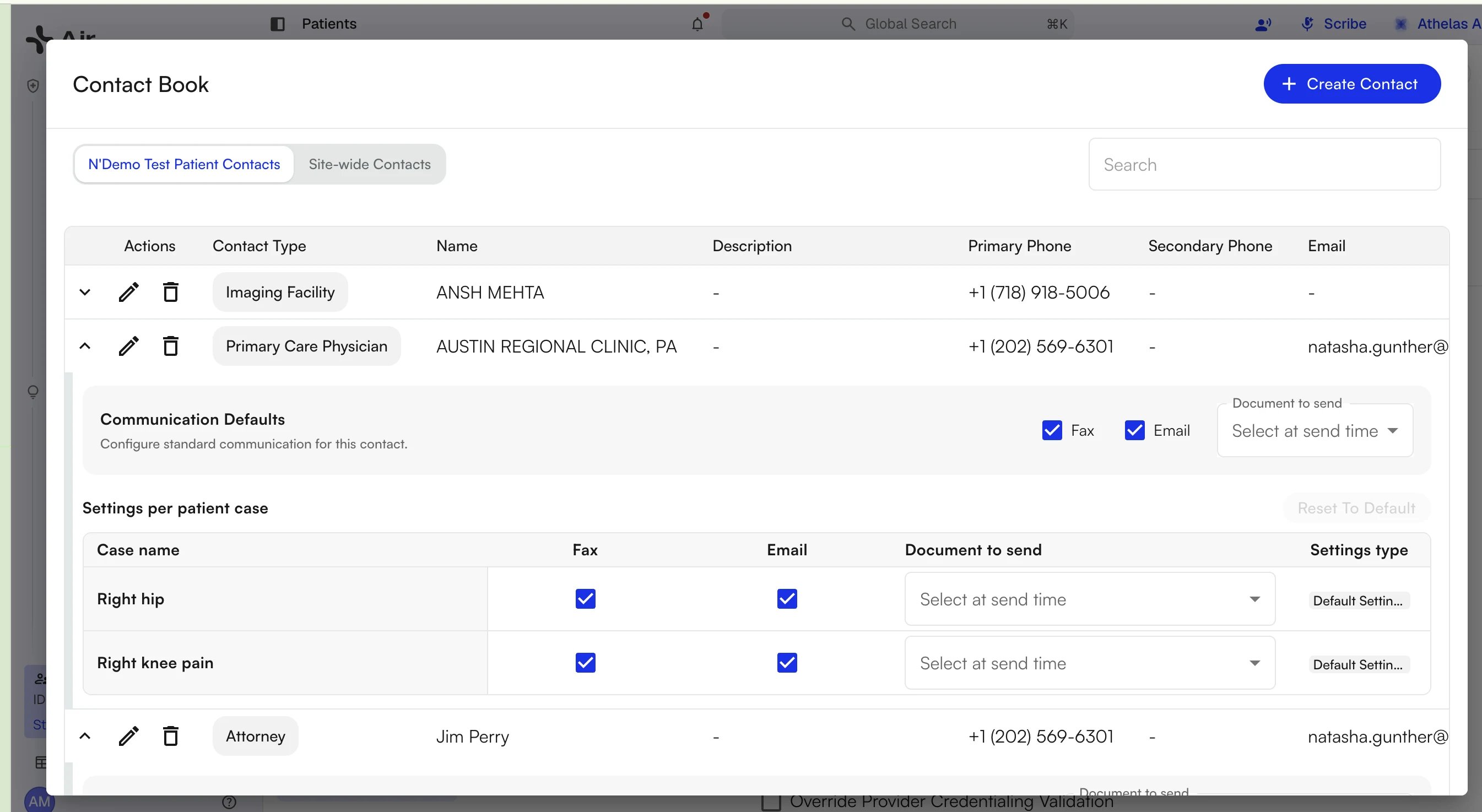
1. On the patient's tab in the Contact Book, click the caret at the start of a contact's row to expand it.
## Choose who gets what
For each care team member you decide two things: which channels to use, and which document to send. Set a patient-level default first, then override it on the cases where that default does not fit.
### Communication Defaults
1. On the patient's tab in the Contact Book, click the caret at the start of a contact's row to expand it.
 2. In the **Communication Defaults** box, check **Fax**, **Email**, or both.
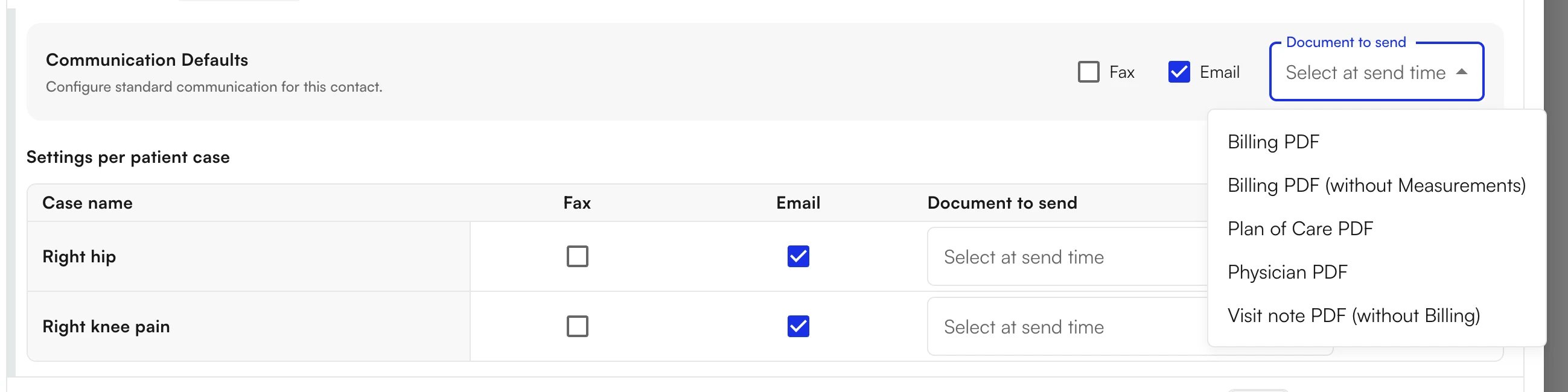
3. Choose the document in **Document to send**.
2. In the **Communication Defaults** box, check **Fax**, **Email**, or both.
3. Choose the document in **Document to send**.
 **Document to send** offers **Billing PDF**, **Billing PDF (without Measurements)**, **Plan of Care PDF**, **Physician PDF**, and **Visit note PDF (without Billing)**. Leave the selector on **Select at send time** to let the provider choose inside each note instead.
 These defaults apply to every case for this patient that has not been customized.
### Settings per patient case
A patient with more than one case often needs different recipients for each. **Settings per patient case** lists every case as its own row, with **Fax** and **Email** checkboxes, a **Document to send** selector, and a **Settings type** chip showing whether the row still follows the defaults or carries a custom override.
These defaults apply to every case for this patient that has not been customized.
### Settings per patient case
A patient with more than one case often needs different recipients for each. **Settings per patient case** lists every case as its own row, with **Fax** and **Email** checkboxes, a **Document to send** selector, and a **Settings type** chip showing whether the row still follows the defaults or carries a custom override.
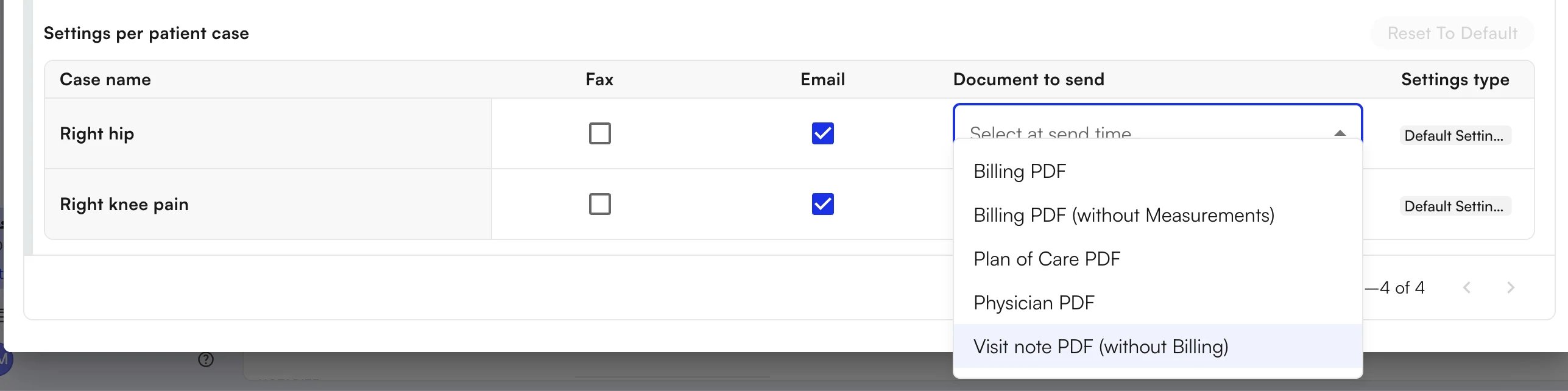 * A case follows the **Communication Defaults** until you change something on its row.
* **Reset To Default** reverts every custom row to the patient-level defaults. The button is grayed out when no row is custom.
## Send from the chart note
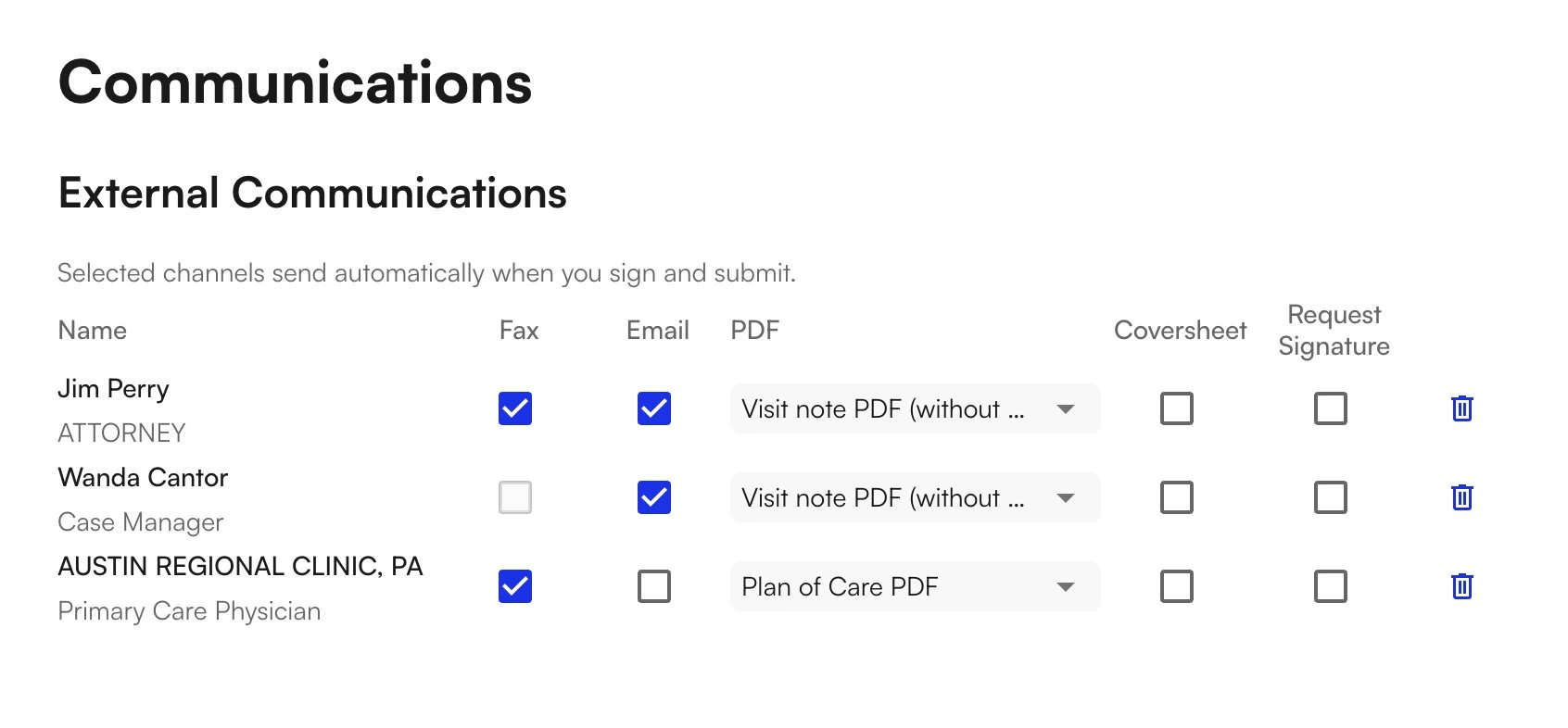
When the feature is enabled for your site, every chart note carries an **External Communications** section under **Communications**. The recipients you configured in the Contact Book are already listed and pre-checked, and the section reminds you that the selected channels send automatically when you sign and submit.
* A case follows the **Communication Defaults** until you change something on its row.
* **Reset To Default** reverts every custom row to the patient-level defaults. The button is grayed out when no row is custom.
## Send from the chart note
When the feature is enabled for your site, every chart note carries an **External Communications** section under **Communications**. The recipients you configured in the Contact Book are already listed and pre-checked, and the section reminds you that the selected channels send automatically when you sign and submit.
 ### Review the recipients
* The list is filtered to the care team relevant to this note's case.
* Each contact is a single row. **Fax** and **Email** are separate checkboxes on that row, not separate rows per channel.
* The contact type appears on a line under the contact's name.
* **PDF**, **Coversheet**, and **Request Signature** are set per recipient and apply to both channels for that contact, so one person cannot receive one document by fax and a different one by email.
* A channel the contact has no destination for stays disabled. Add the missing fax number or email address to the contact to enable that channel.
### Add a recipient
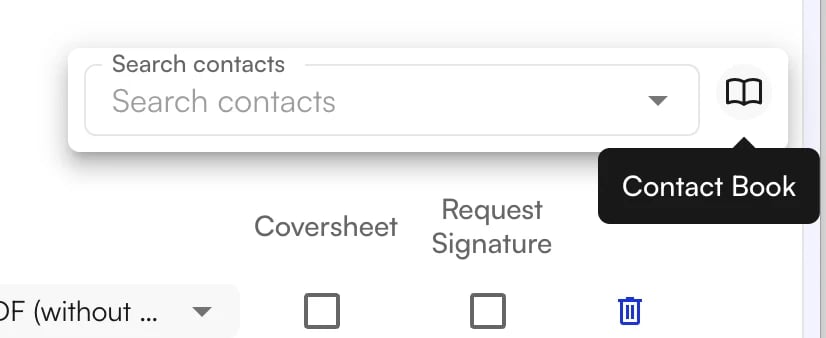
1. Click **+ Add Recipient** at the top right of the section.
### Review the recipients
* The list is filtered to the care team relevant to this note's case.
* Each contact is a single row. **Fax** and **Email** are separate checkboxes on that row, not separate rows per channel.
* The contact type appears on a line under the contact's name.
* **PDF**, **Coversheet**, and **Request Signature** are set per recipient and apply to both channels for that contact, so one person cannot receive one document by fax and a different one by email.
* A channel the contact has no destination for stays disabled. Add the missing fax number or email address to the contact to enable that channel.
### Add a recipient
1. Click **+ Add Recipient** at the top right of the section.
 2. Find the contact in **Search contacts**. Only contacts with a fax number or an email address appear here; one with neither cannot be selected.
3. Pick the contact. The row appears immediately, with whichever channels that contact actually has already checked.
To bring in someone who is not a contact yet, click the book icon beside the search field to open the full Contact Book. Registry search, facility search, and manual entry all work from inside the note, and anyone you create is saved to the patient's contacts for future notes.
2. Find the contact in **Search contacts**. Only contacts with a fax number or an email address appear here; one with neither cannot be selected.
3. Pick the contact. The row appears immediately, with whichever channels that contact actually has already checked.
To bring in someone who is not a contact yet, click the book icon beside the search field to open the full Contact Book. Registry search, facility search, and manual entry all work from inside the note, and anyone you create is saved to the patient's contacts for future notes.
 ### Adjust channels and documents
* Unchecking one channel drops only that channel. The row stays as long as the other channel is still checked.
* Unchecking the last remaining channel removes the row, the same as deleting it with the trash icon.
Changes you make inside a note apply to that note alone. The contact's saved Communication Defaults are left exactly as they were.
### After you submit
* Each enabled channel sends independently on submission.
* Recipient rows can no longer be deleted, and the channel checkboxes are disabled, once the note is submitted.
* Submitting a note with no recipients selected works normally. No communications are created.
## Delivery status and audit trail
* Fax and email send independently, so one bad fax number does not hold up the rest. The failure stays isolated to that recipient.
* Per-recipient delivery status is shown on the note and updates as the status changes, so a failed fax is visible where you sent it from.
* Faxes appear in your existing fax channels, and emails flow through the email reporting you already use, including failed-email reports. See [Faxing](/air_provider/review_patient_details/faxing) for the Outbound tab and delivery history.
* Every send is recorded — recipient, document type, timestamp, delivery status, and the sending user — which is what a workers' comp audit or a HIPAA request asks for.
A send is blocked with a warning when a recipient has no valid destination for an enabled channel. Correct the contact's fax number or email address, then turn the channel back on.
### FAQ
The feature is enabled per site. If the section does not render at all, the feature is not turned on for your organization yet — contact your account manager for access.
**Add Recipient** only lists contacts that have a fax number or an email address on file. Open the Contact Book, add a valid destination to that contact, and search again.
A channel stays disabled when the recipient has no matching destination — no fax number for fax, or no email address for email. Add the missing detail to the contact and the checkbox becomes available.
Neither overwrote the other. An in-note change is a one-time override that applies to that note alone and never rewrites the contact's Communication Defaults, so the defaults still govern the next note.
Yes. The single referring-provider auto-fax flow is unchanged when no broader care team is configured, and a referring provider who is also on the care team maps into it without producing duplicate sends.
Questions or issues? Reach out to your clinic administrator or [support@getathelas.com](mailto:support@getathelas.com).
### Adjust channels and documents
* Unchecking one channel drops only that channel. The row stays as long as the other channel is still checked.
* Unchecking the last remaining channel removes the row, the same as deleting it with the trash icon.
Changes you make inside a note apply to that note alone. The contact's saved Communication Defaults are left exactly as they were.
### After you submit
* Each enabled channel sends independently on submission.
* Recipient rows can no longer be deleted, and the channel checkboxes are disabled, once the note is submitted.
* Submitting a note with no recipients selected works normally. No communications are created.
## Delivery status and audit trail
* Fax and email send independently, so one bad fax number does not hold up the rest. The failure stays isolated to that recipient.
* Per-recipient delivery status is shown on the note and updates as the status changes, so a failed fax is visible where you sent it from.
* Faxes appear in your existing fax channels, and emails flow through the email reporting you already use, including failed-email reports. See [Faxing](/air_provider/review_patient_details/faxing) for the Outbound tab and delivery history.
* Every send is recorded — recipient, document type, timestamp, delivery status, and the sending user — which is what a workers' comp audit or a HIPAA request asks for.
A send is blocked with a warning when a recipient has no valid destination for an enabled channel. Correct the contact's fax number or email address, then turn the channel back on.
### FAQ
The feature is enabled per site. If the section does not render at all, the feature is not turned on for your organization yet — contact your account manager for access.
**Add Recipient** only lists contacts that have a fax number or an email address on file. Open the Contact Book, add a valid destination to that contact, and search again.
A channel stays disabled when the recipient has no matching destination — no fax number for fax, or no email address for email. Add the missing detail to the contact and the checkbox becomes available.
Neither overwrote the other. An in-note change is a one-time override that applies to that note alone and never rewrites the contact's Communication Defaults, so the defaults still govern the next note.
Yes. The single referring-provider auto-fax flow is unchanged when no broader care team is configured, and a referring provider who is also on the care team maps into it without producing duplicate sends.
Questions or issues? Reach out to your clinic administrator or [support@getathelas.com](mailto:support@getathelas.com).