> ## Documentation Index
> Fetch the complete documentation index at: https://trainings.air.athelas.com/llms.txt
> Use this file to discover all available pages before exploring further.
# Chart Note Templates
### **Definitions: Chart Note Templates**
Templates are the **building blocks** of your clinical notes. Each template is a \*\*section \*\*within your Chart Note (e.g., Plan of Care, Goals, Measurements, Treatments, Medications).
You can also create **custom sections** for your own questions under Subjective, Objective, Assessment, or Plan. Templates are designed to be **general** so they can be reused across many appointment types.
### **Definitions: Appointment Types**
Appointment types are the **frameworks for your visits**. You can **mix and match templates** and their order to create the exact chart note you want for each type of appointment.
We recommend creating general Appointment Types that can be used across use-cases.
E.g. A general Initial Eval note can be customized for a Hip Injury case by creating custom groups for Hip injuries within Measurements, Treatments, Interventions or Text Snippets.
### Create custom chart note Templates
* From the left navigation menu, go to **Utilities → Templates**.
* On the Templates page, search or filter to find existing templates.
* To create a new template, click **+ Create New Template** in the top-right corner.
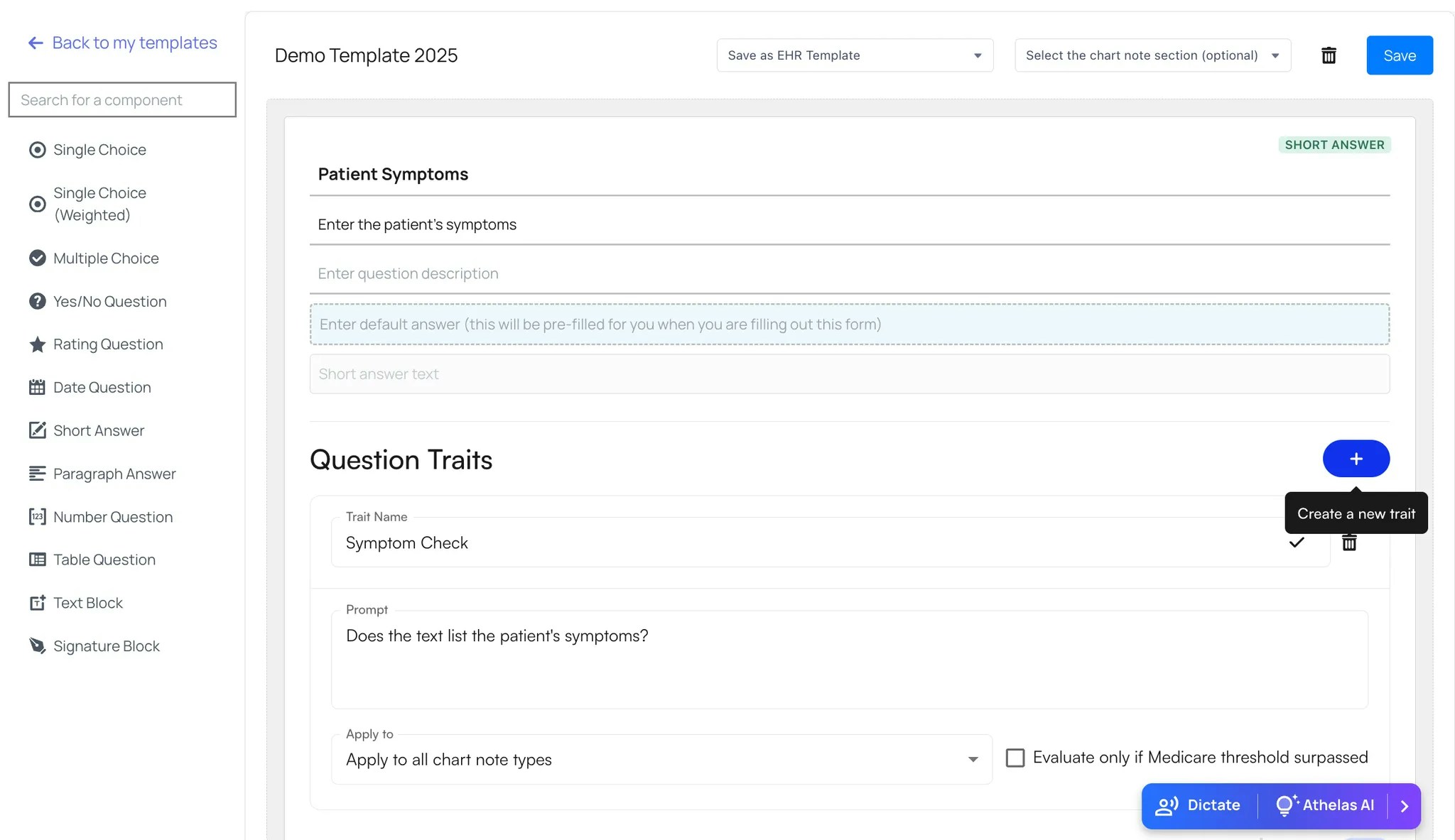 You will be taken to a configuration page where you can:
* Title your template at the top.
* Drag and drop components from the left-hand panel to the right to build your template.
* Once your form is complete, select the type of template (EHR Chart Note or Patient Intake Form) and click **Save**.
**Components available include:**
Ask a question with one selectable answer.
Accepts short, typed responses.
Ask a question with multiple selectable answers.
Accepts longer, free-text responses.
Provides a binary choice.
Accepts numeric input.
Collects a rating (e.g., 1–5 scale).
Displays responses in a table format, with columns added using the **+** button.
Accepts a date input.
Only available for patient intake forms (not EHR templates).
### Add Custom Compliance checkmarks
**How to create a Compliance Checkmark**
* Go to **Utilities → Templates** → open the template you want (or click **+ Create New Template**).
* Locate (or add) a question where you want the checkmark to apply. Compliance checkmarks can be configured for **Short Answer** and **Paragraph** type questions in templates.
* Click **+ Add Trait** → Name the checkmark
* Add a **Yes/No** prompt that states the requirement you want to verify, e.g.:\
“**Does the text list prior medications?**”
* Click **Save**
* As providers fill out notes, the system will automatically check off each compliance requirement when the information is detected.
**Examples of Compliance Traits**
You can create checkmarks for traits such as:
* **Symptoms** – Does the note list the patient’s symptoms?
* **Medications** – Does the note mention prior or current medications?
* **Date of Onset / Chronicity** – Does the note state when the condition began or whether it is chronic?
* **Mechanism of Injury** – Does the note describe the physical forces that caused the injury?
* **Prior Level of Function** – Does the note include details of the patient’s baseline (e.g., “walking 10,000 steps per day before injury”)?
* **Body Part Injured** – Is the affected body part identified?
* **Functional Limitations** – Does the note describe what the patient is unable to do (e.g., “unable to walk without assistance”)?
### Create Custom Preferences
**Measurement Preferences**
Organize measurements into intuitive collections of Categories (\_e.g. Range of Motion, Strength) \_and Groups (e.g., *Ankle ROM*).
* Add, edit, or delete measurements and groups.
* Assign measurements to groups.
* Nest groups up to 2 levels deep.
You can view, add, configure, and delete measurements individually.
* Open **Preferences** from the left navigation bar
* Click on the **Measurements** tab
* Click **Add New Measurement** to create a new measurement and configure its response fields.
**Measurements can be displayed in two formats:**
* **Text Type:** Fields appear as single-line entries (best for a few simple measurements).
* **Table Type:** Fields are displayed in a table format (best when comparing bilateral values, e.g., left vs. right knee).
**Measurement Groups:** Measurements can be grouped by intuitive groups.
Click the square icon next to Add Measurement to create a group of related measurements. Enter a group name, category and body part (optional). Assign the individual measurements.
**Note:** You can also create sub-groups to the group of measurements.
**Treatment Preferences**
* From the left navigation menu, go to **Settings → MyPractice**.
* Select **Treatments** from the top bar.
* Add new treatments or configure existing ones as needed.
### Add Custom Text Snippets
You can view, add, customize, and delete text snippets.
* Open **Preferences** from the left navigation bar
* Click on the **Text Snippets** tab
* Click **Add Text Snippet** to create a new snippet.
* You can also create custom group of text snippets.
You will be taken to a configuration page where you can:
* Title your template at the top.
* Drag and drop components from the left-hand panel to the right to build your template.
* Once your form is complete, select the type of template (EHR Chart Note or Patient Intake Form) and click **Save**.
**Components available include:**
Ask a question with one selectable answer.
Accepts short, typed responses.
Ask a question with multiple selectable answers.
Accepts longer, free-text responses.
Provides a binary choice.
Accepts numeric input.
Collects a rating (e.g., 1–5 scale).
Displays responses in a table format, with columns added using the **+** button.
Accepts a date input.
Only available for patient intake forms (not EHR templates).
### Add Custom Compliance checkmarks
**How to create a Compliance Checkmark**
* Go to **Utilities → Templates** → open the template you want (or click **+ Create New Template**).
* Locate (or add) a question where you want the checkmark to apply. Compliance checkmarks can be configured for **Short Answer** and **Paragraph** type questions in templates.
* Click **+ Add Trait** → Name the checkmark
* Add a **Yes/No** prompt that states the requirement you want to verify, e.g.:\
“**Does the text list prior medications?**”
* Click **Save**
* As providers fill out notes, the system will automatically check off each compliance requirement when the information is detected.
**Examples of Compliance Traits**
You can create checkmarks for traits such as:
* **Symptoms** – Does the note list the patient’s symptoms?
* **Medications** – Does the note mention prior or current medications?
* **Date of Onset / Chronicity** – Does the note state when the condition began or whether it is chronic?
* **Mechanism of Injury** – Does the note describe the physical forces that caused the injury?
* **Prior Level of Function** – Does the note include details of the patient’s baseline (e.g., “walking 10,000 steps per day before injury”)?
* **Body Part Injured** – Is the affected body part identified?
* **Functional Limitations** – Does the note describe what the patient is unable to do (e.g., “unable to walk without assistance”)?
### Create Custom Preferences
**Measurement Preferences**
Organize measurements into intuitive collections of Categories (\_e.g. Range of Motion, Strength) \_and Groups (e.g., *Ankle ROM*).
* Add, edit, or delete measurements and groups.
* Assign measurements to groups.
* Nest groups up to 2 levels deep.
You can view, add, configure, and delete measurements individually.
* Open **Preferences** from the left navigation bar
* Click on the **Measurements** tab
* Click **Add New Measurement** to create a new measurement and configure its response fields.
**Measurements can be displayed in two formats:**
* **Text Type:** Fields appear as single-line entries (best for a few simple measurements).
* **Table Type:** Fields are displayed in a table format (best when comparing bilateral values, e.g., left vs. right knee).
**Measurement Groups:** Measurements can be grouped by intuitive groups.
Click the square icon next to Add Measurement to create a group of related measurements. Enter a group name, category and body part (optional). Assign the individual measurements.
**Note:** You can also create sub-groups to the group of measurements.
**Treatment Preferences**
* From the left navigation menu, go to **Settings → MyPractice**.
* Select **Treatments** from the top bar.
* Add new treatments or configure existing ones as needed.
### Add Custom Text Snippets
You can view, add, customize, and delete text snippets.
* Open **Preferences** from the left navigation bar
* Click on the **Text Snippets** tab
* Click **Add Text Snippet** to create a new snippet.
* You can also create custom group of text snippets.