> ## Documentation Index
> Fetch the complete documentation index at: https://trainings.air.athelas.com/llms.txt
> Use this file to discover all available pages before exploring further.
# Messages
Air maintains an internal and external messaging functionality that lets sites communicate with other site staff, and directly with patients through the Patient Portal.
## Messaging from Insights
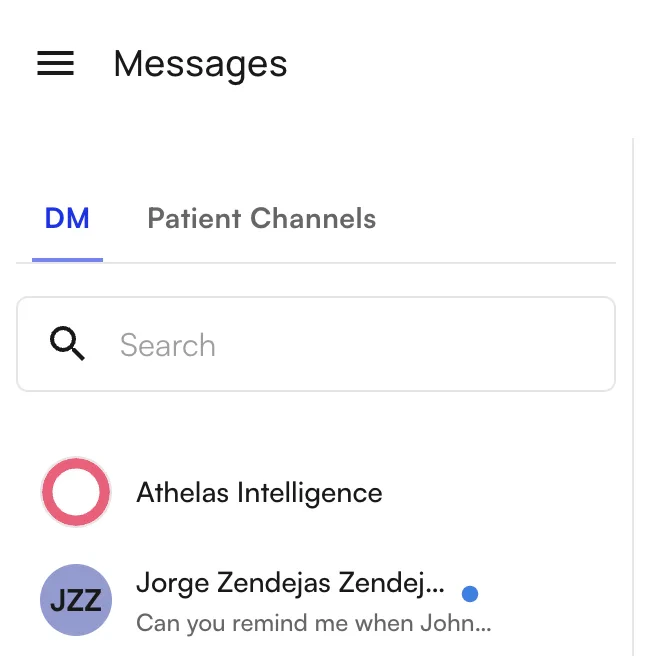
Messages in Insights can be accessed by clicking the **Messages** tab under **Utilities**. From there, the **DM** tab lists all existing chats for the user. To create a new chat, click **+ New Chat** at the bottom of the pane.
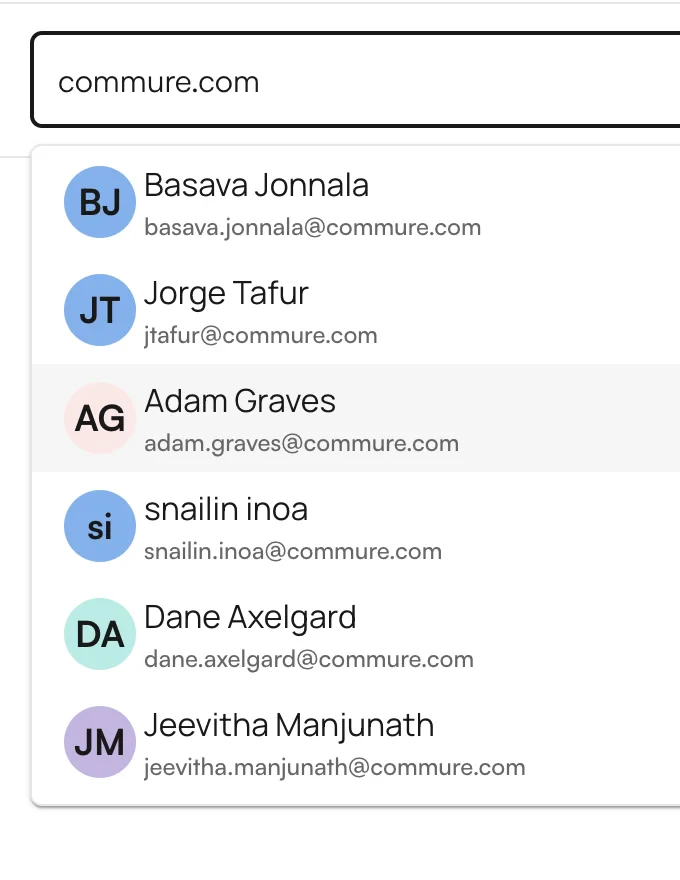
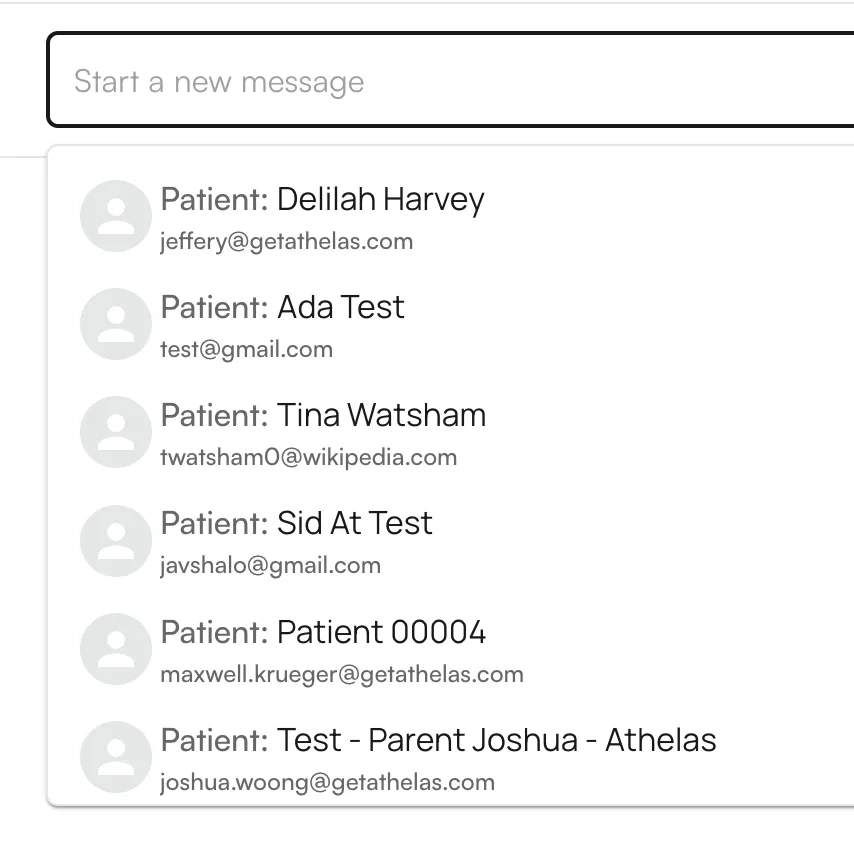
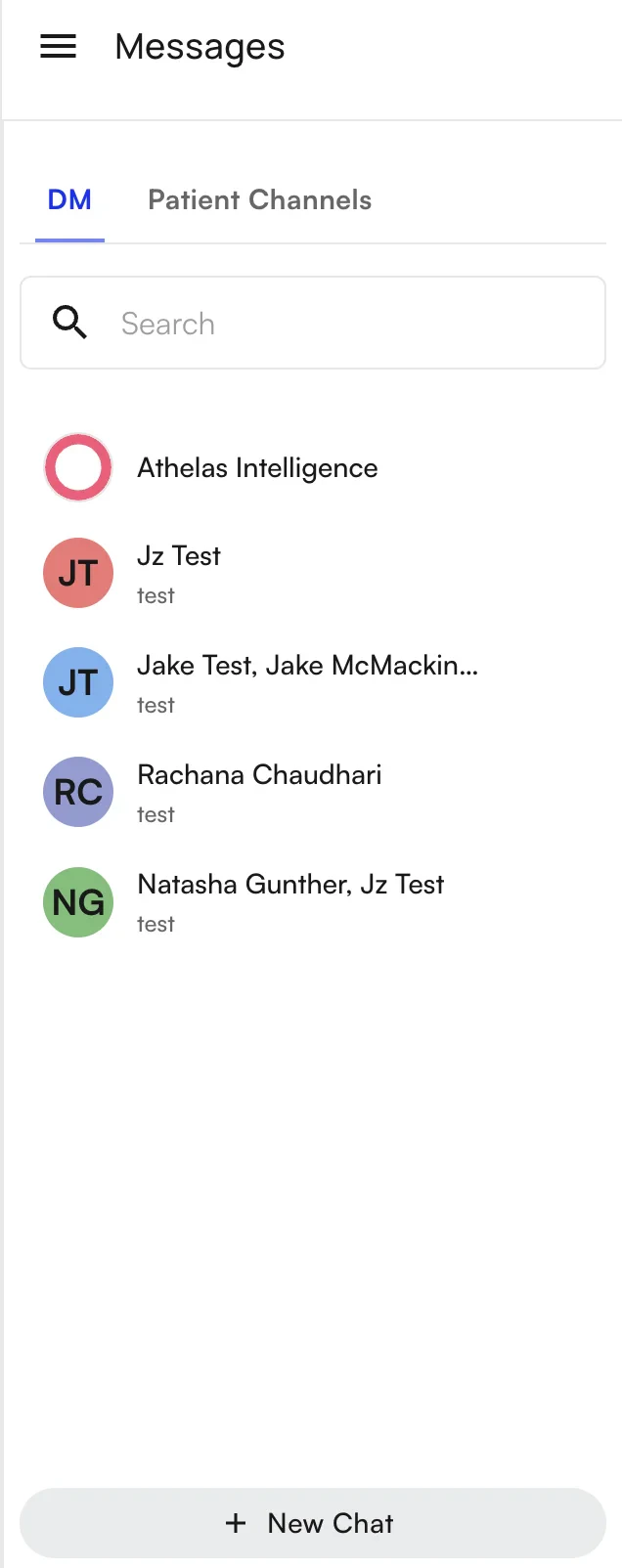 To add recipients, type their names in the box containing **Start a new message**:
1. **External patients** are designated with `Patient: XXX`.
2. **Internal staff** show just their name.
To add recipients, type their names in the box containing **Start a new message**:
1. **External patients** are designated with `Patient: XXX`.
2. **Internal staff** show just their name.
 Multiple recipients can be added to a message to create a group text. **Any recipients of a group text can see all other recipients — including external patients.** This is not a private text blast feature.
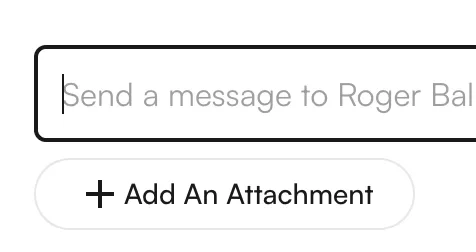
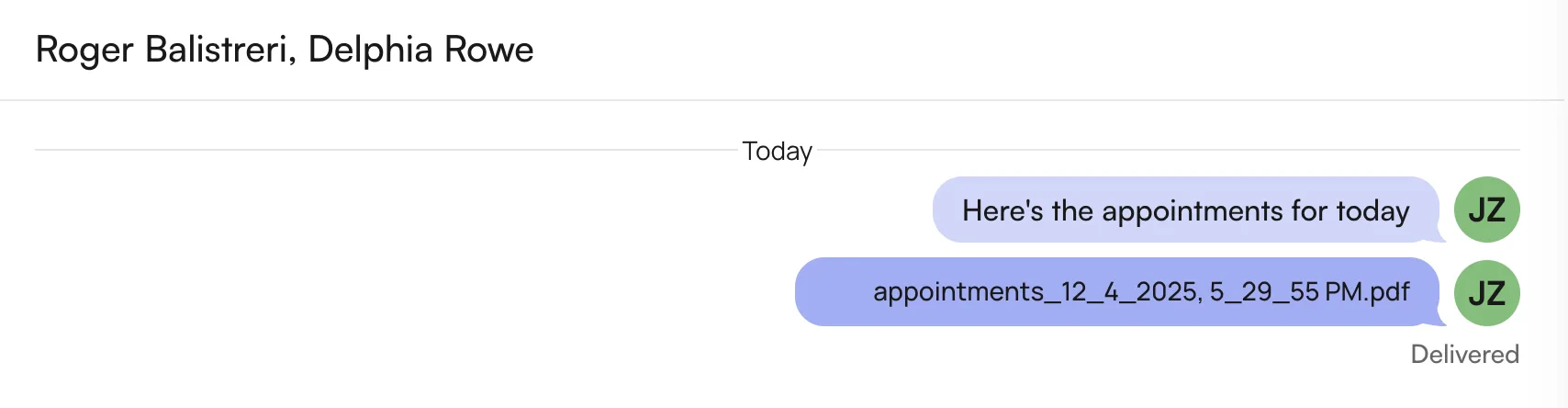
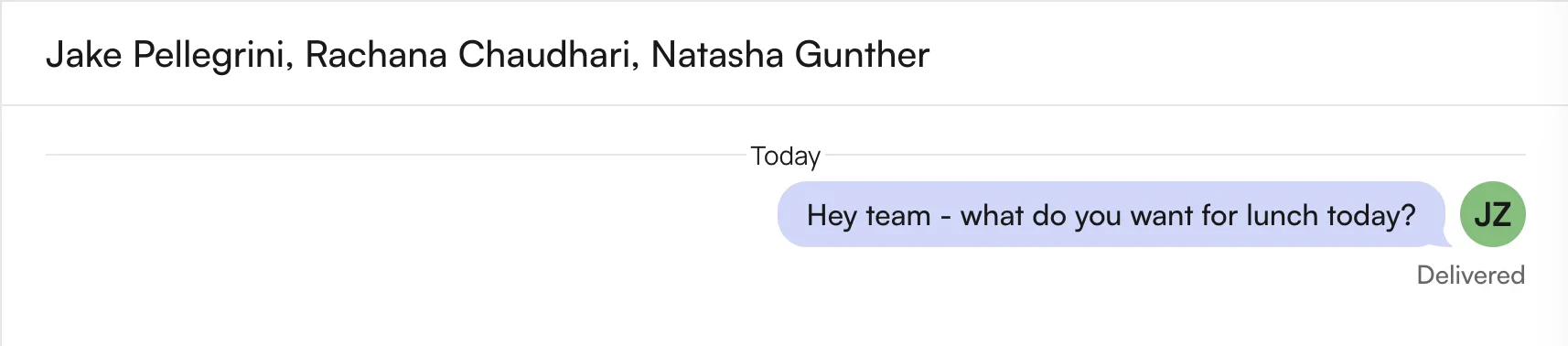 From here, pressing **Enter** or clicking out of the recipient menu generates a new message window where you can type and send your message. Messages also support attaching files — click **+ Add An Attachment** at the bottom of the pane.
 ## New messages
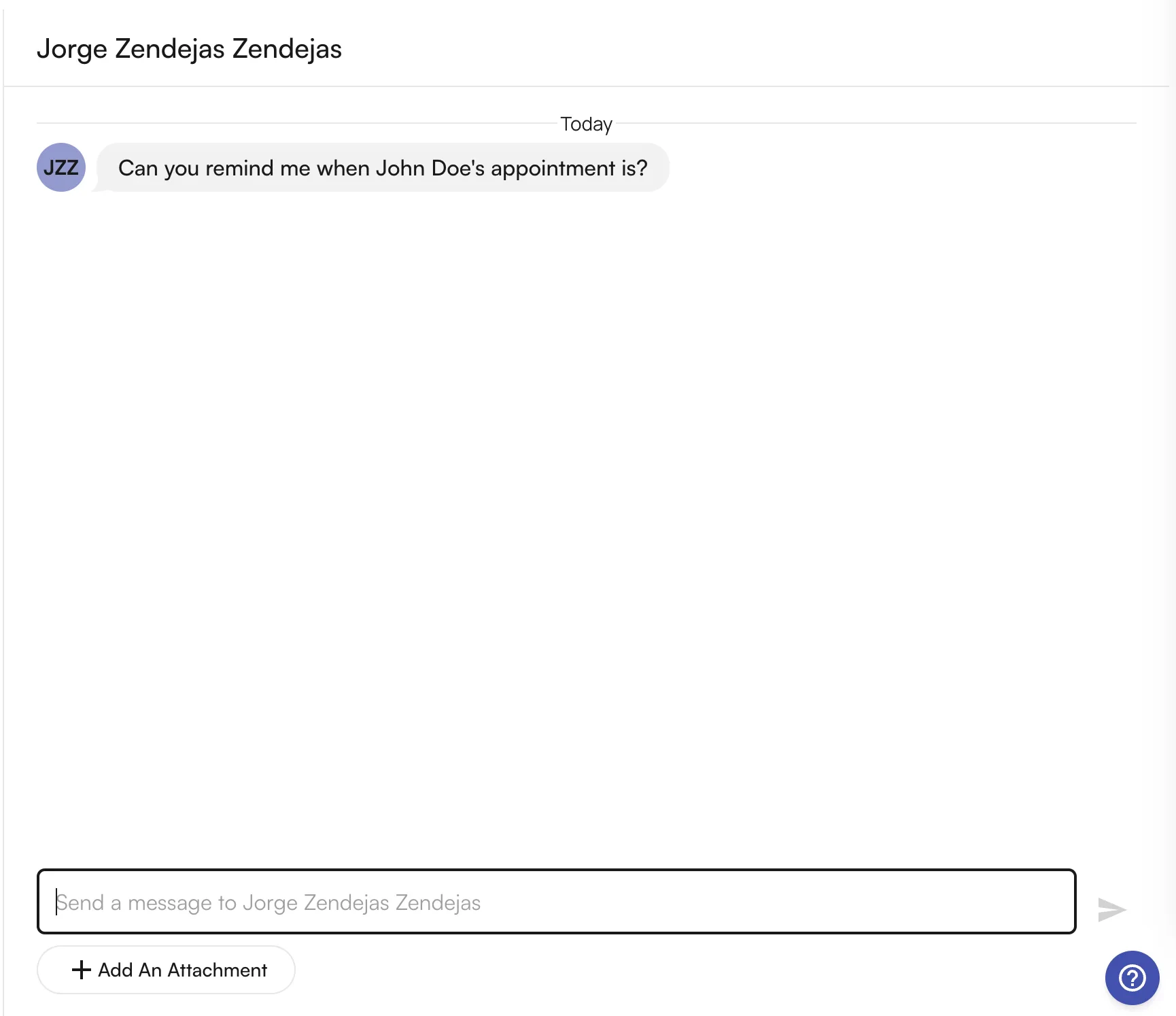
New messages appear at the top of the messages list with an unread indicator. Clicking the message shows the full thread, where you can respond.
## New messages
New messages appear at the top of the messages list with an unread indicator. Clicking the message shows the full thread, where you can respond.
 ## Messaging from the Athelas Patient Portal
For patients, messages sent from Insights can be accessed in the Patient Portal. Patients are notified of new messages via text or email alerts.
## Messaging from the Athelas Patient Portal
For patients, messages sent from Insights can be accessed in the Patient Portal. Patients are notified of new messages via text or email alerts.
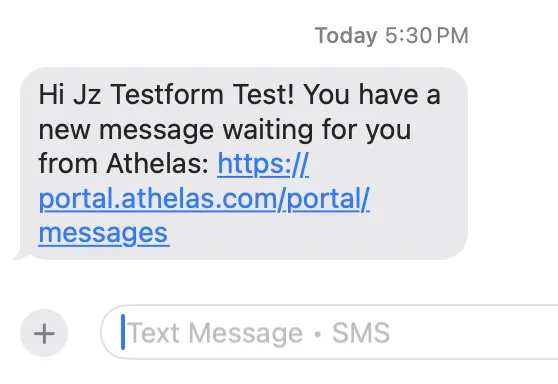
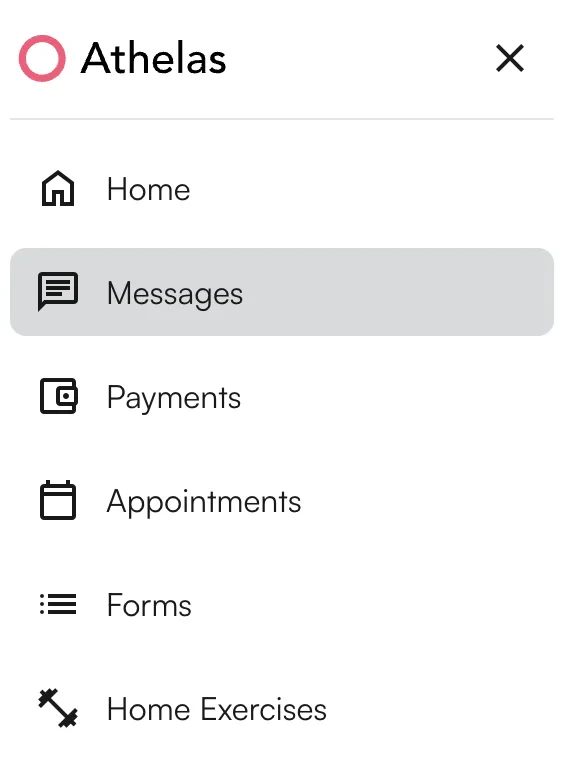
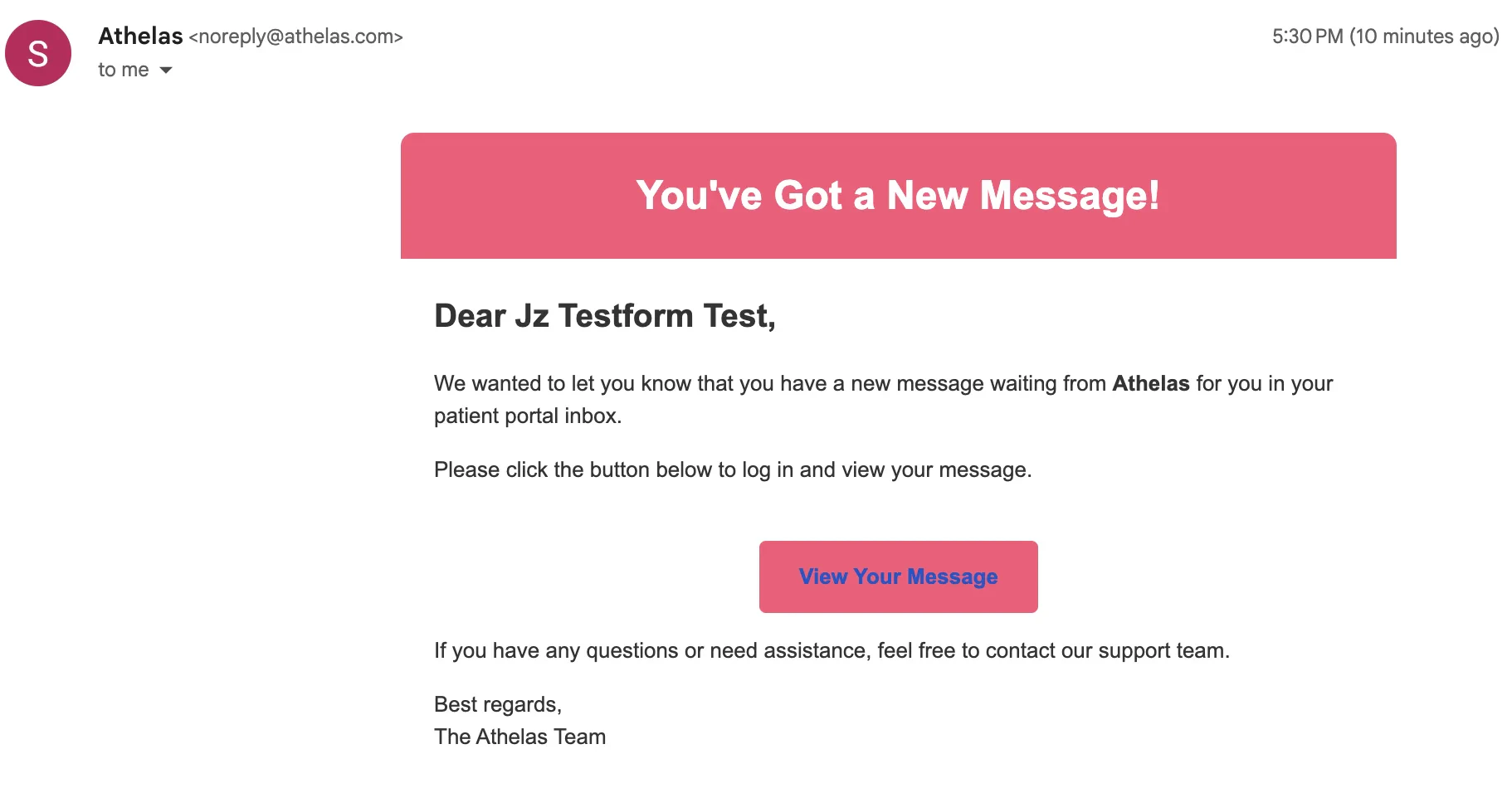 After logging into the portal, patients access messages via the **Messages** tab in the sidebar.
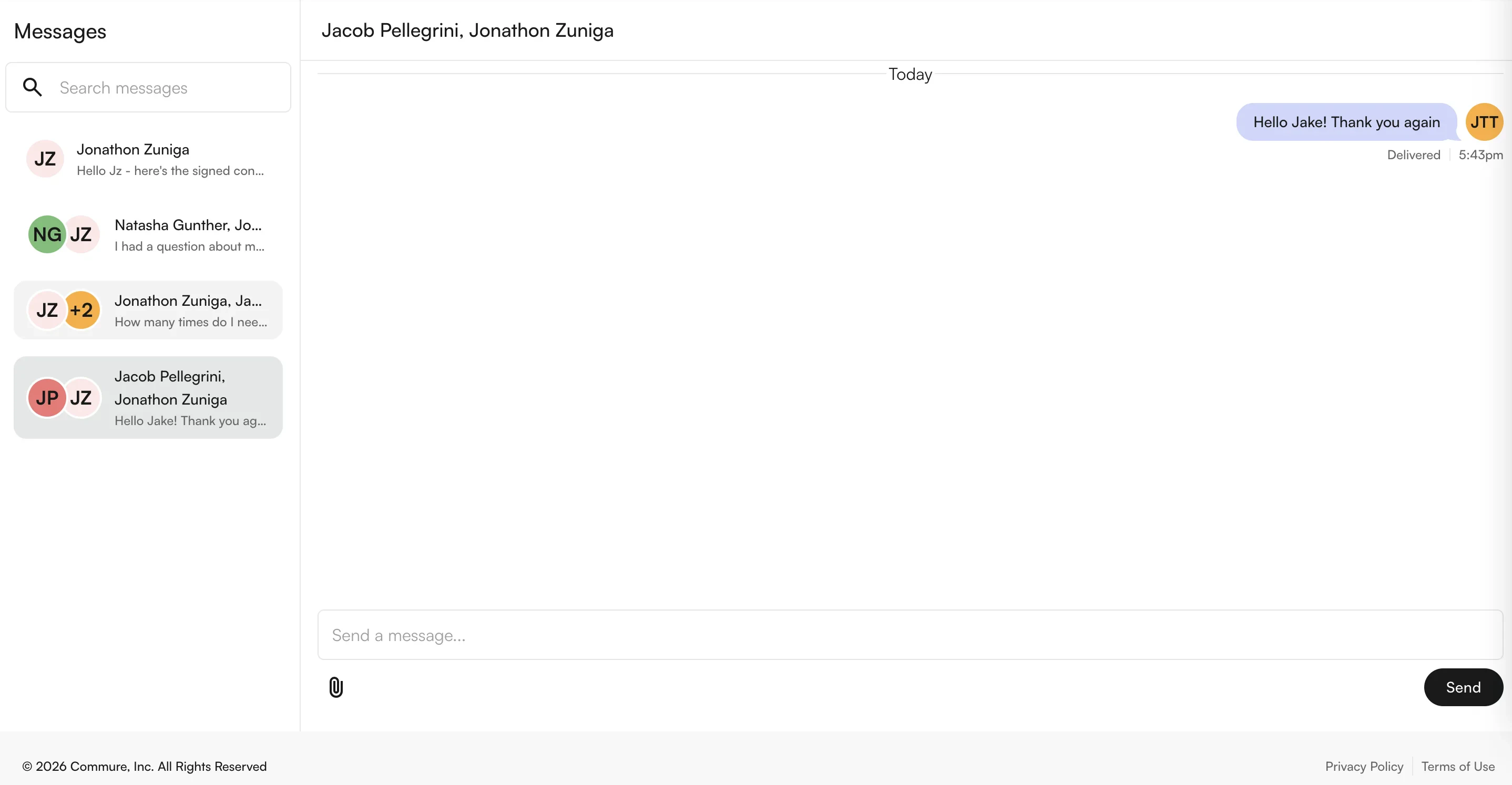
 From here, patients can see existing conversations and send replies. At this time, patients **cannot create new conversations** from the portal — all conversations must be initiated by the provider or site staff.
 ### FAQ
No. All conversations must be initiated from Insights by provider or site staff. Once a thread exists, the patient can reply freely from the portal.
Patients receive either an SMS or email alert (or both, depending on contact info on file). The notification links directly into the portal, where they can log in and respond.
Yes — add multiple recipients in the **Start a new message** box. **However**, all recipients (including patients) see each other's names in the thread. For private bulk outreach, use **Outreach Flows** or **Text Blast** instead.
Yes. Click **+ Add An Attachment** at the bottom of the message pane. Attachments are supported for both internal staff threads and external patient threads.
Click **Messages** under **Utilities** in the sidebar. The **DM** tab shows all existing chats. The Notifications Center at the bottom of the sidebar also shows a count of unread messages and links directly to the thread.
### FAQ
No. All conversations must be initiated from Insights by provider or site staff. Once a thread exists, the patient can reply freely from the portal.
Patients receive either an SMS or email alert (or both, depending on contact info on file). The notification links directly into the portal, where they can log in and respond.
Yes — add multiple recipients in the **Start a new message** box. **However**, all recipients (including patients) see each other's names in the thread. For private bulk outreach, use **Outreach Flows** or **Text Blast** instead.
Yes. Click **+ Add An Attachment** at the bottom of the message pane. Attachments are supported for both internal staff threads and external patient threads.
Click **Messages** under **Utilities** in the sidebar. The **DM** tab shows all existing chats. The Notifications Center at the bottom of the sidebar also shows a count of unread messages and links directly to the thread.