> ## Documentation Index
> Fetch the complete documentation index at: https://trainings.air.athelas.com/llms.txt
> Use this file to discover all available pages before exploring further.
# Outreach Flows
Outreach Flows let practices send automated and scheduled messages to patients — delivering communications, reminders, forms, and post-visit flows. Several filters and workflow types support: pre-visit messaging, post-visit messaging, appointment-based messaging, scheduled-date messaging, and recurring date-based messaging.
## Outreach Flows general guide
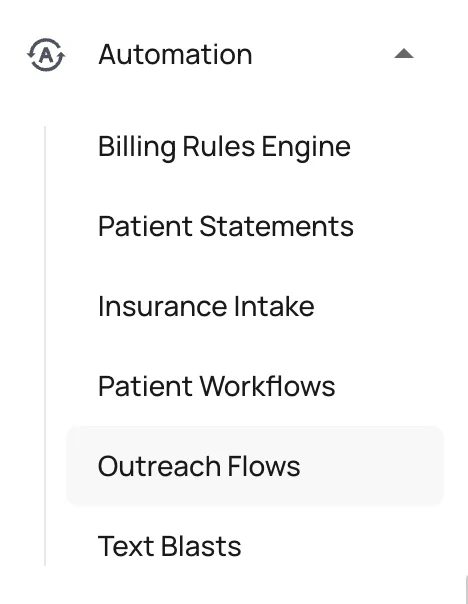
To access the Outreach Flows section, navigate to the **Outreach Flows** tab in the sidebar, under **Automation**.
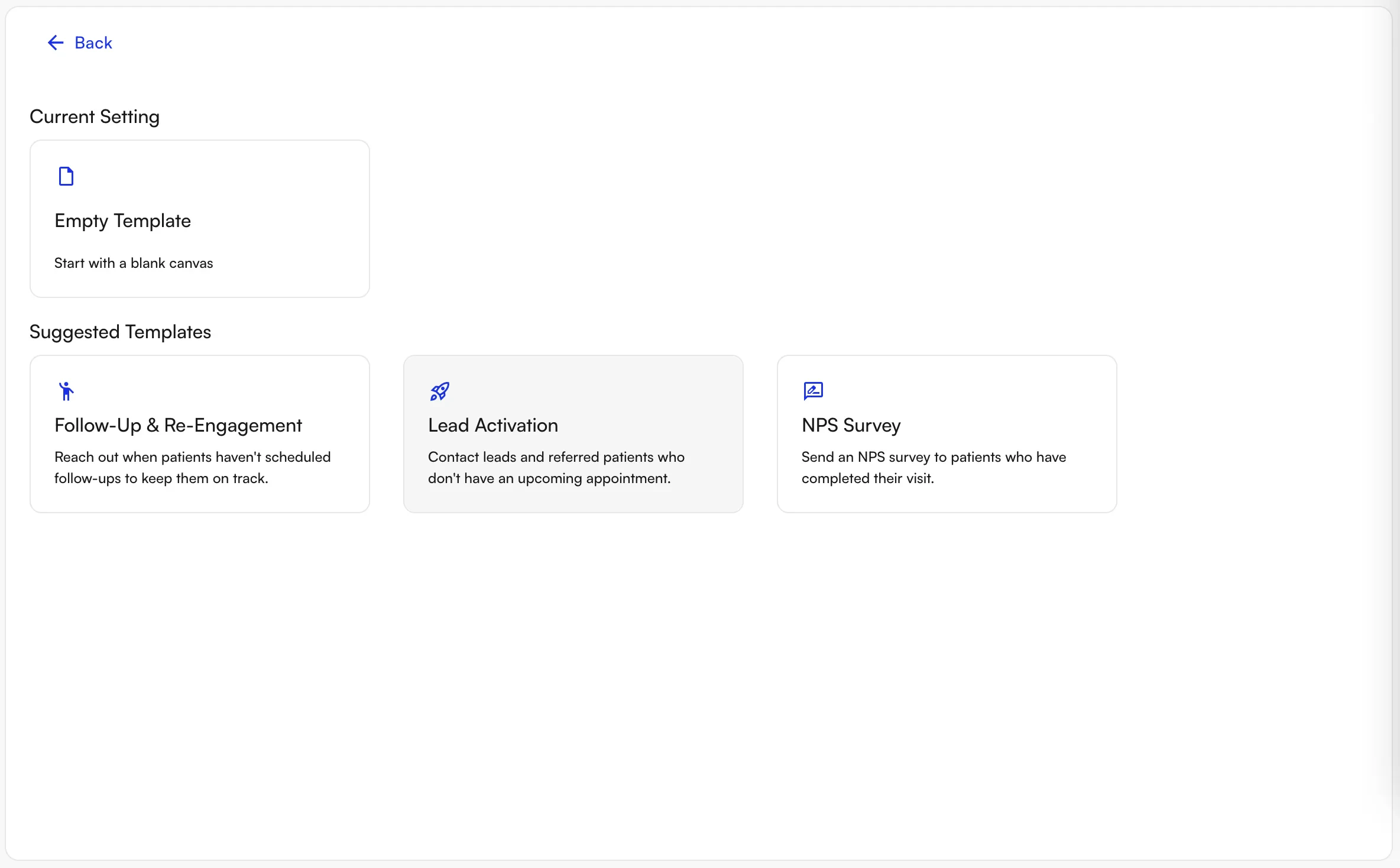
 From here, you can select one of several suggested pre-built templates, or start with a blank template for custom workflows.
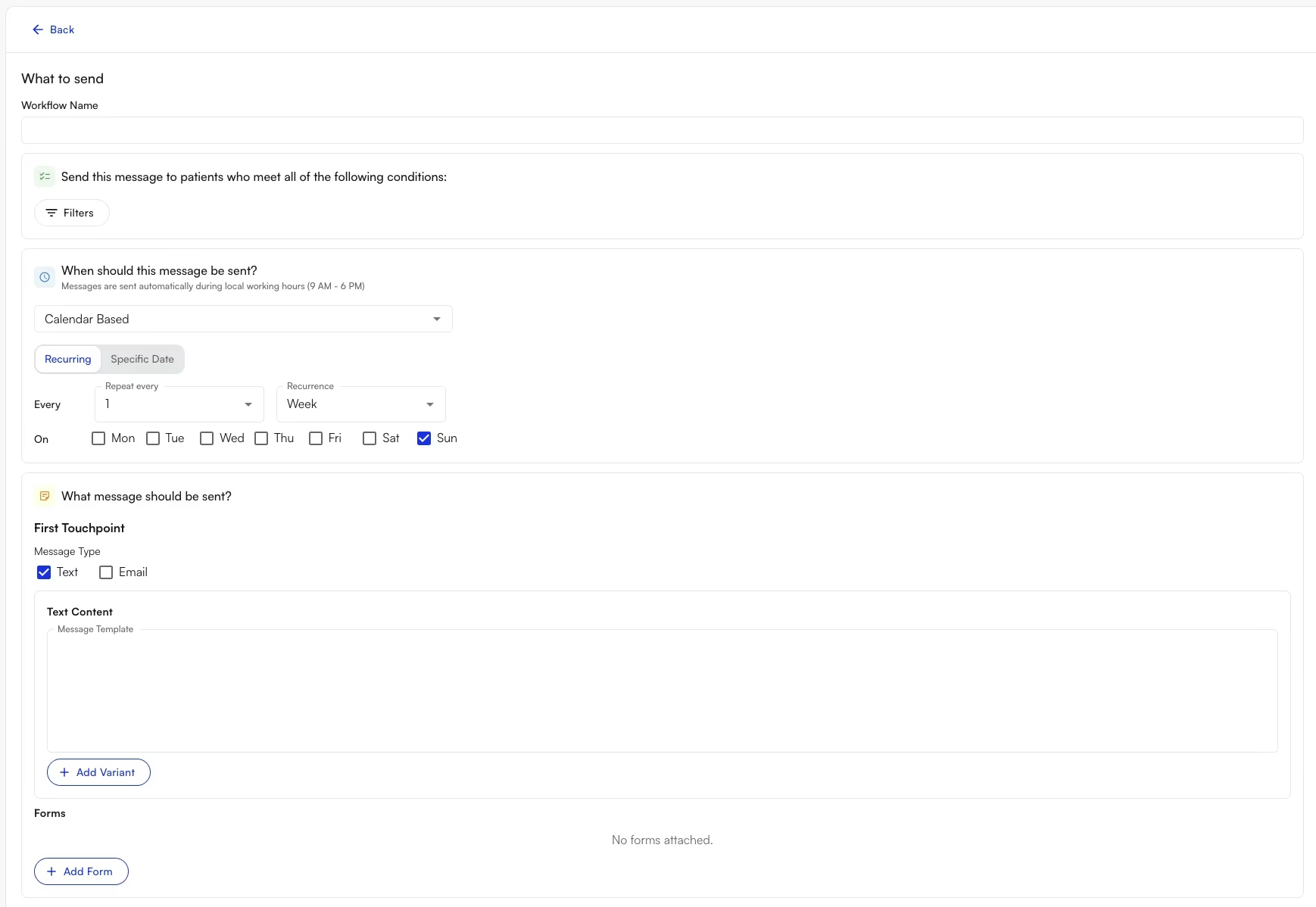
 The basic structure of an Outreach Flow workflow includes the following sections:
* **Timing or triggers** for sending
* **Which patients** to message
* **Content and type** of message to send
* **Forms** to include in the message
The basic structure of an Outreach Flow workflow includes the following sections:
* **Timing or triggers** for sending
* **Which patients** to message
* **Content and type** of message to send
* **Forms** to include in the message
 ### Timing or triggers for sending
There are two main types of timing: **Calendar-Based** and **Appointment-Based**.
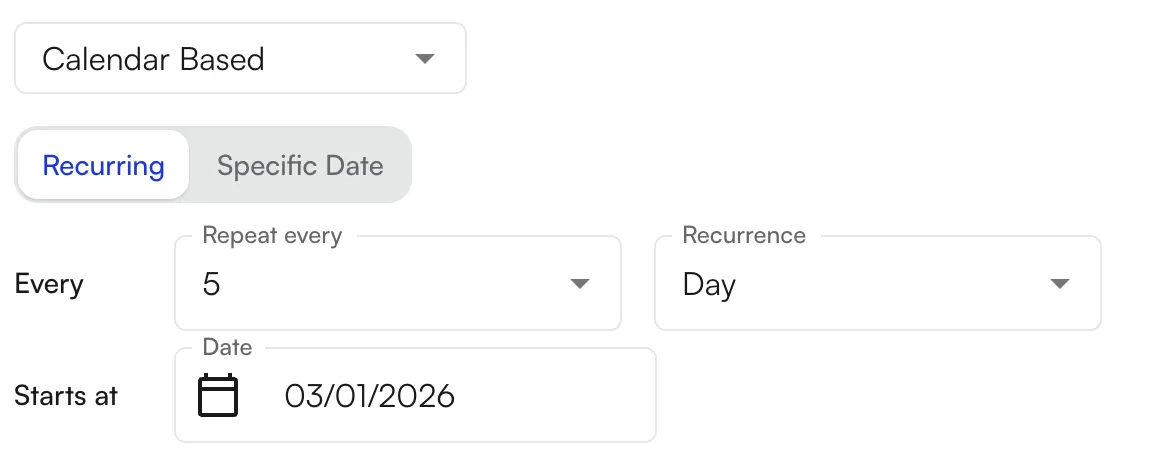
**Calendar-Based** messages send either on a recurring basis or on a specific date. Recurring messages can repeat daily, or weekly on set days of the week.
### Timing or triggers for sending
There are two main types of timing: **Calendar-Based** and **Appointment-Based**.
**Calendar-Based** messages send either on a recurring basis or on a specific date. Recurring messages can repeat daily, or weekly on set days of the week.
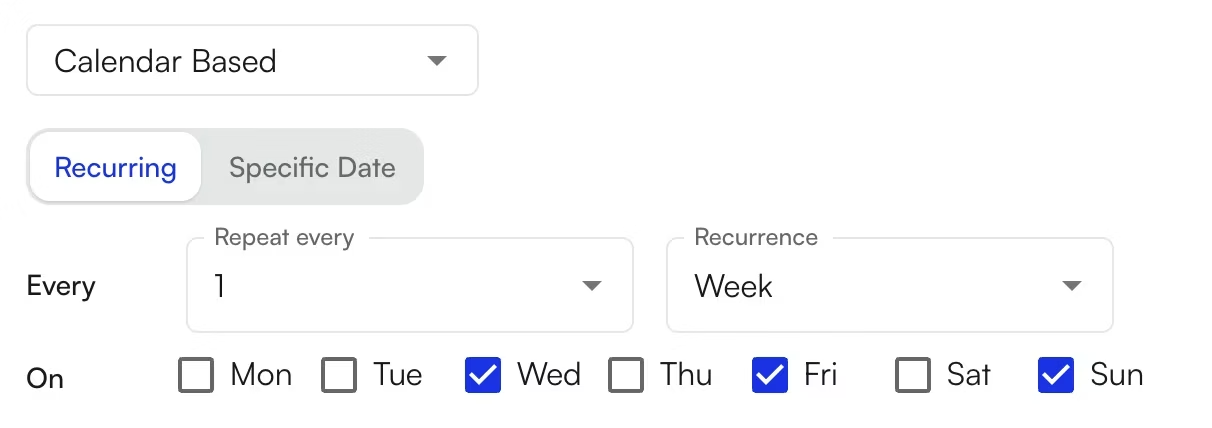
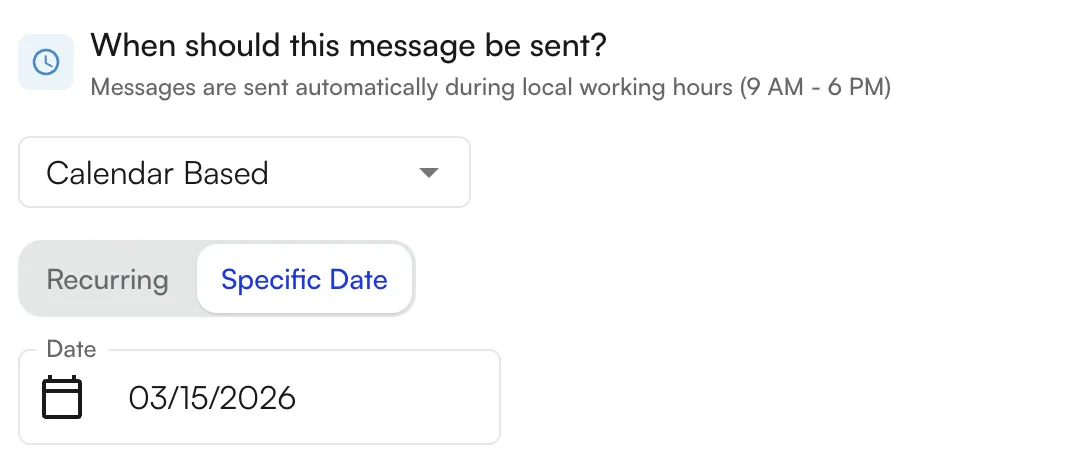
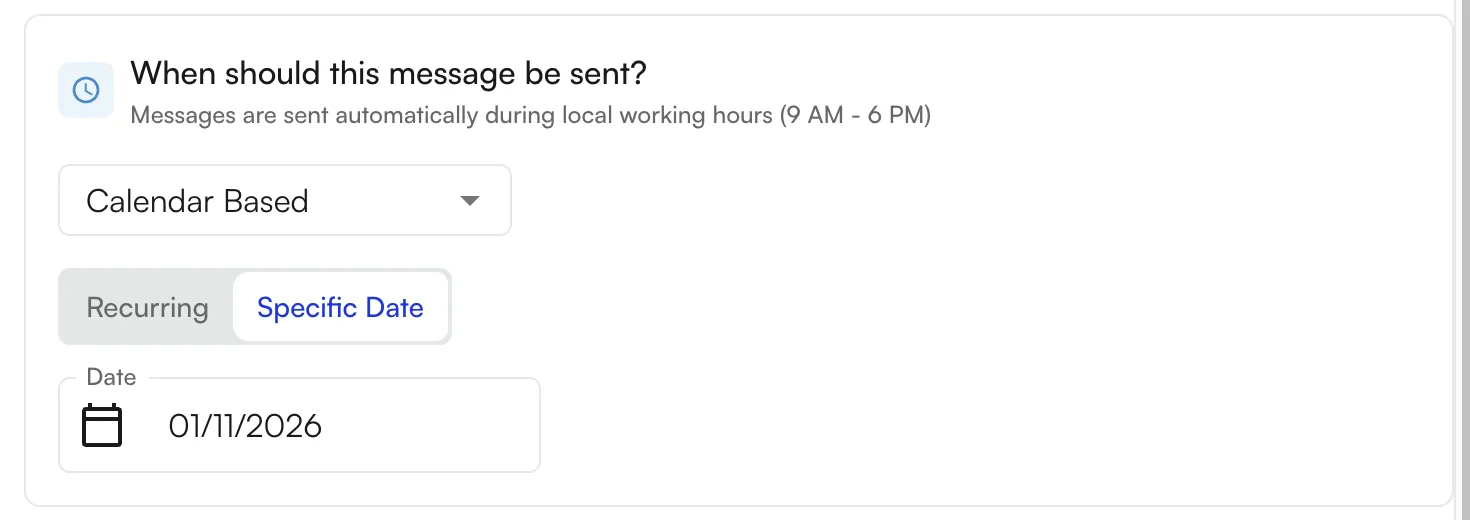
 Messages set to send on a specific date will only send once.
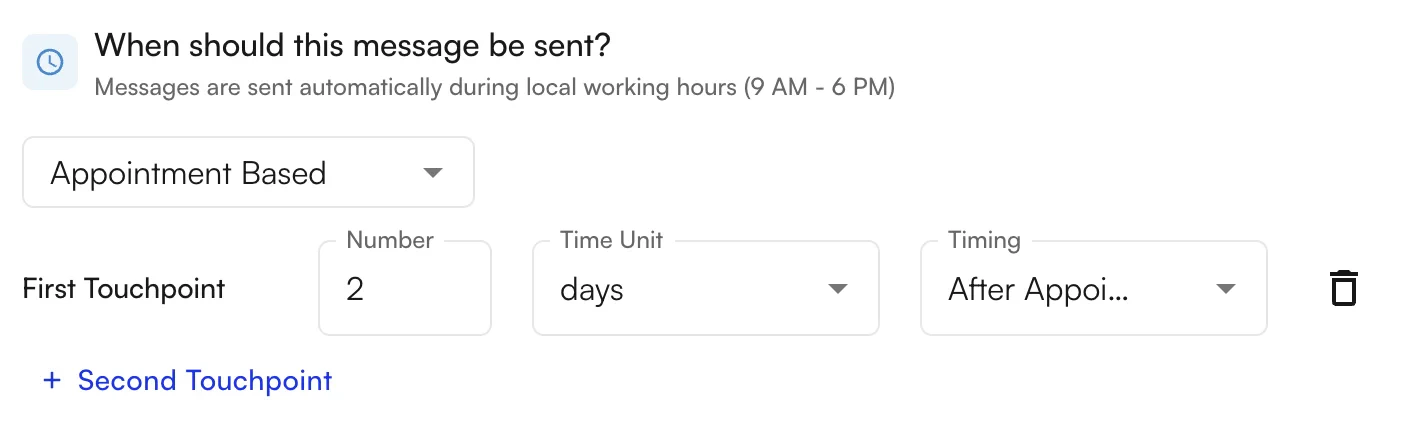
 **Appointment-Based** messages only send to patients who have an appointment in Air matching the selected filters. They are sent on a time relative to the appointment, either before or after.
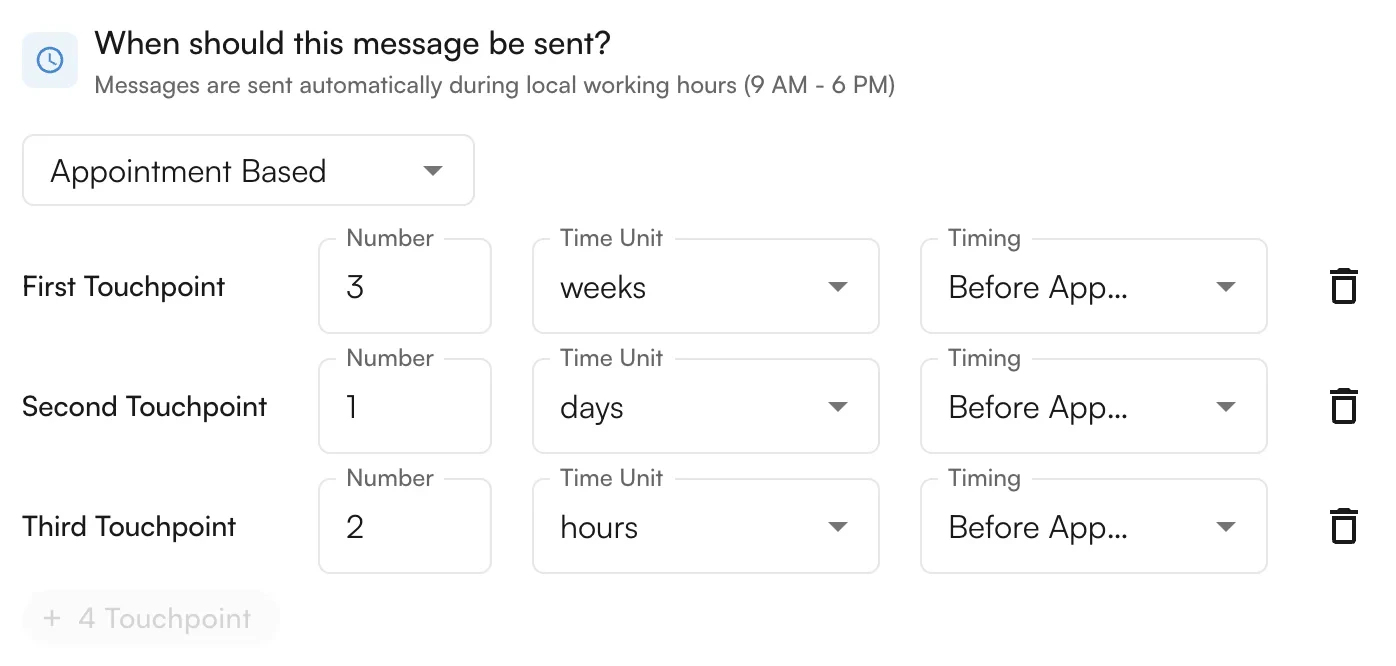
 You can also add additional **touchpoints** to the same workflow — either as follow-ups to the original message, or to send new information.
 ### Which patients to message
Several filters determine which patients are sent the message. Some filters are only available for Appointment-Based messaging, since they refer to the underlying appointment.
Available filters include:
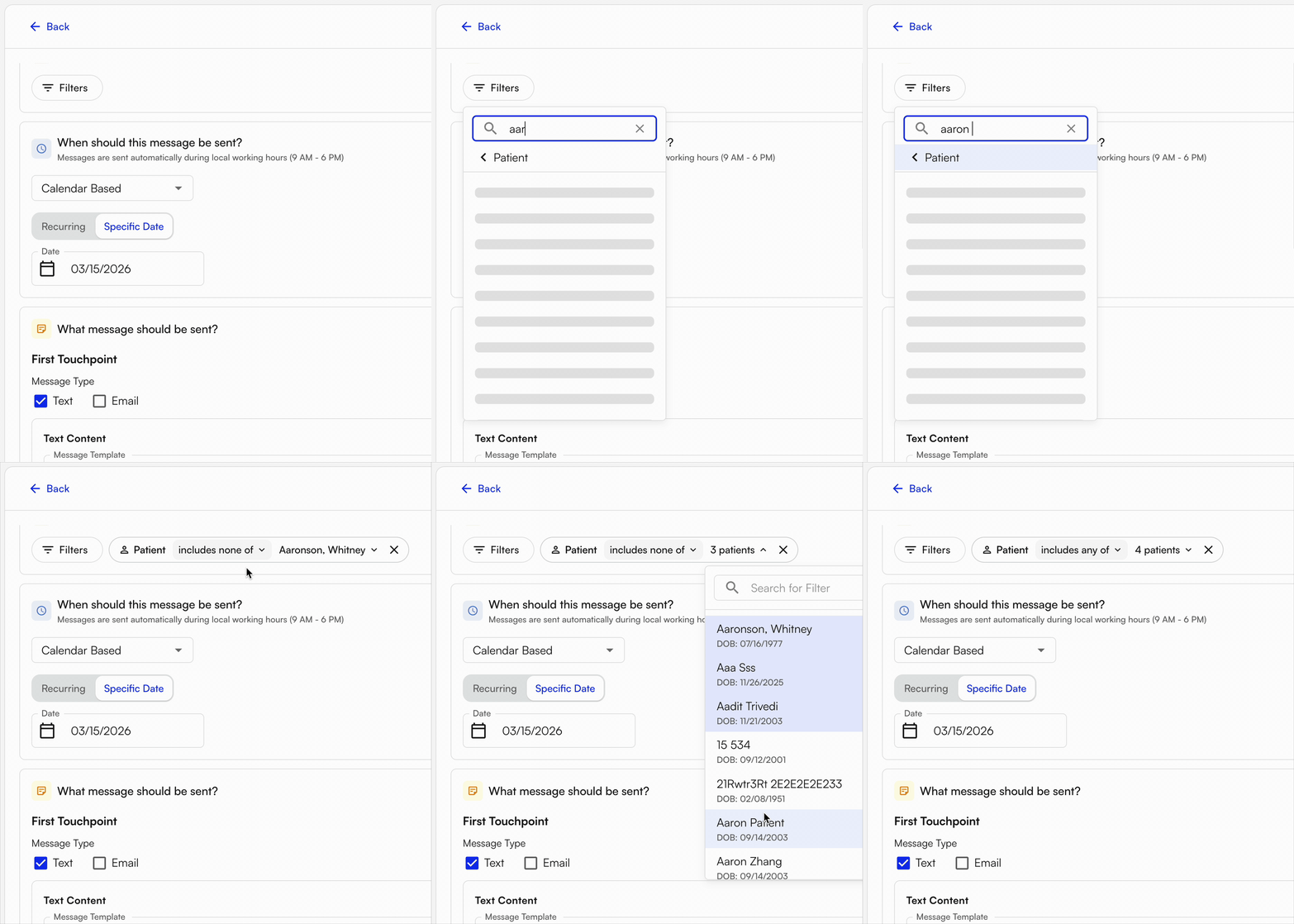
* **Patient** — send to (or exclude) one or more specific patients.
### Which patients to message
Several filters determine which patients are sent the message. Some filters are only available for Appointment-Based messaging, since they refer to the underlying appointment.
Available filters include:
* **Patient** — send to (or exclude) one or more specific patients.
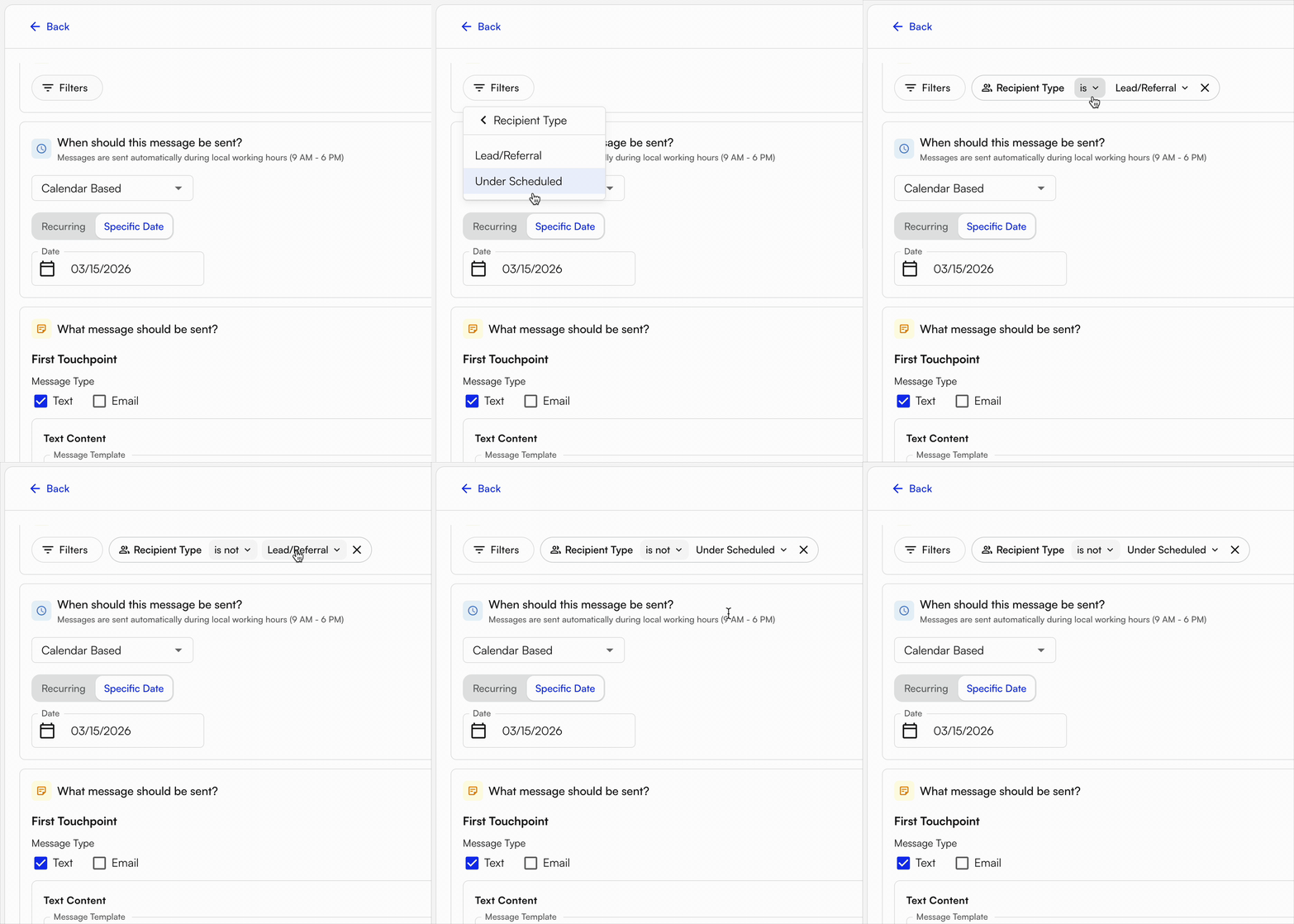
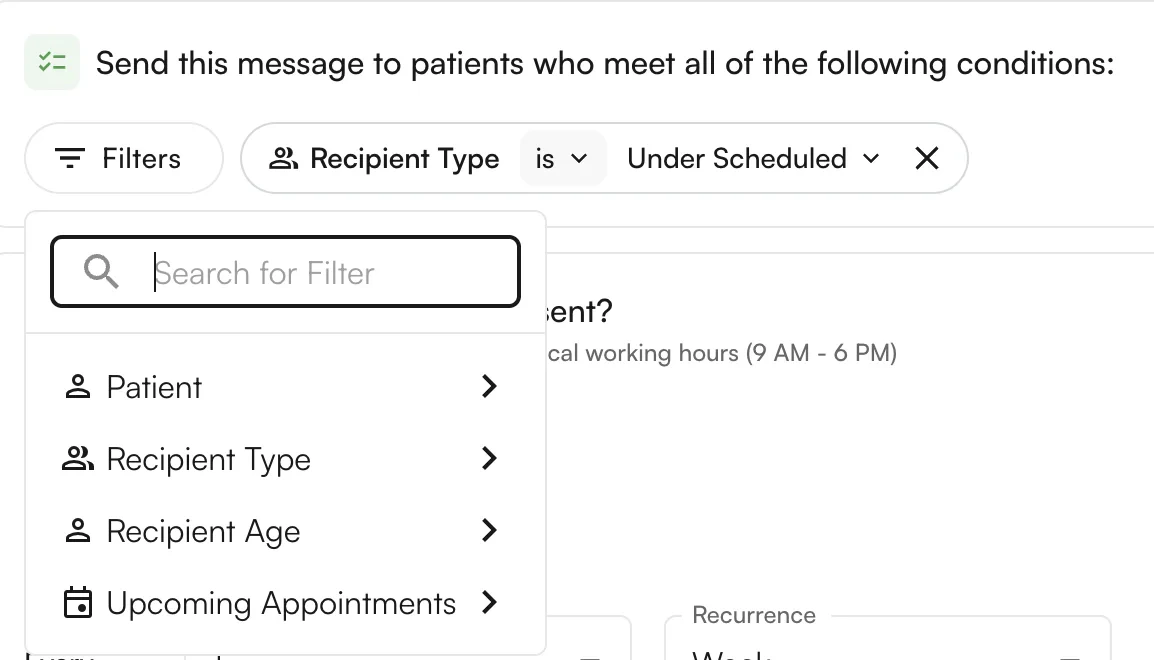
 * **Recipient Type** — send to (or exclude) categorized patients. Currently includes **Underscheduled Patients** and **Lead/Referral** (present in Lead Tracker).
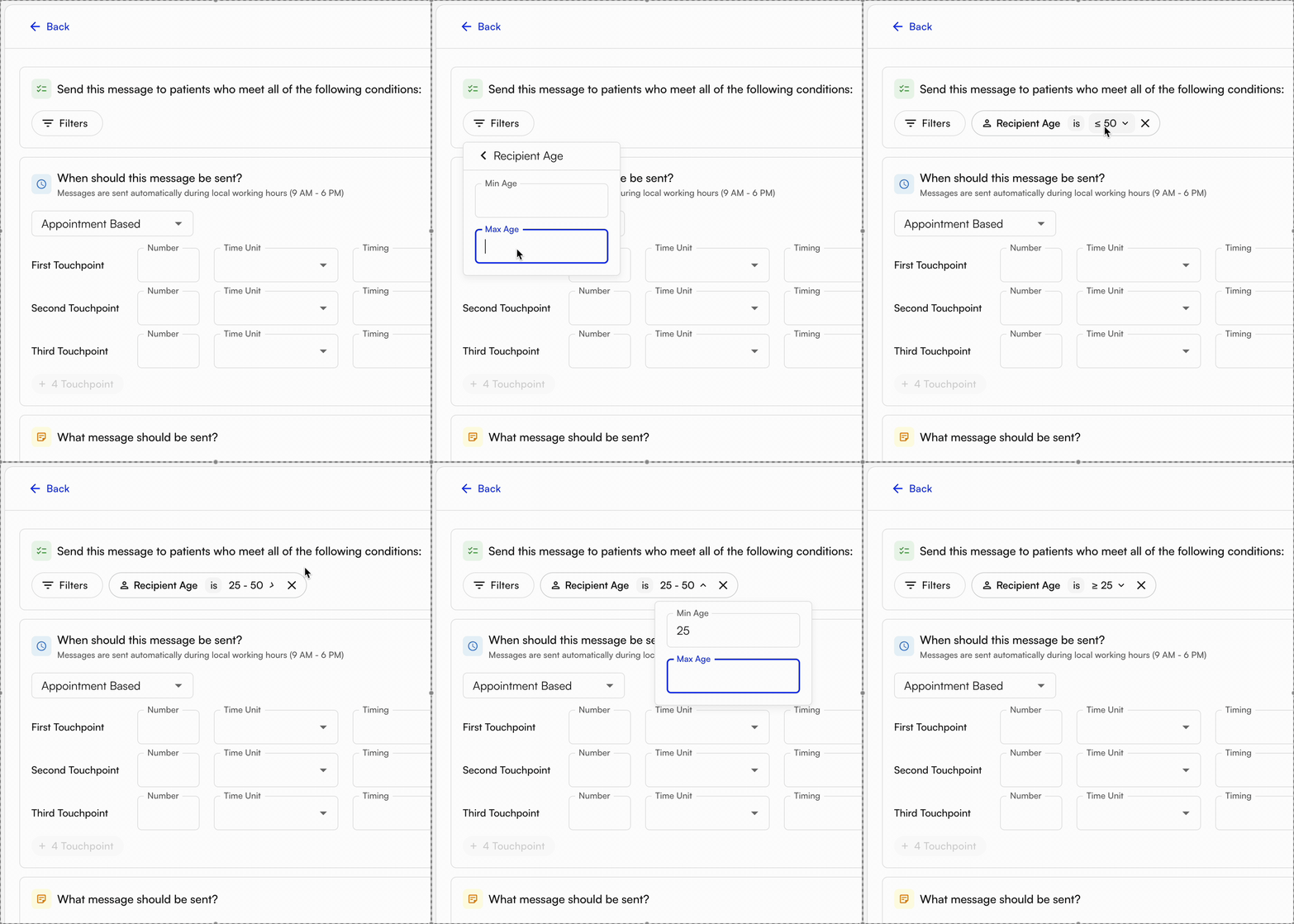
 * **Recipient Age** — send to patients within a specific age range, or above/below a certain age.
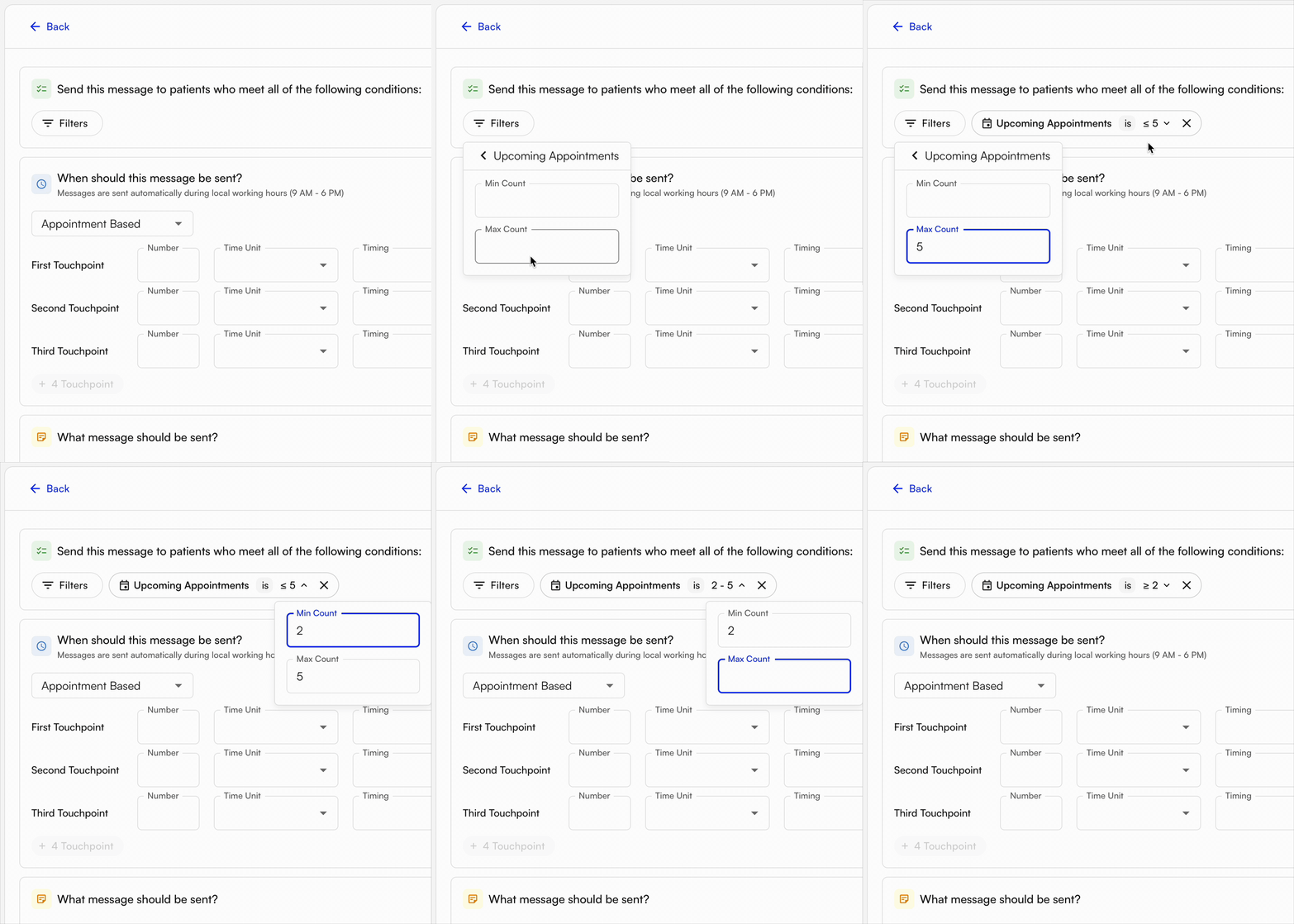
 * **Upcoming Appointments** — send to patients with more or fewer than a certain number of upcoming appointments, or a range.
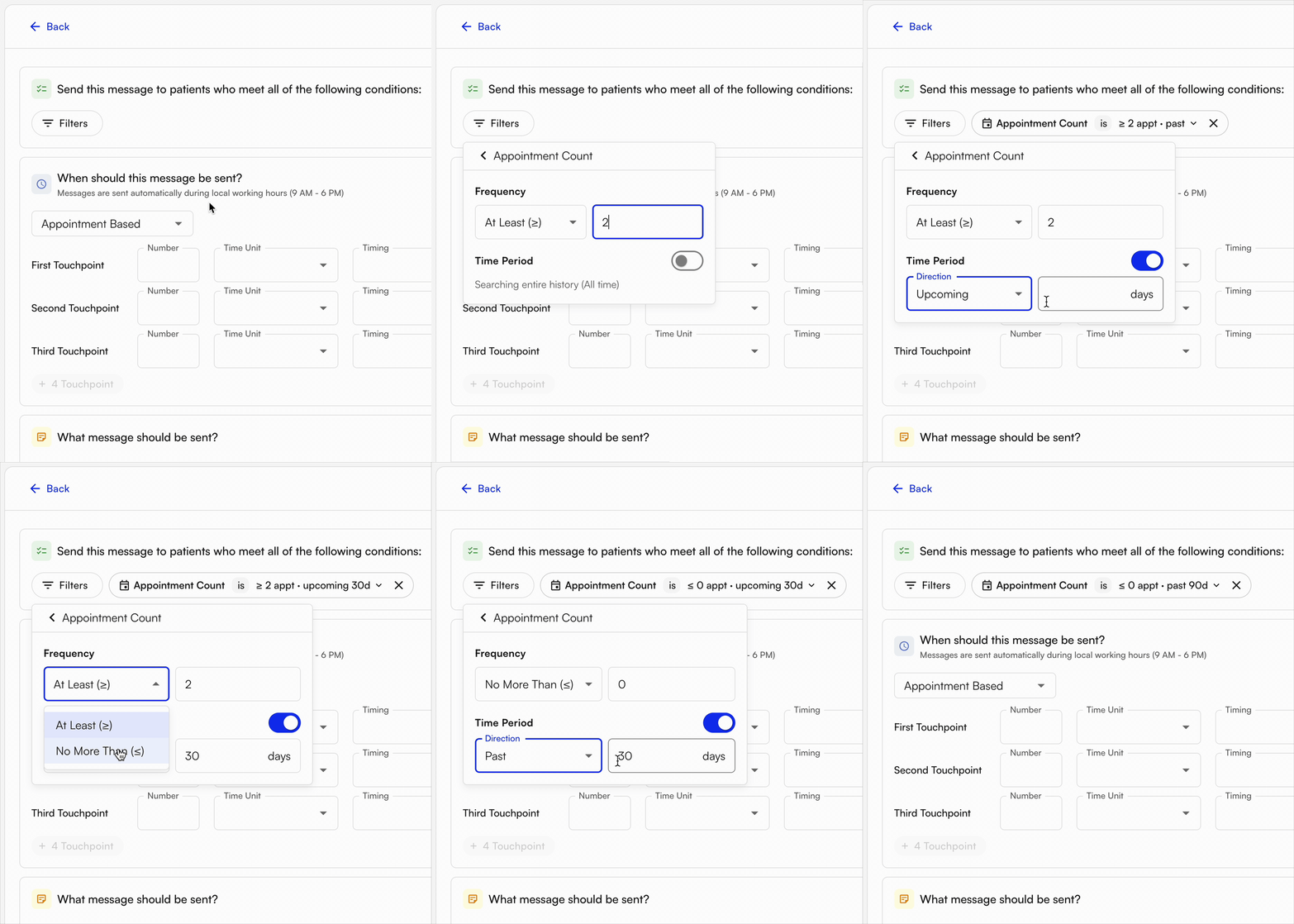
 * **Appointment Count** — send to patients with more or fewer than a certain number of appointments over a specific time period.
 * **Facility** — send to (or exclude) patients who have ever had an appointment at a specific facility.
* **Rendering Provider** — send to (or exclude) patients who have ever had an appointment with a specific rendering provider.
* **Insurance** — send to (or exclude) patients with a specific insurance.
* **Supervising Provider** *(Appointment-Based only)* — send to (or exclude) patients whose appointment is tied to a specific supervising provider.
* **Referring Provider** *(Appointment-Based only)* — send to (or exclude) patients whose appointment is tied to a specific referring provider.
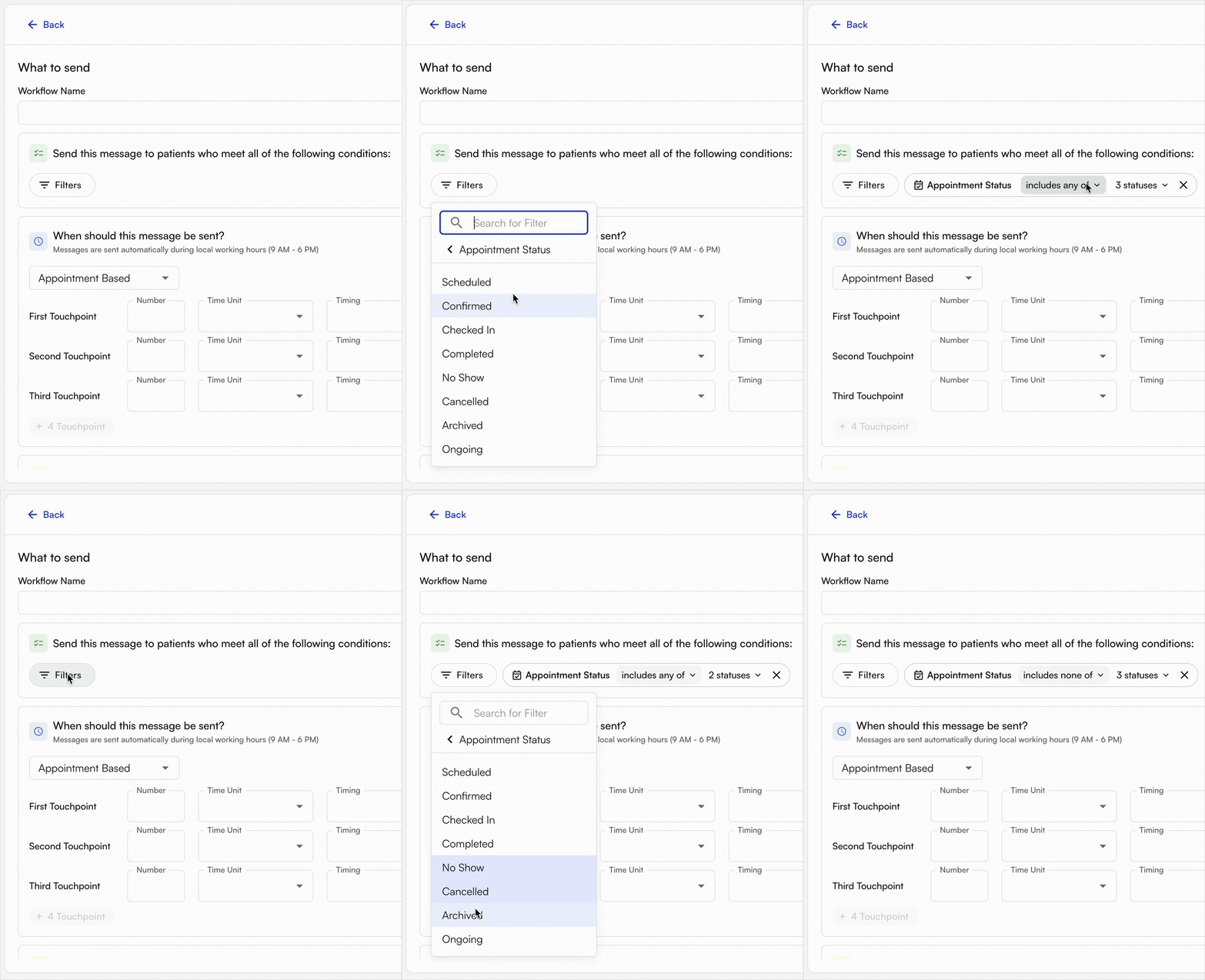
* **Appointment Status** *(Appointment-Based only)* — send to (or exclude) patients whose appointment has a specific status.
* **Facility** — send to (or exclude) patients who have ever had an appointment at a specific facility.
* **Rendering Provider** — send to (or exclude) patients who have ever had an appointment with a specific rendering provider.
* **Insurance** — send to (or exclude) patients with a specific insurance.
* **Supervising Provider** *(Appointment-Based only)* — send to (or exclude) patients whose appointment is tied to a specific supervising provider.
* **Referring Provider** *(Appointment-Based only)* — send to (or exclude) patients whose appointment is tied to a specific referring provider.
* **Appointment Status** *(Appointment-Based only)* — send to (or exclude) patients whose appointment has a specific status.
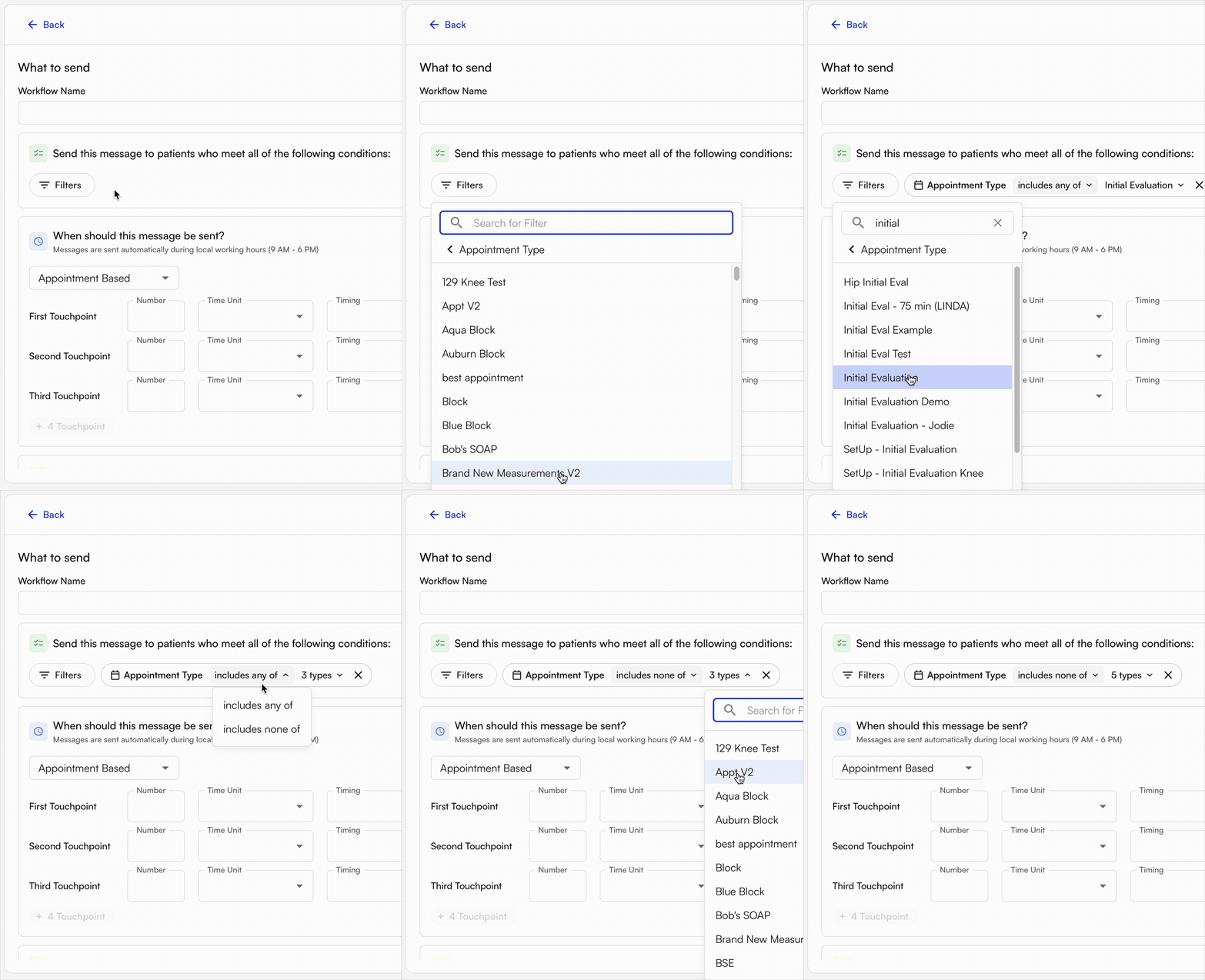
 * **Appointment Type** *(Appointment-Based only)* — send to (or exclude) patients whose appointment is a specific type.
 * **Appointment Number** *(Appointment-Based only)* — send to (or exclude) patients on a specific appointment number, either overall or within a case.
### Content and type of message to send
There are two forms of communication: **text** and **email**. Text messages only require a body; email messages also allow you to set the subject line.
* **Appointment Number** *(Appointment-Based only)* — send to (or exclude) patients on a specific appointment number, either overall or within a case.
### Content and type of message to send
There are two forms of communication: **text** and **email**. Text messages only require a body; email messages also allow you to set the subject line.
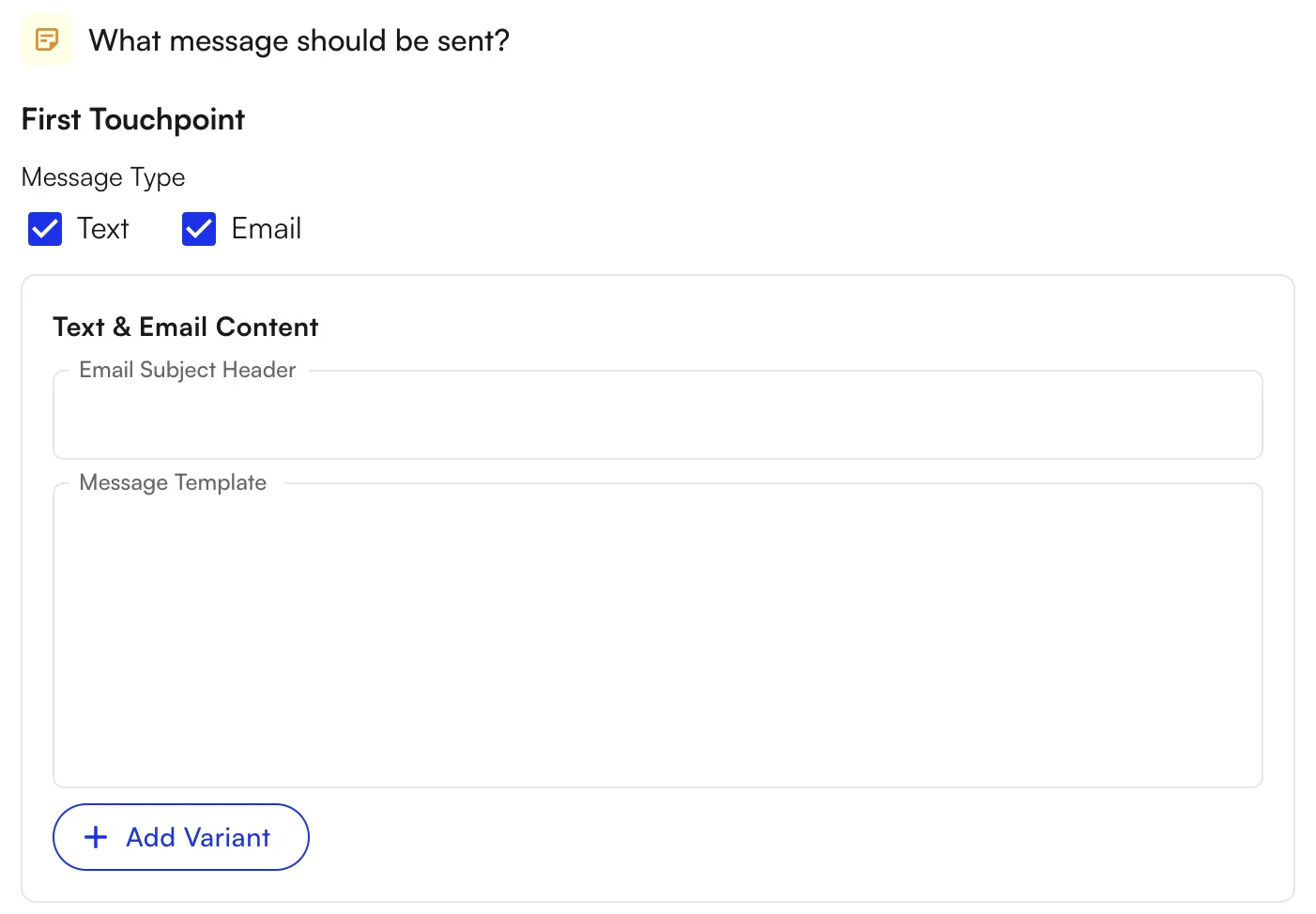 Within the message, you can insert **Variants** — dynamic fields based on the patient or appointment. Available Variants include:
* **Appointment Start Date** (e.g., "Monday, February 16, 2026")
* **Appointment Start Datetime** (e.g., "Monday, February 16, 2026 at 2:30 PM")
* **Facility Address**
* **Facility Name**
* **Facility Phone Number**
* **Link To Forms** (required if sending forms with the message)
* **Patient Portal Link**
* **Recipient Name**
* **Referring Provider Name**
* **Rendering Provider Name**
* **Site Name**
* **Supervising Provider Name**
* **Under Scheduled Count** (e.g., "3 of 6" based on next calendar week's Plan of Care)
### Forms to include in the message
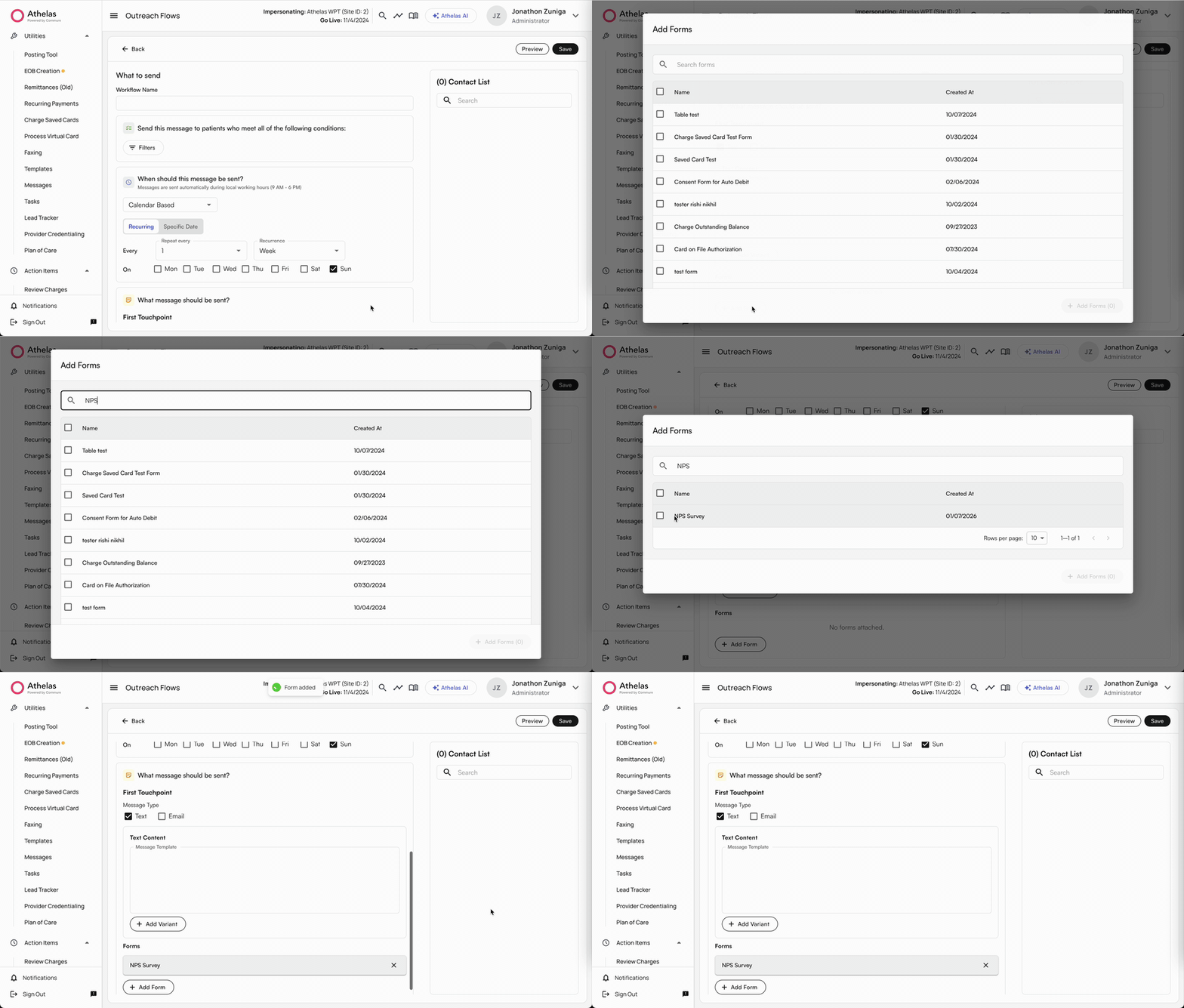
You can also send forms along with the message — such as intake forms prior to a visit, or post-visit forms like NPS Surveys.
Within the message, you can insert **Variants** — dynamic fields based on the patient or appointment. Available Variants include:
* **Appointment Start Date** (e.g., "Monday, February 16, 2026")
* **Appointment Start Datetime** (e.g., "Monday, February 16, 2026 at 2:30 PM")
* **Facility Address**
* **Facility Name**
* **Facility Phone Number**
* **Link To Forms** (required if sending forms with the message)
* **Patient Portal Link**
* **Recipient Name**
* **Referring Provider Name**
* **Rendering Provider Name**
* **Site Name**
* **Supervising Provider Name**
* **Under Scheduled Count** (e.g., "3 of 6" based on next calendar week's Plan of Care)
### Forms to include in the message
You can also send forms along with the message — such as intake forms prior to a visit, or post-visit forms like NPS Surveys.
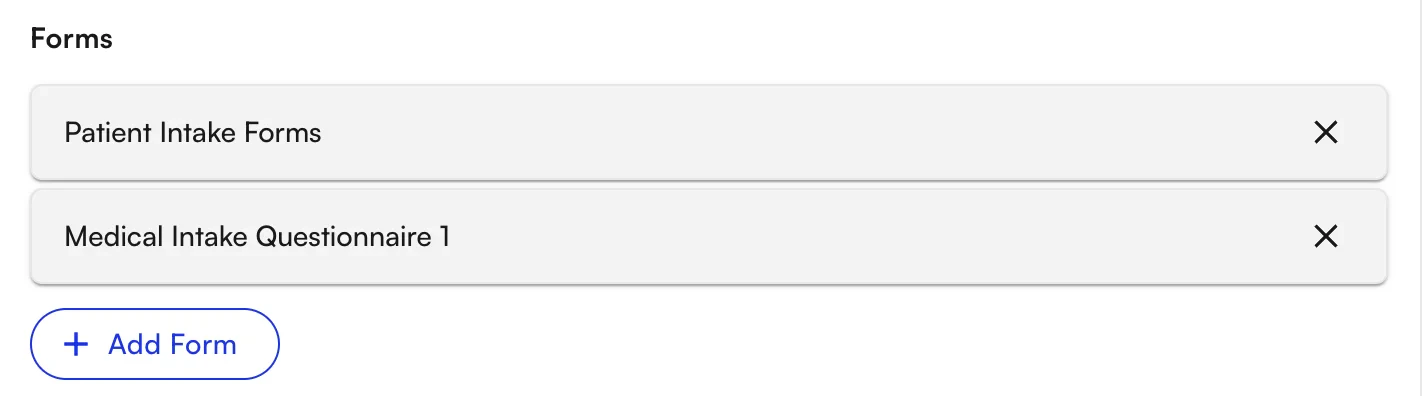
 Clicking **+ Add Form** opens a window with all existing templates. Select any desired forms and they will display in the workflow.
 ## Underscheduled Patients
Underscheduled Patients is a pre-built workflow that targets patients who have fewer appointments scheduled in the following calendar week than prescribed by their active Plan of Care. They receive a text or email with a link to schedule additional appointments via the Patient Portal.
### Defining underscheduled patients
A patient is considered underscheduled when they have fewer appointments scheduled in the following calendar week than prescribed by their active POC.
### Creating the workflow
1. **Navigate to Outreach Flows** in the sidebar, under **Automation**.
2. **Click + Create New Workflow** and select the **Follow-Up and Re-Engagement** suggested template.
3. **Set desired configurations for the workflow:**
* **Workflow Name**
* **Filters to select desired patients:**
* **Patient** — specific patients by Name & DOB
* **Recipient Type** — `Under Scheduled`
## Underscheduled Patients
Underscheduled Patients is a pre-built workflow that targets patients who have fewer appointments scheduled in the following calendar week than prescribed by their active Plan of Care. They receive a text or email with a link to schedule additional appointments via the Patient Portal.
### Defining underscheduled patients
A patient is considered underscheduled when they have fewer appointments scheduled in the following calendar week than prescribed by their active POC.
### Creating the workflow
1. **Navigate to Outreach Flows** in the sidebar, under **Automation**.
2. **Click + Create New Workflow** and select the **Follow-Up and Re-Engagement** suggested template.
3. **Set desired configurations for the workflow:**
* **Workflow Name**
* **Filters to select desired patients:**
* **Patient** — specific patients by Name & DOB
* **Recipient Type** — `Under Scheduled`
 * **Timing to run workflow:**
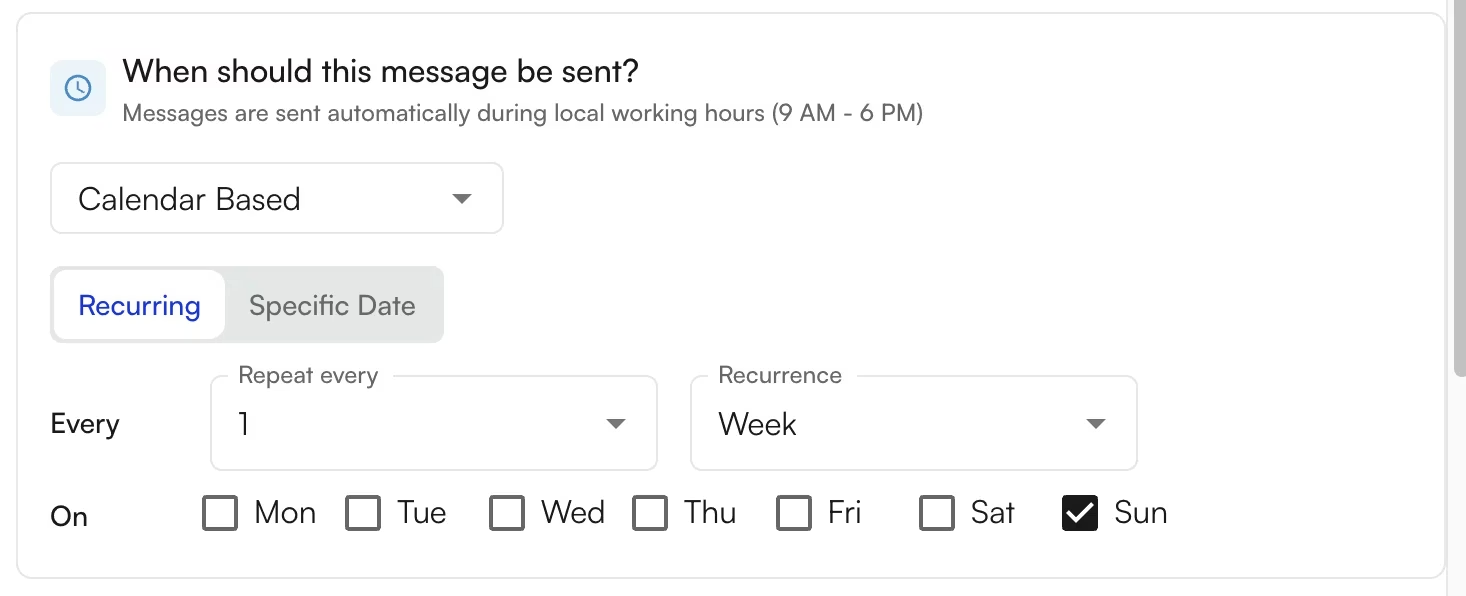
* **Calendar-Based** — run on a recurring schedule or specific date.
* **Recurring** — select frequency (every 1, every 2, etc.) and unit of time (Day, Week). If Week is selected, choose days of the week.
* **Timing to run workflow:**
* **Calendar-Based** — run on a recurring schedule or specific date.
* **Recurring** — select frequency (every 1, every 2, etc.) and unit of time (Day, Week). If Week is selected, choose days of the week.
 * **Specific Date** — run on a single date once.
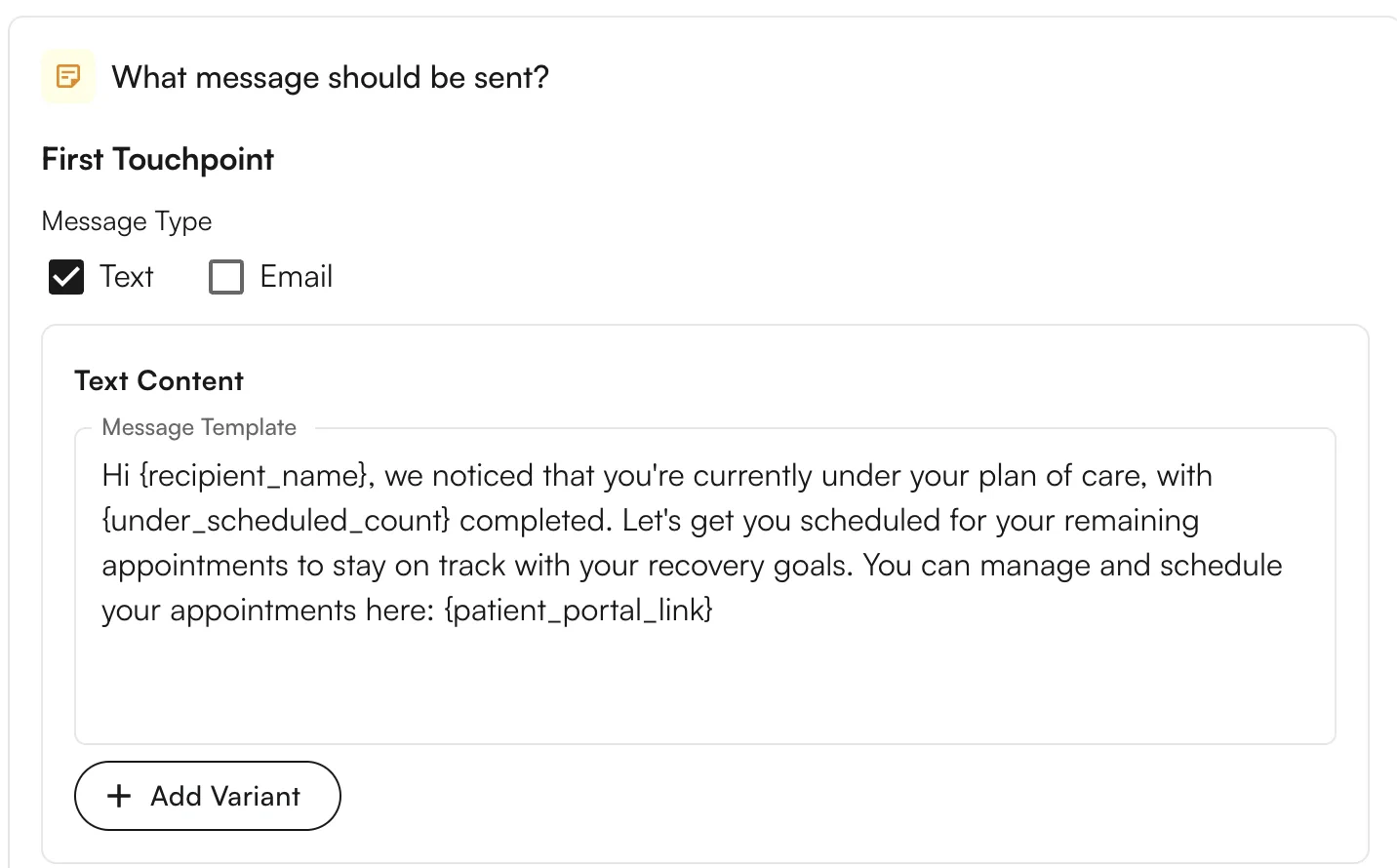
 * **Message content / format:**
* **Message Type** → Text or Email
* **Text Content** — insert variables unique to each patient, including:
* **Patient Portal Link** — specialized link to sign up for additional appointments
* **Recipient Name**
* **Site Name** — based on existing appointments in the POC
* **Under Scheduled Count** (e.g., "3 of 6 completed")
* **Message content / format:**
* **Message Type** → Text or Email
* **Text Content** — insert variables unique to each patient, including:
* **Patient Portal Link** — specialized link to sign up for additional appointments
* **Recipient Name**
* **Site Name** — based on existing appointments in the POC
* **Under Scheduled Count** (e.g., "3 of 6 completed")
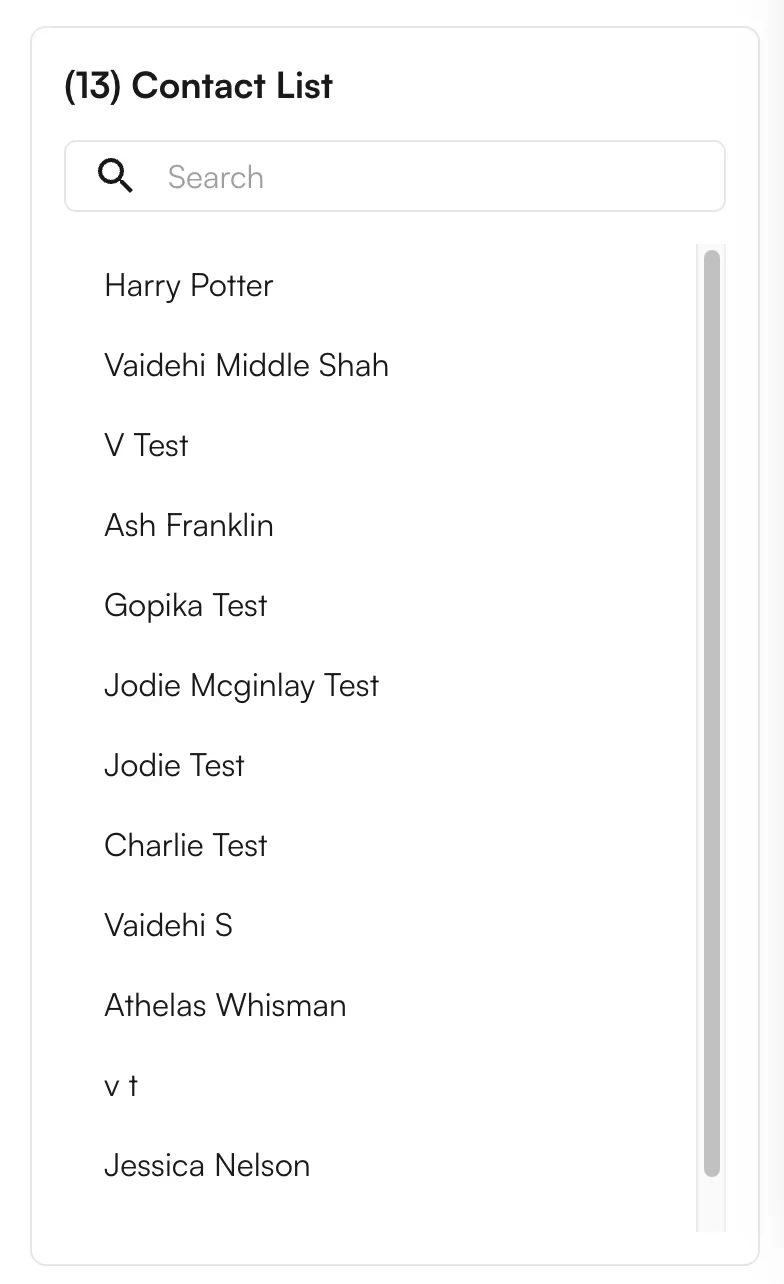
 4. **View filtered patient recipient list.** Upon setting filters, the Contact List automatically updates with the recipients who will receive the message. Scroll to view the full list or filter for a specific patient to confirm inclusion.
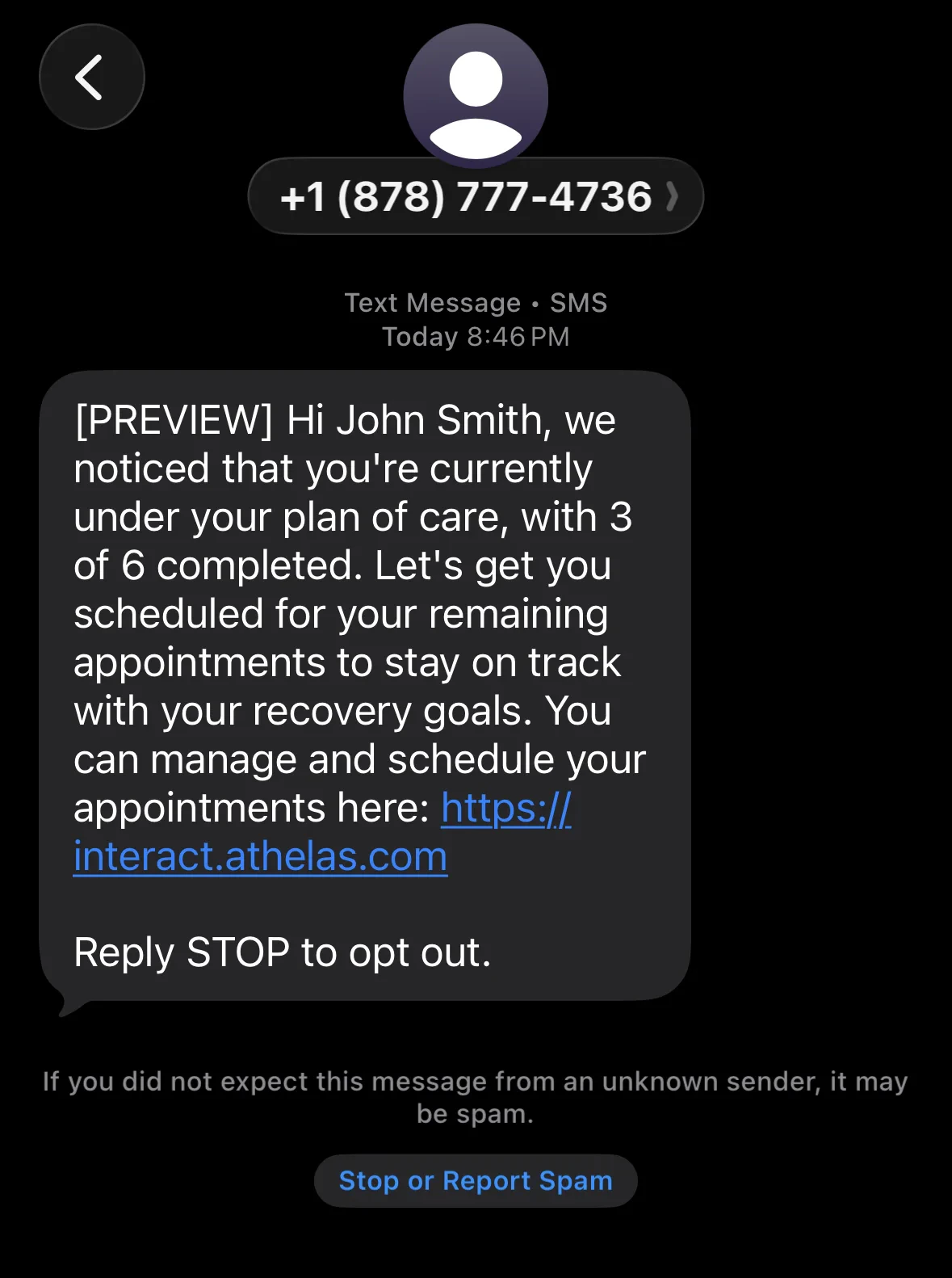
 5. **Save and view the workflow.** You can also view scheduled upcoming messages and any previously sent messages — showing the method used to contact each patient, and whether it was successful.
6. **Messages are sent.** After the workflow is created, messages go out as scheduled. Patients receive either text or email (or both) with the desired content and links.
5. **Save and view the workflow.** You can also view scheduled upcoming messages and any previously sent messages — showing the method used to contact each patient, and whether it was successful.
6. **Messages are sent.** After the workflow is created, messages go out as scheduled. Patients receive either text or email (or both) with the desired content and links.
 ## NPS Surveys
The NPS Survey workflow collects patient feedback after a visit and automatically routes follow-up actions based on the response. An NPS survey form can be added to a post-visit Outreach Flow, prompting patients to submit feedback via text or email. Promoters can be directed to leave public reviews on sites like Google or Yelp, while detractor responses trigger automated email notifications to internal stakeholders for follow-up.
### Creating an NPS Survey workflow
To create an NPS survey workflow, navigate to the **Outreach Flows** tab under **Automation**. Use the existing **NPS survey** suggested template, or create your own. The suggested template is pre-populated with filters for:
* **Appointment status** = `Completed`
* **Send** = 2 days after appointment
* **Text message** with pre-populated content
## NPS Surveys
The NPS Survey workflow collects patient feedback after a visit and automatically routes follow-up actions based on the response. An NPS survey form can be added to a post-visit Outreach Flow, prompting patients to submit feedback via text or email. Promoters can be directed to leave public reviews on sites like Google or Yelp, while detractor responses trigger automated email notifications to internal stakeholders for follow-up.
### Creating an NPS Survey workflow
To create an NPS survey workflow, navigate to the **Outreach Flows** tab under **Automation**. Use the existing **NPS survey** suggested template, or create your own. The suggested template is pre-populated with filters for:
* **Appointment status** = `Completed`
* **Send** = 2 days after appointment
* **Text message** with pre-populated content
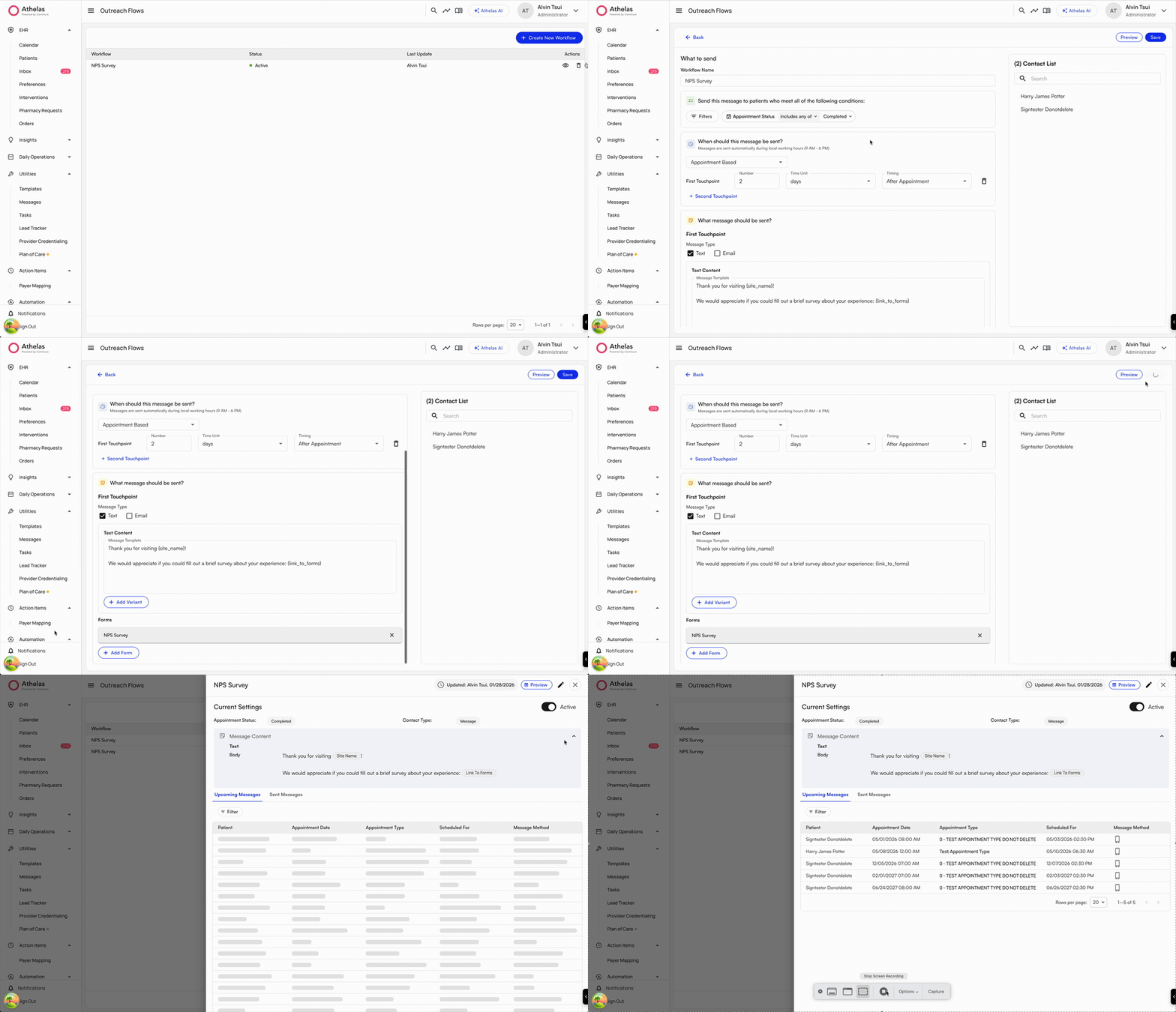 If you want to create your own template, determine the appropriate filters, then include **NPS Survey** in the Forms section.
 ### NPS Survey functionality
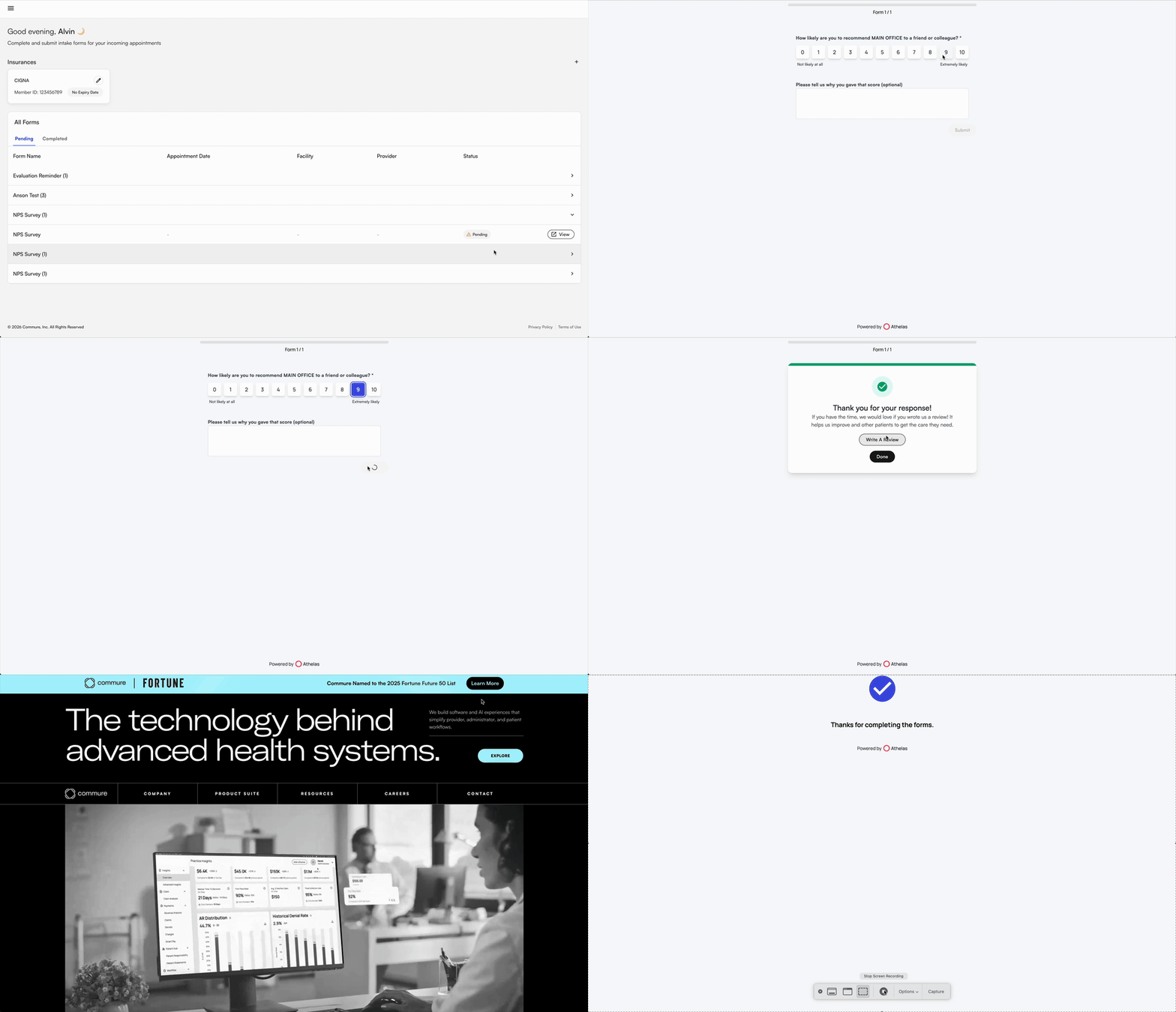
NPS surveys let recipients rate their experience after an appointment. They are prompted to rate "How likely are you to recommend {facility} to a friend or colleague?" from `0`–`10`, and a freeform text box to explain their score.
* For patients who rate **0–6 (detractors)**, sites can add email addresses for key stakeholders to receive an email explaining the patient submitted a lower score.
### NPS Survey functionality
NPS surveys let recipients rate their experience after an appointment. They are prompted to rate "How likely are you to recommend {facility} to a friend or colleague?" from `0`–`10`, and a freeform text box to explain their score.
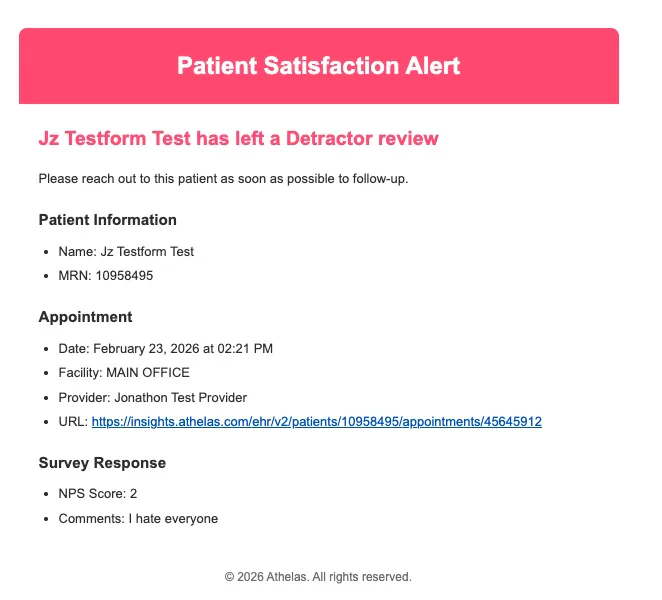
* For patients who rate **0–6 (detractors)**, sites can add email addresses for key stakeholders to receive an email explaining the patient submitted a lower score.
 * For patients who rate **9–10 (promoters)**, sites can embed a review link to any desired review website — Google, Yelp, Zocdoc, etc. Patients are directed to leave an additional review on that site.
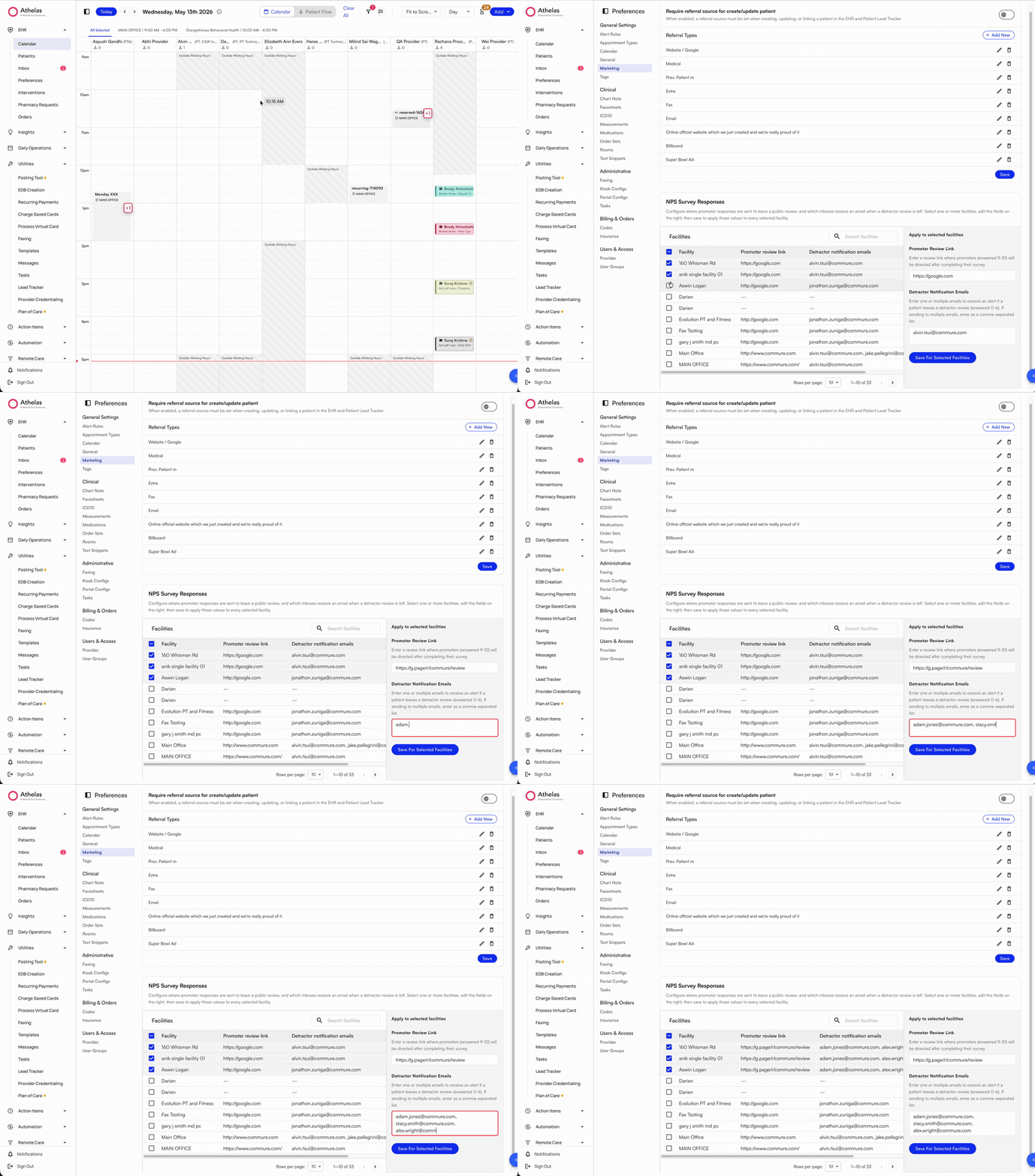
 Promoter review links and detractor notification emails are configured per facility in **EHR Preferences → Marketing**. See [Adding promoter review links and detractor notification emails](#adding-promoter-review-links-and-detractor-notification-emails) below.
### Adding promoter review links and detractor notification emails
To update the promoter review links and the email recipients for detractor notifications:
1. **Navigate to EHR Preferences → Marketing.**
2. **Select one or multiple facilities** from the facility picker.
3. **Edit the desired review links and email addresses** for the selected facilities.
4. **Click Save.**
Promoter review links and detractor notification emails are configured per facility in **EHR Preferences → Marketing**. See [Adding promoter review links and detractor notification emails](#adding-promoter-review-links-and-detractor-notification-emails) below.
### Adding promoter review links and detractor notification emails
To update the promoter review links and the email recipients for detractor notifications:
1. **Navigate to EHR Preferences → Marketing.**
2. **Select one or multiple facilities** from the facility picker.
3. **Edit the desired review links and email addresses** for the selected facilities.
4. **Click Save.**
 ✨**Smart Tip:** You can save different review links and email recipients per facility — useful when each location uses its own Google Business Profile or routes detractor follow-up to a different manager.
### NPS reporting and review
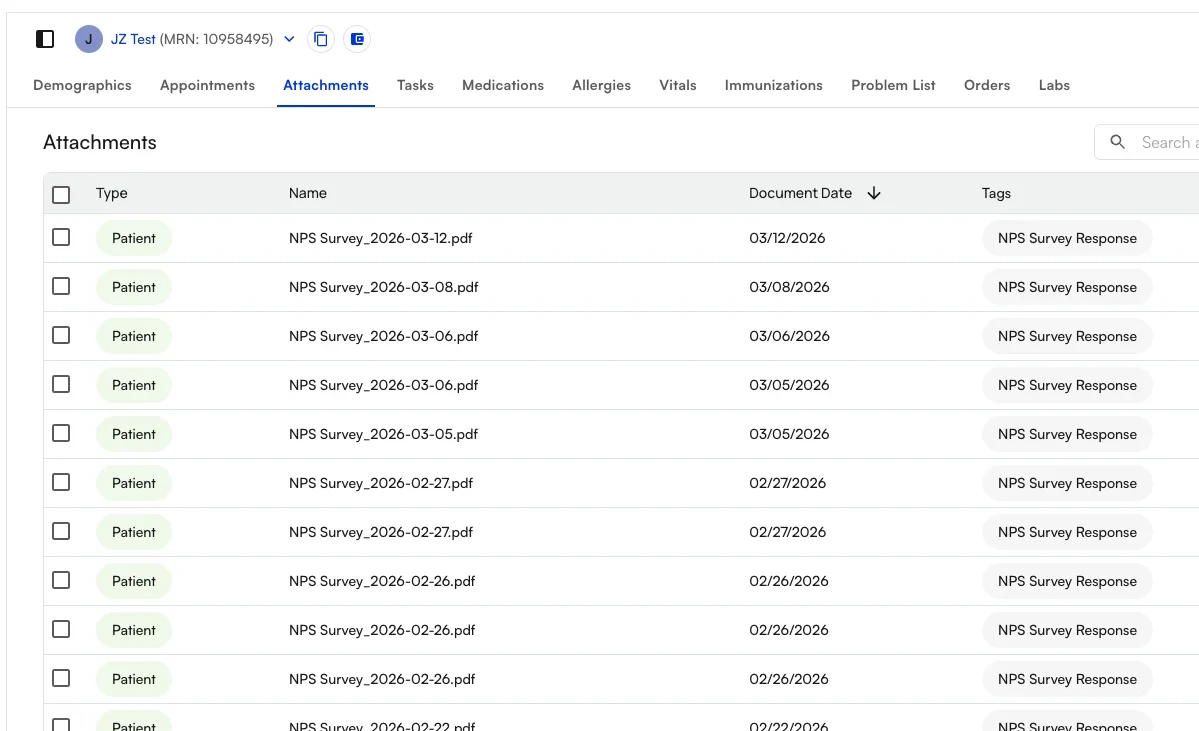
After patients complete NPS surveys, their rating and explanation are stored as a PDF in the patient's **Attachments**, alongside other form responses.
✨**Smart Tip:** You can save different review links and email recipients per facility — useful when each location uses its own Google Business Profile or routes detractor follow-up to a different manager.
### NPS reporting and review
After patients complete NPS surveys, their rating and explanation are stored as a PDF in the patient's **Attachments**, alongside other form responses.
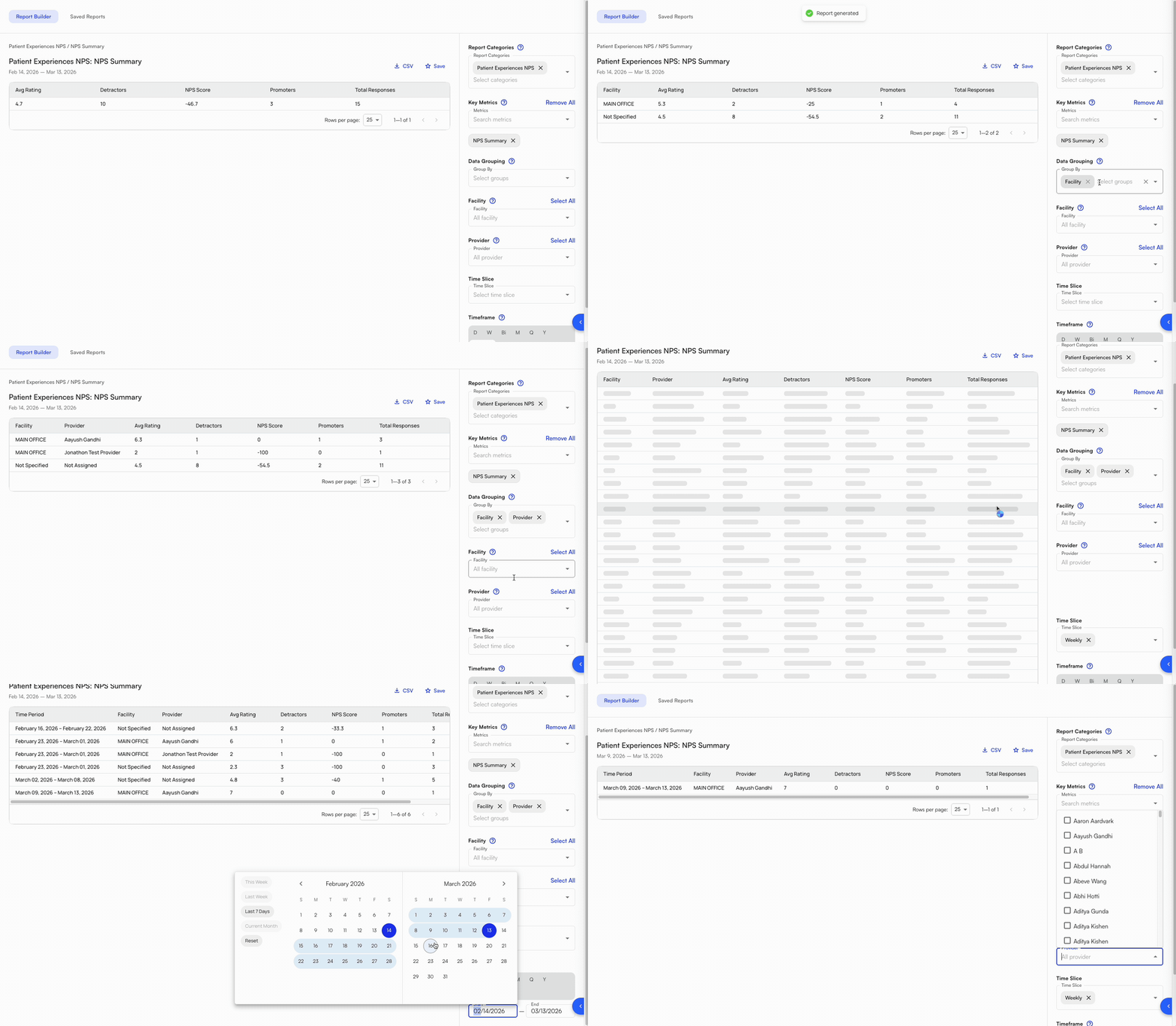
 Sites can view aggregated NPS data in **EHR Reporting**. NPS can be reported at the site level, or broken out by facility, provider, week, and several other categories.
 ## Example workflows
**Send an NPS survey to all patients after their 10th completed appointment**
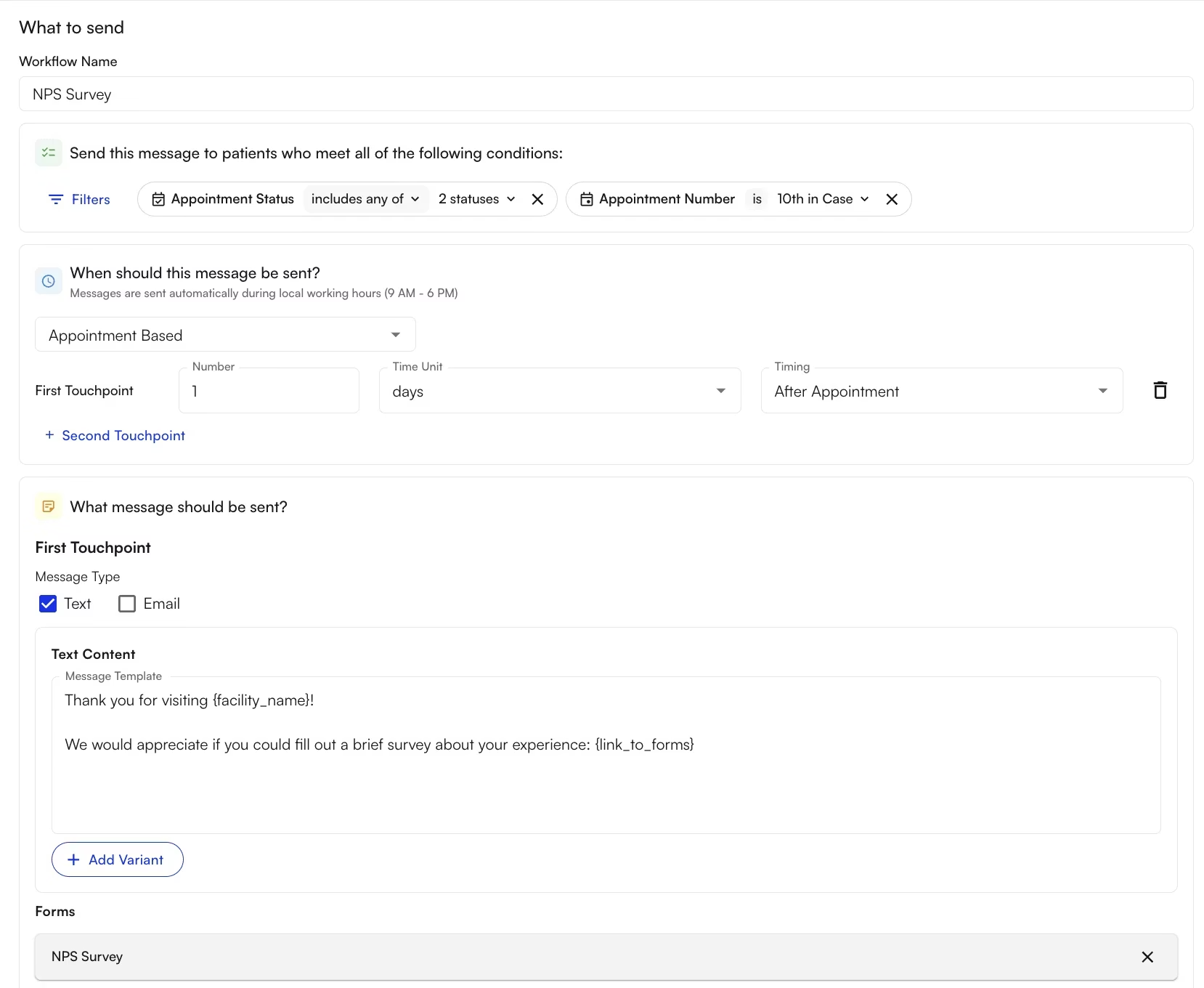
This configuration sends an NPS survey to any patient who has completed their 10th appointment.
* **Filters:**
* **Appointment Status** includes `Checked in` and `Completed` (to include patients whose visit notes are not yet signed/submitted)
* **Appointment Number** is `10th within Case` (to send an NPS to patients who have come to the practice before, but have a new case / chief complaint)
* **Timing / Triggers:**
* Message is set to **Appointment-Based** to trigger off an appointment event
* First touchpoint is set to **1 day after appointment** to send the day after
## Example workflows
**Send an NPS survey to all patients after their 10th completed appointment**
This configuration sends an NPS survey to any patient who has completed their 10th appointment.
* **Filters:**
* **Appointment Status** includes `Checked in` and `Completed` (to include patients whose visit notes are not yet signed/submitted)
* **Appointment Number** is `10th within Case` (to send an NPS to patients who have come to the practice before, but have a new case / chief complaint)
* **Timing / Triggers:**
* Message is set to **Appointment-Based** to trigger off an appointment event
* First touchpoint is set to **1 day after appointment** to send the day after
 ### FAQ
**Calendar-Based** fires on a schedule independent of appointments — recurring weekly, or on a specific date. **Appointment-Based** fires relative to an appointment (e.g., "1 day before," "2 days after"). Use Appointment-Based for pre-visit reminders and post-visit surveys; Calendar-Based for ongoing campaigns like underscheduled reactivation.
Yes — add **touchpoints** within the same workflow. Each touchpoint can have its own timing and content, so you can follow up a pre-visit reminder with a day-of reminder without building separate workflows.
Use the **Recipient Type** filter and select `Under Scheduled`. Combined with a Calendar-Based recurring schedule, this is the built-in reactivation workflow — patients who have fewer scheduled appointments next week than their POC prescribes will receive the message.
The variant won't resolve — the message will send with a broken form link. Always add forms in the **Forms** section first if you insert `Link To Forms` in the body.
Email recipients for detractor alerts are configured per facility in **EHR Preferences → Marketing**. Add or update the email addresses there, select the facilities you want the change applied to, and save — no Athelas representative needed.
Update the promoter review link in **EHR Preferences → Marketing**. You can set a different link per facility, so each location can route promoters to its own Google Business Profile or alternate review platform.
### FAQ
**Calendar-Based** fires on a schedule independent of appointments — recurring weekly, or on a specific date. **Appointment-Based** fires relative to an appointment (e.g., "1 day before," "2 days after"). Use Appointment-Based for pre-visit reminders and post-visit surveys; Calendar-Based for ongoing campaigns like underscheduled reactivation.
Yes — add **touchpoints** within the same workflow. Each touchpoint can have its own timing and content, so you can follow up a pre-visit reminder with a day-of reminder without building separate workflows.
Use the **Recipient Type** filter and select `Under Scheduled`. Combined with a Calendar-Based recurring schedule, this is the built-in reactivation workflow — patients who have fewer scheduled appointments next week than their POC prescribes will receive the message.
The variant won't resolve — the message will send with a broken form link. Always add forms in the **Forms** section first if you insert `Link To Forms` in the body.
Email recipients for detractor alerts are configured per facility in **EHR Preferences → Marketing**. Add or update the email addresses there, select the facilities you want the change applied to, and save — no Athelas representative needed.
Update the promoter review link in **EHR Preferences → Marketing**. You can set a different link per facility, so each location can route promoters to its own Google Business Profile or alternate review platform.