> ## Documentation Index
> Fetch the complete documentation index at: https://trainings.air.athelas.com/llms.txt
> Use this file to discover all available pages before exploring further.
# Send & Receive Faxes
Easily send, receive, organize, and track faxes directly in Air, with built-in task management for seamless follow-up.
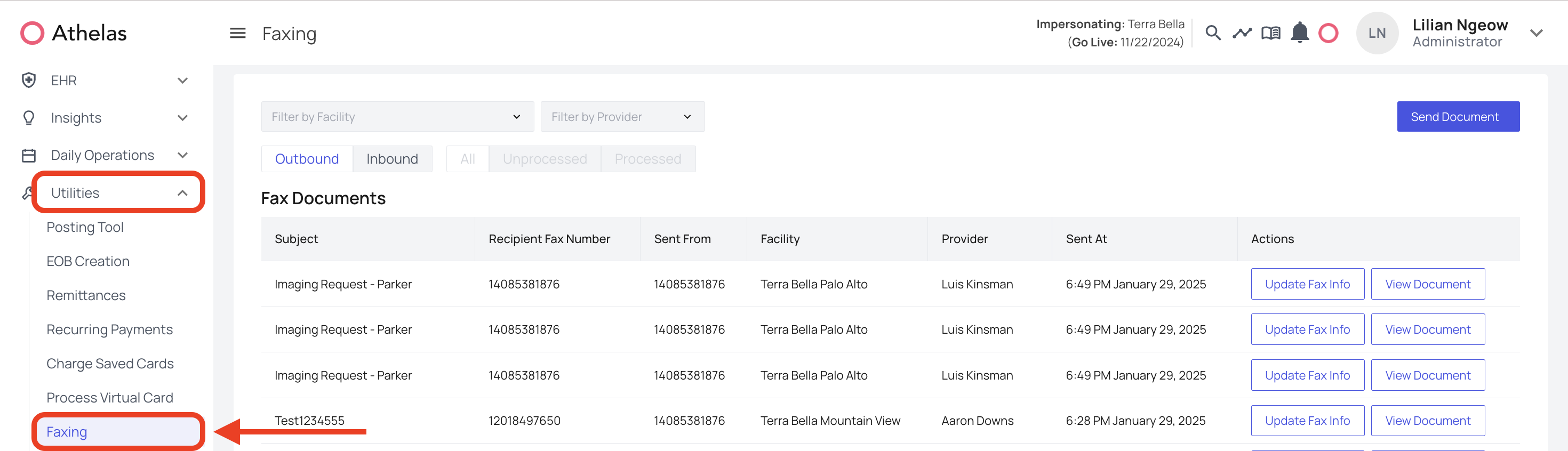
### Navigate the Fax Page
* From the left navigation bar, click **Utilities → Faxing**.
* The Faxing page has three main sections:
* **Outbound** – view and manage faxes you’ve sent.
* **Inbound** – view received faxes (with filters for **All**, **Unprocessed**, and **Processed**).
* **Tasks** – attach follow-ups and track progress directly from any fax.
 ### Sending an Outbound Fax
* Click **Send Document** in the top-right corner.
* Fill out the **Send Fax** side panel:
* **Recipient Fax Number** – enter the number you’re faxing to.
* **Subject** – title of the fax.
* **Send From** – choose a fax line from your organization’s dropdown.
* **Facility / Provider \[Optional]** – assign context.
* **Choose Files** – upload one or more PDFs.
* Click **Send Document**.
* The fax will now appear in your **Outbound** list. You can track the status of the fax.
### Managing Inbound Faxes
* **Inbound → All**: shows every received fax.
* **Inbound → Unprocessed**: faxes not yet linked to a patient or provider.
* **Inbound → Processed**: faxes that have been categorized and assigned.
To process an unorganized fax:
* Click **Update Fax Info**.
* Add or edit details: Subject, Document Type.
* **Link** a Facility, Provider, and existing Patient.
* Click **Save Edits** to move it to the **Processed** view.
### FAQs
If a fax was auto-linked to a patient, it cannot be deleted from the patient’s Attachments page. Instead, unlink it from the Faxing page:
* Go to **Utilities → Faxing → Inbound → Processed**.
* Find the fax, edit it, and either reassign it to the correct patient or delete it there.
Only an admin account can update fax lines - [**check here**](/air_admin/manage_your_practice/fax_admin).
### Sending an Outbound Fax
* Click **Send Document** in the top-right corner.
* Fill out the **Send Fax** side panel:
* **Recipient Fax Number** – enter the number you’re faxing to.
* **Subject** – title of the fax.
* **Send From** – choose a fax line from your organization’s dropdown.
* **Facility / Provider \[Optional]** – assign context.
* **Choose Files** – upload one or more PDFs.
* Click **Send Document**.
* The fax will now appear in your **Outbound** list. You can track the status of the fax.
### Managing Inbound Faxes
* **Inbound → All**: shows every received fax.
* **Inbound → Unprocessed**: faxes not yet linked to a patient or provider.
* **Inbound → Processed**: faxes that have been categorized and assigned.
To process an unorganized fax:
* Click **Update Fax Info**.
* Add or edit details: Subject, Document Type.
* **Link** a Facility, Provider, and existing Patient.
* Click **Save Edits** to move it to the **Processed** view.
### FAQs
If a fax was auto-linked to a patient, it cannot be deleted from the patient’s Attachments page. Instead, unlink it from the Faxing page:
* Go to **Utilities → Faxing → Inbound → Processed**.
* Find the fax, edit it, and either reassign it to the correct patient or delete it there.
Only an admin account can update fax lines - [**check here**](/air_admin/manage_your_practice/fax_admin).