> ## Documentation Index
> Fetch the complete documentation index at: https://trainings.air.athelas.com/llms.txt
> Use this file to discover all available pages before exploring further.
# Patient Portal
The Athelas Patient Portal lets patients sign in securely to view appointments, exchange messages with the practice, manage payments and saved cards, complete forms, and access home exercise content.
Patients can register for the portal either through patient-specific invitation links (email and/or SMS) or through a self-service registration link hosted on the practice's site.
## Sending portal invitations
You can invite patients to the portal from two places: **Outreach Flows** and the **Patient Demographics** page. Patients can also register themselves through a [self-service link](#self-service-registration-invitation).
### From Outreach Flows
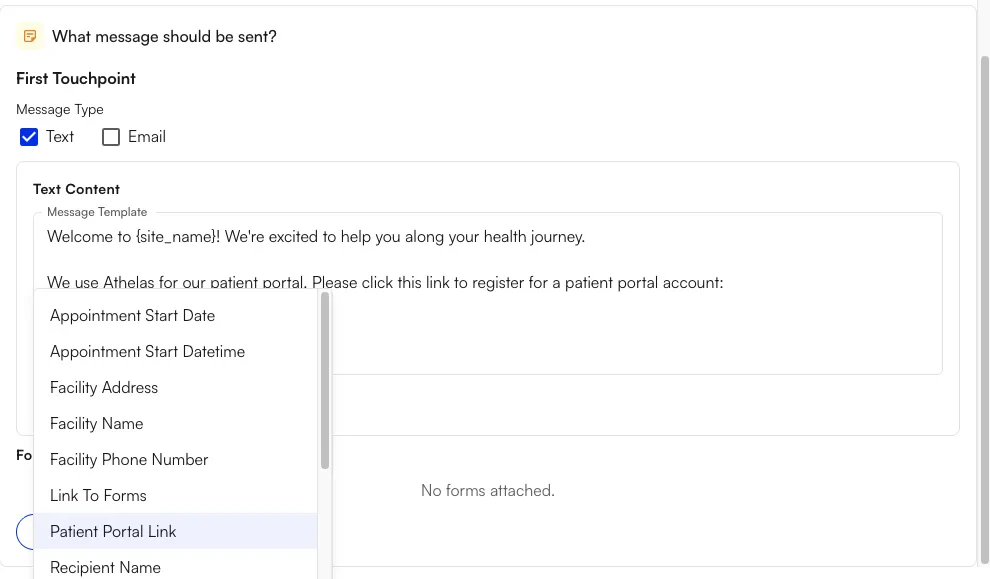
In **Outreach Flows**, insert the message variant `patient_portal_link` (labeled **Patient Portal Link** in the variant picker) into an email or SMS. Use it any time you want to send patients to the practice's portal entry — for example, reminders to book, pay, or message the clinic.
### From the Patient Demographics page
**To send a registration link to a specific patient manually:**
1. Navigate to the patient's **Demographics** page from the EHR Patient Profile.
2. Next to the patient's email address, click the **phone icon** to send a new portal registration link.
3. Confirm in the dialog.
The patient receives:
* An **email** at their address on file with a link to the portal (when an email is present).
An email is required to send a portal invitation manually from the Patient Demographics page. Add an email to the patient first if you need to send one manually.
**Note:** There is a short cooldown between sends. If you try again too soon, the button explains how long to wait.
You can also check a patient's portal registration status from this page:
**Registration completed:**
**Unsent / not yet invited:**
**Invitation cooldown in effect:**
**Minor patient:**
**Missing email address:**
### Setting up authorized user access
To set up an individual as an authorized user of a patient's portal — such as a guarantor or power of attorney — create a new **Related Person**:
1. Navigate to the **Patient Demographics** page, then to **Responsible Parties**.
2. Click the **Related Persons** tab, then **+ Related Person**.
3. Fill out the required fields for the authorized user, including their relation to the patient and a valid email.
4. Toggle **Authorized Representative** to **ON**, then confirm that you are providing patient portal access to that individual.
5. Click **Create** to save the Related Person.
The authorized representative then receives a link inviting them to create their own portal account to access the patient's information as an authorized representative.
## Self-service registration invitation
Patients can also generate their own registration link through a self-service link. This is a site-specific link that practices can embed on their website, attach to a QR code at the front desk, or share in other places.
To create a self-service registration link, first create a **site slug** in the **Online Scheduling** section of the **Portal Configs** page.
After creating a slug, direct patients to the link below:
`portal.athelas.com/site/yourpractice/register-account`
From here, patients enter their name and date of birth. If the information matches an existing patient at the practice, a new registration link is sent to the email on file.
## Patient registration and sign-in
### Registration process
Once patients have received an invite link, they complete the portal registration steps:
1. **Verify name and date of birth**
2. **Set and confirm a new password**
3. **Complete registration**
### Linked patient accounts
If multiple patient records share the same email address on file — for instance, spouses on a shared family account, or a single patient who visits multiple Athelas practices — the Patient Portal can link multiple portal accounts to a single login. New registrants are informed that they share an email with an existing portal user, and are asked to acknowledge that their account and information can be accessed by anyone who logs in with that email.
If preferred, the new patient can choose a different email, which then writes back to their patient profile in Athelas.
### Signing in
Once registered, patients can access the portal from [portal.athelas.com](http://portal.athelas.com) directly, or from portal links sent by the practice through **Patient Workflows** or **Outreach Flows**.
From the landing page, patients enter their email and password.
### Sign in with Google
Patients can also sign in with **Google**. From the sign-in page, selecting **Continue with Google** lets them authenticate with a Google account whose email matches the one on file — no separate portal password required.
### Accessing multiple patient accounts
When multiple patient accounts or authorized-representative accounts are associated with a single login (for example, a patient who visits multiple Athelas practices), the patient is greeted at sign-in with a selection screen to choose which site portal or patient to access. From there, they are taken into the portal.
### Reset password
Patients can click **Reset password** to reset their password. They are directed to check their email, follow the link, and set a new password.
## Portal functionality
Once in the portal, patients can access several areas:
### Home
The landing page. Patients see what the portal offers and can navigate to sub-pages from here.
### Messages
Secure messaging between the patient and users from the practice. Users can attach files or send messages.
Practices can configure whether patients can initiate messaging directly from their portal, or whether conversations must be started by a staff member. When patient-initiated messaging is enabled, practices can also restrict who patients are allowed to message:
1. Previously seen providers or staff
2. A preset group of staff or User Groups
See [Messaging Permissions](#messaging-permissions) to configure this behavior.
### Payments
Patients can view their balance, pay any charges, and see past transaction history.
### Appointments
Patients can see upcoming and past visits, schedule, reschedule, or cancel appointments, and see waitlist status if enabled.
### Forms
Patients can view completed or pending forms, complete pending forms, and update insurance information in their patient profile.
### Home Exercises
Patients can view their prescribed home exercise program by case.
### Profile
Patients can edit their payment methods by clicking their name in the bottom left.
## Configurations and settings
Patient Portal settings live under **EHR Preferences**. Available-slot display is configured on the **Calendar** tab; the remaining portal settings live on the **Portal Configs** tab.
### Configuring available slots
There are two modes for showing available times in the portal: **Calendar Interval** and **Appointment Type**. Configure this under **EHR Preferences → Calendar** tab.
The two modes display available timeslots differently:
* **Calendar Interval** offers times on every interval based on the calendar interval for the site or facility.
* For example, if the calendar interval is set to 15 minutes, patients see 9:00am, 9:15am, 9:30am, 9:45am, and so on as available times to book.
* **Appointment Type** offers times by iterating on the selected appointment type's duration, starting from the provider's working-hour start time.
* For example, if a provider starts at 9:00am and the patient has selected a 45-minute Initial Evaluation, they see 9:00am, 9:45am, 10:30am, 11:15am, and so on as available times to book.
### Schedule Notice
Controls how far in advance patients can book through scheduling tied to the portal:
* **Minimum Notice (in hours)** — required. How close to the current time a patient is allowed to book or request an appointment.
* **Maximum Notice (in hours)** — optional; `0` means unlimited. How far out from the current time a patient is allowed to book or request an appointment.
### Appointment Requests
* **Require approval on appointment requests** — When on, requests from the portal appear as **Requested** on the calendar and can be approved from the **Requests** tab. When off, requests from the portal book directly to the calendar.
### Online Patient Scheduling
See [Online Scheduling](/air_front_desk/portal_and_online_scheduling/online_scheduling) for full configuration details.
### Messaging Permissions
Practices can configure whether patients can initiate messages from the portal. When turned off, patients can only respond to messages started by a staff member. When enabled, practices can choose who patients are allowed to message:
* **Previous Providers**
* **Specific User Groups or Users**
* **Anyone**
### General Permissions
Configure what patients can change in the portal:
* Add payment methods
* Delete payment methods
* Book appointments
* Cancel appointments
* Reschedule appointments
* Add insurance
* Update insurance
 ###
###  You can also check a patient's portal registration status from this page:
**Registration completed:**
You can also check a patient's portal registration status from this page:
**Registration completed:**
 **Unsent / not yet invited:**
 **Invitation cooldown in effect:**
 **Minor patient:**
 **Missing email address:**
 ###
### 
 ## Self-service registration invitation
Patients can also generate their own registration link through a self-service link. This is a site-specific link that practices can embed on their website, attach to a QR code at the front desk, or share in other places.
To create a self-service registration link, first create a **site slug** in the **Online Scheduling** section of the **Portal Configs** page.
## Self-service registration invitation
Patients can also generate their own registration link through a self-service link. This is a site-specific link that practices can embed on their website, attach to a QR code at the front desk, or share in other places.
To create a self-service registration link, first create a **site slug** in the **Online Scheduling** section of the **Portal Configs** page.
 After creating a slug, direct patients to the link below:
 ## Patient registration and sign-in
### Registration process
Once patients have received an invite link, they complete the portal registration steps:
1. **Verify name and date of birth**
2. **Set and confirm a new password**
3. **Complete registration**
## Patient registration and sign-in
### Registration process
Once patients have received an invite link, they complete the portal registration steps:
1. **Verify name and date of birth**
2. **Set and confirm a new password**
3. **Complete registration**

 ### Linked patient accounts
If multiple patient records share the same email address on file — for instance, spouses on a shared family account, or a single patient who visits multiple Athelas practices — the Patient Portal can link multiple portal accounts to a single login. New registrants are informed that they share an email with an existing portal user, and are asked to acknowledge that their account and information can be accessed by anyone who logs in with that email.
If preferred, the new patient can choose a different email, which then writes back to their patient profile in Athelas.
### Linked patient accounts
If multiple patient records share the same email address on file — for instance, spouses on a shared family account, or a single patient who visits multiple Athelas practices — the Patient Portal can link multiple portal accounts to a single login. New registrants are informed that they share an email with an existing portal user, and are asked to acknowledge that their account and information can be accessed by anyone who logs in with that email.
If preferred, the new patient can choose a different email, which then writes back to their patient profile in Athelas.
 ### Signing in
Once registered, patients can access the portal from [portal.athelas.com](http://portal.athelas.com) directly, or from portal links sent by the practice through **Patient Workflows** or **Outreach Flows**.
From the landing page, patients enter their email and password.
### Signing in
Once registered, patients can access the portal from [portal.athelas.com](http://portal.athelas.com) directly, or from portal links sent by the practice through **Patient Workflows** or **Outreach Flows**.
From the landing page, patients enter their email and password.
 ### Sign in with Google
Patients can also sign in with **Google**. From the sign-in page, selecting **Continue with Google** lets them authenticate with a Google account whose email matches the one on file — no separate portal password required.
### Accessing multiple patient accounts
When multiple patient accounts or authorized-representative accounts are associated with a single login (for example, a patient who visits multiple Athelas practices), the patient is greeted at sign-in with a selection screen to choose which site portal or patient to access. From there, they are taken into the portal.
### Sign in with Google
Patients can also sign in with **Google**. From the sign-in page, selecting **Continue with Google** lets them authenticate with a Google account whose email matches the one on file — no separate portal password required.
### Accessing multiple patient accounts
When multiple patient accounts or authorized-representative accounts are associated with a single login (for example, a patient who visits multiple Athelas practices), the patient is greeted at sign-in with a selection screen to choose which site portal or patient to access. From there, they are taken into the portal.
 ### Reset password
Patients can click **Reset password** to reset their password. They are directed to check their email, follow the link, and set a new password.
### Reset password
Patients can click **Reset password** to reset their password. They are directed to check their email, follow the link, and set a new password.
 ## Portal functionality
Once in the portal, patients can access several areas:
###
## Portal functionality
Once in the portal, patients can access several areas:
###  ###
###  ## Configurations and settings
Patient Portal settings live under **EHR Preferences**. Available-slot display is configured on the **Calendar** tab; the remaining portal settings live on the **Portal Configs** tab.
### Configuring available slots
There are two modes for showing available times in the portal: **Calendar Interval** and **Appointment Type**. Configure this under **EHR Preferences → Calendar** tab.
## Configurations and settings
Patient Portal settings live under **EHR Preferences**. Available-slot display is configured on the **Calendar** tab; the remaining portal settings live on the **Portal Configs** tab.
### Configuring available slots
There are two modes for showing available times in the portal: **Calendar Interval** and **Appointment Type**. Configure this under **EHR Preferences → Calendar** tab.
 The two modes display available timeslots differently:
* **Calendar Interval** offers times on every interval based on the calendar interval for the site or facility.
* For example, if the calendar interval is set to 15 minutes, patients see 9:00am, 9:15am, 9:30am, 9:45am, and so on as available times to book.
* **Appointment Type** offers times by iterating on the selected appointment type's duration, starting from the provider's working-hour start time.
* For example, if a provider starts at 9:00am and the patient has selected a 45-minute Initial Evaluation, they see 9:00am, 9:45am, 10:30am, 11:15am, and so on as available times to book.
### Schedule Notice
Controls how far in advance patients can book through scheduling tied to the portal:
* **Minimum Notice (in hours)** — required. How close to the current time a patient is allowed to book or request an appointment.
* **Maximum Notice (in hours)** — optional; `0` means unlimited. How far out from the current time a patient is allowed to book or request an appointment.
### Appointment Requests
* **Require approval on appointment requests** — When on, requests from the portal appear as **Requested** on the calendar and can be approved from the **Requests** tab. When off, requests from the portal book directly to the calendar.
### Online Patient Scheduling
See [Online Scheduling](/air_front_desk/portal_and_online_scheduling/online_scheduling) for full configuration details.
### Messaging Permissions
Practices can configure whether patients can initiate messages from the portal. When turned off, patients can only respond to messages started by a staff member. When enabled, practices can choose who patients are allowed to message:
* **Previous Providers**
* **Specific User Groups or Users**
* **Anyone**
The two modes display available timeslots differently:
* **Calendar Interval** offers times on every interval based on the calendar interval for the site or facility.
* For example, if the calendar interval is set to 15 minutes, patients see 9:00am, 9:15am, 9:30am, 9:45am, and so on as available times to book.
* **Appointment Type** offers times by iterating on the selected appointment type's duration, starting from the provider's working-hour start time.
* For example, if a provider starts at 9:00am and the patient has selected a 45-minute Initial Evaluation, they see 9:00am, 9:45am, 10:30am, 11:15am, and so on as available times to book.
### Schedule Notice
Controls how far in advance patients can book through scheduling tied to the portal:
* **Minimum Notice (in hours)** — required. How close to the current time a patient is allowed to book or request an appointment.
* **Maximum Notice (in hours)** — optional; `0` means unlimited. How far out from the current time a patient is allowed to book or request an appointment.
### Appointment Requests
* **Require approval on appointment requests** — When on, requests from the portal appear as **Requested** on the calendar and can be approved from the **Requests** tab. When off, requests from the portal book directly to the calendar.
### Online Patient Scheduling
See [Online Scheduling](/air_front_desk/portal_and_online_scheduling/online_scheduling) for full configuration details.
### Messaging Permissions
Practices can configure whether patients can initiate messages from the portal. When turned off, patients can only respond to messages started by a staff member. When enabled, practices can choose who patients are allowed to message:
* **Previous Providers**
* **Specific User Groups or Users**
* **Anyone**
 ### General Permissions
Configure what patients can change in the portal:
* Add payment methods
* Delete payment methods
* Book appointments
* Cancel appointments
* Reschedule appointments
* Add insurance
* Update insurance
### General Permissions
Configure what patients can change in the portal:
* Add payment methods
* Delete payment methods
* Book appointments
* Cancel appointments
* Reschedule appointments
* Add insurance
* Update insurance
