> ## Documentation Index
> Fetch the complete documentation index at: https://trainings.air.athelas.com/llms.txt
> Use this file to discover all available pages before exploring further.
# Reserve Blocks
Reserve Blocks allow your practice to restrict the types of appointments that can be scheduled based on a set of criteria. Supported criteria include **appointment type**, **insurance type**, and **affected providers**.
When a reserve block is created on a provider's calendar, online scheduling through the Patient Portal only allows that time to be booked if the appointment criteria matches the reserve block. If an internal scheduler attempts to book on a reserve block with criteria that does not match, they are prompted with a warning. Reserve blocks also support non-blocking comments that can alert schedulers to important information about that provider or block.
## Creating a Reserve Block
Access the reserve-block creation drawer through either of the following:
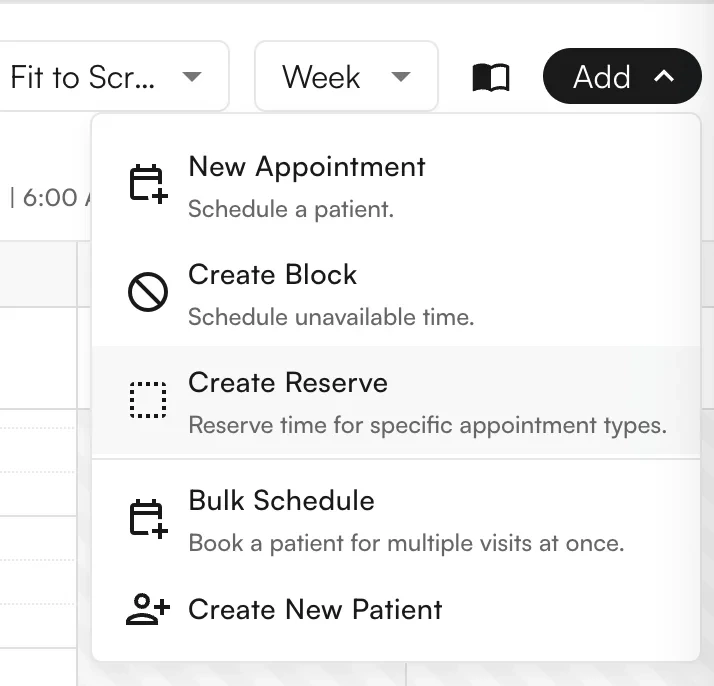
**Option 1 — The Add button in the top right of the calendar view:**
 **Option 2 — Directly in a calendar slot:**
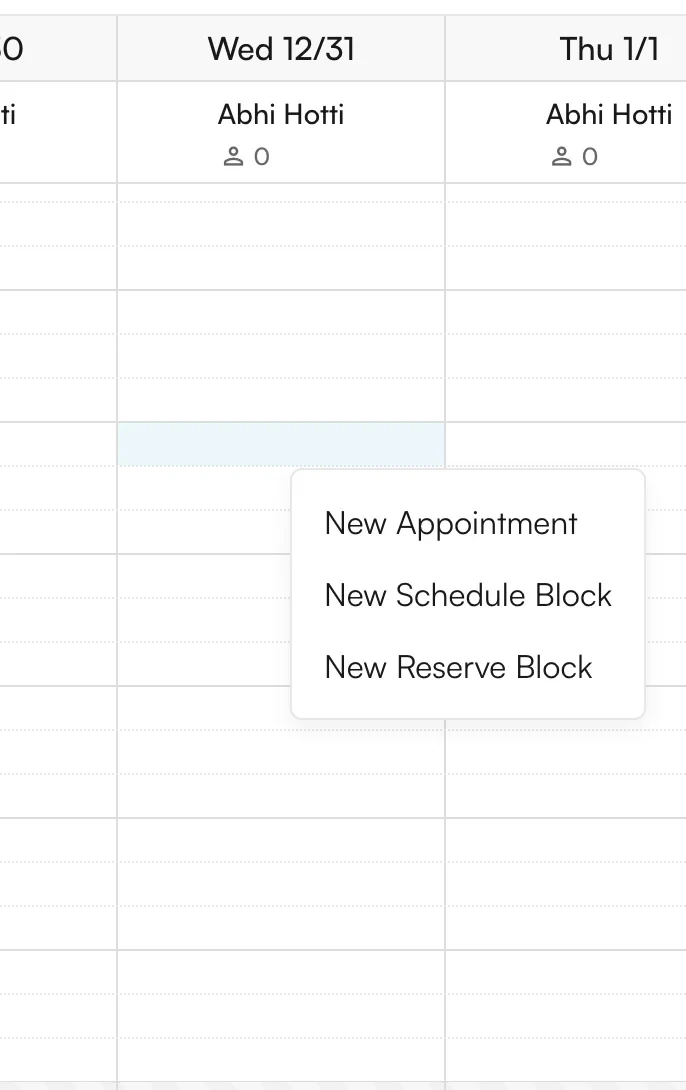 Reserve blocks added from the **Add** button, or while in the **All Selected** facility view, will add the reserve block to all facilities in the active filter. To add a reserve block to just a single facility, add it directly in the calendar slot while viewing that single facility.
From the reserve-block drawer, define the desired criteria:
### Timing properties
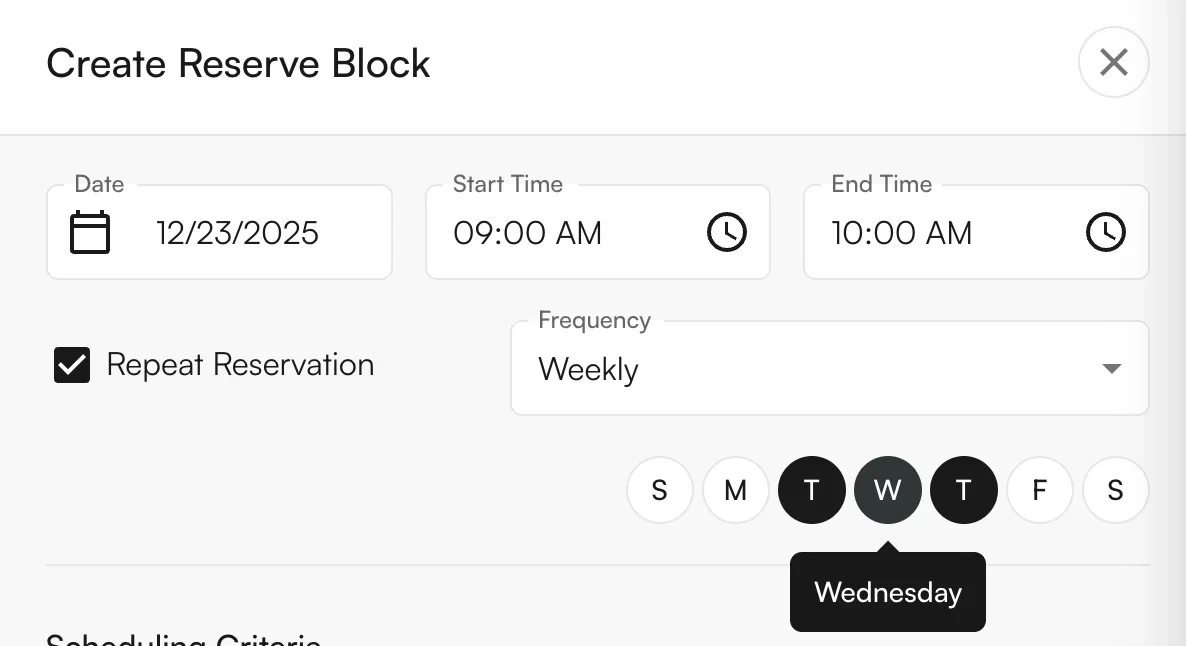
1. **Date** of the block (pre-populated if accessing directly from a calendar slot).
2. **Start** and **end** times (pre-populated if accessing directly from a calendar slot).
3. Whether to **repeat** the block, with frequency: Once, Daily, Weekly (SMTWTFS), Monthly, on Weekdays, or on Weekends.
Reserve blocks added from the **Add** button, or while in the **All Selected** facility view, will add the reserve block to all facilities in the active filter. To add a reserve block to just a single facility, add it directly in the calendar slot while viewing that single facility.
From the reserve-block drawer, define the desired criteria:
### Timing properties
1. **Date** of the block (pre-populated if accessing directly from a calendar slot).
2. **Start** and **end** times (pre-populated if accessing directly from a calendar slot).
3. Whether to **repeat** the block, with frequency: Once, Daily, Weekly (SMTWTFS), Monthly, on Weekdays, or on Weekends.
 ### Scheduling criteria
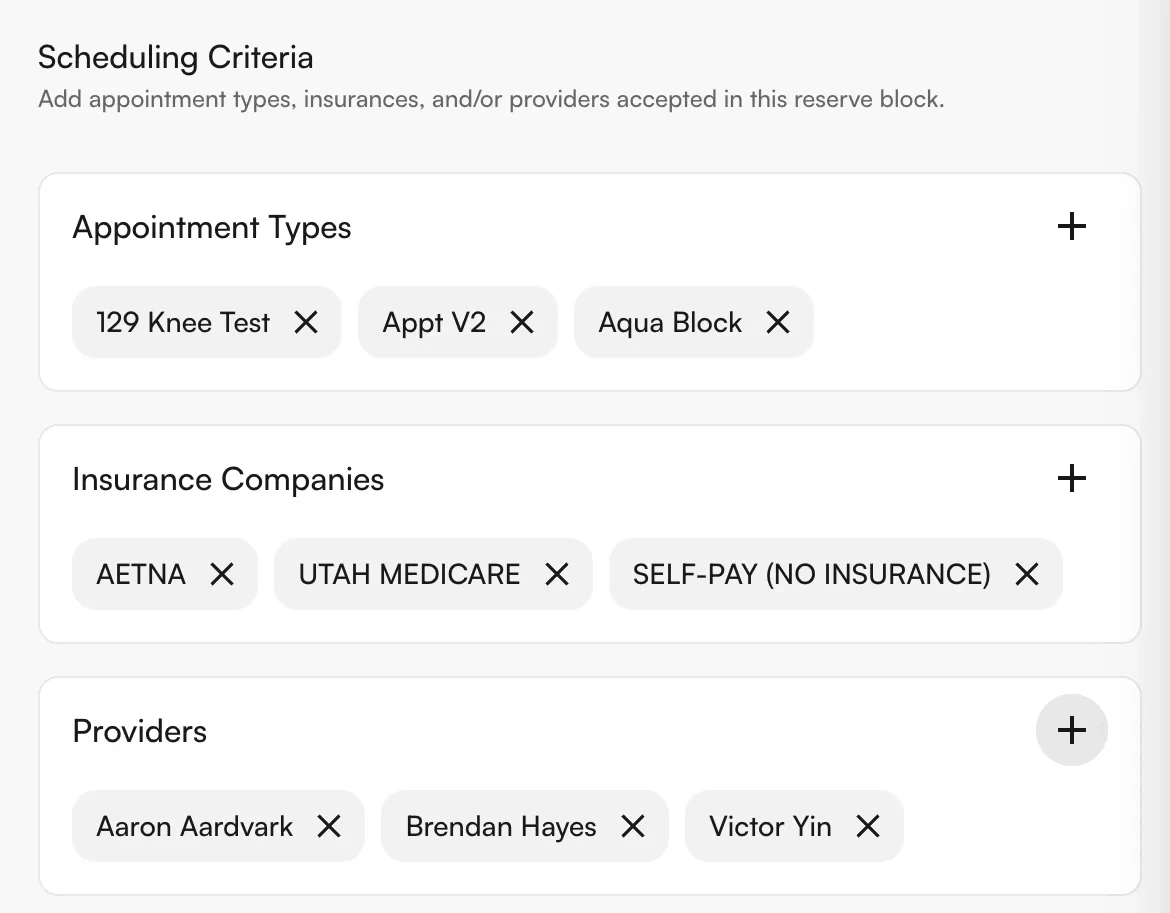
* **Appointment Types** (optional, multi-select)
* **Insurance Companies** (optional, multi-select)
* **Providers** (required, multi-select)
### Scheduling criteria
* **Appointment Types** (optional, multi-select)
* **Insurance Companies** (optional, multi-select)
* **Providers** (required, multi-select)
 ### Overlapping logic
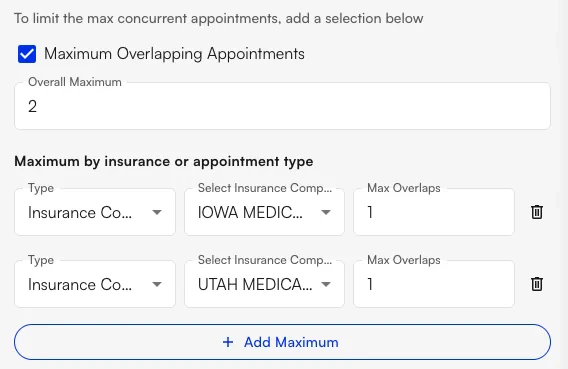
You can configure whether reserve blocks allow overlapping appointments in their timeslot. This can be **general** (across all appointment types and insurance types) or **specific** to a single insurance type or appointment type.
For example, a reserve block could allow double-booking at maximum on the timeslot. However, if a patient tries to book Iowa Medicare or Utah Medicare, they cannot double-book over another patient. Similarly, if an Iowa Medicare or Utah Medicare patient is already booked in that timeslot, no other appointments can book at that time.
### Overlapping logic
You can configure whether reserve blocks allow overlapping appointments in their timeslot. This can be **general** (across all appointment types and insurance types) or **specific** to a single insurance type or appointment type.
For example, a reserve block could allow double-booking at maximum on the timeslot. However, if a patient tries to book Iowa Medicare or Utah Medicare, they cannot double-book over another patient. Similarly, if an Iowa Medicare or Utah Medicare patient is already booked in that timeslot, no other appointments can book at that time.
 **To save and add the reserve block to the calendar, click Create Reserve Block.**
## Viewing reserve block details
Once a reserve block has been created, it can be viewed on the calendar with the scheduling criteria and any **Notes** that have been added. Overlapping logic for any specific appointment type or insurance type is shown in parentheses next to the type (e.g., `(1)`). The max overlapping for the entire block is shown at the bottom.
**To save and add the reserve block to the calendar, click Create Reserve Block.**
## Viewing reserve block details
Once a reserve block has been created, it can be viewed on the calendar with the scheduling criteria and any **Notes** that have been added. Overlapping logic for any specific appointment type or insurance type is shown in parentheses next to the type (e.g., `(1)`). The max overlapping for the entire block is shown at the bottom.
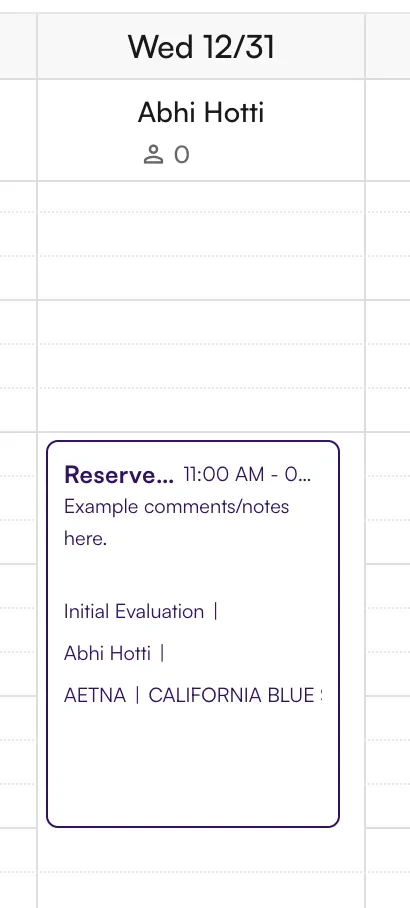
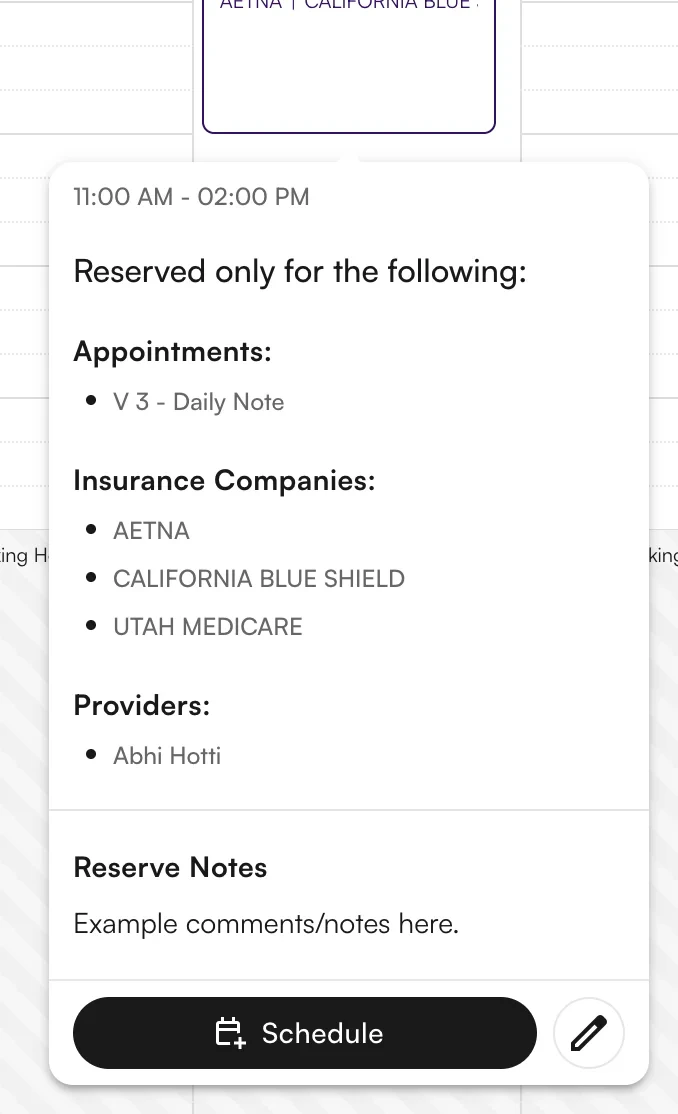
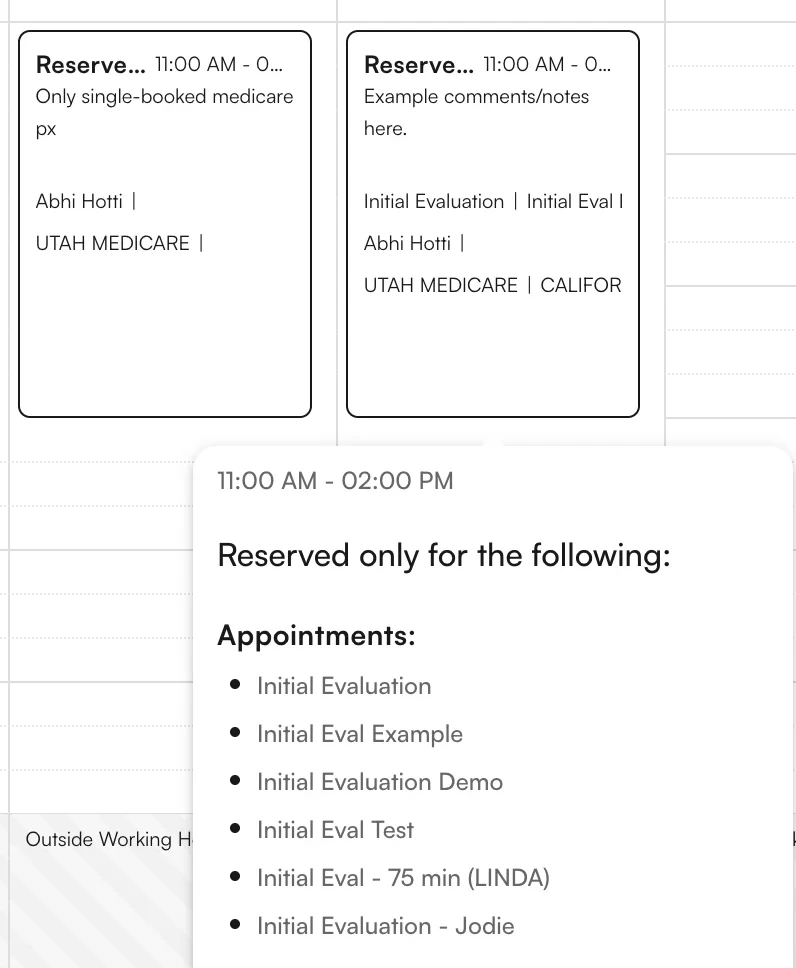
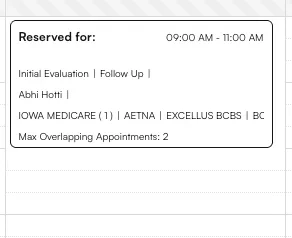 Hovering over or clicking the reserve block displays more detailed information about the block, and provides options to edit the block or schedule on top of it.
 ## Reserve block color system
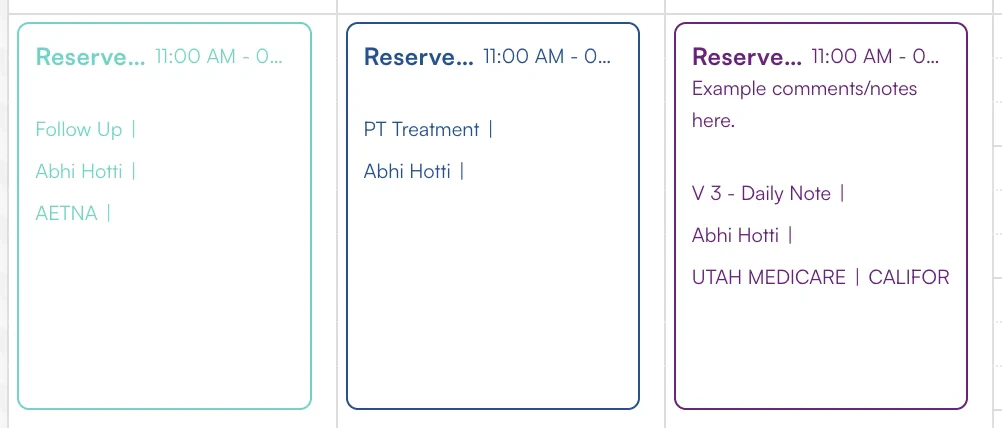
If a single Appointment Type is included in the scheduling criteria, the block has the same color boundary as the appointment type.
## Reserve block color system
If a single Appointment Type is included in the scheduling criteria, the block has the same color boundary as the appointment type.
 If no Appointment Types are selected, or multiple Appointment Types are selected, the boundary defaults to black.
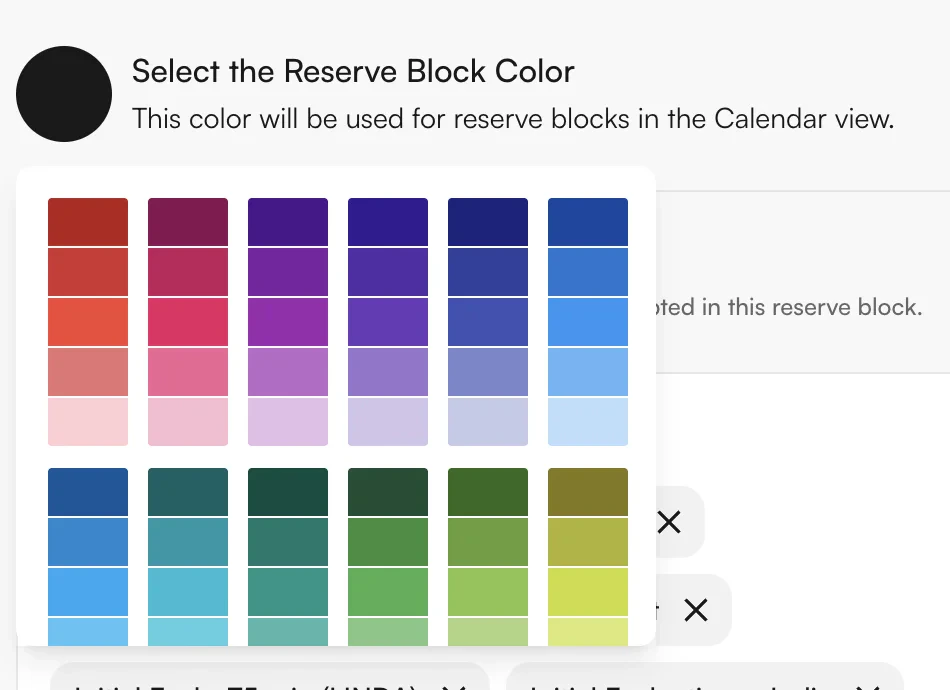
 You can also select a specific color boundary when creating or editing the block to override the default color combinations. If an overriding color is chosen, it continues to apply to the reserve block regardless of appointment type changes.
 ## External and internal appointment types
As part of Reserve Blocks, you can map multiple **internal** appointment types (visible to internal personnel) to a single **external** appointment type (visible to patients). When patients schedule in the Athelas Patient Portal, they are offered only the external appointment types, which reduces confusion on which option to select.
**To edit the mappings:**
1. Navigate to **Calendar Preferences**.
## External and internal appointment types
As part of Reserve Blocks, you can map multiple **internal** appointment types (visible to internal personnel) to a single **external** appointment type (visible to patients). When patients schedule in the Athelas Patient Portal, they are offered only the external appointment types, which reduces confusion on which option to select.
**To edit the mappings:**
1. Navigate to **Calendar Preferences**.
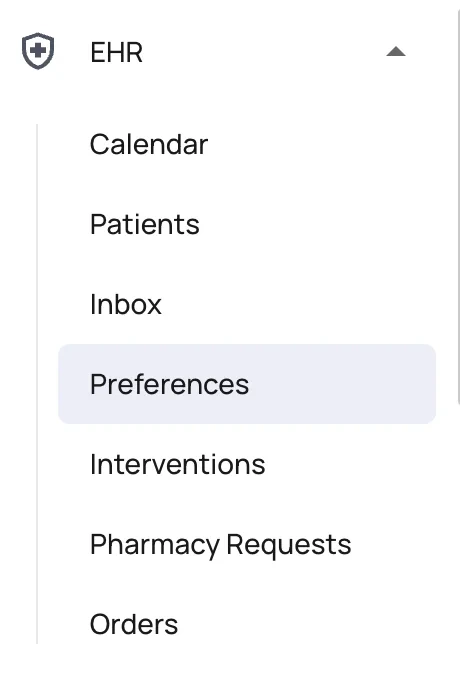 2. Navigate to the **Appointment Types** tab.
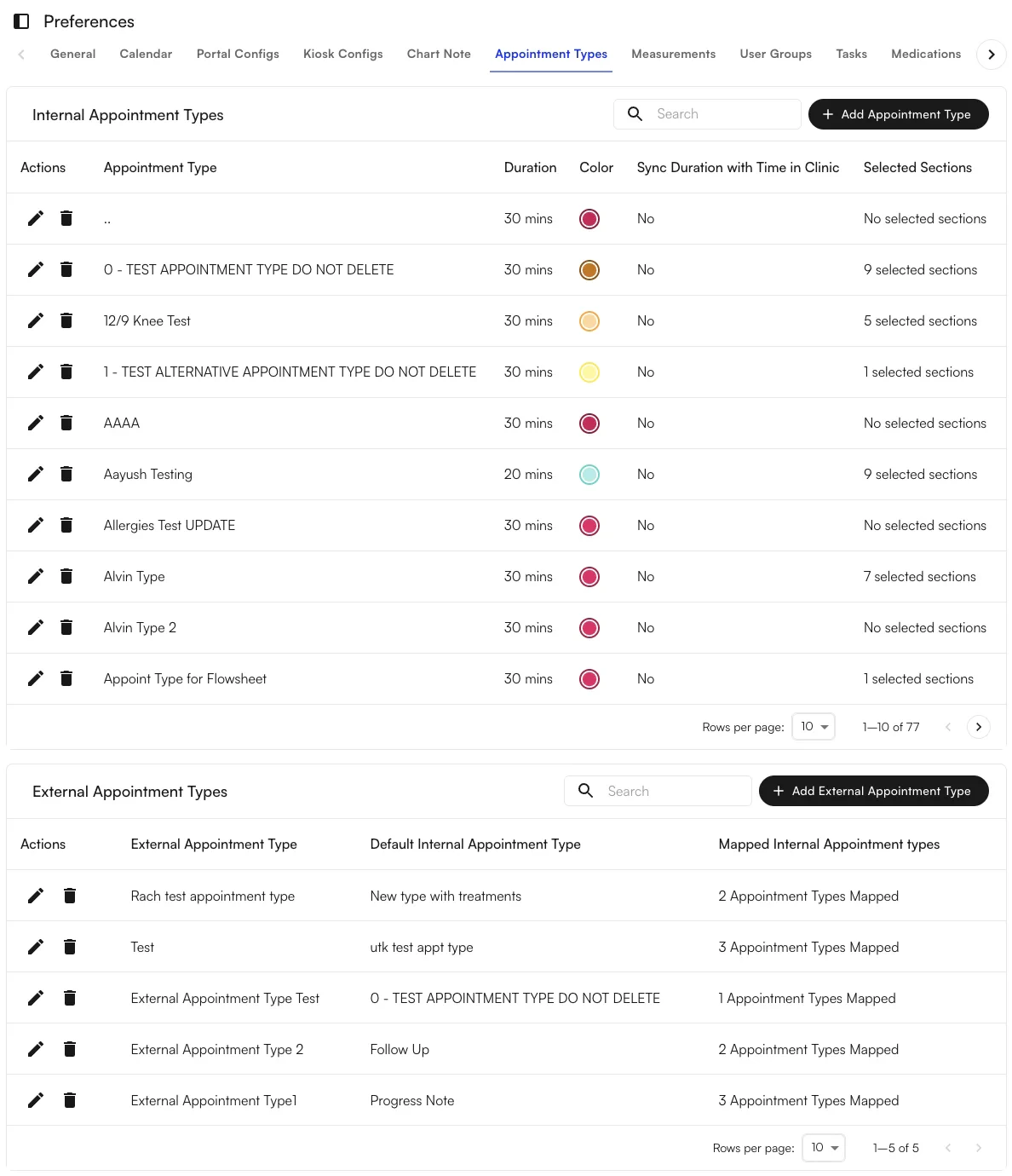 From here, you can create new External Appointment Types and choose which Internal Appointment Types map to them. You can also choose a **default internal mapping**, which determines which internal appointment type is selected when automatic scheduling is on.
**Note:** Internal appointment types can only be mapped to a single external appointment type, to ensure there is no confusion about what the patient sees.
From here, you can create new External Appointment Types and choose which Internal Appointment Types map to them. You can also choose a **default internal mapping**, which determines which internal appointment type is selected when automatic scheduling is on.
**Note:** Internal appointment types can only be mapped to a single external appointment type, to ensure there is no confusion about what the patient sees.
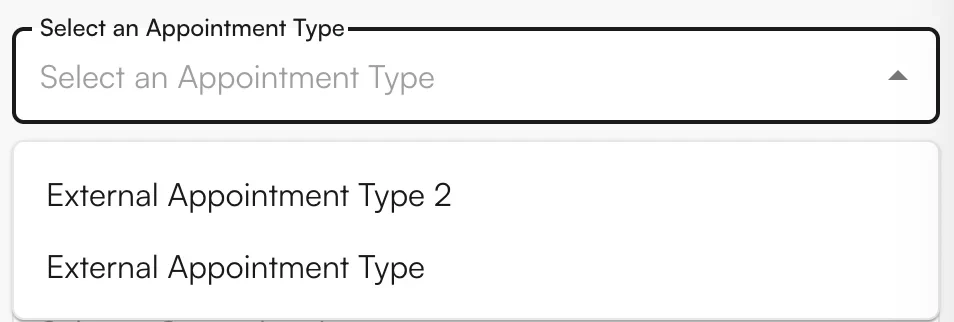
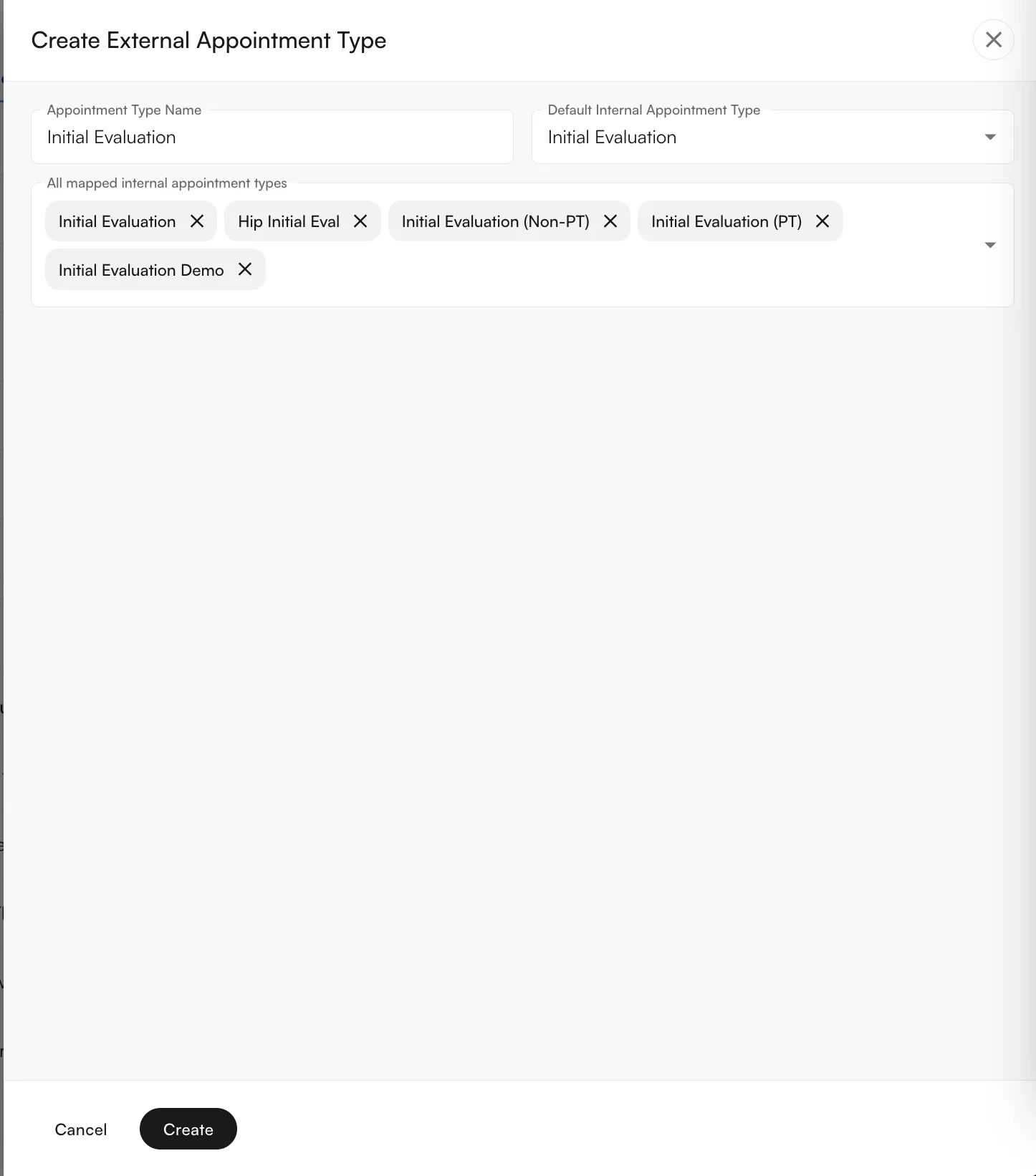 From the Patient Portal, only created External Appointment Types are visible for scheduling. This allows practices to both restrict the possible booking types and simplify the scheduling process for patients. For instance, a practice may want to maintain multiple internal types of initial evaluations (`IE Knee`, `IE Lumbar`, `IE Lower Extremity`), while providing patients with only one external type (`Initial Evaluation`).
 ## Scheduling from the Insights Calendar
When scheduling from the Athelas Patient Portal during a reserve block, appointments that meet the scheduling criteria are accepted as normal. The appointment displays inside the frame of the reserve block.
When scheduling an appointment that does **not** meet the scheduling criteria, the user is presented with an alert informing them of the conflict. They can either confirm an override of the reserve block or cancel the scheduling.
## Scheduling from the Insights Calendar
When scheduling from the Athelas Patient Portal during a reserve block, appointments that meet the scheduling criteria are accepted as normal. The appointment displays inside the frame of the reserve block.
When scheduling an appointment that does **not** meet the scheduling criteria, the user is presented with an alert informing them of the conflict. They can either confirm an override of the reserve block or cancel the scheduling.
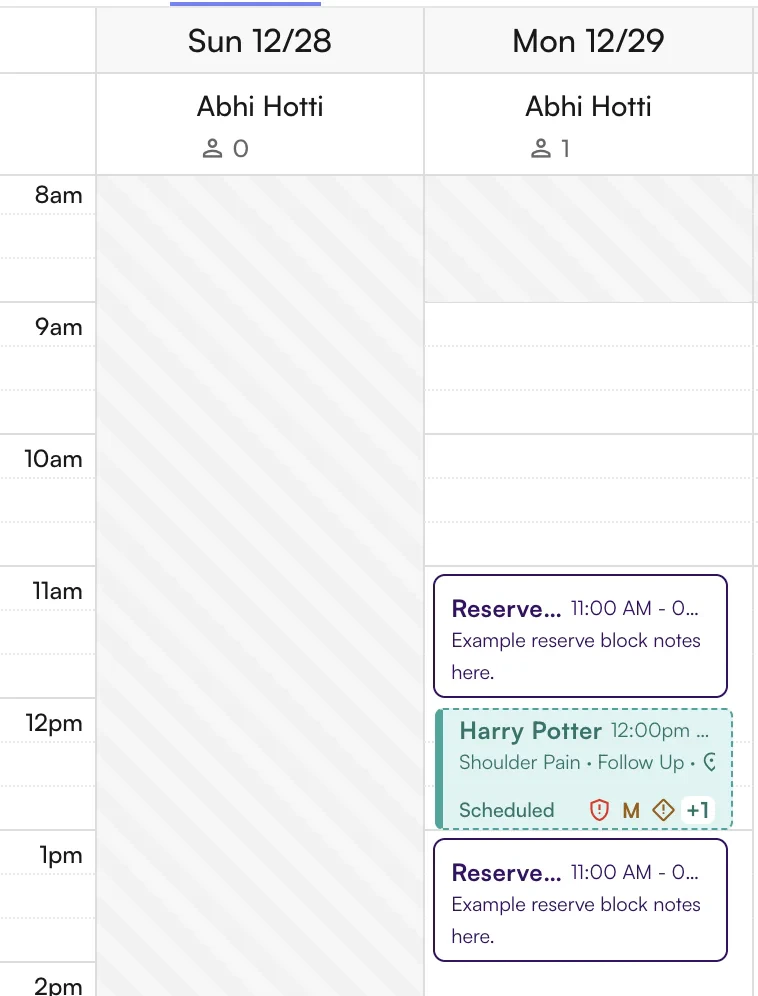
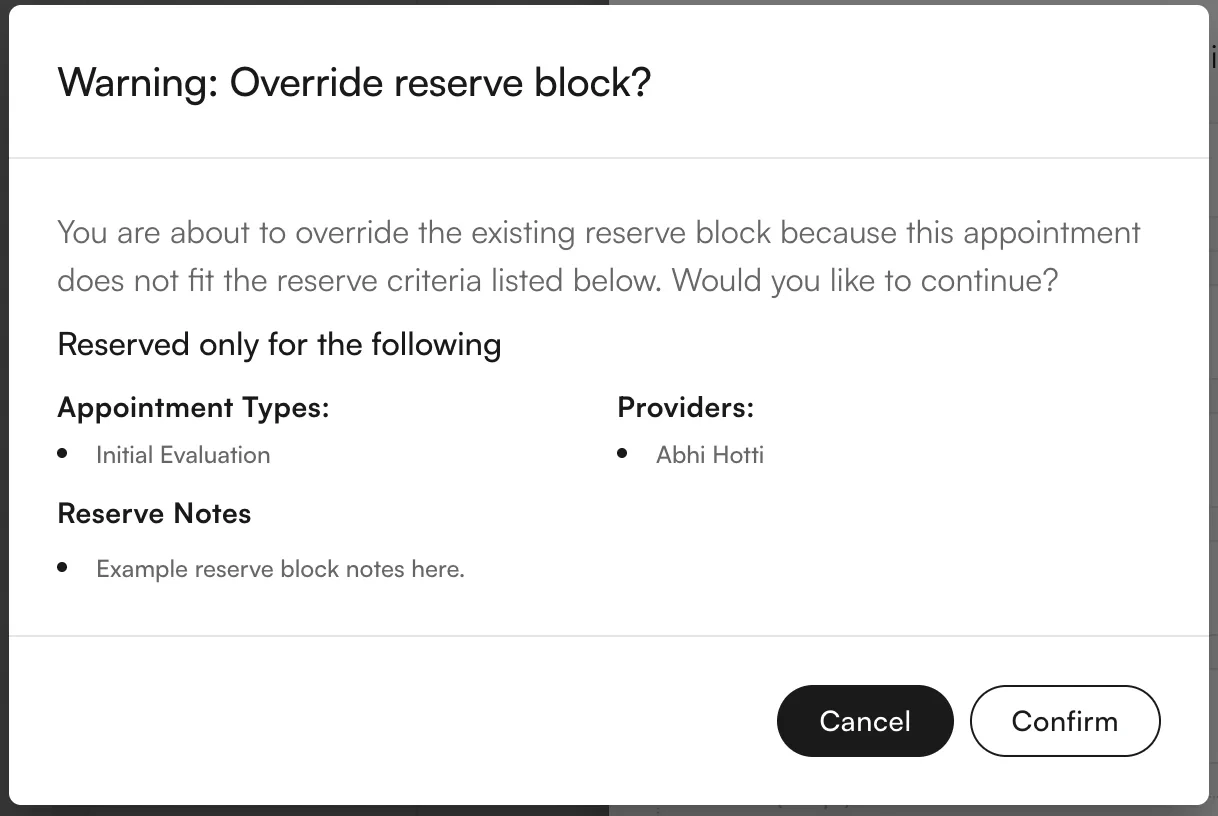 If the user overrides the reserve block, the appointment visually splits the reserve block into two separate sections on either side. Canceling the conflicting appointment re-merges the reserve block into a single frame.
 ## Scheduling from the Athelas Patient Portal
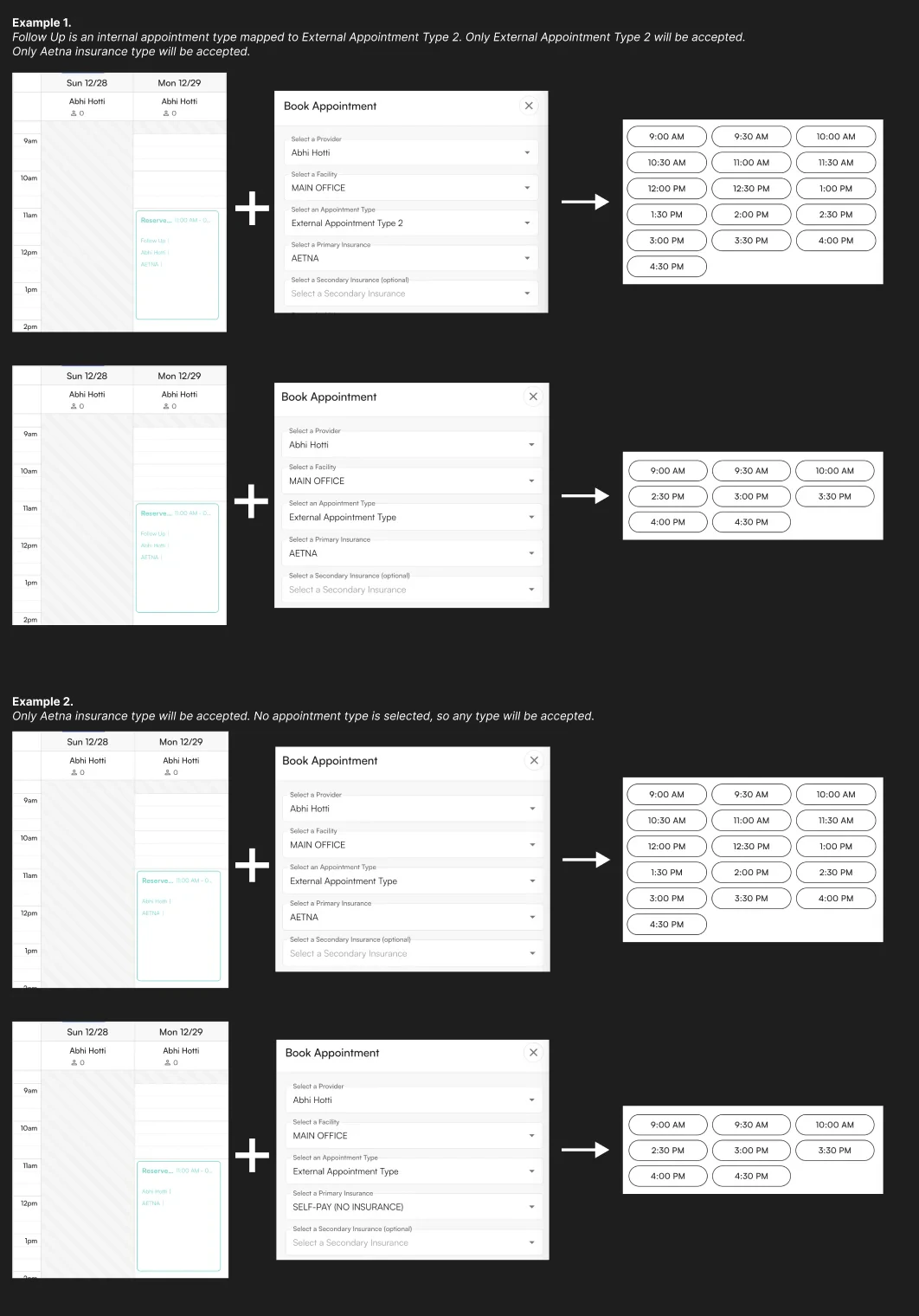
When scheduling from the Athelas Patient Portal, the available times shown to patients are filtered to only show times that:
1. Do not have any reserve blocks on them, **or**
2. Have reserve blocks that match the patient's desired appointment:
* For any criteria **not** specified in the reserve block, all values are accepted (e.g., if no insurance is a criterion, any insurance is accepted).
* For any criteria that **are** specified, one of the selected options must match the patient's preference in the portal (e.g., if `Aetna` and `BCBS` are criteria, only patients with Aetna or BCBS see those times).
## Scheduling from the Athelas Patient Portal
When scheduling from the Athelas Patient Portal, the available times shown to patients are filtered to only show times that:
1. Do not have any reserve blocks on them, **or**
2. Have reserve blocks that match the patient's desired appointment:
* For any criteria **not** specified in the reserve block, all values are accepted (e.g., if no insurance is a criterion, any insurance is accepted).
* For any criteria that **are** specified, one of the selected options must match the patient's preference in the portal (e.g., if `Aetna` and `BCBS` are criteria, only patients with Aetna or BCBS see those times).
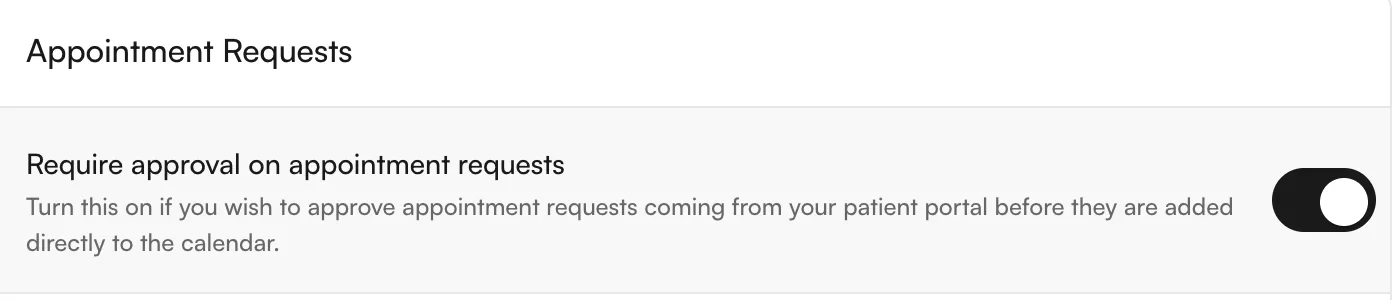
 If **Approval for appointment requests** is turned **off**, the appointment is automatically scheduled and placed in the calendar.
 If **Approval for appointment requests** is turned **on**, the request appears in the **Requests** tab in the bottom-right corner of the Calendar view.
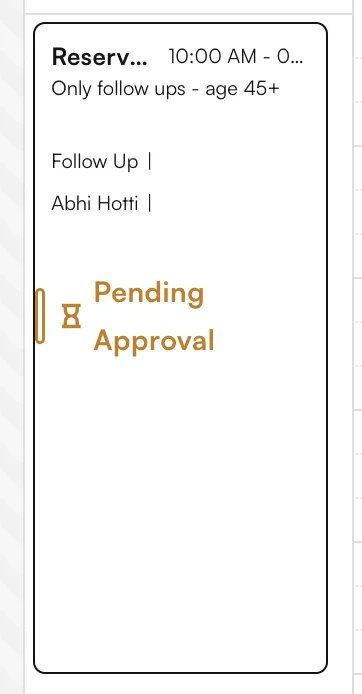
 The **Pending Approval** also shows within the reserve block to indicate that a patient has requested that slot:
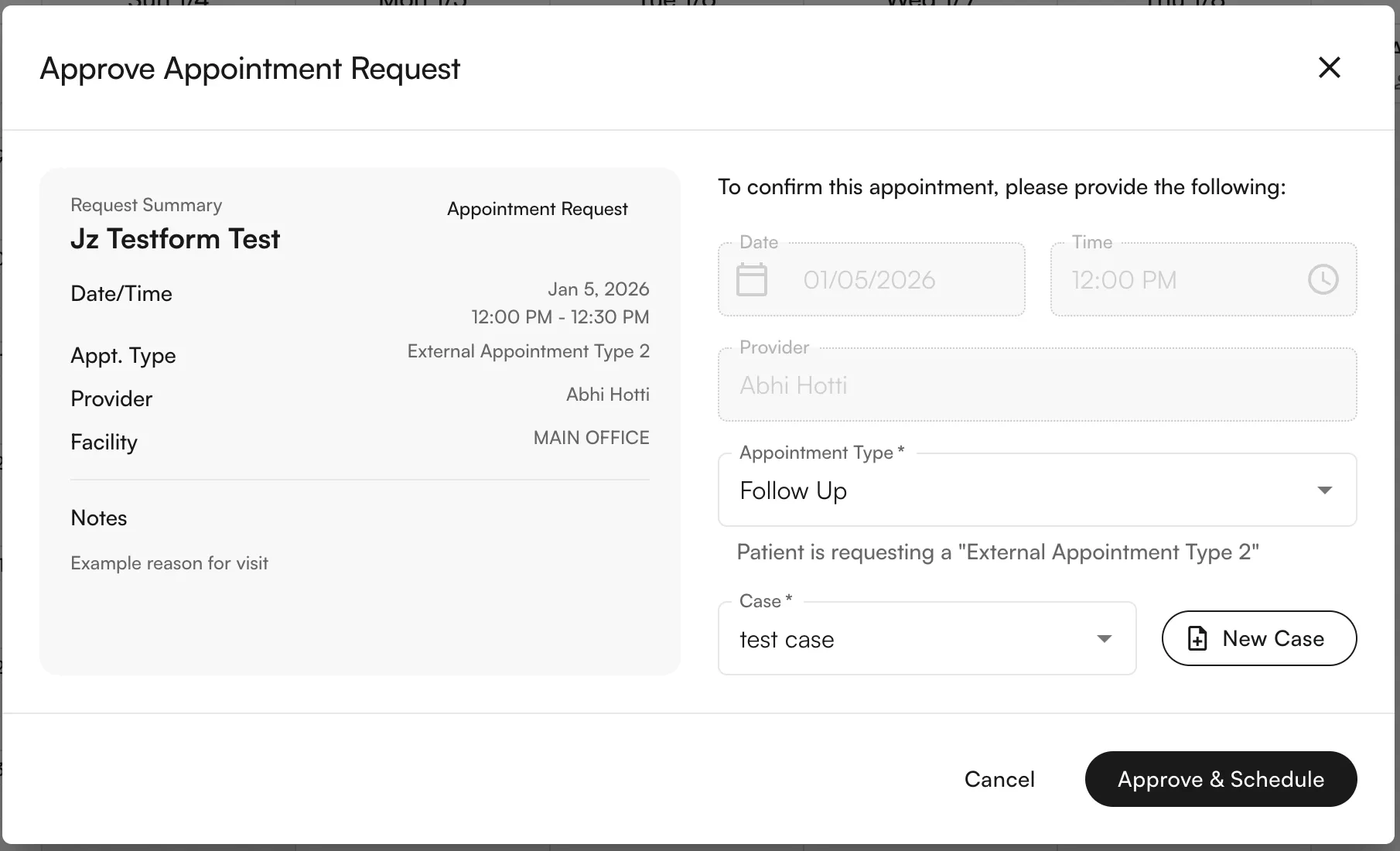
 From either the **Requests** tab or by directly clicking the Pending Approval modal, the user is presented with a screen to approve the request. The patient's details are shown, as well as the external appointment type they requested.
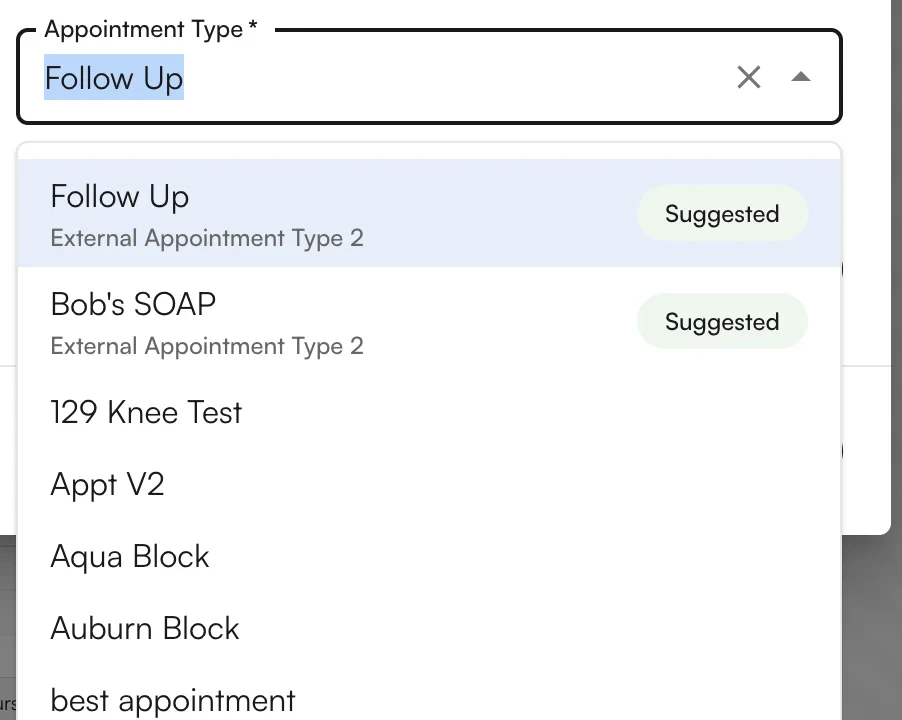
 When choosing an internal appointment type to schedule against, the internal appointment types that map to the requested external appointment type appear first in the list.
 Once an internal appointment type is selected and a case is applied, the appointment can be approved and scheduled.
### FAQ
A **schedule block** prevents all bookings in a time window. A **reserve block** is selective — it only allows bookings that match the configured criteria (appointment type, insurance, provider). Think of schedule blocks as "closed" and reserve blocks as "reserved for specific types of visits."
Yes. When you schedule an appointment that doesn't match the criteria, you'll see an override alert. Confirming the override splits the reserve block around the new appointment. Canceling the new appointment re-merges the reserve block.
Internal types capture operational detail ("IE Knee," "IE Lumbar") that matters for your staff's workflow. External types hide that complexity from patients, who only need to pick "Initial Evaluation." The external-to-internal mapping drives which internal type the system picks when a patient books online.
The block applies to **all** facilities in the active filter. To restrict a reserve block to just one facility, switch to that facility's view first, then click directly into a calendar slot to create it.
Only if you haven't set a custom color. If you pick a specific color override, that color sticks regardless of future appointment-type changes. Remove the override to return to the auto-matching behavior.
Once an internal appointment type is selected and a case is applied, the appointment can be approved and scheduled.
### FAQ
A **schedule block** prevents all bookings in a time window. A **reserve block** is selective — it only allows bookings that match the configured criteria (appointment type, insurance, provider). Think of schedule blocks as "closed" and reserve blocks as "reserved for specific types of visits."
Yes. When you schedule an appointment that doesn't match the criteria, you'll see an override alert. Confirming the override splits the reserve block around the new appointment. Canceling the new appointment re-merges the reserve block.
Internal types capture operational detail ("IE Knee," "IE Lumbar") that matters for your staff's workflow. External types hide that complexity from patients, who only need to pick "Initial Evaluation." The external-to-internal mapping drives which internal type the system picks when a patient books online.
The block applies to **all** facilities in the active filter. To restrict a reserve block to just one facility, switch to that facility's view first, then click directly into a calendar slot to create it.
Only if you haven't set a custom color. If you pick a specific color override, that color sticks regardless of future appointment-type changes. Remove the override to return to the auto-matching behavior.