> ## Documentation Index
> Fetch the complete documentation index at: https://trainings.air.athelas.com/llms.txt
> Use this file to discover all available pages before exploring further.
# Notifications Center
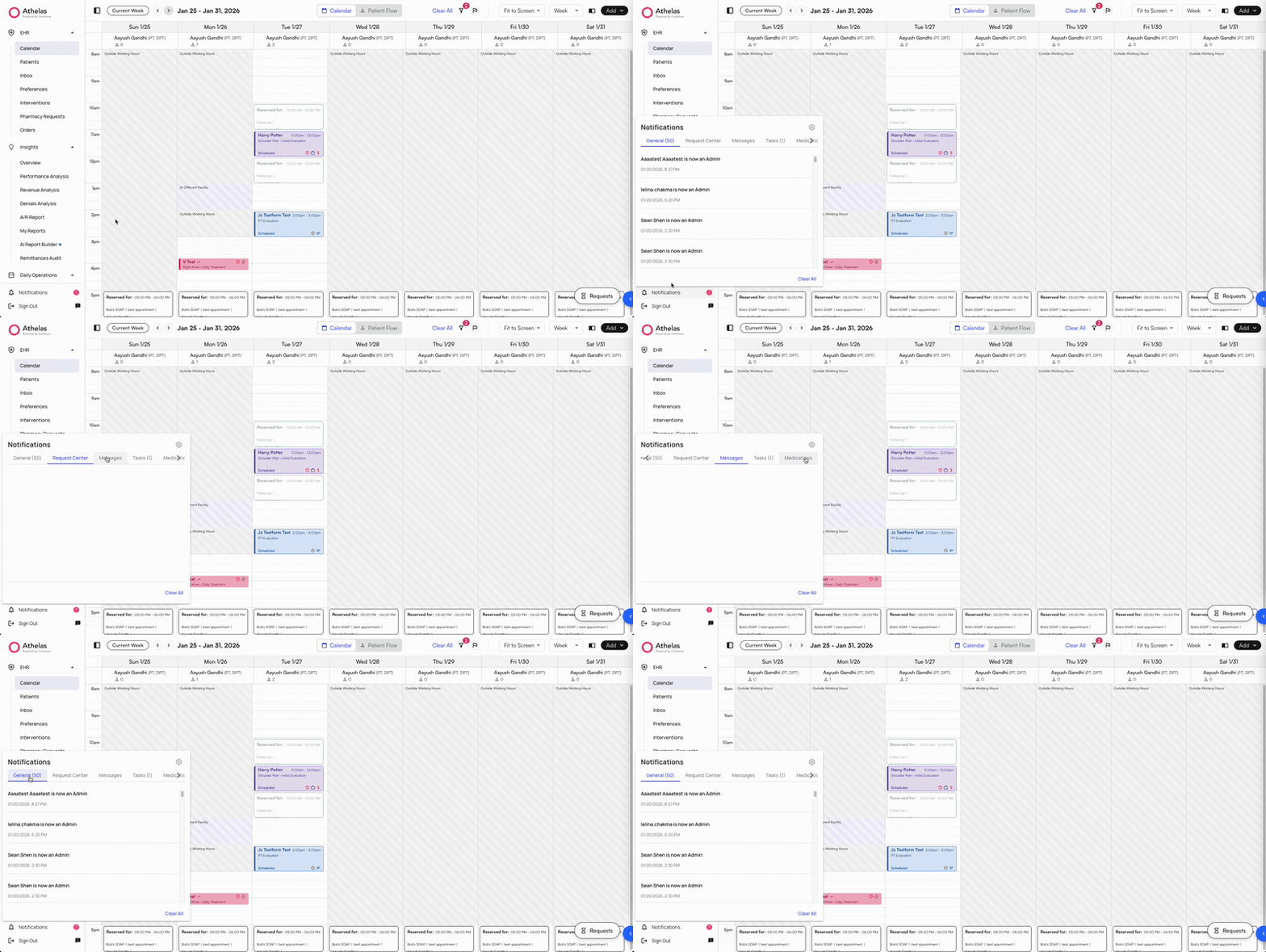
The Air Notifications Center is the central location for all notifications from sources like patient channels, messages, tasks, and medications. It is located at the bottom of the sidebar and is visible from every Insights page.
The Notifications Center shows a count of all unread messages and tasks, clearly surfacing any important action items that need your attention. Clicking the **Notifications** button displays a popup with all notifications.
 ## Messages in the Notifications Center
From the Notifications Center, you can view a preview of any unread messages.
## Messages in the Notifications Center
From the Notifications Center, you can view a preview of any unread messages.
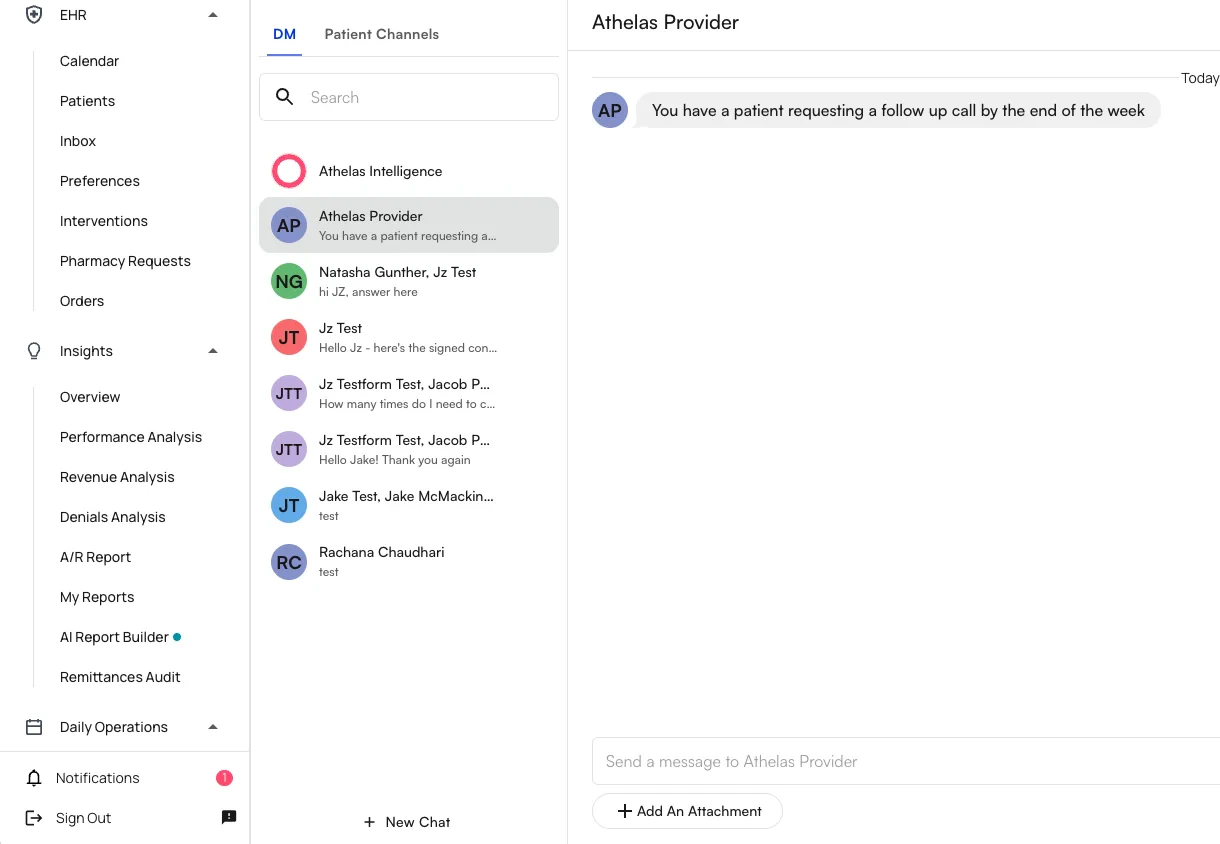
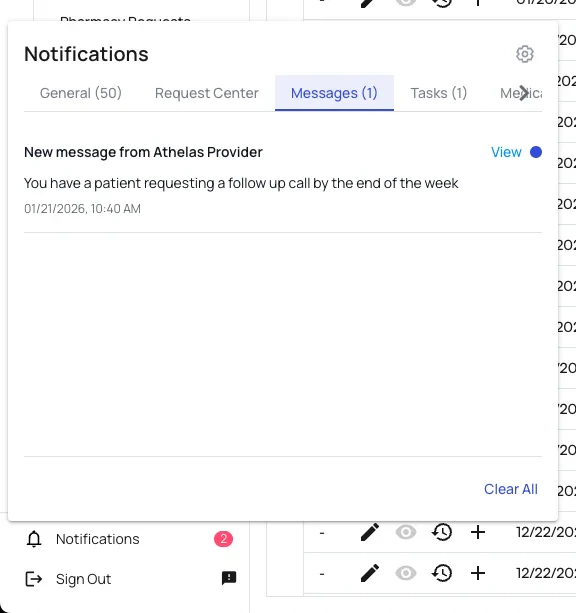 Clicking **View** on the message takes you directly to the message in the **Messages** tab.
 ## Tasks in the Notifications Center
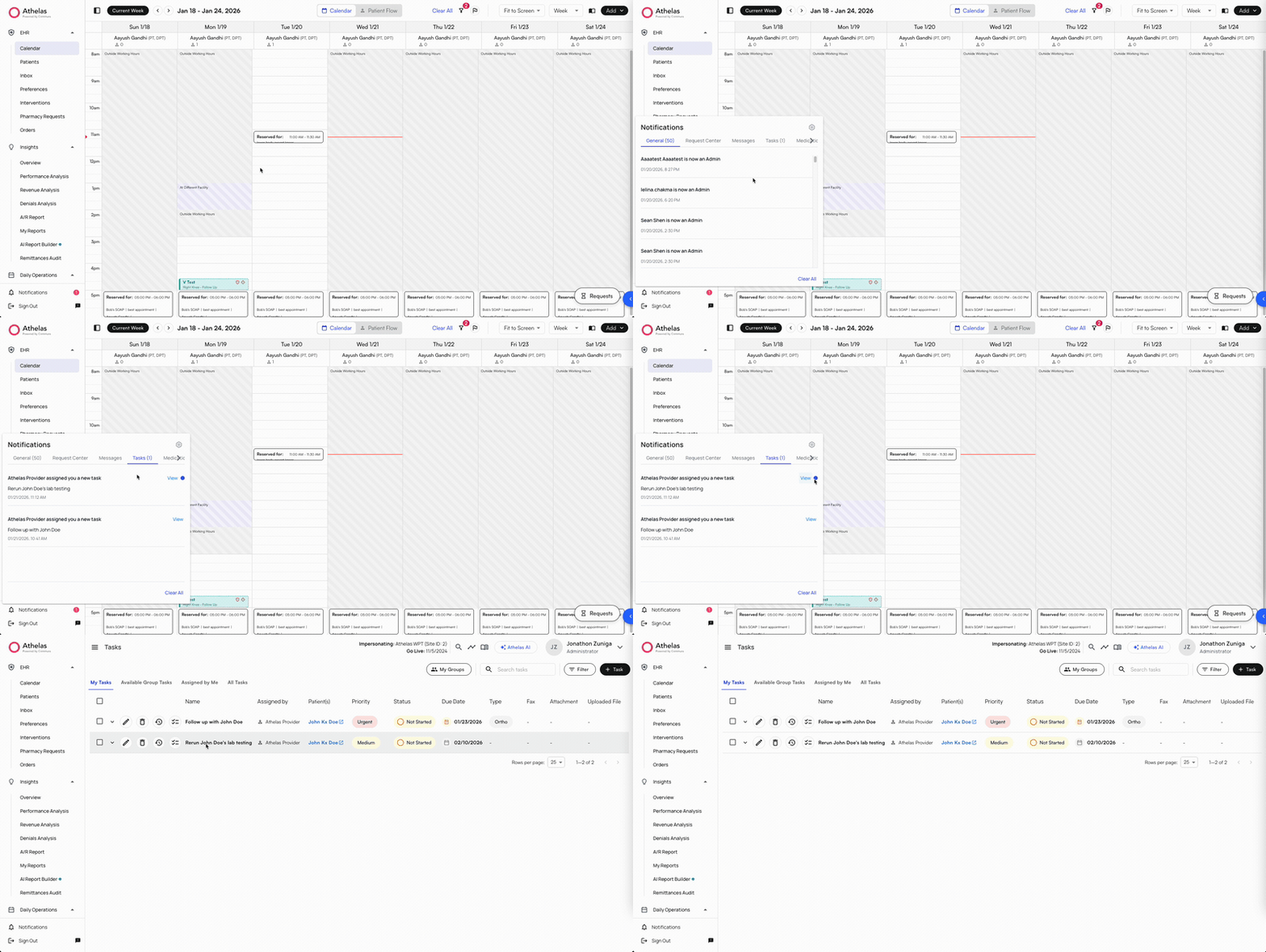
From the Notifications popup, you can also view any tasks assigned to you. Clicking **View** on the task takes you to **My Tasks** in the **Tasks** tab.
## Tasks in the Notifications Center
From the Notifications popup, you can also view any tasks assigned to you. Clicking **View** on the task takes you to **My Tasks** in the **Tasks** tab.
 ## Patient Channels
Insights supports patient-level notes called **Patient Channels** that staff can use to communicate about a patient's profile and share information outside of visit notes or appointment notes. Patient Channels consist of: **EHR notes**, **Insights notes**, and **Universal notes**.
### EHR Notes
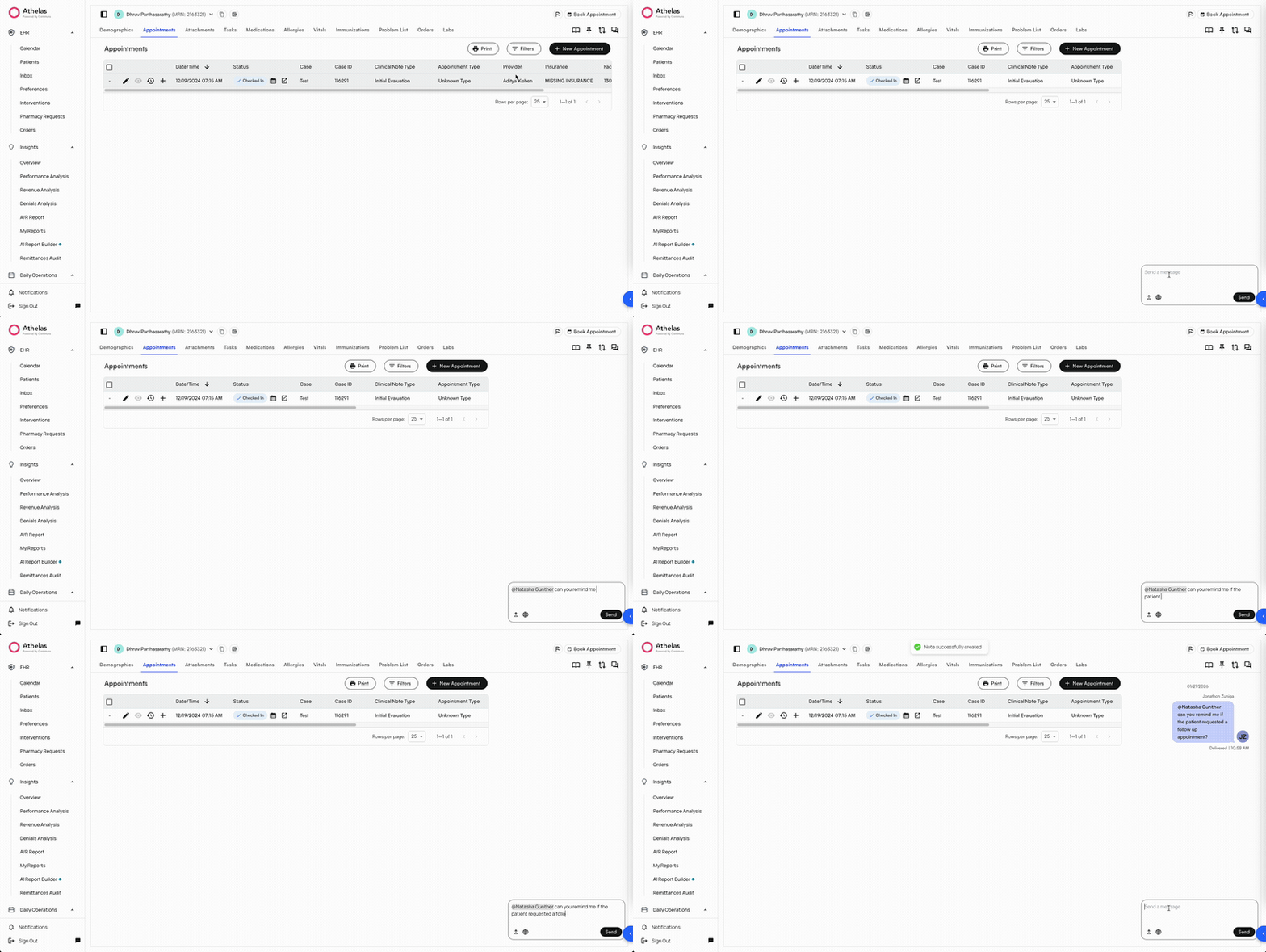
A patient's EHR notes can be accessed by clicking the notes icon in the top right corner of any patient profile page — for example, **Demographics**, **Appointments**, or **Medications**. You can tag other users in messages or attach documents. Any messages posted in EHR notes are visible across all other patient pages by other users.
## Patient Channels
Insights supports patient-level notes called **Patient Channels** that staff can use to communicate about a patient's profile and share information outside of visit notes or appointment notes. Patient Channels consist of: **EHR notes**, **Insights notes**, and **Universal notes**.
### EHR Notes
A patient's EHR notes can be accessed by clicking the notes icon in the top right corner of any patient profile page — for example, **Demographics**, **Appointments**, or **Medications**. You can tag other users in messages or attach documents. Any messages posted in EHR notes are visible across all other patient pages by other users.
 ### Insights Notes
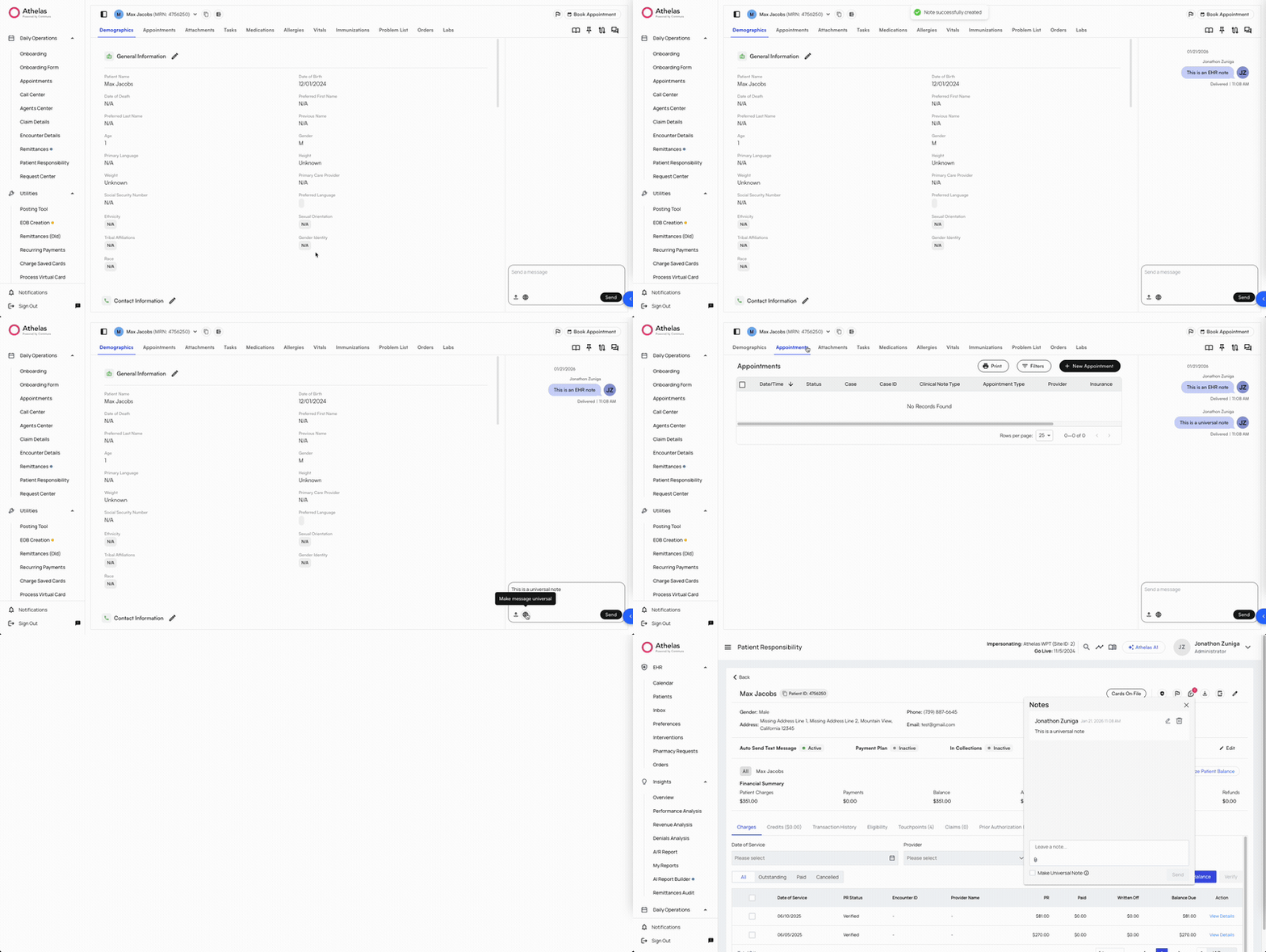
Insights notes are patient-level notes accessed from Insights pages like **Patient Responsibility**, **Claim Details**, or **Encounter Details**. Each of these patient-level pages is kept separate to avoid crossing communication lines for different activities or personas.
### Universal Notes
In any patient-level note, you can toggle the globe icon to create a **Universal Note**. Universal Notes appear across EHR notes and all Insights notes.
### Insights Notes
Insights notes are patient-level notes accessed from Insights pages like **Patient Responsibility**, **Claim Details**, or **Encounter Details**. Each of these patient-level pages is kept separate to avoid crossing communication lines for different activities or personas.
### Universal Notes
In any patient-level note, you can toggle the globe icon to create a **Universal Note**. Universal Notes appear across EHR notes and all Insights notes.
 ### Accessing Patient Channels
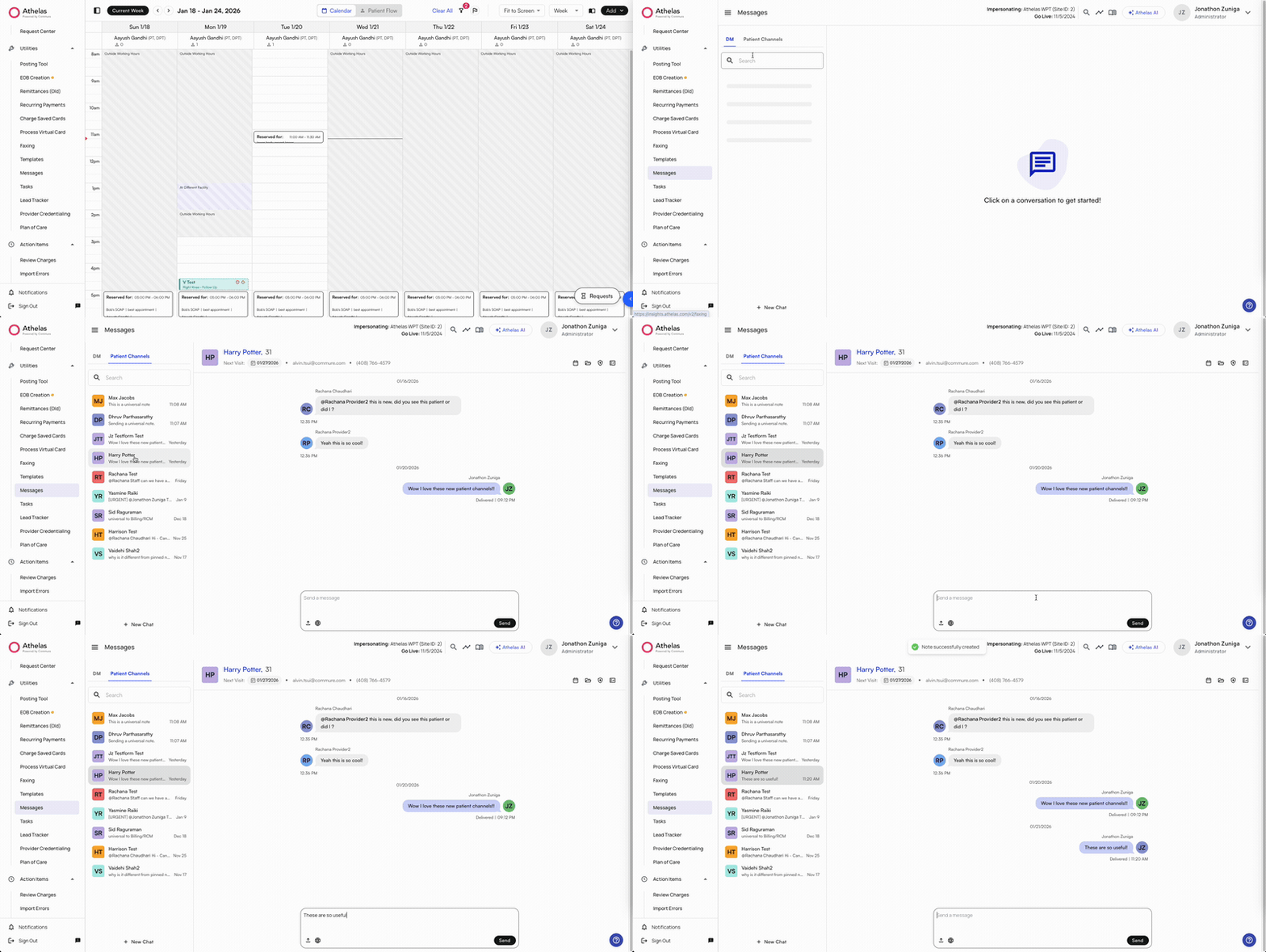
Patient Channels can also be accessed through **Messages**, in the **Patient Channels** tab. From here, you can see all Patient Channels, including any EHR or Universal notes. You can send EHR notes or Universal notes directly from this view.
### Accessing Patient Channels
Patient Channels can also be accessed through **Messages**, in the **Patient Channels** tab. From here, you can see all Patient Channels, including any EHR or Universal notes. You can send EHR notes or Universal notes directly from this view.
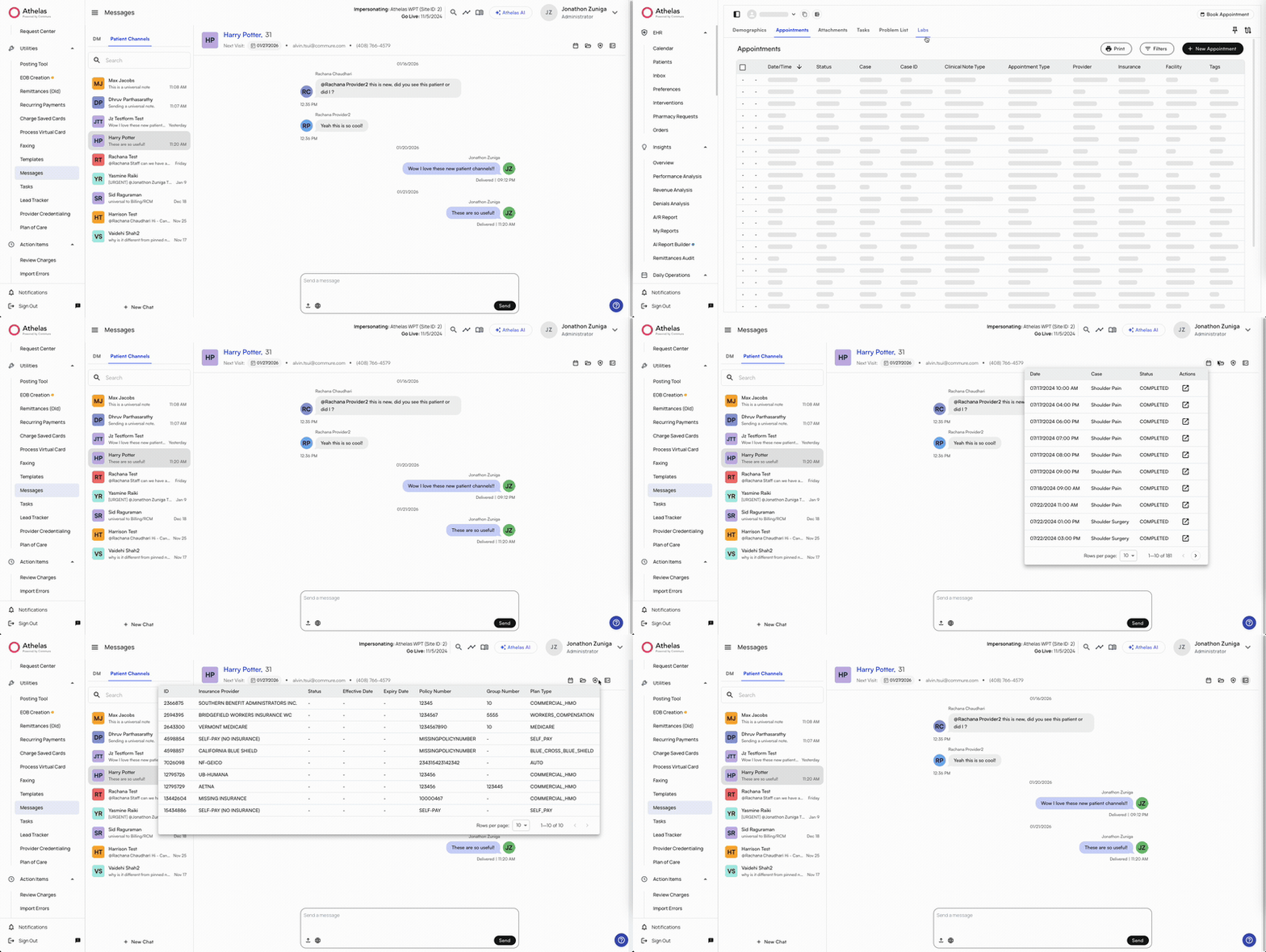
 From Patient Channels, you can navigate to the patient's **Appointments** page by clicking the patient's name, or immediately view the patient's **appointments**, **cases**, **insurance**, or **prior authorizations** in the same window by clicking the icons in the top right.
 ### FAQ
It lives at the bottom of the sidebar and is visible from every Insights page. The badge count reflects unread messages and pending tasks combined.
**EHR notes** live on patient profile pages (Demographics, Appointments, Medications) and are visible to clinical staff across those EHR pages. **Insights notes** live on Insights-side pages (Patient Responsibility, Claim Details, Encounter Details), scoped to billing/RCM work. **Universal notes** are the cross-cutting variant — toggle the globe icon on any patient-level note and it appears in both EHR and Insights contexts.
Yes. Both EHR notes and Universal notes support tagging users and attaching documents. Tagged users receive a notification in the Notifications Center.
Yes — open **Messages** and switch to the **Patient Channels** tab. You can browse every patient channel from there, and send new EHR or Universal notes inline.
The badge reflects unread messages **and** unfinished tasks. If the count persists after reading messages, check the Tasks section of the popup for pending items.
### FAQ
It lives at the bottom of the sidebar and is visible from every Insights page. The badge count reflects unread messages and pending tasks combined.
**EHR notes** live on patient profile pages (Demographics, Appointments, Medications) and are visible to clinical staff across those EHR pages. **Insights notes** live on Insights-side pages (Patient Responsibility, Claim Details, Encounter Details), scoped to billing/RCM work. **Universal notes** are the cross-cutting variant — toggle the globe icon on any patient-level note and it appears in both EHR and Insights contexts.
Yes. Both EHR notes and Universal notes support tagging users and attaching documents. Tagged users receive a notification in the Notifications Center.
Yes — open **Messages** and switch to the **Patient Channels** tab. You can browse every patient channel from there, and send new EHR or Universal notes inline.
The badge reflects unread messages **and** unfinished tasks. If the count persists after reading messages, check the Tasks section of the popup for pending items.