> ## Documentation Index
> Fetch the complete documentation index at: https://trainings.air.athelas.com/llms.txt
> Use this file to discover all available pages before exploring further.
# Waitlist
The Waitlist feature helps practices fill open schedules faster and more efficiently. Patients can join the waitlist through the Athelas Patient Portal when they cannot find an available time, and provide appointment preferences and time preferences for offered slots.
Practices can also manually add patients to the waitlist in Insights directly. When cancellations occur, the waitlist automatically processes the list and offers the open slot to matching patients. Sites can configure several settings — such as the number of patients to send offers to, the amount of time to accept, and whether offers expire. Once the waitlist begins, it continues running until either a patient accepts the slot, or there are no more patients matching the available timeslot.
## Joining the Waitlist from the Athelas Patient Portal
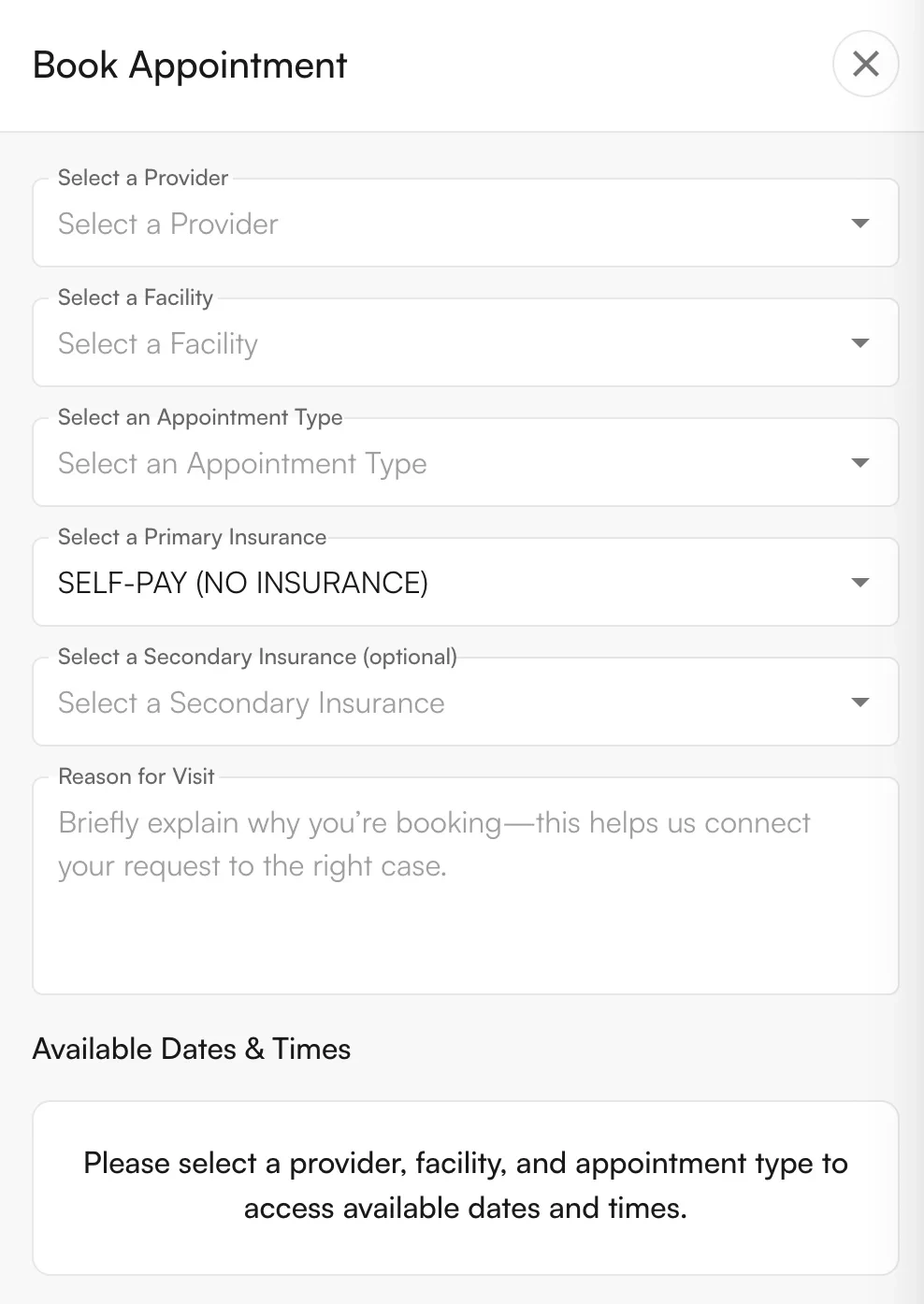
When a patient uses the Athelas Patient Portal to schedule an appointment, they must specify a **provider**, **facility**, and **appointment type** before seeing available times.
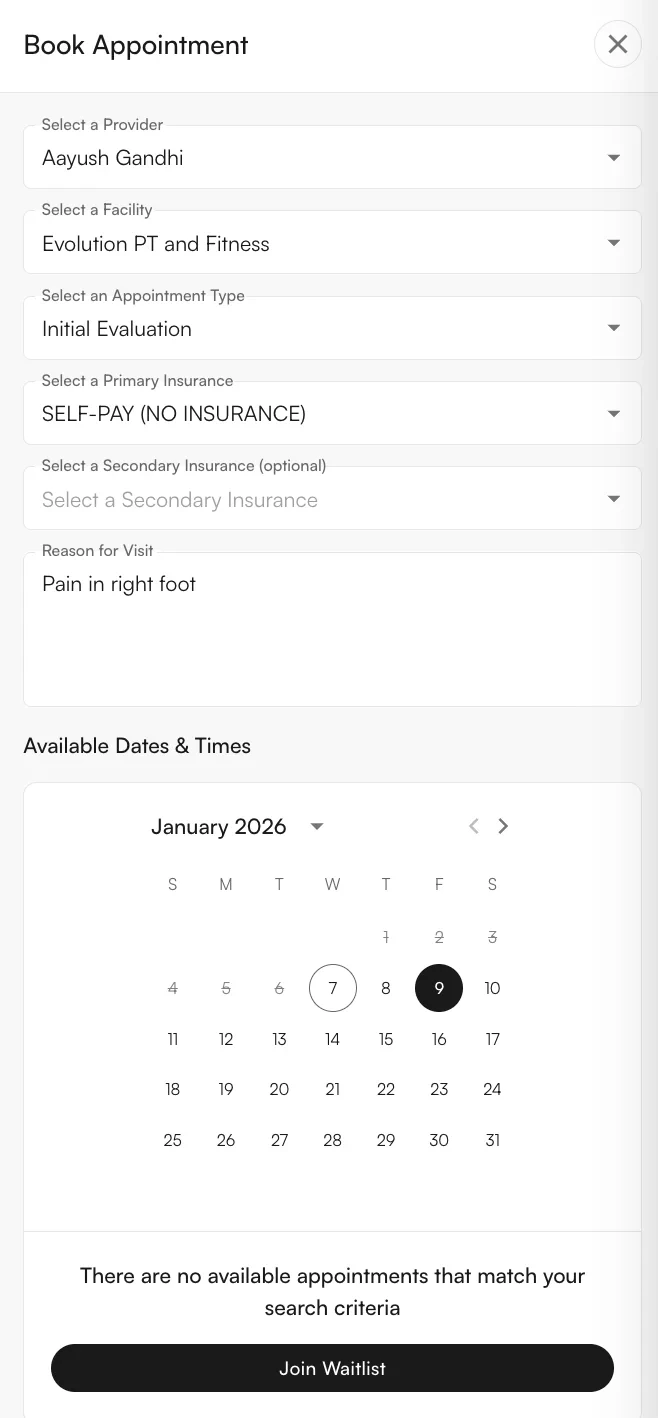
 If no times are available (because of a full schedule, reserve blocks that do not match the patient's preferences, or the provider is out of the office), the patient is presented with the option to **Join Waitlist**.
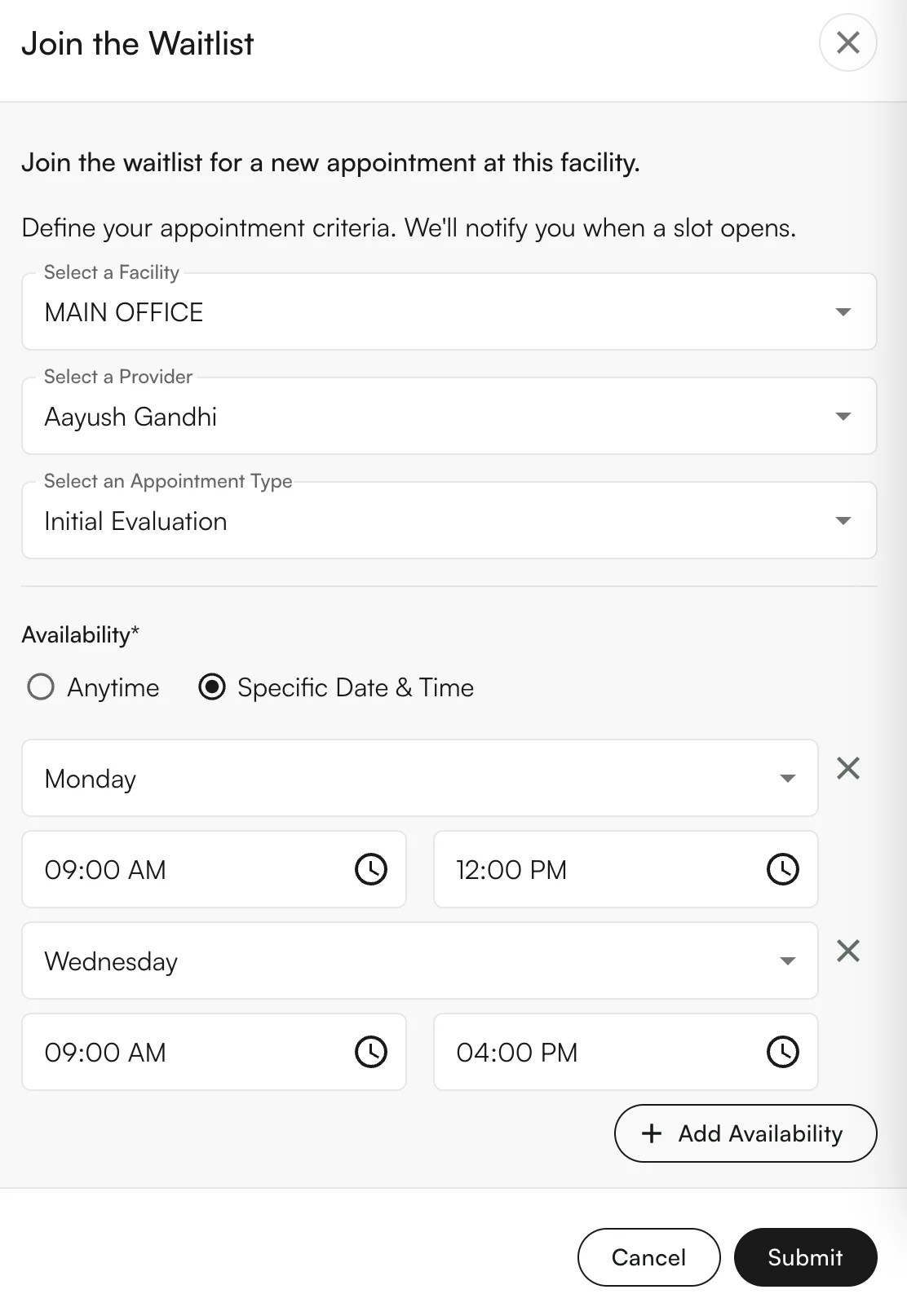
 After clicking **Join Waitlist**, the patient can specify a facility, one or multiple providers, and an appointment type, along with any preferred times. If any time will work, they can select **Anytime**.
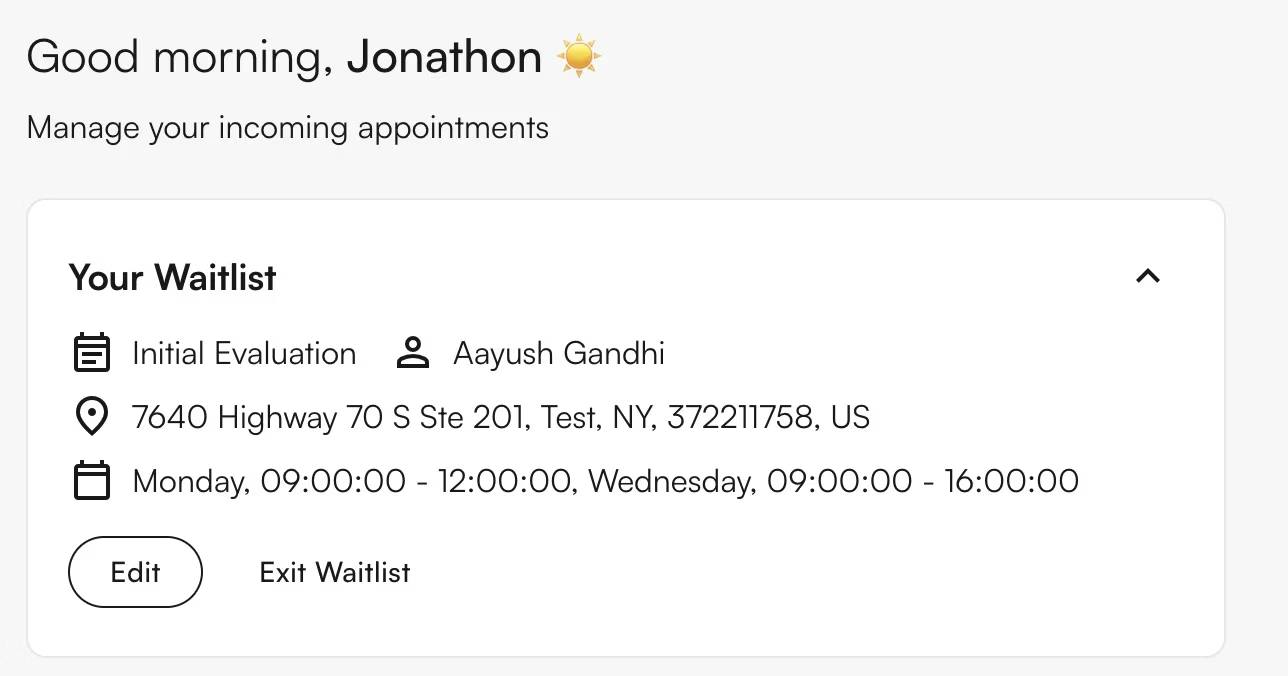
 Once submitted, a window appears above the patient's appointments showing they have a waitlist entry in place. They can **Edit** the waitlist entry here, or exit the waitlist if desired.
 ## External & Internal Appointment Types
As part of using the Waitlist, practices can map multiple **internal appointment types** (visible to internal personnel) to a single **external appointment type** (visible to patients). When patients are added to the Waitlist, they're offered only the external appointment types — reducing confusion about which option to select.
To edit the mappings:
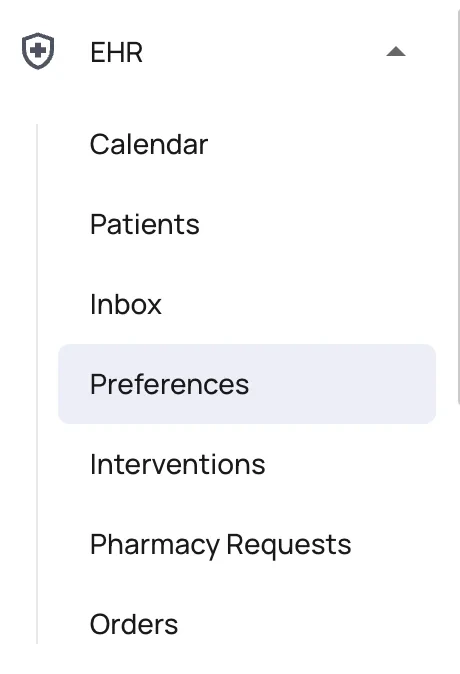
1. **Navigate to Calendar Preferences.**
## External & Internal Appointment Types
As part of using the Waitlist, practices can map multiple **internal appointment types** (visible to internal personnel) to a single **external appointment type** (visible to patients). When patients are added to the Waitlist, they're offered only the external appointment types — reducing confusion about which option to select.
To edit the mappings:
1. **Navigate to Calendar Preferences.**
 2. **Open the Appointment Types tab.**
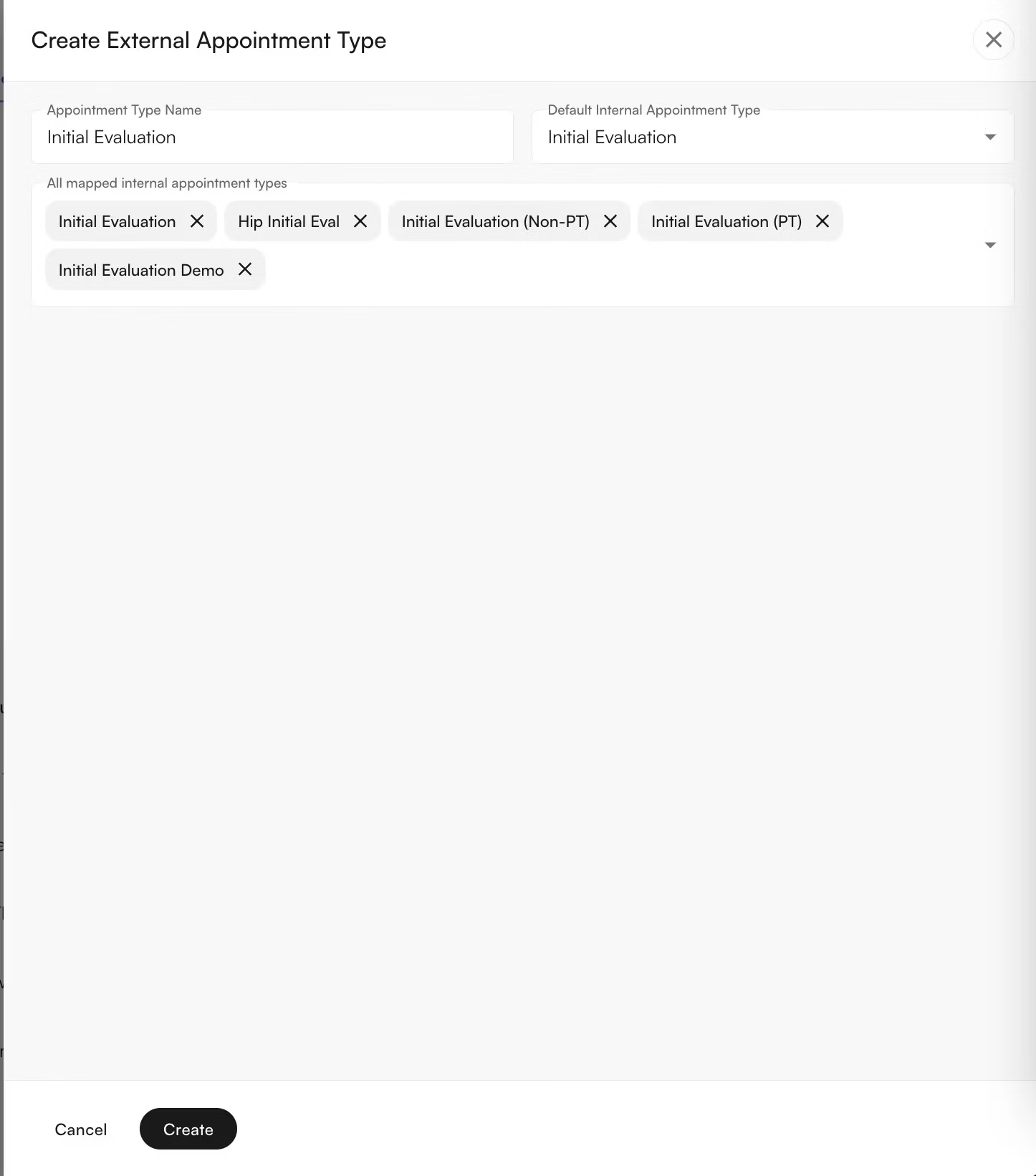
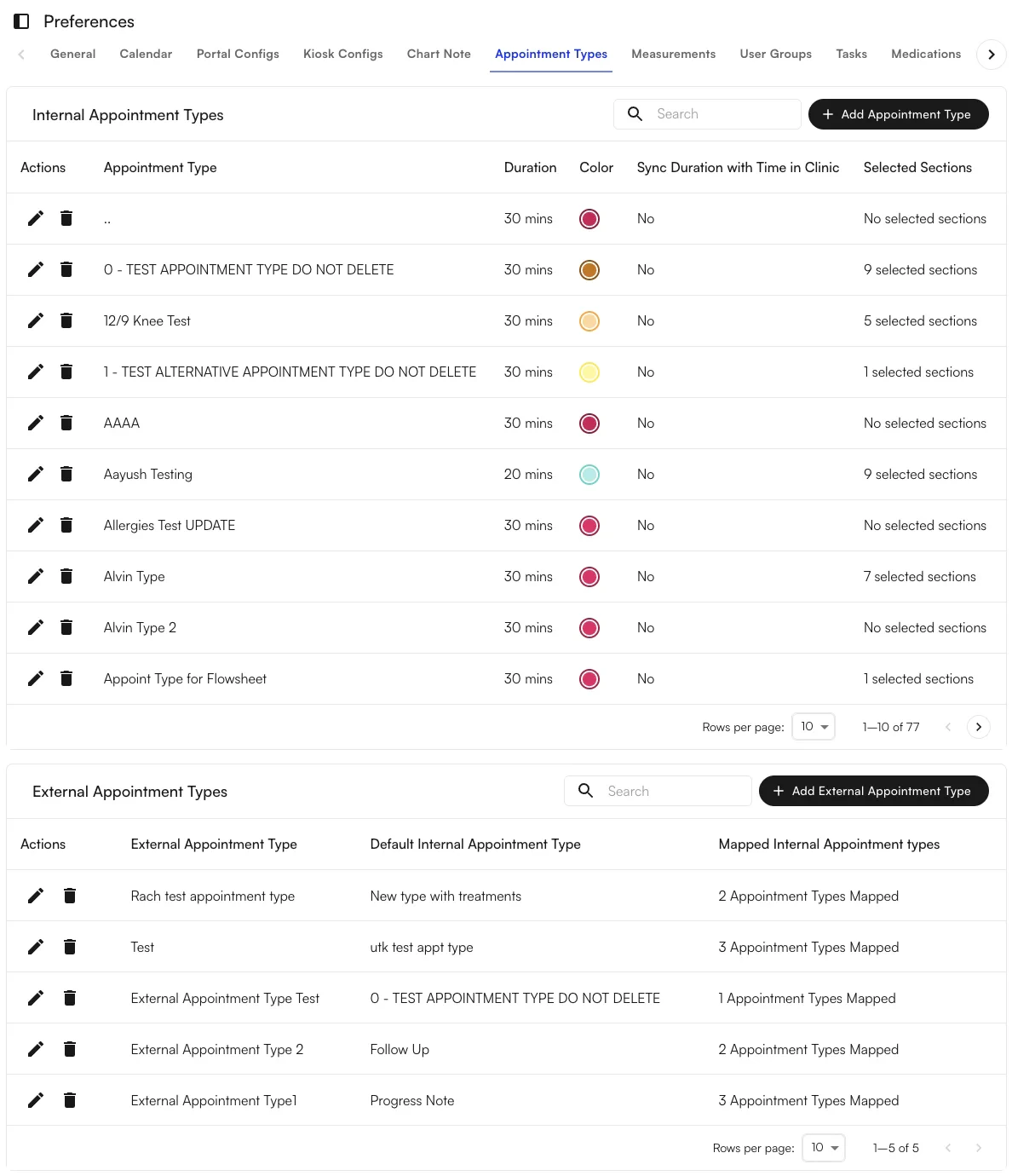 3. **Create or edit external appointment types** — pick which internal appointment types map to each external one. You can also choose a **Default Internal Appointment Type**, which determines the internal type used when automatic scheduling is on. An internal appointment type can only be mapped to a single external appointment type, ensuring there's no confusion about what the patient sees.
 ## Adding a patient to the waitlist from Insights
If a patient does not have access to the Patient Portal, or the site wishes to add the patient themselves, a patient can be manually added to the waitlist from the Insights Calendar.
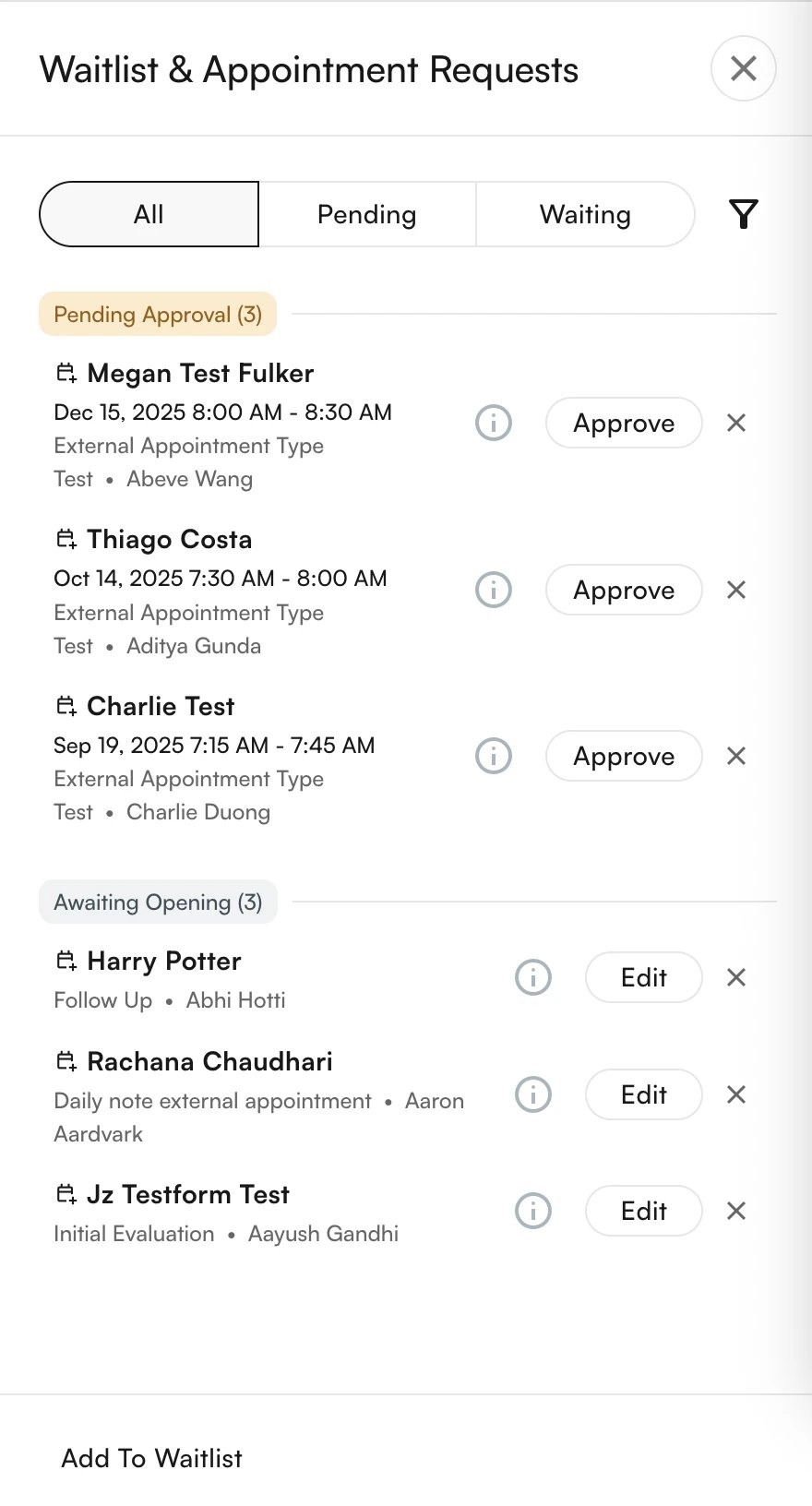
1. **Navigate to the Requests tab** in the header bar of the Calendar view.
## Adding a patient to the waitlist from Insights
If a patient does not have access to the Patient Portal, or the site wishes to add the patient themselves, a patient can be manually added to the waitlist from the Insights Calendar.
1. **Navigate to the Requests tab** in the header bar of the Calendar view.
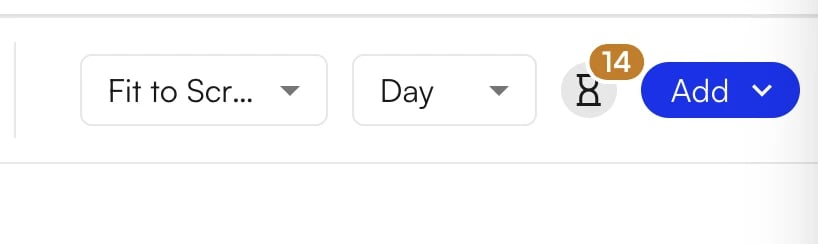 2. **Click Add to Waitlist** at the bottom of the drawer. All current waitlist entries and approval requests appear here.
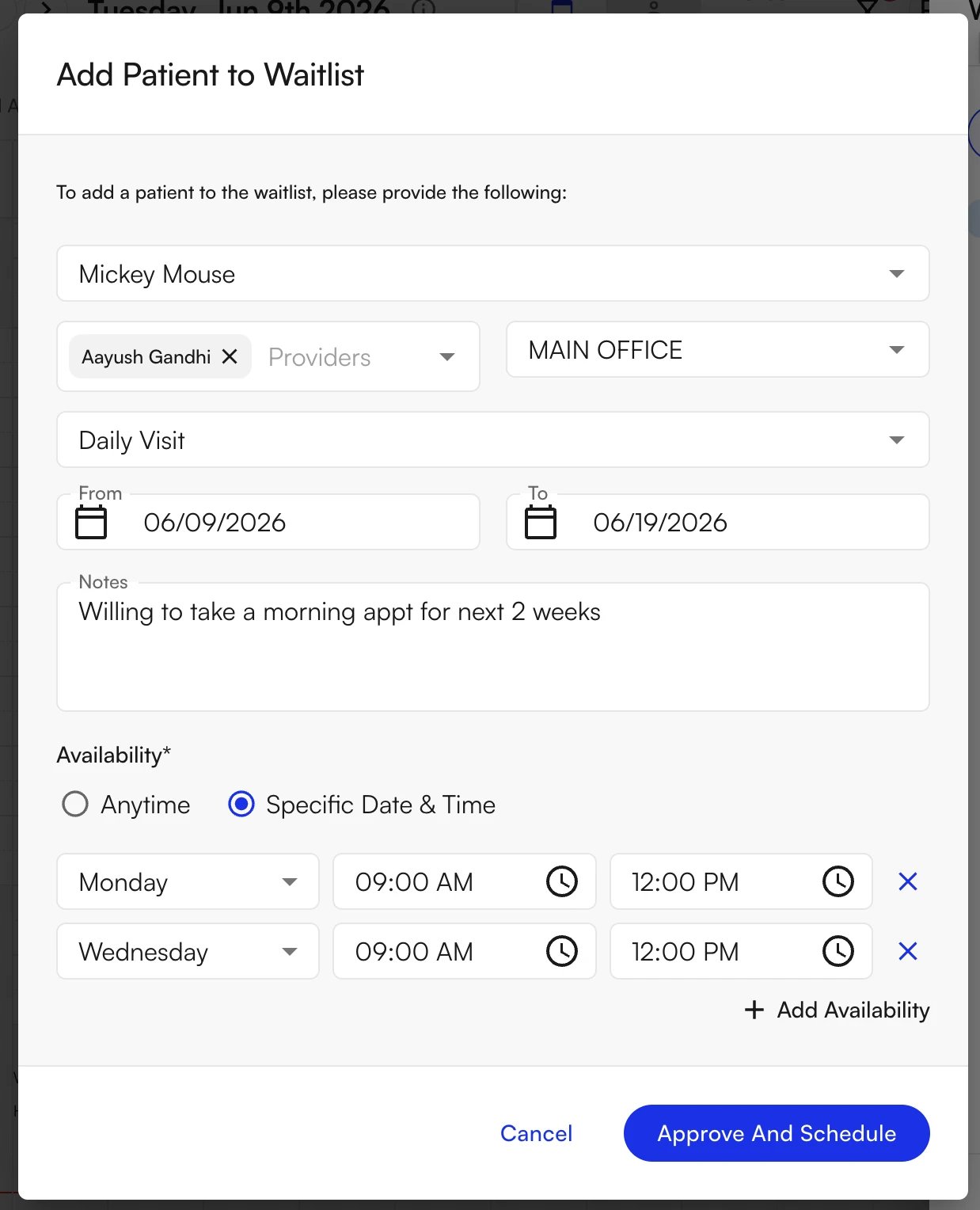
 3. **Edit the patient and their appointment preferences** — including provider, facility, appointment type, effective and expiration dates, notes, and preferred availability.
 4. **Confirm.** The patient appears at the bottom of the existing waitlist entries.
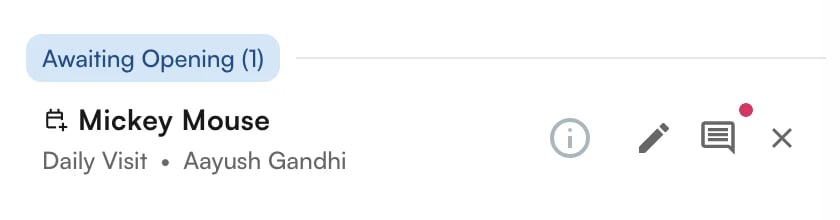 5. **Manage entries** — click **Edit** to update an existing waitlist entry, or click the **X** on the right to remove an entry.
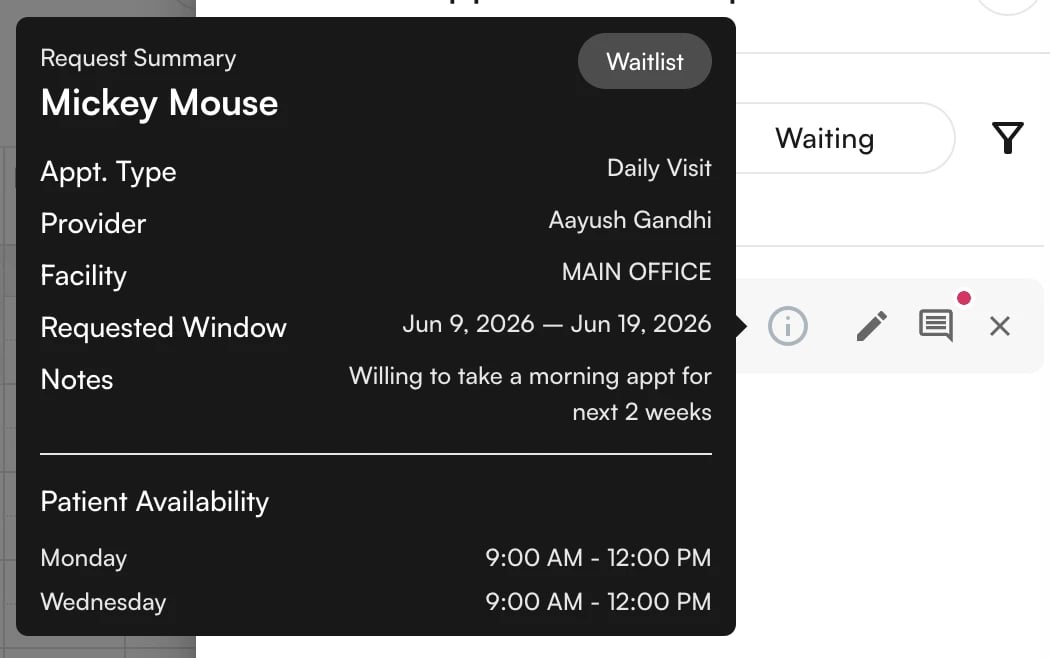
6. **Hover over the (i) icon** to see the details of the waitlist entry. Click the **notes icon** to edit the entry's notes directly.
5. **Manage entries** — click **Edit** to update an existing waitlist entry, or click the **X** on the right to remove an entry.
6. **Hover over the (i) icon** to see the details of the waitlist entry. Click the **notes icon** to edit the entry's notes directly.
 ## Processing entries from the waitlist
When an appointment is cancelled, you are prompted with a popup informing you that there are waitlist entries matching that timeslot. You can either:
1. **Send the waitlist offers** and start the waitlist processing, or
2. **Skip Waitlist Offers** if you intend to fill that slot manually.
## Processing entries from the waitlist
When an appointment is cancelled, you are prompted with a popup informing you that there are waitlist entries matching that timeslot. You can either:
1. **Send the waitlist offers** and start the waitlist processing, or
2. **Skip Waitlist Offers** if you intend to fill that slot manually.
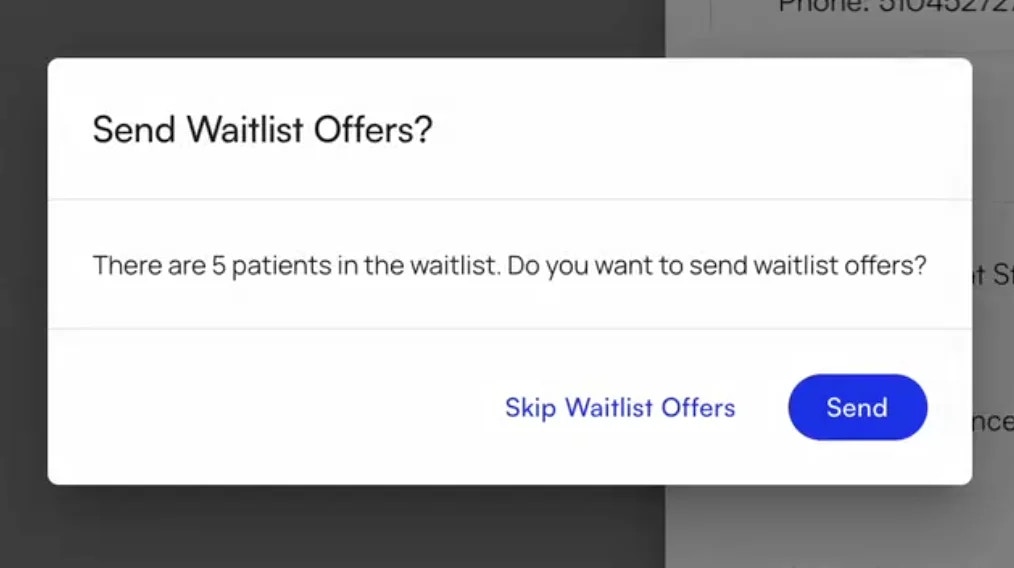 If you choose to start the waitlist, one or multiple patients matching the timeslot, provider, and location are sent a text and email informing them they have been offered a waitlist slot.
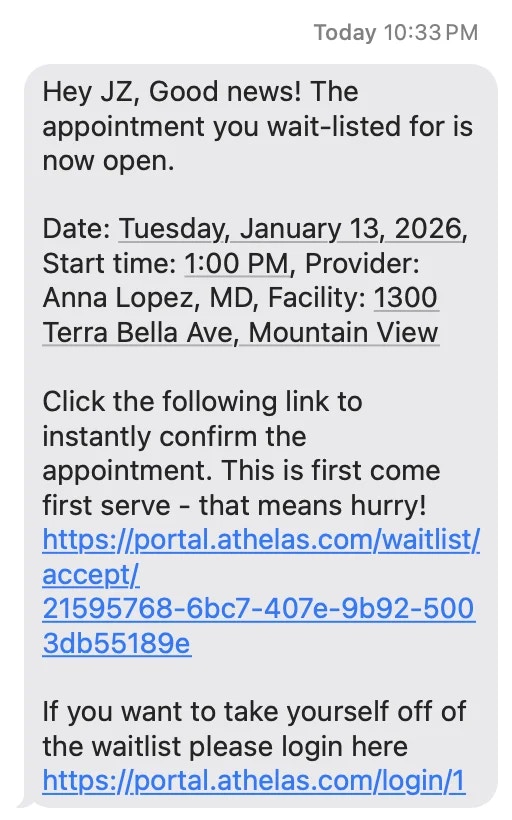
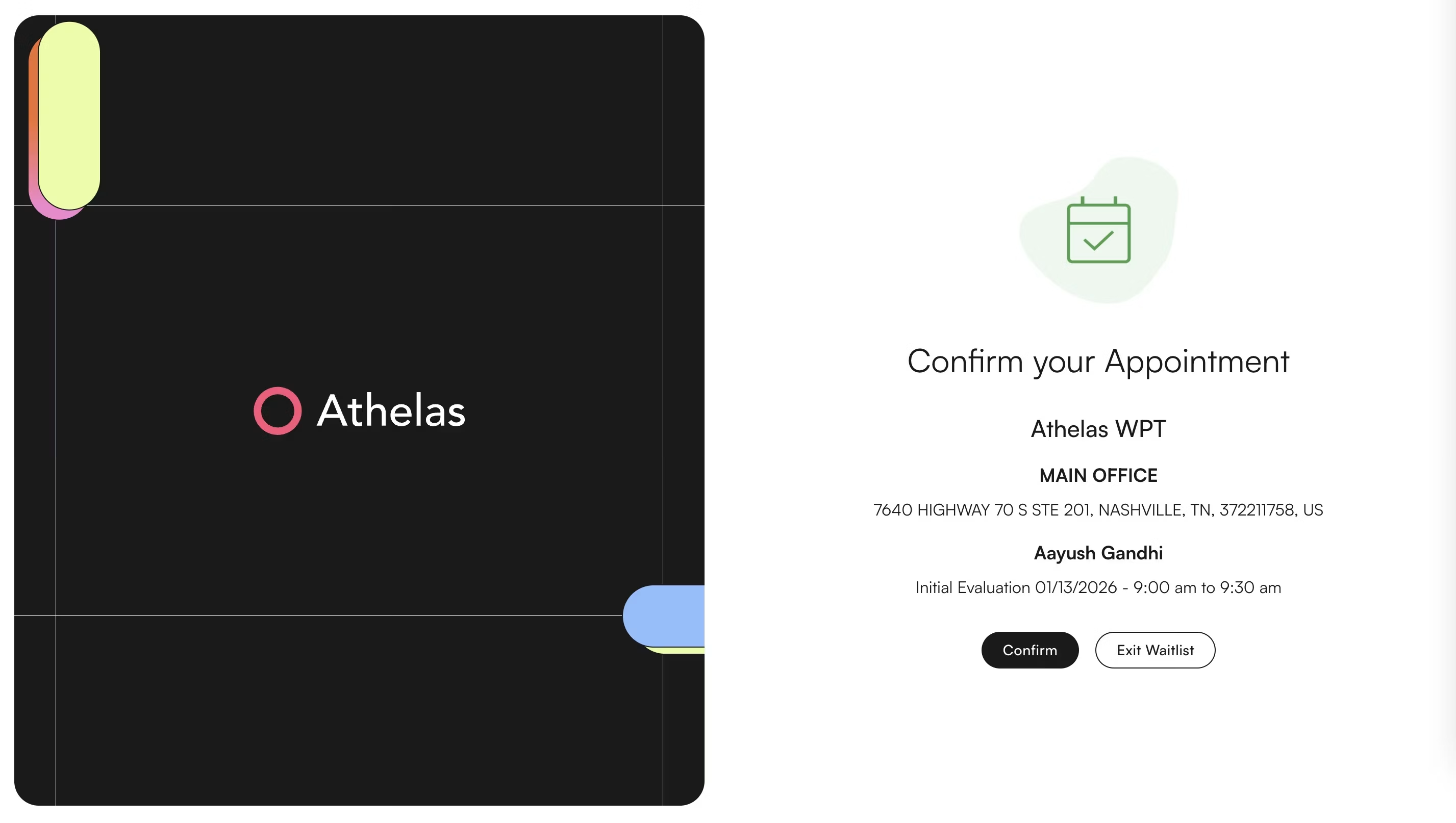
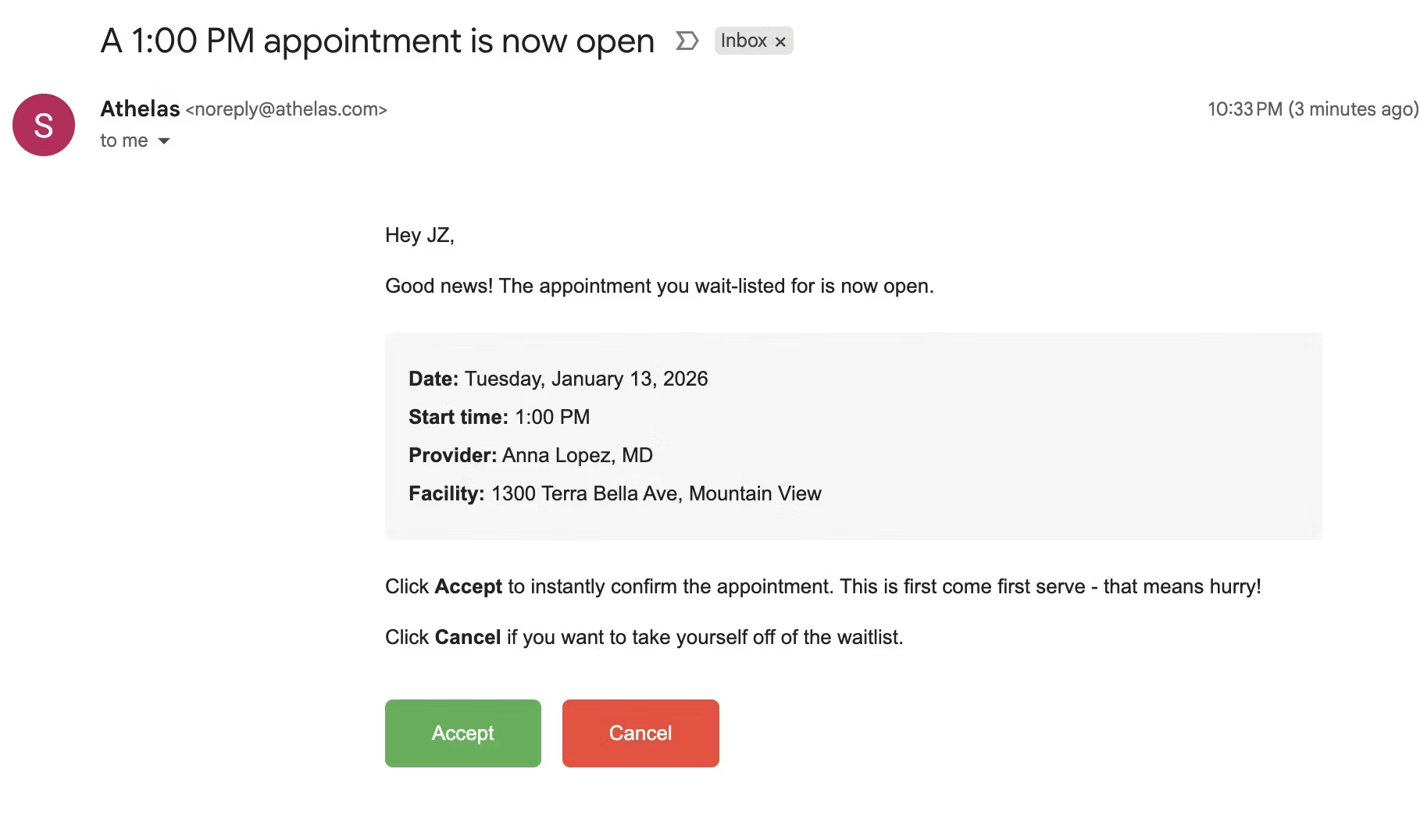 When a patient clicks the link in their offer message, they are brought to a screen to confirm the appointment information and officially accept the offer. They can also reject the offer if that time no longer works.
 The patient has a set amount of time to respond before the offer expires and the next entry is offered the slot. The service continues moving down the list in configurable size batches until a patient accepts, or no further entries match the available slot.
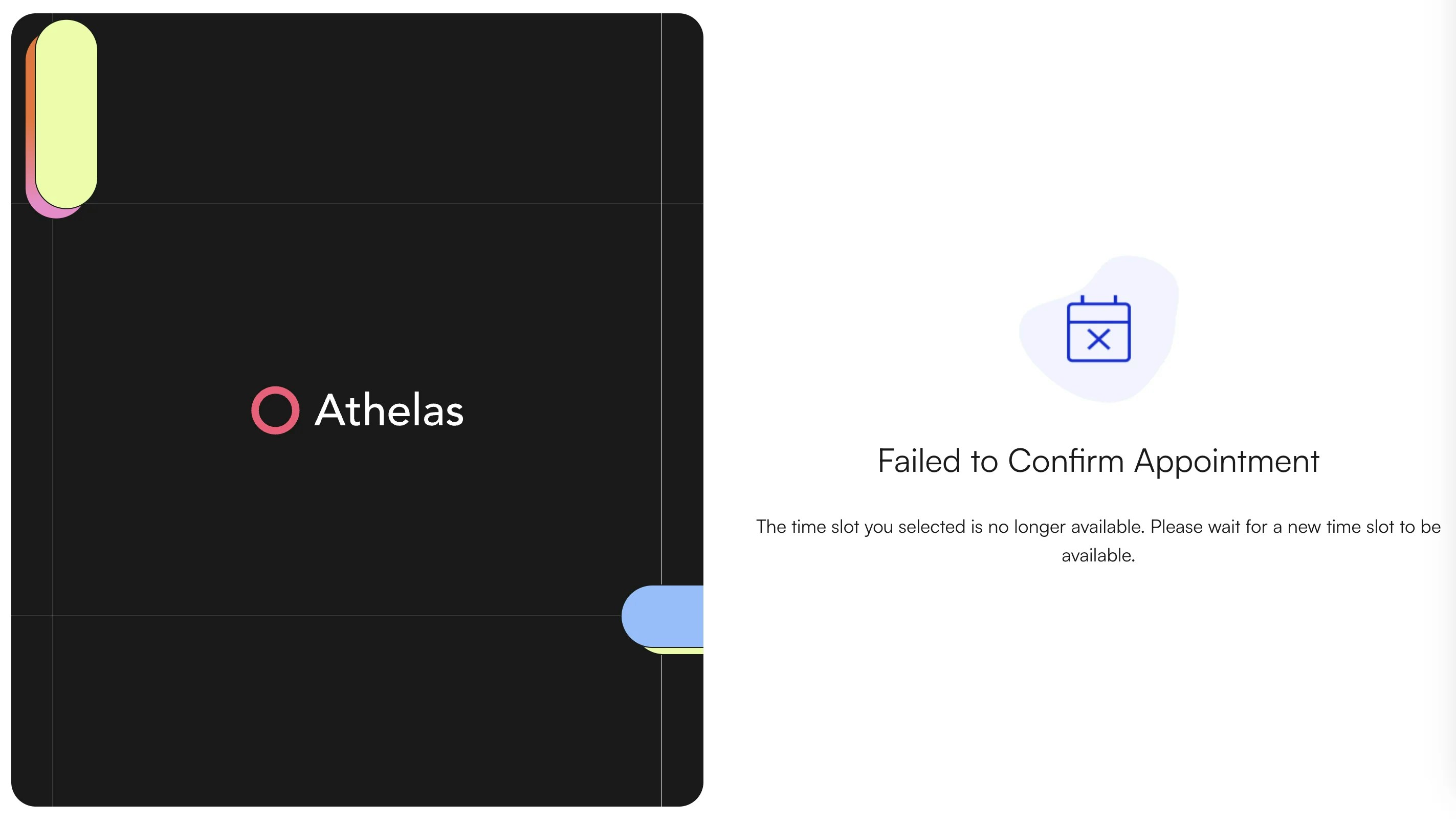
If the original patient attempts to access the offer link after it expires (or after another patient has accepted it), they are shown a message explaining the offer has expired.
The patient has a set amount of time to respond before the offer expires and the next entry is offered the slot. The service continues moving down the list in configurable size batches until a patient accepts, or no further entries match the available slot.
If the original patient attempts to access the offer link after it expires (or after another patient has accepted it), they are shown a message explaining the offer has expired.
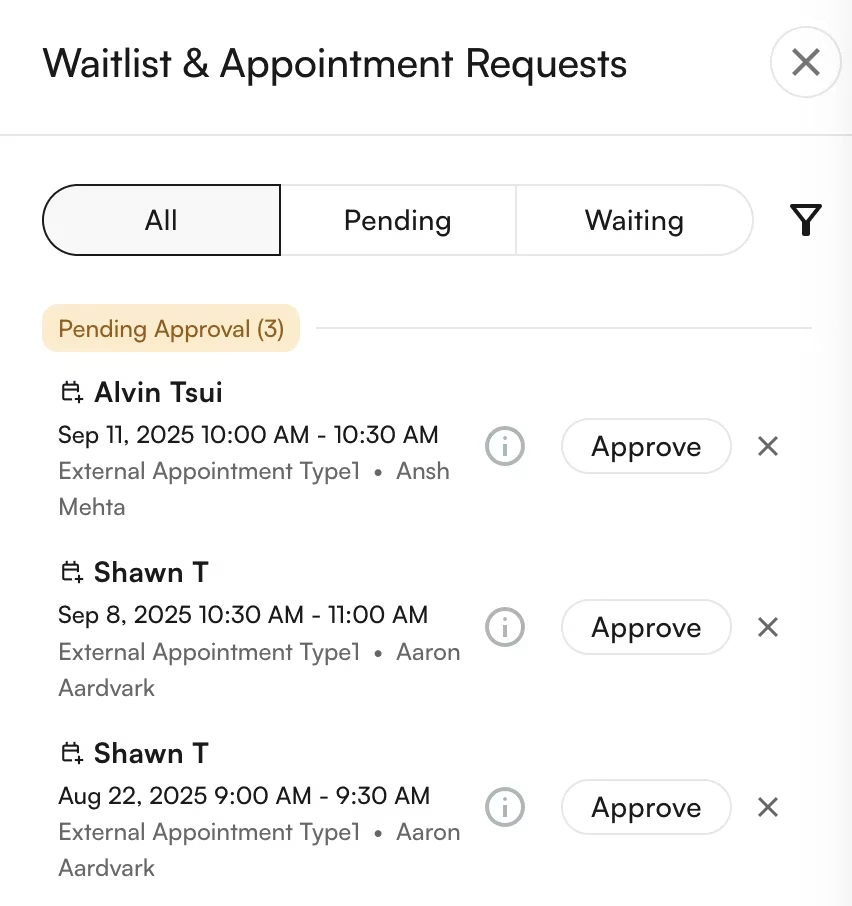
 If the site requires approval for appointment requests, an accepted waitlist offer converts to an appointment request in the **Requests** tab. Otherwise, the waitlist offer automatically converts into a scheduled appointment.
 ## Waitlist settings and configurations
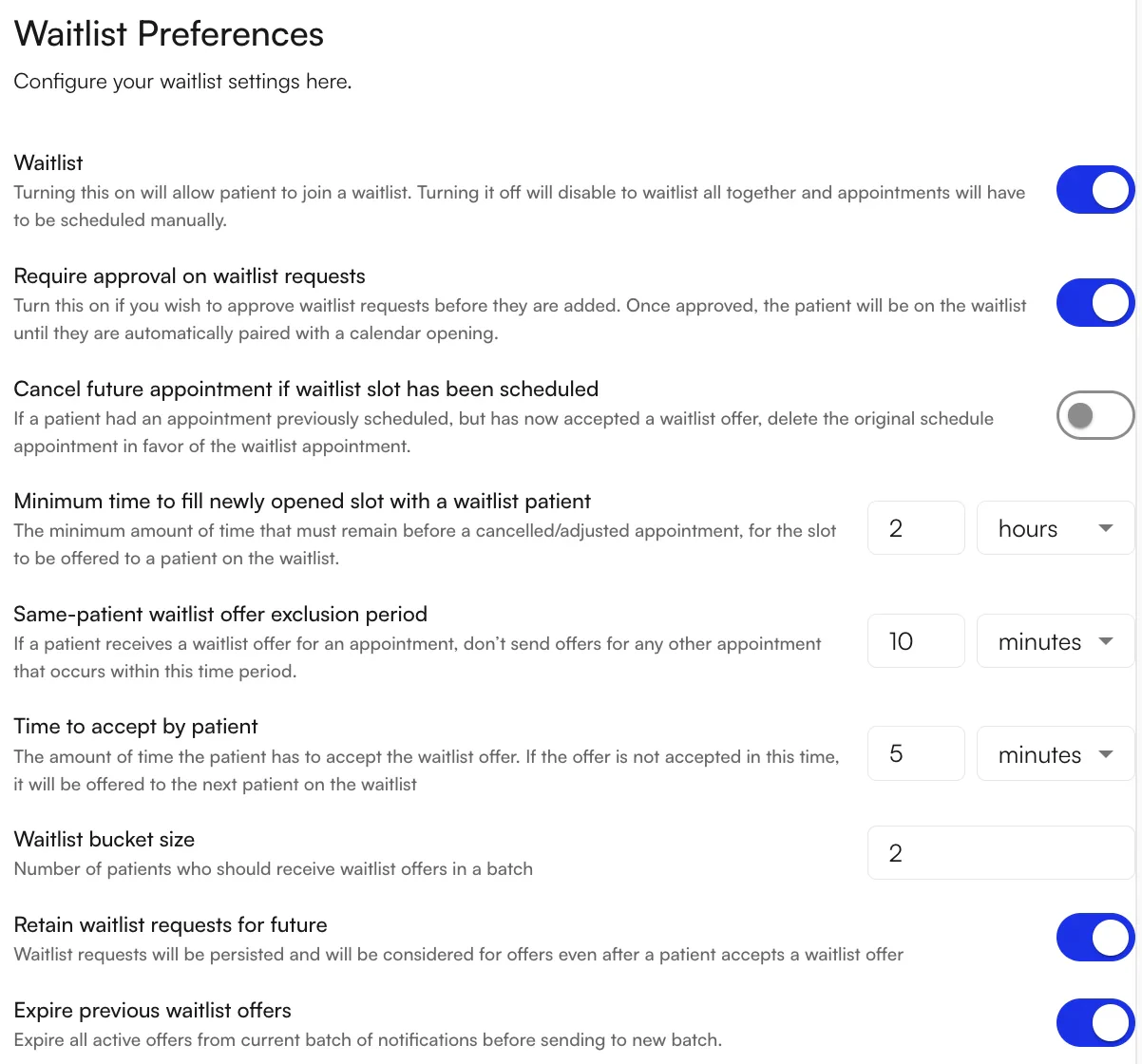
Several settings allow sites to adjust waitlist behavior. These are accessible in the **EHR Preferences** page, in the **Calendar** tab.
## Waitlist settings and configurations
Several settings allow sites to adjust waitlist behavior. These are accessible in the **EHR Preferences** page, in the **Calendar** tab.
 The available preferences include:
* **Waitlist on/off** — whether the site will allow waitlist entries to be created by patients or site staff.
* **Require approval on waitlist requests** — when on, all promotions from the waitlist to an appointment must be approved before being scheduled. This overrides the normal appointment-approval configuration.
* **Cancel future appointment if waitlist slot has been scheduled** — when on, the system detects if a patient has a future appointment matching the waitlist offer. When they schedule a new appointment through their waitlist offer, the very next appointment is cancelled.
* **Minimum time to fill a newly opened slot with a waitlist patient** — how far out a cancelled appointment must be to offer the slot to a waitlist entry. For example, if the minimum is 30 minutes, cancelling at 8:50 AM for a 9:00 AM appointment will not send any waitlist offer.
* **Same-patient waitlist offer exclusion period** — how much time must pass between waitlist offers for a single patient, to avoid sending too many offers to the same patient when cancelling multiple appointments. For example, if set to 1 hour, and Jonathon receives a waitlist offer at 9:15 AM, he cannot receive another offer until 10:15 AM — even if he declines the first offer.
* **Time to accept by patient** — how much time a batch of patients has to respond to their offer. If they do not accept in this time, the next batch of patients is sent the offer as well.
* **Waitlist bucket size** — the number of patients sent an offer in each batch. If set to `1`, behavior is one-at-a-time (Patient A, then B, then C). If set to `>1`, behavior is a "blast" send (Patients 1–10, then 11–20, then 21–30).
* **Retain waitlist requests for future** — when on, accepting a waitlist offer does **not** delete the waitlist entry. Instead, the patient moves to the back of the list. When off, accepting a waitlist offer deletes the entry, and the patient must add a new one to be considered for future offers.
* **Expire previous waitlist offers** — when on, moving from one batch of patients to the next causes the previous batch's offers to expire. When off, offers don't expire until a patient accepts. For example, if time-to-accept is 5 minutes, bucket size is 10, and expiration is off: minutes 0–10 there are 10 active offers; 11–20 there are 20 active offers; 21–30 there are 30 active offers, and so on.
The available preferences include:
* **Waitlist on/off** — whether the site will allow waitlist entries to be created by patients or site staff.
* **Require approval on waitlist requests** — when on, all promotions from the waitlist to an appointment must be approved before being scheduled. This overrides the normal appointment-approval configuration.
* **Cancel future appointment if waitlist slot has been scheduled** — when on, the system detects if a patient has a future appointment matching the waitlist offer. When they schedule a new appointment through their waitlist offer, the very next appointment is cancelled.
* **Minimum time to fill a newly opened slot with a waitlist patient** — how far out a cancelled appointment must be to offer the slot to a waitlist entry. For example, if the minimum is 30 minutes, cancelling at 8:50 AM for a 9:00 AM appointment will not send any waitlist offer.
* **Same-patient waitlist offer exclusion period** — how much time must pass between waitlist offers for a single patient, to avoid sending too many offers to the same patient when cancelling multiple appointments. For example, if set to 1 hour, and Jonathon receives a waitlist offer at 9:15 AM, he cannot receive another offer until 10:15 AM — even if he declines the first offer.
* **Time to accept by patient** — how much time a batch of patients has to respond to their offer. If they do not accept in this time, the next batch of patients is sent the offer as well.
* **Waitlist bucket size** — the number of patients sent an offer in each batch. If set to `1`, behavior is one-at-a-time (Patient A, then B, then C). If set to `>1`, behavior is a "blast" send (Patients 1–10, then 11–20, then 21–30).
* **Retain waitlist requests for future** — when on, accepting a waitlist offer does **not** delete the waitlist entry. Instead, the patient moves to the back of the list. When off, accepting a waitlist offer deletes the entry, and the patient must add a new one to be considered for future offers.
* **Expire previous waitlist offers** — when on, moving from one batch of patients to the next causes the previous batch's offers to expire. When off, offers don't expire until a patient accepts. For example, if time-to-accept is 5 minutes, bucket size is 10, and expiration is off: minutes 0–10 there are 10 active offers; 11–20 there are 20 active offers; 21–30 there are 30 active offers, and so on.
 ### FAQ
The system continues moving through the list in configurable batch sizes until a patient accepts or no more entries match the slot. If everyone passes, the slot remains open on the calendar — you can fill it manually or leave it for direct scheduling.
Yes — but only after the **Same-patient waitlist offer exclusion period** elapses. This prevents flooding a single patient with offers when multiple cancellations happen close together.
Bucket size `1` is fairest — the first patient in line gets first pick. Larger buckets fill cancellations faster because the "blast" reaches many patients at once, but the earliest-queued patient may lose out to someone faster to respond. Pick based on whether speed-to-fill or queue fairness matters more for your practice.
A **waitlist offer** is initiated by the system after a cancellation — the patient chose to be waitlisted. An **appointment request** is initiated by the patient directly through the portal or online scheduling. When **Require approval on waitlist requests** is on, accepted waitlist offers still need staff approval before booking.
Yes. From their portal, patients can edit their preferences or exit the waitlist entirely. Staff can also remove entries from the **Requests** tab by clicking the **X** on the right side of the entry.
### FAQ
The system continues moving through the list in configurable batch sizes until a patient accepts or no more entries match the slot. If everyone passes, the slot remains open on the calendar — you can fill it manually or leave it for direct scheduling.
Yes — but only after the **Same-patient waitlist offer exclusion period** elapses. This prevents flooding a single patient with offers when multiple cancellations happen close together.
Bucket size `1` is fairest — the first patient in line gets first pick. Larger buckets fill cancellations faster because the "blast" reaches many patients at once, but the earliest-queued patient may lose out to someone faster to respond. Pick based on whether speed-to-fill or queue fairness matters more for your practice.
A **waitlist offer** is initiated by the system after a cancellation — the patient chose to be waitlisted. An **appointment request** is initiated by the patient directly through the portal or online scheduling. When **Require approval on waitlist requests** is on, accepted waitlist offers still need staff approval before booking.
Yes. From their portal, patients can edit their preferences or exit the waitlist entirely. Staff can also remove entries from the **Requests** tab by clicking the **X** on the right side of the entry.