> ## Documentation Index
> Fetch the complete documentation index at: https://trainings.air.athelas.com/llms.txt
> Use this file to discover all available pages before exploring further.
# Setting up Air
Welcome to Air, your simple and powerful way to manage patients, schedules, and operations in one place.
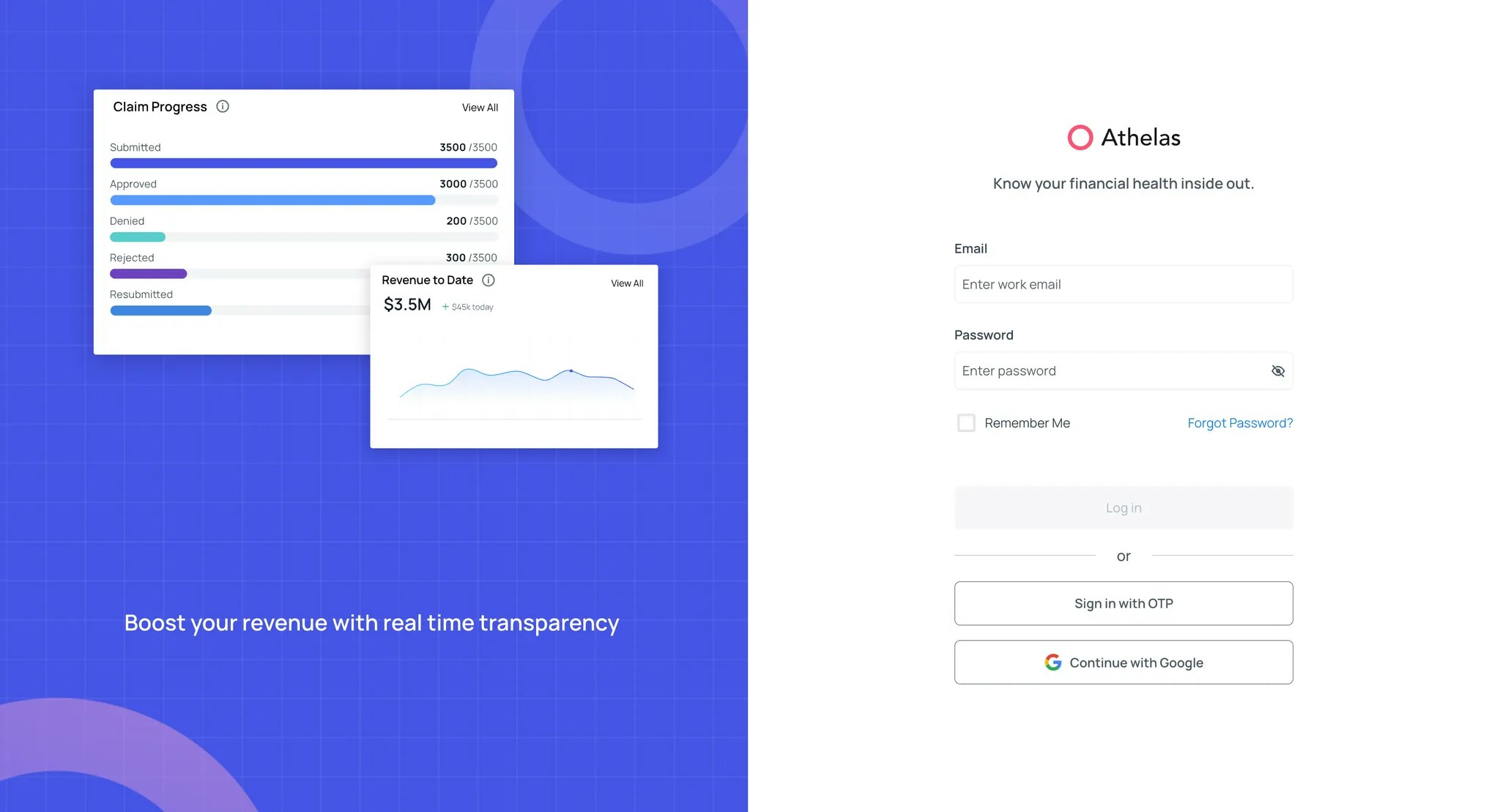
### Log-in to Air
Air by Athelas can be accessed through the [**Insights page.**](https://insights.athelas.com/v2/login?redirect_to=/my_account)
* **Login credentials** are created and managed by your site administrators. Please contact your admin to get started.
* For additional help, reach out to our support team at [**support@getathelas.com**](mailto:support@getathelas.com).
 ### Overview of Air
Once logged in, you can access both **Air (EHR)** and **Insights (RCM platform)** from the same site.
✨**Smart Tip:** Use **Cmd + K** (Mac) or **Ctrl + K** (PC) to open the search function. You can quickly search by patient name, provider, or section.
**Key Tabs within Air**
* **Calendar** *(all users)* – View the schedule by provider or facility.
* **Patients** *(all users)* – Access patient demographics, appointments, attachments, and more.
* **Inbox** *(providers)* – Manage open notes.
* **Preferences** *(company admins)* – Configure site-wide settings such as default calendar times and alerts.
* **Interventions** *(company admins)* – Manage the library of interventions and intervention groups.
Additional sections include Insights (Performance Analysis, Reports, etc.), Utilities (Faxes, Messages, Lead Tracker, Templates, etc) and Automations (Patient Workflows, etc.).
### Overview of Air
Once logged in, you can access both **Air (EHR)** and **Insights (RCM platform)** from the same site.
✨**Smart Tip:** Use **Cmd + K** (Mac) or **Ctrl + K** (PC) to open the search function. You can quickly search by patient name, provider, or section.
**Key Tabs within Air**
* **Calendar** *(all users)* – View the schedule by provider or facility.
* **Patients** *(all users)* – Access patient demographics, appointments, attachments, and more.
* **Inbox** *(providers)* – Manage open notes.
* **Preferences** *(company admins)* – Configure site-wide settings such as default calendar times and alerts.
* **Interventions** *(company admins)* – Manage the library of interventions and intervention groups.
Additional sections include Insights (Performance Analysis, Reports, etc.), Utilities (Faxes, Messages, Lead Tracker, Templates, etc) and Automations (Patient Workflows, etc.).