> ## Documentation Index
> Fetch the complete documentation index at: https://trainings.air.athelas.com/llms.txt
> Use this file to discover all available pages before exploring further.
# Check-in the Patient
At the time of consultation, you can check in your patient and prepare for the visit.
### Automatic check-in with Athelas AI
✨**Smart Tip:** Go to **Athelas AI** → Enter your prompt → Athelas AI will check in the patient and open their chart note and/or patient details automatically. You can also use Voice Mode.
 **Note**: To check in an Appointment a [Case Type](/air_provider/check_in_a_patient/edit_appt#change-the-case-type) must be present. If no case is associated, you will receive an error when attempting to check in.
**Note:** When you open the Chart Note, you may have Visit alerts that are required to be addressed before you progress.
### Manual check-in
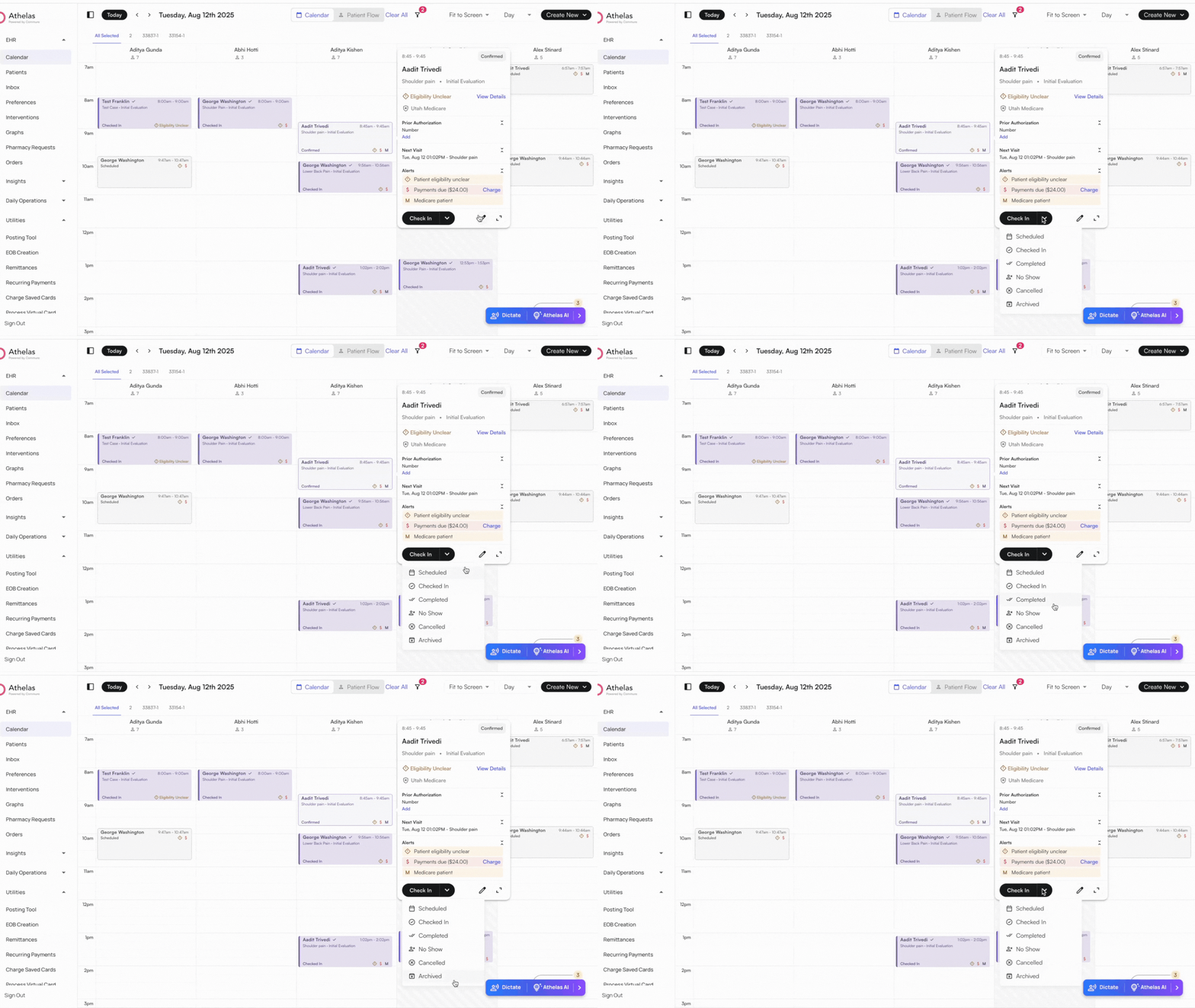
Open the **Calendar** → Click on the desired **Appointment** → Select **Check-in** for the patient on the Tooltip.
You can also update the appointment status to **Completed, No Show, Canceled,** or **Archived**.
**Note**: You can also "uncheck-in" the patient if checked-in by mistake.
**Alternate method**: Navigate to **Patients** tab in the left navigation bar → Open the **Appointments** Tab → Select **Check in** (black square icon)
**Note**: To check in an Appointment a [Case Type](/air_provider/check_in_a_patient/edit_appt#change-the-case-type) must be present. If no case is associated, you will receive an error when attempting to check in.
**Note:** When you open the Chart Note, you may have Visit alerts that are required to be addressed before you progress.
### Manual check-in
Open the **Calendar** → Click on the desired **Appointment** → Select **Check-in** for the patient on the Tooltip.
You can also update the appointment status to **Completed, No Show, Canceled,** or **Archived**.
**Note**: You can also "uncheck-in" the patient if checked-in by mistake.
**Alternate method**: Navigate to **Patients** tab in the left navigation bar → Open the **Appointments** Tab → Select **Check in** (black square icon)