> ## Documentation Index
> Fetch the complete documentation index at: https://trainings.air.athelas.com/llms.txt
> Use this file to discover all available pages before exploring further.
# Flowsheets
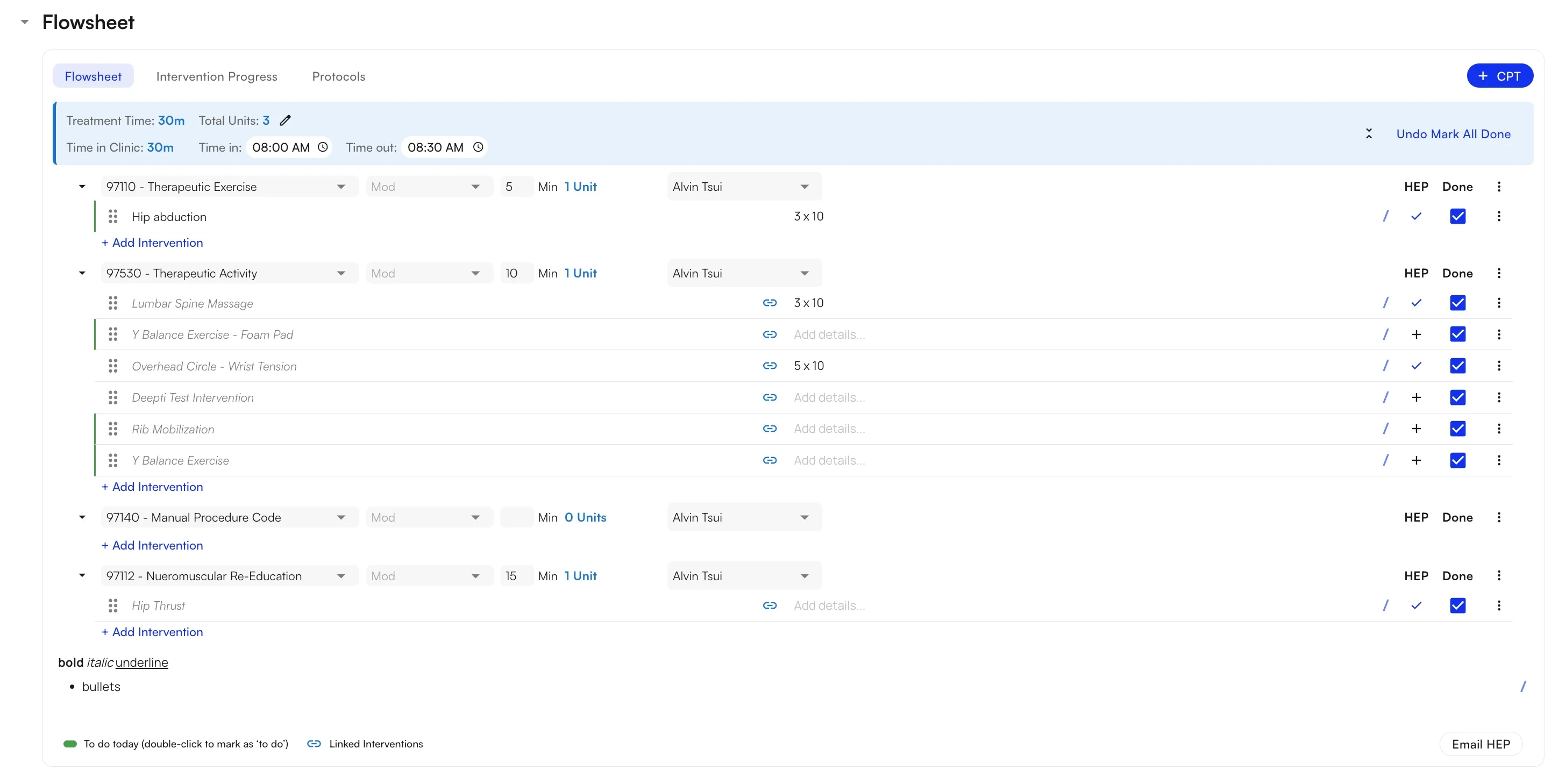
Flowsheets streamlines physical therapy documentation by aligning it with how visits are actually billed. The page is **CPT-centric**: you set up the billing codes for the visit first, then nest the interventions you performed underneath each code. The result is fewer clicks, less repeated data entry, and cleaner notes.
Units are auto-calculated from minutes at the CPT block level, with manual overrides available. You can also carry interventions forward from previous visits, mark exercises as a Home Exercise Program (HEP), and send the patient a HEP PDF — all from the same screen.
 ## Creating and managing flowsheets
### Adding procedure codes
Every flowsheet starts with a CPT block. The CPT-centric structure mirrors actual billing practices, so the codes that determine what you bill are the scaffolding for everything else on the page.
**To add a procedure code:**
1. **Click** **+ CPT** at the top of the flowsheet.
2. **Search by CPT number** (e.g., `97110`) or **by description** (e.g., "therapeutic exercise"), then select the code from the dropdown.
3. **Fill in the CPT block** — modifiers, minutes, provider, and status.
## Creating and managing flowsheets
### Adding procedure codes
Every flowsheet starts with a CPT block. The CPT-centric structure mirrors actual billing practices, so the codes that determine what you bill are the scaffolding for everything else on the page.
**To add a procedure code:**
1. **Click** **+ CPT** at the top of the flowsheet.
2. **Search by CPT number** (e.g., `97110`) or **by description** (e.g., "therapeutic exercise"), then select the code from the dropdown.
3. **Fill in the CPT block** — modifiers, minutes, provider, and status.
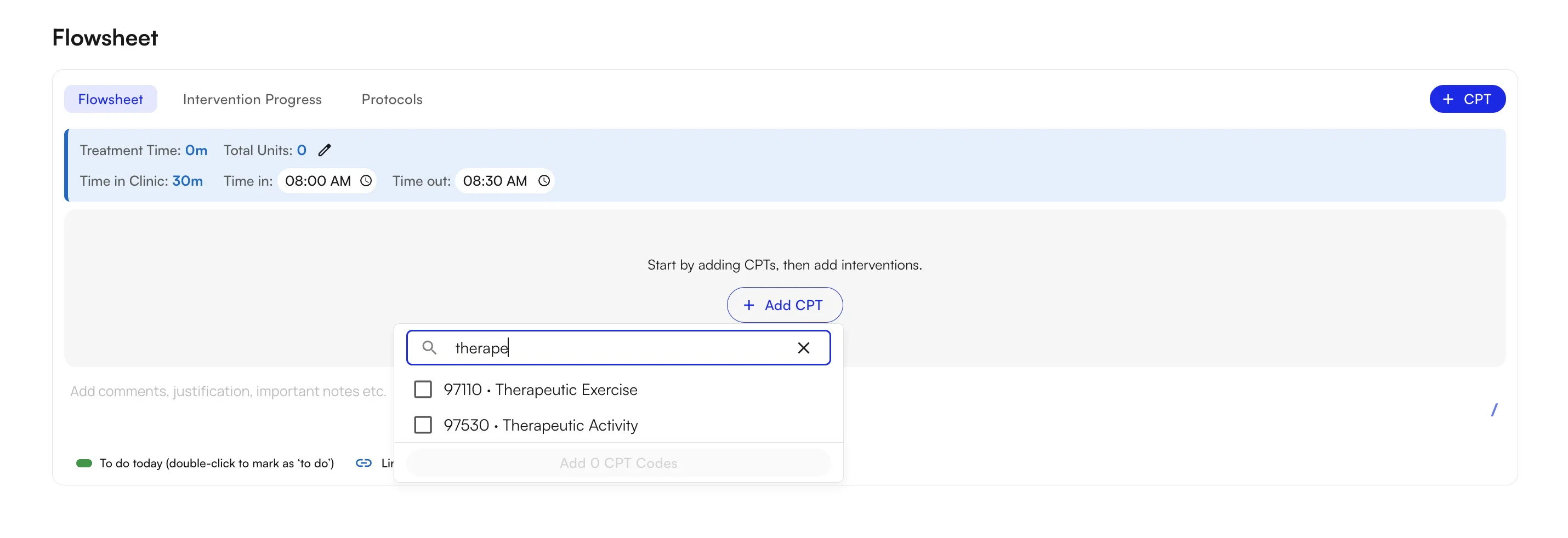 CPT codes in the **+ CPT** dropdown are sorted by **how often you've used them** — the codes you've added to chart notes most frequently show up at the top. The order is **per provider**, so each provider sees their own usage-based list. If the code you want isn't near the top yet, just type to search for it.
Minutes are entered **once per CPT block**, not per intervention. Units are auto-calculated from those minutes; you can override them manually if needed.
✨**Smart Tip:** Use multi-select to **bulk add CPT codes** for the whole visit in one shot before you add any interventions — then nest the exercises under each block as you document.
### Tracking interventions
With a CPT block in place, add the interventions you performed underneath it. You can use **free text**, the **exercise library**, or **intervention groups** — and you can mix all three on the same flowsheet.
**Free text**
Use this when you already know what you want to write and don't need structured parameters.
1. **Click** **+ Add Intervention** under the CPT block.
2. **Type the intervention name** directly (e.g., "Hip abduction", "TheraBand rows").
3. **Press Enter** or **Tab** to confirm.
**Library search**
Use this to pull a structured intervention with pre-filled parameters (sets, reps, weight, etc.).
1. **Click** **+ Add Intervention** under the CPT block.
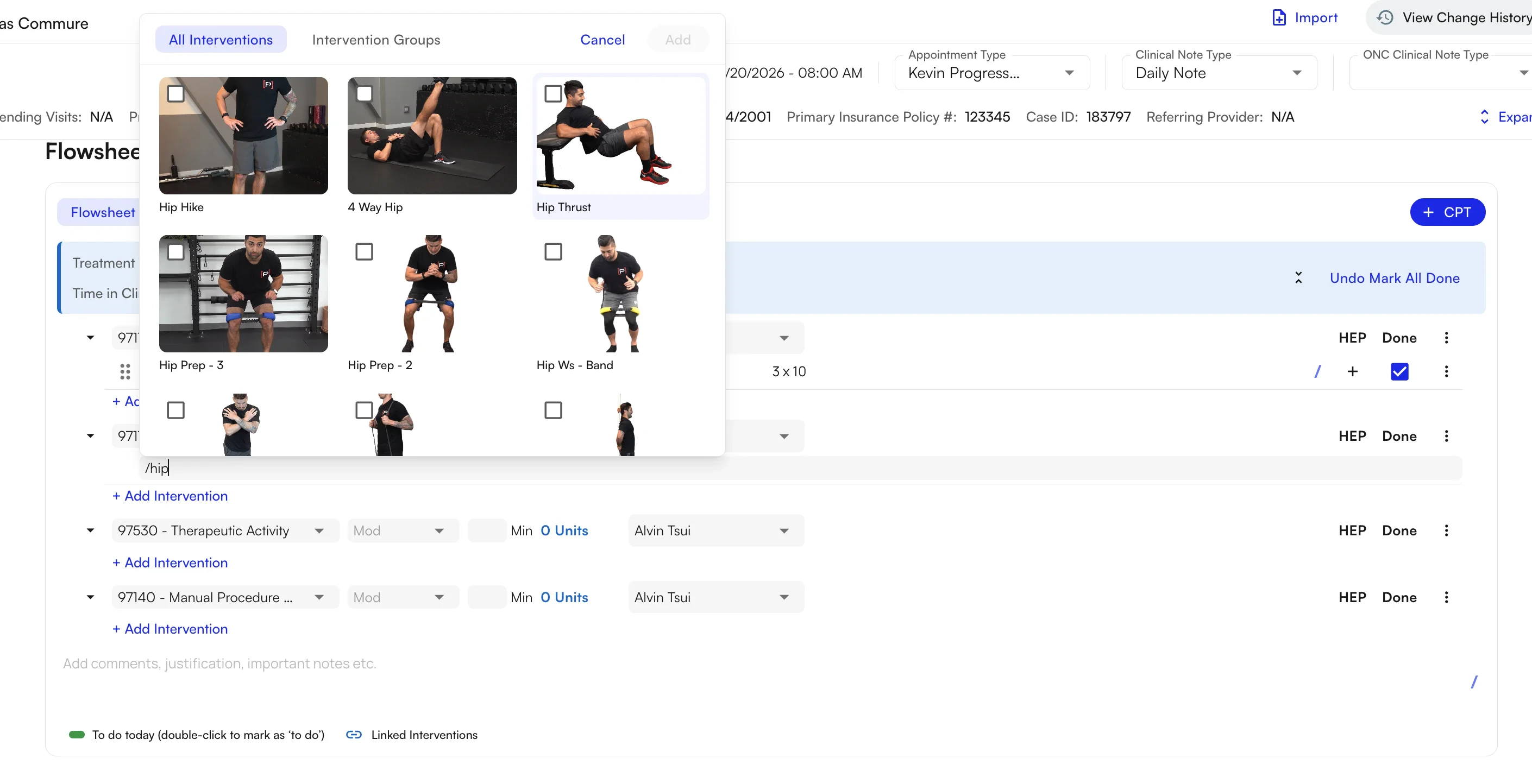
2. **Type `/`** to open the library search.
3. **Search by exercise name** and select a result to insert the structured intervention.
CPT codes in the **+ CPT** dropdown are sorted by **how often you've used them** — the codes you've added to chart notes most frequently show up at the top. The order is **per provider**, so each provider sees their own usage-based list. If the code you want isn't near the top yet, just type to search for it.
Minutes are entered **once per CPT block**, not per intervention. Units are auto-calculated from those minutes; you can override them manually if needed.
✨**Smart Tip:** Use multi-select to **bulk add CPT codes** for the whole visit in one shot before you add any interventions — then nest the exercises under each block as you document.
### Tracking interventions
With a CPT block in place, add the interventions you performed underneath it. You can use **free text**, the **exercise library**, or **intervention groups** — and you can mix all three on the same flowsheet.
**Free text**
Use this when you already know what you want to write and don't need structured parameters.
1. **Click** **+ Add Intervention** under the CPT block.
2. **Type the intervention name** directly (e.g., "Hip abduction", "TheraBand rows").
3. **Press Enter** or **Tab** to confirm.
**Library search**
Use this to pull a structured intervention with pre-filled parameters (sets, reps, weight, etc.).
1. **Click** **+ Add Intervention** under the CPT block.
2. **Type `/`** to open the library search.
3. **Search by exercise name** and select a result to insert the structured intervention.
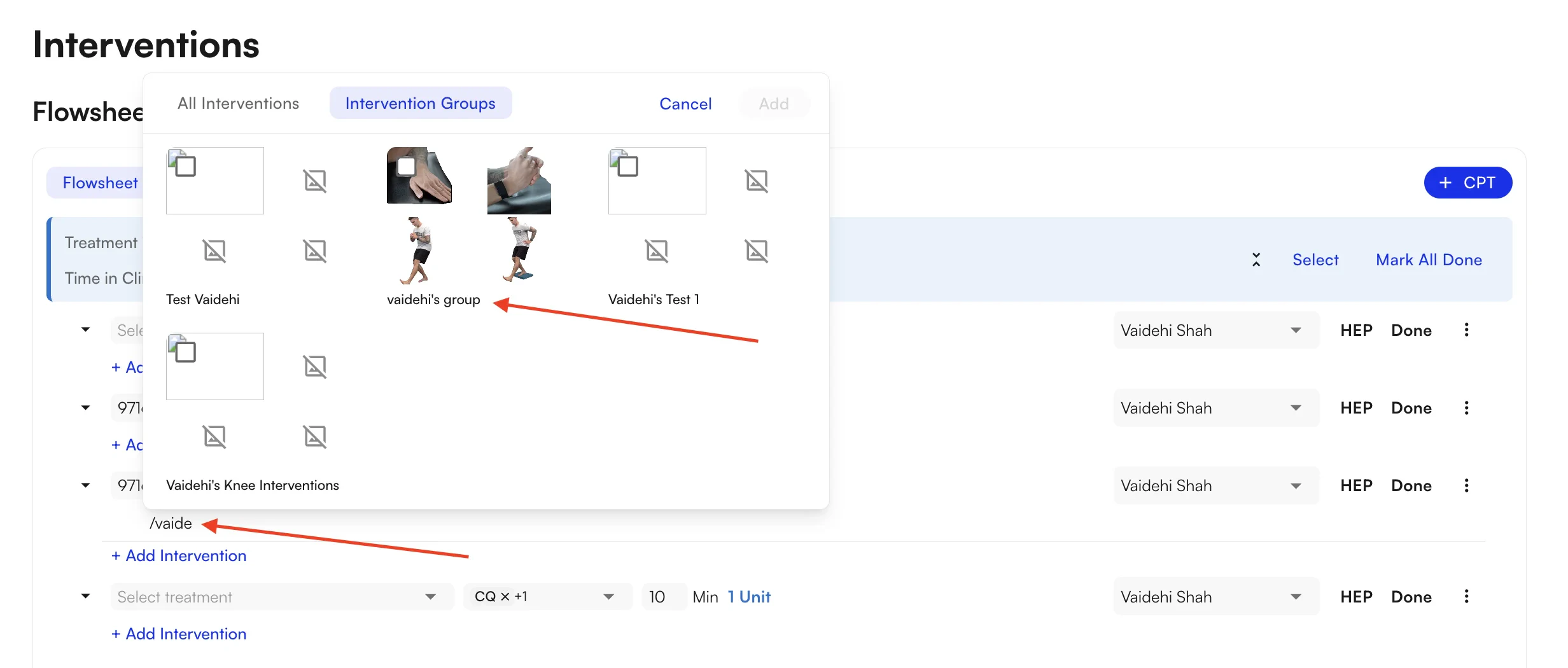
 **Intervention groups**
Use this to add several related interventions at once.
1. **Click** **+ Add Intervention** under the CPT block.
2. **Switch to the Intervention Groups tab.**
3. **Search by group name** and select a group to add its full set of structured interventions.
**Intervention groups**
Use this to add several related interventions at once.
1. **Click** **+ Add Intervention** under the CPT block.
2. **Switch to the Intervention Groups tab.**
3. **Search by group name** and select a group to add its full set of structured interventions.
 ### Managing interventions
**Marking interventions done**
Click the checkmark on any individual intervention to mark it complete, or use **Mark All Done** in the Summary Bar to complete every intervention on the flowsheet at once.
**Mark All Done does not trigger any billing actions.** Marking interventions as done is for documentation cleanliness and PDF generation — it has no impact on what is billed. Billing is driven entirely by the procedure codes on the flowsheet and their associated minutes and units. As long as a CPT code has minutes and units, it will be billed.
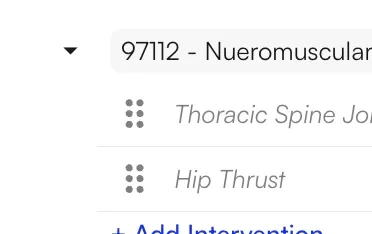
**Reordering interventions**
Drag and drop to reorder interventions within a CPT block. You can also drag an intervention **between CPT blocks** if you need to reassign it to a different billing code.
### Managing interventions
**Marking interventions done**
Click the checkmark on any individual intervention to mark it complete, or use **Mark All Done** in the Summary Bar to complete every intervention on the flowsheet at once.
**Mark All Done does not trigger any billing actions.** Marking interventions as done is for documentation cleanliness and PDF generation — it has no impact on what is billed. Billing is driven entirely by the procedure codes on the flowsheet and their associated minutes and units. As long as a CPT code has minutes and units, it will be billed.
**Reordering interventions**
Drag and drop to reorder interventions within a CPT block. You can also drag an intervention **between CPT blocks** if you need to reassign it to a different billing code.
 **Concurrent interventions**
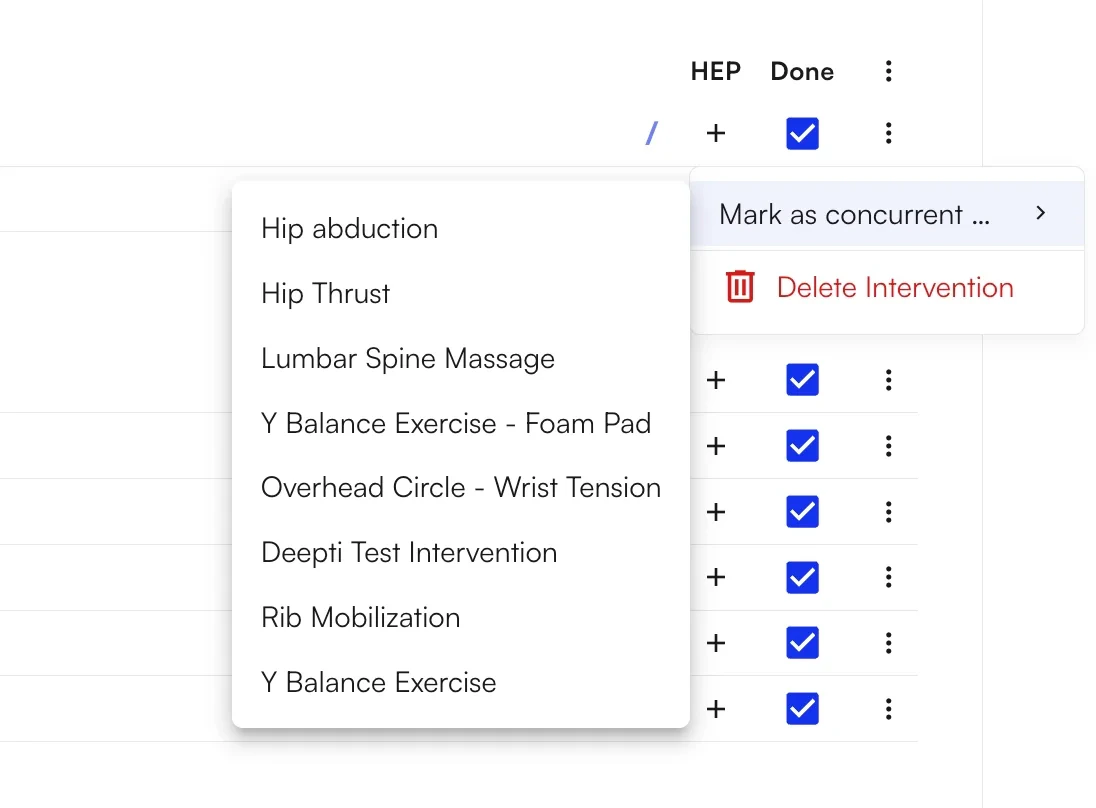
When two interventions are performed at the same time — for example, a therapeutic exercise during e-stim — mark them as concurrent so the overlapping time is represented accurately.
**Concurrent interventions**
When two interventions are performed at the same time — for example, a therapeutic exercise during e-stim — mark them as concurrent so the overlapping time is represented accurately.
 **Deleting interventions or CPT blocks**
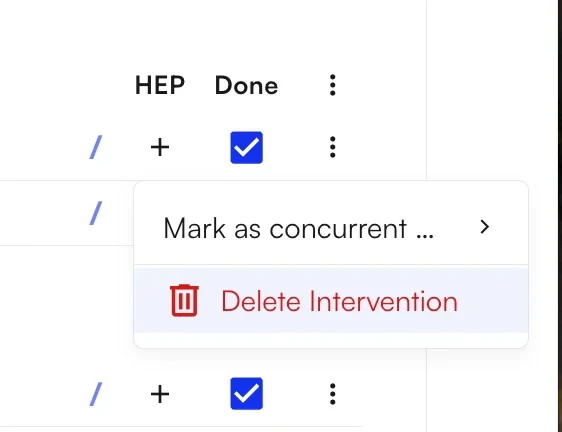
Use the row menu to remove an individual intervention, or to delete an entire CPT block.
Deleting a CPT block also removes every intervention nested under it. If you only want to reassign an intervention, drag it to another CPT block instead.
**Deleting interventions or CPT blocks**
Use the row menu to remove an individual intervention, or to delete an entire CPT block.
Deleting a CPT block also removes every intervention nested under it. If you only want to reassign an intervention, drag it to another CPT block instead.
 ### Carrying interventions forward
For patients who do roughly the same exercises each visit, **Carry Forward** pulls interventions from the previous visit into the current one so you aren't rebuilding the flowsheet every time. It runs automatically when the chart note loads.
| **Note type** | **Pulled from** | **Gates and rules** |
| :------------ | :------------------ | :----------------------------------------------------------------------------------------------------------------------------- |
| Initial eval | N/A | No carry forward — this is the first note in the case. |
| Daily note | Latest note in case | Pulls interventions, CPT codes, and details; the source must be a Flowsheets visit note (not from the older flowsheet system). |
| Progress note | Latest note in case | Same rules as daily note. |
✨**Smart Tip:** For routine patients, scan what carry-forward populated, then just update the minutes and tweak any exercises that changed for today's visit.
## Creating and managing Home Exercise Programs (HEPs)
### Creating HEPs
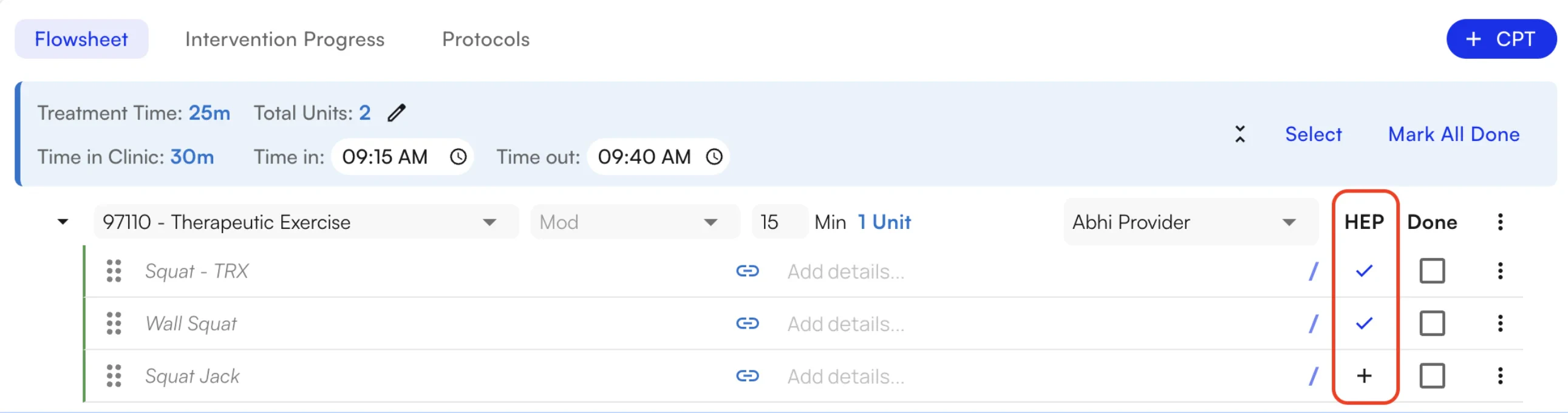
Toggle the **HEP** option on any intervention to mark it as something the patient should perform at home. This is optional — only use it for exercises intended for home practice.
### Carrying interventions forward
For patients who do roughly the same exercises each visit, **Carry Forward** pulls interventions from the previous visit into the current one so you aren't rebuilding the flowsheet every time. It runs automatically when the chart note loads.
| **Note type** | **Pulled from** | **Gates and rules** |
| :------------ | :------------------ | :----------------------------------------------------------------------------------------------------------------------------- |
| Initial eval | N/A | No carry forward — this is the first note in the case. |
| Daily note | Latest note in case | Pulls interventions, CPT codes, and details; the source must be a Flowsheets visit note (not from the older flowsheet system). |
| Progress note | Latest note in case | Same rules as daily note. |
✨**Smart Tip:** For routine patients, scan what carry-forward populated, then just update the minutes and tweak any exercises that changed for today's visit.
## Creating and managing Home Exercise Programs (HEPs)
### Creating HEPs
Toggle the **HEP** option on any intervention to mark it as something the patient should perform at home. This is optional — only use it for exercises intended for home practice.
 ### Sending the HEP email
When the flowsheet is complete, you can generate a PDF summary and send the patient their Home Exercise Program.
**To send the HEP:**
1. **Click** **Send HEP Email** in the flowsheet.
2. Review the PDF — only interventions marked **HEP** are included.
3. **Confirm the patient's email address or phone number** before sending.
## Flowsheets add-ons
### Summary bar
The **Summary Bar** sits at the top (or bottom) of the flowsheet and gives a real-time view of the entire visit:
* **Total treatment time** — sum of minutes across all CPT blocks.
* **Total units** — sum of auto-calculated units across all CPT blocks.
* **Completion status** — interventions marked done vs. total.
The Summary Bar also exposes the **Mark All Done** button (one click closes out every intervention on the flowsheet) and a toggle to switch between **automatic** and **manual** unit calculation.
### Sending the HEP email
When the flowsheet is complete, you can generate a PDF summary and send the patient their Home Exercise Program.
**To send the HEP:**
1. **Click** **Send HEP Email** in the flowsheet.
2. Review the PDF — only interventions marked **HEP** are included.
3. **Confirm the patient's email address or phone number** before sending.
## Flowsheets add-ons
### Summary bar
The **Summary Bar** sits at the top (or bottom) of the flowsheet and gives a real-time view of the entire visit:
* **Total treatment time** — sum of minutes across all CPT blocks.
* **Total units** — sum of auto-calculated units across all CPT blocks.
* **Completion status** — interventions marked done vs. total.
The Summary Bar also exposes the **Mark All Done** button (one click closes out every intervention on the flowsheet) and a toggle to switch between **automatic** and **manual** unit calculation.
 ### Comments
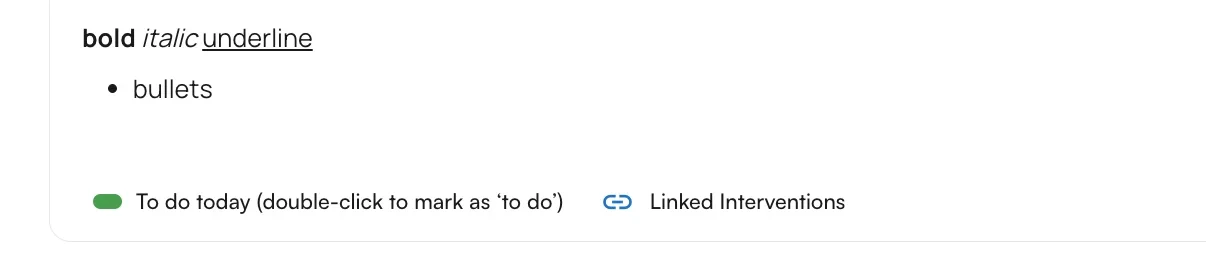
The **Comments** section is a rich-text area for anything that doesn't fit into structured fields — clinical observations, patient feedback, session highlights, or context for the next provider.
* **Click** the Comments area to open the editor.
* Format with **bold**, *italic*, bullet lists, and more.
* Comments are saved with the flowsheet and visible in the visit record.
### Comments
The **Comments** section is a rich-text area for anything that doesn't fit into structured fields — clinical observations, patient feedback, session highlights, or context for the next provider.
* **Click** the Comments area to open the editor.
* Format with **bold**, *italic*, bullet lists, and more.
* Comments are saved with the flowsheet and visible in the visit record.
 ### Time in clinic
Track the patient's actual time in the clinic separately from treatment time using the **Time in Clinic** fields:
* **Time In** — when the patient arrived and treatment began.
* **Time Out** — when the patient's visit ended.
These fields auto-populate from the appointment's scheduled start and end times, but you can adjust them manually if the visit ran differently.
### Keyboard shortcuts
Most of the flowsheet can be filled out without ever leaving the keyboard.
| **Shortcut** | **What it does** |
| :---------------------- | :--------------------------------------------------------------------- |
| **Tab** | Move forward through fields (minutes → modifier → provider, etc.). |
| **Shift + Tab** | Move backward through fields. |
| **`/` (forward slash)** | While in the intervention field, open the library search. |
| **Enter** | Confirm a free-text intervention, library selection, or active button. |
### Power user tips
✨**Smart Tip — work the flowsheet fast:**
* Use **multi-select CPT codes** to bulk add all your billing codes for the visit in one shot, then nest interventions under each block.
* **Tab through CPT block fields** — you rarely need to click.
* For routine patients, **review what carry-forward populated**, then just update minutes and any changed exercises.
* Only use **`/` library search** when you need structured parameters or are building a HEP — otherwise just type the name directly.
* End the visit with **Mark All Done** in the Summary Bar to close out every intervention in one click.
* If you're using the **AI Scribe**, speak in clinical shorthand — the scribe understands CPT codes, minutes, and exercise names.
### FAQ
No. **Mark All Done** only updates documentation status and the visit PDF — it does not change billing.
Billing is driven entirely by the **procedure codes** on the flowsheet and their associated **minutes and units**. As long as a CPT code has minutes and units, it will be billed regardless of whether interventions are marked done.
The CPT block **and every intervention nested under it** are removed.
If you want to keep the interventions but move them to a different billing code, **drag and drop them into another CPT block** before deleting the original.
Yes. You can use **free text**, **library search**, and **intervention groups** in any combination on a single flowsheet, even within the same CPT block. Use free text for quick entries you know by name; use the library or groups when you need structured parameters like sets, reps, and weight.
Carry-forward only runs in specific scenarios:
* **Initial evals** never carry forward — they're the first note in the case.
* **Daily notes** and **progress notes** carry forward from the **latest note in the same case**, but only if that note is itself a current Flowsheets visit note.
If the most recent note in the case was created in the older flowsheet system (or no prior note exists), carry-forward will skip the visit.
Units are **auto-calculated from minutes at the CPT block level** — you enter minutes once per block, and the system computes units for you.
If you need a different value, switch from **automatic** to **manual** unit calculation from the Summary Bar and enter the units directly.
Questions or issues? Reach out to your clinic administrator or the Commure support team. The latest version of this guide is maintained at the [Flowsheets User Guide](https://athelas-public.notion.site/Flowsheets-v2-User-Guide-357f92a633f280bc8767c1a40fb79503).
### Time in clinic
Track the patient's actual time in the clinic separately from treatment time using the **Time in Clinic** fields:
* **Time In** — when the patient arrived and treatment began.
* **Time Out** — when the patient's visit ended.
These fields auto-populate from the appointment's scheduled start and end times, but you can adjust them manually if the visit ran differently.
### Keyboard shortcuts
Most of the flowsheet can be filled out without ever leaving the keyboard.
| **Shortcut** | **What it does** |
| :---------------------- | :--------------------------------------------------------------------- |
| **Tab** | Move forward through fields (minutes → modifier → provider, etc.). |
| **Shift + Tab** | Move backward through fields. |
| **`/` (forward slash)** | While in the intervention field, open the library search. |
| **Enter** | Confirm a free-text intervention, library selection, or active button. |
### Power user tips
✨**Smart Tip — work the flowsheet fast:**
* Use **multi-select CPT codes** to bulk add all your billing codes for the visit in one shot, then nest interventions under each block.
* **Tab through CPT block fields** — you rarely need to click.
* For routine patients, **review what carry-forward populated**, then just update minutes and any changed exercises.
* Only use **`/` library search** when you need structured parameters or are building a HEP — otherwise just type the name directly.
* End the visit with **Mark All Done** in the Summary Bar to close out every intervention in one click.
* If you're using the **AI Scribe**, speak in clinical shorthand — the scribe understands CPT codes, minutes, and exercise names.
### FAQ
No. **Mark All Done** only updates documentation status and the visit PDF — it does not change billing.
Billing is driven entirely by the **procedure codes** on the flowsheet and their associated **minutes and units**. As long as a CPT code has minutes and units, it will be billed regardless of whether interventions are marked done.
The CPT block **and every intervention nested under it** are removed.
If you want to keep the interventions but move them to a different billing code, **drag and drop them into another CPT block** before deleting the original.
Yes. You can use **free text**, **library search**, and **intervention groups** in any combination on a single flowsheet, even within the same CPT block. Use free text for quick entries you know by name; use the library or groups when you need structured parameters like sets, reps, and weight.
Carry-forward only runs in specific scenarios:
* **Initial evals** never carry forward — they're the first note in the case.
* **Daily notes** and **progress notes** carry forward from the **latest note in the same case**, but only if that note is itself a current Flowsheets visit note.
If the most recent note in the case was created in the older flowsheet system (or no prior note exists), carry-forward will skip the visit.
Units are **auto-calculated from minutes at the CPT block level** — you enter minutes once per block, and the system computes units for you.
If you need a different value, switch from **automatic** to **manual** unit calculation from the Summary Bar and enter the units directly.
Questions or issues? Reach out to your clinic administrator or the Commure support team. The latest version of this guide is maintained at the [Flowsheets User Guide](https://athelas-public.notion.site/Flowsheets-v2-User-Guide-357f92a633f280bc8767c1a40fb79503).