> ## Documentation Index
> Fetch the complete documentation index at: https://trainings.air.athelas.com/llms.txt
> Use this file to discover all available pages before exploring further.
# Medications
### Add New Medications
For reusable templates, see [**Medication Order Set**](/air_provider/fill_a_chart_note/medication_order_set).
From Patient's Profile > Medications you can:
* View Historic Medications
* View Prescribed Medications
* Add / Edit Prescribed Medications
You can search for the drug name and filter the medications by date, activity, type, pharmacy status *(sent, pending, received, unknown, failed)*
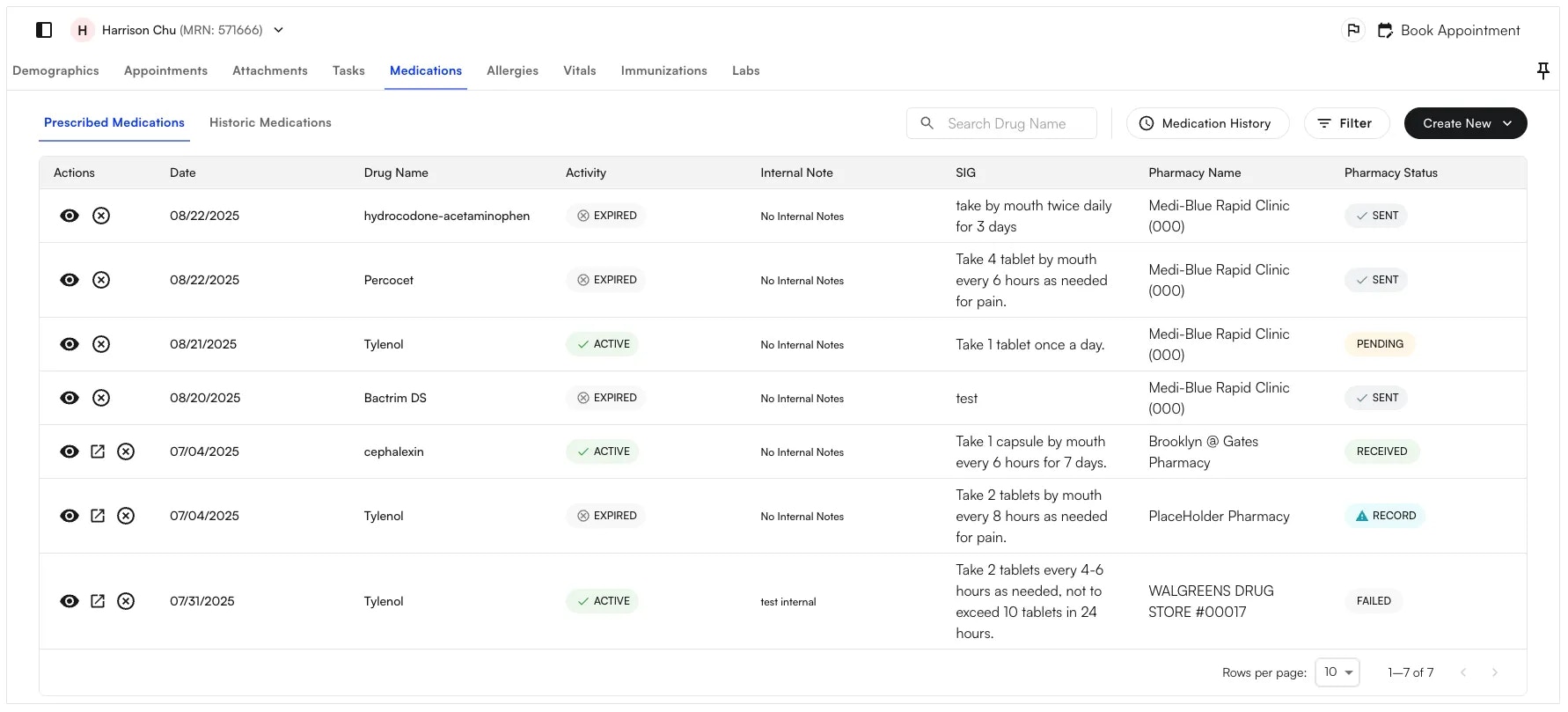 **To Add a new Medication:**
* Click **Click New:** Select Pharmacy Order, Internal Record or Historic Record. Select the relevant appointment
* Select the \*\*+ icon \*\*to the right to select a Pharmacy (if a favorite pharmacy is selected it will auto-populate)
**To Add a new Medication:**
* Click **Click New:** Select Pharmacy Order, Internal Record or Historic Record. Select the relevant appointment
* Select the \*\*+ icon \*\*to the right to select a Pharmacy (if a favorite pharmacy is selected it will auto-populate)
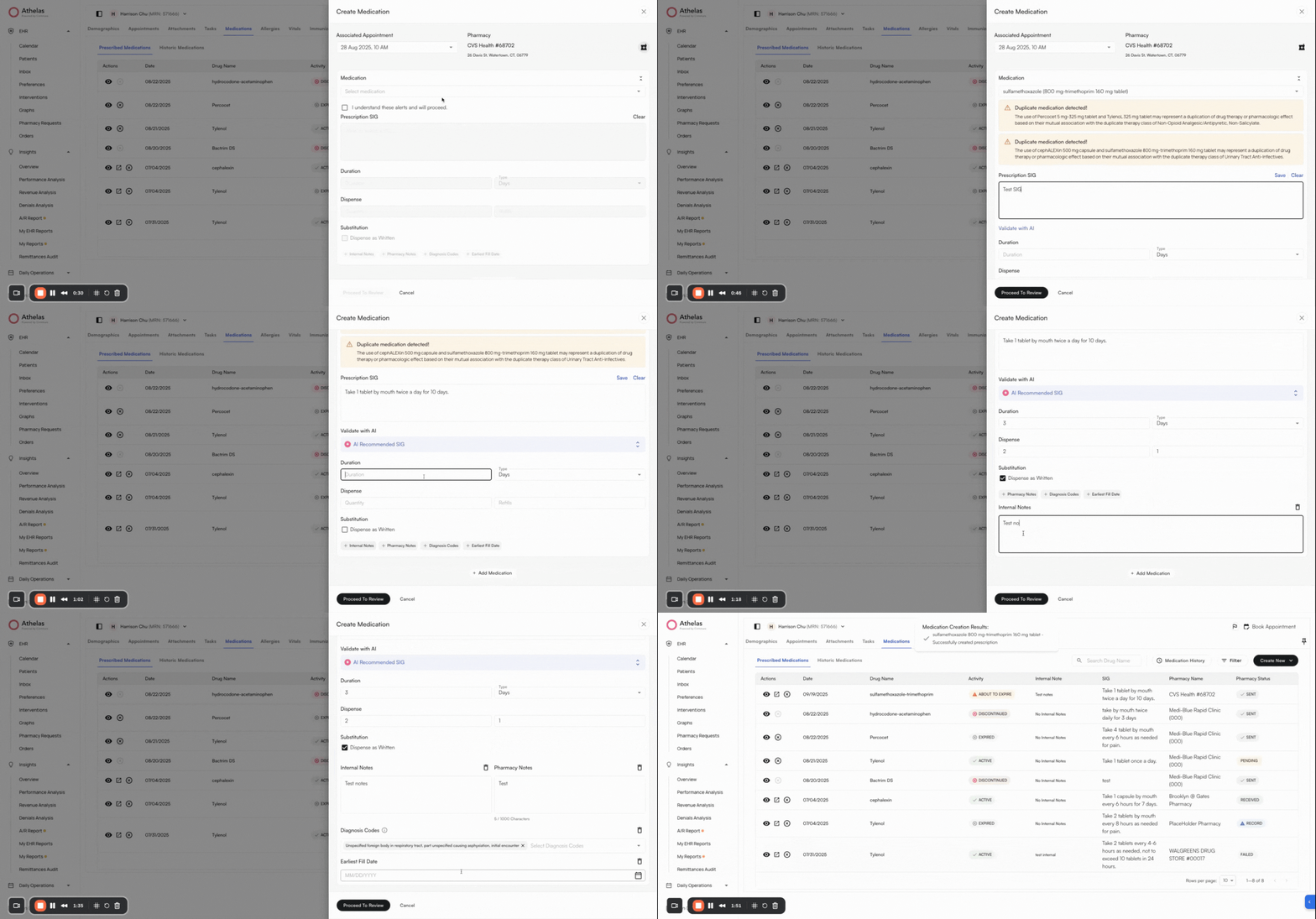 * Search for a pharmacy by typing the name, pin code, distance radius, pharmacy type (Retail, Mail Order)
* Star a pharmacy to **mark it as favorite** or preferred
* Select a medication
**✨Smart Tip:** If a Generic alternate is available - you can choose to update the medication selected.
* Check the box: I understand these alerts and will proceed
* Enter the prescription SIG or select from the saved SIGs
**✨Smart** \*\*Tip: \*\*Click Check with AI to get a well worded SIG statement. You can choose to accept or delete the suggestion.
* Add the duration, dispense quantity, refills
* Select **Dispense as Written i**f you would like the pharmacy to dispense the medication as written in the prescription order
* Add internal notes, pharmacy notes, diagnosis codes from the appointment, earliest fill date
* Click **Proceed to Review** to save the medication
\*\*Note: \*\*You can also add medication into the Chart Note as an additional section.
### View Medication History
You can view medication history two ways:
1. Manually add historic medications from \*\*Create New \*\*and view in the Historic Medications Tab
2. View Medication History on SureScripts by selecting \*\*Medication History \*\*on the top right. Select time range, acknowledge patient's consent and click Submit
### Create Custom SIGs
View Saved SIGs on Preferences Tab > Medications. You can search by Drug Name or Active / Inactive status
Select the pencil icon to update a SIG and select the toggle icon to mark a SIG as inactive.
To create a new SIG:
* Click **+add SIG**
* Select the drug name
* Add a label, SIG text and mark state as Active
* Click Save SIG
### Manage Pharmacy Requests
Navigate to the Pharmacy Requests Tab on the left. From here you can do 2 things:
1. Manage Unrecognized Patients
* Click Review for a Request
* Select an existing patient to link to the Request
* Click Map to Patient below
* This will move the request from the Unrecognized Patients Tab to the Requests Tab
2. Manage Existing Requests
* Click Review for a Request
* Review details and mark Approve, Replace or Deny
* Search for a pharmacy by typing the name, pin code, distance radius, pharmacy type (Retail, Mail Order)
* Star a pharmacy to **mark it as favorite** or preferred
* Select a medication
**✨Smart Tip:** If a Generic alternate is available - you can choose to update the medication selected.
* Check the box: I understand these alerts and will proceed
* Enter the prescription SIG or select from the saved SIGs
**✨Smart** \*\*Tip: \*\*Click Check with AI to get a well worded SIG statement. You can choose to accept or delete the suggestion.
* Add the duration, dispense quantity, refills
* Select **Dispense as Written i**f you would like the pharmacy to dispense the medication as written in the prescription order
* Add internal notes, pharmacy notes, diagnosis codes from the appointment, earliest fill date
* Click **Proceed to Review** to save the medication
\*\*Note: \*\*You can also add medication into the Chart Note as an additional section.
### View Medication History
You can view medication history two ways:
1. Manually add historic medications from \*\*Create New \*\*and view in the Historic Medications Tab
2. View Medication History on SureScripts by selecting \*\*Medication History \*\*on the top right. Select time range, acknowledge patient's consent and click Submit
### Create Custom SIGs
View Saved SIGs on Preferences Tab > Medications. You can search by Drug Name or Active / Inactive status
Select the pencil icon to update a SIG and select the toggle icon to mark a SIG as inactive.
To create a new SIG:
* Click **+add SIG**
* Select the drug name
* Add a label, SIG text and mark state as Active
* Click Save SIG
### Manage Pharmacy Requests
Navigate to the Pharmacy Requests Tab on the left. From here you can do 2 things:
1. Manage Unrecognized Patients
* Click Review for a Request
* Select an existing patient to link to the Request
* Click Map to Patient below
* This will move the request from the Unrecognized Patients Tab to the Requests Tab
2. Manage Existing Requests
* Click Review for a Request
* Review details and mark Approve, Replace or Deny