> ## Documentation Index
> Fetch the complete documentation index at: https://trainings.air.athelas.com/llms.txt
> Use this file to discover all available pages before exploring further.
# Other Sections within the Chart Note
In addition to the Plan of Care, Chart Notes include pre-built sections for Measurements, Goals, Treatments, and Visits.
### Measurements
More details: [**Measurements V2 User Guide**](https://athelas-public.notion.site/Measurements-V2-User-Guide-1e5f92a633f2804488c9e44fda548ab2)
**Measurements** provide a standardized, organized, and efficient way to capture clinical data across patient chart notes. Measurements from the initial evaluation will carry forward automatically for future follow-ups.
**Note:** **Please select the correct measurement groups before starting the AI Scribe Recording.** AI Scribe can fill measurement values on your behalf, but it cannot add entirely new measurement groups to the chart note.
**You can filter and search measurements by:**
* Name (e.g., *Hip Flexion*)
* Category (e.g., ROM, Strength, Inspection)
* Body Part (e.g., Knee, Ankle, Shoulder)
* Custom or default Group (e.g., *Knee ROM*)
Measurements can be **standard** (pre-defined and consistent across all sites) or **custom** (site-created to capture additional or specialized data)
**To add new measurements:** Open the **Measurements** section in the Chart Note → Click **Manage** → Select the desired measurements and click **Save**.
**To delete a measurement:** Go to Manage and remove the measurement from the right panel on **Selected Measurements.**
 Measurements are divided into industry-standard types (Observation, Inspection, etc.) and groups.
 Simply check the boxes for your selected measurements, and click Save to add them to your note.
You can also:
* View a patient’s **History of Measurements**.
* Pull data from the **previous Chart Note** if it exists.
✨ **Smart Tip**: You can add your own customized [Measurements and Groups in Preferences](/air_admin/manage_your_practice/chart_note_templates#create-custom-preferences)
### **Goals**
Goals help providers track patient progress over time. In the Chart Note, the Goals section appears within the **Plan** section of SOAP (Subjective, Objective, Assessment, Plan). Goals from the initial evaluation will carry forward automatically for future follow-ups.
Each goal includes:
* **Title** – name of the goal.
* **Description** – details of the goal.
* **Initial Value (optional)** – patient’s starting state.
* **Current State (optional)** – updates on progress.
* **Progress Slider** – visually tracks completion as a percentage.
* **Goal Tracker** – shows progress over time.
**Adding Goals**
* In an Initial Evaluation note, the Goals section will auto-populate from the AI Scribe. Additionally, you can add a new goal manually.
* Click **New Goal** to add one.
* If goals already exist, click **New Goal** again (top-right) to add more.
* You can use text snippets (type "/" to add common goals you have set for your practice).
**Removing Goals**
* Hover over a goal card.
* Click the **Delete (trash bin) icon** on the right.
* Confirm the deletion when prompted.
### **Treatments**
The **Treatments** section allows providers to select treatments tied to corresponding CPT codes.
To add a new treatment:
* Click on Add Treatment on the top right of the section
* Select the Treatment from the drop down search box
* Select the Diagnosis Codes (options available will be based on the ICD-10 codes entered in the Diagnosis section above Treatments)
* Optional: Add in minutes, units, notes, justification
**Important:** You must first enter the ICD-10 codes in the *Diagnosis* section of the chart note. They will then become available in the *Treatments* section, where you can map each CPT code to the relevant ICD-10 codes.
Note on calculating units and time:
* **Auto-calculate:** The system automatically calculates treatment time and units.
* **Manual entry:** Turn off auto-calculation toggles if you want to manually enter total time or units.
✨ **Smart Tip**: You can configure your own [Treatment information in Preferences](/air_admin/manage_your_practice/chart_note_templates#create-custom-preferences).
### **Visits**
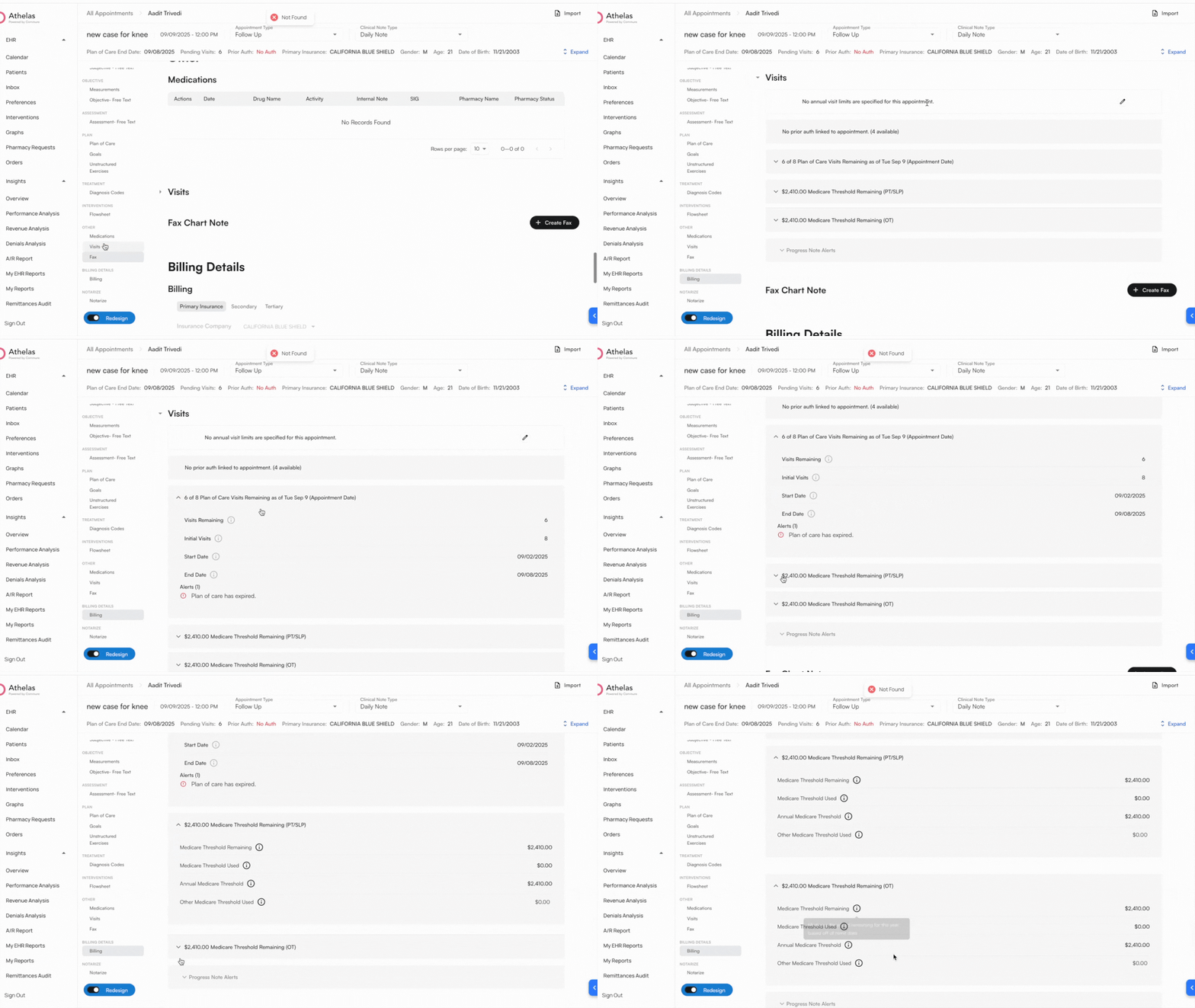
Within the Chart Note, you can track prior authorizations and annual visit limits. These are also visible under patient appointment details. The system will automatically alert providers when authorized or annual visits are running low or nearing expiration.
Learn more about visit alerts [here](/air_front_desk/take_in_a_patient/prep_appt#track-visit-alerts).
### Add sections to your Chart Note
To add a new section to a Chart Note:
* Open **Preferences** in the left navigation tab **→ Appointment Types** and create or edit an appointment type
* Click **+ Add Section**.
* Select your section from the dropdown menu.
You can add flowsheets, measurements and multiple other such custom sections.
**Note:** Adding a **Flowsheet** section will remove the **Treatments** section.
## Carry Forward Logic in Air
In Air, content from your last note is automatically brought into your current one.
**How this works:**
1. When a patient is **checked-in** the system automatically \*\*creates the note \*\*for the visit.
2. Upon note creation, information from the patients previous appointment is Carried Forward into the note giving you a head start on documentation and a summary of want happened last visit.
By default, only Objective, Assessment, and Plan sections Carry Forward to Daily Notes. You can choose to include the Subjective section as well in Carry Forward. Talk with your Athelas admin about setting this up.
**Initial Evaluatation → Daily Note**
* Template sections from the Initial Evaluation that also exist in the Daily Note are carried forward (respecting OAP vs SOAP Carry Forward Configuration)
**Daily Note -> Daily Note**
* All template sections from the Daily Note are carried forward
**Daily Note -> Progress Note**
* All template sections from the Initial Evaluation are carried forward
#### **Carry Forward only applies to appointments in the same case.**
Simply check the boxes for your selected measurements, and click Save to add them to your note.
You can also:
* View a patient’s **History of Measurements**.
* Pull data from the **previous Chart Note** if it exists.
✨ **Smart Tip**: You can add your own customized [Measurements and Groups in Preferences](/air_admin/manage_your_practice/chart_note_templates#create-custom-preferences)
### **Goals**
Goals help providers track patient progress over time. In the Chart Note, the Goals section appears within the **Plan** section of SOAP (Subjective, Objective, Assessment, Plan). Goals from the initial evaluation will carry forward automatically for future follow-ups.
Each goal includes:
* **Title** – name of the goal.
* **Description** – details of the goal.
* **Initial Value (optional)** – patient’s starting state.
* **Current State (optional)** – updates on progress.
* **Progress Slider** – visually tracks completion as a percentage.
* **Goal Tracker** – shows progress over time.
**Adding Goals**
* In an Initial Evaluation note, the Goals section will auto-populate from the AI Scribe. Additionally, you can add a new goal manually.
* Click **New Goal** to add one.
* If goals already exist, click **New Goal** again (top-right) to add more.
* You can use text snippets (type "/" to add common goals you have set for your practice).
**Removing Goals**
* Hover over a goal card.
* Click the **Delete (trash bin) icon** on the right.
* Confirm the deletion when prompted.
### **Treatments**
The **Treatments** section allows providers to select treatments tied to corresponding CPT codes.
To add a new treatment:
* Click on Add Treatment on the top right of the section
* Select the Treatment from the drop down search box
* Select the Diagnosis Codes (options available will be based on the ICD-10 codes entered in the Diagnosis section above Treatments)
* Optional: Add in minutes, units, notes, justification
**Important:** You must first enter the ICD-10 codes in the *Diagnosis* section of the chart note. They will then become available in the *Treatments* section, where you can map each CPT code to the relevant ICD-10 codes.
Note on calculating units and time:
* **Auto-calculate:** The system automatically calculates treatment time and units.
* **Manual entry:** Turn off auto-calculation toggles if you want to manually enter total time or units.
✨ **Smart Tip**: You can configure your own [Treatment information in Preferences](/air_admin/manage_your_practice/chart_note_templates#create-custom-preferences).
### **Visits**
Within the Chart Note, you can track prior authorizations and annual visit limits. These are also visible under patient appointment details. The system will automatically alert providers when authorized or annual visits are running low or nearing expiration.
Learn more about visit alerts [here](/air_front_desk/take_in_a_patient/prep_appt#track-visit-alerts).
### Add sections to your Chart Note
To add a new section to a Chart Note:
* Open **Preferences** in the left navigation tab **→ Appointment Types** and create or edit an appointment type
* Click **+ Add Section**.
* Select your section from the dropdown menu.
You can add flowsheets, measurements and multiple other such custom sections.
**Note:** Adding a **Flowsheet** section will remove the **Treatments** section.
## Carry Forward Logic in Air
In Air, content from your last note is automatically brought into your current one.
**How this works:**
1. When a patient is **checked-in** the system automatically \*\*creates the note \*\*for the visit.
2. Upon note creation, information from the patients previous appointment is Carried Forward into the note giving you a head start on documentation and a summary of want happened last visit.
By default, only Objective, Assessment, and Plan sections Carry Forward to Daily Notes. You can choose to include the Subjective section as well in Carry Forward. Talk with your Athelas admin about setting this up.
**Initial Evaluatation → Daily Note**
* Template sections from the Initial Evaluation that also exist in the Daily Note are carried forward (respecting OAP vs SOAP Carry Forward Configuration)
**Daily Note -> Daily Note**
* All template sections from the Daily Note are carried forward
**Daily Note -> Progress Note**
* All template sections from the Initial Evaluation are carried forward
#### **Carry Forward only applies to appointments in the same case.**