> ## Documentation Index
> Fetch the complete documentation index at: https://trainings.air.athelas.com/llms.txt
> Use this file to discover all available pages before exploring further.
# AI Scribe FAQs
Answers to common questions on setting up, recording, and managing AI Scribe in Chart Notes.
If the “wave” is not moving when recording a session, something might not be working with the audio. Before using Scribe to capture and document patient encounters, please ensure the following steps are completed:
* **Check your internet connection**\
Make sure you are connected to a stable, active internet connection for uninterrupted recording and upload.
* **Enable microphone permissions in your browser**
* Go to your browser settings (e.g., Chrome, Safari).
* Allow microphone access for the Air/Athelas EHR website.
* Refresh the page after updating settings.
* **Enable microphone permissions on your device**
* On Mac: Go to **System Settings → Privacy & Security → Microphone** and allow browser access.
* On Windows: Go to **Settings → Privacy → Microphone** and ensure permissions are turned on for your browser.
* **Confirm your mcirophone is turned on and not muted before you start recording**
You can control which sections of a Chart Note Scribe will write to by using the **Lock for Scribe** option on the right-hand side of any section.
* Locked sections will not be overwritten by Scribe.
* This feature is not available for **custom templates**.
**Note:** By default, **Initial Evaluations** allow Scribe to write into sections. For all other note types (Daily, Progress, etc.), sections are **locked by default**.
 * Do not log out of your account on the device that has the pending upload, they will not save
* Connect to a strong Wifi
* Select “Retry” to retry the upload
**Note**: If scribes are huge MB files, they will struggle to upload on a mobile device
If you would like to record a new conversation for an appointment that already has a scribe:
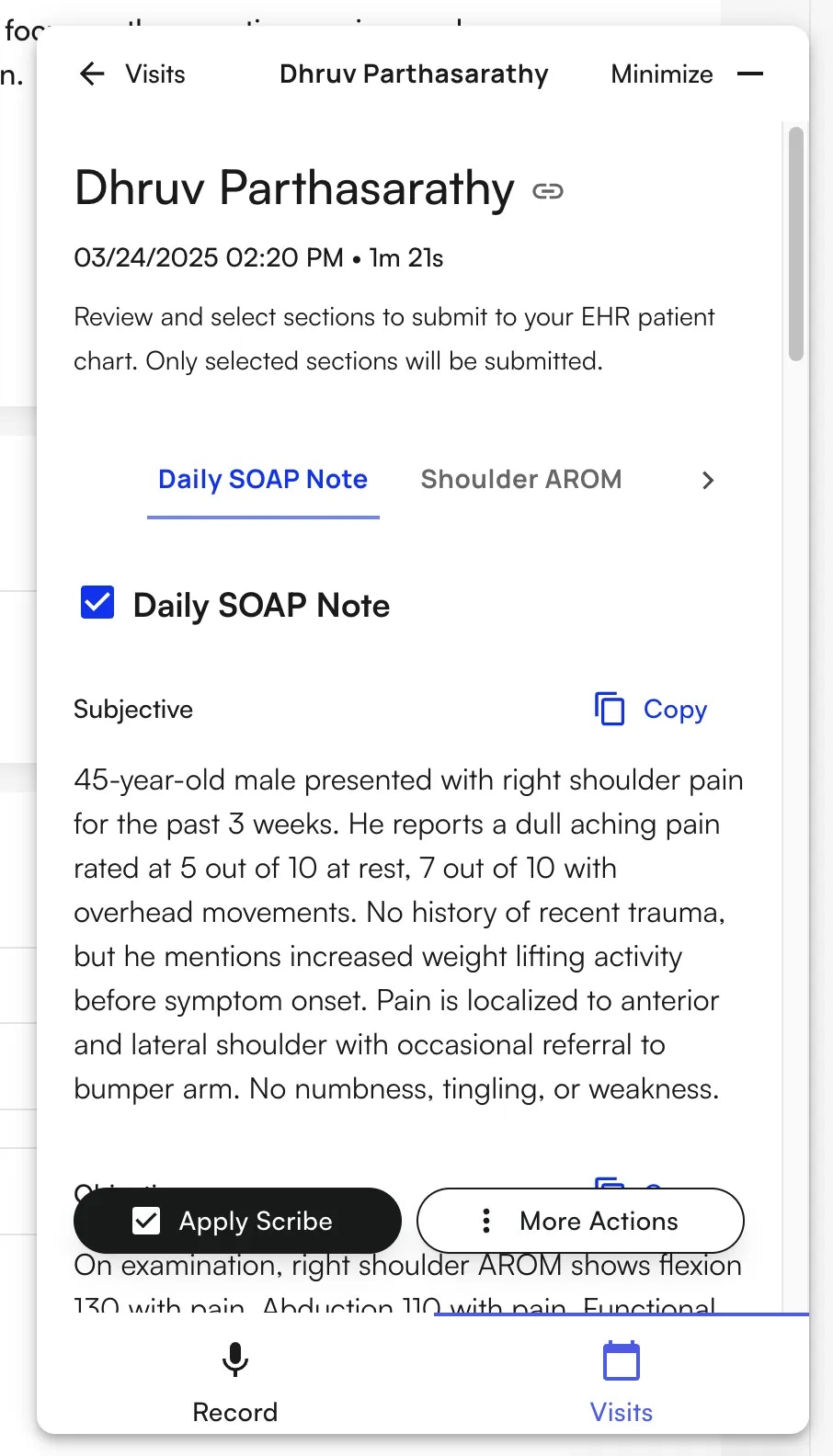
1. Open the Athelas AI **Scribe widget**.
2. Review the existing scribe outputs.
3. At the bottom, click **More Actions → Record Again**.
4. Start your new recording.
If you add new sections to the patient’s Chart Note **after** the recording has been uploaded, those sections will not be included in the original scribe.
To capture them, you must manually regenerate the scribe with the updated sections.
During an appointment, if you need to add sections to a Chart Note or change the Appointment Type **after** a recording has been uploaded, you will need to regenerate the scribe to capture those new sections.
* Regeneration is only available once the initial scribe has been generated.
* To regenerate:
1. Open the Athelas AI **Scribe widget**.
2. At the bottom, click **More Actions → Regenerate**.
3. Wait for regeneration to finish, then review and apply the updated outputs.
* Click **Pause Recording**.
* Click **Cancel Recording**.
* Confirm cancellation when prompted.
There are a few reasons why EHR Scribe may not generate outputs for certain sections:
* **Locked sections cannot be applied** - If a section is locked, unlock the section first, then check the box next to it to include it for application.
* **Insufficient information in the audio** – If the recording doesn’t provide enough detail, Scribe will leave the section blank.
* **Unrecognized template** – If the template cannot be interpreted by Scribe, the section will remain blank.
The Visits tab only shows appointments for **your provider**, not the entire site. If you log in as a different user, you will see that provider’s appointments. Also ensure that the appointment’s **rendering provider** is set correctly.
If a user loses their internet connection before the Scribe successfully completes or uploads, Scribe will be locally saved to their computer in order to be able to retry upload when the connection is regained.
* Do not log out of your account on the device that has the pending upload, they will not save
* Connect to a strong Wifi
* Select “Retry” to retry the upload
**Note**: If scribes are huge MB files, they will struggle to upload on a mobile device
If you would like to record a new conversation for an appointment that already has a scribe:
1. Open the Athelas AI **Scribe widget**.
2. Review the existing scribe outputs.
3. At the bottom, click **More Actions → Record Again**.
4. Start your new recording.
If you add new sections to the patient’s Chart Note **after** the recording has been uploaded, those sections will not be included in the original scribe.
To capture them, you must manually regenerate the scribe with the updated sections.
During an appointment, if you need to add sections to a Chart Note or change the Appointment Type **after** a recording has been uploaded, you will need to regenerate the scribe to capture those new sections.
* Regeneration is only available once the initial scribe has been generated.
* To regenerate:
1. Open the Athelas AI **Scribe widget**.
2. At the bottom, click **More Actions → Regenerate**.
3. Wait for regeneration to finish, then review and apply the updated outputs.
* Click **Pause Recording**.
* Click **Cancel Recording**.
* Confirm cancellation when prompted.
There are a few reasons why EHR Scribe may not generate outputs for certain sections:
* **Locked sections cannot be applied** - If a section is locked, unlock the section first, then check the box next to it to include it for application.
* **Insufficient information in the audio** – If the recording doesn’t provide enough detail, Scribe will leave the section blank.
* **Unrecognized template** – If the template cannot be interpreted by Scribe, the section will remain blank.
The Visits tab only shows appointments for **your provider**, not the entire site. If you log in as a different user, you will see that provider’s appointments. Also ensure that the appointment’s **rendering provider** is set correctly.
If a user loses their internet connection before the Scribe successfully completes or uploads, Scribe will be locally saved to their computer in order to be able to retry upload when the connection is regained.