> ## Documentation Index
> Fetch the complete documentation index at: https://trainings.air.athelas.com/llms.txt
> Use this file to discover all available pages before exploring further.
# Patient Appointment Details
Review and manage patient appointments, chart notes, billing documents, and imported medical records.
To open a Patient's Profile: i) Click on the Top Tab of the Chart Note, ii) Open Patients Tab on the left navigation bar and select the desired patient.
### View chart notes for an appointment
Click on the **Appointments** tab at the top of the Patient Profile
Click on the **square icon** (to the right of the calendar icon) to open the Chart Note for the desired appointment.
 ### Filter appointments
Filter appointments by: Date of Appointment - Provider - Case - Facility - Status - Custom Tags
### Filter appointments
Filter appointments by: Date of Appointment - Provider - Case - Facility - Status - Custom Tags
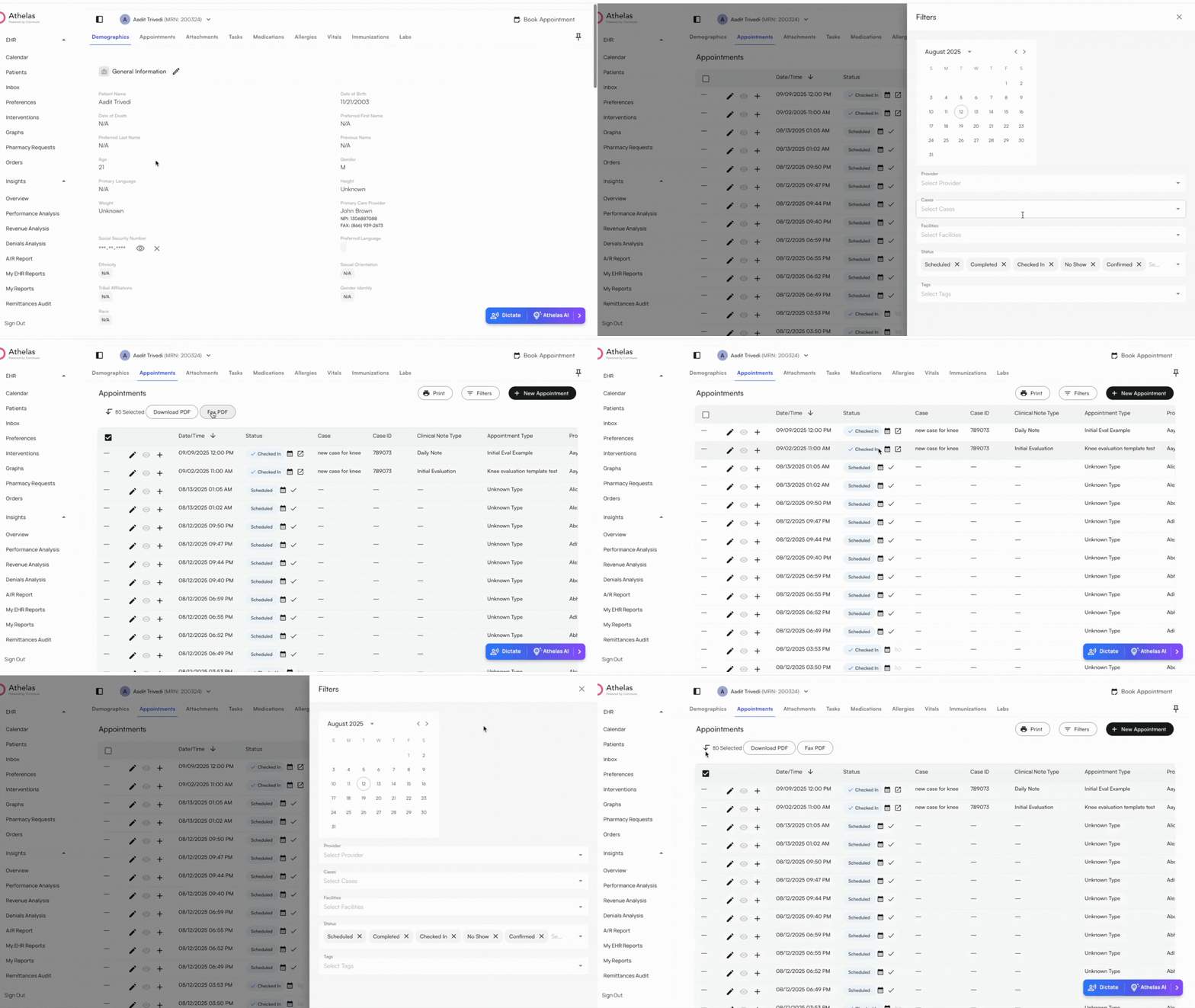 ### Download patient schedule
Select appointments by checking the box to the left of each appointment → Choose to **Download** or **Fax** the patient’s schedule.
**Note:** You can bulk fax or download PDFs by selecting the checkbox at the top of the appointments table. Uncheck any appointments you don’t want, or simply check the ones you’d like to include.
### Preview past Billing and Plan of Care documents
Once an appointment is in **Completed** status, you can download related documents.
The **Eye icon** changes from gray to black when the document is available.
**Sample - Billing PDF**
**Note:** You can set the default option within the Preferences tab on when signatures are required in the Billing PDF. (Default is off for all insurances, other options include on for Medicare only and on for all insurances).
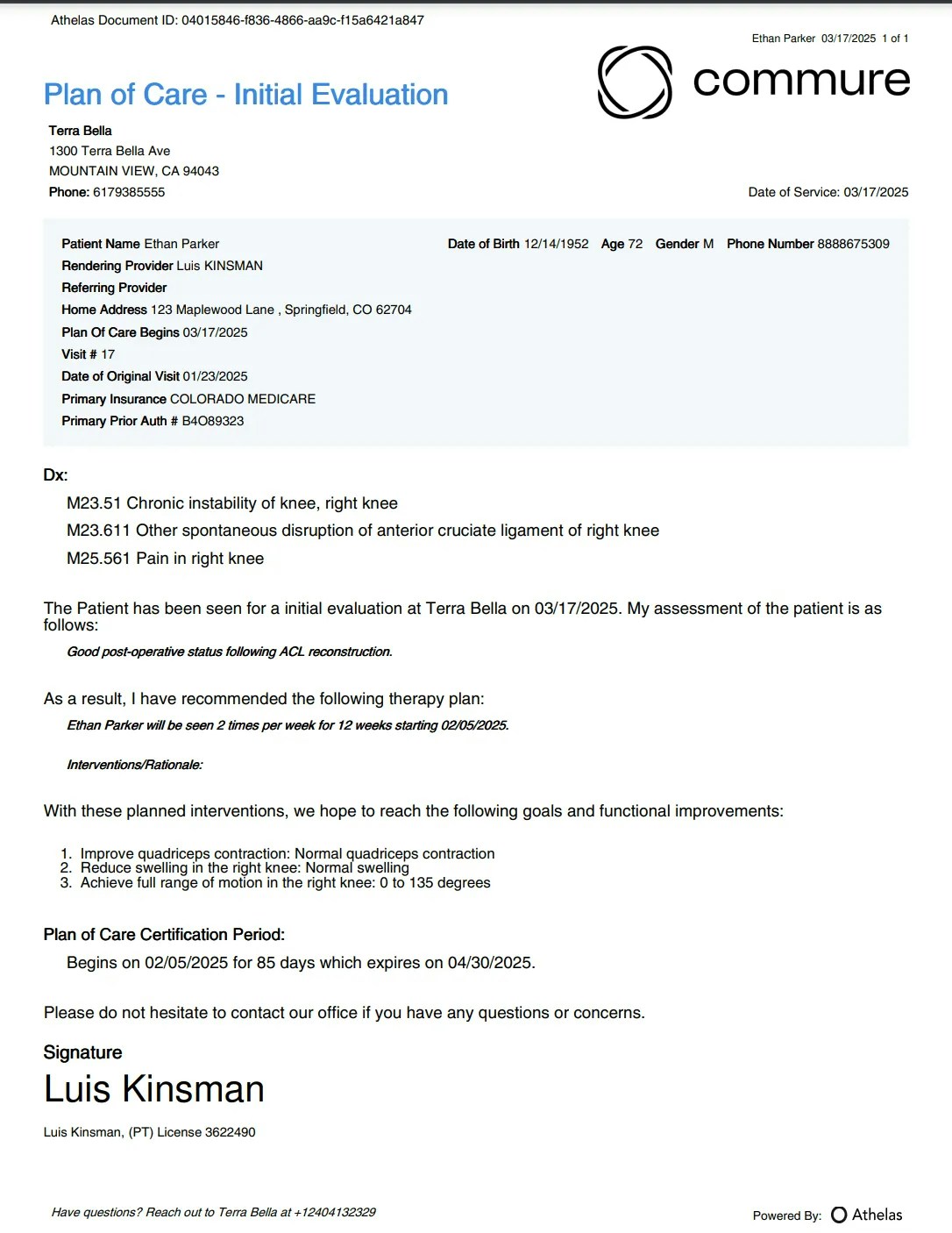
**Sample - Plan of Care PDF**
### Import patient’s medical records
**Import into Current Appointment Chart Note**
✨**Smart Tip:** Import an existing record by selecting **Athelas AI** (bottom right) → **Import Existing Records**
Open the **Chart Note** → Click on the **Import** tab (top right)
### Download patient schedule
Select appointments by checking the box to the left of each appointment → Choose to **Download** or **Fax** the patient’s schedule.
**Note:** You can bulk fax or download PDFs by selecting the checkbox at the top of the appointments table. Uncheck any appointments you don’t want, or simply check the ones you’d like to include.
### Preview past Billing and Plan of Care documents
Once an appointment is in **Completed** status, you can download related documents.
The **Eye icon** changes from gray to black when the document is available.
**Sample - Billing PDF**
**Note:** You can set the default option within the Preferences tab on when signatures are required in the Billing PDF. (Default is off for all insurances, other options include on for Medicare only and on for all insurances).
**Sample - Plan of Care PDF**
### Import patient’s medical records
**Import into Current Appointment Chart Note**
✨**Smart Tip:** Import an existing record by selecting **Athelas AI** (bottom right) → **Import Existing Records**
Open the **Chart Note** → Click on the **Import** tab (top right)