> ## Documentation Index
> Fetch the complete documentation index at: https://trainings.air.athelas.com/llms.txt
> Use this file to discover all available pages before exploring further.
# View your Patient's Information
Once you check in a patient, you can view past visit summaries and detailed patient information.
### View a Summary of Past Visits
**AI-Generated Summary**
✨**Smart Tip:** Scroll through the *Subjective* section of the Chart Note to review an AI-generated summary of previous appointments.
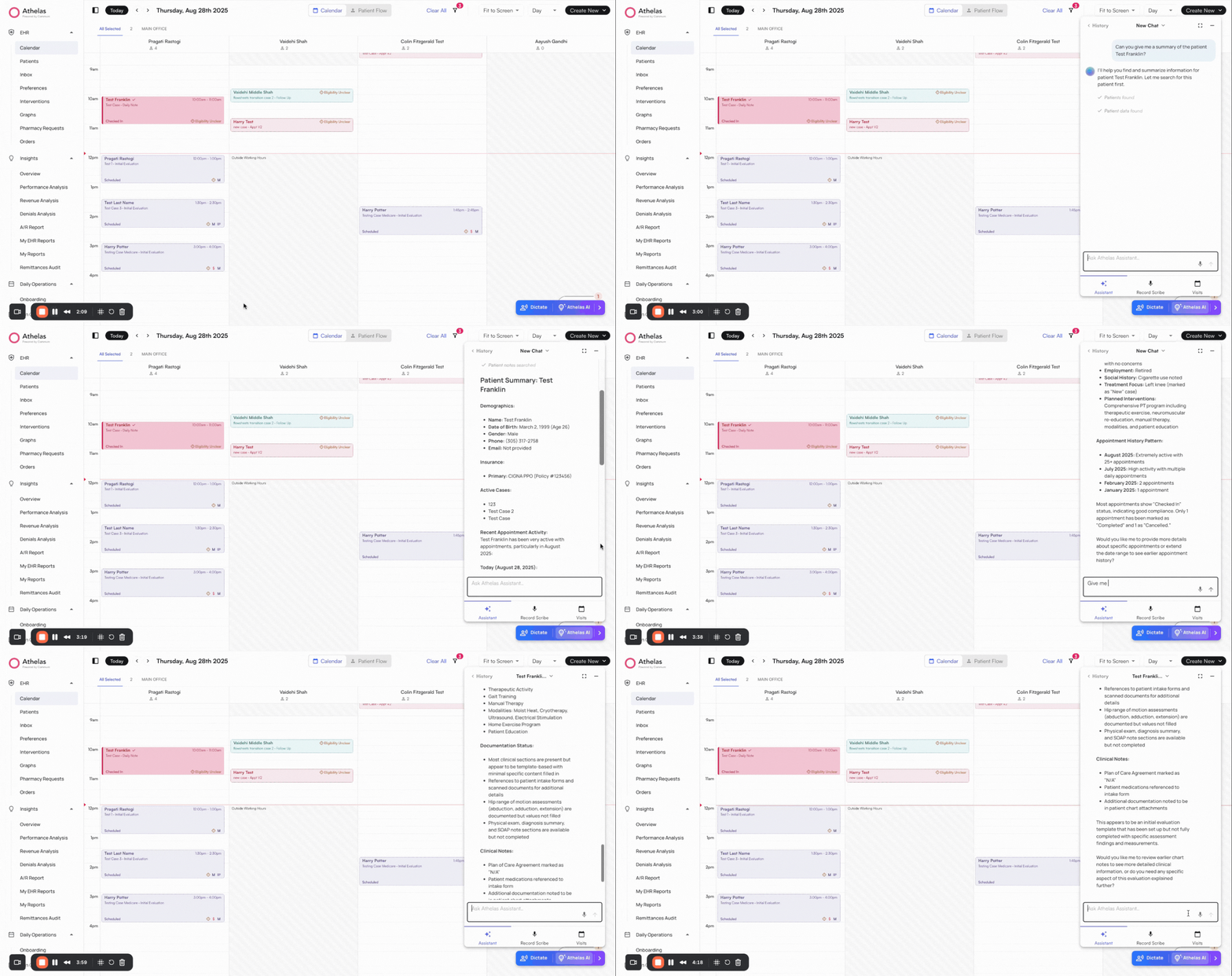 * Open **Chart Notes**.
* Click on the **Appointments** tab at the top.
* Click on the **square icon** (to the right of the calendar icon) to open the Chart Note for the desired appointment.
**Note**: From this page, you can also view past [Billing and Plan of Care](https://air_athelas.mintlify.app/patient_details/patient_appts#preview-past-billing-and-plan-of-care-documents) documents by clicking on the "eye" icon to the left of the date.
* Open **Chart Notes**.
* Click on the **Appointments** tab at the top.
* Click on the **square icon** (to the right of the calendar icon) to open the Chart Note for the desired appointment.
**Note**: From this page, you can also view past [Billing and Plan of Care](https://air_athelas.mintlify.app/patient_details/patient_appts#preview-past-billing-and-plan-of-care-documents) documents by clicking on the "eye" icon to the left of the date.
 ### Review Patient Details
**Ask Athelas AI**
✨**Smart Tip:** Use Athelas AI to ask targeted questions about the patient for quick insights. You can also use Voice Mode.
**Open Patient Information Tabs**
✨**Smart Tip:** Ask Athelas AI to navigate you to the relevant Patient Profile or Chart Note. You can also use Voice Mode.
Use the tabs at the top of the Chart Note to navigate patient information, including:
* [Patient Demographics](/air_provider/review_patient_details/patient_demog)
* [Patient Appointment Details](/air_provider/review_patient_details/patient_appts)
* [Patient Documents](/air_provider/review_patient_details/patient_attachments) (including faxes and images)
* Tasks, Medications, Allergies, Visits, Immunizations and Labs
**Note**: Use Athelas AI to navigate to the Patient Profile
Click on the **Patient** tab in the left menu → Search and select your patient by entering their details.
This opens the patient’s full profile for review.
### Add Patient Notes
There are 3 types of notes:
**1. Appointment Notes**
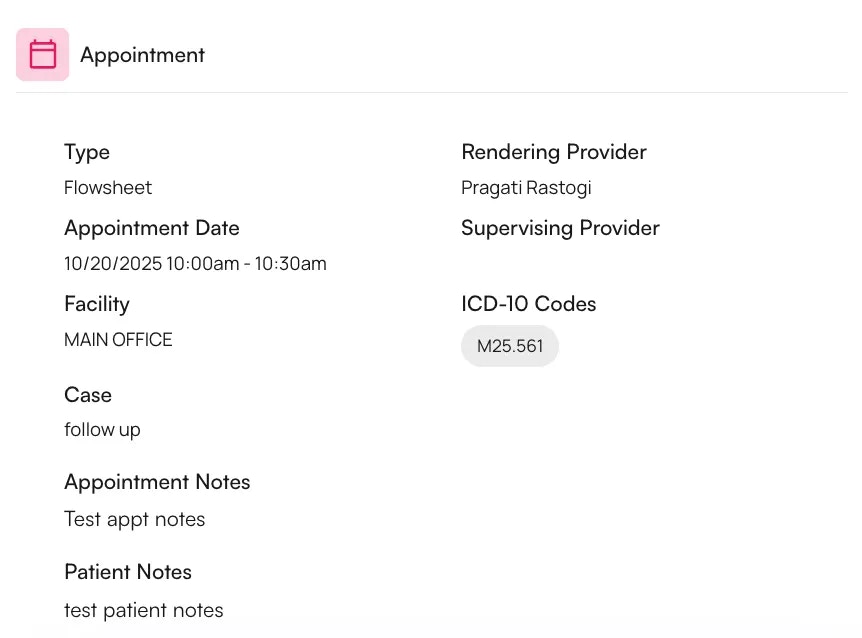
View Calendar > Click on an appointment > Edit appointment to enter any notes.
These notes can be seen in i) appointment details, ii) the calendar tooltip.
### Review Patient Details
**Ask Athelas AI**
✨**Smart Tip:** Use Athelas AI to ask targeted questions about the patient for quick insights. You can also use Voice Mode.
**Open Patient Information Tabs**
✨**Smart Tip:** Ask Athelas AI to navigate you to the relevant Patient Profile or Chart Note. You can also use Voice Mode.
Use the tabs at the top of the Chart Note to navigate patient information, including:
* [Patient Demographics](/air_provider/review_patient_details/patient_demog)
* [Patient Appointment Details](/air_provider/review_patient_details/patient_appts)
* [Patient Documents](/air_provider/review_patient_details/patient_attachments) (including faxes and images)
* Tasks, Medications, Allergies, Visits, Immunizations and Labs
**Note**: Use Athelas AI to navigate to the Patient Profile
Click on the **Patient** tab in the left menu → Search and select your patient by entering their details.
This opens the patient’s full profile for review.
### Add Patient Notes
There are 3 types of notes:
**1. Appointment Notes**
View Calendar > Click on an appointment > Edit appointment to enter any notes.
These notes can be seen in i) appointment details, ii) the calendar tooltip.
 **2. Case Notes**
View Patient Profile > Patient Demographics > Edit Active Cases to enter any case specific notes.
**3. Patient Notes**
Patient notes are of 2 types:
a) General Notes: View Patient Profile > Patient Demographics > Add Patient Notes. These notes can be seen in the appointment details or within patient demographics.
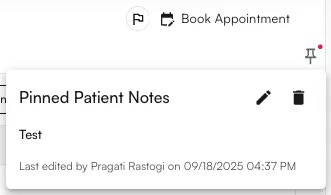
b) Pinned Notes: When enabled within the Preferences Tab, pinned notes will open automatically when the patient's profile or appointments or chart notes are opened.
**2. Case Notes**
View Patient Profile > Patient Demographics > Edit Active Cases to enter any case specific notes.
**3. Patient Notes**
Patient notes are of 2 types:
a) General Notes: View Patient Profile > Patient Demographics > Add Patient Notes. These notes can be seen in the appointment details or within patient demographics.
b) Pinned Notes: When enabled within the Preferences Tab, pinned notes will open automatically when the patient's profile or appointments or chart notes are opened.