> ## Documentation Index
> Fetch the complete documentation index at: https://trainings.air.athelas.com/llms.txt
> Use this file to discover all available pages before exploring further.
# How to Add a New User
### At a Glance
When a new team member needs access to Athelas Insights, add them from **Settings** -> **My Practice** -> **Team Setting**. During setup, choose the user role and adjust feature/page permissions as needed for your workflow.
### Here's How to Do It
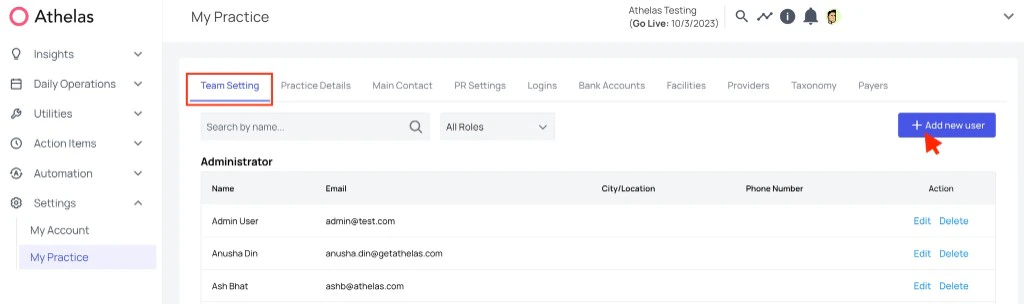
1. Go to [**My Practice**](https://insights.athelas.com/v2/my-practice?tab=teamMembers), open the **Team Setting** tab, and click **+ Add new user**.
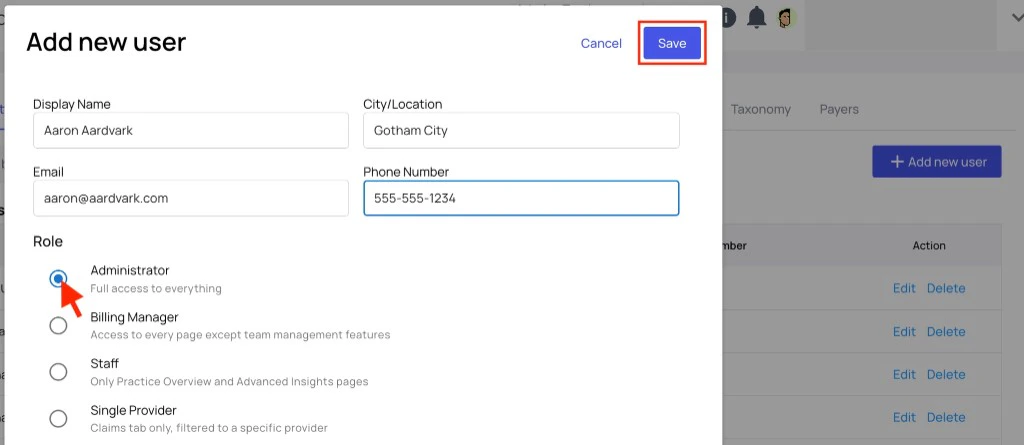
 2. Enter the new user's basic details (display name, email, location, and phone number), then choose the appropriate role.
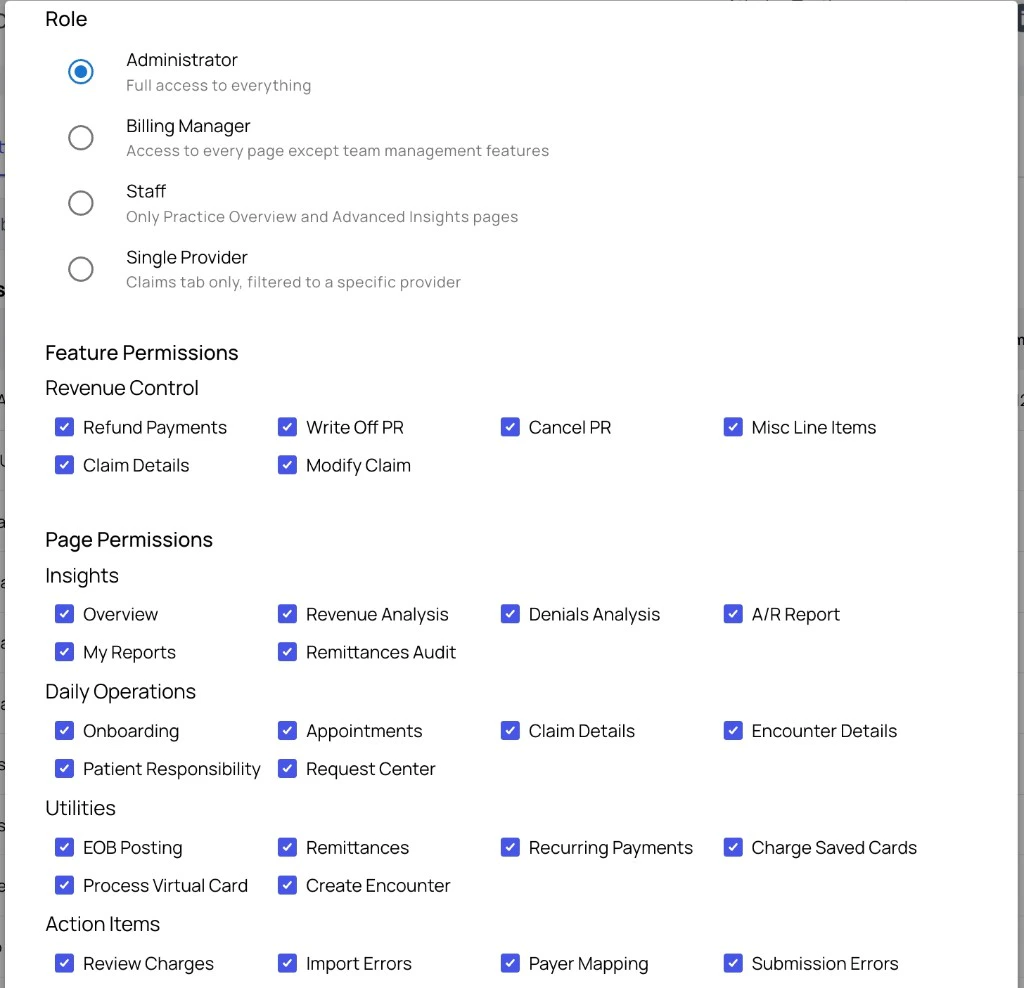
 3. Review role-based access defaults and update **Feature Permissions** and **Page Permissions** as needed.
 4. Click **Save** to create the account.
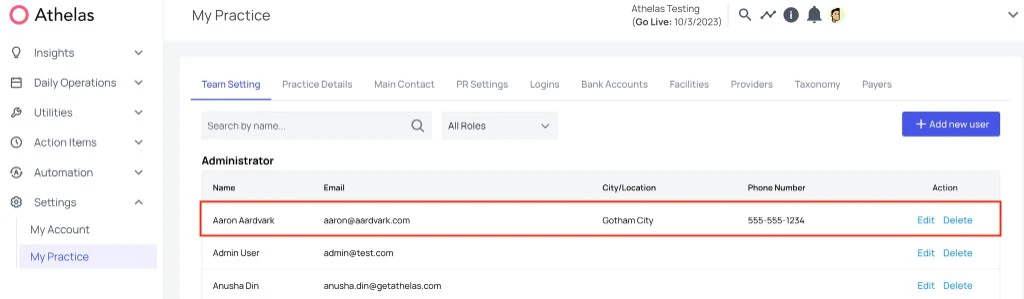
5. Confirm the new user appears in the **Team Setting** list under the selected role.
4. Click **Save** to create the account.
5. Confirm the new user appears in the **Team Setting** list under the selected role.
 ### Further Assistance
Need help with role design or permission setup? Reach out to [support@getathelas.com](mailto:support@getathelas.com) and our team can walk you through best practices.
### FAQ
Start with the role that most closely matches the user's day-to-day responsibilities:
* **Administrator** for broad access and configuration ownership
* **Billing Manager** for revenue workflow ownership with limited team-management scope
* **Staff** for operational access
* **Single Provider** for provider-scoped claims workflows
You can always fine-tune feature and page permissions before saving.
Yes. Role selection applies defaults, but you can toggle both **Feature Permissions** and **Page Permissions** before you save.
Return to the **Team Setting** tab in **My Practice**. The new user will appear in the team list under their assigned role, where you can also edit or delete the account later.
### Further Assistance
Need help with role design or permission setup? Reach out to [support@getathelas.com](mailto:support@getathelas.com) and our team can walk you through best practices.
### FAQ
Start with the role that most closely matches the user's day-to-day responsibilities:
* **Administrator** for broad access and configuration ownership
* **Billing Manager** for revenue workflow ownership with limited team-management scope
* **Staff** for operational access
* **Single Provider** for provider-scoped claims workflows
You can always fine-tune feature and page permissions before saving.
Yes. Role selection applies defaults, but you can toggle both **Feature Permissions** and **Page Permissions** before you save.
Return to the **Team Setting** tab in **My Practice**. The new user will appear in the team list under their assigned role, where you can also edit or delete the account later.