> ## Documentation Index
> Fetch the complete documentation index at: https://trainings.air.athelas.com/llms.txt
> Use this file to discover all available pages before exploring further.
# How to Resubmit a Single Claim
### At a Glance
There are dozens of reasons why a claim may be rejected or denied and require resubmission—an incorrect CPT code, new insurance information, a typo anywhere, etc. This guide shows how to fix errors in a claim and resubmit it so that your practice can get paid.
**If the claim in question can be modified and resubmitted at the encounter level, we strongly recommend do so through the Encounter Details page. You can also do it using the method outlined below, but it is more time consuming and achieves the same result.**
*August 2025 update: Exceptions to the above recommendation include NDC updates or claim submission method updates. In those cases, you must use the longer method. NDC updates will be added to the Encounter Details modification and resubmission flow in the future.*
### Here’s How to Do It
The claim resubmission process **can begin from several pages** on Insights: Encounter Details, Denials, Rejections, or Claim Details. For this example, we will start from the [Claim Details](https://insights.athelas.com/v2/claim_level_view) page, but the process is the same from all starting points (except Encounter Details which, again, we strongly recommend, as it is easier and faster).
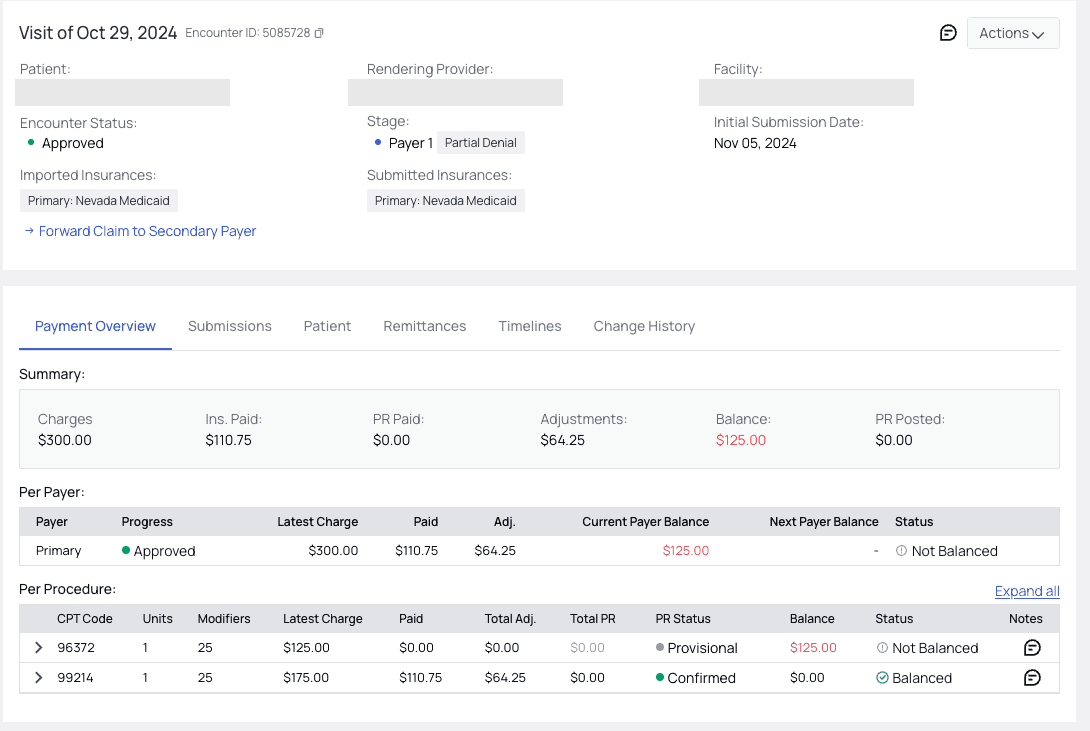 First, go to the [**Claim Details**](https://insights.athelas.com/v2/claim_level_view) page and find the claim you would like to edit and resubmit.
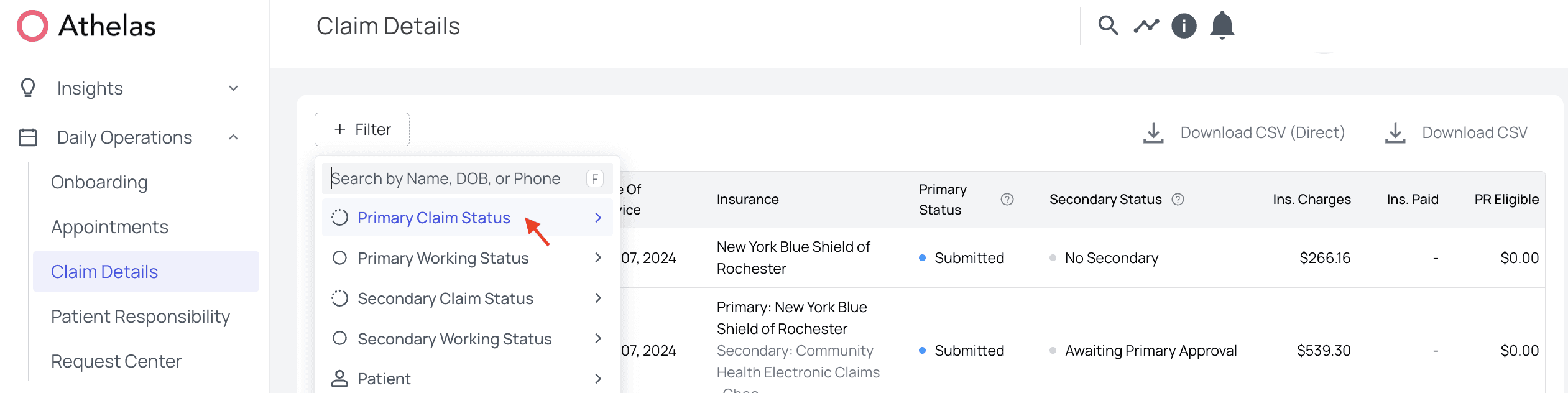
**Use the filters** to expedite the search process. You can look up claims by anything from Primary Claim Status to the patient’s name to the individual claim number.
First, go to the [**Claim Details**](https://insights.athelas.com/v2/claim_level_view) page and find the claim you would like to edit and resubmit.
**Use the filters** to expedite the search process. You can look up claims by anything from Primary Claim Status to the patient’s name to the individual claim number.
 Next, choose the claim you want to resubmit.
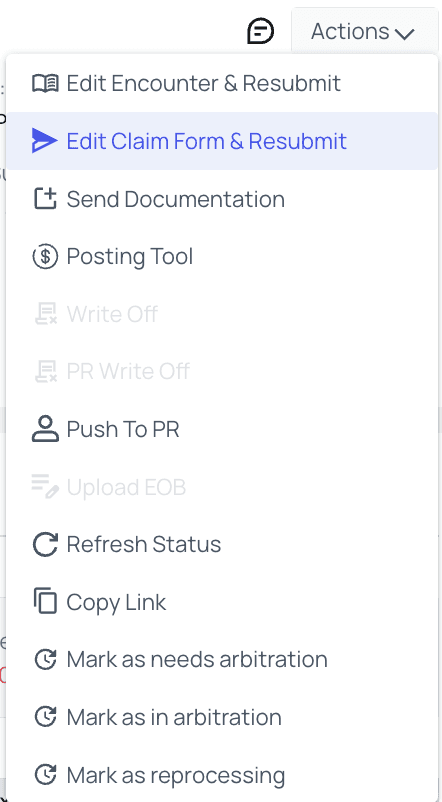
Click on the ‘Actions’ menu and select `Edit Claim Form & Resubmit`.
Next, choose the claim you want to resubmit.
Click on the ‘Actions’ menu and select `Edit Claim Form & Resubmit`.
 From here, you will be able to edit a huge amount of information in the claim. We’ll take a look at the possibilities in the order they’ll appear on your screen.
### Regenerate or Save and Resubmit the Claim
From here, you will be able to edit a huge amount of information in the claim. We’ll take a look at the possibilities in the order they’ll appear on your screen.
### Regenerate or Save and Resubmit the Claim
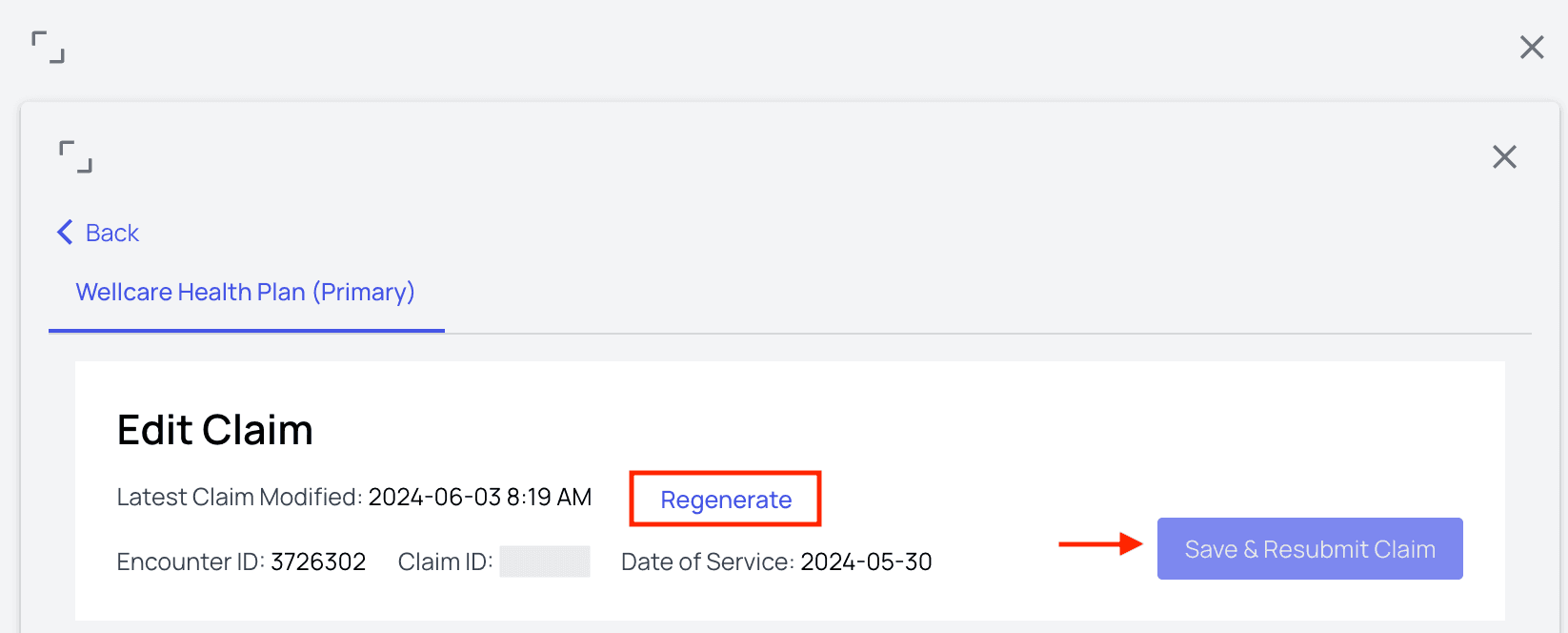 At the top of the editing window, you will find the option to `Regenerate` a claim. **Clicking this will reset the information in the claim to its original state at the time of submission**. This is particularly useful if changes were made incorrectly, or if some unknown piece of information is now missing.
You will also see the `Save and Resubmit Claim` button. This is where you’ll go after you’ve changed everything you would like.
### Notes
At the top of the editing window, you will find the option to `Regenerate` a claim. **Clicking this will reset the information in the claim to its original state at the time of submission**. This is particularly useful if changes were made incorrectly, or if some unknown piece of information is now missing.
You will also see the `Save and Resubmit Claim` button. This is where you’ll go after you’ve changed everything you would like.
### Notes
 This section will tell you where to look for errors in the claim. In this example, check for prior authorization issues as well as coding issues.
### Claim Delivery Method
This section will tell you where to look for errors in the claim. In this example, check for prior authorization issues as well as coding issues.
### Claim Delivery Method
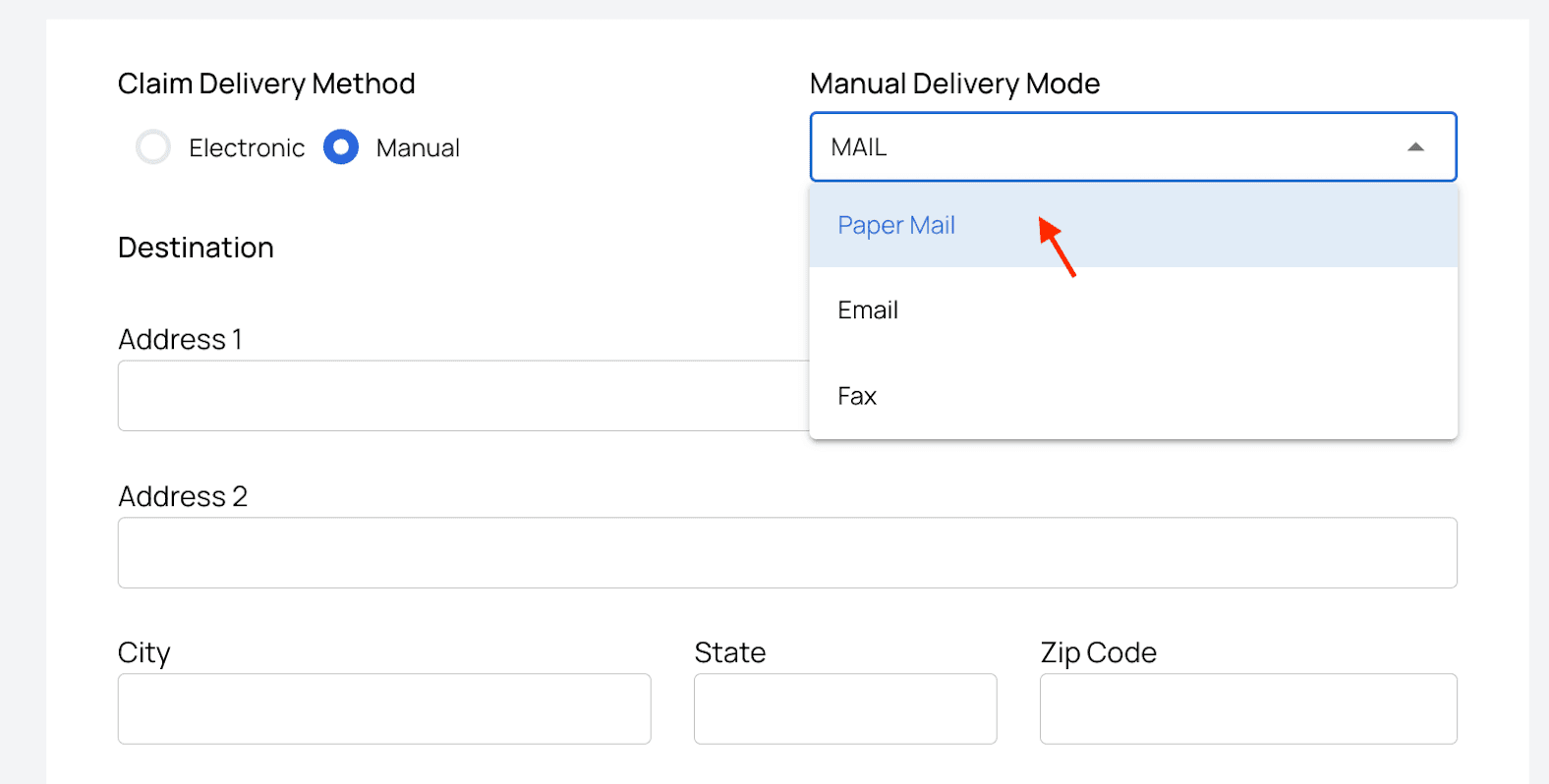 Athelas defaults to Electronic delivery. However, you can opt for Manual delivery instead, and then choose Mail, Email, or Fax, then fill in the corresponding information.
### Patient Information
The patient’s information will be pre-filled, and you can edit any typos if necessary.
Athelas defaults to Electronic delivery. However, you can opt for Manual delivery instead, and then choose Mail, Email, or Fax, then fill in the corresponding information.
### Patient Information
The patient’s information will be pre-filled, and you can edit any typos if necessary.
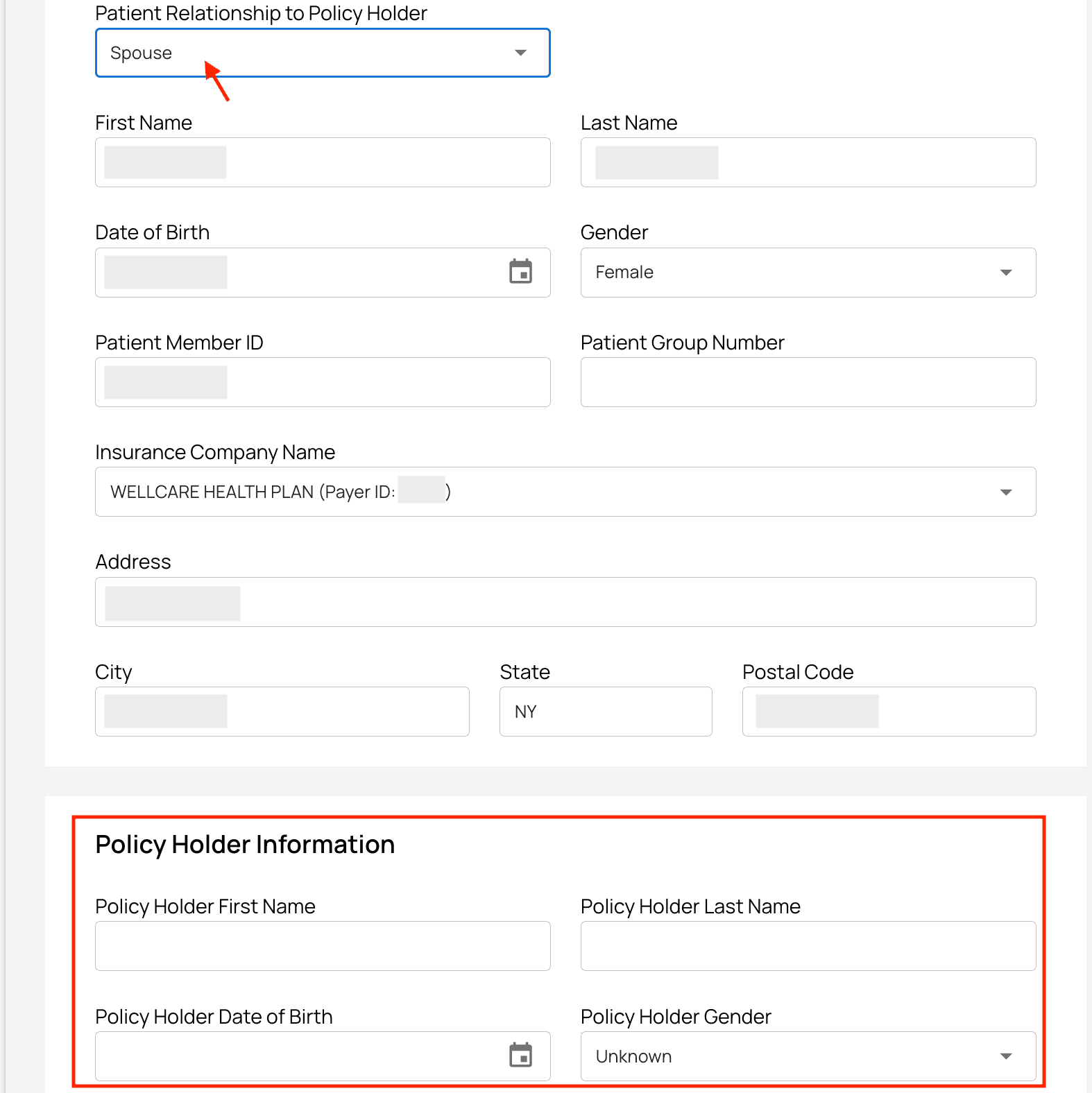 If you need to update policy holder information, you can choose the patient’s relationship to the policy holder at the top and then fill in the required information in the corresponding section below, as seen in this example.
### Supporting Documentation
If you need to update policy holder information, you can choose the patient’s relationship to the policy holder at the top and then fill in the required information in the corresponding section below, as seen in this example.
### Supporting Documentation
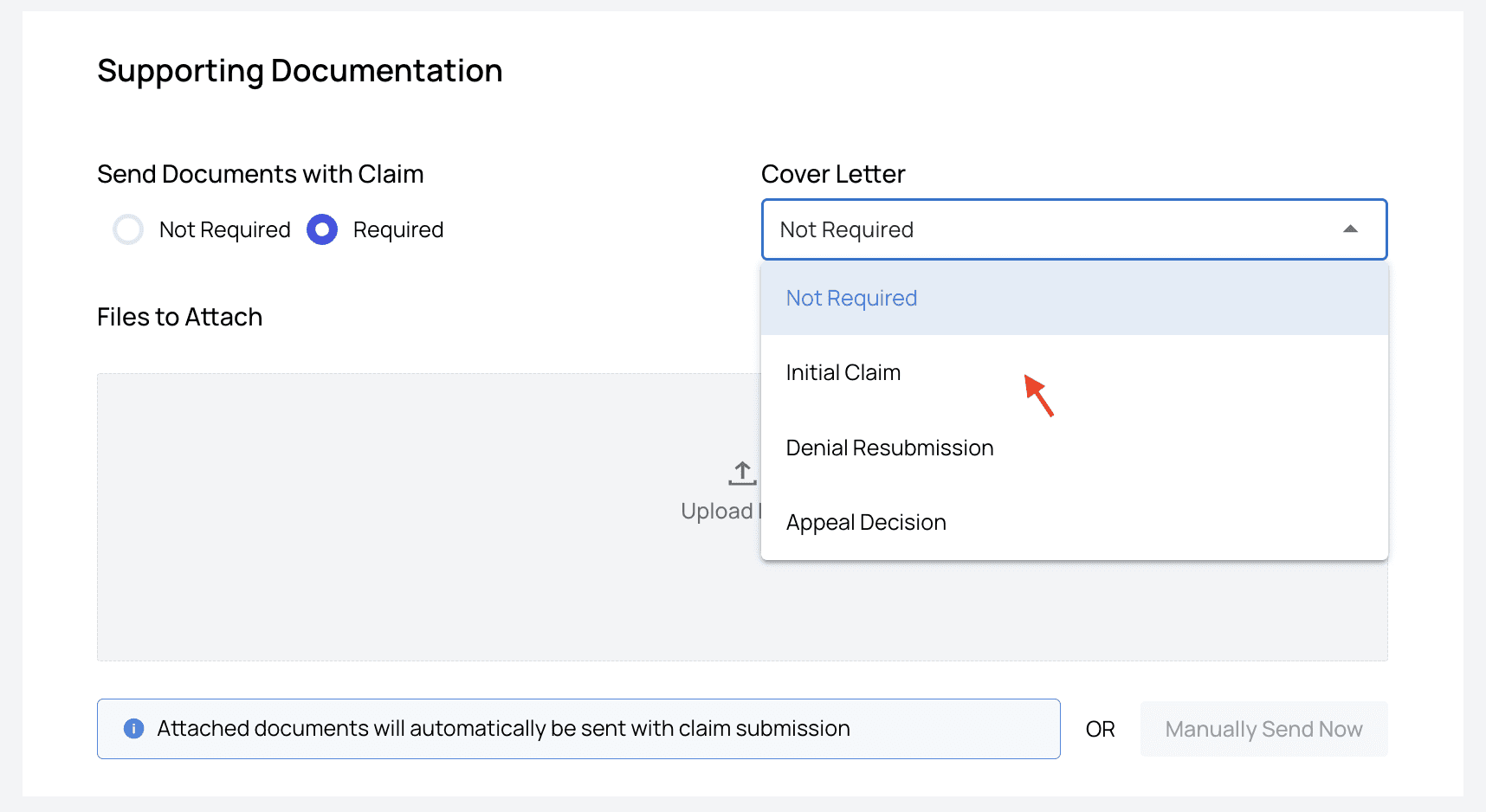 Athelas defaults to the ‘Not Required’ option for supporting documentation.
If documentation is required, choose the ‘**Required**’ option and then attach the corresponding files.
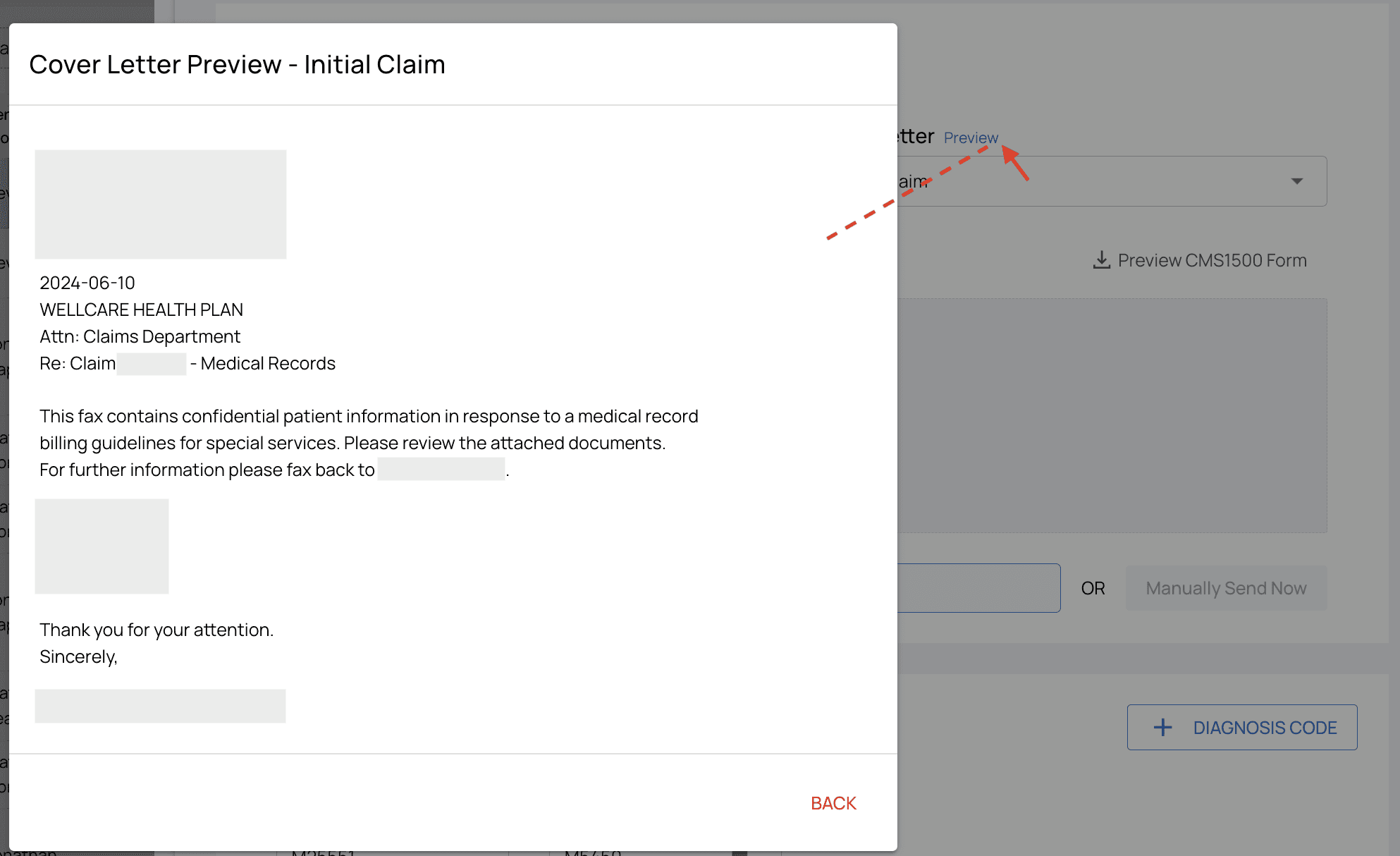
Once you choose which kind of cover letter you would like to send, it will be auto-generated. a ‘**Preview**’ button will appear next to the Cover Letter menu. Click it to see the cover letter.
Athelas defaults to the ‘Not Required’ option for supporting documentation.
If documentation is required, choose the ‘**Required**’ option and then attach the corresponding files.
Once you choose which kind of cover letter you would like to send, it will be auto-generated. a ‘**Preview**’ button will appear next to the Cover Letter menu. Click it to see the cover letter.
 By default, cover letters and any attached documents will be sent automatically with the claim resubmission. If you would like to send attached documents on their own, simply click ‘**Manually Send Now**.’
You also have the option to ‘**Preview CMS1500 Form**’ that is sent along with documentation.
By default, cover letters and any attached documents will be sent automatically with the claim resubmission. If you would like to send attached documents on their own, simply click ‘**Manually Send Now**.’
You also have the option to ‘**Preview CMS1500 Form**’ that is sent along with documentation.
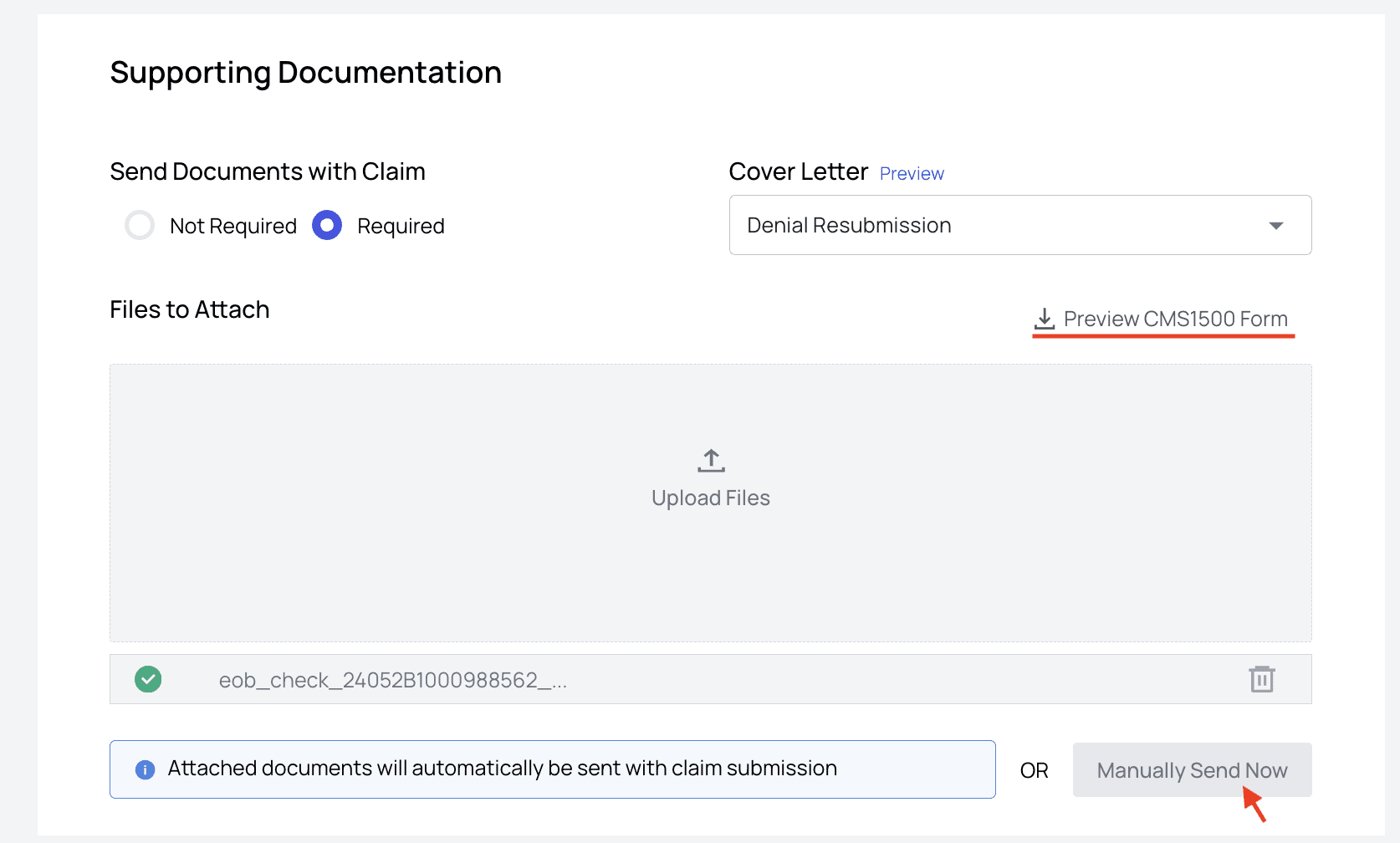 ***Sending supporting documentation can be done separately from resubmitting an entire claim.** Simply go straight to this ‘Supporting Documentation’ section, attach the required documents, click ‘Manually Send Now,’ and only these documents will be sent.*
### Diagnosis Codes and Service Lines
To add a diagnosis code, click the ‘+ Diagnosis Code’ box and enter the code. You can delete a diagnosis code by clicking the trash icon.
***Sending supporting documentation can be done separately from resubmitting an entire claim.** Simply go straight to this ‘Supporting Documentation’ section, attach the required documents, click ‘Manually Send Now,’ and only these documents will be sent.*
### Diagnosis Codes and Service Lines
To add a diagnosis code, click the ‘+ Diagnosis Code’ box and enter the code. You can delete a diagnosis code by clicking the trash icon.
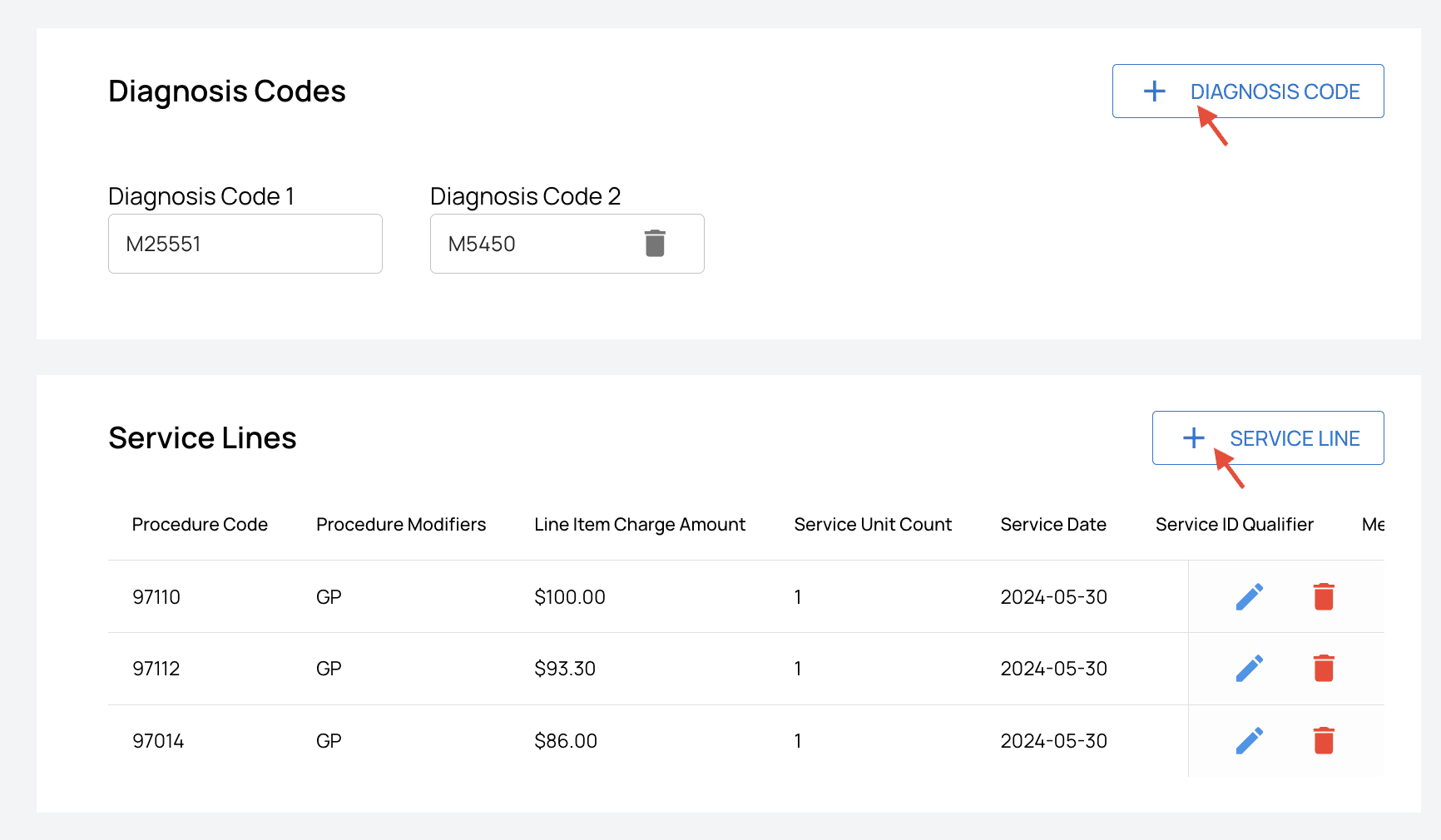 The same process applies to service lines. You can edit individual service lines by clicking the corresponding pencil icon.
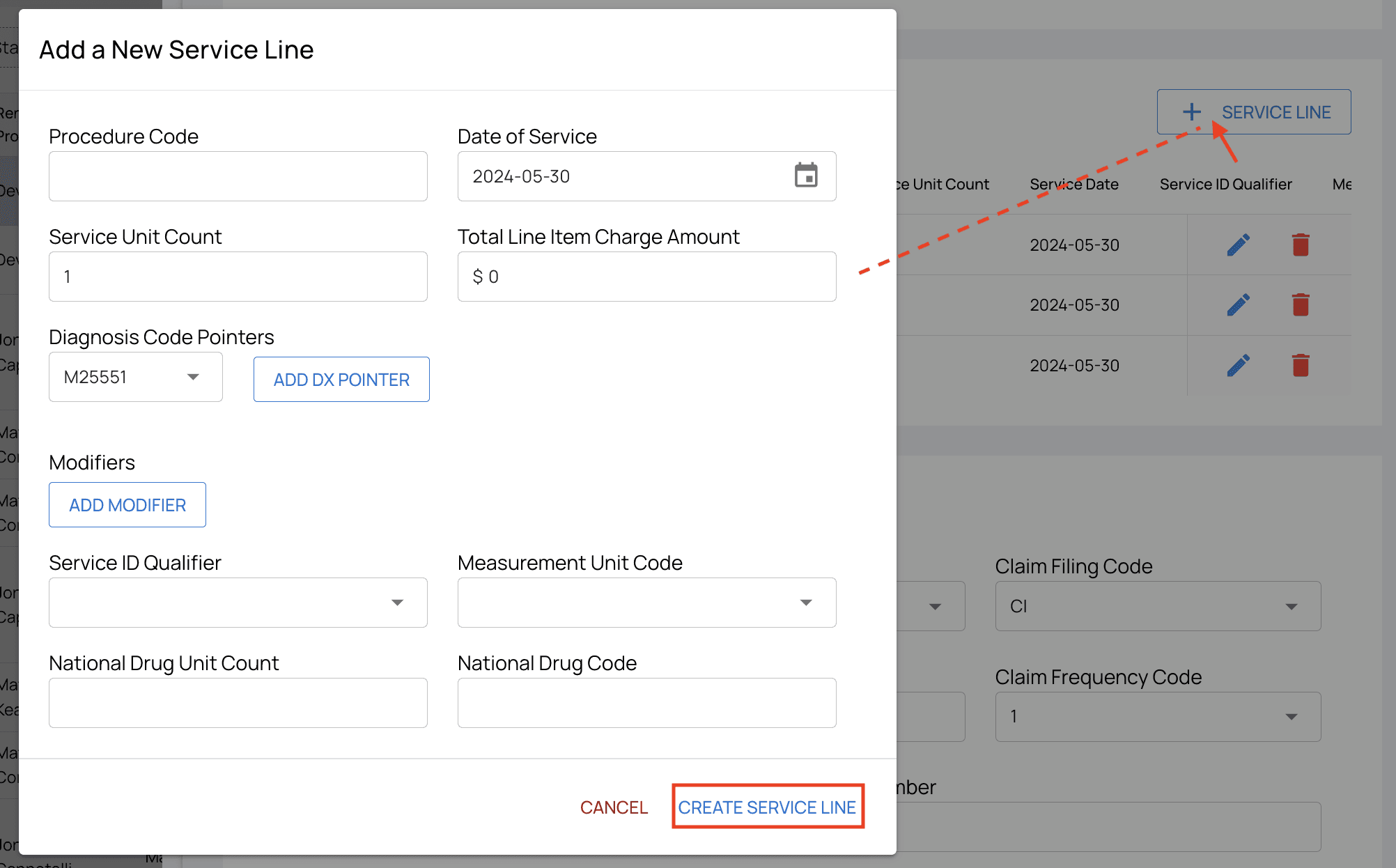
When you click `+ Service Line` a popup will appear. Fill out the information and then click `Create Service Line`. Your new entry will then appear in the list of service lines.
The same process applies to service lines. You can edit individual service lines by clicking the corresponding pencil icon.
When you click `+ Service Line` a popup will appear. Fill out the information and then click `Create Service Line`. Your new entry will then appear in the list of service lines.
 ### All Other Sections
The rest of the sections in this view are straightforward data entry, and they are prime candidates for typos. Be sure to double check these sections for human error:
* Claim Information
* Billing Information
* Rendering Information
* Referring Information
* Supervising Information
* Service Facility Information
* Other Information
**Important Note:** If a payer is **non-Medicare/Medicaid** and they want to resubmit a claim…
* Update the Claim Frequency Code to `Corrected Claim (7)` in the Claim Information section.
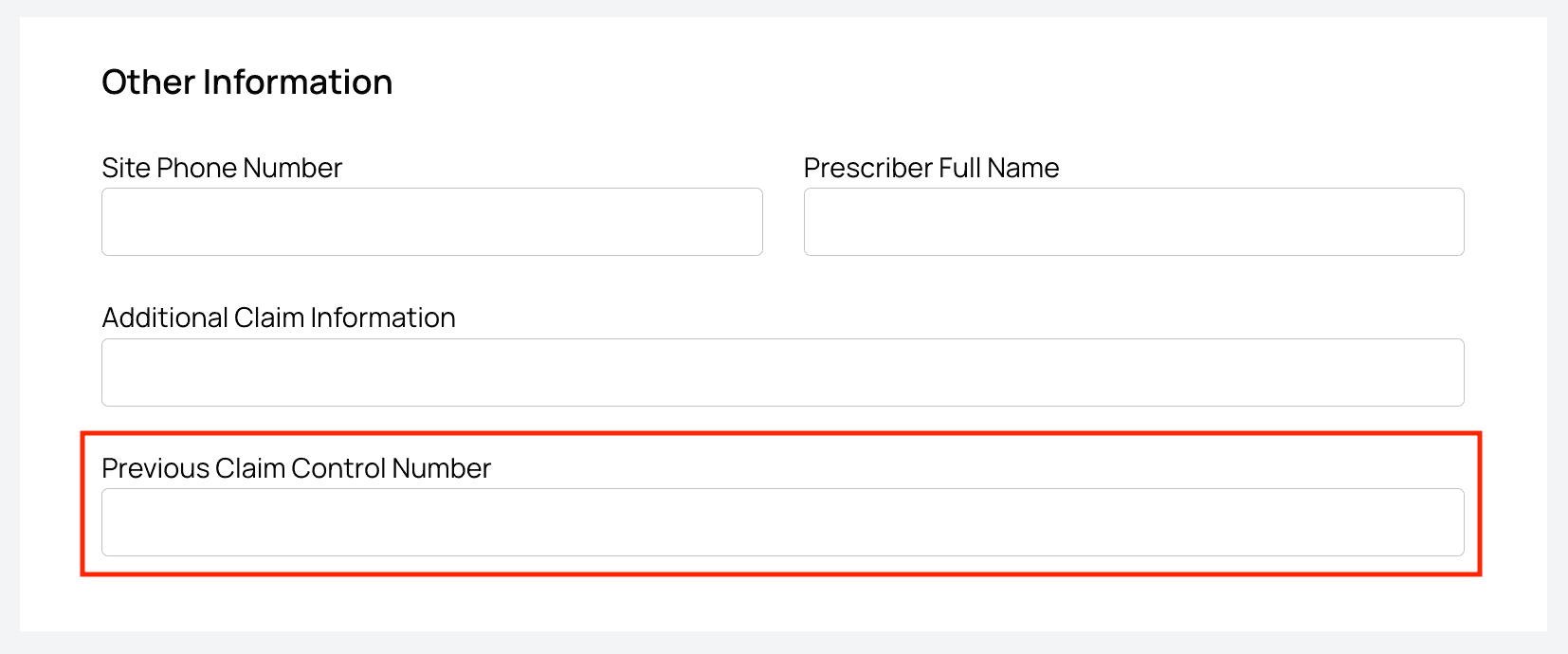
* Input the Previous Claim Control Number in the Other Information section (if it isn’t already populated).
### All Other Sections
The rest of the sections in this view are straightforward data entry, and they are prime candidates for typos. Be sure to double check these sections for human error:
* Claim Information
* Billing Information
* Rendering Information
* Referring Information
* Supervising Information
* Service Facility Information
* Other Information
**Important Note:** If a payer is **non-Medicare/Medicaid** and they want to resubmit a claim…
* Update the Claim Frequency Code to `Corrected Claim (7)` in the Claim Information section.
* Input the Previous Claim Control Number in the Other Information section (if it isn’t already populated).