> ## Documentation Index
> Fetch the complete documentation index at: https://trainings.air.athelas.com/llms.txt
> Use this file to discover all available pages before exploring further.
# The Review Charges Page
#### At a Glance
***This page may be accessible only to Administrators and Billing Managers at your practice.***
When payments get posted in Insights, the vast majority are handled by our rules engines. They require no manual intervention to go from submission to finalization. However, insurance payments can sometimes conflict with each other, be insufficient, or otherwise not comply with the rules established in the rules engines.
Cases like these require manual review and will end up on the [Review Charges page](https://insights.athelas.com/v2/review-charges). Insights provides you with several tools to get these cases back on track for finalization.
**Best Practices**
* Depending on your staff’s bandwidth and how quickly charges generally change in your industry (some PT offices, for example, tend to see significant fluctuations in deductible charges as days pass), Athelas recommends **reviewing charges** **at least once a week**. This ensures that these claims will resolve into payments for your practice in a timely manner.
* If you notice patterns with the same kinds of claims coming in for manual review, talk to your account manager to see if a rule can be created to handle such cases. Ideally, automation will do as much of the heavy lifting with claims as possible.
###
### Features of the Page
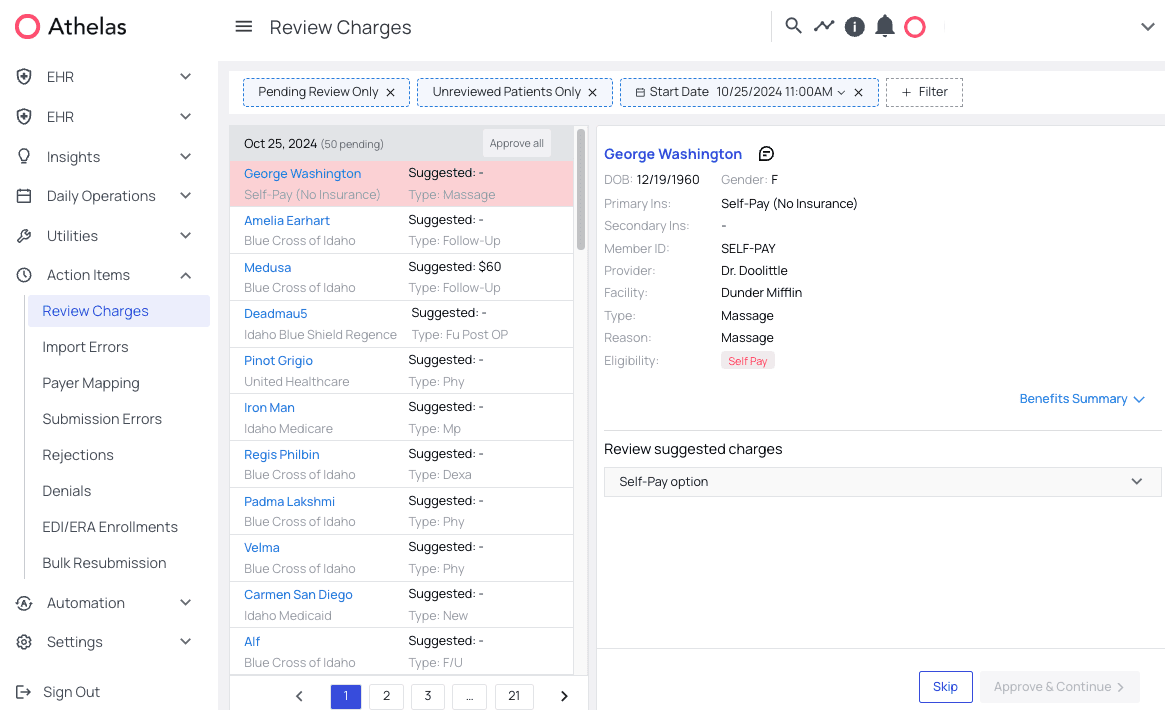 Some things you’ll notice when you land on the Review Charges page:
* **Red highlighted patients**These patients are either self-pay or their eligibility check returned an inconclusive result. Either way, if you approve their charges, those charges will be PR.
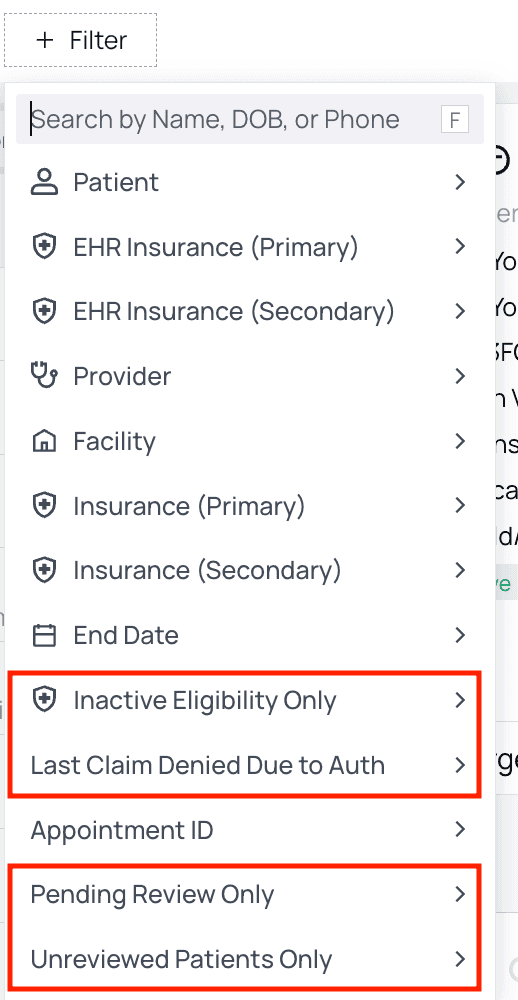
* **Review-specific filters**
* **Inactive Eligibility Only**
* **Last Claim Denied Due to Auth**- Appointments missing required prior authorization at the time of denial will be shown.
* **Pending Review Only**- When active, patients with charges that have not been reviewed for that particular date of service will be displayed.
* **Unreviewed Patients Only**- When active, patients with charges that have never been reviewed at any point will be displayed.
If you remove the default ‘Pending Review Only’ and ‘Unreviewed Patients Only’ filters, you will see all patients for that date of service.
Some things you’ll notice when you land on the Review Charges page:
* **Red highlighted patients**These patients are either self-pay or their eligibility check returned an inconclusive result. Either way, if you approve their charges, those charges will be PR.
* **Review-specific filters**
* **Inactive Eligibility Only**
* **Last Claim Denied Due to Auth**- Appointments missing required prior authorization at the time of denial will be shown.
* **Pending Review Only**- When active, patients with charges that have not been reviewed for that particular date of service will be displayed.
* **Unreviewed Patients Only**- When active, patients with charges that have never been reviewed at any point will be displayed.
If you remove the default ‘Pending Review Only’ and ‘Unreviewed Patients Only’ filters, you will see all patients for that date of service.
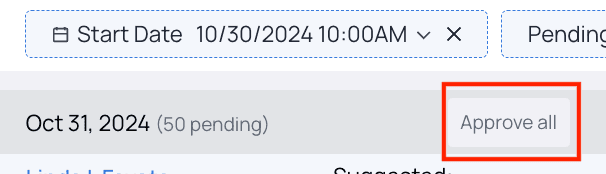
 * `**Approve all**`\*\* button\*\*You’ll see this button in each gray highlighted start-date row.❗**Note:** Each page shows up to 50 encounters with charges to review, but if there are more than 50 encounters on a date, the rest will spill over into the next page. **The **`**Approve all**`** button approves all charges for that date.**
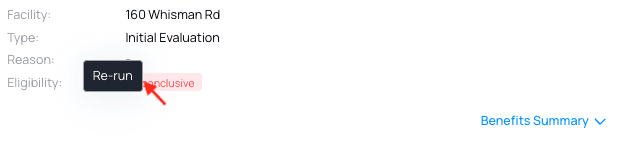
 * **Rerun Eligibility**You can rerun an eligibility check on any of these encounters by simply clicking the patient’s eligibility status.
 ####
#### How Charge Options Populate the Suggested Charges List
Insights gathers all available charge information from the payer and surfaces it in the list of charges. This means that you’ll have choices beyond the Athelas suggested charge, as well as more context and detail about each charge option, when the payer provides such information.
####
#### How Charge Options Populate the Suggested Charges List
Insights gathers all available charge information from the payer and surfaces it in the list of charges. This means that you’ll have choices beyond the Athelas suggested charge, as well as more context and detail about each charge option, when the payer provides such information.
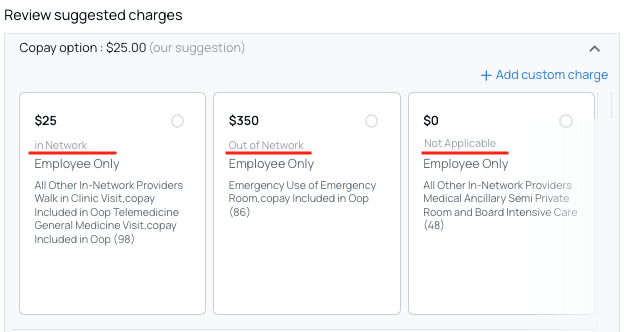 #### Review Suggested Charges Section
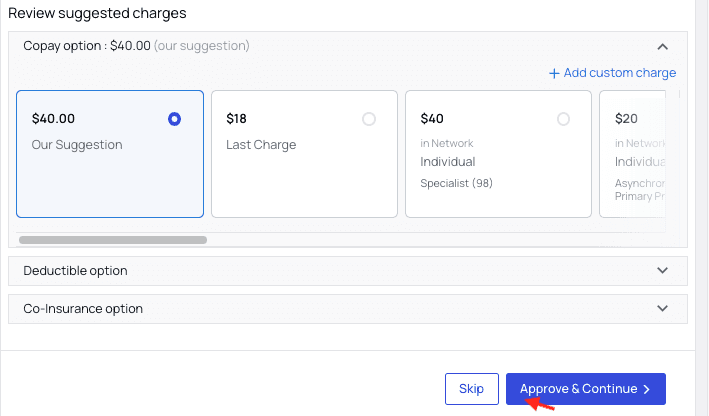
Here, you can review the following charge options. Athelas’ suggested charge will be pre-selected, though you could also charge any of the other listed choices.
#### Review Suggested Charges Section
Here, you can review the following charge options. Athelas’ suggested charge will be pre-selected, though you could also charge any of the other listed choices.
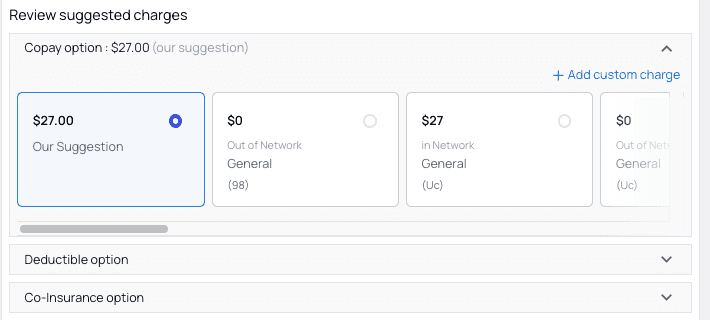 * **Copay Option**
* **Deductible Option**
* **Co-Insurance Option**
Self-Pay encounters will only have a Self-Pay category.
If you would like to be able to charge for **multiple choices simultaneously** (such as Copay and Deductible), your account manager can help set up that feature.
* **Copay Option**
* **Deductible Option**
* **Co-Insurance Option**
Self-Pay encounters will only have a Self-Pay category.
If you would like to be able to charge for **multiple choices simultaneously** (such as Copay and Deductible), your account manager can help set up that feature.
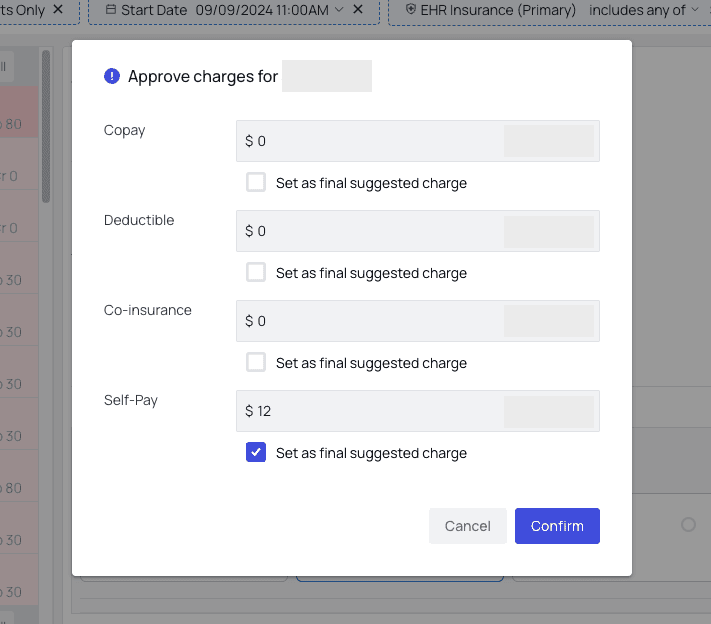 **To approve charges in bulk,** use the `Approve all` button, described earlier in this guide.
* 👓 **View, Update, and Approve Individual Charges**Start by clicking into an encounter.
**To approve charges in bulk,** use the `Approve all` button, described earlier in this guide.
* 👓 **View, Update, and Approve Individual Charges**Start by clicking into an encounter.
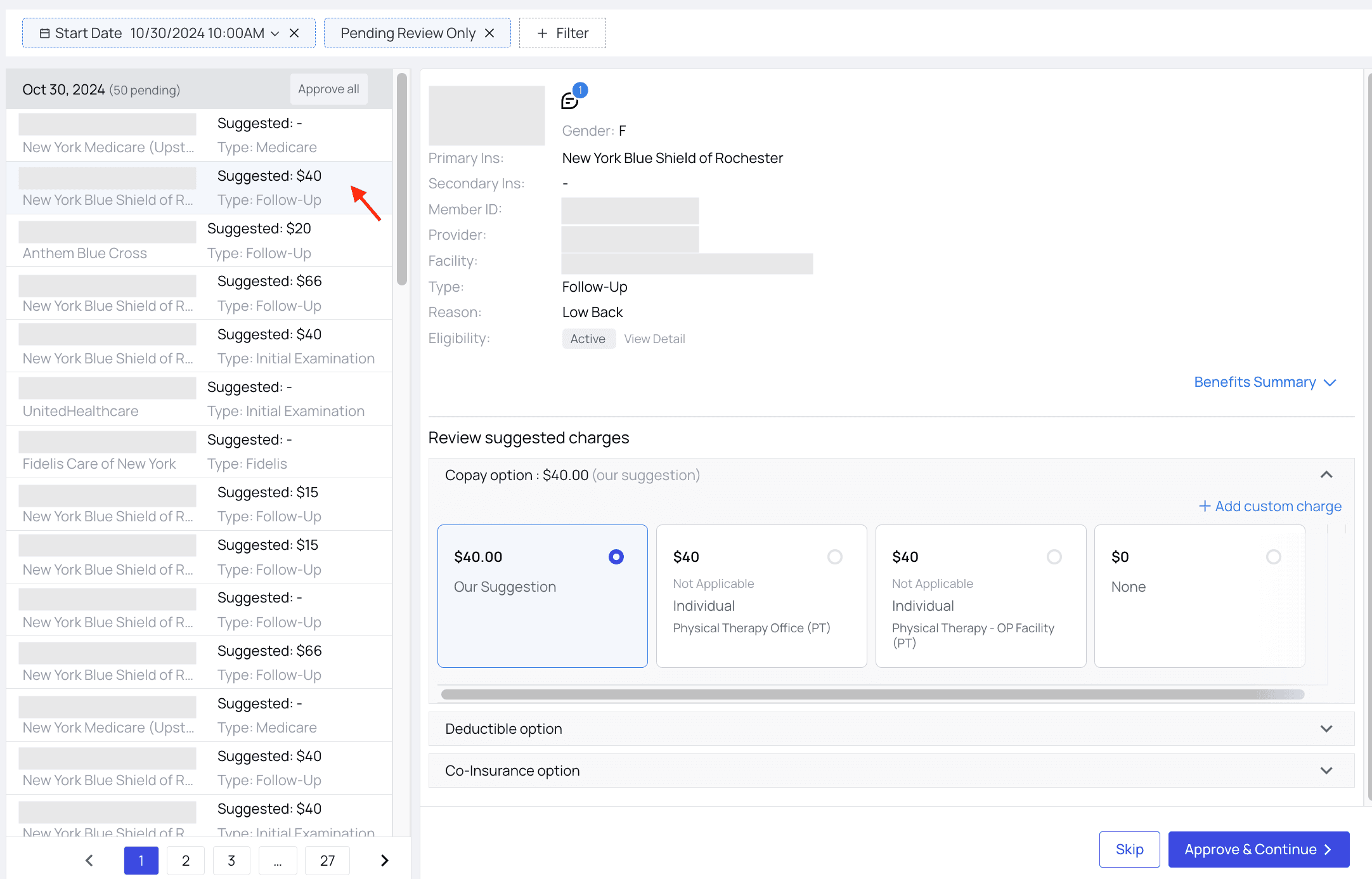 Of course, we recommend using the pre-selected option labeled ‘Our Suggestion,’ so for this example we’ll continue with the suggested copay amount. Click `Approve & Continue`.
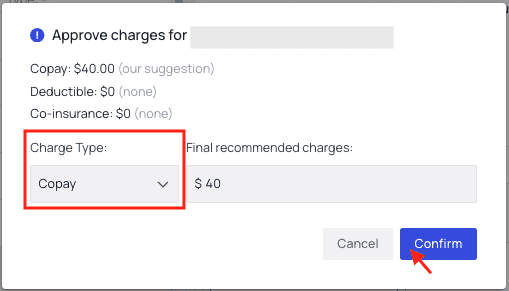
 A confirmation popup will appear. We’ll select charge type ‘Copay’ and then click `Confirm`.
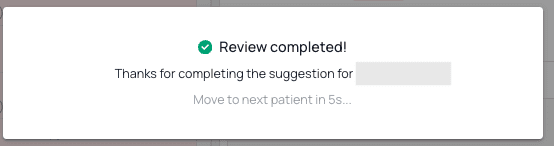
 A message indicating review completion will appear, and you can move on to the next patient.
 * 📒 **Benefits Summary**You can see more details about the patient’s **raw benefits** by expanding the `Benefits Summary` menu. Keep in mind that some of these benefits may be overridden by rules applied by the rules engine once you approve their charges.
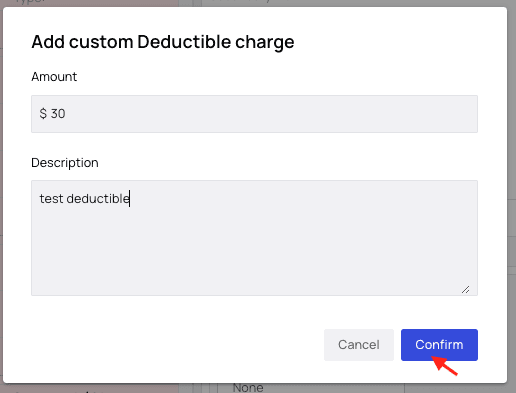
 * 💰 **Add a Custom Charge**If none of the charge options work for your purposes, you can choose to `Add custom charge` instead. For this example, we’ll create a custom deductible charge, though the process is the same for all types of charges.First, click on `Add custom charge`.
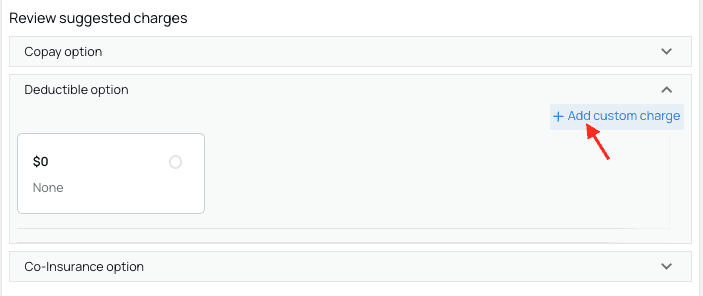 Fill in the amount and the description, then click `Confirm`.
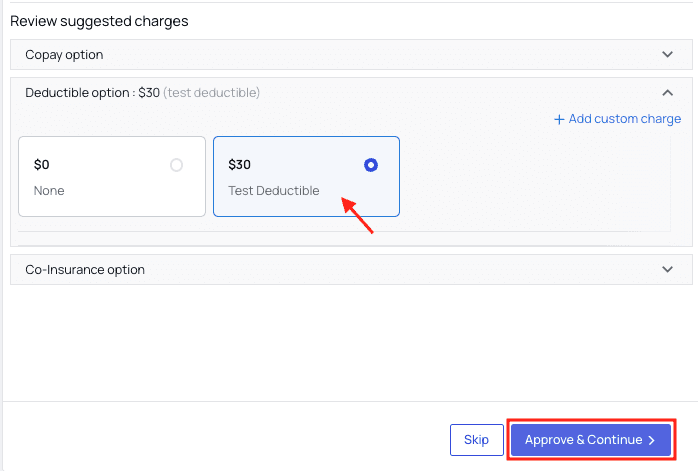
 Your custom charge will appear in the list of options. Select it, then click `Approve & Continue`.
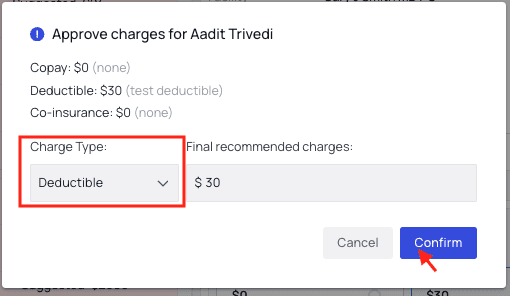
 In the popup, select charge type ‘Deductible’ and then `Confirm`.
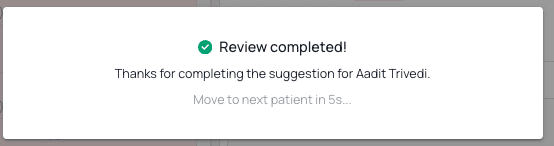
 A message will appear, informing you that the review has been completed.
 ####
**Features Supported:**
* View all appointments and their suggested charge
* Ability to override suggested charge instantly
* Can filter down appointments to ones that have suggested charge, have not been overridden, are for a new patient, etc.
* Displaying where the suggested charge matches the last remit in Appointments
* Can also filter where remit does not match in Review Charges
####
**Features Supported:**
* View all appointments and their suggested charge
* Ability to override suggested charge instantly
* Can filter down appointments to ones that have suggested charge, have not been overridden, are for a new patient, etc.
* Displaying where the suggested charge matches the last remit in Appointments
* Can also filter where remit does not match in Review Charges