> ## Documentation Index
> Fetch the complete documentation index at: https://trainings.air.athelas.com/llms.txt
> Use this file to discover all available pages before exploring further.
# Alternate Methods for Scheduling
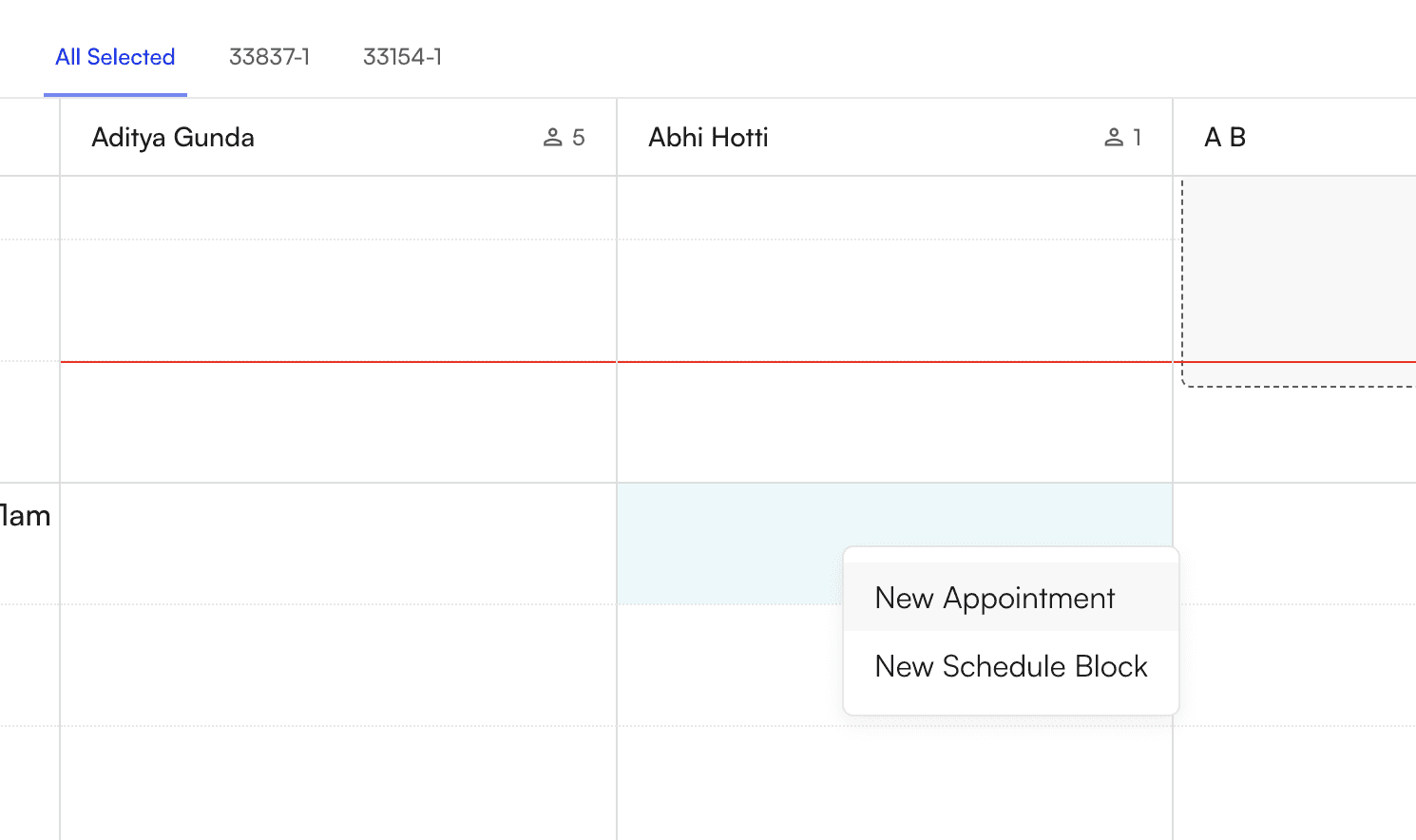
Another way you can schedule an appointment is by clicking on any time slot on the calendar directly. A popup will appear with the option to create a new appointment.
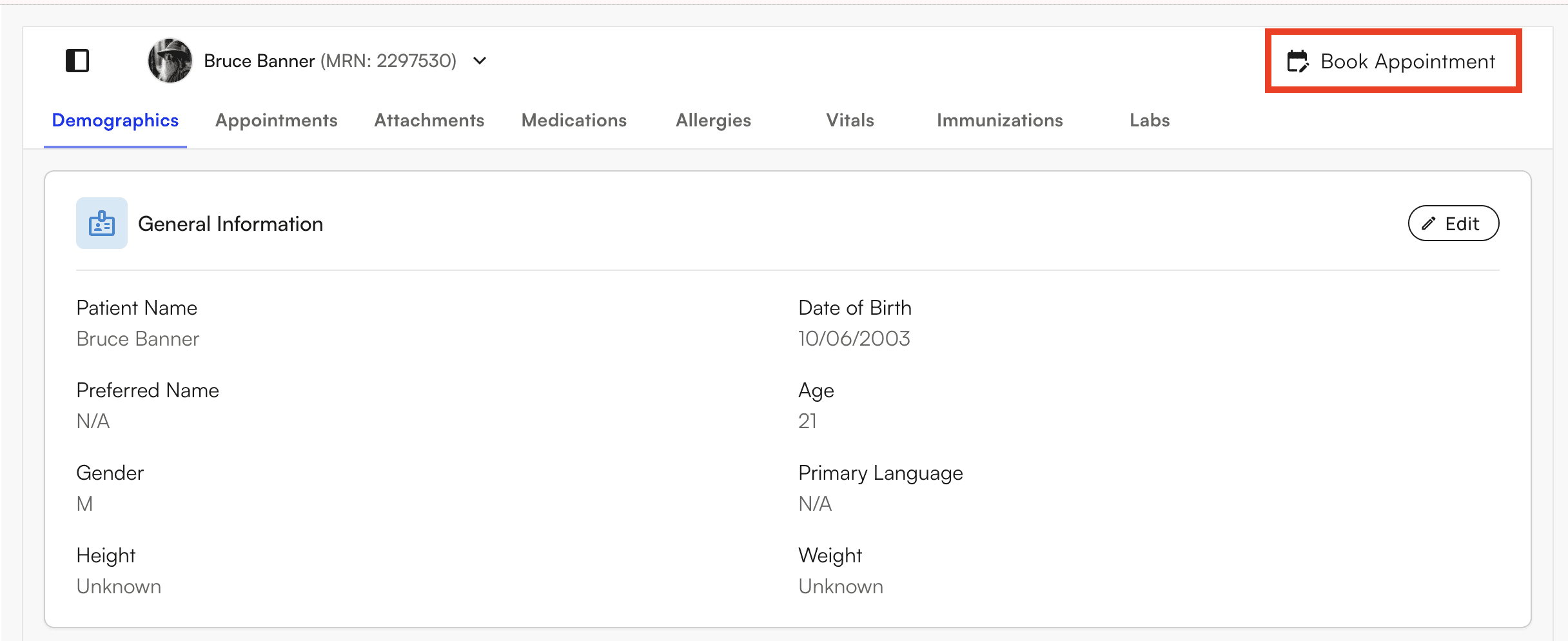
 Additionally, you’re able to schedule an appointment directly on the patient’s profile
 #### Additional Appointment Features
**Copy and Paste Appointments**
Air has a great feature that allows you to copy and paste any appointment on the calendar page directly! To copy an appointment, either double click or hold control on your keyboard and click on the desired calendar block.
Pasting the appointment will create an exact copy of the appointment you selected, but change the date and time of the appointment based on where you selected on the calendar. When done correctly, a small popup will appear with the option to copy appointment details. Select this option then, click on any calendar slot and the option to paste appointment details will appear.
#### Additional Appointment Features
**Copy and Paste Appointments**
Air has a great feature that allows you to copy and paste any appointment on the calendar page directly! To copy an appointment, either double click or hold control on your keyboard and click on the desired calendar block.
Pasting the appointment will create an exact copy of the appointment you selected, but change the date and time of the appointment based on where you selected on the calendar. When done correctly, a small popup will appear with the option to copy appointment details. Select this option then, click on any calendar slot and the option to paste appointment details will appear.
 #### Blocking Time on the Calendar
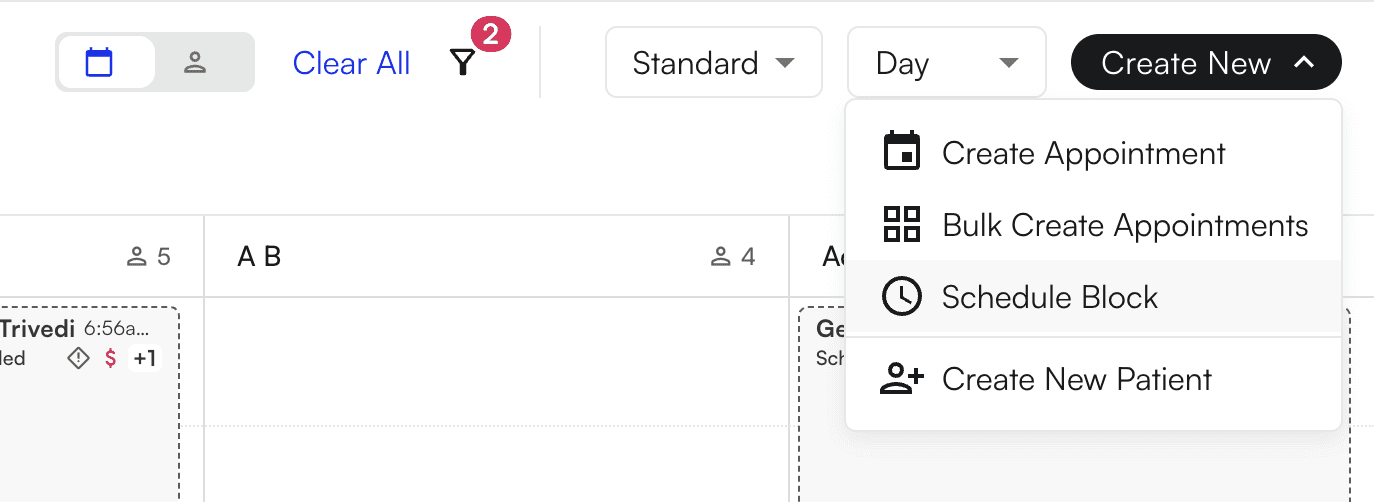
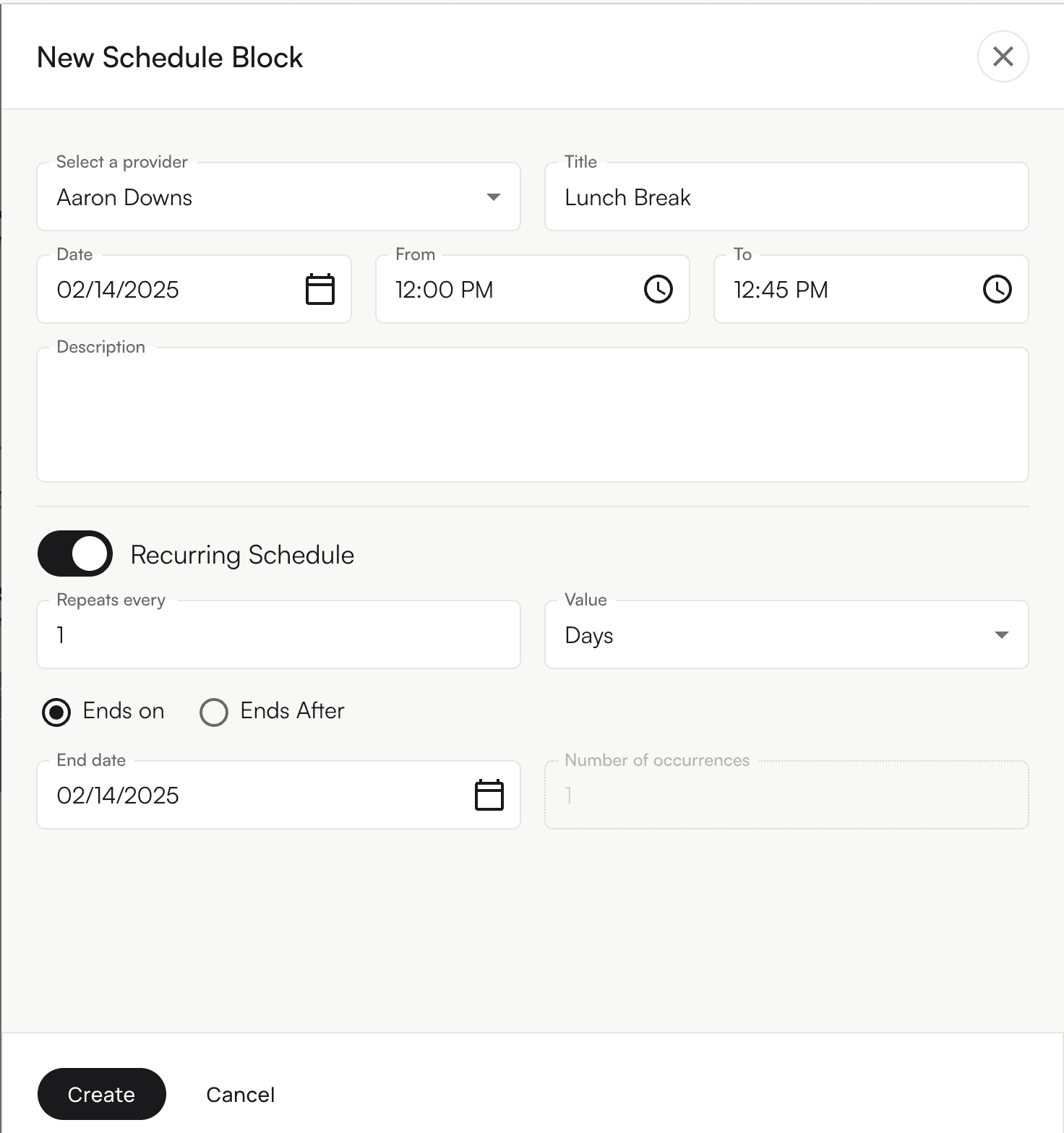
Schedule blocks are ways your practice can block out time for meetings, admin days, vacations, or anything else. Similarly to scheduling an appointment, you can create a time block directly on the calendar itself or on the top right corner under \*Create New \*and selecting *Schedule Block*. A side panel will appear with the ability to select the provider, title and time/date the block occurs. This can also be set up to be a recurring block which can be configured for multiple day and occurrences as well as end on/after a specific date.
#### Blocking Time on the Calendar
Schedule blocks are ways your practice can block out time for meetings, admin days, vacations, or anything else. Similarly to scheduling an appointment, you can create a time block directly on the calendar itself or on the top right corner under \*Create New \*and selecting *Schedule Block*. A side panel will appear with the ability to select the provider, title and time/date the block occurs. This can also be set up to be a recurring block which can be configured for multiple day and occurrences as well as end on/after a specific date.
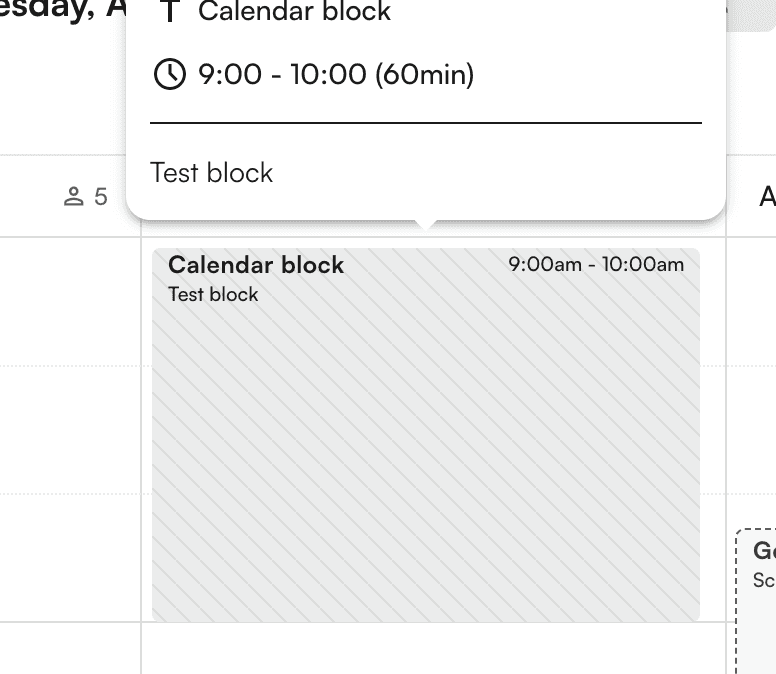
 When the appointment is made, you will be able to see the created calendar block
 #### Rescheduling Appointments
Reschedule upcoming appointments here:
#### Rescheduling Appointments
Reschedule upcoming appointments here:
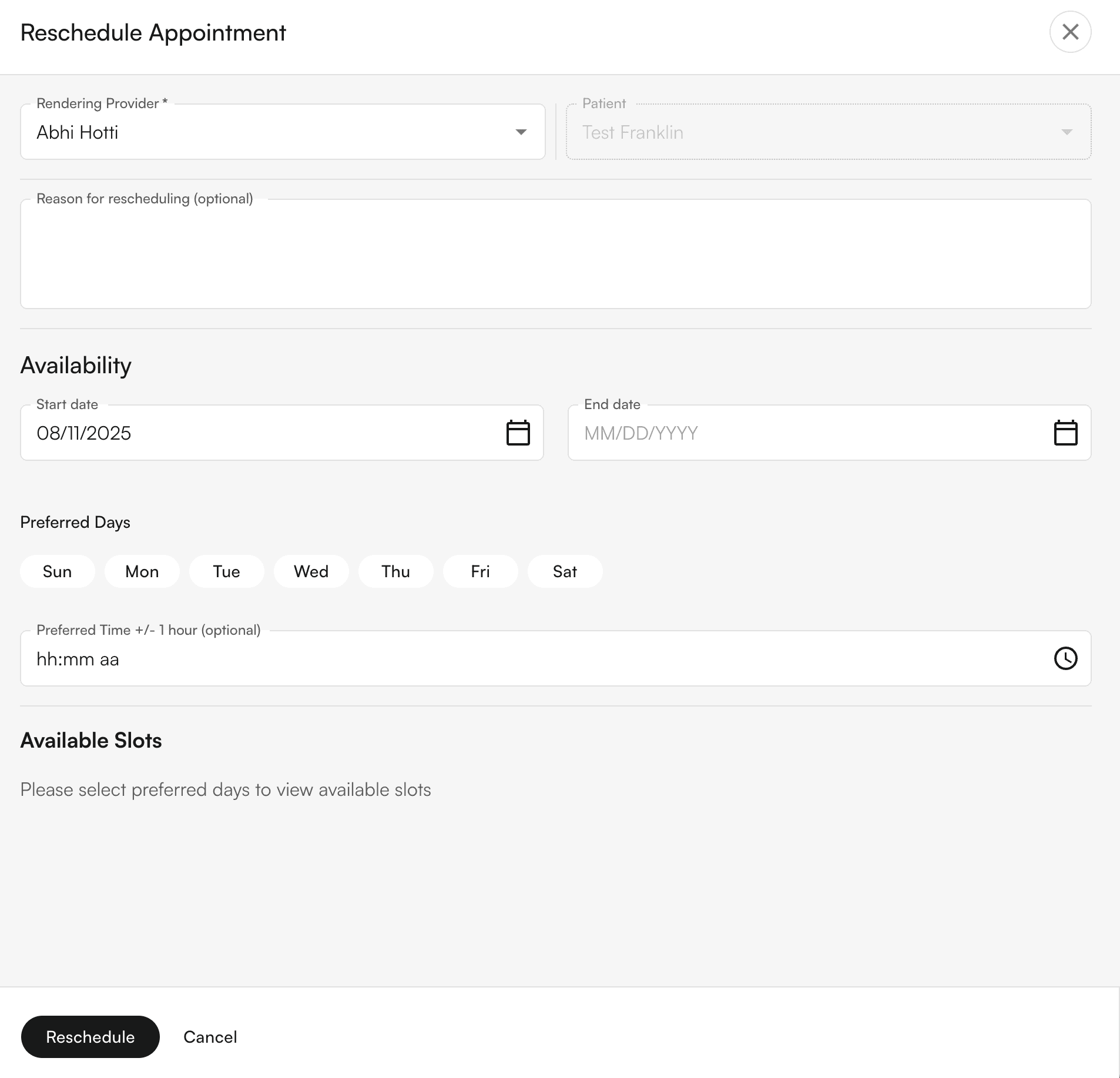
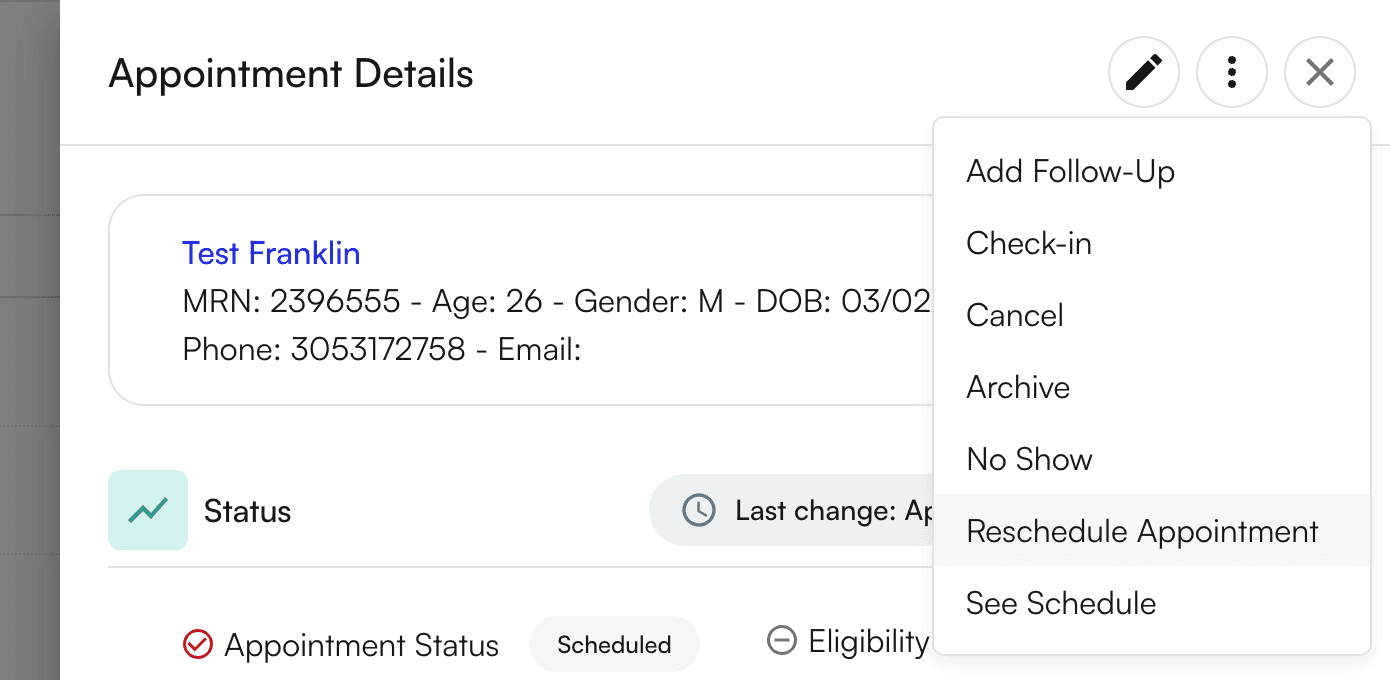 Once selecting "Reschedule Appointment", you're able to select the patient's preferred days and time, and available slots for the referring provider will appear: