> ## Documentation Index
> Fetch the complete documentation index at: https://trainings.air.athelas.com/llms.txt
> Use this file to discover all available pages before exploring further.
# Understanding Appointment Details
The standard appointment will show the following tooltip when hovering over the calendar block:
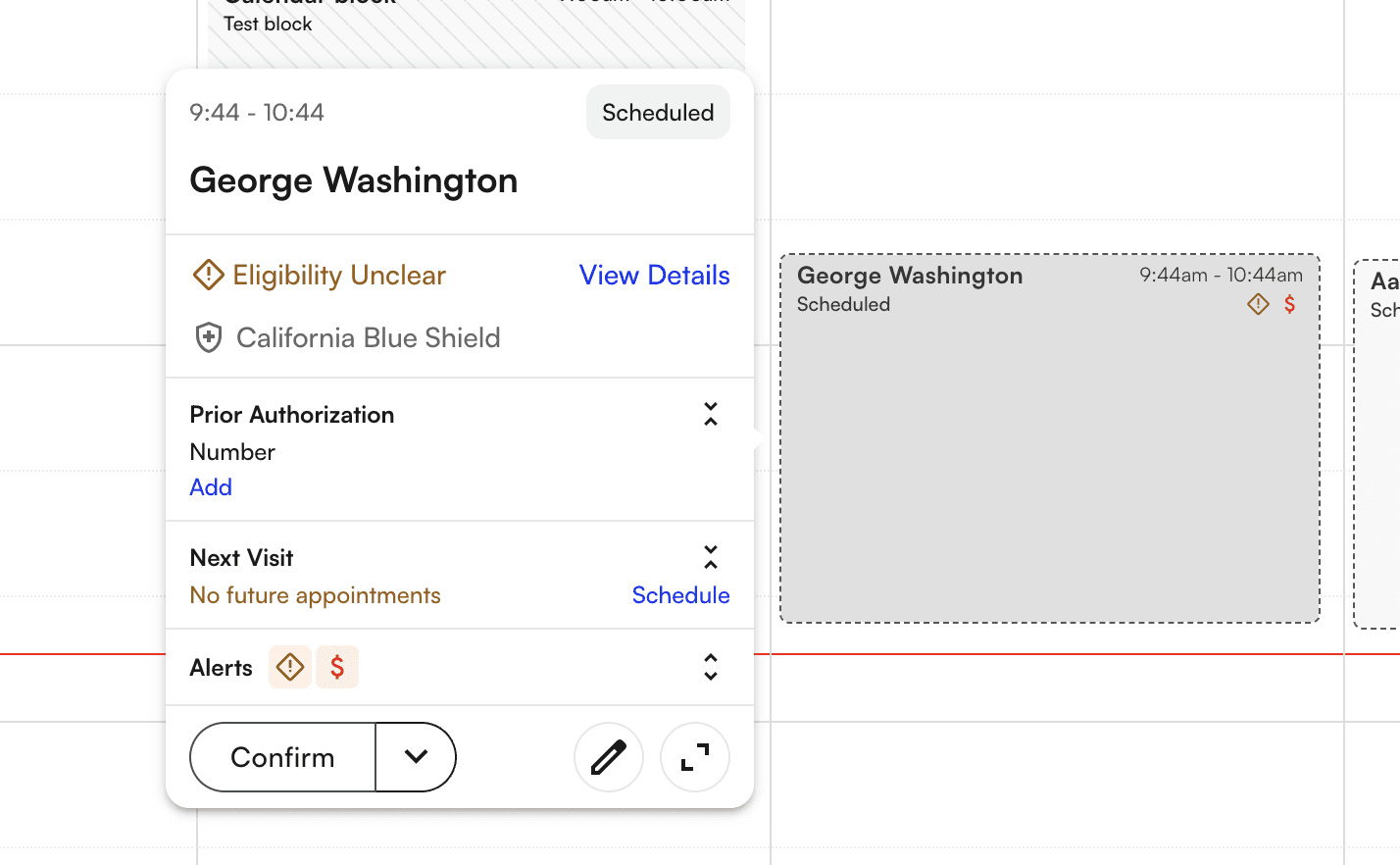 * Patient Name
* Primary Insurance Company
* Appointment Status
* Appointment start and end time
* Eligibility Button
* Payment Button
And take action from this tooltip:
* Patient Name
* Primary Insurance Company
* Appointment Status
* Appointment start and end time
* Eligibility Button
* Payment Button
And take action from this tooltip:
 Clicking on a calendar block in any calendar view will cause the appointment details to open up as a side panel.
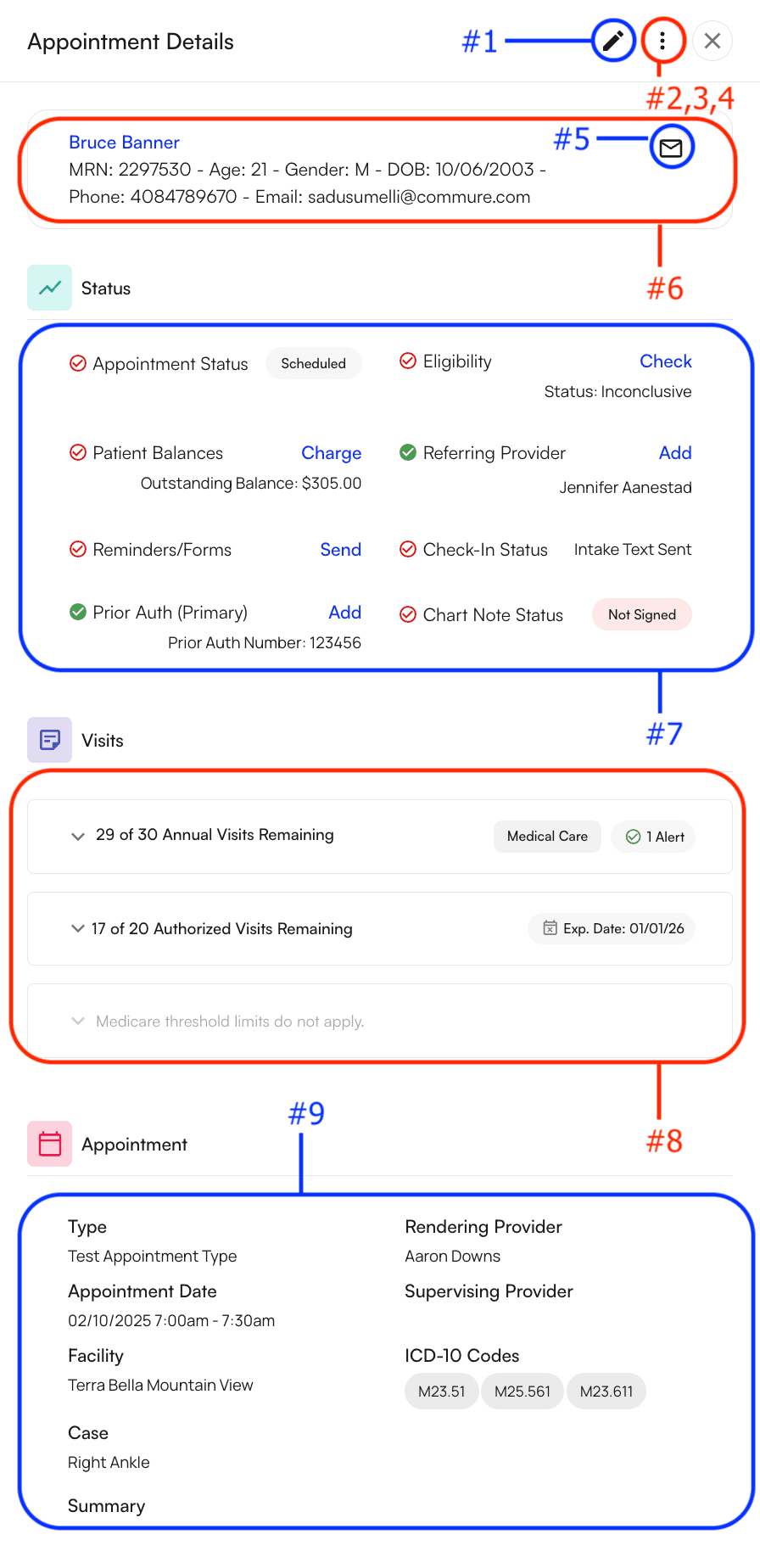 There are several things you can do here including:
* Edit the appointment
* Change the appointment status
* Checked in
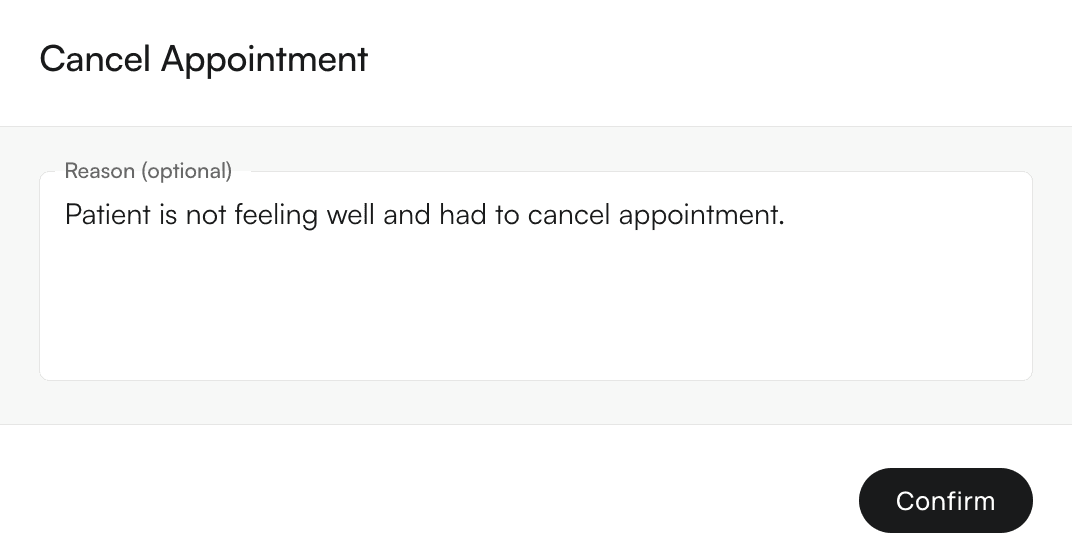
* Cancelled- You will be prompted to add a cancellation reason which will be available to view on the patient’s profile under the appointments tab.
* No-Show
There are several things you can do here including:
* Edit the appointment
* Change the appointment status
* Checked in
* Cancelled- You will be prompted to add a cancellation reason which will be available to view on the patient’s profile under the appointments tab.
* No-Show
 * Add a follow up appointment
* Delete the appointment
* Email the patient
* View the patient’s general demographics
* Clicking on the patient’s name in blue will route you to the patient’s profile
* Check the status of several appointment related items. The red circled checkmark will turn green when these items are completed or confirmed.
* Appointment Status
* Patient Balances
* Reminders/ Forms
* Prior Auth
* Eligibility
* Referring Provider
* Check-In Status
* Chart Note Status- Indicates if a chart note is signed or not
* Check the amount of prior auth, annual and medicare visits allowed for the patient.
* Alerts will populate when you’re nearing expiration dates or running low on visits.
* View the appointment details and previous appointment summary
**Features Supported:**
* View an appointment’s high level details
* View an appointment’s eligibility details
* View an appointments visit limits and prior auth
* View and collect (suggested) charges for appointments
* View patient notes
* Update appointment type, status, PII
**Features Not Supported:**
* Editing provider, appointment reason
* Add a follow up appointment
* Delete the appointment
* Email the patient
* View the patient’s general demographics
* Clicking on the patient’s name in blue will route you to the patient’s profile
* Check the status of several appointment related items. The red circled checkmark will turn green when these items are completed or confirmed.
* Appointment Status
* Patient Balances
* Reminders/ Forms
* Prior Auth
* Eligibility
* Referring Provider
* Check-In Status
* Chart Note Status- Indicates if a chart note is signed or not
* Check the amount of prior auth, annual and medicare visits allowed for the patient.
* Alerts will populate when you’re nearing expiration dates or running low on visits.
* View the appointment details and previous appointment summary
**Features Supported:**
* View an appointment’s high level details
* View an appointment’s eligibility details
* View an appointments visit limits and prior auth
* View and collect (suggested) charges for appointments
* View patient notes
* Update appointment type, status, PII
**Features Not Supported:**
* Editing provider, appointment reason