> ## Documentation Index
> Fetch the complete documentation index at: https://trainings.air.athelas.com/llms.txt
> Use this file to discover all available pages before exploring further.
# Calendar start & end times
#### Customizing start & end times
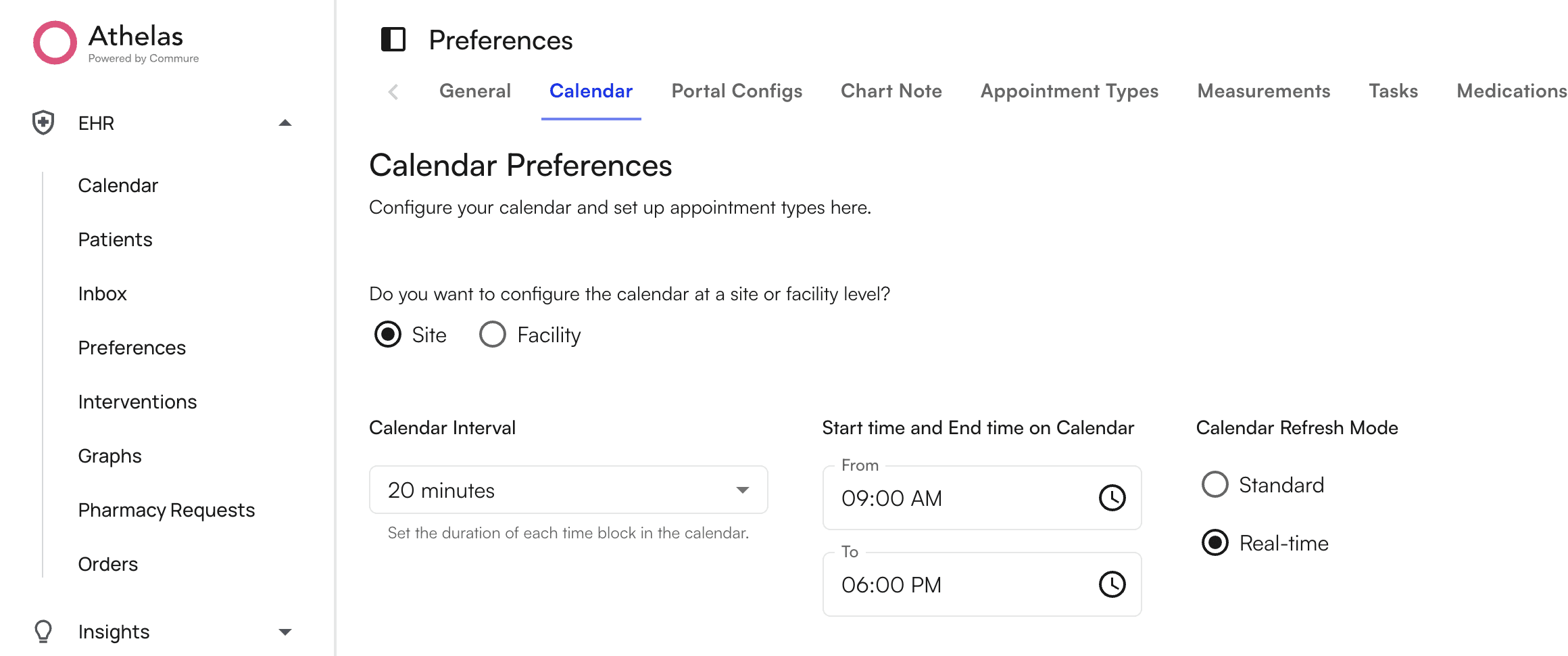
To modify the start and end times, head to *Preferences → Calendar → Start & End Times*. Here you can select the starting time and an the ending time.
#### Default start & end times
By default, the calendar start and end times are set to display 06:00am to 08:00pm and this is applied at a site level (meaning all facilities adopt the same times). You can choose to set one site-wide start & end time or set specific times for specific facilities.
 #### Applying unique start & end times to various facilities
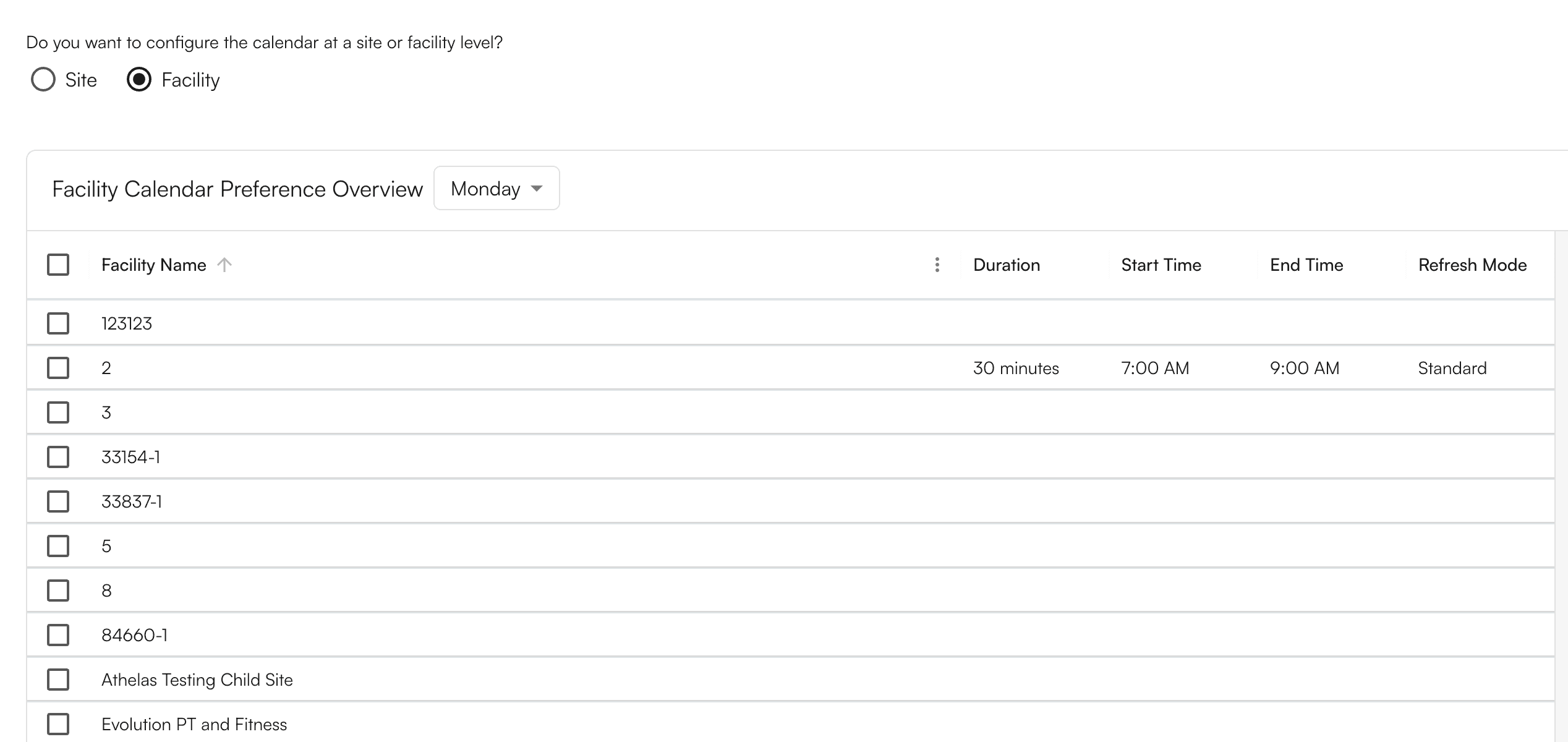
If you wish to specify unique start & end times to specific facilities, select the “Facility” option and a table should appear below.
On this table, selecting any facility will make its start & end time controls appear on the right. Select multiple facilities to modify multiple facilities at once.
#### Applying unique start & end times to various facilities
If you wish to specify unique start & end times to specific facilities, select the “Facility” option and a table should appear below.
On this table, selecting any facility will make its start & end time controls appear on the right. Select multiple facilities to modify multiple facilities at once.
 Once complete, you updates should already be live in the calendar.
#### Considerations when choosing start & end times
Modifying the start & end times on calendar will impact how your calendar appears depending on the viewing mode selected.
* On “Standard” view, widening the start & end times will increase the length of the calendar.
* On “Fit to Screen” view, widening the start & end times will make all calendar blocks smaller.
Once complete, you updates should already be live in the calendar.
#### Considerations when choosing start & end times
Modifying the start & end times on calendar will impact how your calendar appears depending on the viewing mode selected.
* On “Standard” view, widening the start & end times will increase the length of the calendar.
* On “Fit to Screen” view, widening the start & end times will make all calendar blocks smaller.