> ## Documentation Index
> Fetch the complete documentation index at: https://trainings.air.athelas.com/llms.txt
> Use this file to discover all available pages before exploring further.
# How to Reconcile Your Cash Drawer
### Overview
Most healthcare businesses require daily cash drawer reconciliation so that any discrepancies between expected and actual dollars can be accounted for on each day of service. The **Reconciliation** feature makes this process simple.
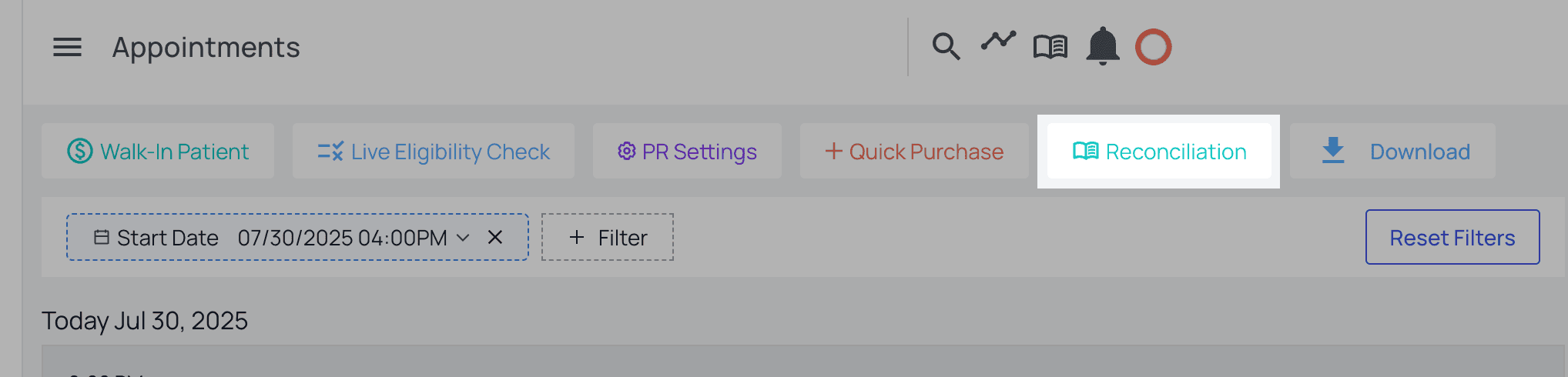 ***Important: this guide details physical cash drawer PR reconciliation only (cash and check PR payments, not credit or other payments)**.*
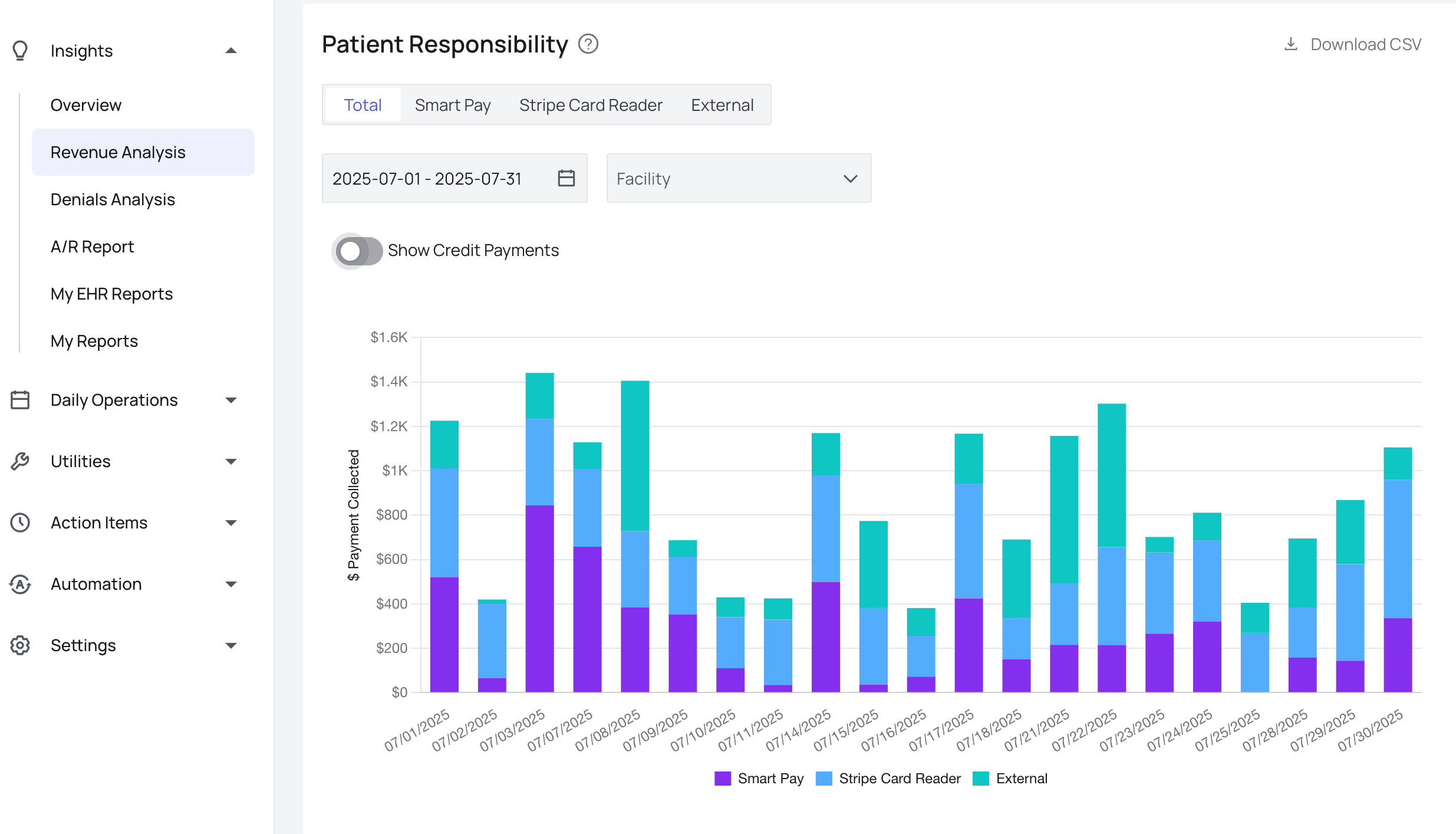
To view total payments for a given date or range of dates, refer to the ‘Patient Responsibility’ section of the [Revenue Analysis page](https://insights.athelas.com/v2/payment/revenue-analysis) and set filters for the information you need.
***Important: this guide details physical cash drawer PR reconciliation only (cash and check PR payments, not credit or other payments)**.*
To view total payments for a given date or range of dates, refer to the ‘Patient Responsibility’ section of the [Revenue Analysis page](https://insights.athelas.com/v2/payment/revenue-analysis) and set filters for the information you need.
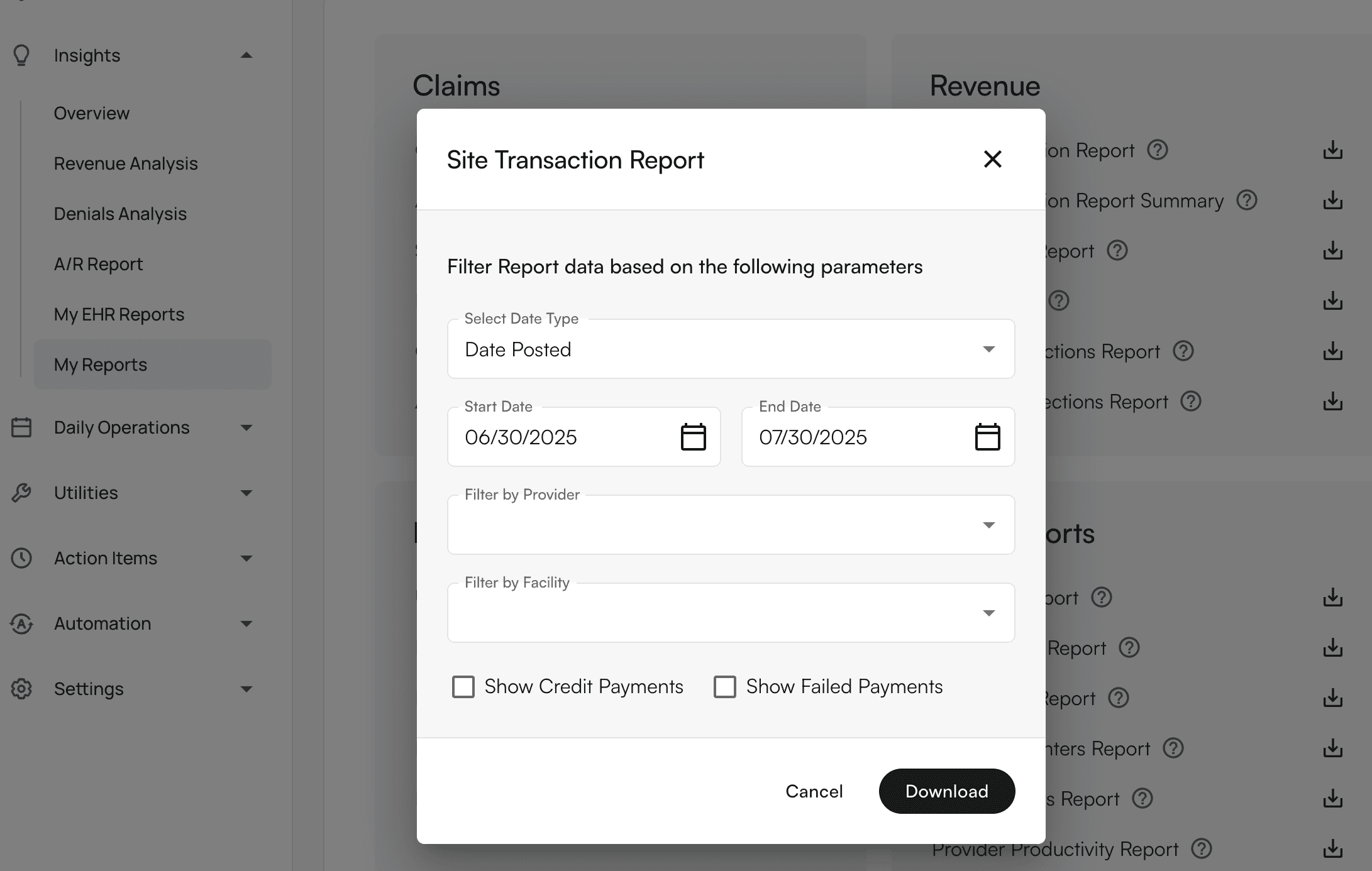
 You can also visit the [My Reports page](https://insights.athelas.com/v2/my-report) and download a transaction report, in the ‘Revenue’ section, for the day(s) you would like to review. Be sure to check or uncheck ‘Show credit payments\*’ depending on your needs.
\**This refers to payments made with credits already on a patient's account, not credit card payments. Credit card payments are already included in reports.*
You can also visit the [My Reports page](https://insights.athelas.com/v2/my-report) and download a transaction report, in the ‘Revenue’ section, for the day(s) you would like to review. Be sure to check or uncheck ‘Show credit payments\*’ depending on your needs.
\**This refers to payments made with credits already on a patient's account, not credit card payments. Credit card payments are already included in reports.*
 ###
### Here’s How to Reconcile Your Cash Drawer
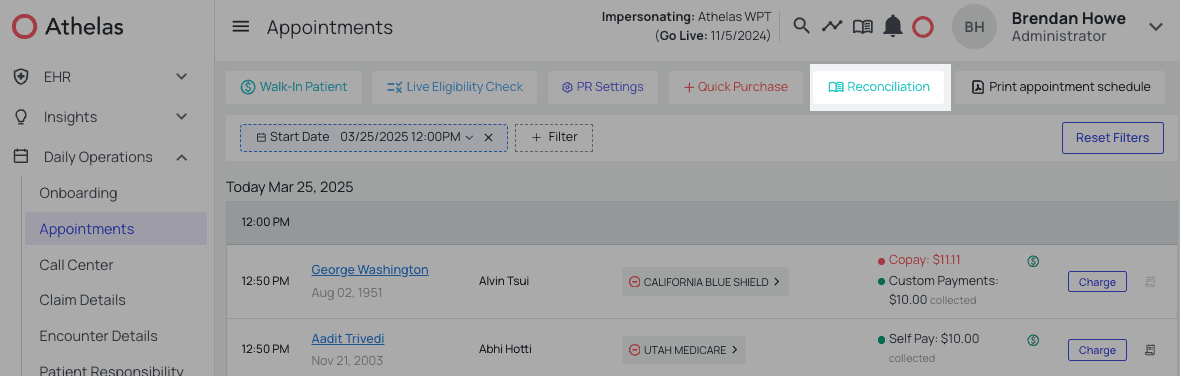
Navigate to the [Appointments](https://insights.athelas.com/v2/appointments) page and click on ‘Reconciliation.’
###
### Here’s How to Reconcile Your Cash Drawer
Navigate to the [Appointments](https://insights.athelas.com/v2/appointments) page and click on ‘Reconciliation.’
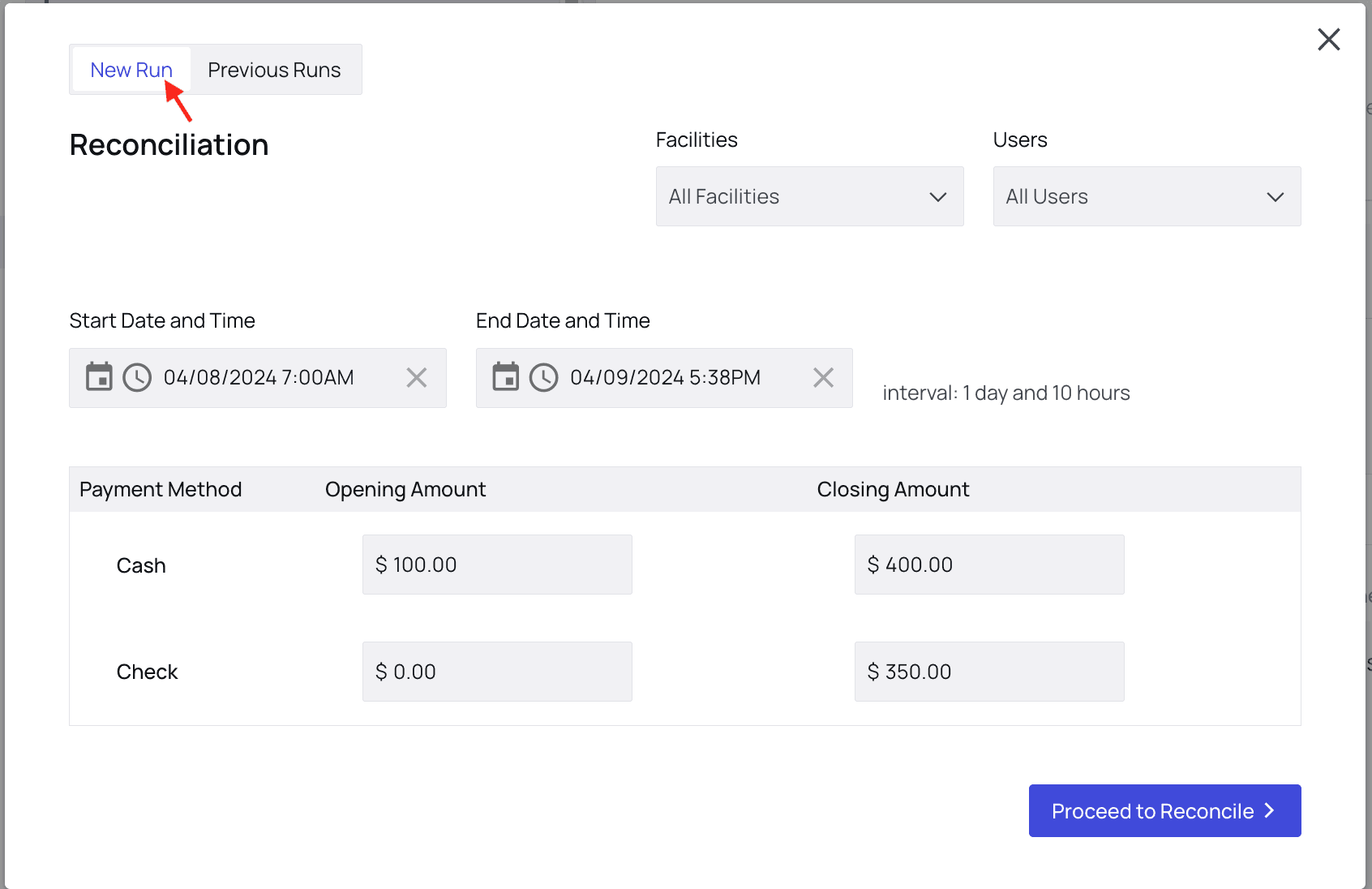
 In the New Run tab, note that you can filter by facility and user, along with date/time range.
Fill in your **opening** and **closing** amounts for cash and check, then click `Proceed to Reconcile`.
In the New Run tab, note that you can filter by facility and user, along with date/time range.
Fill in your **opening** and **closing** amounts for cash and check, then click `Proceed to Reconcile`.
 Now, Athelas’ systems compare the cash and check dollars in the drawer with the expected amount of each.
If there is a difference between the Closing Amount and Expected Amounts, you’ll see that difference highlighted in the **Discrepancies** **column**.
You will also be able to see an itemized list of payments, with details available if you click into a payment, including Associated DoS, Payment, and Amount Recommended.
Now, Athelas’ systems compare the cash and check dollars in the drawer with the expected amount of each.
If there is a difference between the Closing Amount and Expected Amounts, you’ll see that difference highlighted in the **Discrepancies** **column**.
You will also be able to see an itemized list of payments, with details available if you click into a payment, including Associated DoS, Payment, and Amount Recommended.
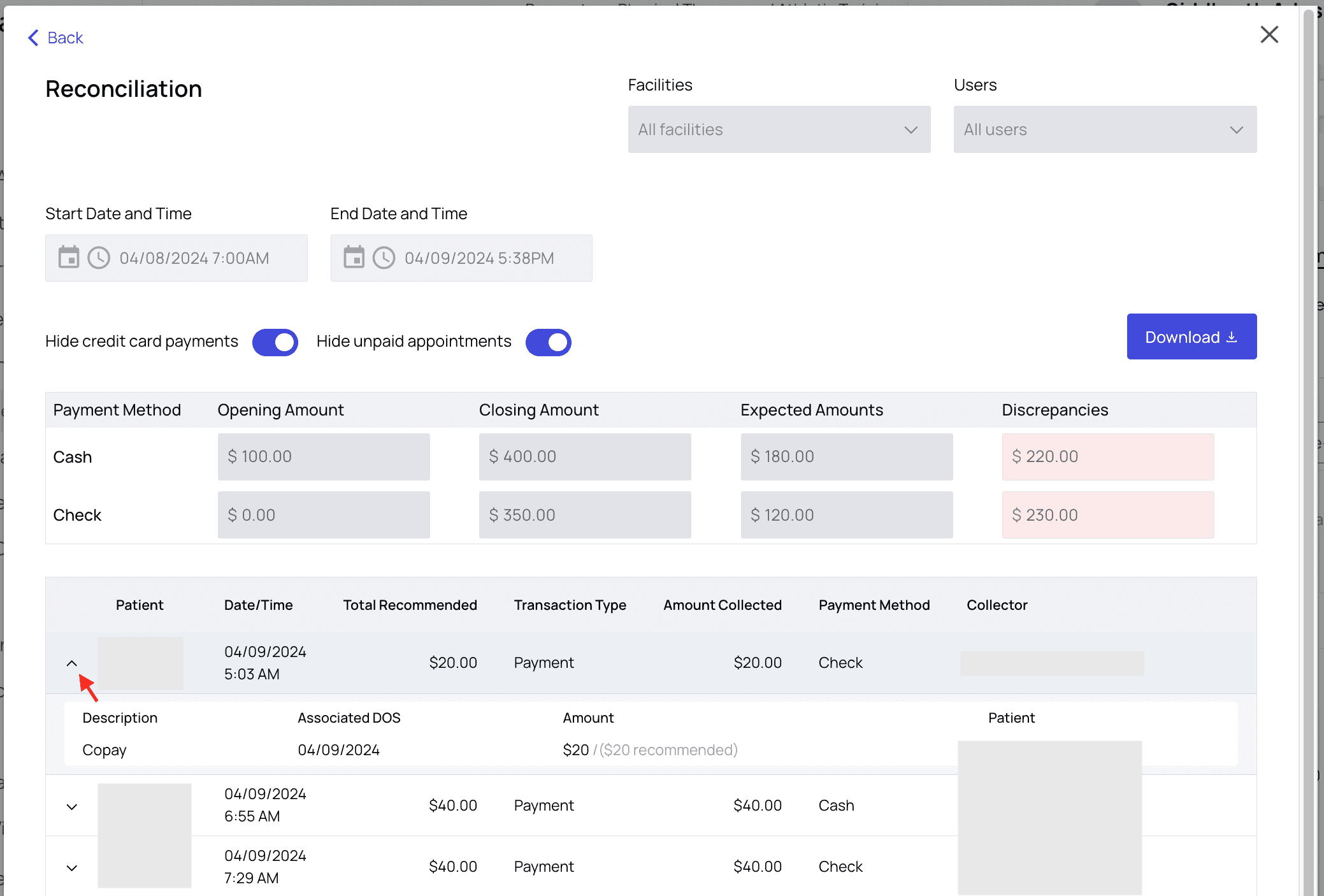 If you would like a CSV file of the reconciliation data (for example, if you need an end-of-shift report to view in Excel), click Download.
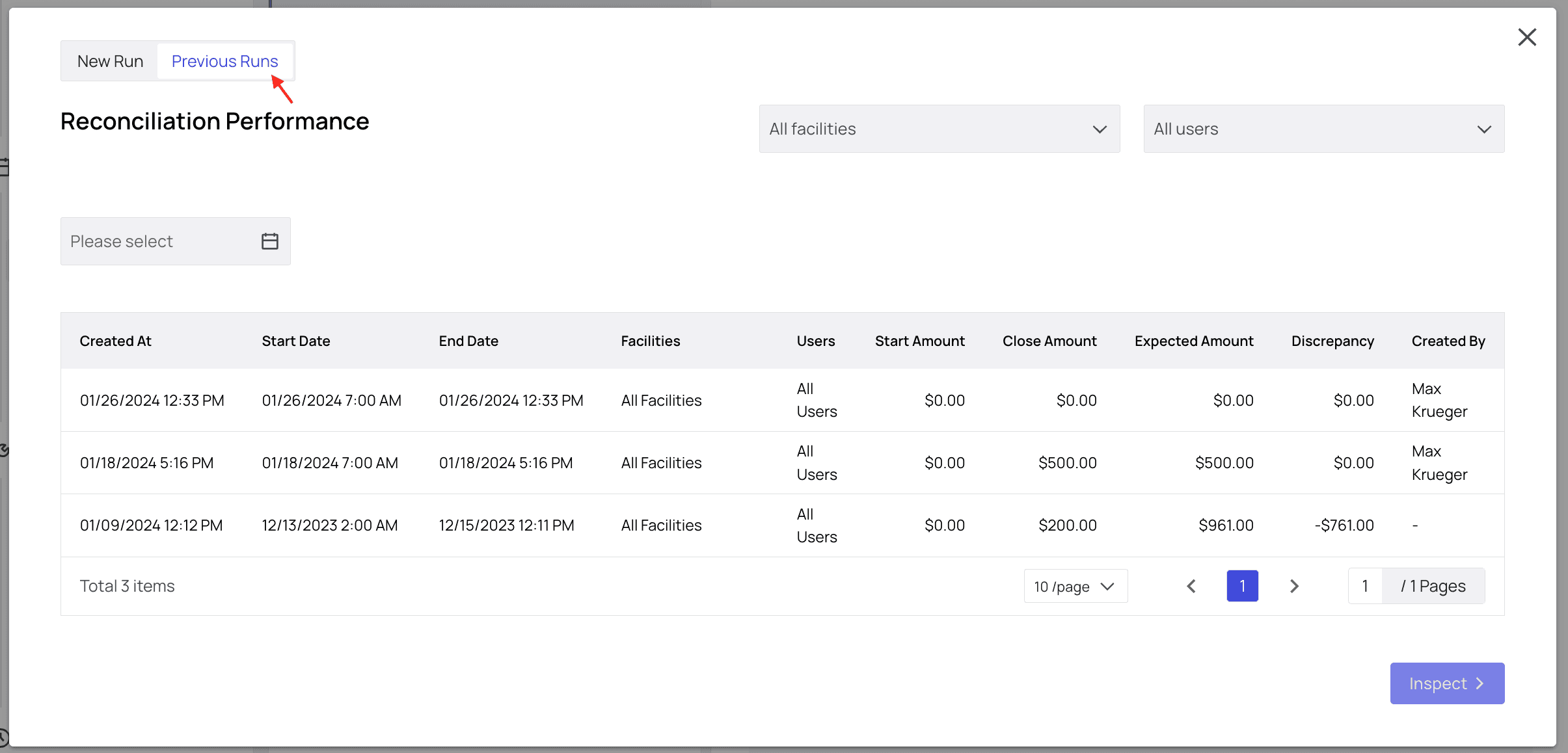
If you would like to see a list of previous runs, simply switch to the Previous Runs tab.
If you would like a CSV file of the reconciliation data (for example, if you need an end-of-shift report to view in Excel), click Download.
If you would like to see a list of previous runs, simply switch to the Previous Runs tab.
 Done!
Done!