> ## Documentation Index
> Fetch the complete documentation index at: https://trainings.air.athelas.com/llms.txt
> Use this file to discover all available pages before exploring further.
# How to Update Insurance
## At a Glance
Incorrect insurance information (or any other incorrect information—service lines, ICD-10 codes, etc.) is one of the primary blockers for claim submissions.
Fortunately, Insights has a speedy solution to get these kinds of issues off your plate and back to payer responsibility.
This guide will help you quickly address issues of incorrect encounter data and then take appropriate action on a claim by resubmitting or forwarding to the next payer.
## Here’s How to Do It
#### From [Encounter Details](https://insights.athelas.com/encounter-details)
**Video Tutorial**
**In short:**
* Edit the incorrect information on the [encounter](https://insights.athelas.com/encounter-details) in question
* Click `Begin Review`
* Address any pre-submission errors or suggested edits (if applicable)
* Select the closing option that best suits your needs (`Resubmit to Primary`, `Forward to Secondary`, etc.)
#### Walkthrough and Notes on the Encounter Details update method
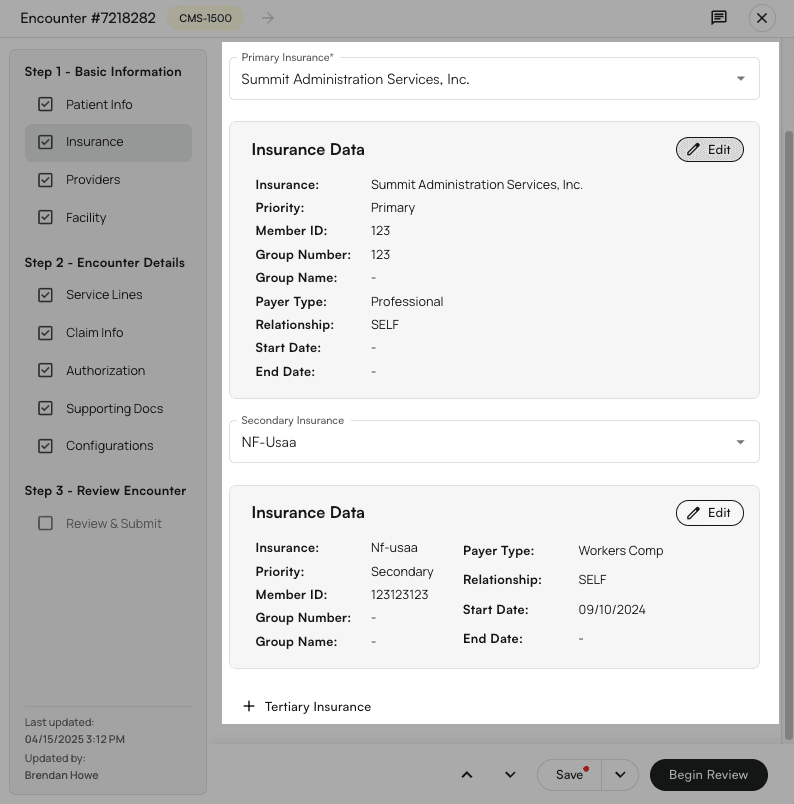
In the encounter’s Insurance section, you can add or update **primary, secondary, and tertiary insurance information**.
**Notes on Insurances Listed in the Dropdown Menus**
* The options that pre-populate these lists come directly from information that Athelas has extracted from your EHR.
* The initial list only shows insurances previously **associated with this patient**.
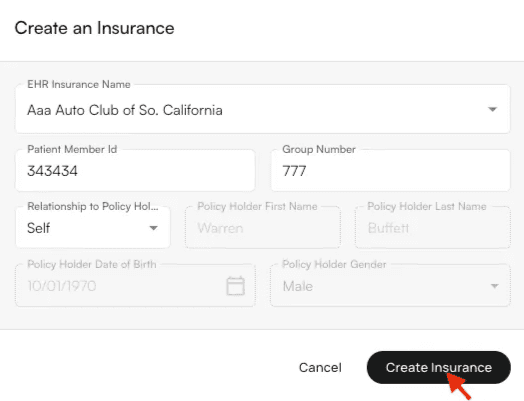
* If you click `Create Insurance` in one of the dropdown menus (primary, secondary, or tertiary), you can select from all known insurances associated with your practice.
* Fill in the new insurance information and click `Create Insurance`. This will now be a selectable option in the Insurance menus for this patient.
*If you need a new insurance to appear here, please contact our account management team.*
**Notes on Professional vs. Institutional Insurances**
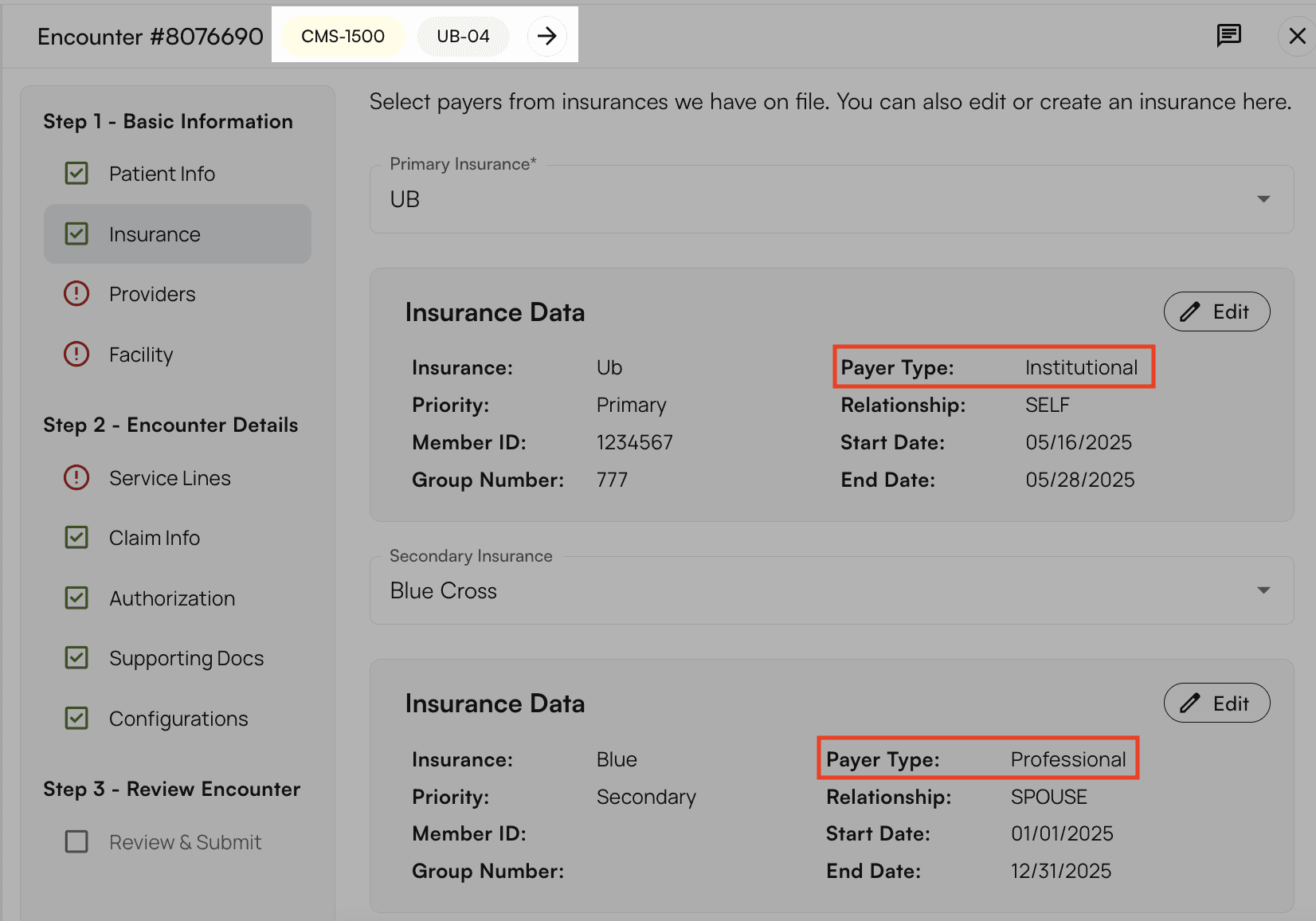
Note the **CMS-1500** and **UB-04** indicators in the header. These indicators appear when the selected insurance requires a specific claim type and will receive the corresponding form.
In the example above, *UB* will receive a **UB-04** form, while *Blue* will receive a **CMS-1500** form. See each insurance’s ‘Payer Type’ information noting which is which.
**Based on your selection of institutional and/or professional insurances, appropriate fields will be shown or hidden throughout the rest of these sections.**
*What is the difference between professional and institutional claims?*
*The services billed on **professional** claims are tied directly to the individual healthcare provider's actions – consultations, surgeries, therapy sessions, etc. **Institutional** claims bill for the use of the facility– room stays, use of medical equipment, and so on.*
Once the insurance information is updated, click `Begin Review`.
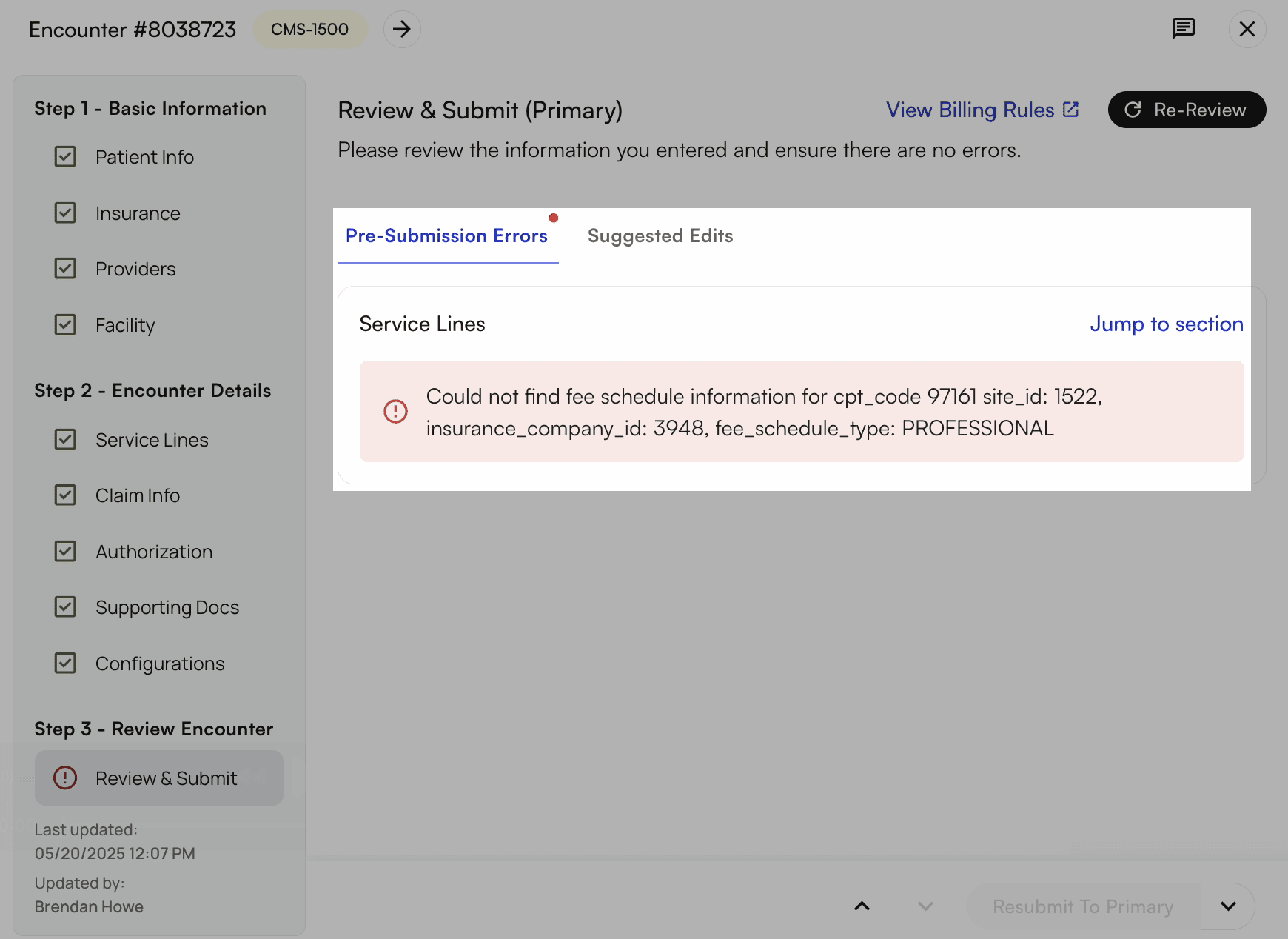
* **If there are presubmission errors or suggested edits**Sometimes you’ll see errors that prevent you from closing out the encounter. For many of these, quick fixes to incorrect data are possible (a missing CPT code, incorrect facility information, etc.)Use the `Jump to Section` button to get straight to the page with the issue.
* If you can’t make sense of the error message, or can’t find the incorrect information, please flag the encounter to Athelas and we’ll look into it.Once all information is updated, click `Begin Review` .
If there are no errors or suggested edits, select the closing option that best suits your needs (`Resubmit to Primary`, `Forward to Secondary`, etc.)
* **All possible options when closing an encounter**
* Save
* Add to Patient Balance
* Submit to Primary
* Resubmit to Primary
* Forward to Secondary
* Resubmit to Secondary
* Forward to Tertiary
* Resubmit to Tertiary
Done!
#### From the [Appointments Page](https://insights.athelas.com/v3/appointments)
*We recommend using the Encounter Details method detailed above **if you also need to take further action** on the encounter, such as claim forwarding or resubmission.*
**Video Tutorial**
### Walkthrough and Notes on the Appointments page update method
Click into the appointment in question, open the ‘Actions’ menu, then select `Patient Insurance`.
Select their new insurance from the appropriate dropdown menu. If you simply need to update their existing information, click the pencil icon.
Once you’ve completed the updates, click `Update Insurance`, then click `Save`.
*See the notes from the Encounter Details method for information on how these dropdown menus are populated.*
Done!
 **Notes on Insurances Listed in the Dropdown Menus**
* The options that pre-populate these lists come directly from information that Athelas has extracted from your EHR.
* The initial list only shows insurances previously **associated with this patient**.
* If you click `Create Insurance` in one of the dropdown menus (primary, secondary, or tertiary), you can select from all known insurances associated with your practice.
**Notes on Insurances Listed in the Dropdown Menus**
* The options that pre-populate these lists come directly from information that Athelas has extracted from your EHR.
* The initial list only shows insurances previously **associated with this patient**.
* If you click `Create Insurance` in one of the dropdown menus (primary, secondary, or tertiary), you can select from all known insurances associated with your practice.
 * Fill in the new insurance information and click `Create Insurance`. This will now be a selectable option in the Insurance menus for this patient.
*If you need a new insurance to appear here, please contact our account management team.*
**Notes on Professional vs. Institutional Insurances**
Note the **CMS-1500** and **UB-04** indicators in the header. These indicators appear when the selected insurance requires a specific claim type and will receive the corresponding form.
* Fill in the new insurance information and click `Create Insurance`. This will now be a selectable option in the Insurance menus for this patient.
*If you need a new insurance to appear here, please contact our account management team.*
**Notes on Professional vs. Institutional Insurances**
Note the **CMS-1500** and **UB-04** indicators in the header. These indicators appear when the selected insurance requires a specific claim type and will receive the corresponding form.
 In the example above, *UB* will receive a **UB-04** form, while *Blue* will receive a **CMS-1500** form. See each insurance’s ‘Payer Type’ information noting which is which.
**Based on your selection of institutional and/or professional insurances, appropriate fields will be shown or hidden throughout the rest of these sections.**
*What is the difference between professional and institutional claims?*
*The services billed on **professional** claims are tied directly to the individual healthcare provider's actions – consultations, surgeries, therapy sessions, etc. **Institutional** claims bill for the use of the facility– room stays, use of medical equipment, and so on.*
Once the insurance information is updated, click `Begin Review`.
* **If there are presubmission errors or suggested edits**Sometimes you’ll see errors that prevent you from closing out the encounter. For many of these, quick fixes to incorrect data are possible (a missing CPT code, incorrect facility information, etc.)Use the `Jump to Section` button to get straight to the page with the issue.
In the example above, *UB* will receive a **UB-04** form, while *Blue* will receive a **CMS-1500** form. See each insurance’s ‘Payer Type’ information noting which is which.
**Based on your selection of institutional and/or professional insurances, appropriate fields will be shown or hidden throughout the rest of these sections.**
*What is the difference between professional and institutional claims?*
*The services billed on **professional** claims are tied directly to the individual healthcare provider's actions – consultations, surgeries, therapy sessions, etc. **Institutional** claims bill for the use of the facility– room stays, use of medical equipment, and so on.*
Once the insurance information is updated, click `Begin Review`.
* **If there are presubmission errors or suggested edits**Sometimes you’ll see errors that prevent you from closing out the encounter. For many of these, quick fixes to incorrect data are possible (a missing CPT code, incorrect facility information, etc.)Use the `Jump to Section` button to get straight to the page with the issue.
 * If you can’t make sense of the error message, or can’t find the incorrect information, please flag the encounter to Athelas and we’ll look into it.Once all information is updated, click `Begin Review` .
If there are no errors or suggested edits, select the closing option that best suits your needs (`Resubmit to Primary`, `Forward to Secondary`, etc.)
* If you can’t make sense of the error message, or can’t find the incorrect information, please flag the encounter to Athelas and we’ll look into it.Once all information is updated, click `Begin Review` .
If there are no errors or suggested edits, select the closing option that best suits your needs (`Resubmit to Primary`, `Forward to Secondary`, etc.)
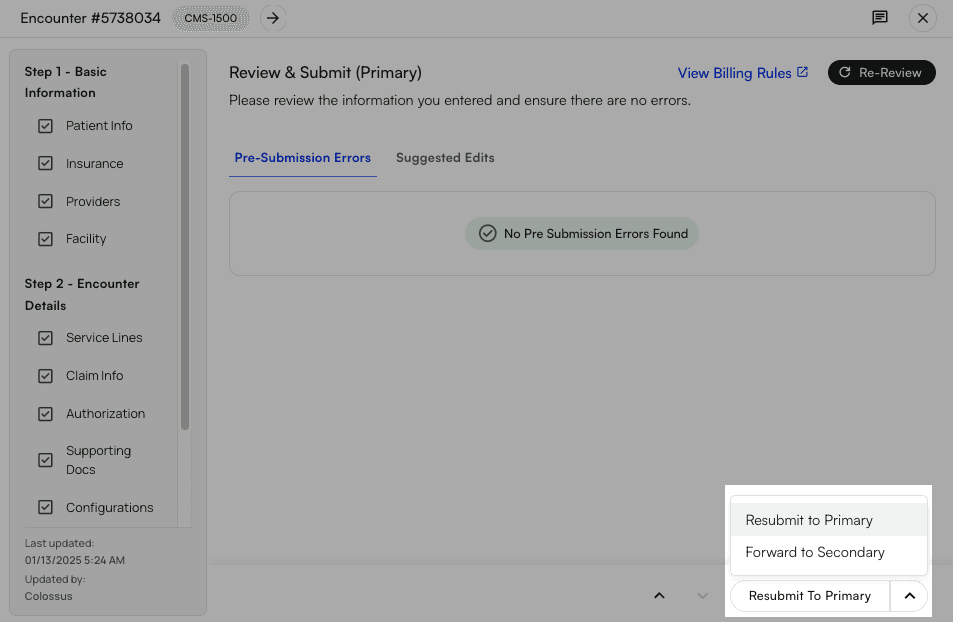 * **All possible options when closing an encounter**
* Save
* Add to Patient Balance
* Submit to Primary
* Resubmit to Primary
* Forward to Secondary
* Resubmit to Secondary
* Forward to Tertiary
* Resubmit to Tertiary
Done!
#### From the [Appointments Page](https://insights.athelas.com/v3/appointments)
*We recommend using the Encounter Details method detailed above **if you also need to take further action** on the encounter, such as claim forwarding or resubmission.*
**Video Tutorial**
### Walkthrough and Notes on the Appointments page update method
Click into the appointment in question, open the ‘Actions’ menu, then select `Patient Insurance`.
* **All possible options when closing an encounter**
* Save
* Add to Patient Balance
* Submit to Primary
* Resubmit to Primary
* Forward to Secondary
* Resubmit to Secondary
* Forward to Tertiary
* Resubmit to Tertiary
Done!
#### From the [Appointments Page](https://insights.athelas.com/v3/appointments)
*We recommend using the Encounter Details method detailed above **if you also need to take further action** on the encounter, such as claim forwarding or resubmission.*
**Video Tutorial**
### Walkthrough and Notes on the Appointments page update method
Click into the appointment in question, open the ‘Actions’ menu, then select `Patient Insurance`.
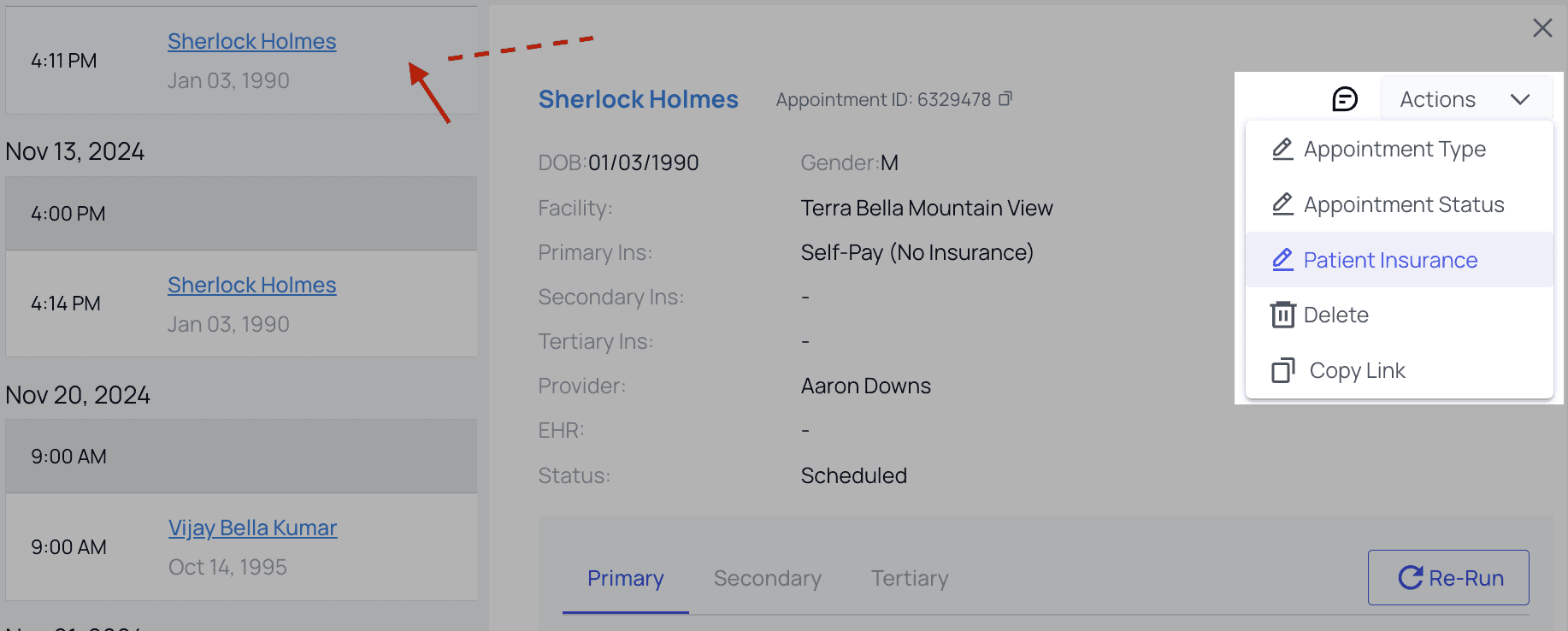 Select their new insurance from the appropriate dropdown menu. If you simply need to update their existing information, click the pencil icon.
Once you’ve completed the updates, click `Update Insurance`, then click `Save`.
Select their new insurance from the appropriate dropdown menu. If you simply need to update their existing information, click the pencil icon.
Once you’ve completed the updates, click `Update Insurance`, then click `Save`.
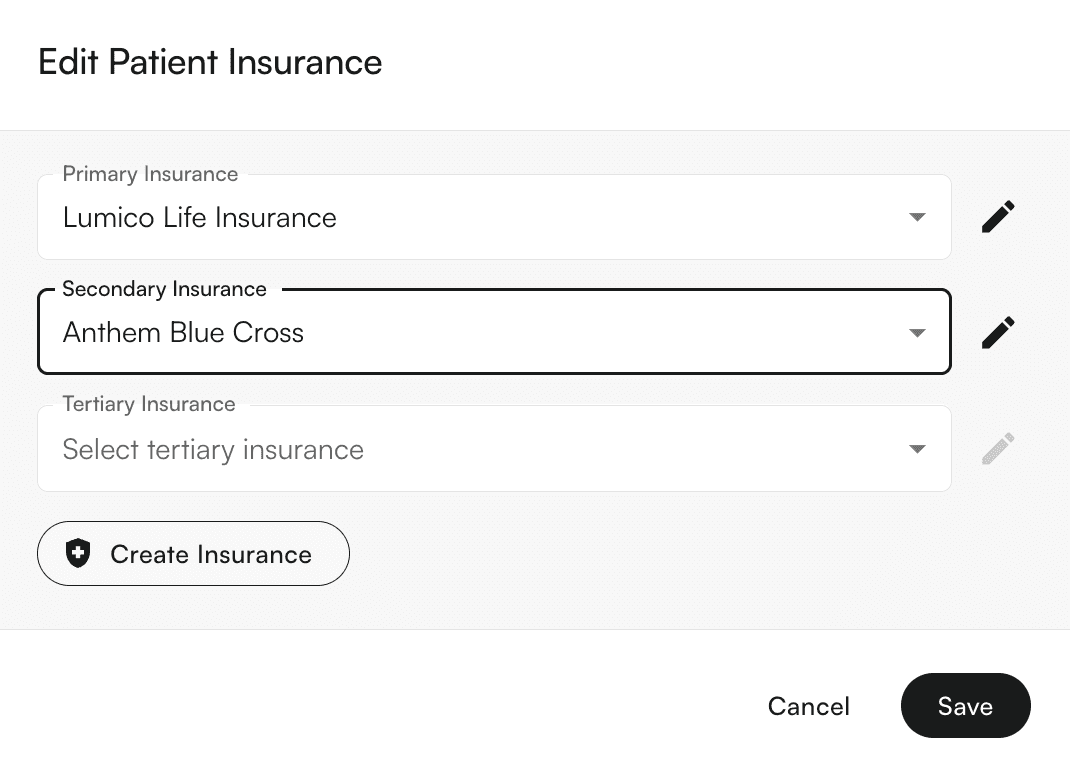 *See the notes from the Encounter Details method for information on how these dropdown menus are populated.*
Done!
*See the notes from the Encounter Details method for information on how these dropdown menus are populated.*
Done!