> ## Documentation Index
> Fetch the complete documentation index at: https://trainings.air.athelas.com/llms.txt
> Use this file to discover all available pages before exploring further.
# Send and Receive a Fax
#### How to send faxes (outbound)
To send a fax, click on Send Document on the top right side of the page
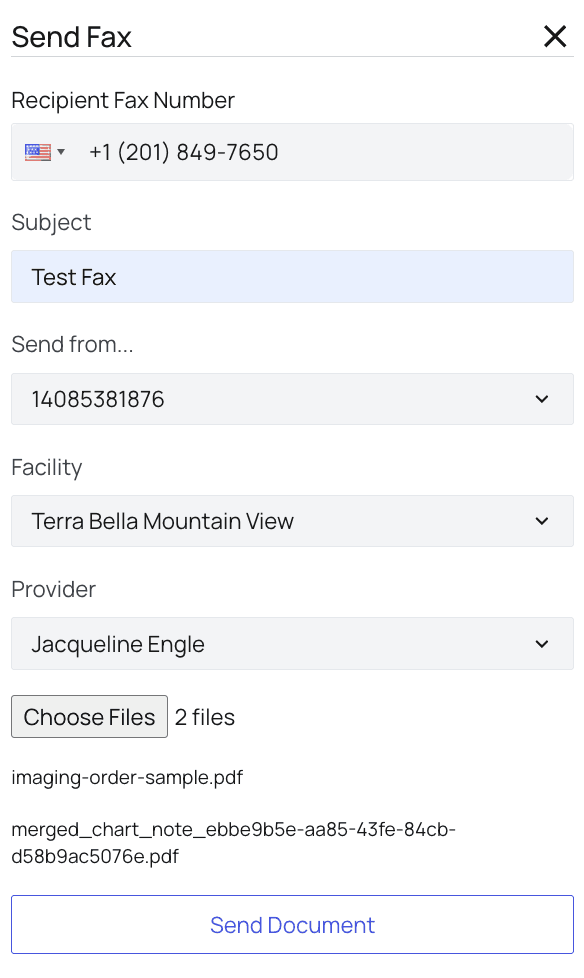
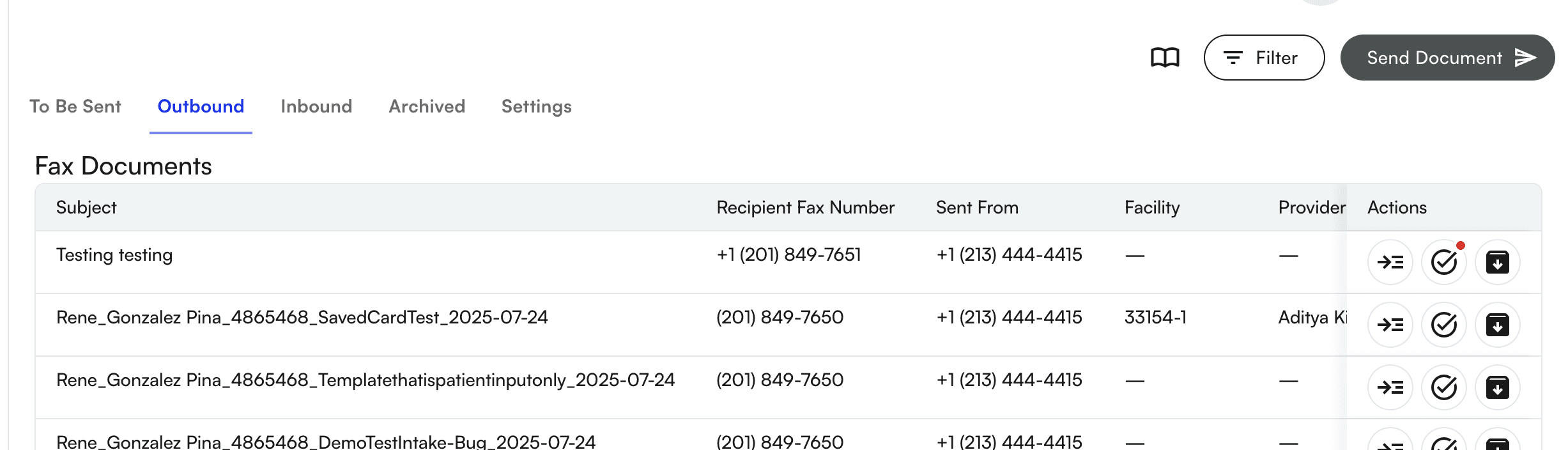 A side panel will open up called Send Fax with the following fields to enter details into:
* **Referring Provider**
* Select the referring provider to fax.
* **Recipient Fax Number**
* Enter the fax number you’d like to send the fax to
* **Subject**
* The title of the fax
* **Send From**
* Select what fax number to send the documents from. A dropdown of all your fax numbers will be available here.
* **Facility \[Optional]**
* Specify which facility this fax is coming from
* **Provider**
* Specify which provider this fax is coming from
* **Choose Files**
* You can choose multiple files to fax, as long as they’re in PDF format
A side panel will open up called Send Fax with the following fields to enter details into:
* **Referring Provider**
* Select the referring provider to fax.
* **Recipient Fax Number**
* Enter the fax number you’d like to send the fax to
* **Subject**
* The title of the fax
* **Send From**
* Select what fax number to send the documents from. A dropdown of all your fax numbers will be available here.
* **Facility \[Optional]**
* Specify which facility this fax is coming from
* **Provider**
* Specify which provider this fax is coming from
* **Choose Files**
* You can choose multiple files to fax, as long as they’re in PDF format
 Once you’ve hit Send Document, your fax will be available to be viewed in the Outbound section
 #### How to receive a fax (inbound)
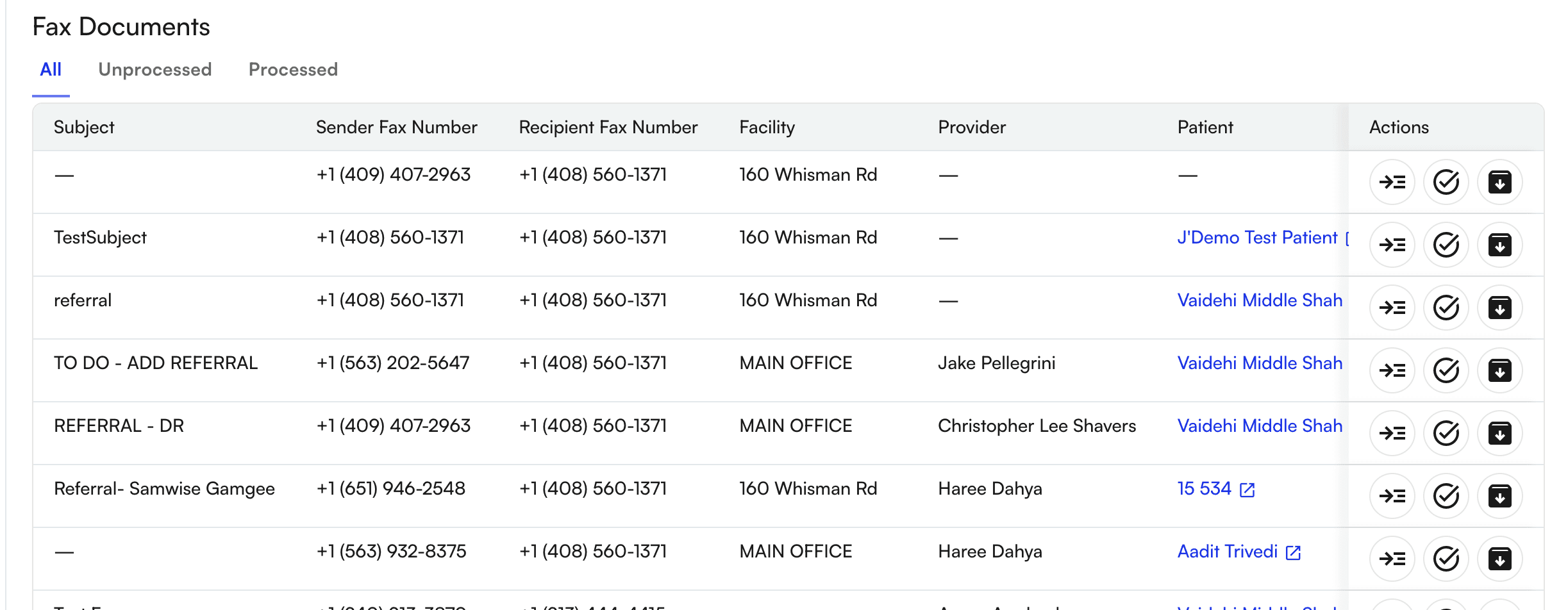
To see all your received faxes, click on the *Inbound* tab and ensure that your fax view is set to *All*. However, as you can see, there are two other views available: Unprocessed and Processed.
#### How to receive a fax (inbound)
To see all your received faxes, click on the *Inbound* tab and ensure that your fax view is set to *All*. However, as you can see, there are two other views available: Unprocessed and Processed.
 ##### View unprocessed and processed faxes:
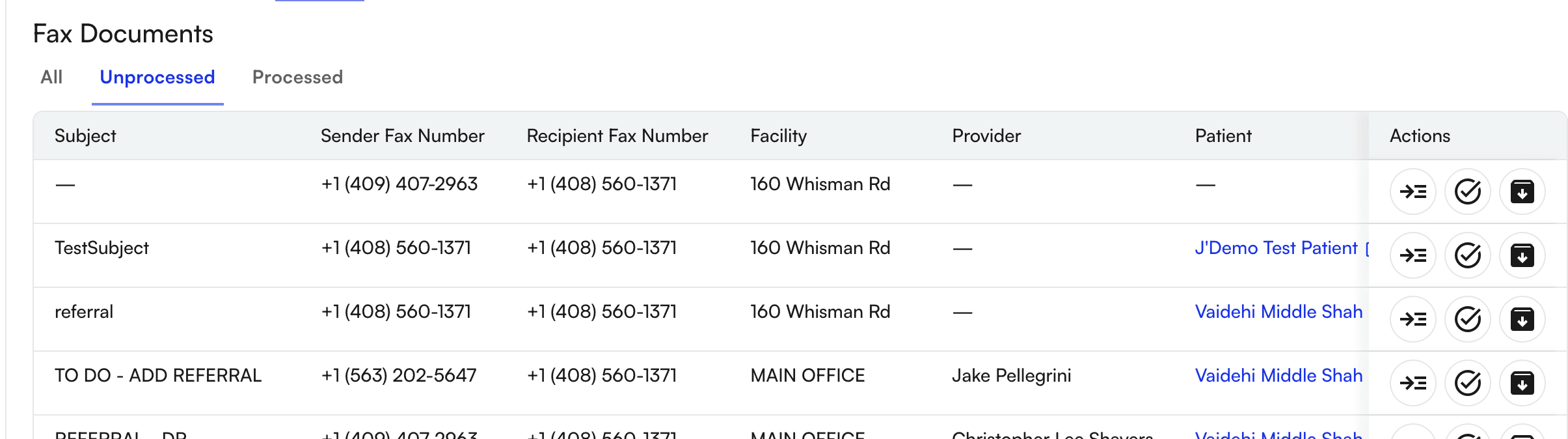
The unprocessed view shows you faxes that haven’t been organized yet. This means that it has yet to be categorized or associated with a patient/provider. It is a completely new fax.
##### View unprocessed and processed faxes:
The unprocessed view shows you faxes that haven’t been organized yet. This means that it has yet to be categorized or associated with a patient/provider. It is a completely new fax.
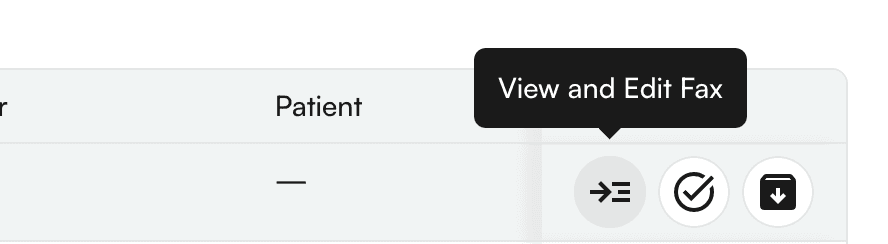
 Clicking on View and Update Fax allows you to edit and specify the following information:
* Subject
* Name or re-name the fax
* Facility
* Select or override the facility on the fax
* Provider
* Select or override the provider on the fax
* Patient
* Specify the patient this fax should tie to
* Document Type
* Select the document category of the fax received
Clicking on View and Update Fax allows you to edit and specify the following information:
* Subject
* Name or re-name the fax
* Facility
* Select or override the facility on the fax
* Provider
* Select or override the provider on the fax
* Patient
* Specify the patient this fax should tie to
* Document Type
* Select the document category of the fax received
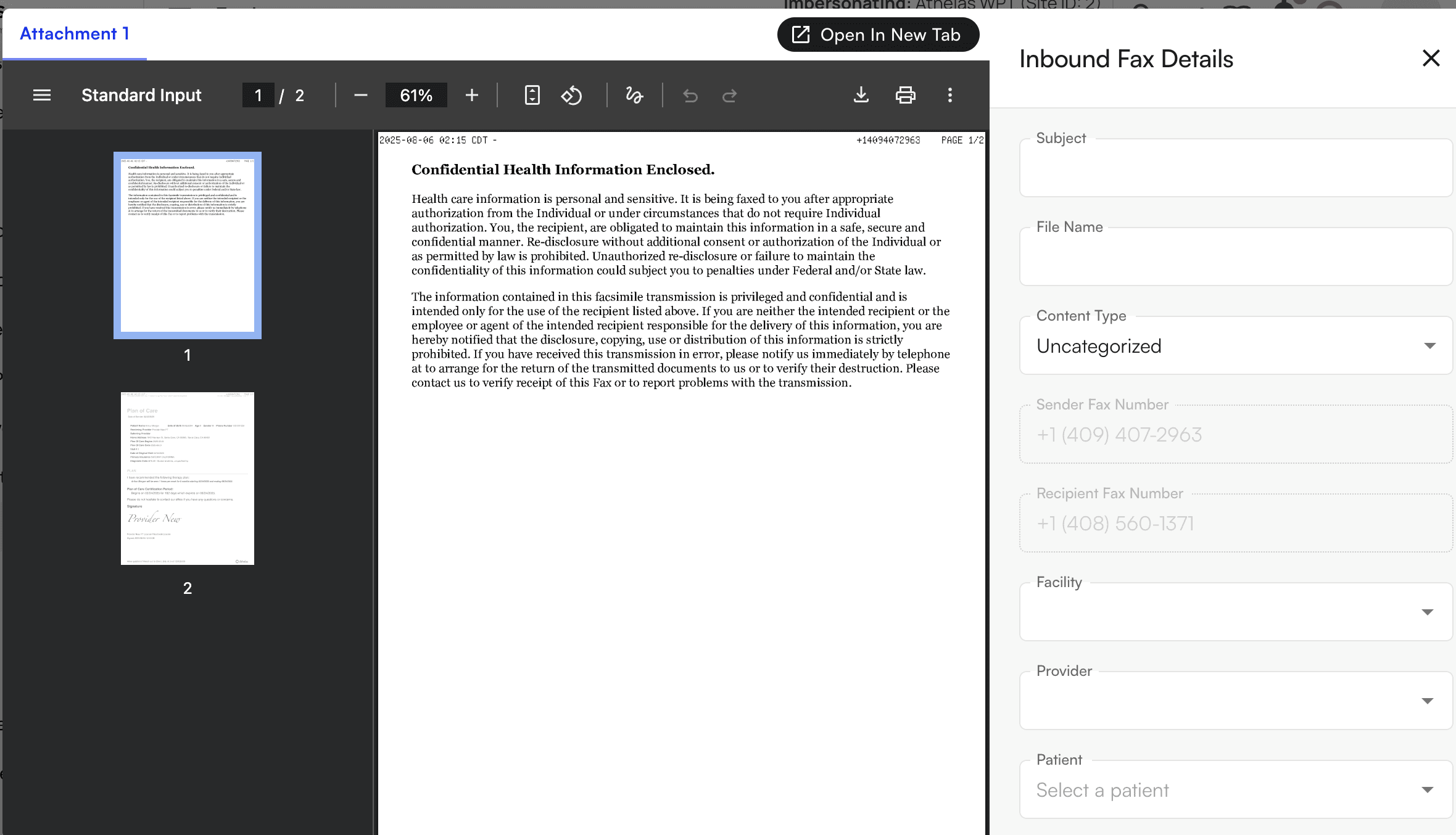 Clicking on Save Edits will send the fax to the Processed view, since it is now organized appropriately
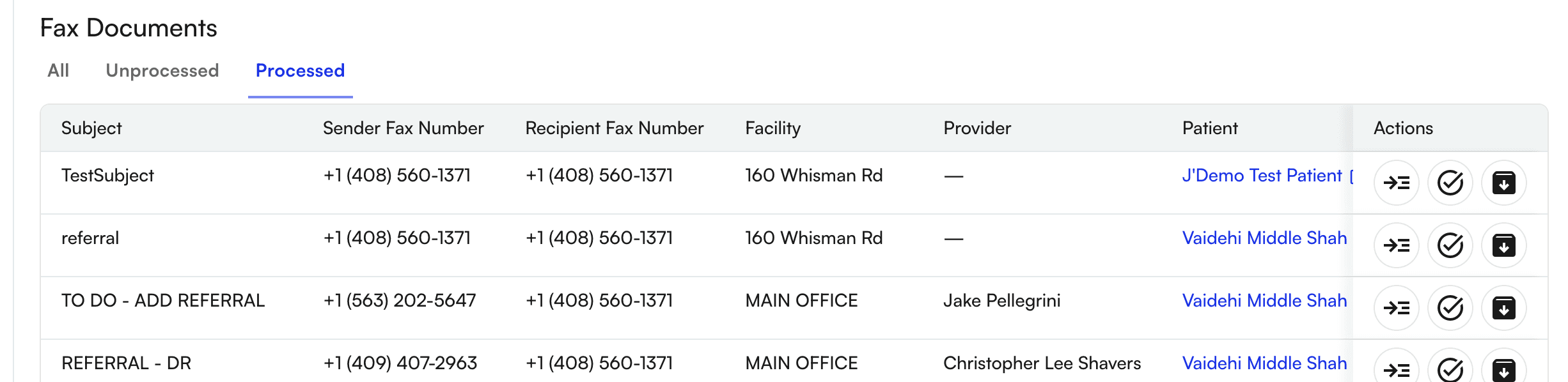 ##### AI Fax Sorting:
**AI Fax Sorting** is built directly into your fax inbox to help you process incoming documents faster and with less manual effort. Instead of opening, reading, and routing every fax yourself, the system automatically does it for you — keeping your workflow moving and your inbox organized.
When a fax arrives, AI will:
* Identify the **document type** (referral, lab, prior auth, etc.)
* Extract the **patient name** and match it to their chart
* Identify the **provider** associated with the fax
* Add a **direct link to the patient profile**
* Automatically move the fax from **Unprocessed → Processed**
Faxes that meet all criteria are labeled **AI Sorted**, so you can immediately trust they've been handled. In the Inbound view, you'll see:
* An **AI Sorted** label on completed faxes
* Hyperlinked patient names for quick access to the patient profile
* Clear separation between processed and unprocessed faxes
* Faster turnaround on inbound documents
✨**Smart Tip:** AI Fax Sorting only auto-processes a fax when the system is highly confident in the patient match (exact match only), the document type, and the provider identification. If anything is unclear, the fax stays in **Unprocessed** for your team to review — protecting against incorrect routing.
### FAQ
Faxes that were processed automatically are labeled **AI Sorted** in the Inbound view. Open the fax to confirm the patient, provider, and document type that AI assigned.
The fax stays in the **Unprocessed** view so your team can review and assign it manually. AI Fax Sorting only auto-processes faxes when the patient match is exact and the document type and provider are clearly identified — anything ambiguous is held back for human review.
Yes. Click **View and Update Fax** on any fax — including AI Sorted ones — to edit the **Subject**, **Facility**, **Provider**, **Patient**, or **Document Type**, then click **Save Edits**.
AI Fax Sorting recognizes common inbound document types including referrals, labs, prior authorizations, and other clinical documents. The system will continue to expand the supported categories over time.
##### AI Fax Sorting:
**AI Fax Sorting** is built directly into your fax inbox to help you process incoming documents faster and with less manual effort. Instead of opening, reading, and routing every fax yourself, the system automatically does it for you — keeping your workflow moving and your inbox organized.
When a fax arrives, AI will:
* Identify the **document type** (referral, lab, prior auth, etc.)
* Extract the **patient name** and match it to their chart
* Identify the **provider** associated with the fax
* Add a **direct link to the patient profile**
* Automatically move the fax from **Unprocessed → Processed**
Faxes that meet all criteria are labeled **AI Sorted**, so you can immediately trust they've been handled. In the Inbound view, you'll see:
* An **AI Sorted** label on completed faxes
* Hyperlinked patient names for quick access to the patient profile
* Clear separation between processed and unprocessed faxes
* Faster turnaround on inbound documents
✨**Smart Tip:** AI Fax Sorting only auto-processes a fax when the system is highly confident in the patient match (exact match only), the document type, and the provider identification. If anything is unclear, the fax stays in **Unprocessed** for your team to review — protecting against incorrect routing.
### FAQ
Faxes that were processed automatically are labeled **AI Sorted** in the Inbound view. Open the fax to confirm the patient, provider, and document type that AI assigned.
The fax stays in the **Unprocessed** view so your team can review and assign it manually. AI Fax Sorting only auto-processes faxes when the patient match is exact and the document type and provider are clearly identified — anything ambiguous is held back for human review.
Yes. Click **View and Update Fax** on any fax — including AI Sorted ones — to edit the **Subject**, **Facility**, **Provider**, **Patient**, or **Document Type**, then click **Save Edits**.
AI Fax Sorting recognizes common inbound document types including referrals, labs, prior authorizations, and other clinical documents. The system will continue to expand the supported categories over time.