> ## Documentation Index
> Fetch the complete documentation index at: https://trainings.air.athelas.com/llms.txt
> Use this file to discover all available pages before exploring further.
# Messages Page
### At a Glance
Need to just send a quick message to a colleague or have a conversation better suited to an instant messaging system than an email thread? Head over to the [Messages page](https://insights.athelas.com/messages)! This feature enables staff to interact with each other, all within Insights itself. Up to ten staff can be added to a thread.
### Here’s How it Works
To begin a thread with one or more colleagues, navigate to the Messages page and click the pencil icon to create a new conversation.
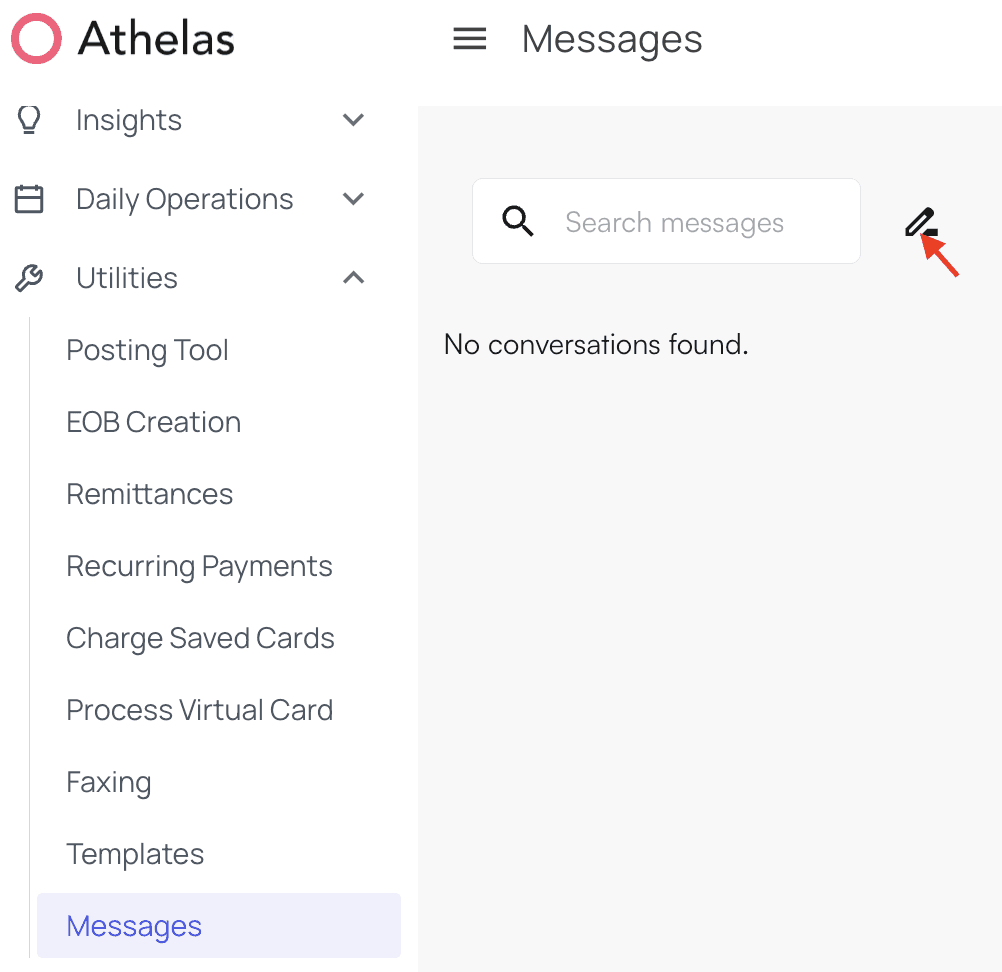 A search bar will appear. Search for the colleague in question and select their name when it appears.
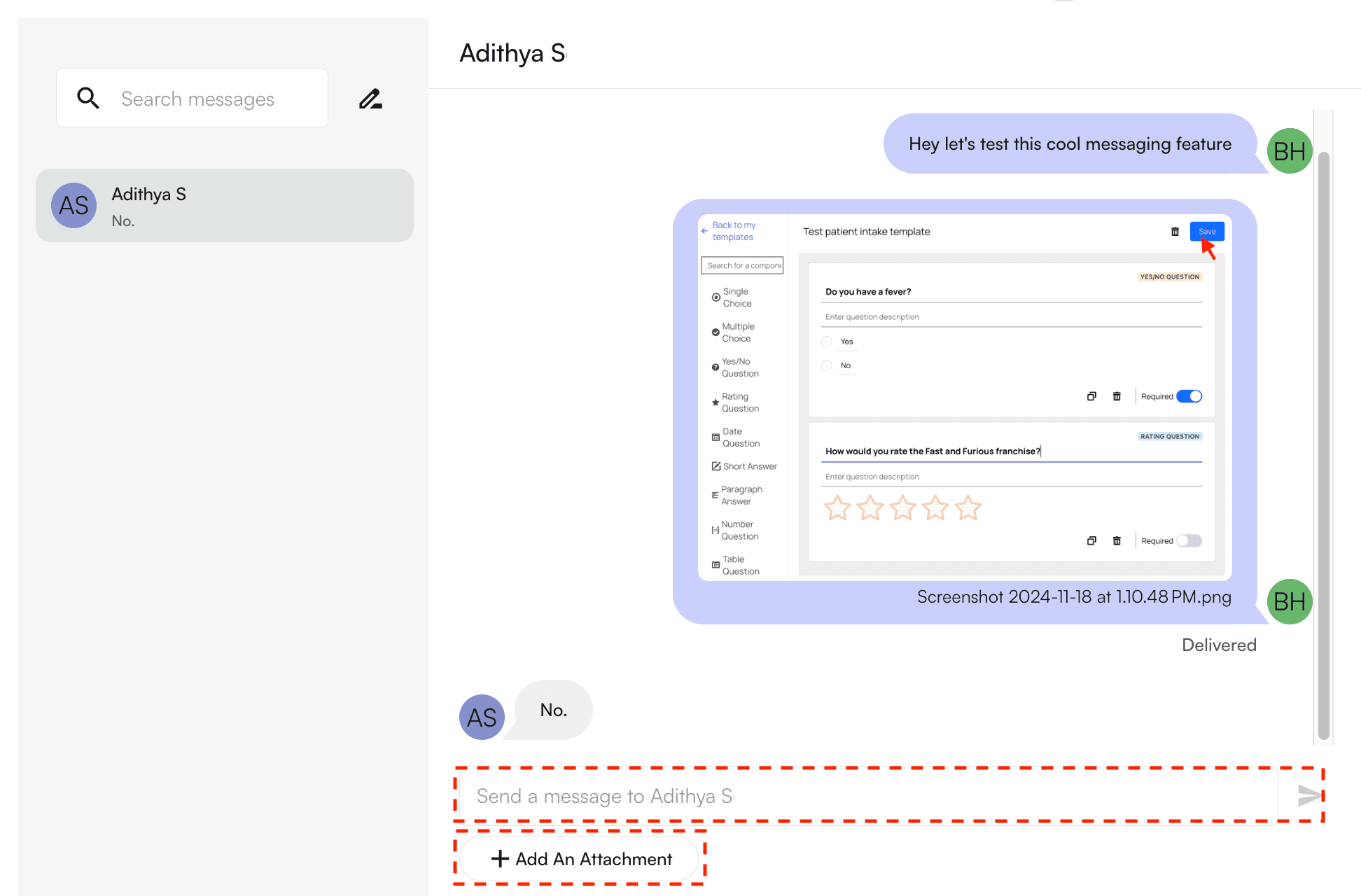
 Now, you can write out a message and/or add attachments, as shown below.
 ### Received Messages
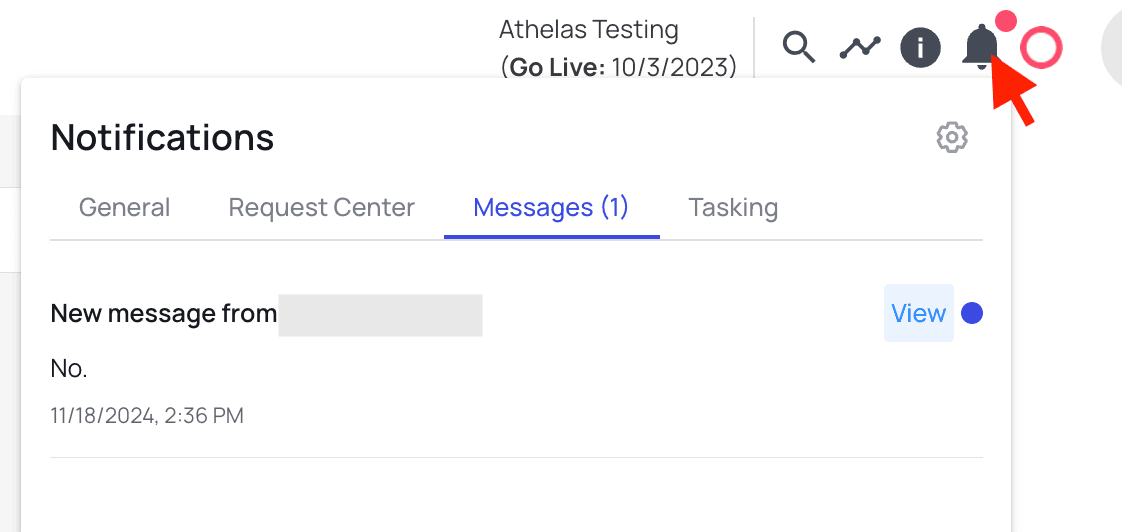
When there are new messages for you, notifications will appear in two places.
As a red dot 🔴 on the notification center (🔔 icon) in the header of any page in Insights.
### Received Messages
When there are new messages for you, notifications will appear in two places.
As a red dot 🔴 on the notification center (🔔 icon) in the header of any page in Insights.
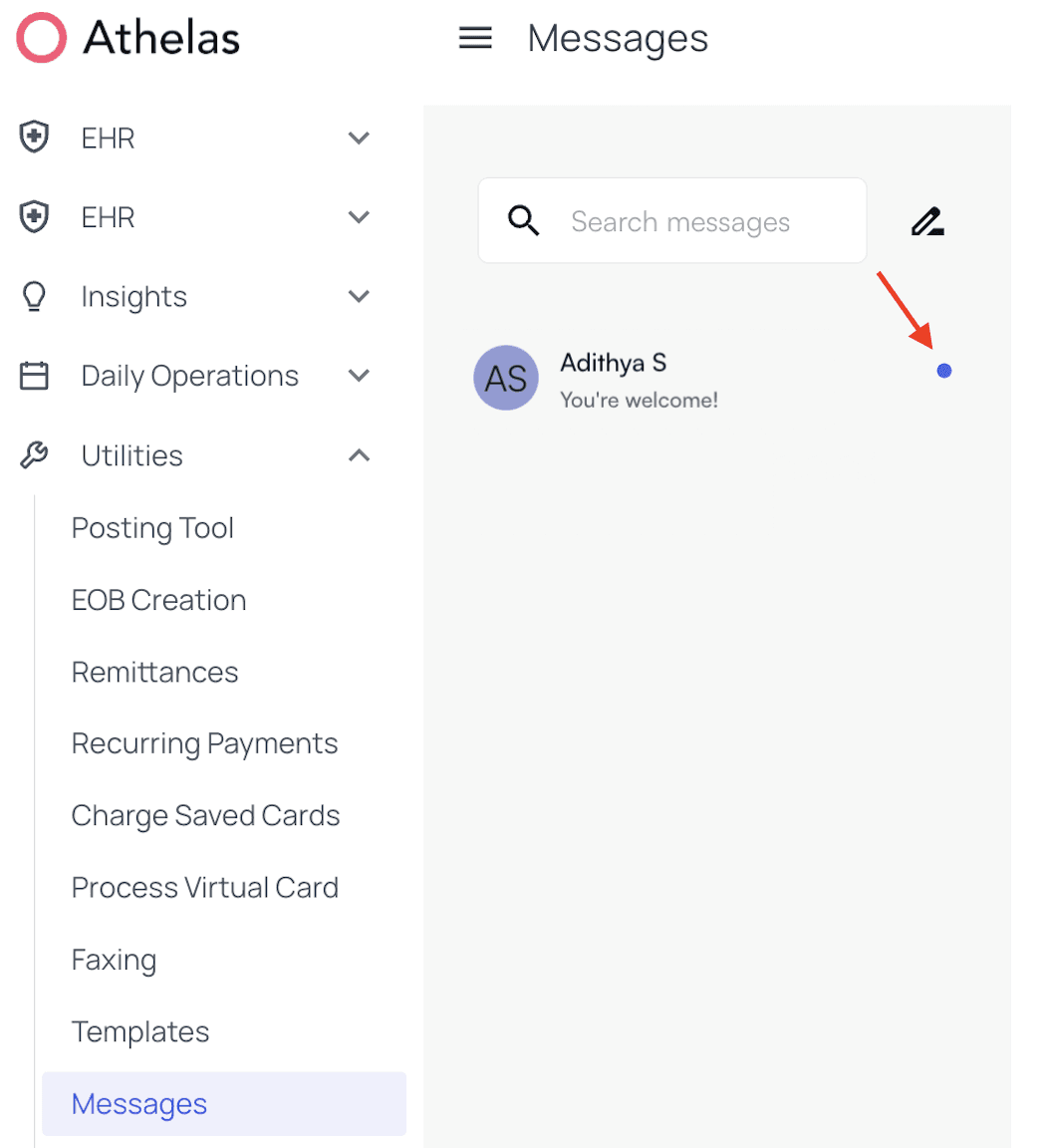
 As a blue dot 🔵 on the Messages page.
 #### Notes
You can also leave notes on a given encounter outside of the messages tab:
**Features Supported:**
* Leave notes on a given encounter
* Tag users in a note
* Leave universal notes (note will show throughout Insights for that patient - all encounters, claims, appointments, etc)
**Features Not Supported:**
* Clearly notify a user if they are tagged in a note
#### Notes
You can also leave notes on a given encounter outside of the messages tab:
**Features Supported:**
* Leave notes on a given encounter
* Tag users in a note
* Leave universal notes (note will show throughout Insights for that patient - all encounters, claims, appointments, etc)
**Features Not Supported:**
* Clearly notify a user if they are tagged in a note