> ## Documentation Index
> Fetch the complete documentation index at: https://trainings.air.athelas.com/llms.txt
> Use this file to discover all available pages before exploring further.
# Functional Outcome Measurements
#### Overview
This guide outlines how sites can manage functional outcome forms and how patients can fill them out. The initial rollout of forms includes:
* ODI
* NDI
* Modified Oswestry
* UEFS
* LEFS
* KOOS
* HOOS
* DASH
* QuickDASH
#### Front Desk Workflow
#### Sending FOTM to Patients
To send a form to a patient, follow these steps:
* Navigate to the **Calendar** → Click on the patient’s appointment to open the details drawer.
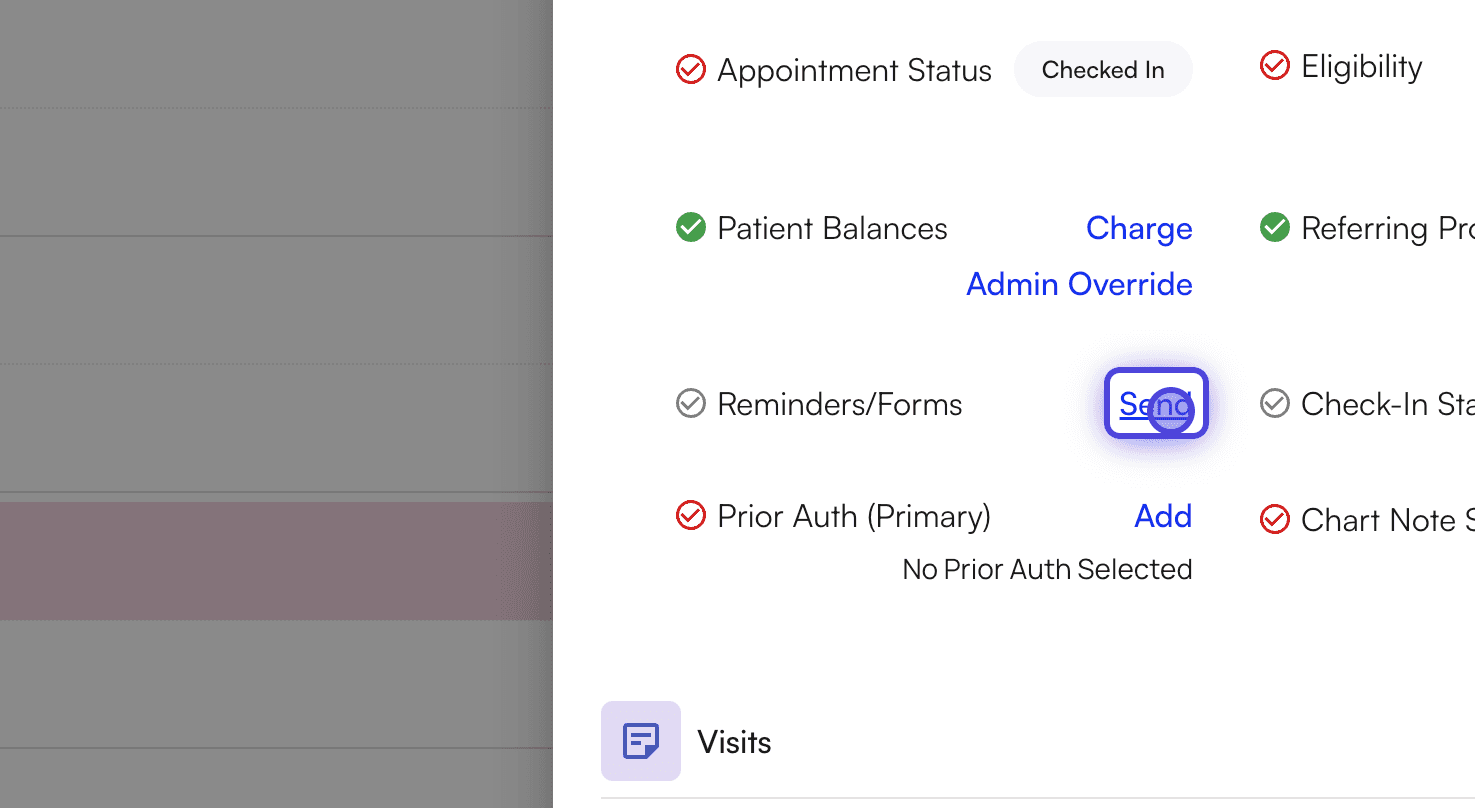
* Next to **Reminders/Forms**, click **Send**.
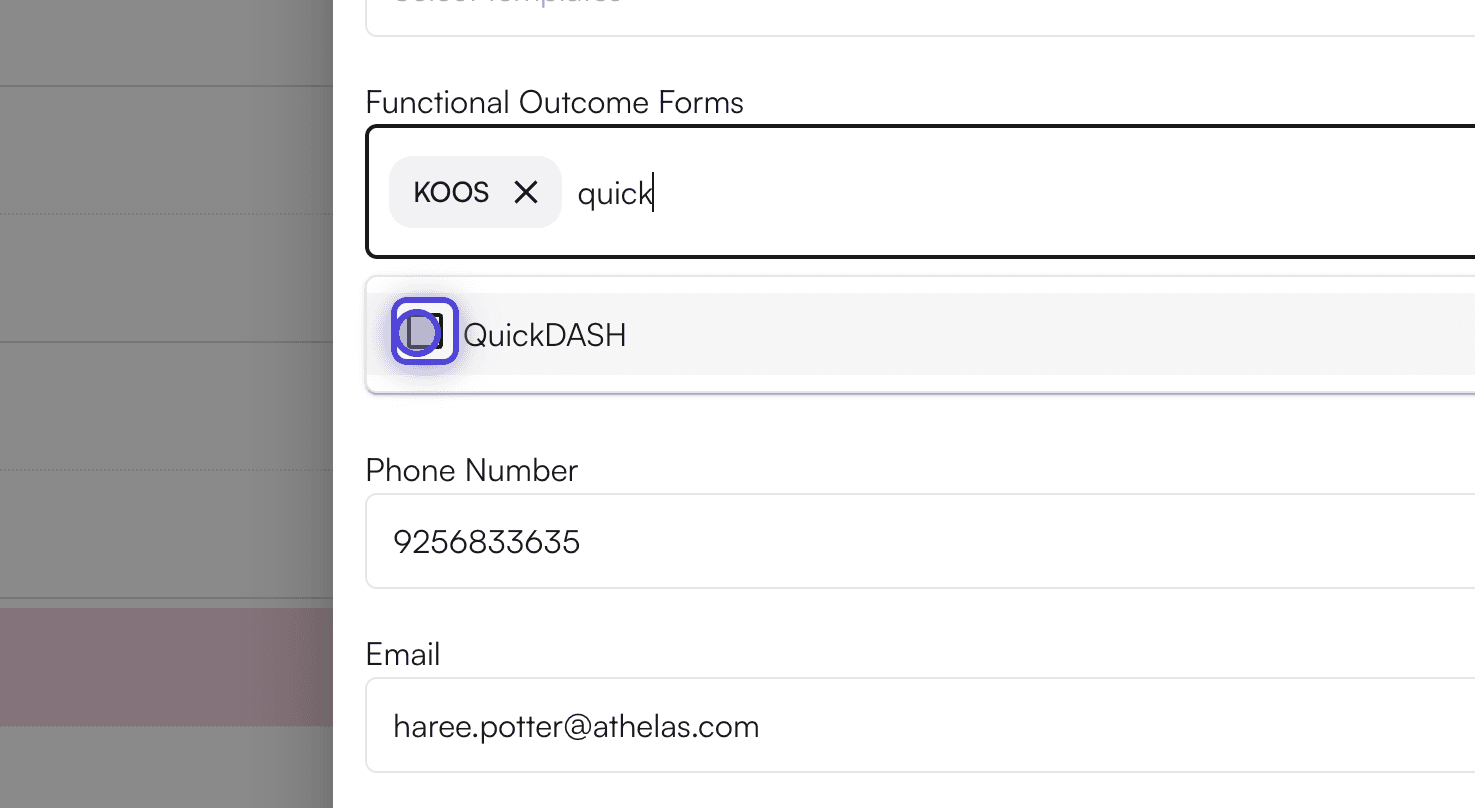
 * Select the **Functional Outcome Forms** you wish to send from the list.
 * Choose your preferred send option (e.g., text message or email) and edit the text/email details as needed. You will be able to customize the message and subject line before you click **Send**.
#### Provider Workflow
#### Viewing FOTM in Chart Notes
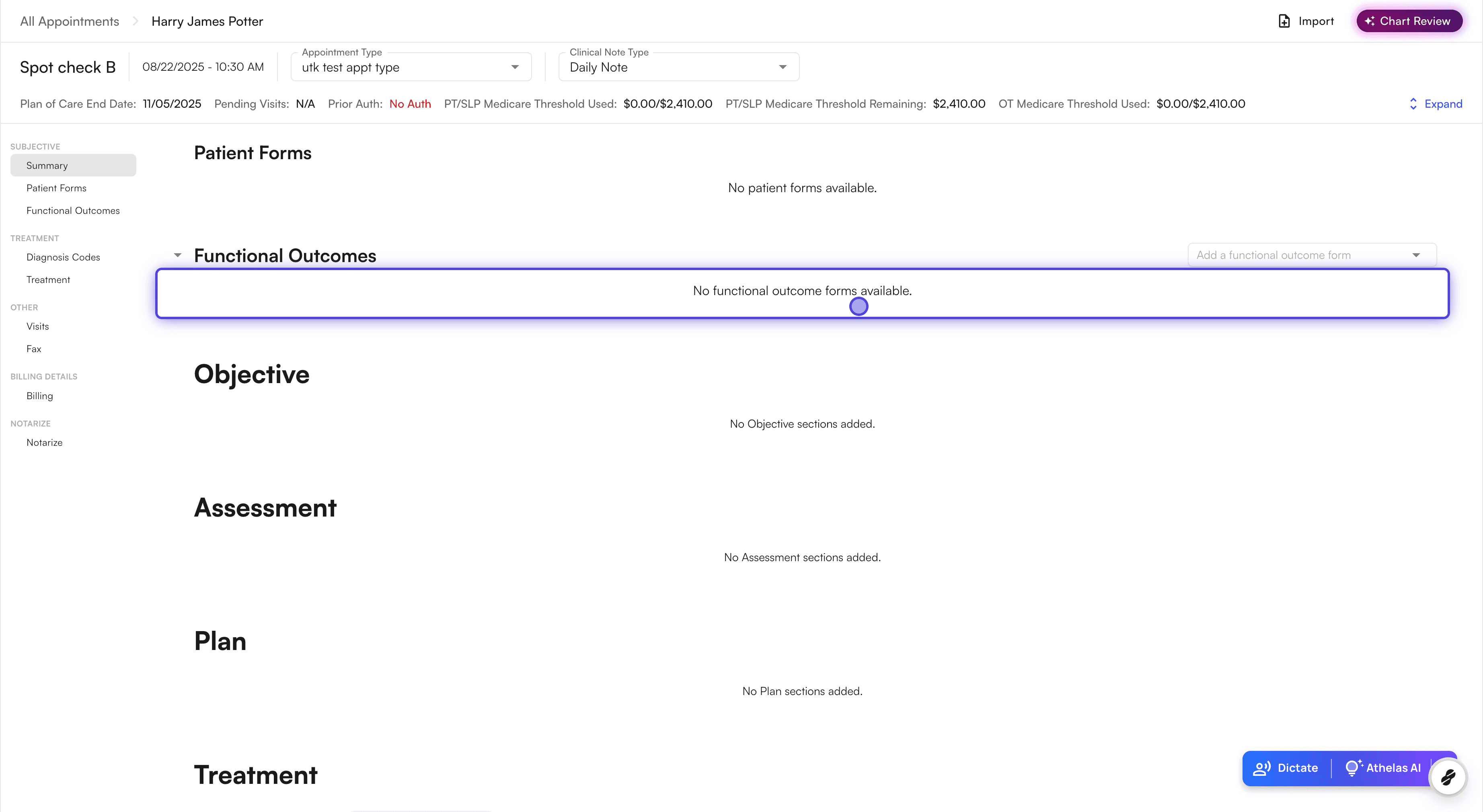
* Open the patient's **chart note**. **Functional Outcomes** will be available as a section at the top.
* Choose your preferred send option (e.g., text message or email) and edit the text/email details as needed. You will be able to customize the message and subject line before you click **Send**.
#### Provider Workflow
#### Viewing FOTM in Chart Notes
* Open the patient's **chart note**. **Functional Outcomes** will be available as a section at the top.
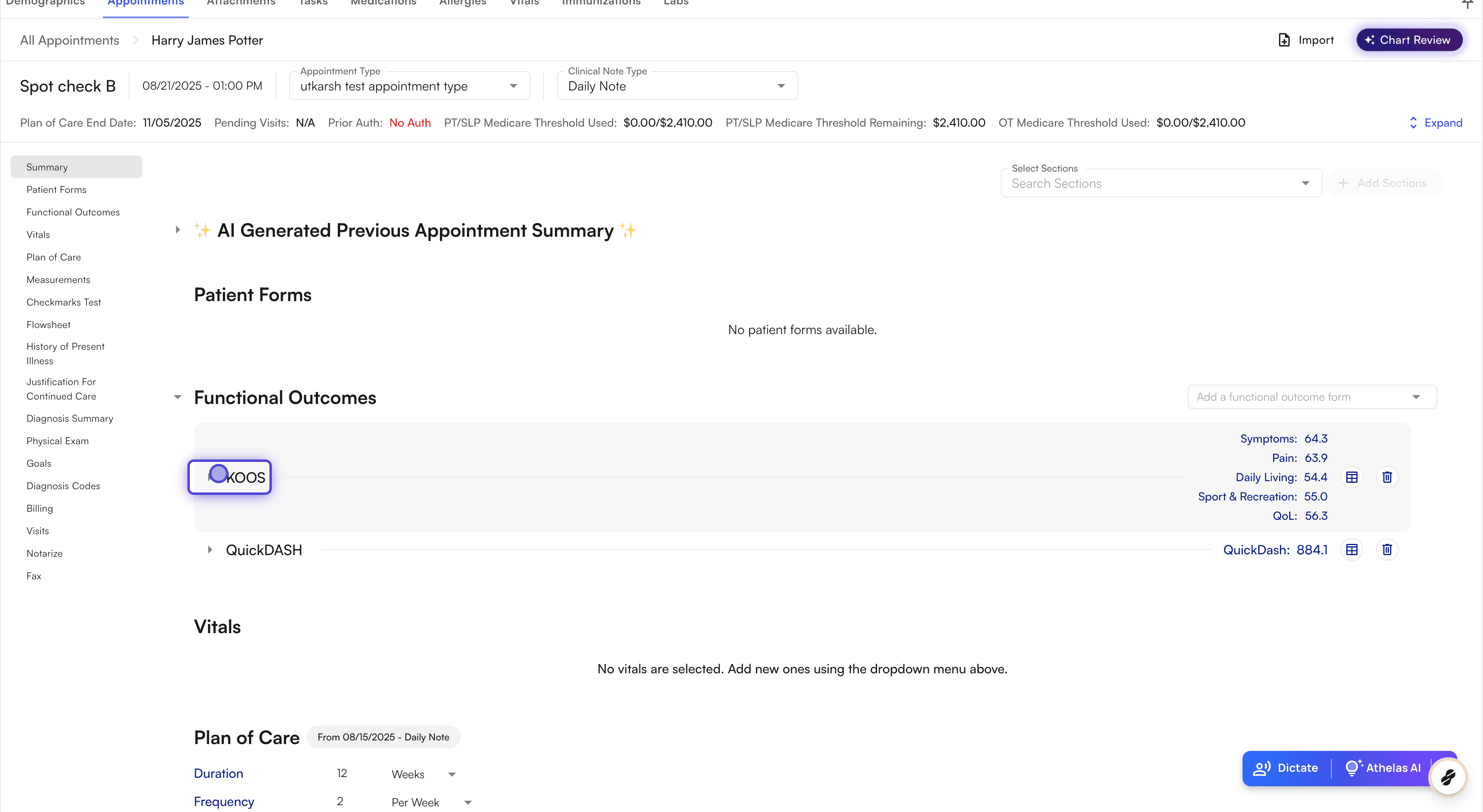 * You will be able to view the scores here.
 * Click on a form/dropdown to see the values inputted by the patient.
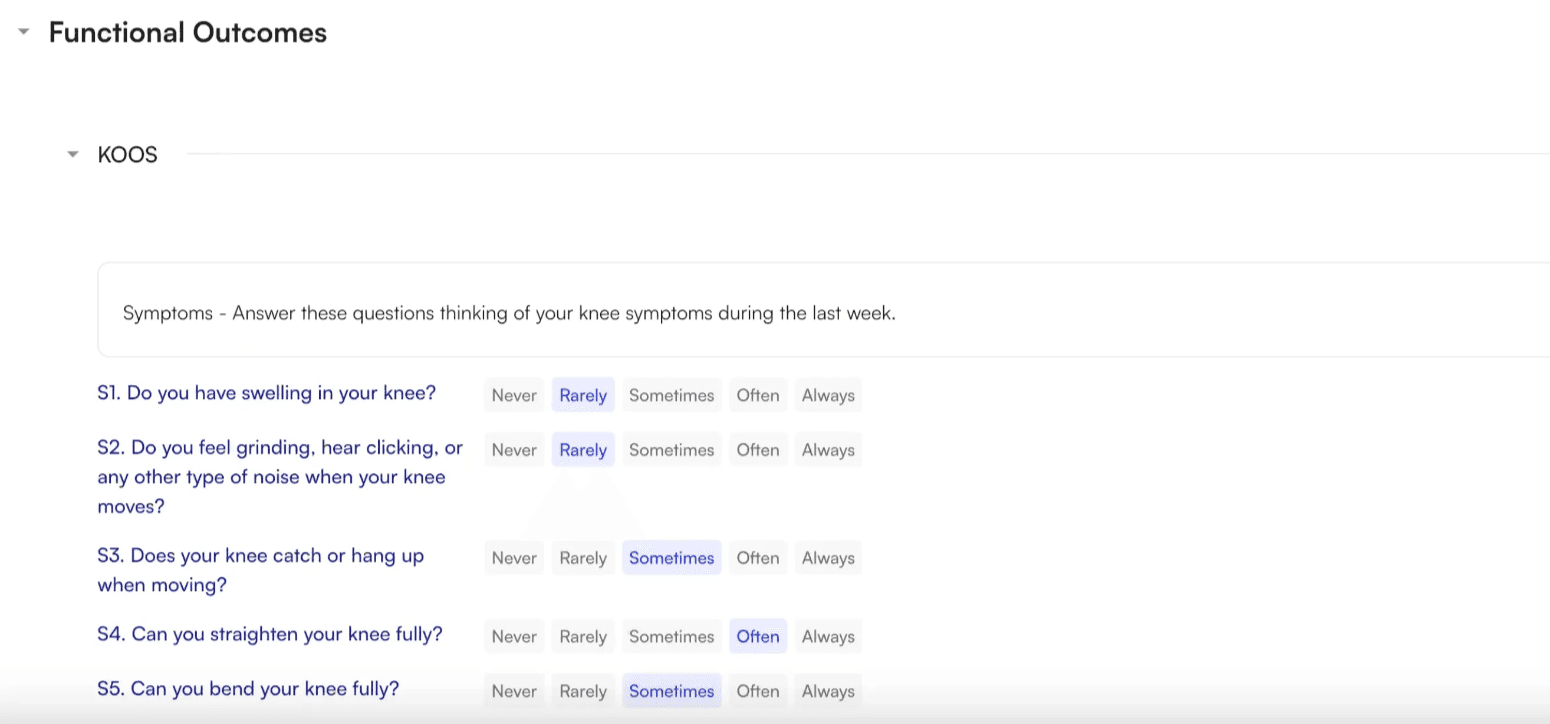 * As a provider, you will have access to change any values inputted by the patient as required.
#### Adding and Completing a Form During an Appointment
* In **Functional Outcomes** section, you can click the **"Add a functional outcome form"** dropdown → Select the desired form template (e.g., KOOS, QuickDASH, or Berg Balance Scale).
* As a provider, you will have access to change any values inputted by the patient as required.
#### Adding and Completing a Form During an Appointment
* In **Functional Outcomes** section, you can click the **"Add a functional outcome form"** dropdown → Select the desired form template (e.g., KOOS, QuickDASH, or Berg Balance Scale).
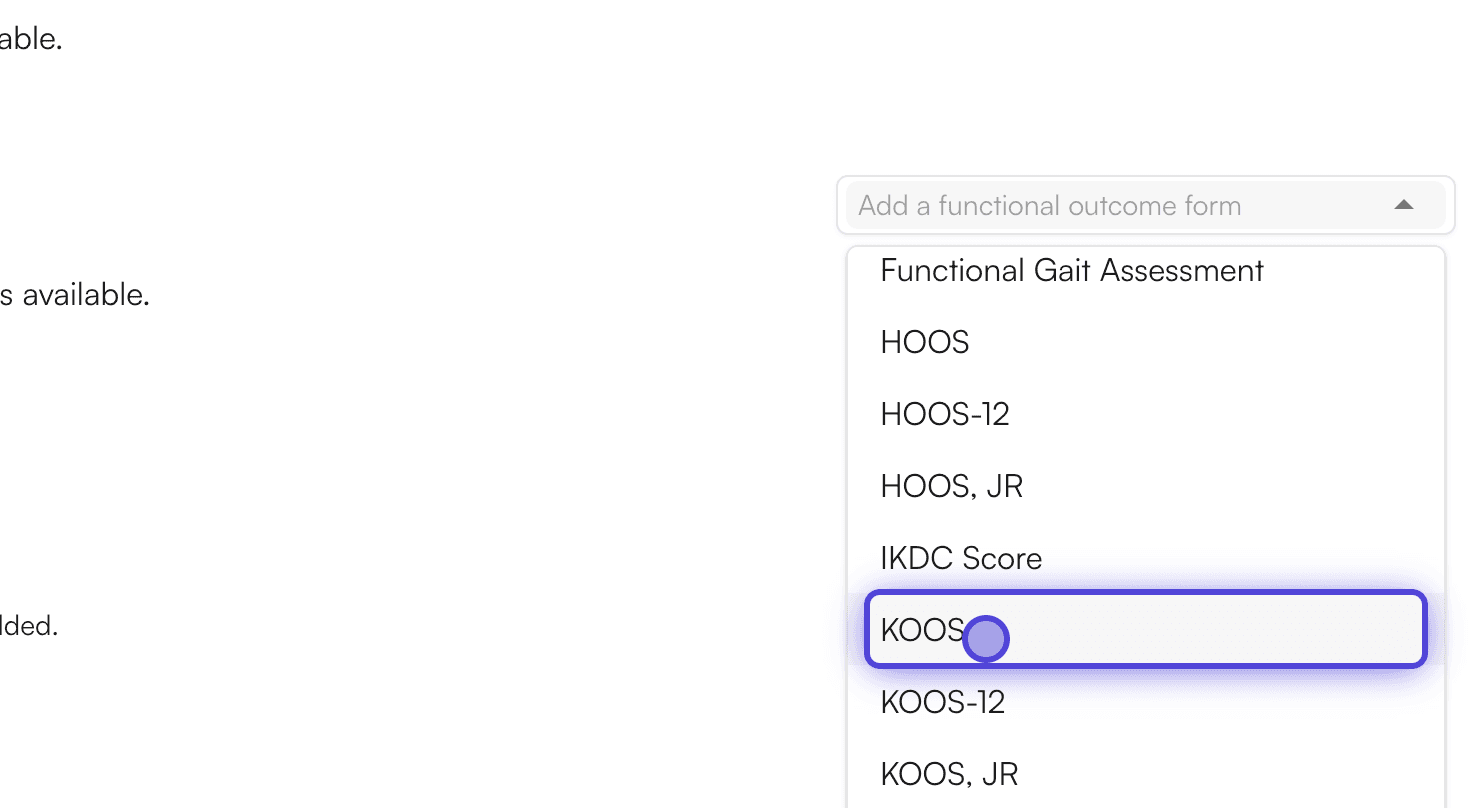 * Fill out the form with the patient, selecting the appropriate values for each question.
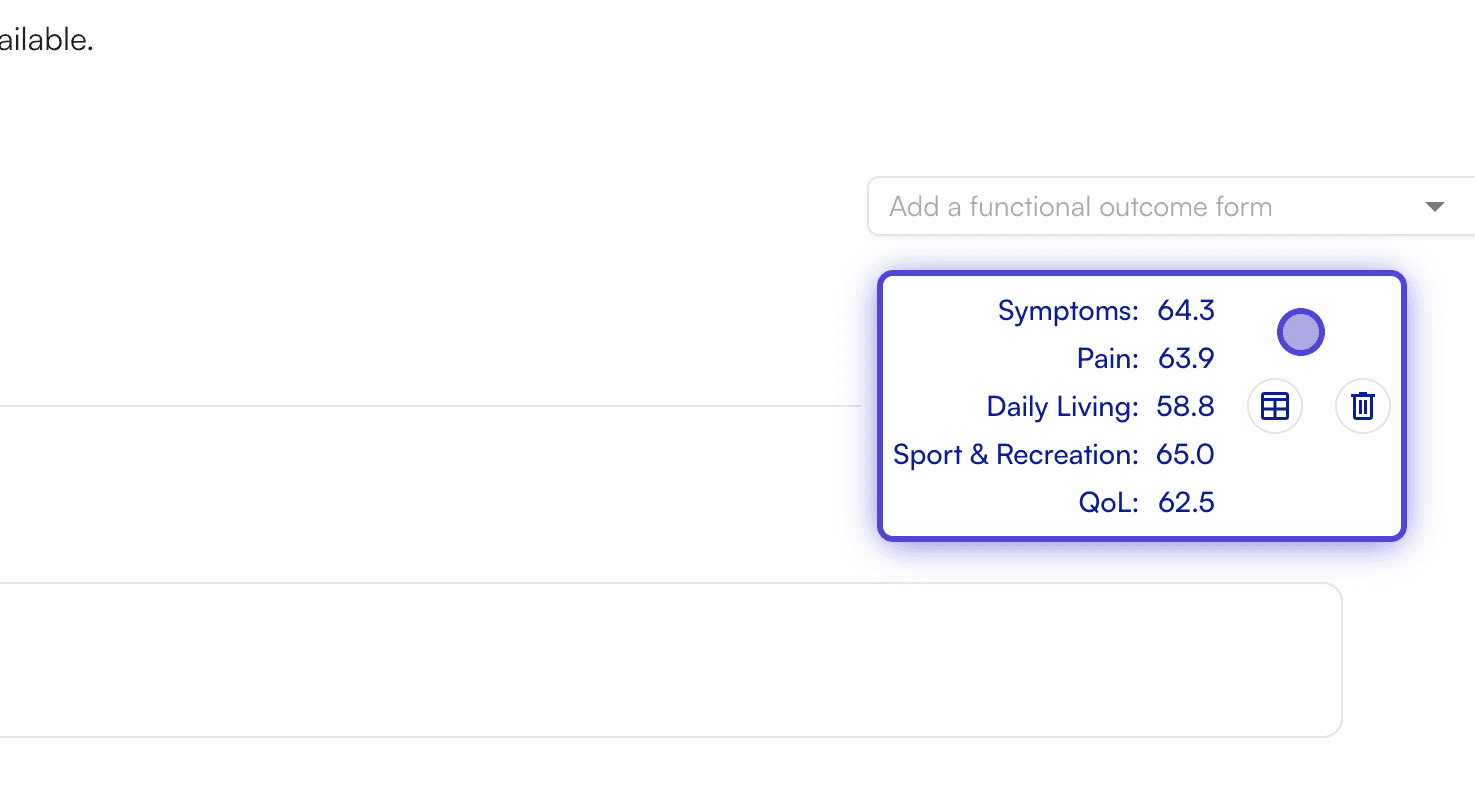
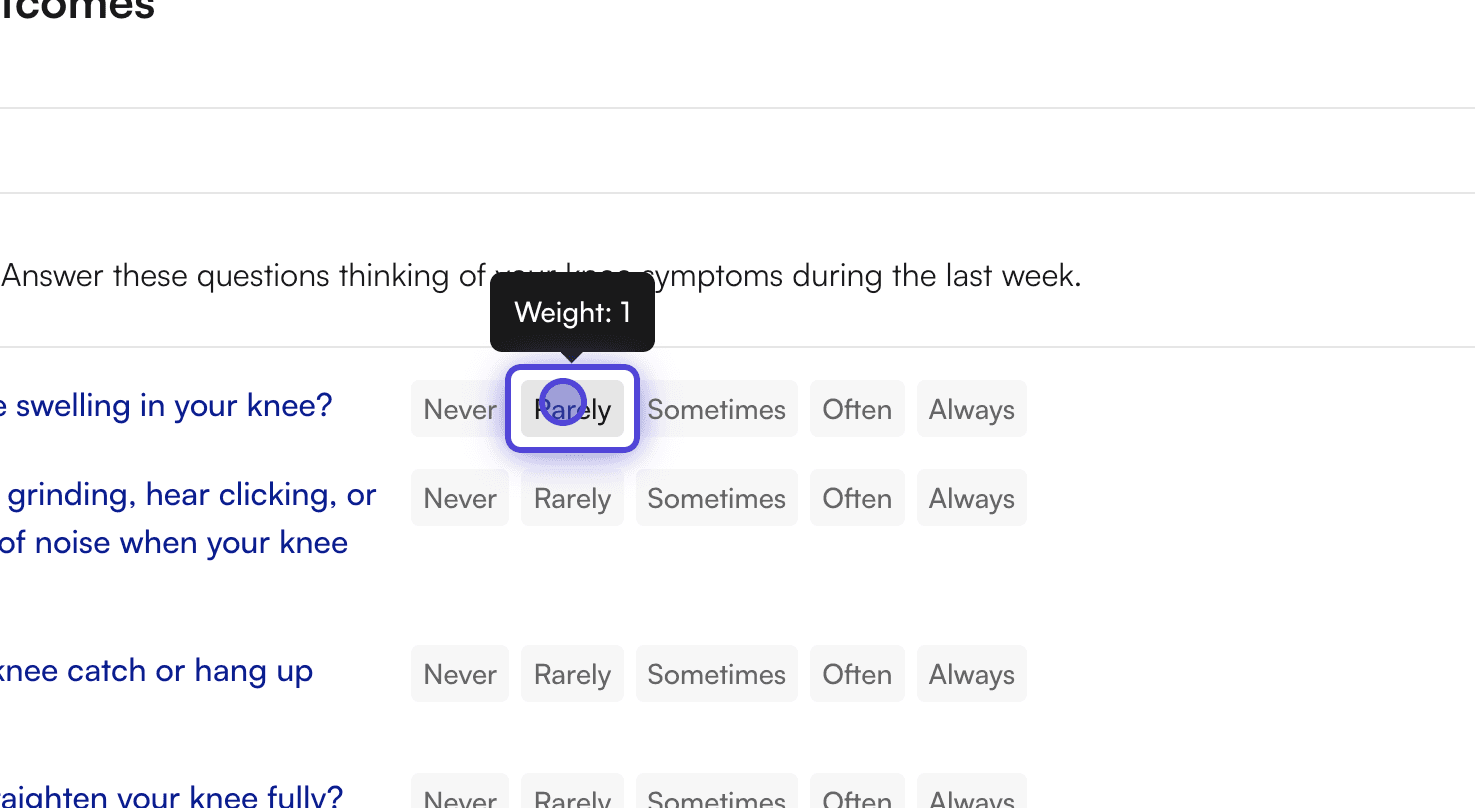 * After all questions are answered, the system will automatically display the computed score.
 #### Viewing FOTM History
You can view the history of a patient's functional outcome measurements over time.
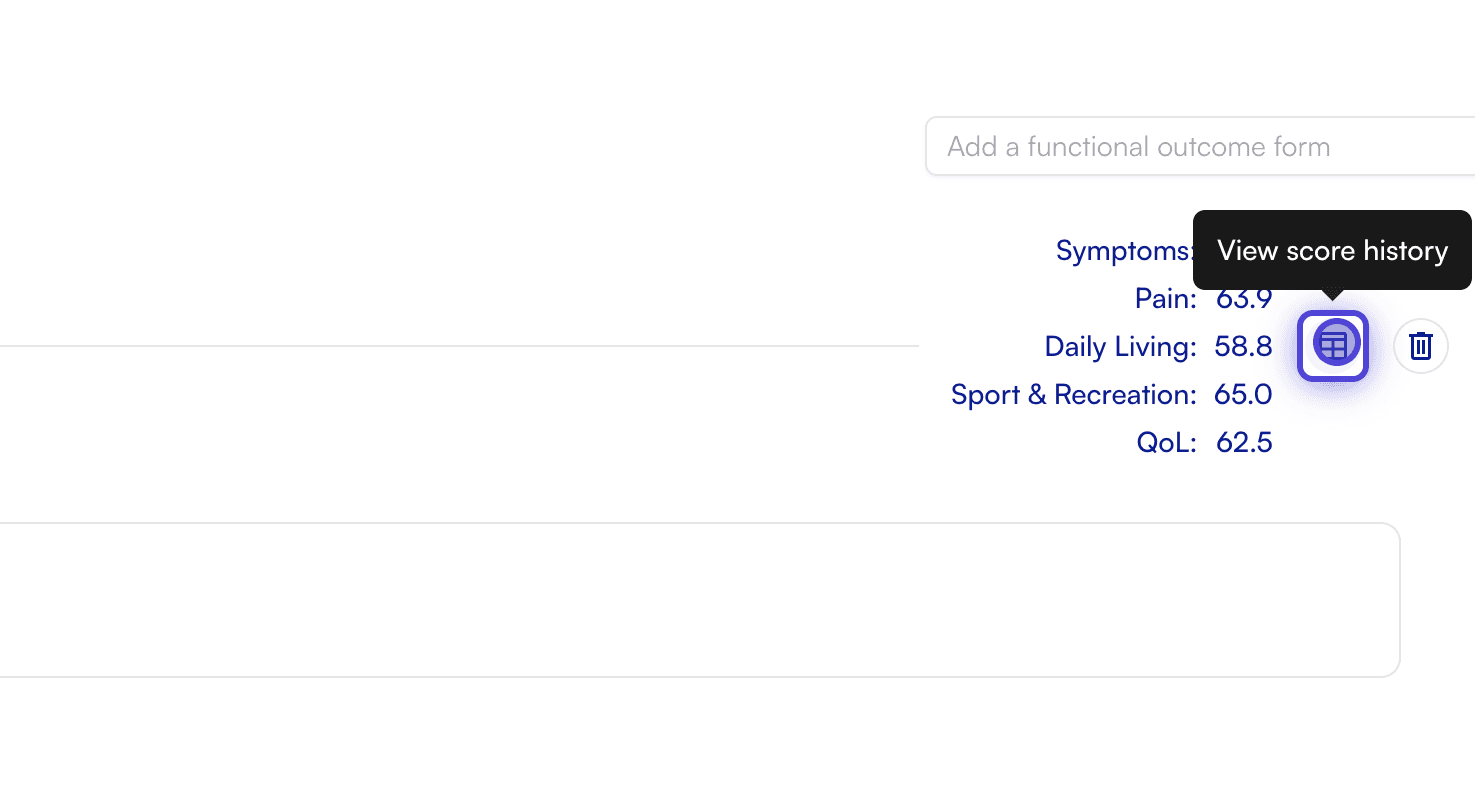
* In the chart note, find the specific functional outcome measurement you want to view → Click the **history icon** (a table-like symbol) next to the form.
#### Viewing FOTM History
You can view the history of a patient's functional outcome measurements over time.
* In the chart note, find the specific functional outcome measurement you want to view → Click the **history icon** (a table-like symbol) next to the form.
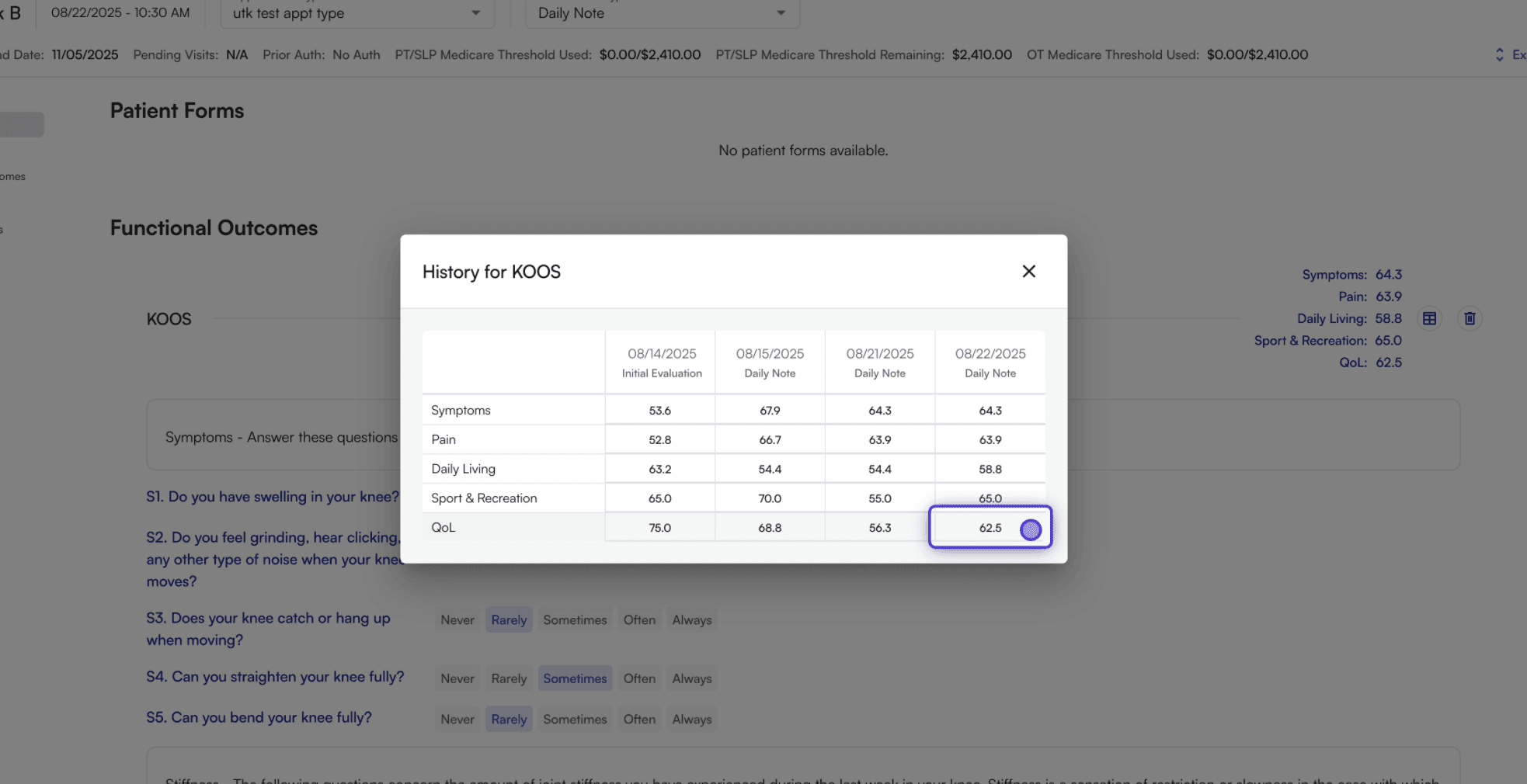
 * A table showing the history of scores for that form will appear.
 #### Deleting FOTM Measurements
You can delete a functional outcome measurement from a patient's chart note if needed.
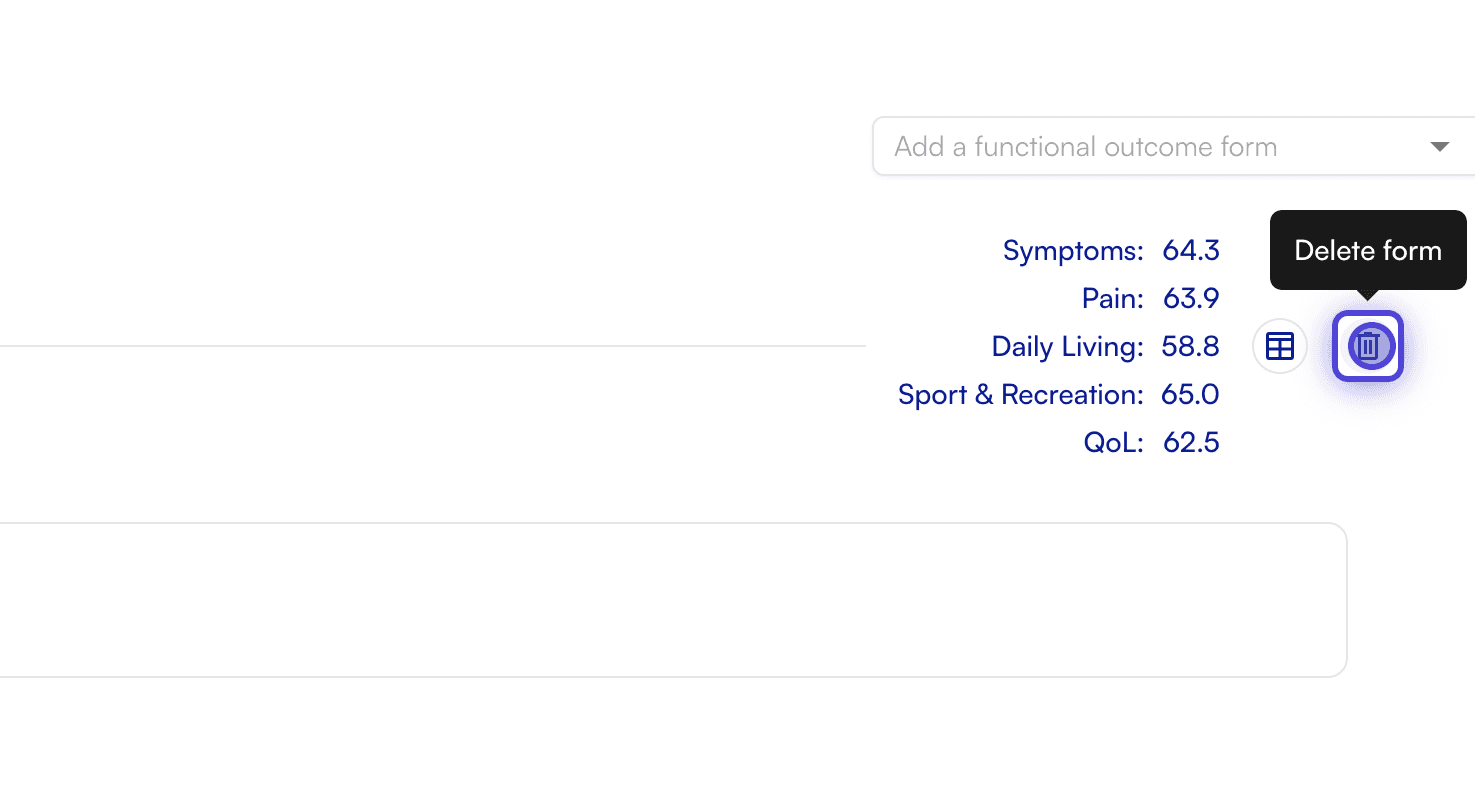
* Find the form you want to delete → Click the **delete icon** (a trash can symbol) next to the form.
#### Deleting FOTM Measurements
You can delete a functional outcome measurement from a patient's chart note if needed.
* Find the form you want to delete → Click the **delete icon** (a trash can symbol) next to the form.
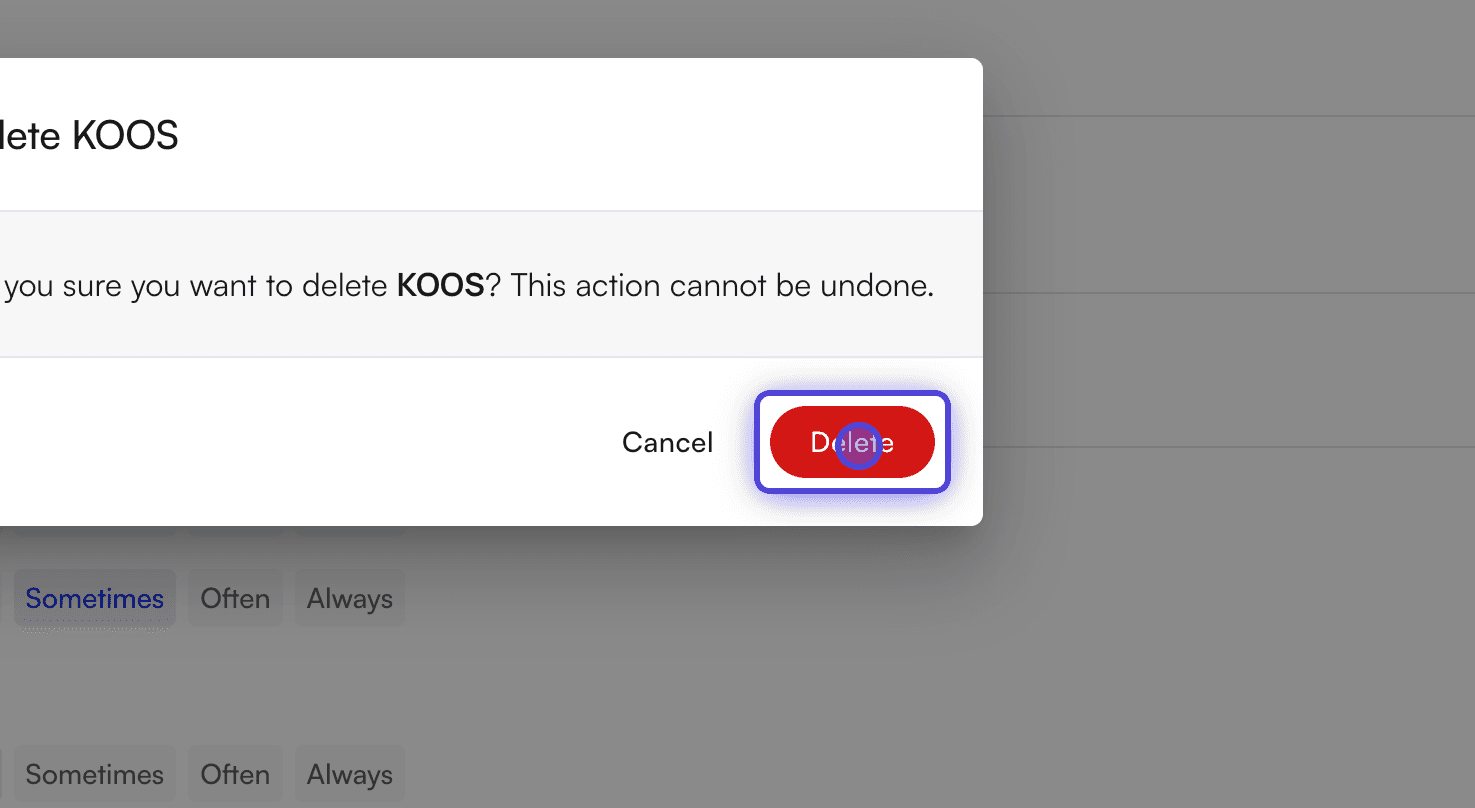
 * In the confirmation dialog, click **Delete**.
 * The form will be removed from the patient's chart.
 #### Patient Workflow
#### Opening and Completing a Survey
Patients receive a link to the survey via text or email and can complete it in a few simple steps.
* The patient will receive a link to fill out the forms. They will be able to log in to start answering the questions.
#### Patient Workflow
#### Opening and Completing a Survey
Patients receive a link to the survey via text or email and can complete it in a few simple steps.
* The patient will receive a link to fill out the forms. They will be able to log in to start answering the questions.
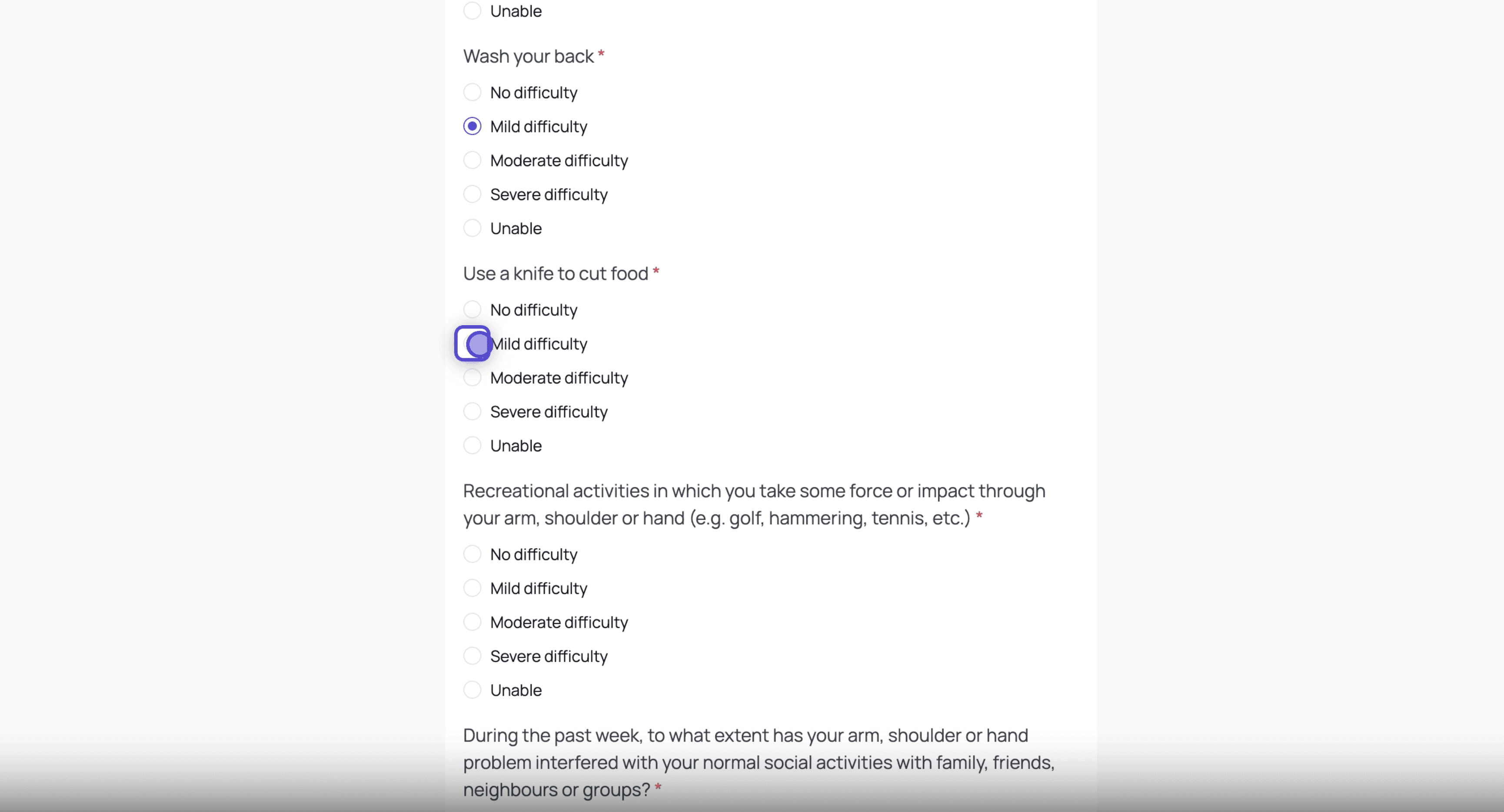 * Once completed, a confirmation message will display, indicating the survey has been submitted.