> ## Documentation Index
> Fetch the complete documentation index at: https://trainings.air.athelas.com/llms.txt
> Use this file to discover all available pages before exploring further.
# Add/edit a Patient's Insurance
#### How to add insurance
If you’d like to add insurance, select an insurance company from the drop down menu after selecting "Create New Patient". Then input the following information:
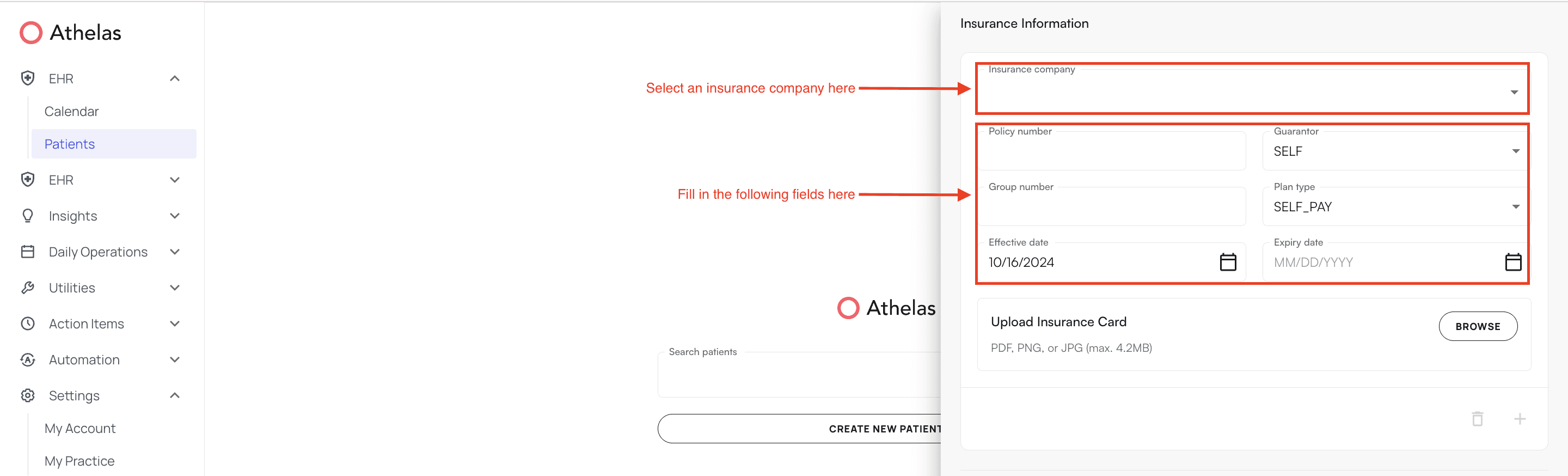 * Policy Number
* Group Number
* Effective and expiration dates
* Guarantor (relationship to policy holder)
* If the relationship to policy holder is SELF, leave as is
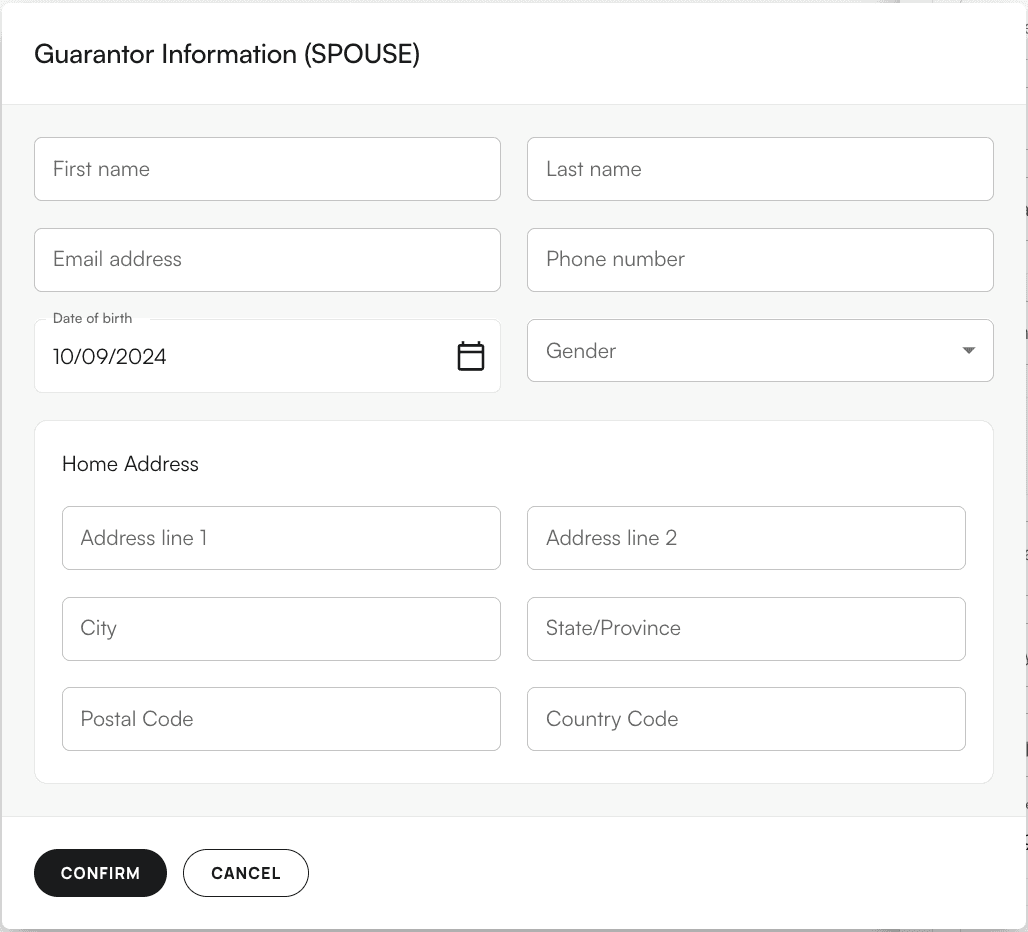
* If the relationship to policy holder is not SELF, click on the guarantor box. You will be prompted to select the relationship and input the policy holder’s information. Please fill out all of the following information:- First Name
* Last Name
* Email Address
* Phone Number
* Date of Birth
* Gender
* Home Address (Address Line(s), City, State, Postal and Country Code)
* Policy Number
* Group Number
* Effective and expiration dates
* Guarantor (relationship to policy holder)
* If the relationship to policy holder is SELF, leave as is
* If the relationship to policy holder is not SELF, click on the guarantor box. You will be prompted to select the relationship and input the policy holder’s information. Please fill out all of the following information:- First Name
* Last Name
* Email Address
* Phone Number
* Date of Birth
* Gender
* Home Address (Address Line(s), City, State, Postal and Country Code)
 #### Editing Insurance
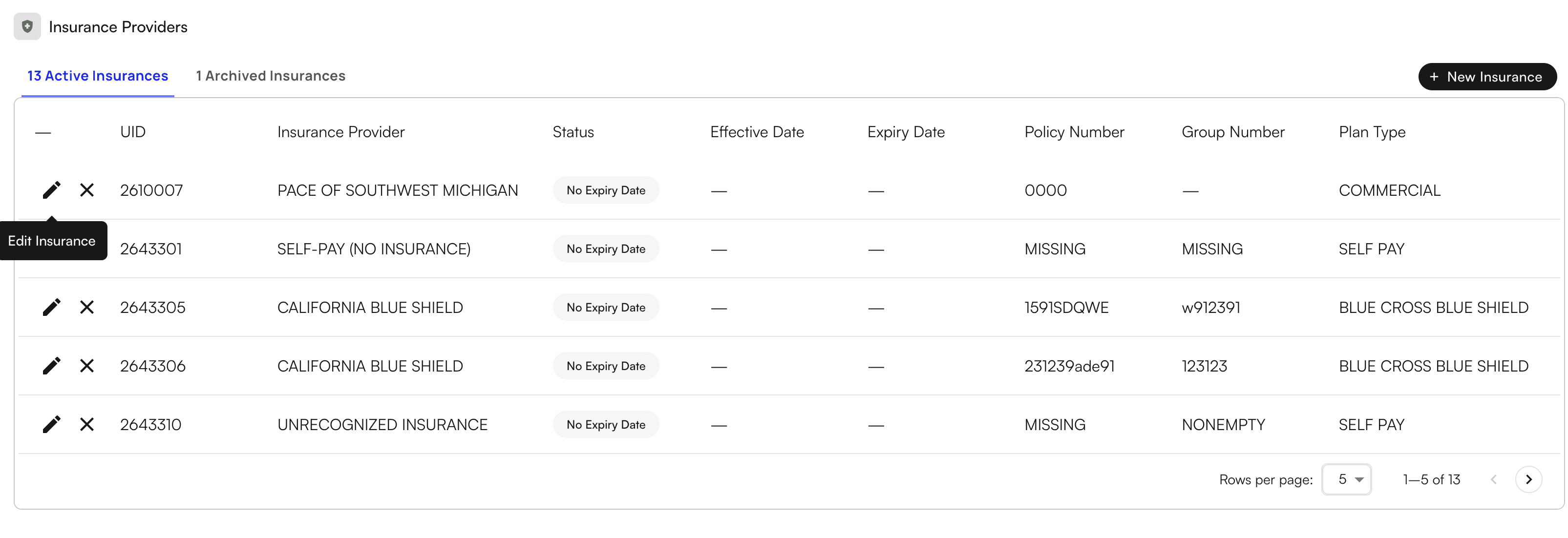
You can edit insurance information by navigating to the Demographics tab with the Patient Profile
#### Editing Insurance
You can edit insurance information by navigating to the Demographics tab with the Patient Profile
 #### Adding Worker's Compensation Information
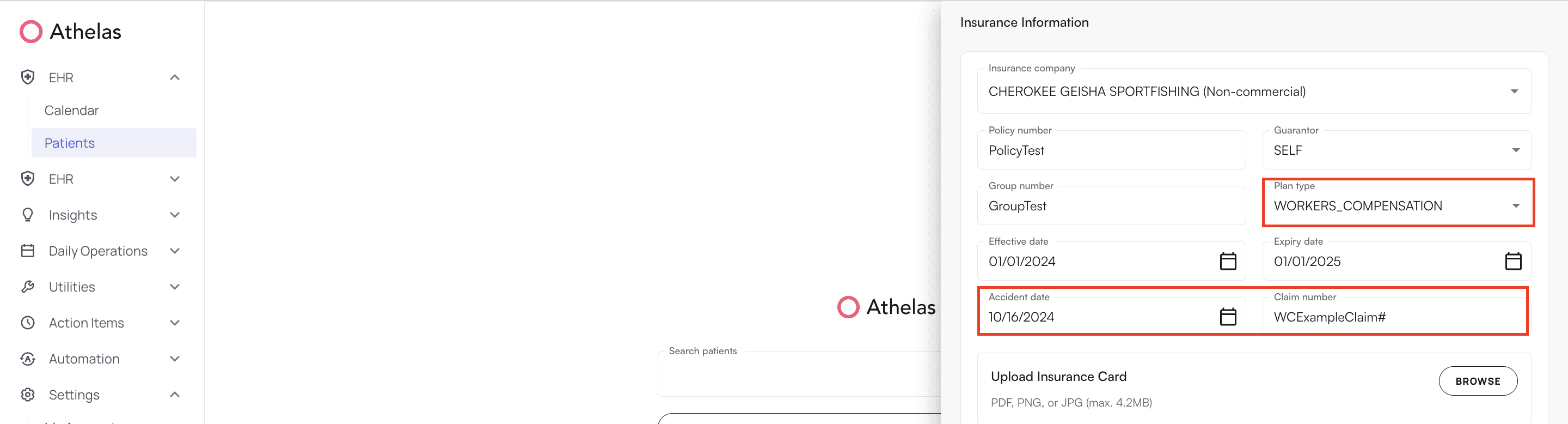
When a worker’s compensation insurance company is added, the payer type will automatically change to Worker’s Compensation. However, you are also able to override the payer type to Worker’s compensation
The additional fields:
* Accident Date
* Claim Number
Will also populate when the worker’s compensation insurance company is selected. Please fill out the fields with your patient’s information.
#### Adding Worker's Compensation Information
When a worker’s compensation insurance company is added, the payer type will automatically change to Worker’s Compensation. However, you are also able to override the payer type to Worker’s compensation
The additional fields:
* Accident Date
* Claim Number
Will also populate when the worker’s compensation insurance company is selected. Please fill out the fields with your patient’s information.
 #### Adding Self-Pay
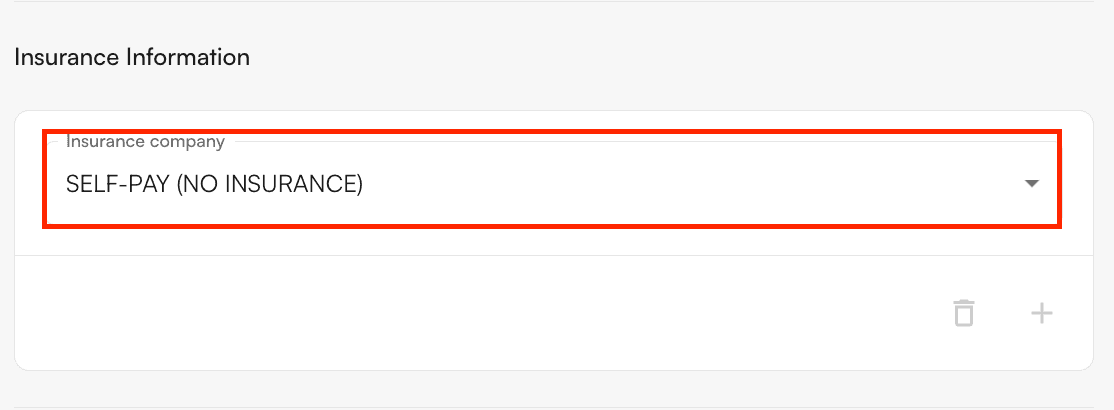
To add Self-Pay as an insurance, type in “Self Pay” into the Insurance Company field. Upon selection, the insurance details will disappear and leave only “Self-Pay (No Insurance)”
#### Adding Self-Pay
To add Self-Pay as an insurance, type in “Self Pay” into the Insurance Company field. Upon selection, the insurance details will disappear and leave only “Self-Pay (No Insurance)”
 #### What to do if you don't have the patient's insurance information?
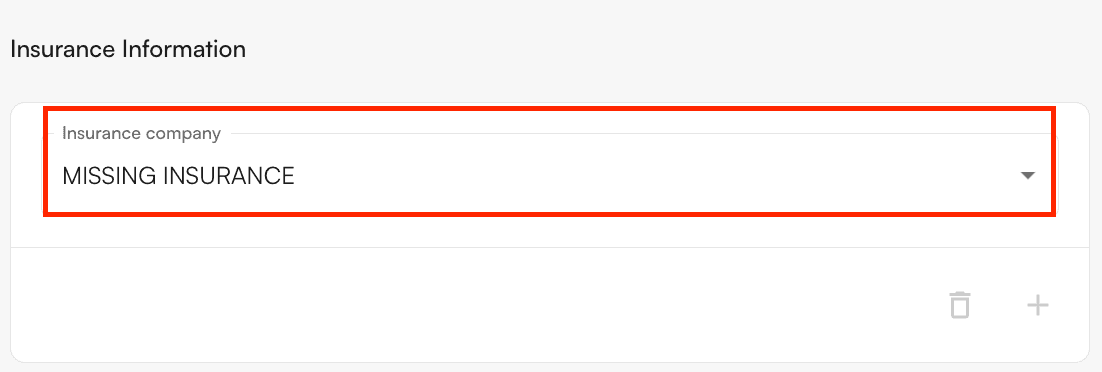
If you are missing the patient’s insurance information, type in “Missing Insurance” in the Insurance Company field. Upon selection, the insurance details will disappear and leave only “Missing Insurance”
#### What to do if you don't have the patient's insurance information?
If you are missing the patient’s insurance information, type in “Missing Insurance” in the Insurance Company field. Upon selection, the insurance details will disappear and leave only “Missing Insurance”
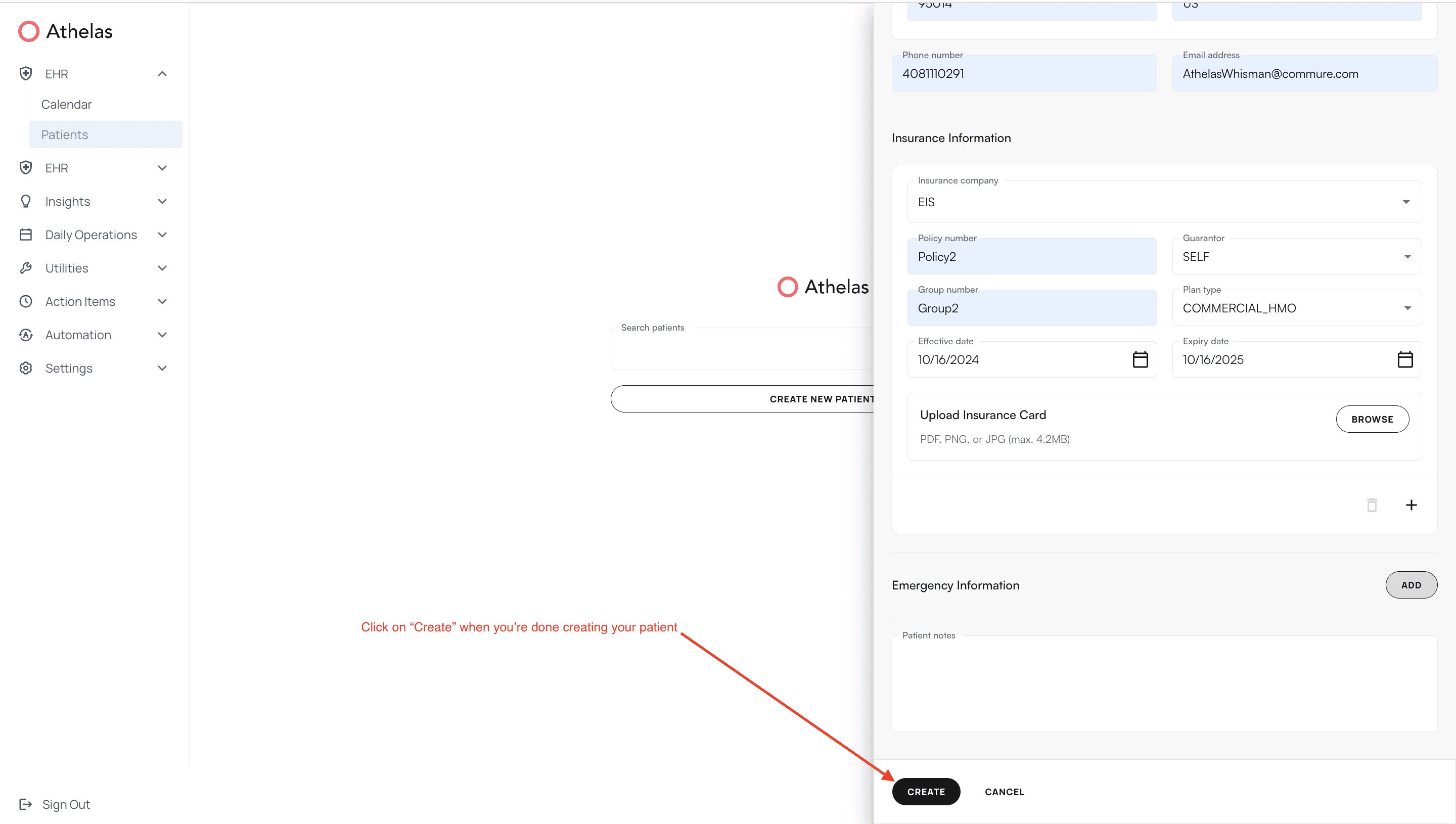
 Once you’ve entered in all the required and desired fields, click “Create” at the very bottom