> ## Documentation Index
> Fetch the complete documentation index at: https://trainings.air.athelas.com/llms.txt
> Use this file to discover all available pages before exploring further.
# How to Find and Edit a Patient’s Profile
##### ⚠️ Important Note
**Only a patient’s contact and mailing information to be updated in Insights. If you need to edit a patient’s basic identifying information**, like name or date of birth, you can do so in your EHR, or contact [support@getathelas.com](mailto:support@getathelas.com). Athelas will reflect those changes in Insights within 24 hours.
### How to Find a Patient's Profile
#### The Speedy Way
From any page in your Athelas Insights interface, you can use the **Universal Search** feature. Here’s how to access it:
You can either click the 🔍 icon in the page header…
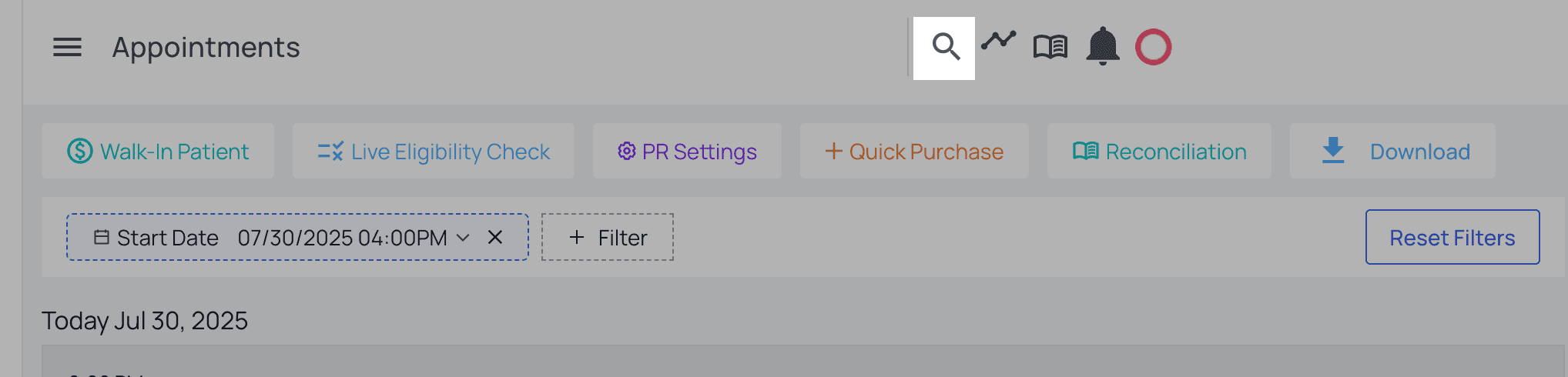 …or you can press **Cmd + K** on a Mac keyboard (**Ctrl + K** for PC users).
Either way, a universal search window will appear.
Simply start typing a patient’s name and select their Patient Profile link, like so:
…or you can press **Cmd + K** on a Mac keyboard (**Ctrl + K** for PC users).
Either way, a universal search window will appear.
Simply start typing a patient’s name and select their Patient Profile link, like so:
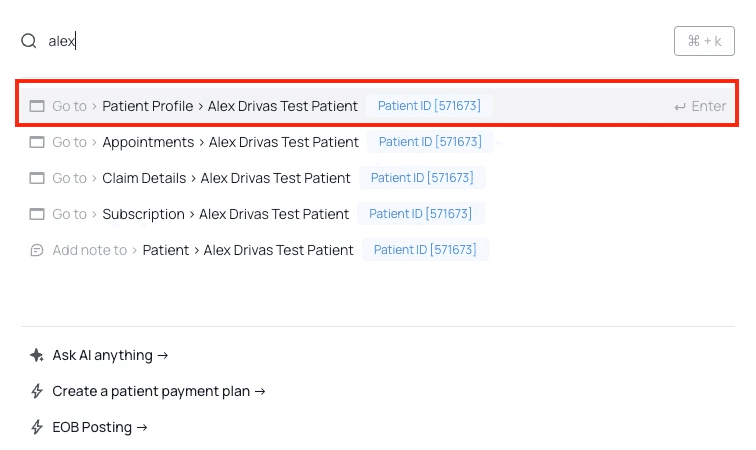 **Pro tip**: Universal Search (shortcut Cmd + K for Mac, or Ctrl + K for PC users) can search for anything in Insights — specific appointments, payment plans, claims, you name it. Use it well and often.
#### The Classic Way
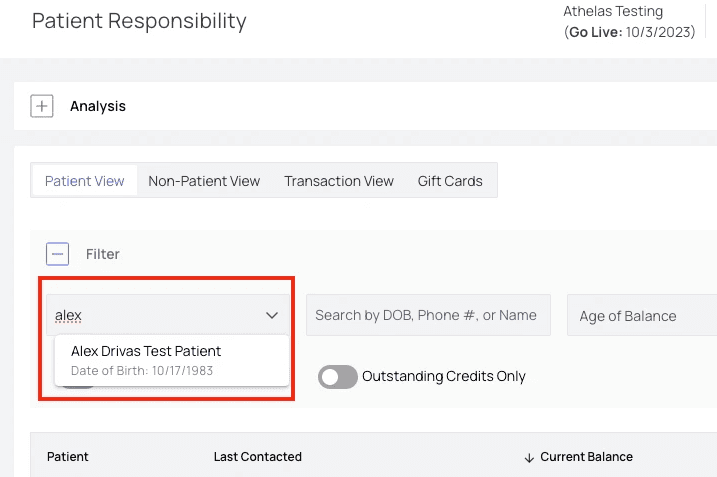
Navigate to the [Patient Responsibility](https://insights.athelas.com/v2/patient-responsibility) tab. Click into the ‘Patient’ search field and enter the name of the patient.
**Click the patient name** where it appears in the list to enter the patient’s account.
**Pro tip**: Universal Search (shortcut Cmd + K for Mac, or Ctrl + K for PC users) can search for anything in Insights — specific appointments, payment plans, claims, you name it. Use it well and often.
#### The Classic Way
Navigate to the [Patient Responsibility](https://insights.athelas.com/v2/patient-responsibility) tab. Click into the ‘Patient’ search field and enter the name of the patient.
**Click the patient name** where it appears in the list to enter the patient’s account.
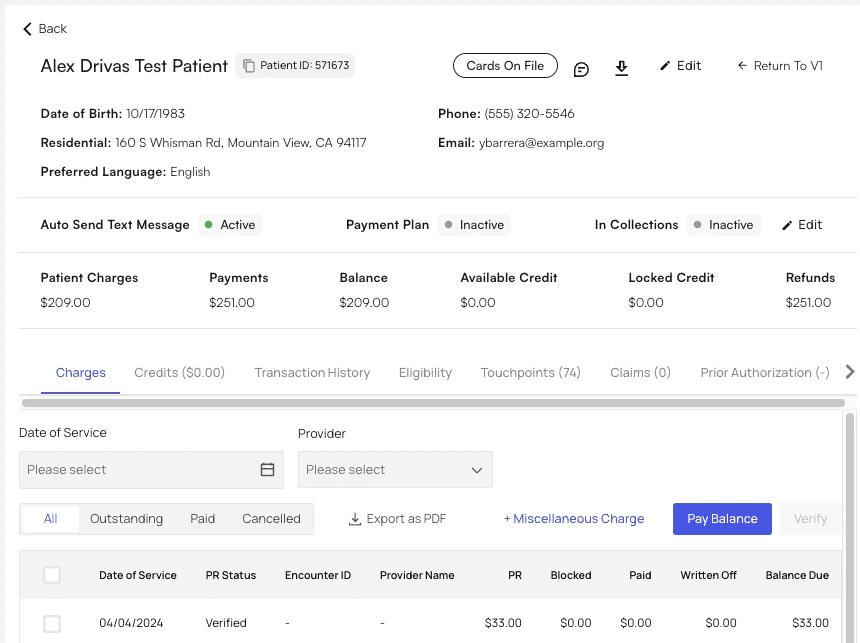
 This will take you to the patient’s profile.
 ####
#### Editing Patient Profile Information
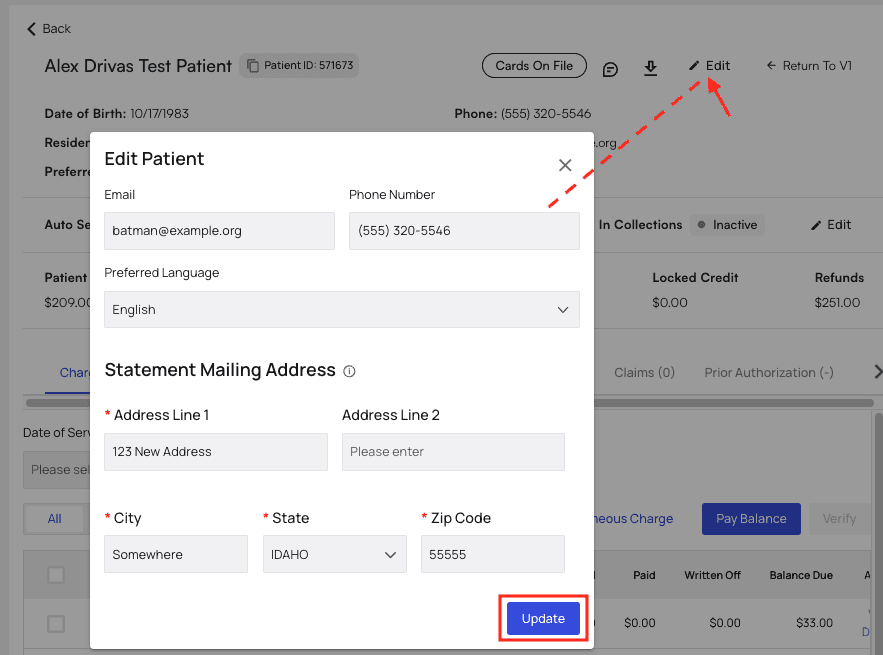
To change the patient’s email address, phone number, or statement mailing address, click the ‘Actions’ menu and choose ‘Edit.’
*As previously mentioned, basic identifying information like patient name and home address cannot be edited here. Update that information in your EHR first and it will appear in Insights within 24 hours.*
A new window will appear. Update the fields you would like to change and then click `Update`.
Note that you may need to refresh the page afterward for your changes to appear.
####
#### Editing Patient Profile Information
To change the patient’s email address, phone number, or statement mailing address, click the ‘Actions’ menu and choose ‘Edit.’
*As previously mentioned, basic identifying information like patient name and home address cannot be edited here. Update that information in your EHR first and it will appear in Insights within 24 hours.*
A new window will appear. Update the fields you would like to change and then click `Update`.
Note that you may need to refresh the page afterward for your changes to appear.
 You can now see the patient’s updated information in their profile header card.
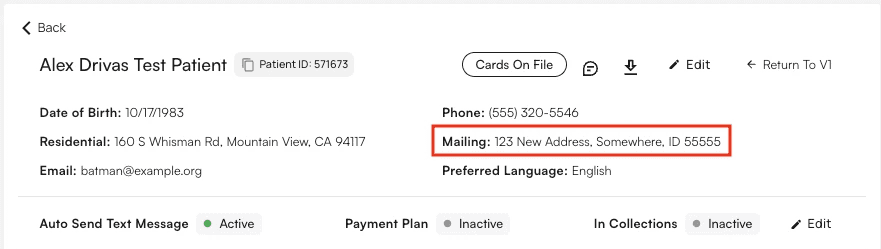 Use the top three buttons to [add or update the patient’s credit cards on file](/insights_front_desk/patient_responsibility/manage_credit_cards), write a note about the patient, [download their current mail statement](/insights_front_desk/patient_statements/print_patient_statements), or create a patient portal link for this patient.
 ### Tabs
You’ll notice the following tabs beneath a patient’s basic information.
### Tabs
You’ll notice the following tabs beneath a patient’s basic information.
 **Charges**
This tab displays all of a patient’s charges, ordered by latest Date of Service.
**Charges**
This tab displays all of a patient’s charges, ordered by latest Date of Service.
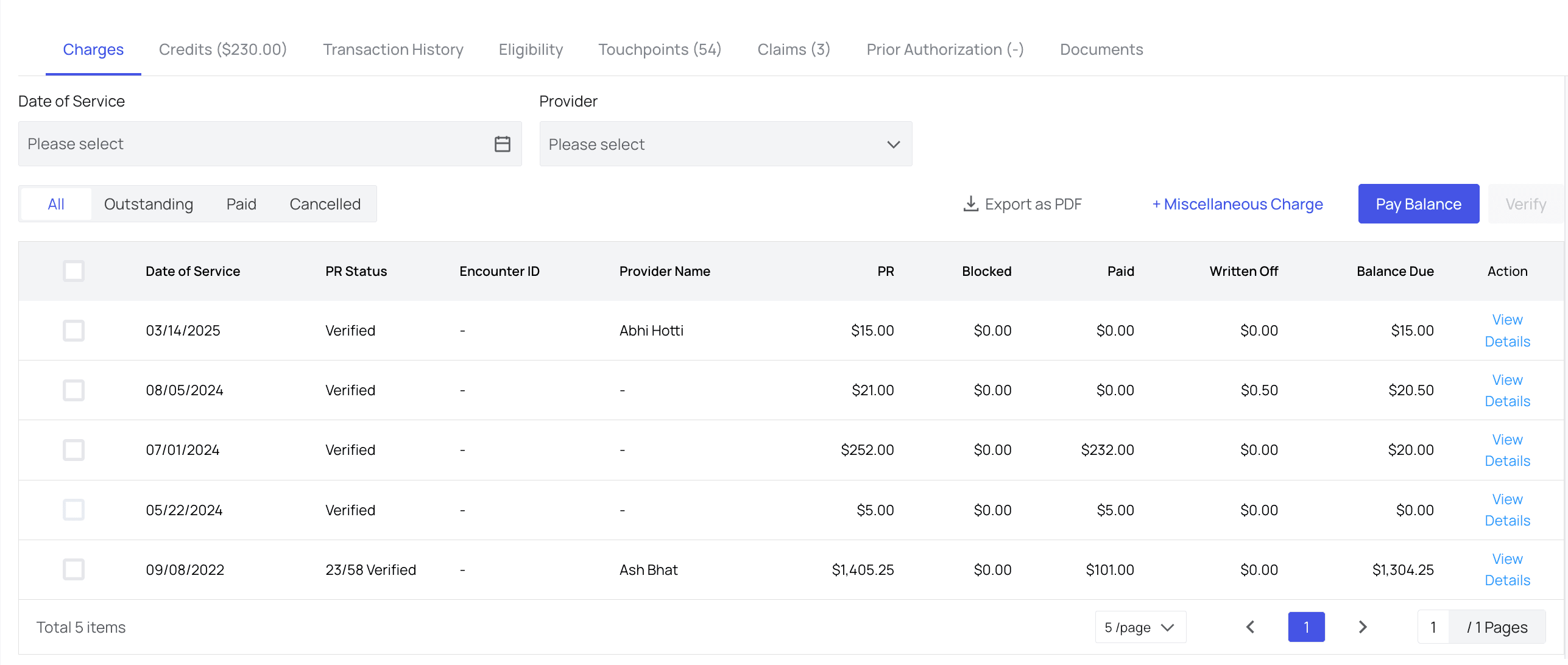 See these guides to learn more about the functions available through the Charges tab:
**Statement Functions**
🖨️ [How to Print a Patient Statement](/insights_front_desk/patient_statements/print_patient_statements)
📬 [How to Send a 1-Off Paper Statement](/insights_front_desk/patient_statements/send_one_off_paper_statements)
📧 [How to Send an Email Statement](/insights_front_desk/patient_statements/send_email_statements)
**Charge Functions**
🏓 [How to Set Up Miscellaneous Line Item Charges](/insights_front_desk/patient_responsibility/how_to_set_up_miscellaneous_line_item_charges)
↩️ [How to Refund a Payment](/insights_front_desk/patient_responsibility/how_to_refund_a_payment)
❌ [How to Cancel Patient Responsibility](/insights_front_desk/patient_responsibility/how_to_cancel_pr)
📝 [How to Write Off Patient Responsibility](/insights_front_desk/patient_responsibility/how_to_write_off_pr)
⌛ [How to Undo a Write-Off](/insights_front_desk/patient_responsibility/how_to_undo_a_write_off)
👪 [How to Take Payment for Multiple Family Members Together](/insights_front_desk/patient_responsibility/how_to_take_payment_for_families)
📲 [How to Request Payment by Text Message or Email](/insights_front_desk/patient_responsibility/how_to_request_via_text_or_email)
**Credits**
View and manage patient credits through the Credits tab:
🦘 [How to Record Payments Taken in an External System](/insights_front_desk/patient_responsibility/how_to_record_payments)
**Transaction History**
View all transactions in a chronological history here. You can also click in to individual transactions to find receipts or make refunds, just as you would in the Charges tab.
**Eligibility**
Full eligibility details available here, along with raw EDI info if you click `See More Details`. See the guide on [how to run eligibility checks](/insights_front_desk/appointments/how_to_run_an_eligibility_check) for more information.
**Touchpoints**
All automated PR collection texts and emails are listed here, along with data on their success or lack thereof. You can update the content and frequency of these automatic communications in [PR Settings](/insights_front_desk/patient_responsibility/pr_settings).
**Claims**
All of this patient’s claims are listed here. This is functionally the same as using this patient’s name as a filter on the [Claim Details page](https://insights.athelas.com/v3/claim_level_view).
**Prior Authorization**
View, create, and edit prior authorizations here.
You’ll generally come here during patient intake, or when claims are denied due to an issue with prior auth and you need to update this information.
**Documents**
You can store a patient’s documents for future reference in this tab, including insurance card, intake information, driver’s license, and more.
See these guides to learn more about the functions available through the Charges tab:
**Statement Functions**
🖨️ [How to Print a Patient Statement](/insights_front_desk/patient_statements/print_patient_statements)
📬 [How to Send a 1-Off Paper Statement](/insights_front_desk/patient_statements/send_one_off_paper_statements)
📧 [How to Send an Email Statement](/insights_front_desk/patient_statements/send_email_statements)
**Charge Functions**
🏓 [How to Set Up Miscellaneous Line Item Charges](/insights_front_desk/patient_responsibility/how_to_set_up_miscellaneous_line_item_charges)
↩️ [How to Refund a Payment](/insights_front_desk/patient_responsibility/how_to_refund_a_payment)
❌ [How to Cancel Patient Responsibility](/insights_front_desk/patient_responsibility/how_to_cancel_pr)
📝 [How to Write Off Patient Responsibility](/insights_front_desk/patient_responsibility/how_to_write_off_pr)
⌛ [How to Undo a Write-Off](/insights_front_desk/patient_responsibility/how_to_undo_a_write_off)
👪 [How to Take Payment for Multiple Family Members Together](/insights_front_desk/patient_responsibility/how_to_take_payment_for_families)
📲 [How to Request Payment by Text Message or Email](/insights_front_desk/patient_responsibility/how_to_request_via_text_or_email)
**Credits**
View and manage patient credits through the Credits tab:
🦘 [How to Record Payments Taken in an External System](/insights_front_desk/patient_responsibility/how_to_record_payments)
**Transaction History**
View all transactions in a chronological history here. You can also click in to individual transactions to find receipts or make refunds, just as you would in the Charges tab.
**Eligibility**
Full eligibility details available here, along with raw EDI info if you click `See More Details`. See the guide on [how to run eligibility checks](/insights_front_desk/appointments/how_to_run_an_eligibility_check) for more information.
**Touchpoints**
All automated PR collection texts and emails are listed here, along with data on their success or lack thereof. You can update the content and frequency of these automatic communications in [PR Settings](/insights_front_desk/patient_responsibility/pr_settings).
**Claims**
All of this patient’s claims are listed here. This is functionally the same as using this patient’s name as a filter on the [Claim Details page](https://insights.athelas.com/v3/claim_level_view).
**Prior Authorization**
View, create, and edit prior authorizations here.
You’ll generally come here during patient intake, or when claims are denied due to an issue with prior auth and you need to update this information.
**Documents**
You can store a patient’s documents for future reference in this tab, including insurance card, intake information, driver’s license, and more.