> ## Documentation Index
> Fetch the complete documentation index at: https://trainings.air.athelas.com/llms.txt
> Use this file to discover all available pages before exploring further.
# How to Refund a Payment
#### Walkthrough
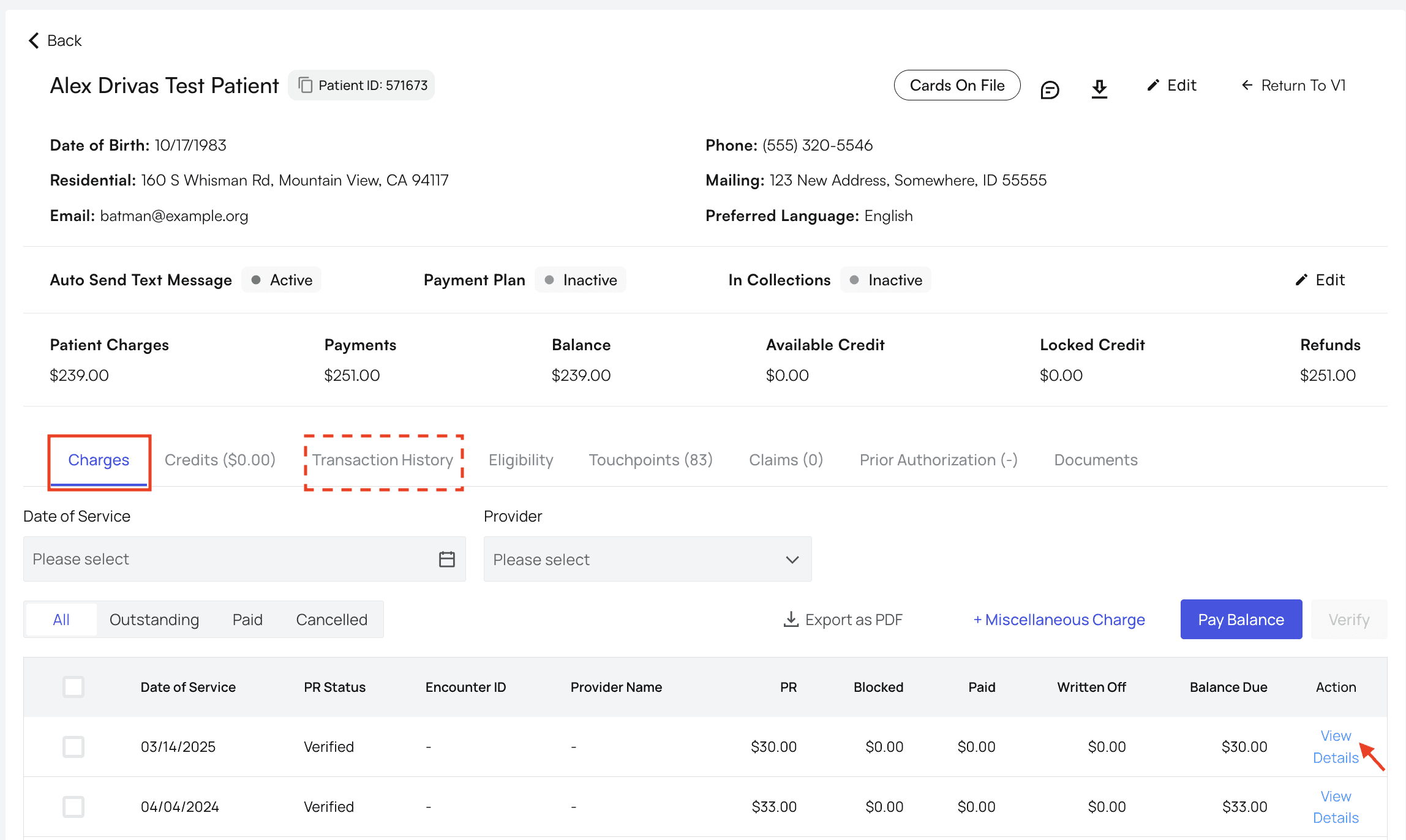
Navigate to the patient’s profile.
There are two ways you can view the payment: the Charges tab, or the Transaction History tab.
The process is the same for both. For this example, we’ll use the Charges tab.
Look for the transaction in question and click `View Details`.
 ### Refund the Payment
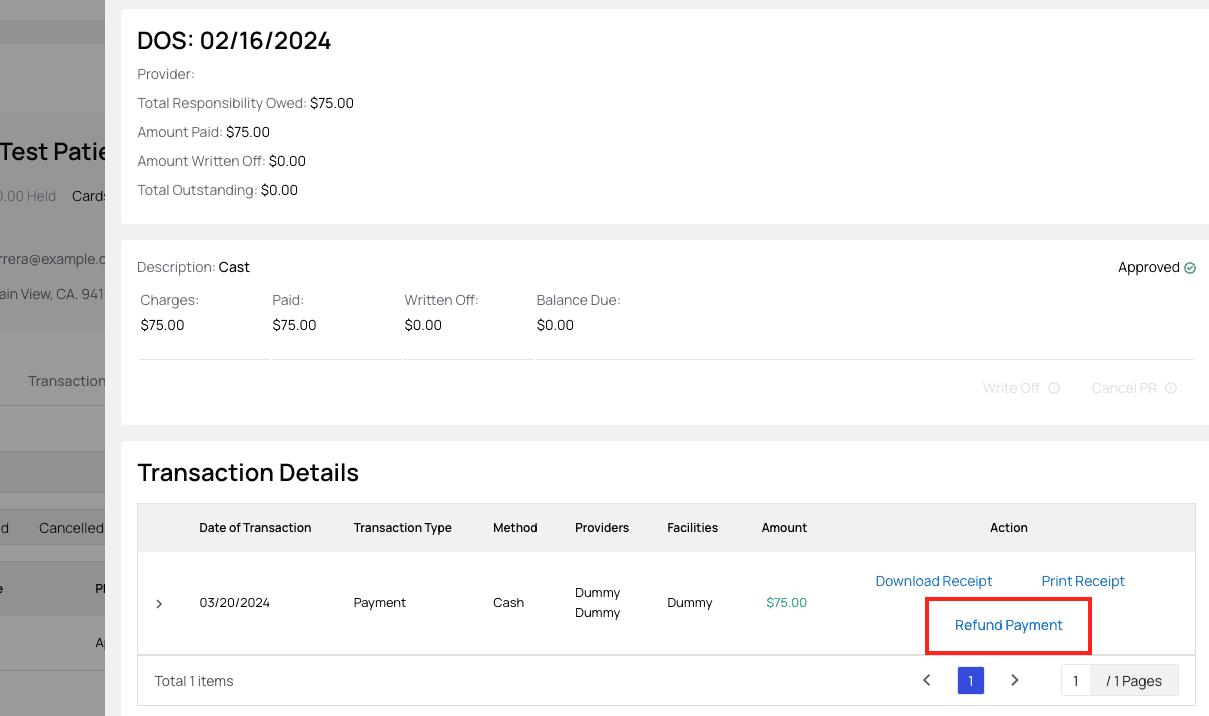
On the Transaction Details table, find the specific transaction you want to refund and click the `Refund Payment` button.
### Refund the Payment
On the Transaction Details table, find the specific transaction you want to refund and click the `Refund Payment` button.
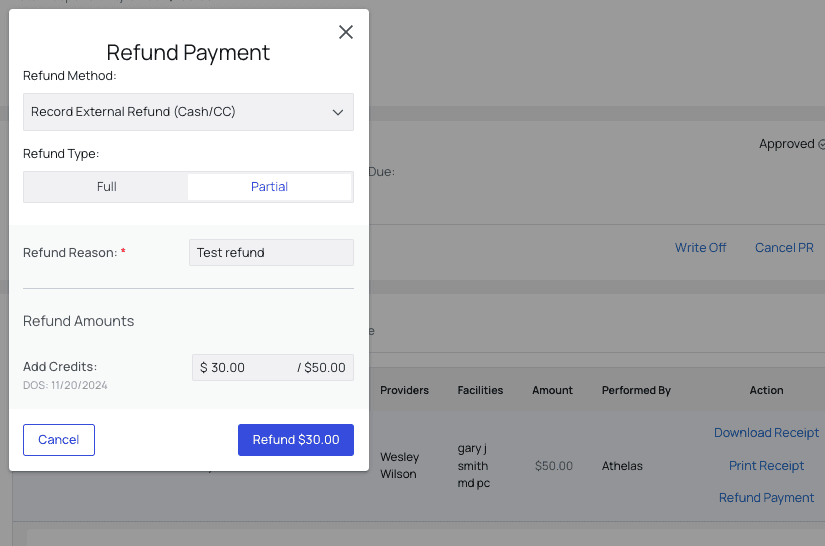
 Specify whether this is a full or partial refund, the method of refund, amount (if partial), and reason for the refund in the popup.
 When selecting the Refund Method, you have the following options:
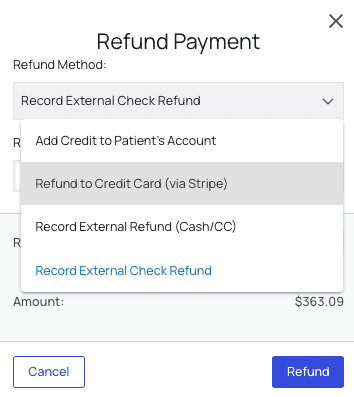 * **Add Credit to Patient’s Account**This payment will become credits on the patient’s account, and will be applied to future balances due.
* \*\*Refund to Credit Card (via Stripe)\*\*If a patient originally paid with their credit card via the Stripe card reader provided by Athelas, this is the go-to option for straightforward refunds!
* \*\*Record External Refund (Cash/CC)\*\*This is how you record a cash or credit card refund (if the card payment was taken outside of the Athelas card reader).
* **Record External Check Refund**If you’re choosing to pay the patient back with a check, use this option to record that the refund has taken place.
Once you’ve entered all the necessary information, click `Refund`.
### Refund Complete!
You should now see a new row in the transaction table showing the refund you just triggered.
* **Add Credit to Patient’s Account**This payment will become credits on the patient’s account, and will be applied to future balances due.
* \*\*Refund to Credit Card (via Stripe)\*\*If a patient originally paid with their credit card via the Stripe card reader provided by Athelas, this is the go-to option for straightforward refunds!
* \*\*Record External Refund (Cash/CC)\*\*This is how you record a cash or credit card refund (if the card payment was taken outside of the Athelas card reader).
* **Record External Check Refund**If you’re choosing to pay the patient back with a check, use this option to record that the refund has taken place.
Once you’ve entered all the necessary information, click `Refund`.
### Refund Complete!
You should now see a new row in the transaction table showing the refund you just triggered.
 If you refunded to credits, that new credit will appear in the patient's ‘Credits’ tab.
**Important Note: Leftover PR**
When you refund a payment in Athelas Insights, that does not automatically remove any patient responsibility associated with the payment
For example, when you collect a \$75 Self-Pay payment for an appointment, Athelas automatically creates a \$75 unit of PR linked to the payment. If you then refund the \$75 payment, that leaves behind the PR creating a balance due.
To erase *both the payment and its implied PR*, you will need to go into the Charges tab and cancel the PR as well.
If you refunded to credits, that new credit will appear in the patient's ‘Credits’ tab.
**Important Note: Leftover PR**
When you refund a payment in Athelas Insights, that does not automatically remove any patient responsibility associated with the payment
For example, when you collect a \$75 Self-Pay payment for an appointment, Athelas automatically creates a \$75 unit of PR linked to the payment. If you then refund the \$75 payment, that leaves behind the PR creating a balance due.
To erase *both the payment and its implied PR*, you will need to go into the Charges tab and cancel the PR as well.