> ## Documentation Index
> Fetch the complete documentation index at: https://trainings.air.athelas.com/llms.txt
> Use this file to discover all available pages before exploring further.
# How to Request via Text or Email
### At a Glance
Your patients will automatically receive text message requests for payment on a regular basis, provided that your practice has **email and** **text messages enabled** in your [patient statement settings](https://insights.athelas.com/v2/pr-statements).
If, however, a patient would like to pay with a credit card now, or if they left your office without paying their copay, you can manually send them a request for payment via text message or email.
Apple Pay is available if the patient would like to pay via text message.
You can also send appointment reminders with options to pay co-pay, coinsurance, deductible, or outstanding balances in advance.
### Here’s How to Do It
Navigate to the patient’s profile.
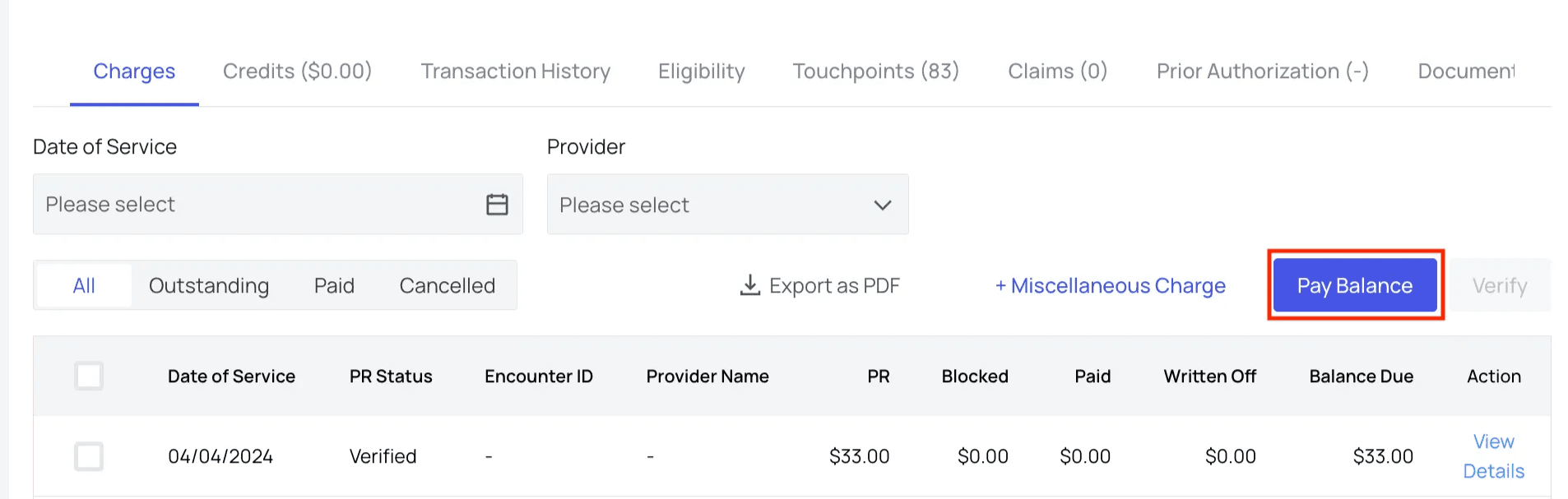
In the ‘Charges’ tab, click `Pay Balance`.
**Note:** this button will be disabled if the patient does not currently have a balance.
 Select the option to **“Request Payment via Text.”**
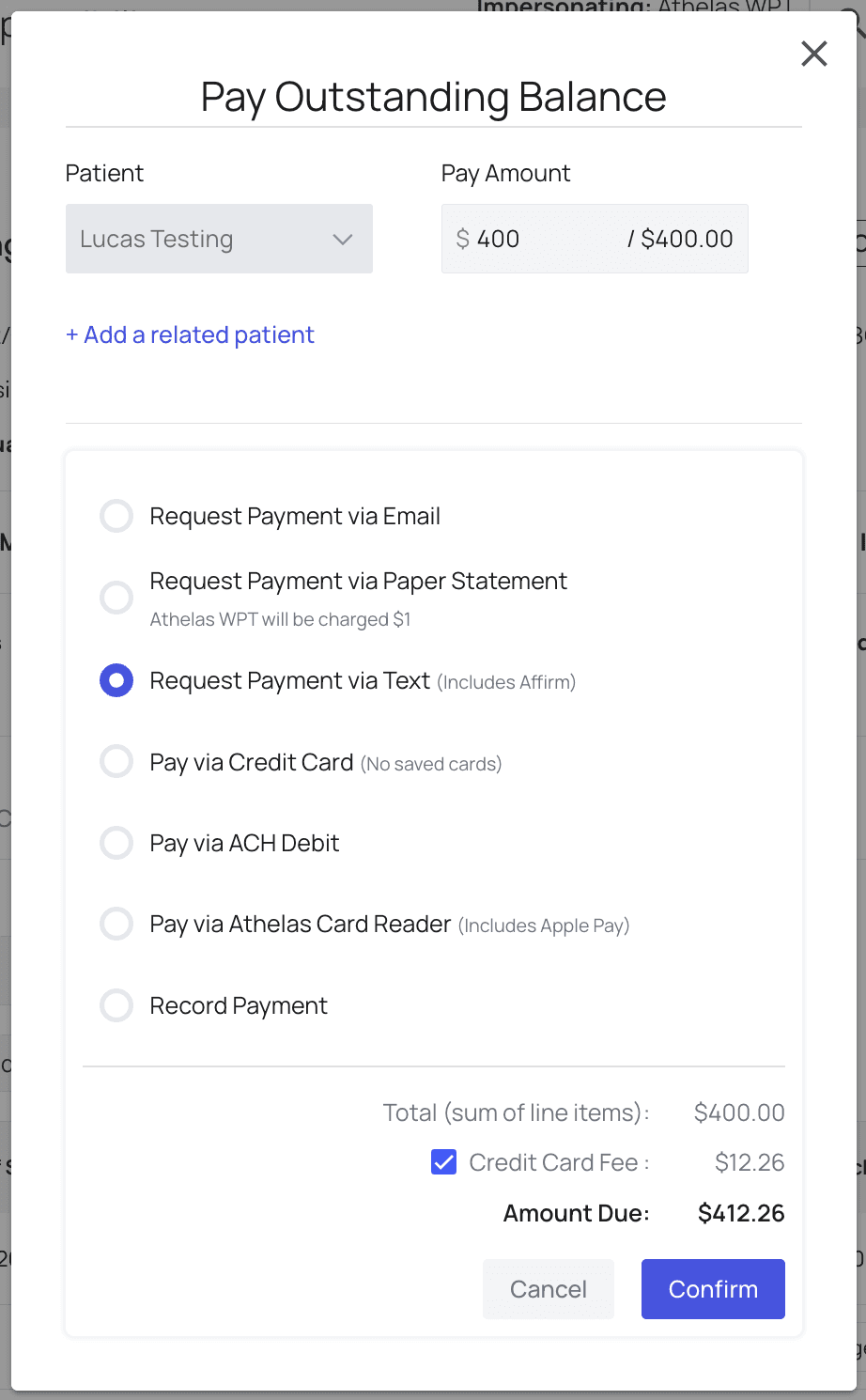 Click `Confirm`. A request for payment will automatically be generated and sent via text or email within 5 minutes.
### What the Patient Sees
#### Payment Request via Text Message
The text message payment request provides options to pay with a credit card or Apple Pay.
Click `Confirm`. A request for payment will automatically be generated and sent via text or email within 5 minutes.
### What the Patient Sees
#### Payment Request via Text Message
The text message payment request provides options to pay with a credit card or Apple Pay.
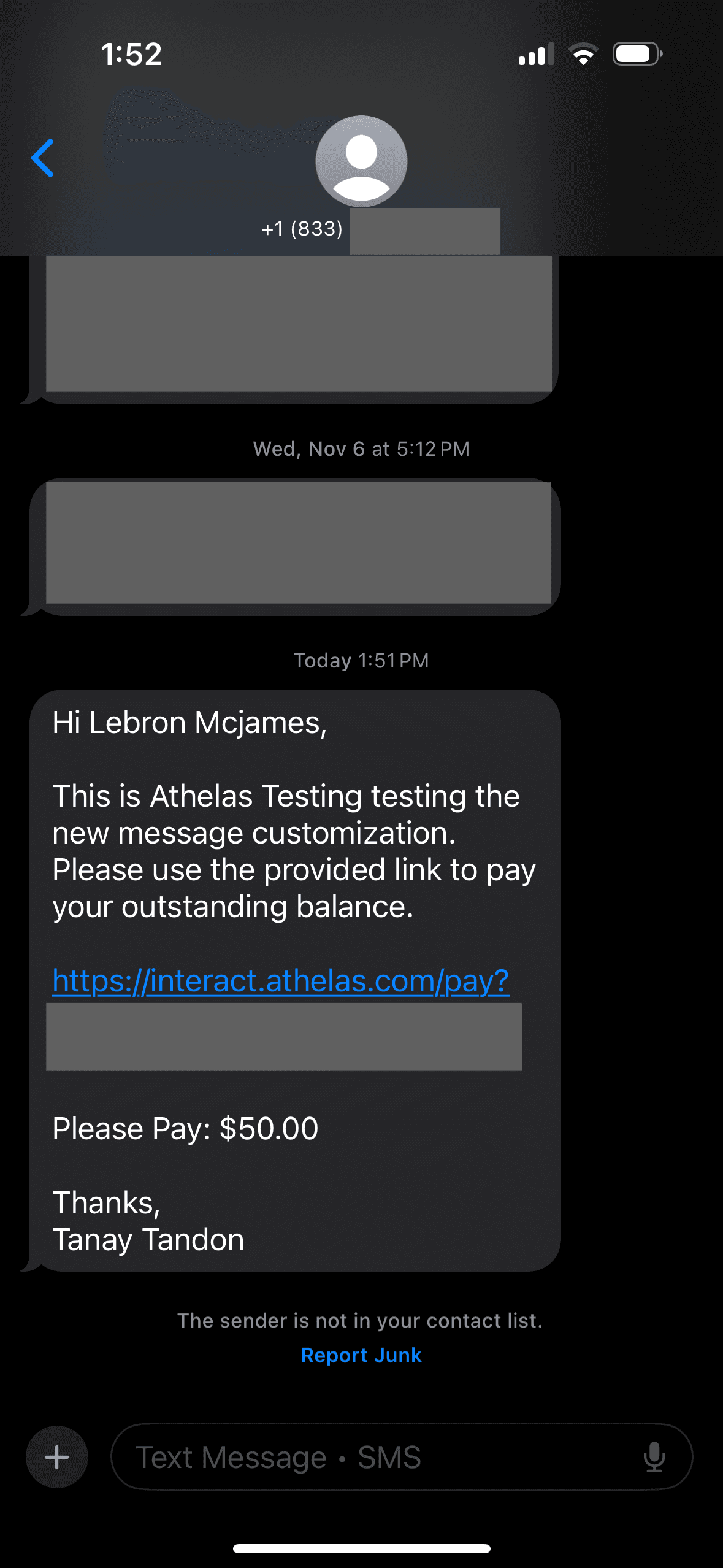 You can customize the text message your patients will receive. To do this, navigate to your [PR Settings](https://insights.athelas.com/v2/patient-responsibility-settings), select the General tab, and scroll down to the Text Message Customization section. If you’d like more details on this feature, please see [this guide](/insights_front_desk/patient_responsibility/pr_settings).
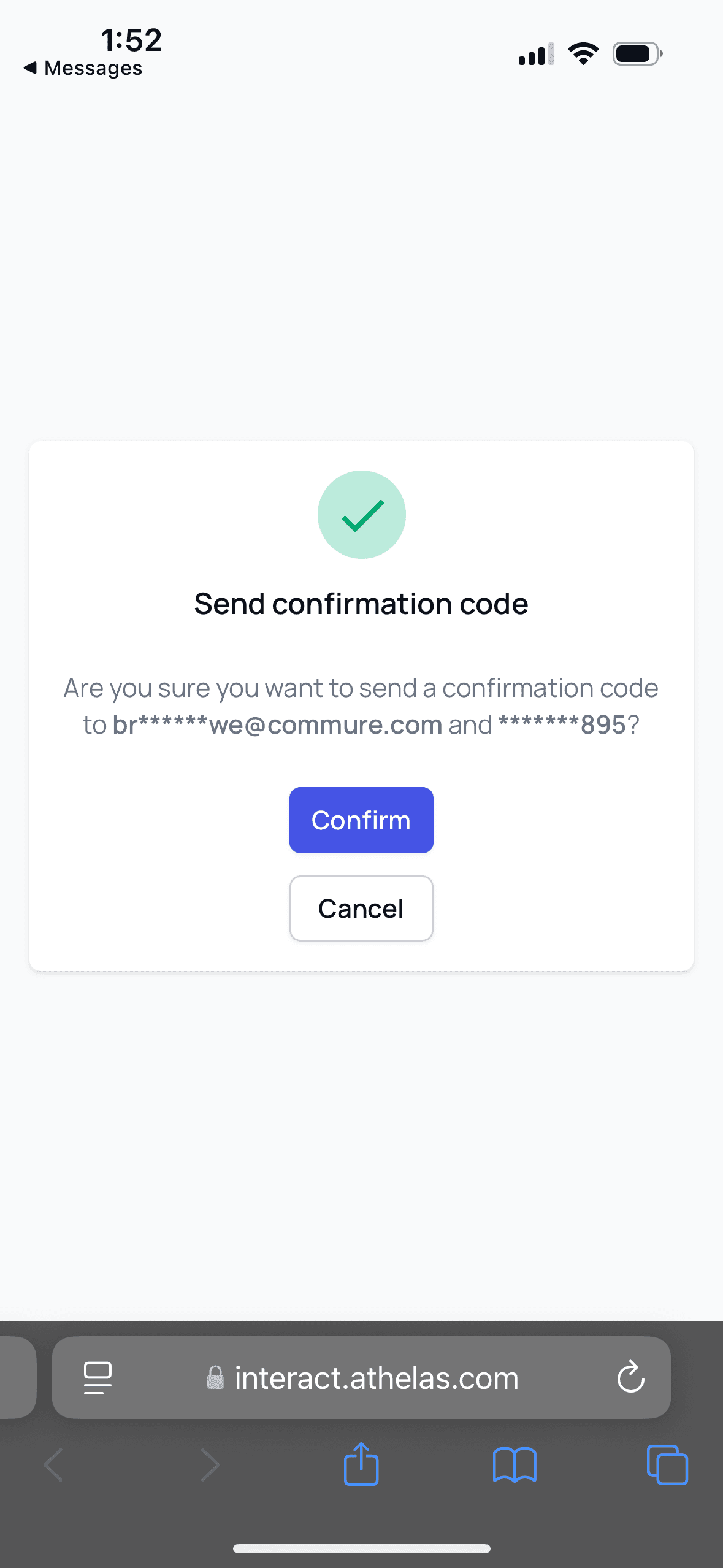
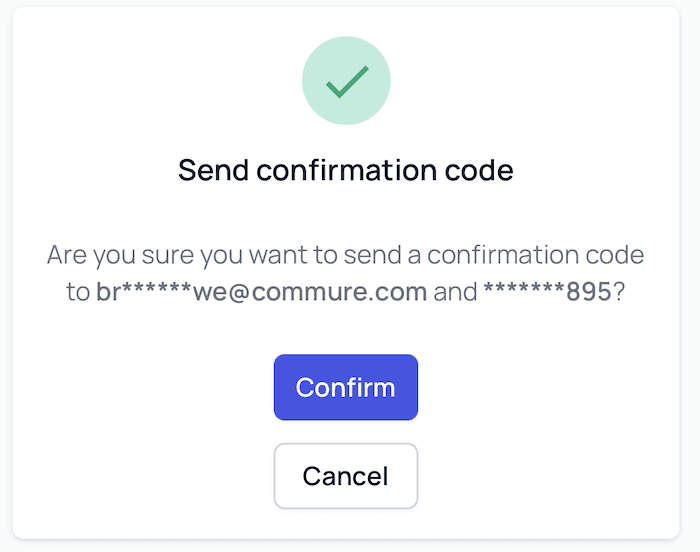
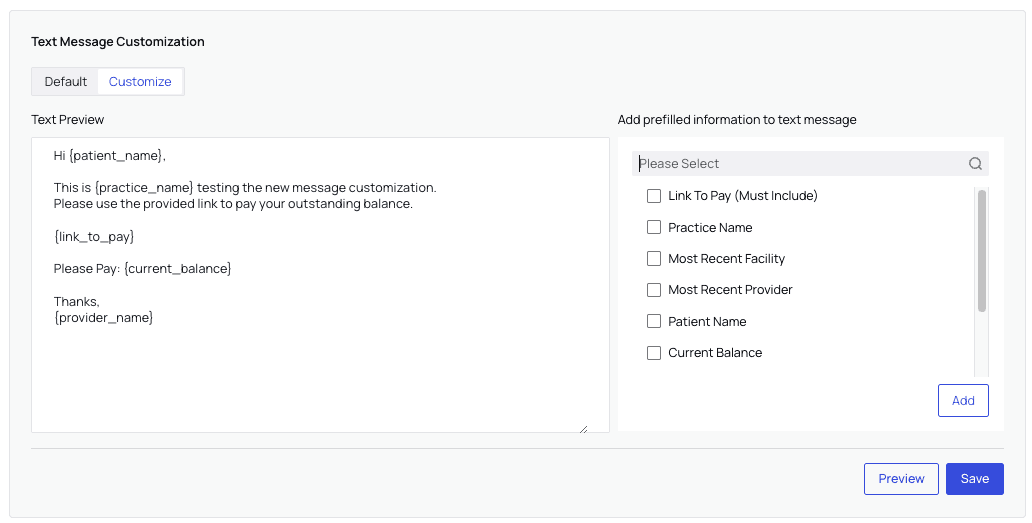 Upon opening the link in the text, patients will tap `Confirm` to receive a confirmation code by text and email.
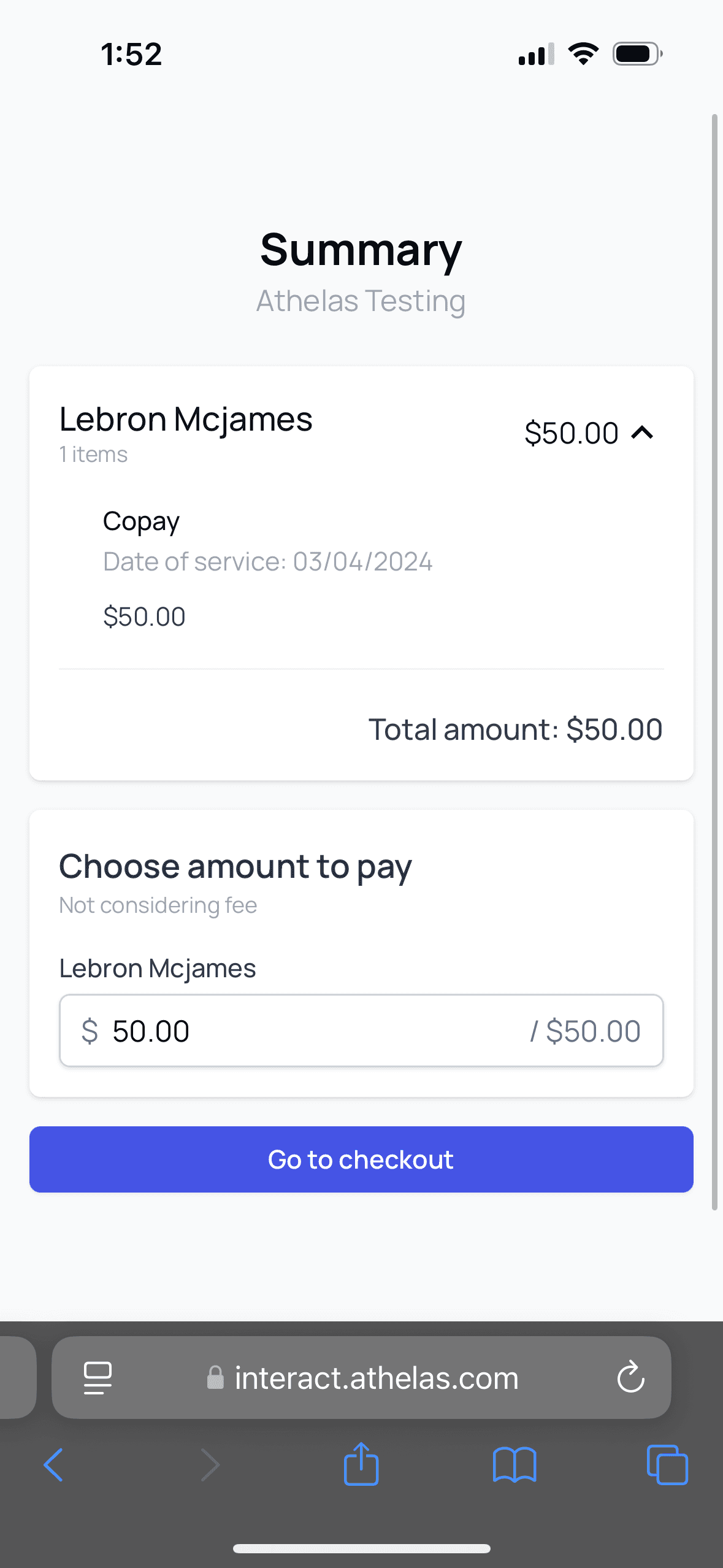
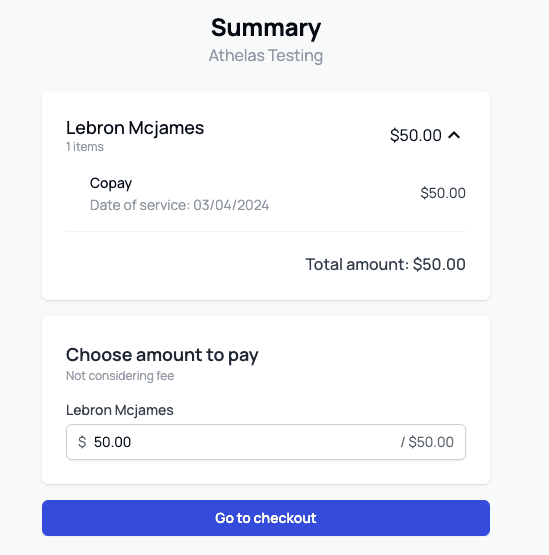
 Once they input the code, they’ll see the payment summary. The amount to be paid will default to the total balance, but they have the option to adjust the amount they’d like to pay today.
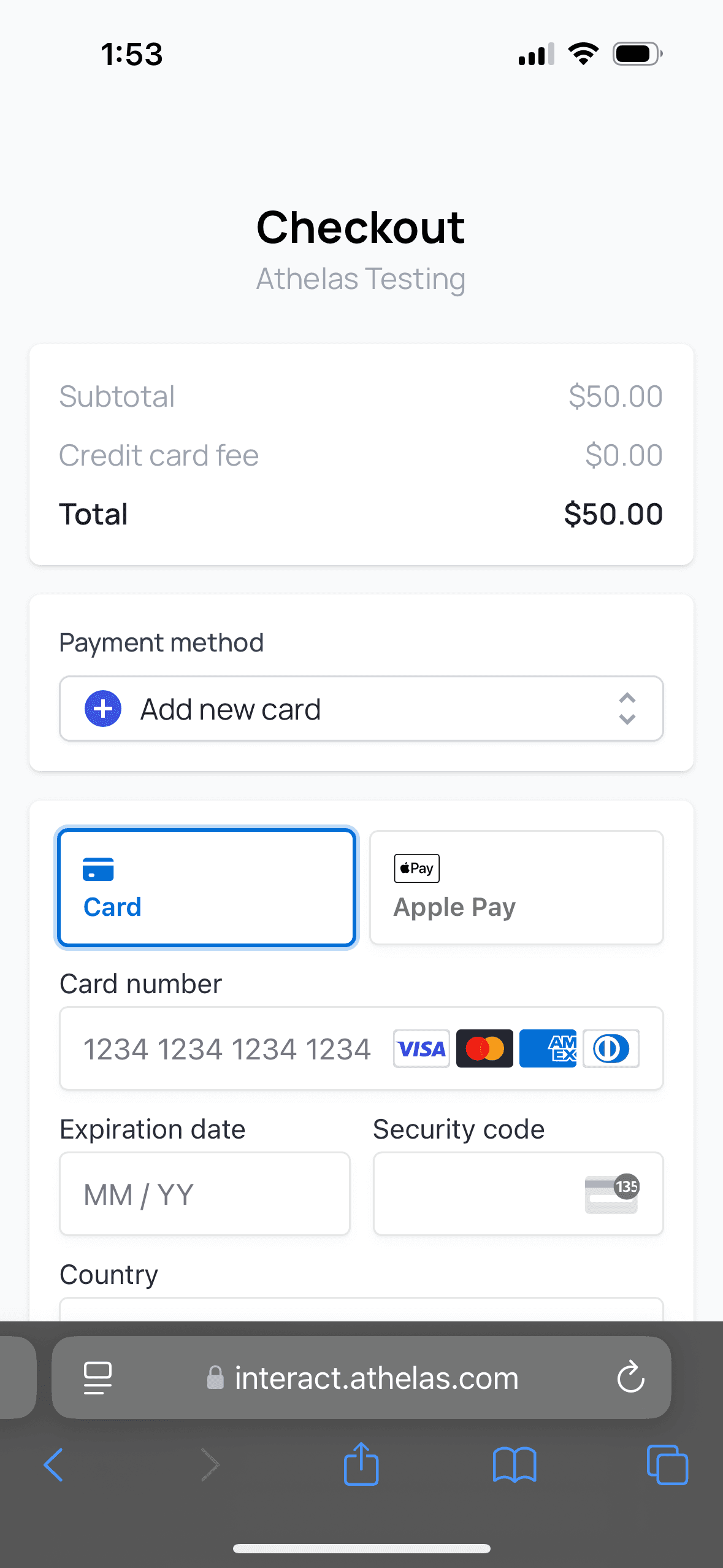
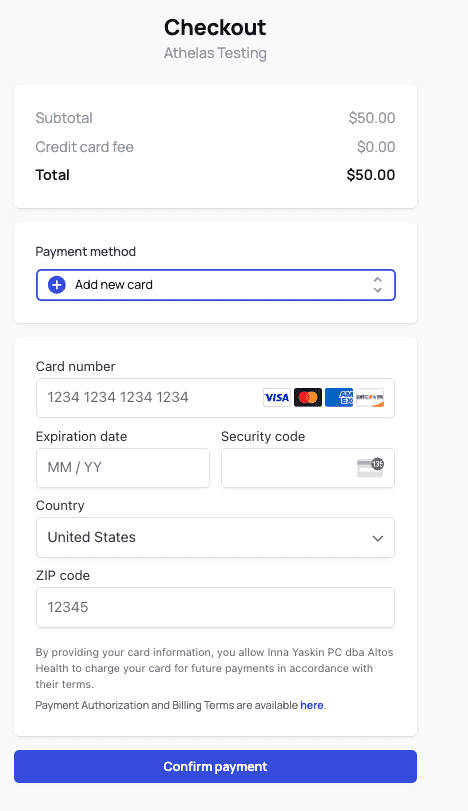
 After tapping `Go to Checkout`, they’ll choose their payment option and input their payment details, if applicable.
 #### Payment Request via Email
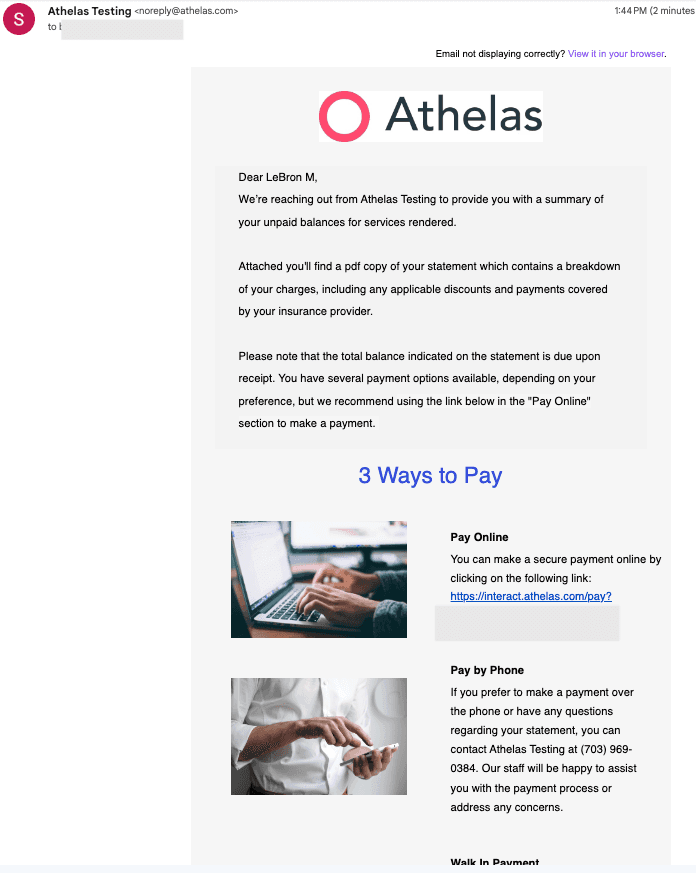
The email payment request offers three ways for the patient to pay: online, by phone, or in person.
The online option includes a patient payment link.
#### Payment Request via Email
The email payment request offers three ways for the patient to pay: online, by phone, or in person.
The online option includes a patient payment link.
 Upon clicking the online payment link, patients will tap `Confirm` to receive a confirmation code by text and email.
 Once they input the code, they’ll see their charge summary. Here, they can adjust the amount they’d like to pay today before clicking `Go to Checkout`.
 The checkout screen allows them to select a card on file, if applicable, or to add a new card and pay with it.
 ### In Conclusion
At the end of the day, **check to see if any patients didn’t pay their copays**. If so, send them a text message request for payment to give them a belated opportunity to pay. This can catch a lot of lost revenue, and patients are more likely to trust the text message if it comes the same day as their appointment.
**Features Supported:**
* Send out communication to multiple patients at once
* Filter patients that will receive communication by appointment date ranges, providers, patients and insurances
### In Conclusion
At the end of the day, **check to see if any patients didn’t pay their copays**. If so, send them a text message request for payment to give them a belated opportunity to pay. This can catch a lot of lost revenue, and patients are more likely to trust the text message if it comes the same day as their appointment.
**Features Supported:**
* Send out communication to multiple patients at once
* Filter patients that will receive communication by appointment date ranges, providers, patients and insurances