> ## Documentation Index
> Fetch the complete documentation index at: https://trainings.air.athelas.com/llms.txt
> Use this file to discover all available pages before exploring further.
# How to Send a Patient Payment Link
### At a Glance
In addition to the many other payment collection methods offered in Insights, there is also a payment link option. The payment link shows patients all of their outstanding balance at once, with the option to view itemized cards with details of the encounters contributing to their balance.
### Here’s How to Do It
#### Via Email or Text Link
First, navigate to the [Appointments page](https://insights.athelas.com/v3/appointments) and choose the patient encounter in question. Click `Charge`.
 Enter the amount you would like to charge the patient.
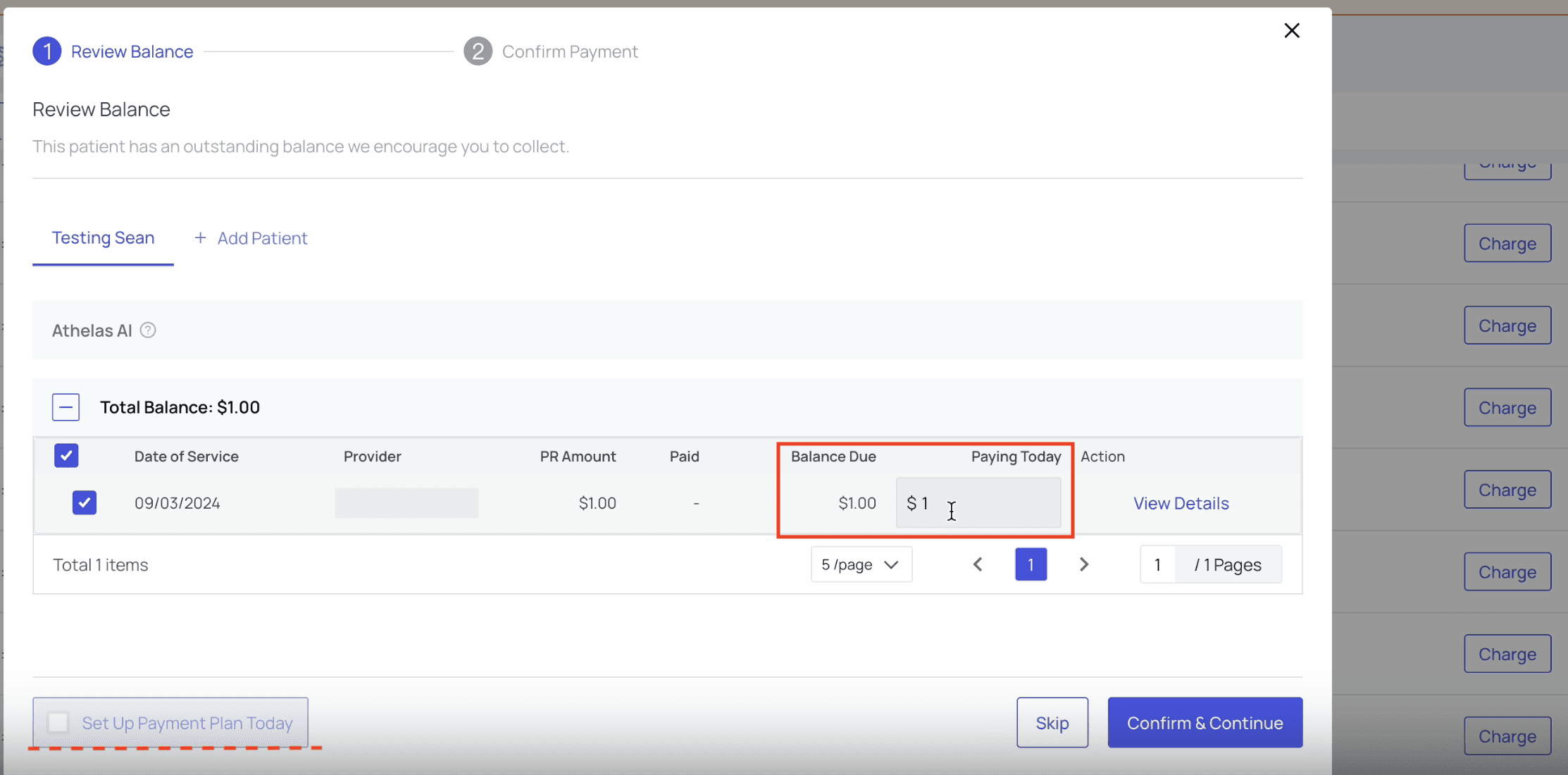 *Note that you can also *[***set up a payment plan***](/insights_front_desk/patient_responsibility/setting_up_a_payment_plan)* by checking the box in the lower left corner of the popup. This is an excellent way to collect at least some PR from any patients hesitant to pay and ensure your practice receives what is owed.*
Click `Confirm & Continue`.
In the Confirm Payment window, choosing either `Request via Text` or `Request via Email` will send a payment link to the patient. For this example, we’ll select `Request via Email`, then click `Confirm`.
*Note that you can also *[***set up a payment plan***](/insights_front_desk/patient_responsibility/setting_up_a_payment_plan)* by checking the box in the lower left corner of the popup. This is an excellent way to collect at least some PR from any patients hesitant to pay and ensure your practice receives what is owed.*
Click `Confirm & Continue`.
In the Confirm Payment window, choosing either `Request via Text` or `Request via Email` will send a payment link to the patient. For this example, we’ll select `Request via Email`, then click `Confirm`.
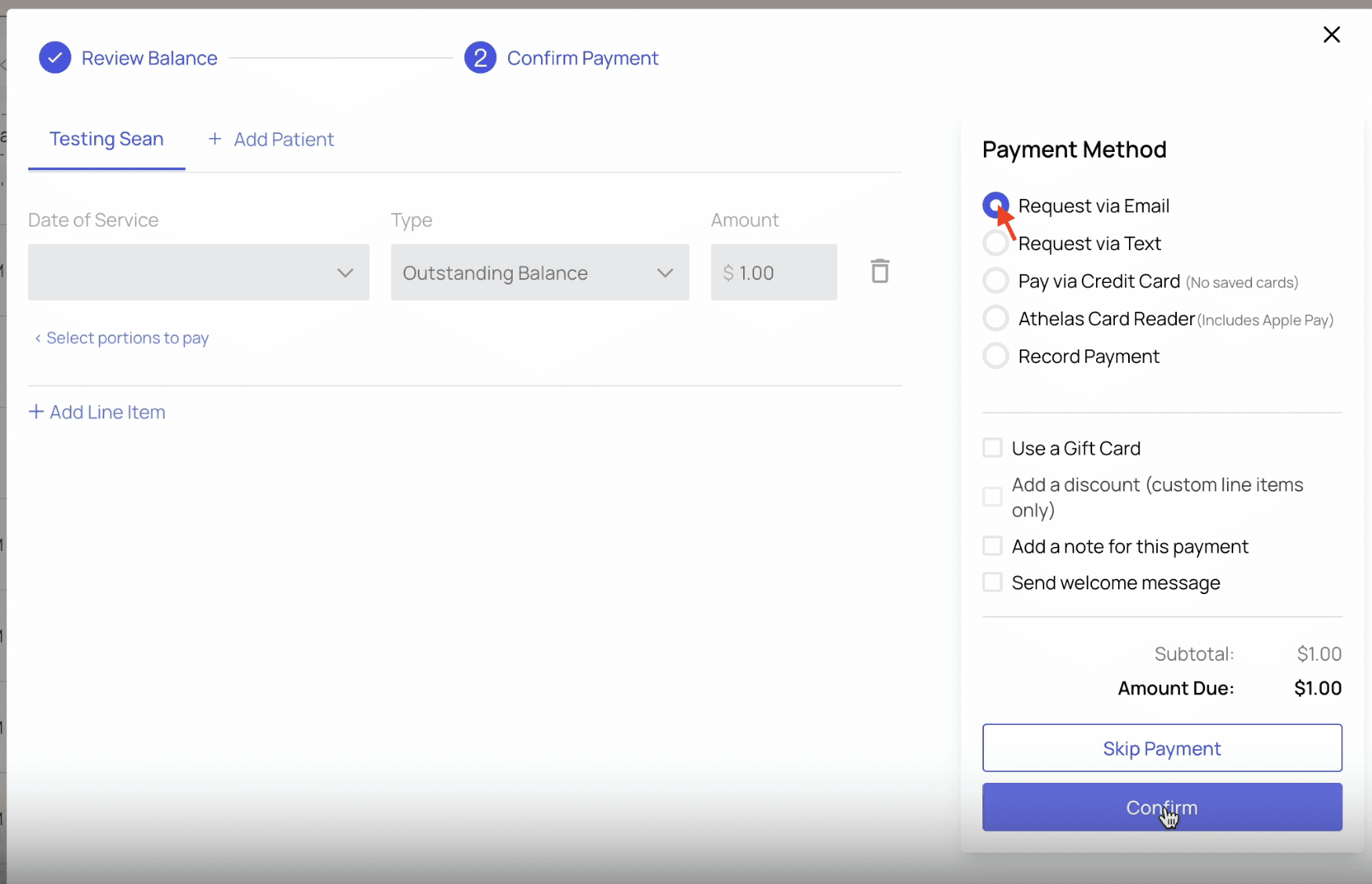 When the patient opens their email, they’ll see a message from your practice requesting payment with a link to do so.
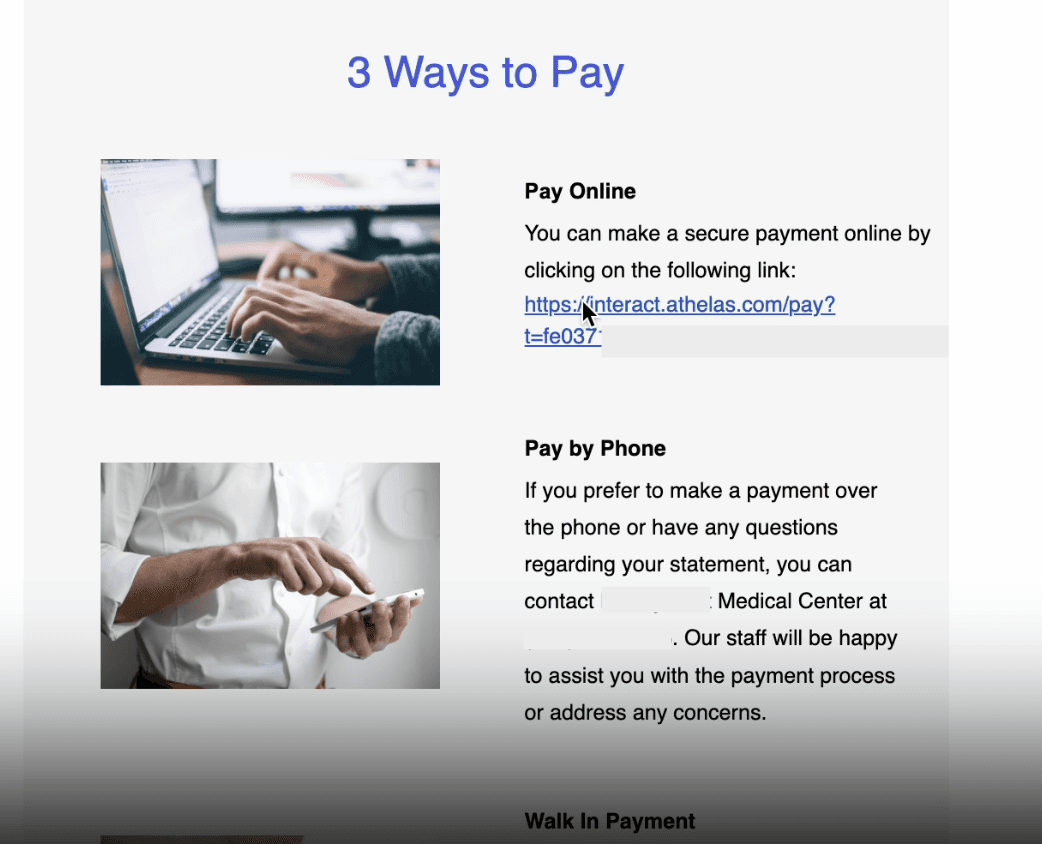
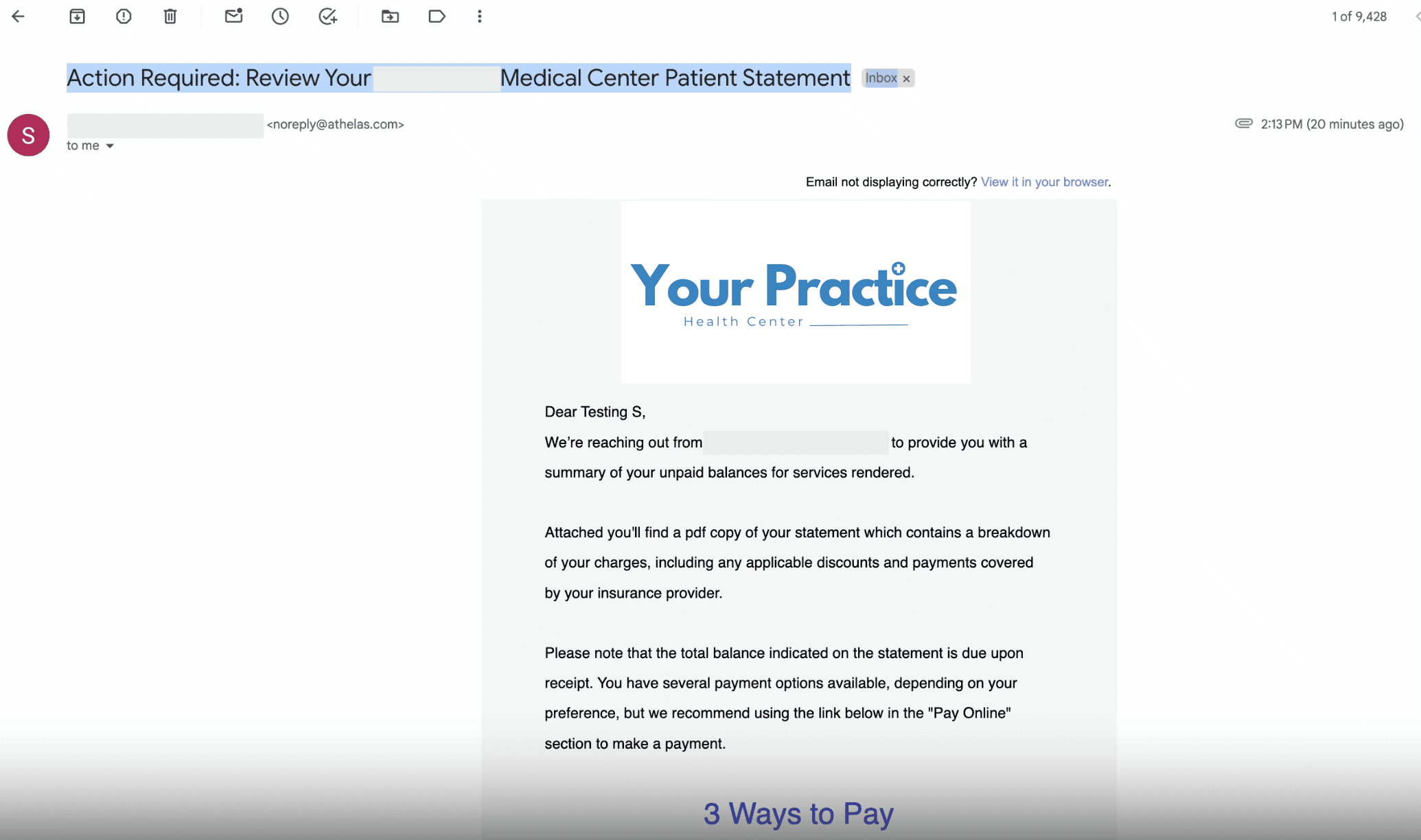 They can click the link provided to access the payment portal.
 #### Via Link Generation Within Insights
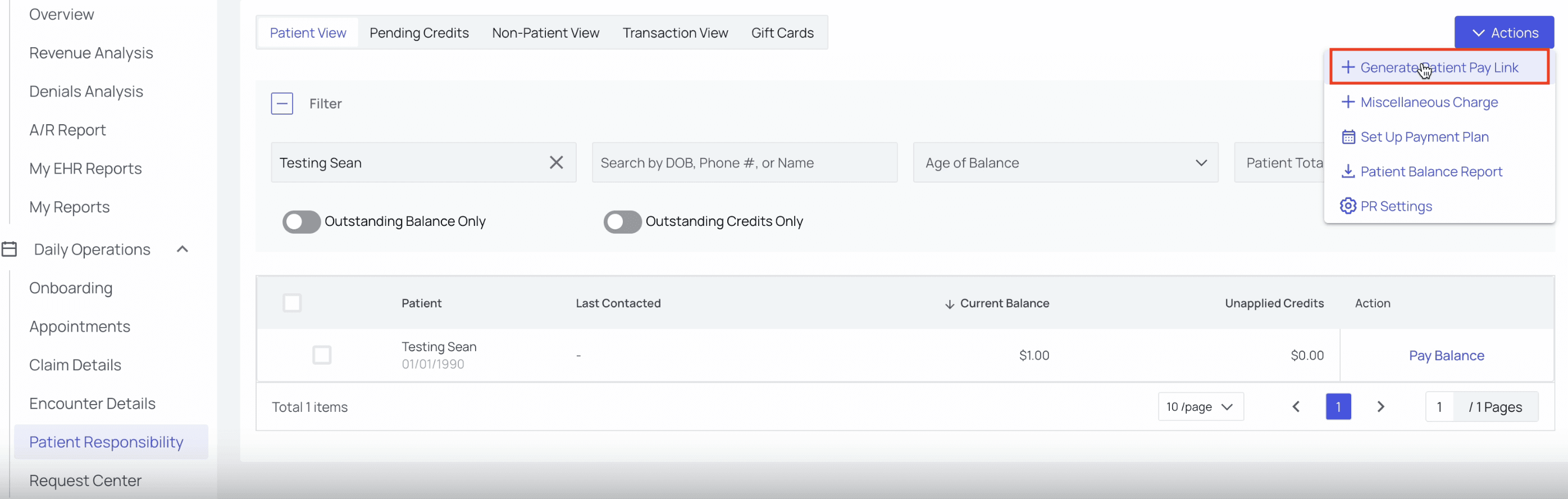
From the [Patient Responsibility page](https://insights.athelas.com/v2/patient-responsibility), click the `Actions` menu and choose `Generate Patient Pay Link`.
#### Via Link Generation Within Insights
From the [Patient Responsibility page](https://insights.athelas.com/v2/patient-responsibility), click the `Actions` menu and choose `Generate Patient Pay Link`.
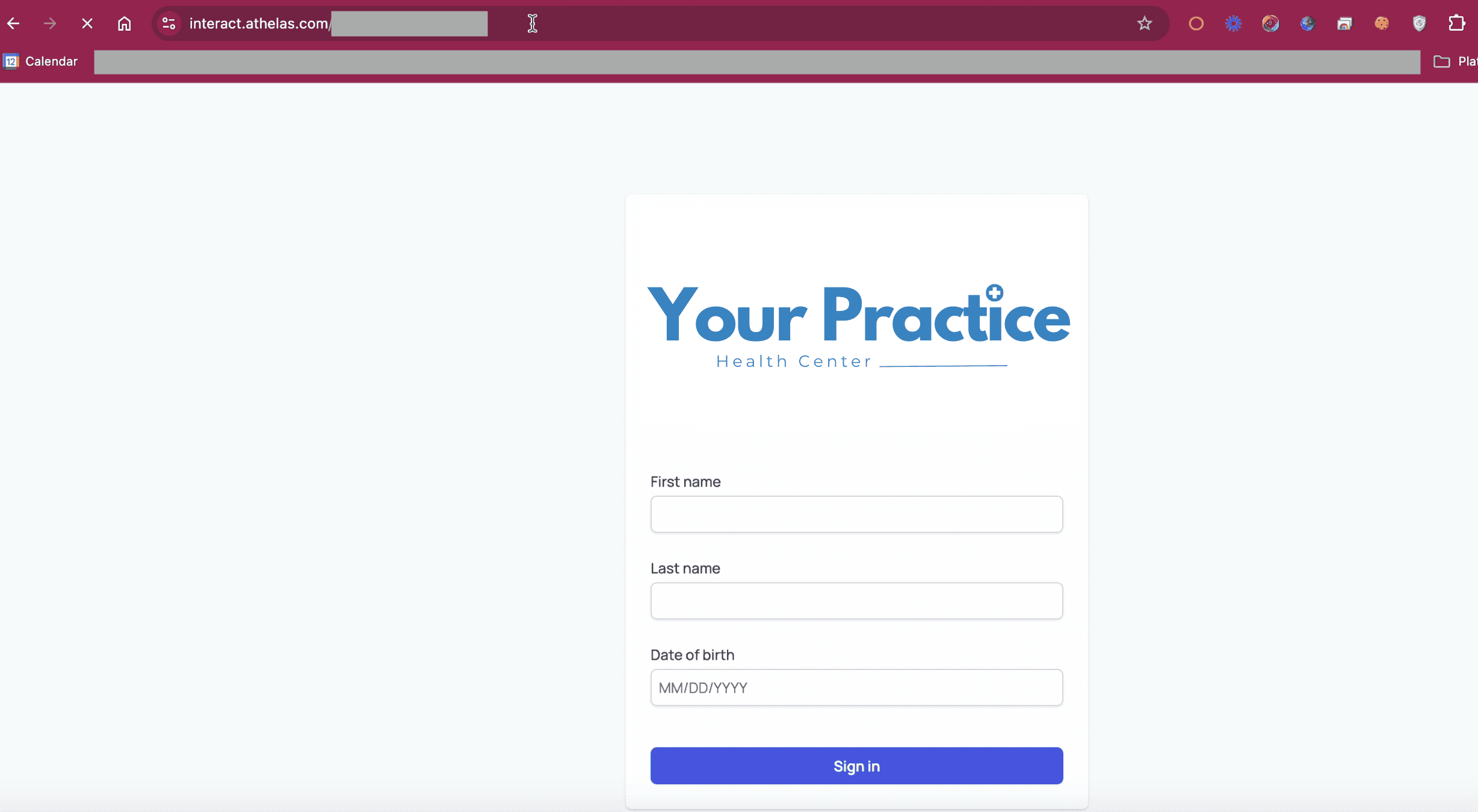
 Paste the link into a new browser tab, and the portal login page will appear.
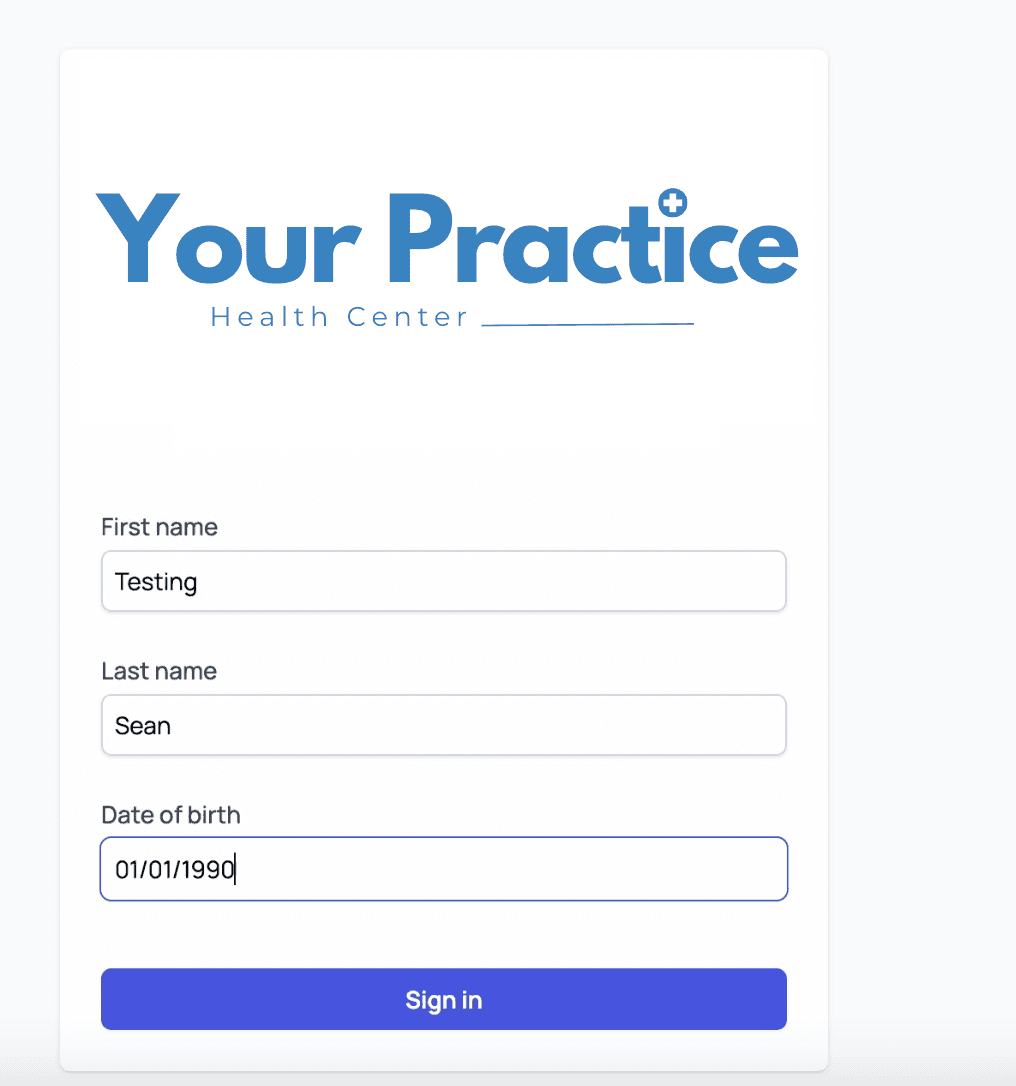
 Enter the patient’s information to sign in.
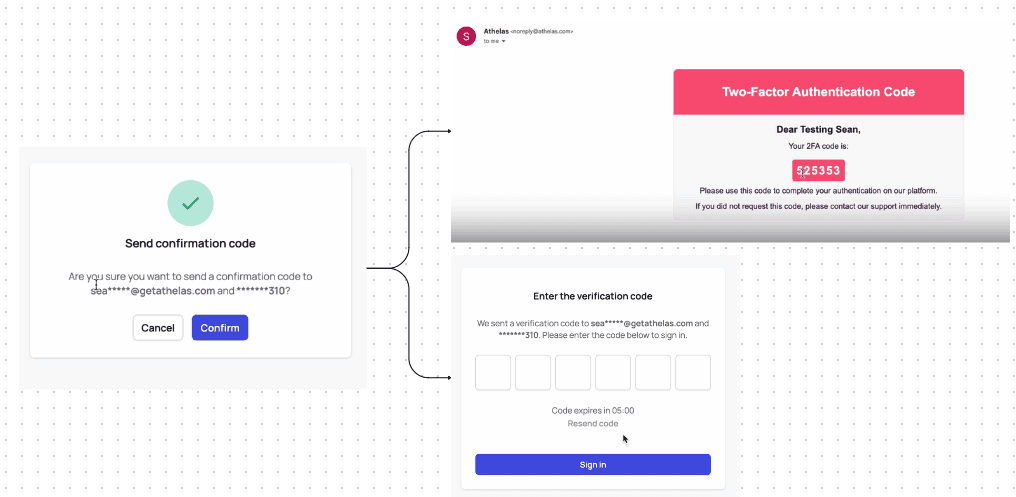
 The patient will receive an authentication code via both text and email, for their convenience, and they can choose their preferred method.
 ###
### After the Payment Link Is Accessed
The payment link window will appear. Patients can view all charges contributing to their balance from here.
###
### After the Payment Link Is Accessed
The payment link window will appear. Patients can view all charges contributing to their balance from here.
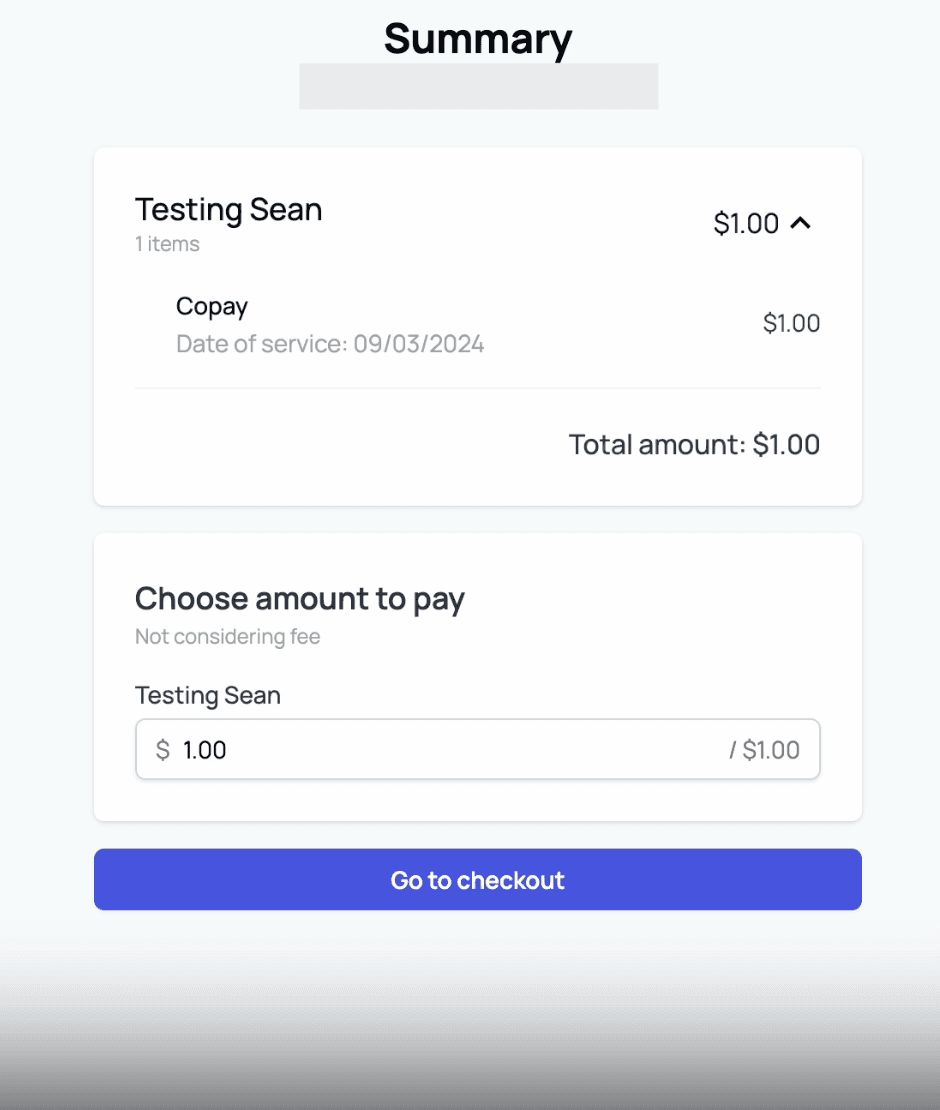 Upon clicking `Go to Checkout`, patients can submit either partial or full payment (depending on whether you allow partial payments or not in the General tab of your [PR Settings](https://insights.athelas.com/v2/patient-responsibility-settings)). They also have the option to either use a saved card or enter a new one.
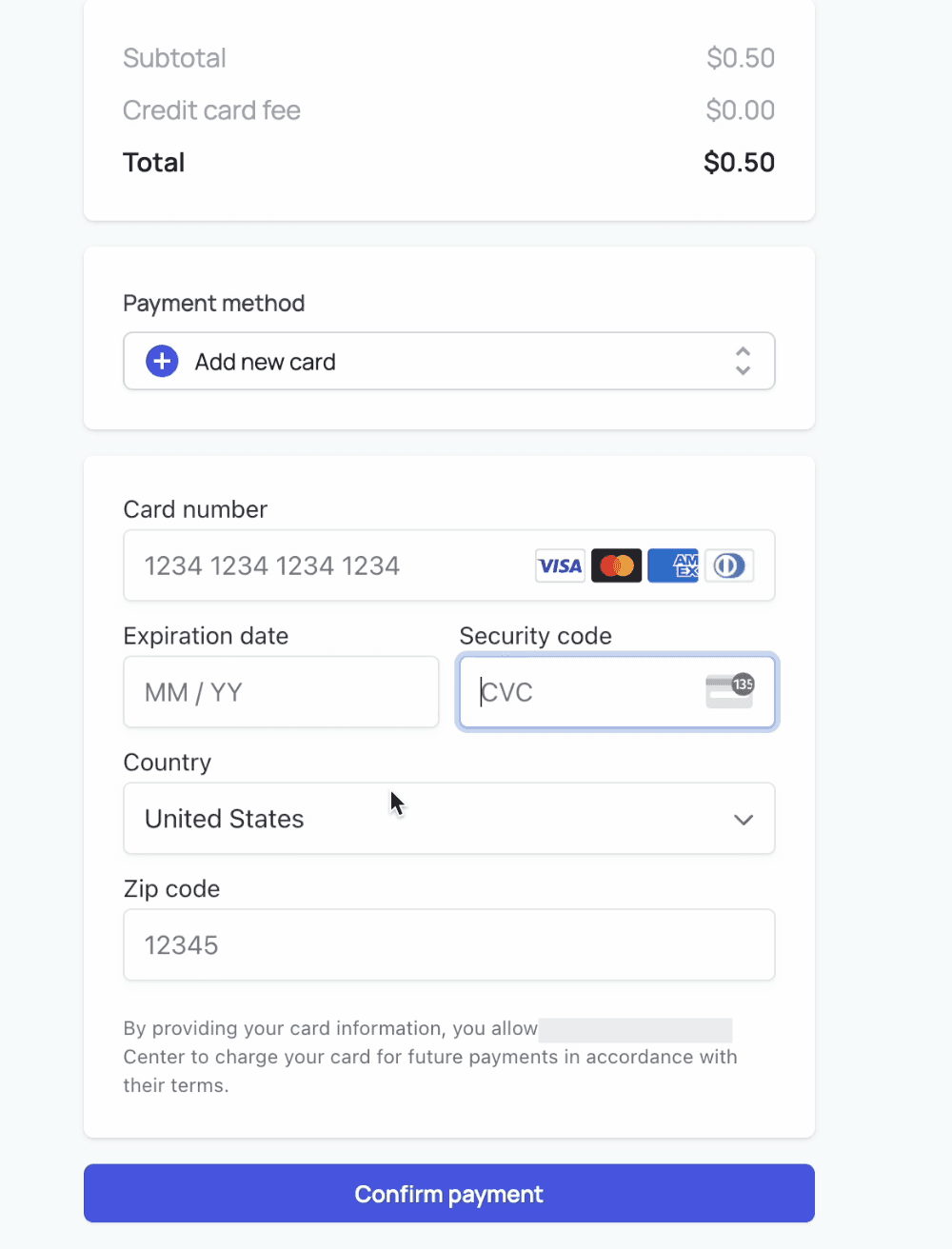 Clicking `Confirm Payment` finalizes the transaction and sends a receipt to the patient.
**Important Notes**
* You can configure whether to accept partial payments or not in the General tab of the [PR Settings page](https://insights.athelas.com/v2/patient-responsibility-settings)
* Links expire after one hour, after which two-factor authentication (2FA) will kick in (again, if you generated a link in Insights) and the patient must re-authenticate using the email link
Clicking `Confirm Payment` finalizes the transaction and sends a receipt to the patient.
**Important Notes**
* You can configure whether to accept partial payments or not in the General tab of the [PR Settings page](https://insights.athelas.com/v2/patient-responsibility-settings)
* Links expire after one hour, after which two-factor authentication (2FA) will kick in (again, if you generated a link in Insights) and the patient must re-authenticate using the email link