> ## Documentation Index
> Fetch the complete documentation index at: https://trainings.air.athelas.com/llms.txt
> Use this file to discover all available pages before exploring further.
# Manage Credit Cards
#### At a Glance
Customers can pay for all kinds of things via credit card in Insights. Saving cards will save hassle of entering information over and over. On the other hand, you’ll always need a way to remove cards that have expired or that customers have requested be removed.
This guide explains how to set up Insights to save (or not save) credit cards by default, and how to manually toggle saved cards on or off on a case-by-case basis. It also covers how to add a card to a patient’s profile without charging them, how to remove a saved card, and how to manually enter card information without a card reader.
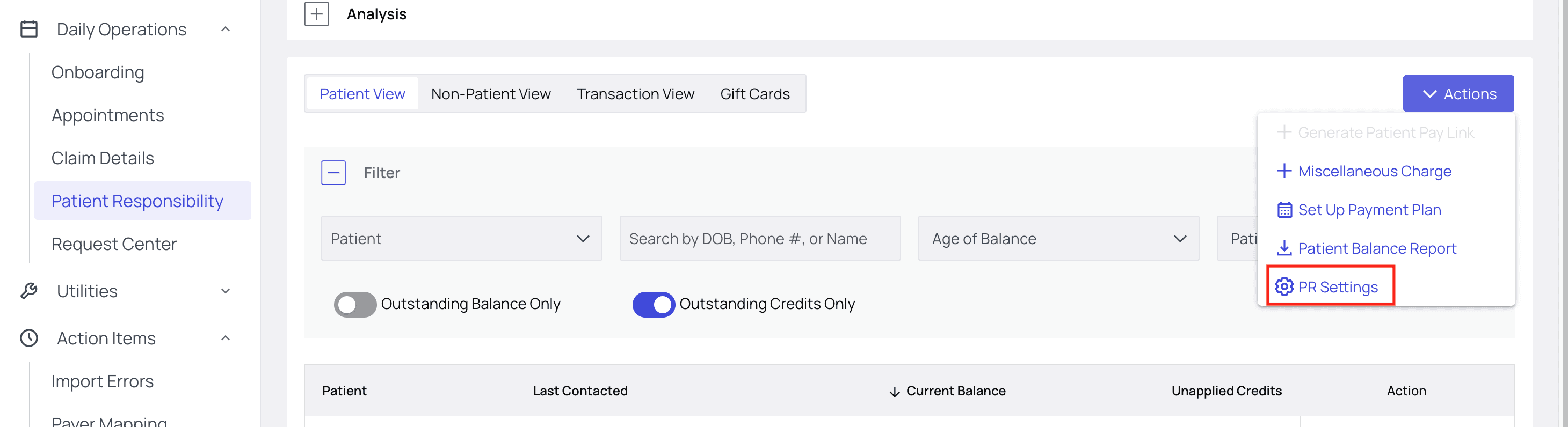
Open your practice’s [PR Settings](https://insights.athelas.com/v2/patient-responsibility-settings).
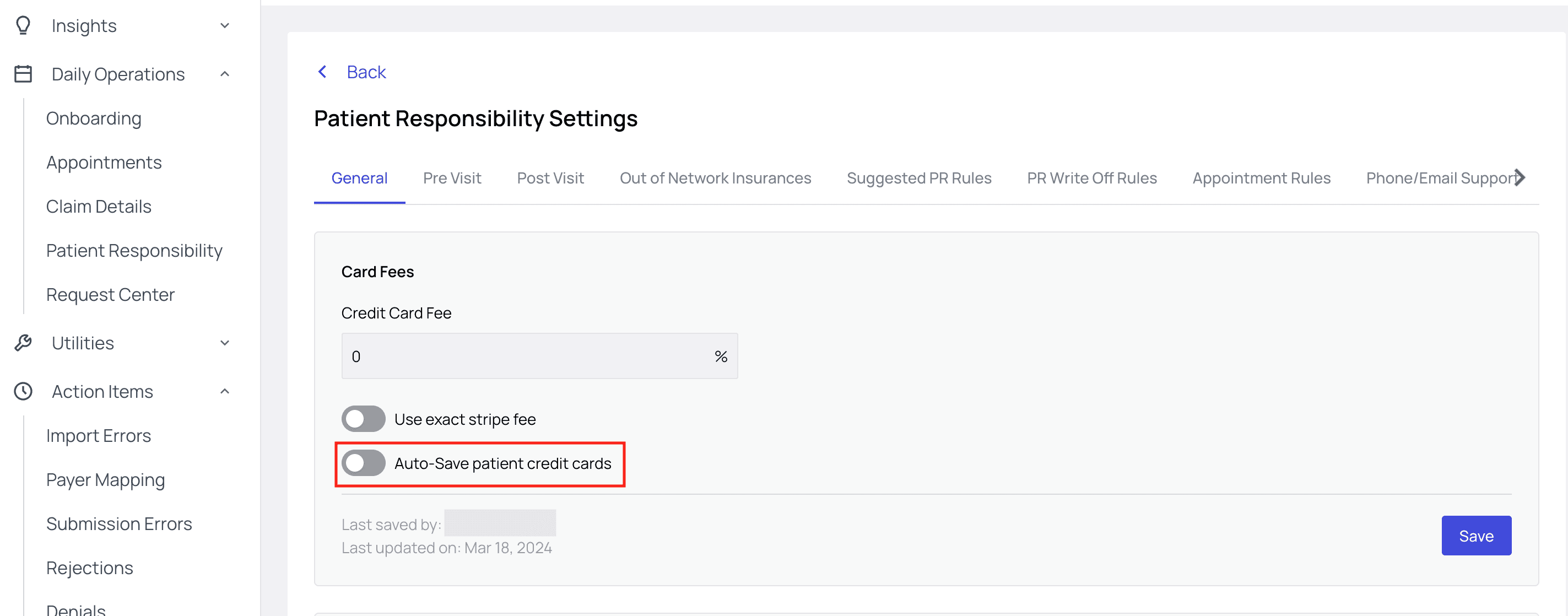
 Under the ‘General’ tab, find the ‘Card Fees’ section. Here, you can set the default for your site by toggling `Auto-Save patient credit cards` on or off.
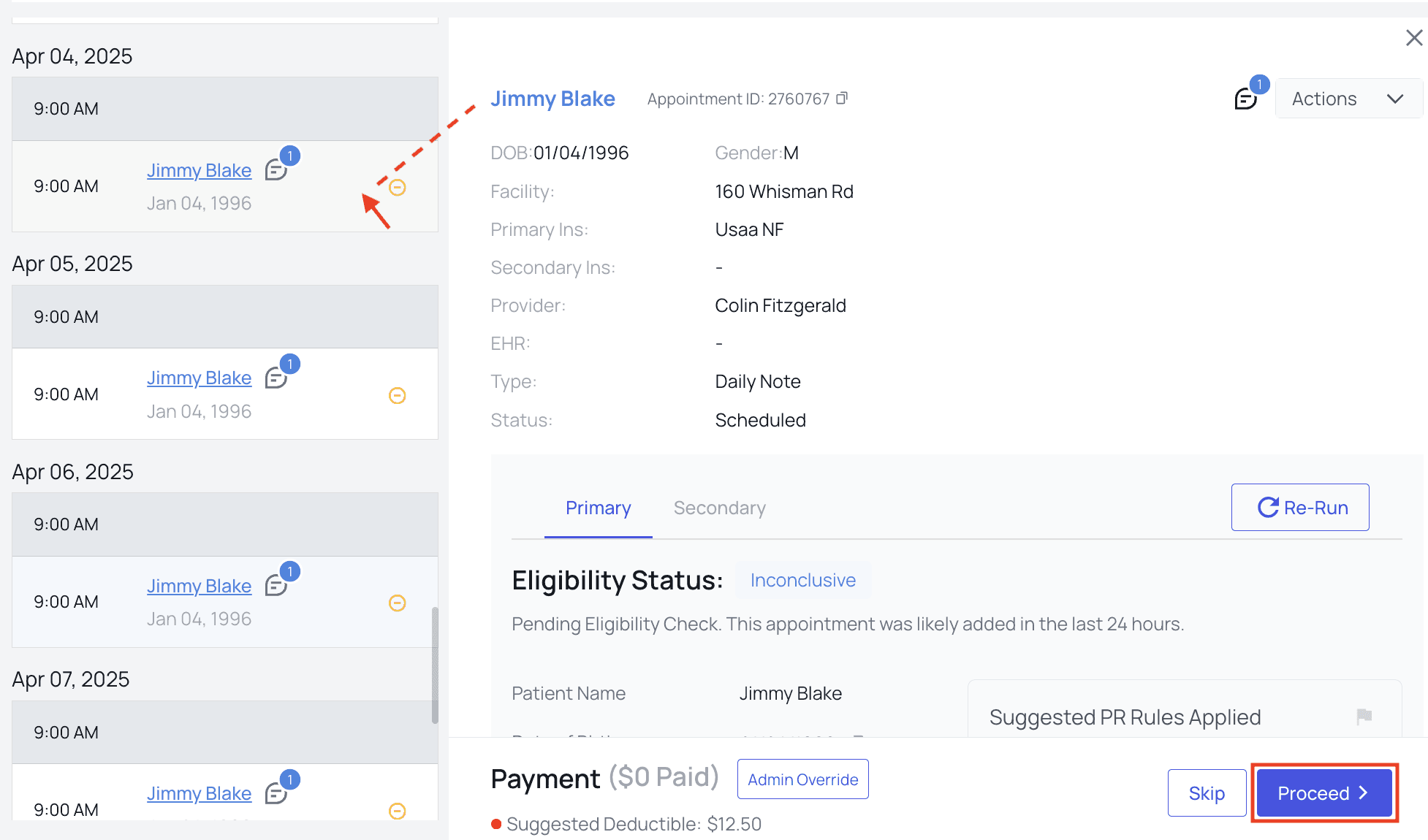
 * **Toggle Card Saving on Individual Payments**From the [Appointments](https://insights.athelas.com/v2/appointments) page, choose the patient you would like to charge. Then, click `Proceed`.
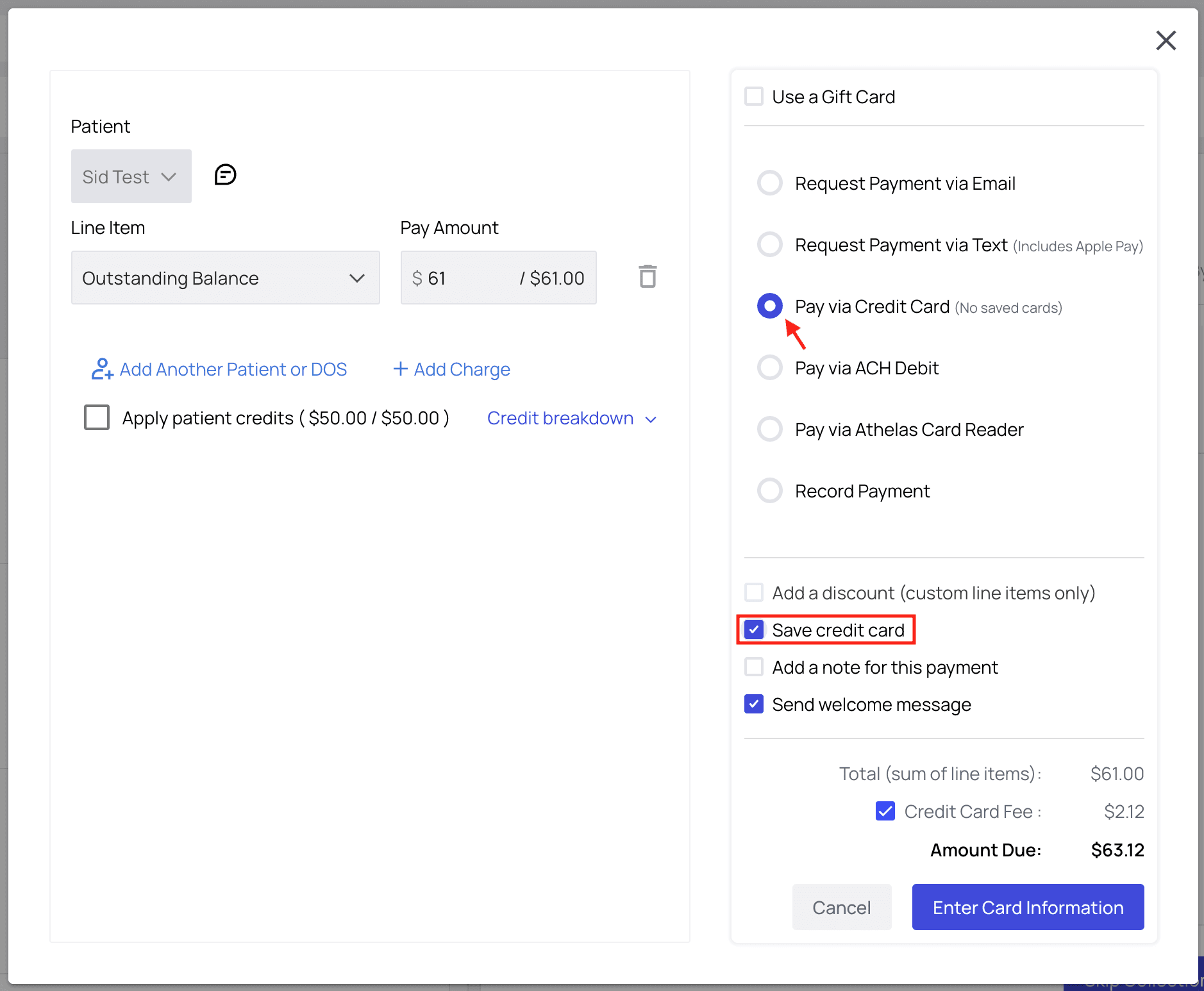
 Select ‘Pay with Credit Card.’ If there are no saved cards on this account, you will have the option to ‘Save this Credit Card’ and then enter the card information.
 If there is a card saved, you will have the option to either select a saved card or enter a new card.
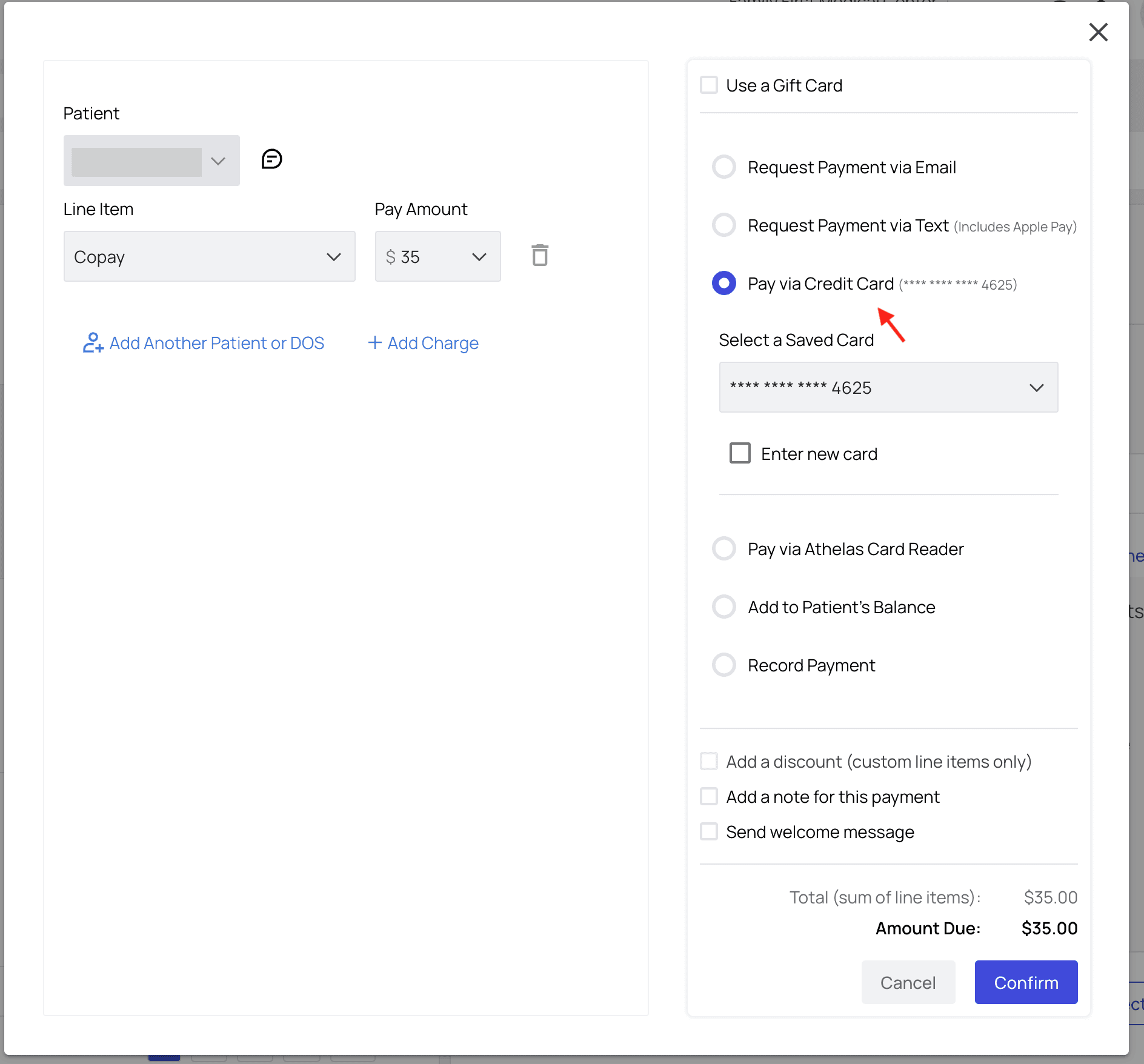 💡You can also view all saved cards associated with the patient on their profile.
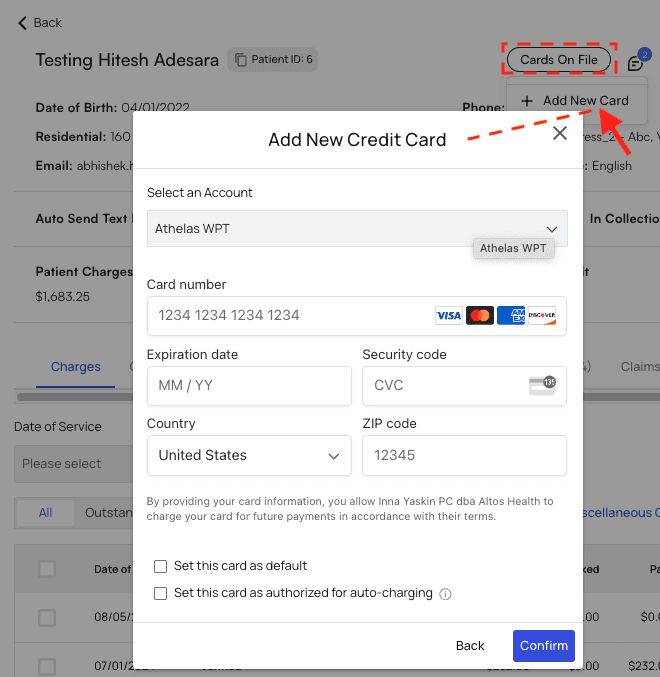
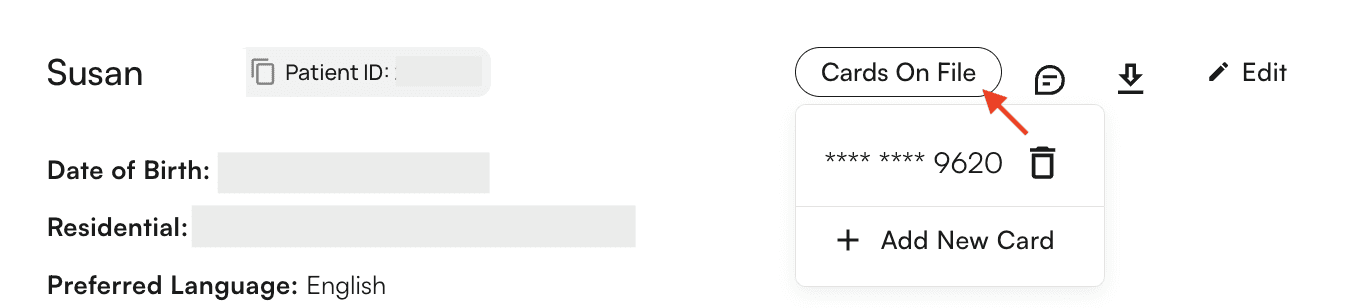 * **Add a Card Without Charging**If you would like to put a card on file without charging it, navigate to the [patient’s profile](/insights_front_desk/patient_profiles/how_to_find_and_edit_a_patients_profile) and click on the ‘Cards on File’ dropdown menu.Then, click `Add New Card`. You can manually enter the card details here.
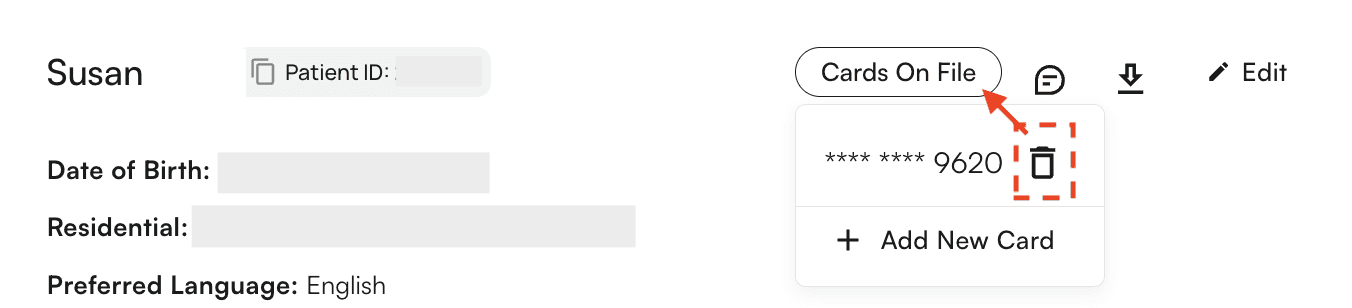
 * **Remove a Saved Card**To remove a saved card, open the ‘Cards on File’ dropdown menu on the [patient’s profile](/insights_front_desk/patient_profiles/how_to_find_and_edit_a_patients_profile) and click the trash icon next to the card you want to remove.
 * **Manually Enter Card Details for Immediate Processing**Sometimes, a card just won’t swipe/tap/insert properly. Sometimes, patients don’t have their card on them but know its information.For moments like these, you can manually enter credit card information.Every payment window in Insights, from Miscellaneous Charge to Quick Purchase to Pay Balance, will include a `Pay via Credit Card` option. Select that option and then you can manually enter the patient’s card details for immediate processing.
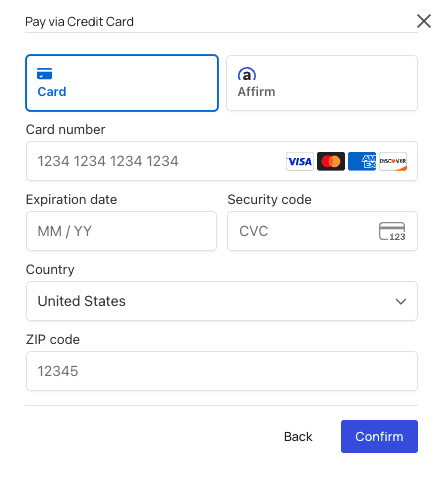 💡`*Pay via Credit Card` is for credit card payments that are not taken by the `Athelas Card Reader` (which is also an option in all payment windows).\*