> ## Documentation Index
> Fetch the complete documentation index at: https://trainings.air.athelas.com/llms.txt
> Use this file to discover all available pages before exploring further.
# How to Spread PR Statement Emails
### At a Glance
When **all of your patients with outstanding PR receive an email and/or text message about it on the same day**, it can create headaches for your office staff as they try to navigate a **deluge of calls**, and it becomes harder to deliver satisfactory service to patients.
Setting up your patient communications to be delivered evenly throughout the week, rather than just on one day, can **alleviate pressures like this and set your patients and staff up for success**.
### Here’s How to Do It
On the [Patient Statements](https://insights.athelas.com/v2/pr-statements) page, scroll down to Settings.
Here, you’ll see a wide range of customization options — Auto Reminder Frequency, Contact X% of Patients per Batch, etc.
There is also a checkbox you can click to **Use Recommended Settings**.
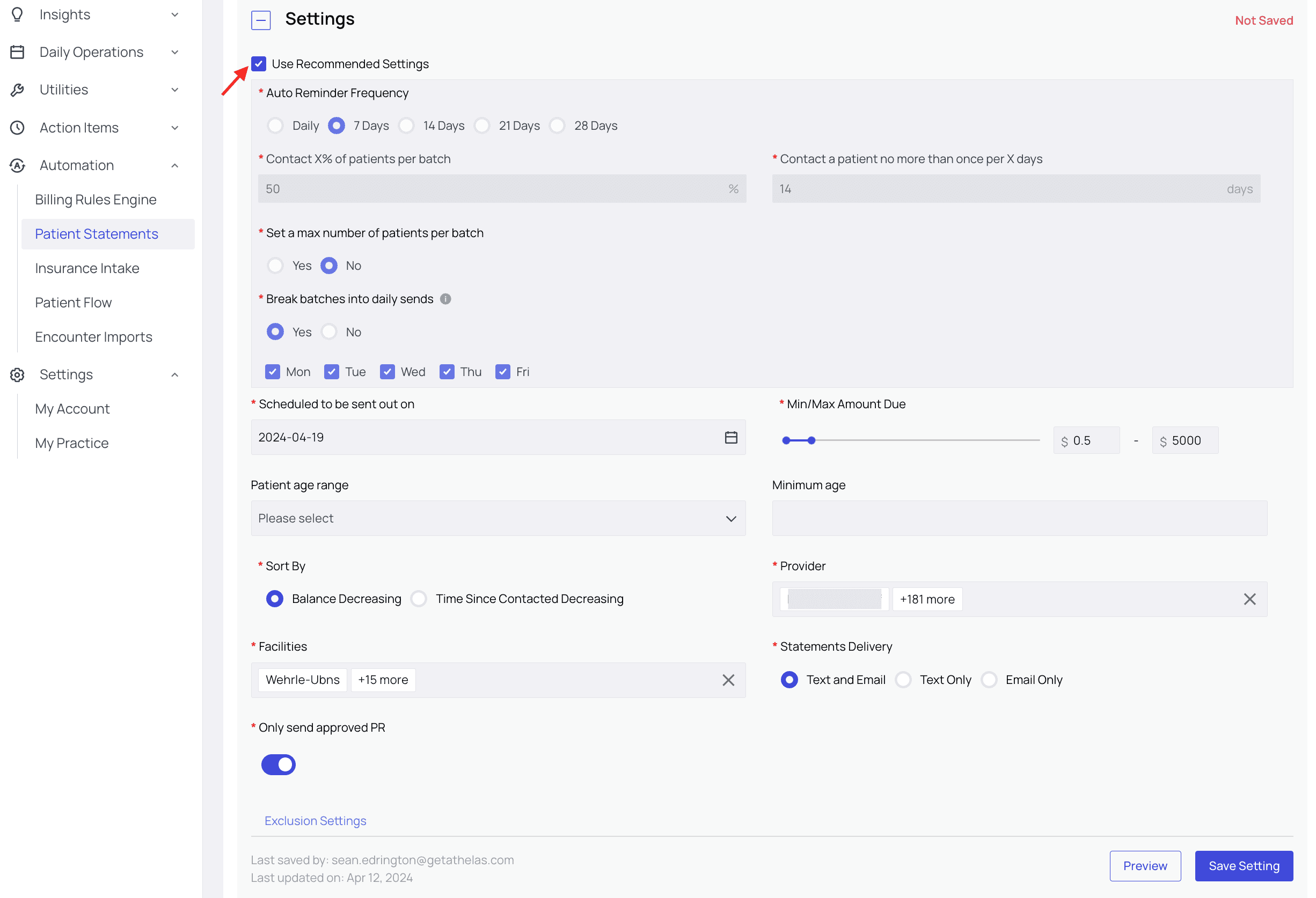 By default, **Athelas recommends contacting 50% of patients with outstanding PR, distributed evenly on weekdays, no more than once every two weeks.**
Let’s break down what that means.
Every seven days, Athelas’ systems find all patients with outstanding PR. It then runs those patients through any filters you may have set — which facility they visited, their provider, their age, and, most importantly, **whether they have already been contacted within the past X days.**
By default, **Athelas recommends contacting 50% of patients with outstanding PR, distributed evenly on weekdays, no more than once every two weeks.**
Let’s break down what that means.
Every seven days, Athelas’ systems find all patients with outstanding PR. It then runs those patients through any filters you may have set — which facility they visited, their provider, their age, and, most importantly, **whether they have already been contacted within the past X days.**
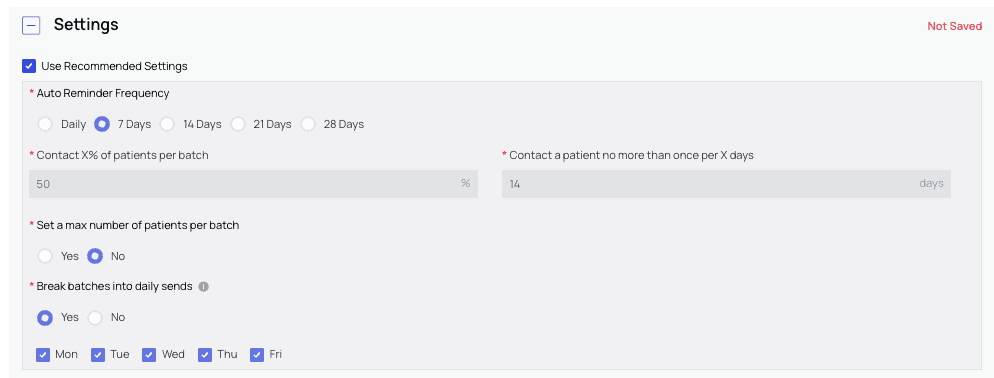 Athelas recommends contact no more than once every 14 days.
This is called a ‘**batch**.’
The recommended settings then tell the system to contact 50% of that batch, but spread out over each of the selected weekdays.
**For example**, if a full batch includes 100 patients, then 50% of that would be 50 patients. Divide those 50 patients into even groups over five weekdays, and we get 10 patients per day scheduled to receive PR collection texts.
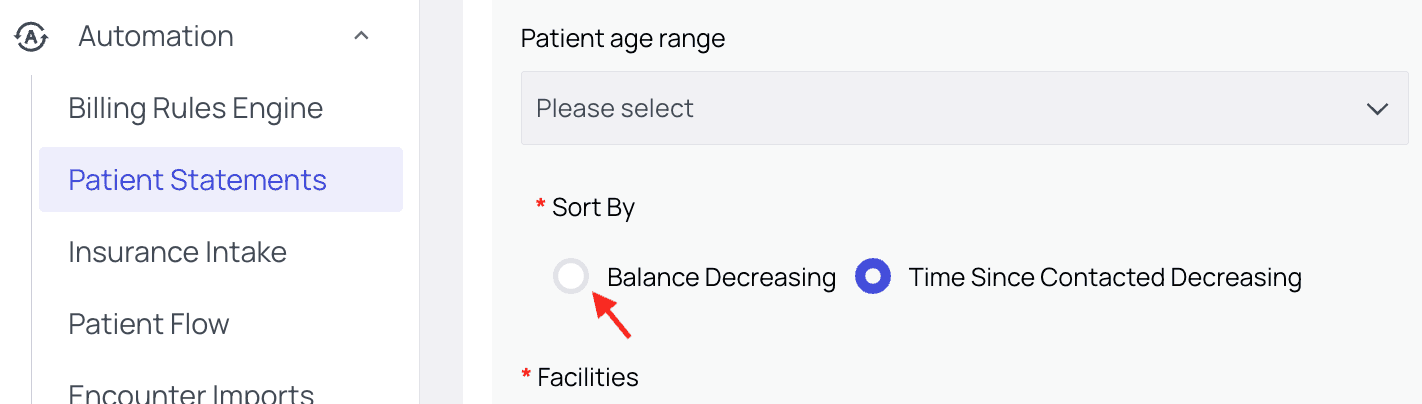
***Important Note:** Athelas defaults to **sort patients by Time Since Contacted Decreasing** (i.e. priority is given to the ones contacted least recently), to ensure no patient falls through the cracks. If instead you would like to **sort by Balance Decreasing** (i.e. priority is given to the ones that owe the most PR), you can choose that option.*
Athelas recommends contact no more than once every 14 days.
This is called a ‘**batch**.’
The recommended settings then tell the system to contact 50% of that batch, but spread out over each of the selected weekdays.
**For example**, if a full batch includes 100 patients, then 50% of that would be 50 patients. Divide those 50 patients into even groups over five weekdays, and we get 10 patients per day scheduled to receive PR collection texts.
***Important Note:** Athelas defaults to **sort patients by Time Since Contacted Decreasing** (i.e. priority is given to the ones contacted least recently), to ensure no patient falls through the cracks. If instead you would like to **sort by Balance Decreasing** (i.e. priority is given to the ones that owe the most PR), you can choose that option.*
 Once customized your filters to your liking, click the **Preview** button to check that everything looks correct, and make changes if necessary, before saving.
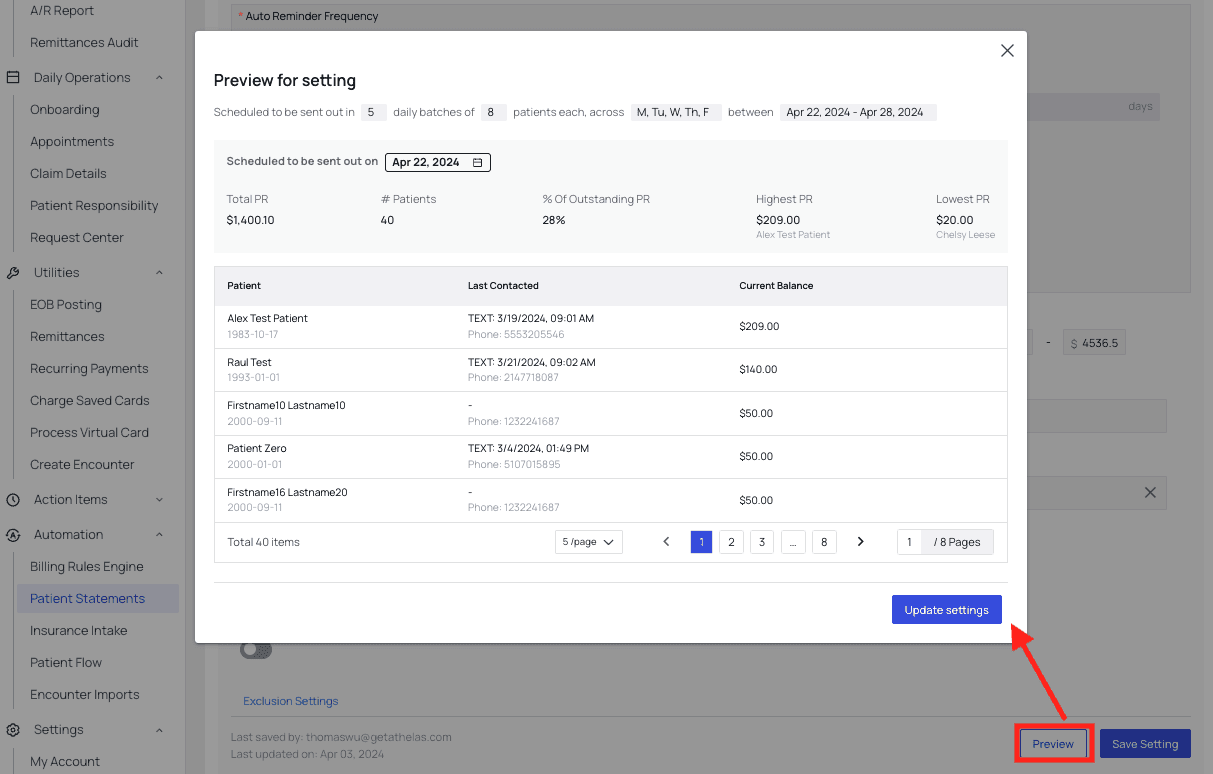
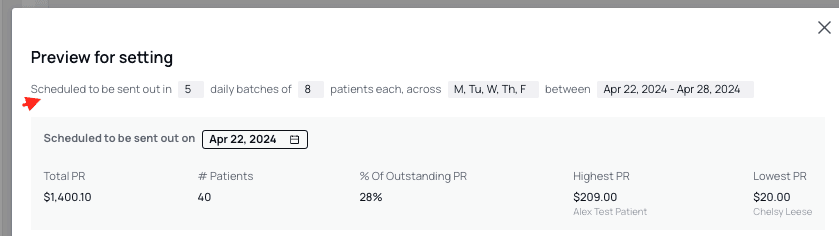 When you’re satisfied with your settings, click **Save Setting**.
Done!
When you’re satisfied with your settings, click **Save Setting**.
Done!