> ## Documentation Index
> Fetch the complete documentation index at: https://trainings.air.athelas.com/llms.txt
> Use this file to discover all available pages before exploring further.
# Print Patient Statements
#### At a Glance
Occasionally a patient will request their statement at the end of an appointment. For those times, you need a nice clean statement you can print and share.
### Here’s How to Do It
* Navigate to the patient’s profile.
* Click the ‘Download Patient Mail Statement’ button in the header.
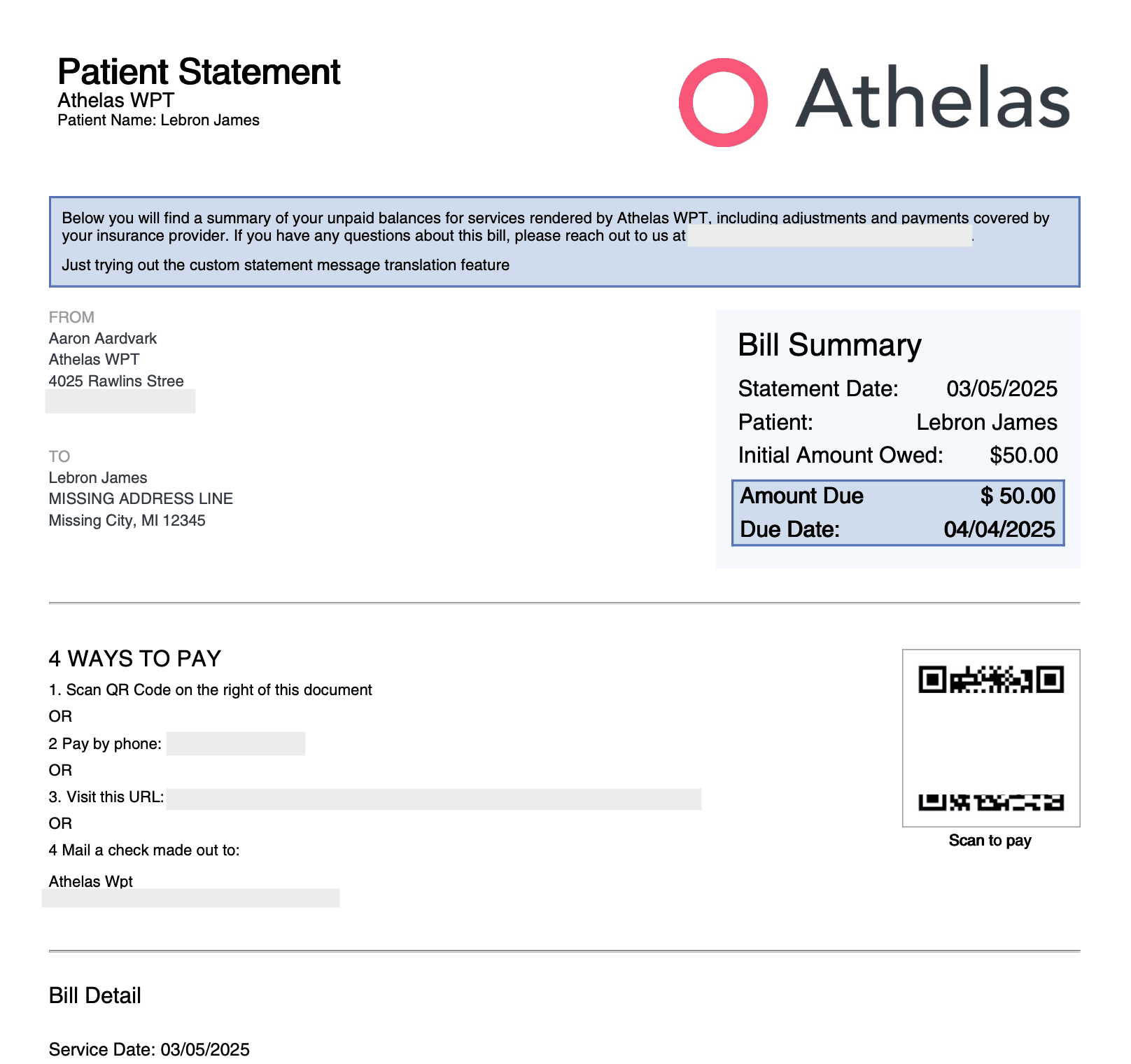
 * Open the downloaded PDF to view the statement. You can then print and share it with the patient.
 ###
### And You’re All Set!
The PDF statement provides several methods to pay, ranging from mobile-friendly QR codes to good old fashioned mail-it-in checks, so there’s something for everyone.
###
### And You’re All Set!
The PDF statement provides several methods to pay, ranging from mobile-friendly QR codes to good old fashioned mail-it-in checks, so there’s something for everyone.