> ## Documentation Index
> Fetch the complete documentation index at: https://trainings.air.athelas.com/llms.txt
> Use this file to discover all available pages before exploring further.
# Send Email Statements
#### At a Glance
By default all patients receive their bills via text message and email automatically. However some patients don’t want to wait, or they have a lot of emails and want a fresh email at the top of their inbox so they can keep track of it. For these times, here’s how to send a one-off email statement.
####
#### Here’s How to Do It
* Navigate to the patient’s profile.
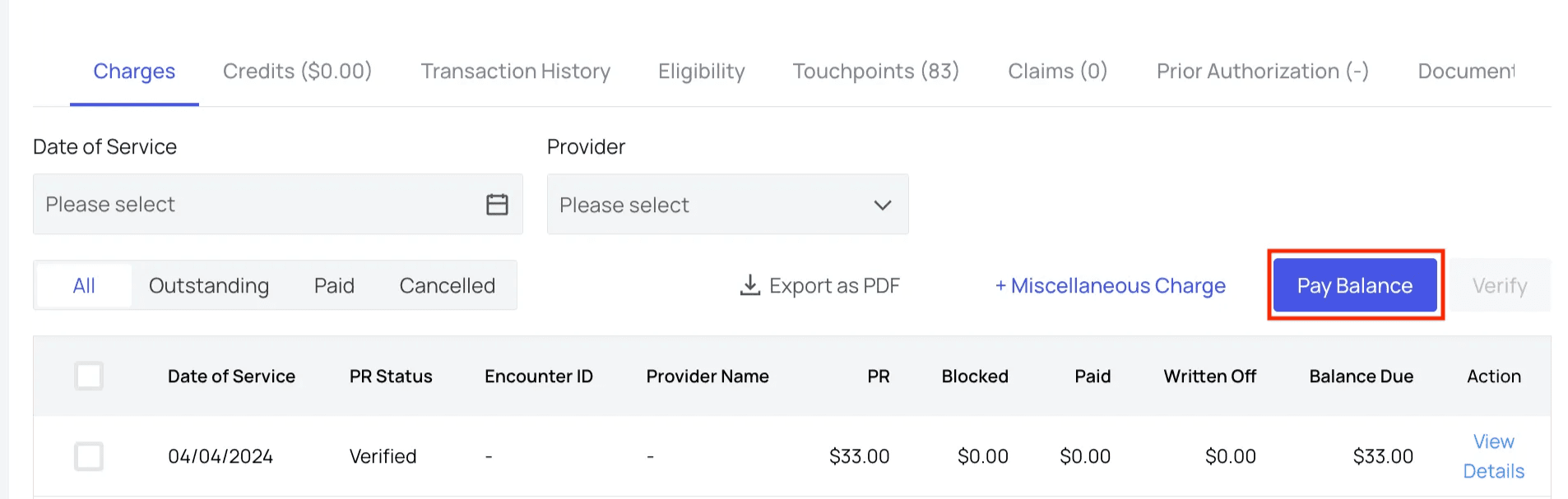
* In the ‘Charges’ tab, click `Pay Balance`.**Note:** this button will be disabled if the patient does not currently have a balance.
 * Select the option, **“Request Payment via Email.”**
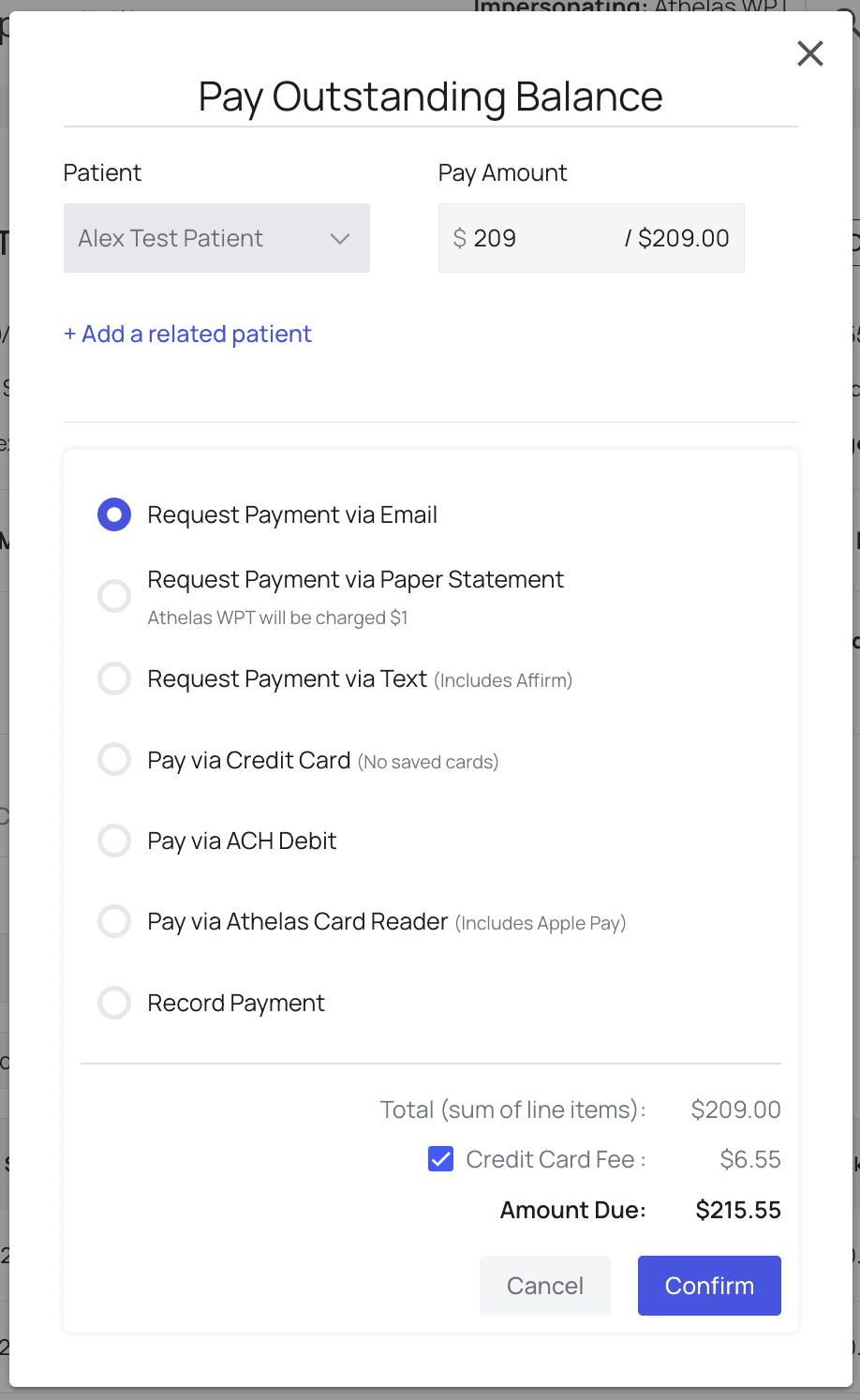 * Click `Confirm`. A statement will automatically be generated and emailed within 10 minutes.
###
#### And You’re All Set!
This patient will receive an email statement within 15 minutes, depending on the processing speed of their email provider. The email provides several methods to pay ranging from mobile-friendly QR codes to good old fashioned mail-it-in checks, so there’s something for everyone.
###
#### Frequently Asked Questions
Can I see what's on the email statement?
Yes! To see the statement your patient will receive, click the **'Download Patient Mail Statement'** button at the top of your patient's profile.
* Click `Confirm`. A statement will automatically be generated and emailed within 10 minutes.
###
#### And You’re All Set!
This patient will receive an email statement within 15 minutes, depending on the processing speed of their email provider. The email provides several methods to pay ranging from mobile-friendly QR codes to good old fashioned mail-it-in checks, so there’s something for everyone.
###
#### Frequently Asked Questions
Can I see what's on the email statement?
Yes! To see the statement your patient will receive, click the **'Download Patient Mail Statement'** button at the top of your patient's profile.
