> ## Documentation Index
> Fetch the complete documentation index at: https://trainings.air.athelas.com/llms.txt
> Use this file to discover all available pages before exploring further.

# Send Patient Statements via Email/Text

#### At a Glance

This guide features screenshots and explanations of each step of the patient statement and payment process below.

**Important Note:** Most organizations automatically send recurring batches of patient statements via both text and email by configuring their [Patient Statement](https://insights.athelas.com/v2/pr-statements) settings.

### Time to Send a Statement - Email or Text

#### Email a Payment Request

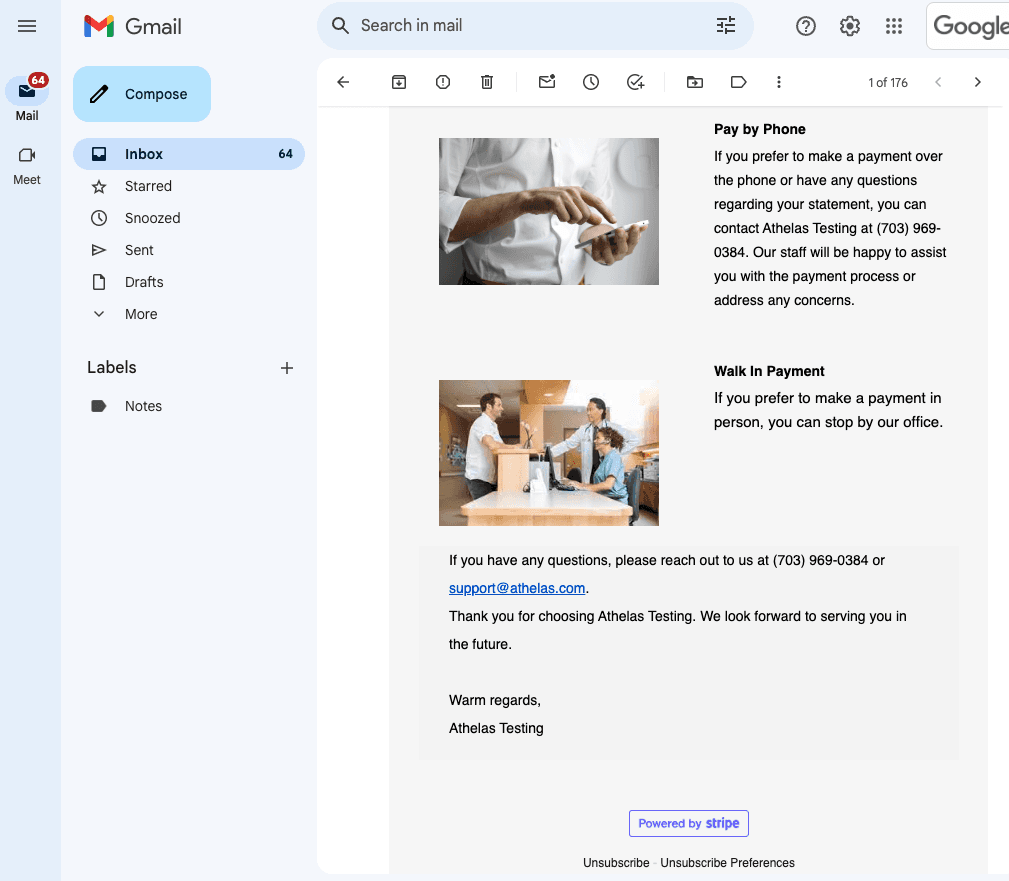
* Let’s say you’ve got all your patient’s information squared away and it’s time to collect payment. If you choose to send an email, this is what the patient will receive:
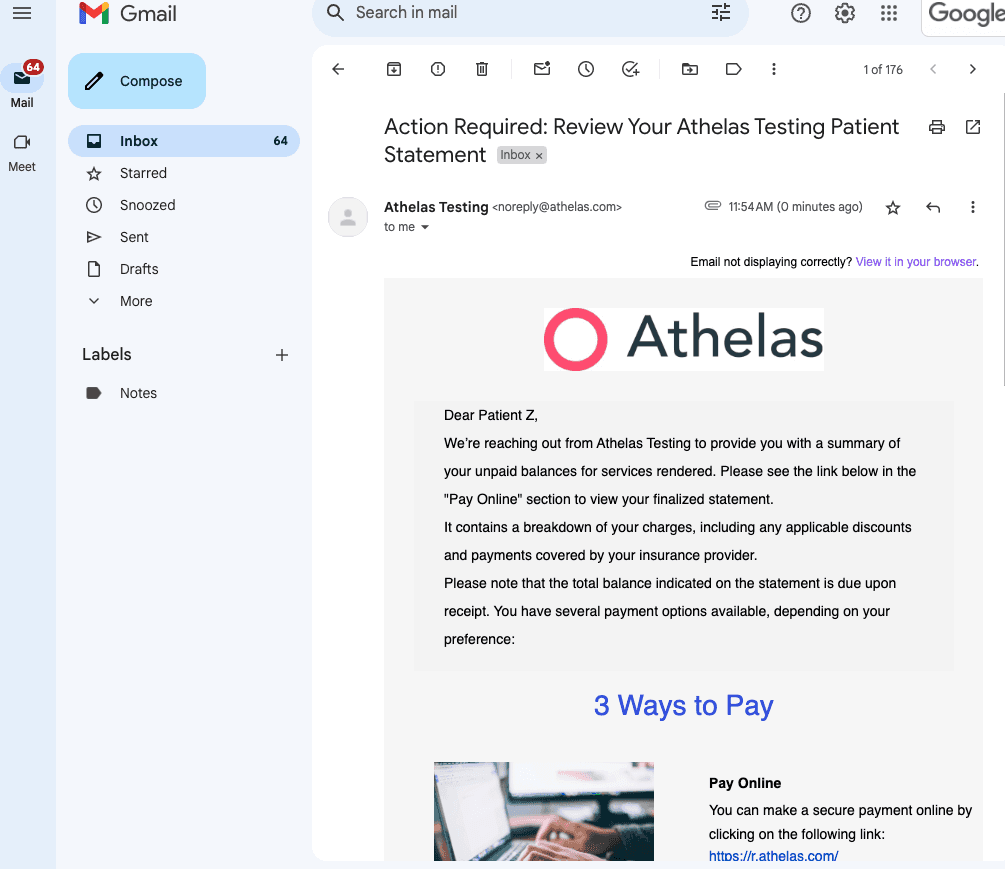
<img src="https://mintcdn.com/training_air/q8pITbPCucK2cZpD/images/insights_front_desk/patient_statements/send_patient_statements_via_emailtext/send_patient_statements_via_emailtext_1.png?fit=max&auto=format&n=q8pITbPCucK2cZpD&q=85&s=9513f4c112c2435e442ade15267c56f3" alt="" width="1005" height="869" data-path="images/insights_front_desk/patient_statements/send_patient_statements_via_emailtext/send_patient_statements_via_emailtext_1.png" />

<img src="https://mintcdn.com/training_air/q8pITbPCucK2cZpD/images/insights_front_desk/patient_statements/send_patient_statements_via_emailtext/send_patient_statements_via_emailtext_2.png?fit=max&auto=format&n=q8pITbPCucK2cZpD&q=85&s=2739734724bd453a58f3bbc9b79ce149" alt="" width="1009" height="881" data-path="images/insights_front_desk/patient_statements/send_patient_statements_via_emailtext/send_patient_statements_via_emailtext_2.png" />

* The attached statement looks like this:
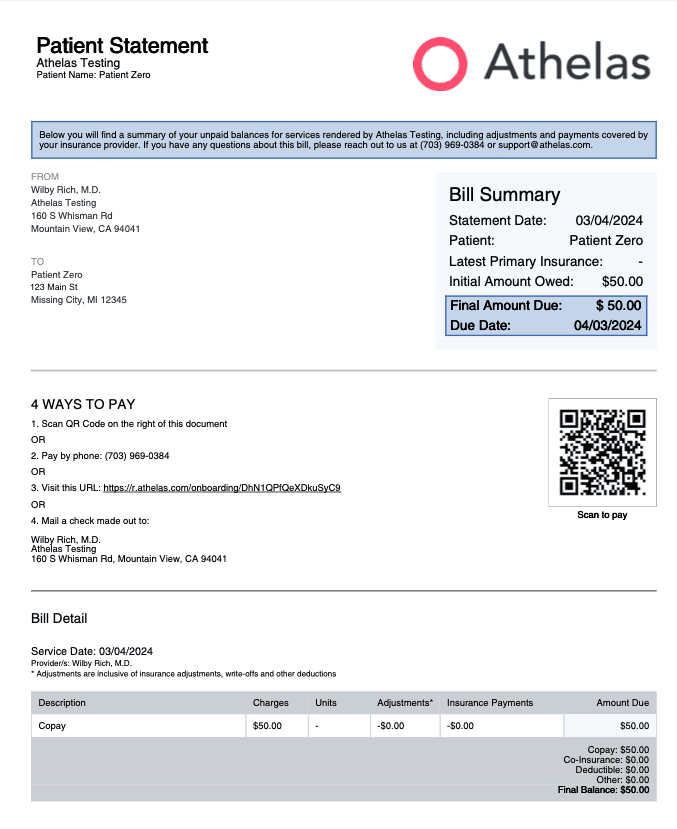
<img src="https://mintcdn.com/training_air/q8pITbPCucK2cZpD/images/insights_front_desk/patient_statements/send_patient_statements_via_emailtext/send_patient_statements_via_emailtext_3.png?fit=max&auto=format&n=q8pITbPCucK2cZpD&q=85&s=91afbc5c087b23d73e19e5e4d2115810" alt="" width="677" height="829" data-path="images/insights_front_desk/patient_statements/send_patient_statements_via_emailtext/send_patient_statements_via_emailtext_3.png" />

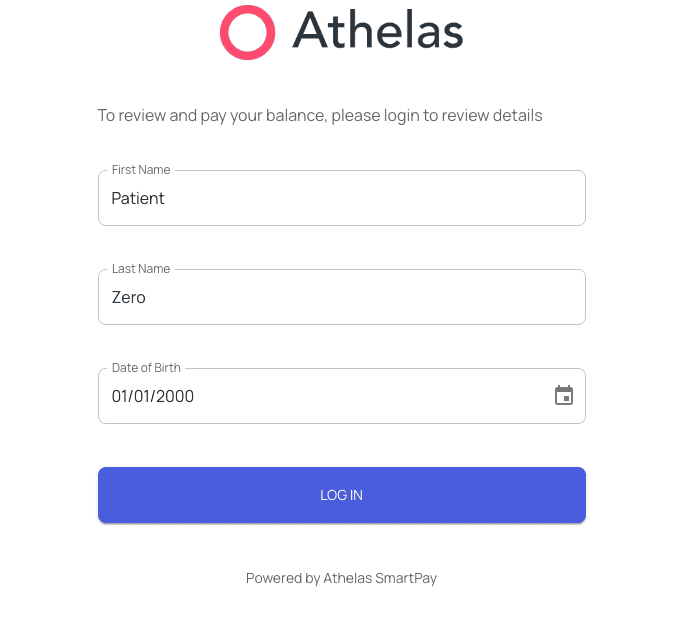
* If they choose to Pay Online, they will be taken to a pre-filled login page, except for their date of birth which they enter manually:
<img src="https://mintcdn.com/training_air/q8pITbPCucK2cZpD/images/insights_front_desk/patient_statements/send_patient_statements_via_emailtext/send_patient_statements_via_emailtext_4.png?fit=max&auto=format&n=q8pITbPCucK2cZpD&q=85&s=7a092d6014b932690131bd66a58c0c97" alt="" width="691" height="637" data-path="images/insights_front_desk/patient_statements/send_patient_statements_via_emailtext/send_patient_statements_via_emailtext_4.png" />

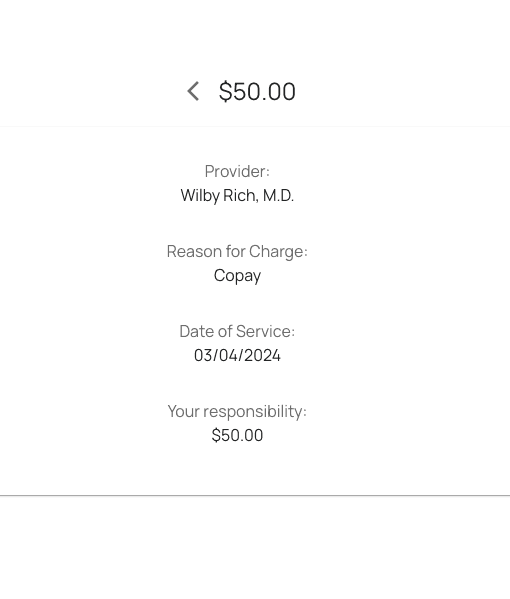
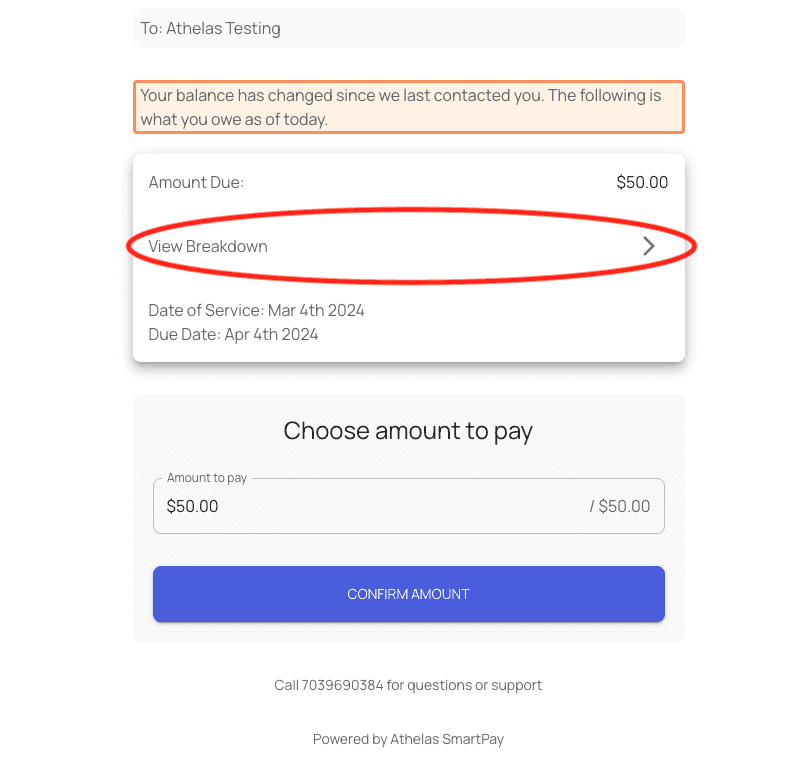
* Once they log in, they can view a breakdown of the bill:
<img src="https://mintcdn.com/training_air/q8pITbPCucK2cZpD/images/insights_front_desk/patient_statements/send_patient_statements_via_emailtext/send_patient_statements_via_emailtext_5.png?fit=max&auto=format&n=q8pITbPCucK2cZpD&q=85&s=1a9cd414997c8ac1a404a5aafda01ab7" alt="" width="785" height="758" data-path="images/insights_front_desk/patient_statements/send_patient_statements_via_emailtext/send_patient_statements_via_emailtext_5.png" />

<img src="https://mintcdn.com/training_air/q8pITbPCucK2cZpD/images/insights_front_desk/patient_statements/send_patient_statements_via_emailtext/send_patient_statements_via_emailtext_6.png?fit=max&auto=format&n=q8pITbPCucK2cZpD&q=85&s=7610ccbae6d9d4b39d06b2ecf57f627e" alt="" width="510" height="599" data-path="images/insights_front_desk/patient_statements/send_patient_statements_via_emailtext/send_patient_statements_via_emailtext_6.png" />

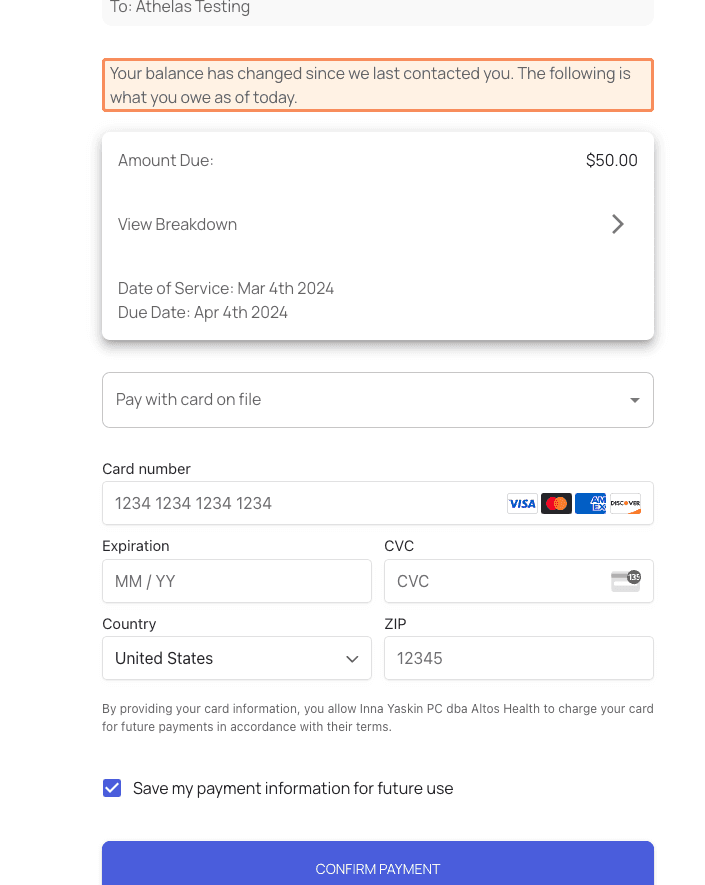
* When they click Confirm Amount, a standard credit card information form appears (if their card info is already saved, they can choose to Pay with Card on File).
<img src="https://mintcdn.com/training_air/q8pITbPCucK2cZpD/images/insights_front_desk/patient_statements/send_patient_statements_via_emailtext/send_patient_statements_via_emailtext_7.png?fit=max&auto=format&n=q8pITbPCucK2cZpD&q=85&s=d29e2233aa50b8ef4dc81f42d2256f61" alt="" width="705" height="885" data-path="images/insights_front_desk/patient_statements/send_patient_statements_via_emailtext/send_patient_statements_via_emailtext_7.png" />

* Finally, once they Confirm Payment, they will get a receipt via email. All done! \[screenshot pending]

###

### Text a Payment Request

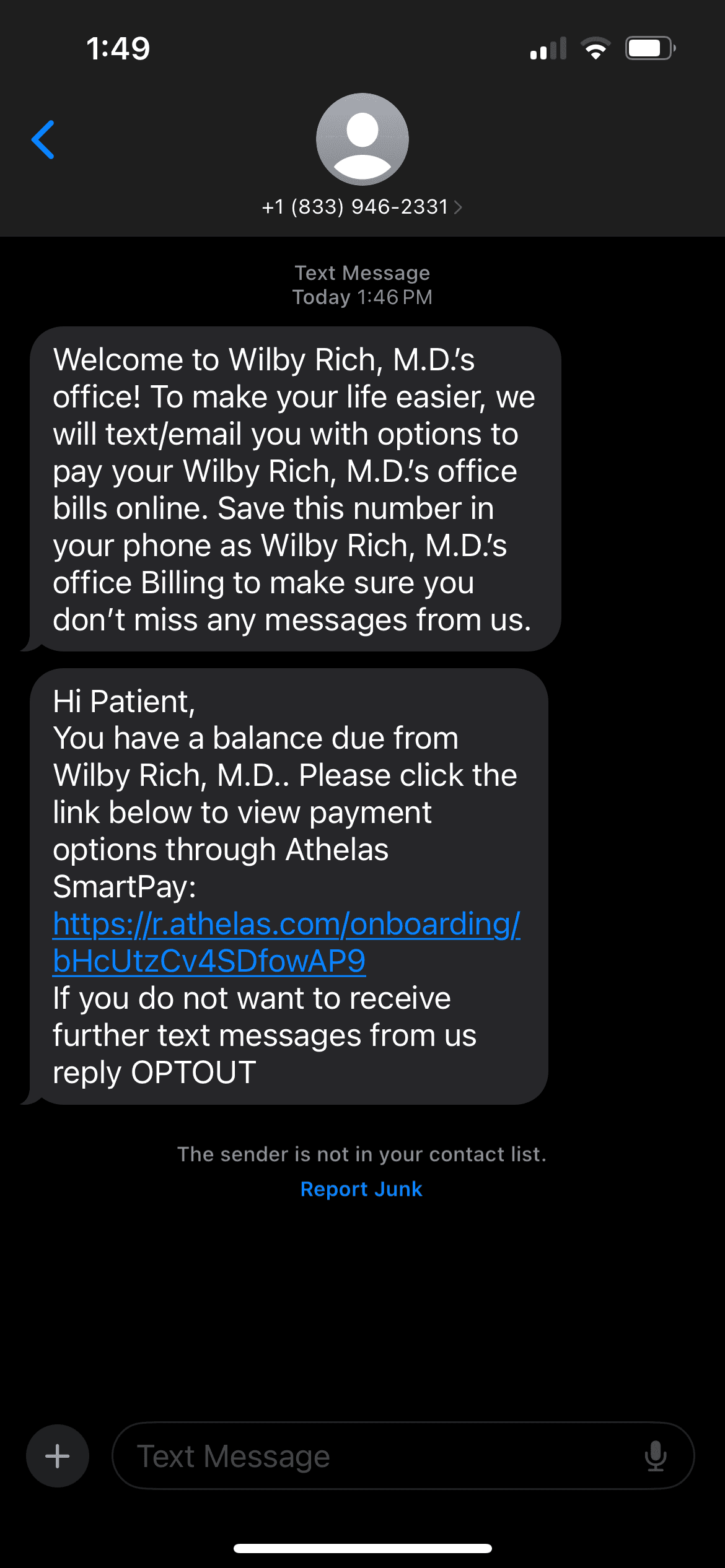
* This is an initial Welcome Message your patient will receive, followed by a Payment Request message if you choose the text option:
<img src="https://mintcdn.com/training_air/q8pITbPCucK2cZpD/images/insights_front_desk/patient_statements/send_patient_statements_via_emailtext/send_patient_statements_via_emailtext_8.png?fit=max&auto=format&n=q8pITbPCucK2cZpD&q=85&s=157aed71e98ecbdcec57a8d0df007fec" alt="" width="1170" height="2532" data-path="images/insights_front_desk/patient_statements/send_patient_statements_via_emailtext/send_patient_statements_via_emailtext_8.png" />

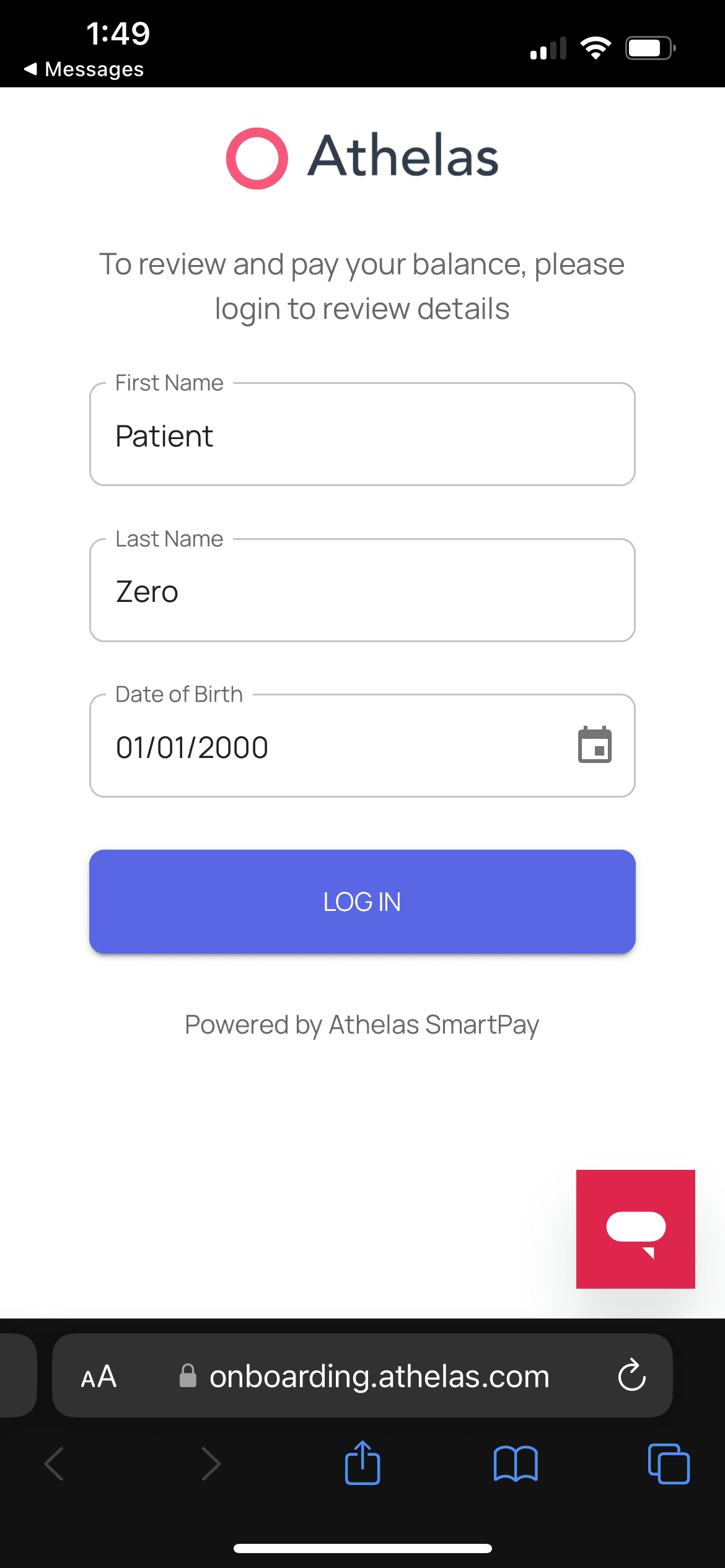
* When they tap the link, they will see this form with their name pre-filled, and a manual entry field for their date of birth:
<img src="https://mintcdn.com/training_air/q8pITbPCucK2cZpD/images/insights_front_desk/patient_statements/send_patient_statements_via_emailtext/send_patient_statements_via_emailtext_9.png?fit=max&auto=format&n=q8pITbPCucK2cZpD&q=85&s=73ca421165115da0578867c651f6ead4" alt="" width="1170" height="2532" data-path="images/insights_front_desk/patient_statements/send_patient_statements_via_emailtext/send_patient_statements_via_emailtext_9.png" />

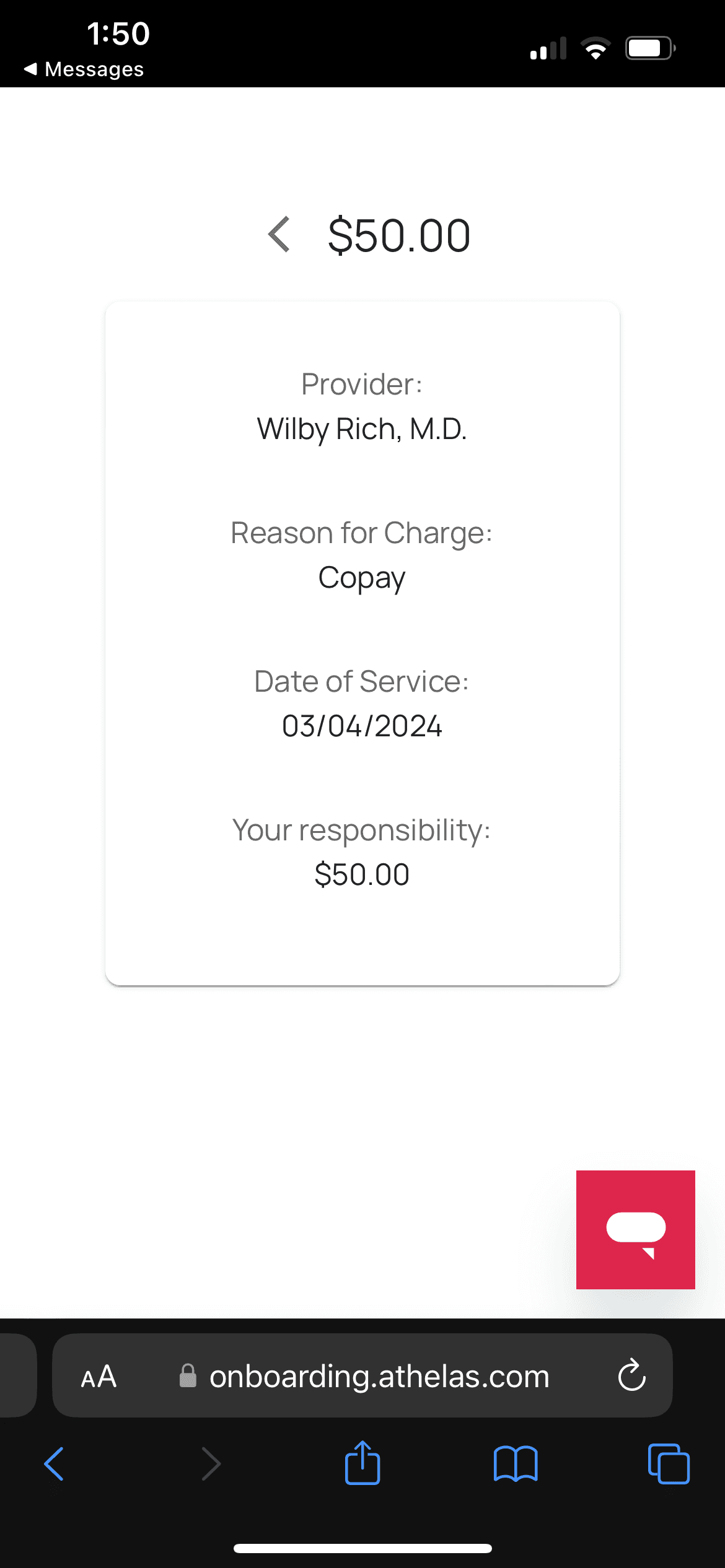
* After they log in, they will see the amount due and an option to View Breakdown:
<img src="https://mintcdn.com/training_air/q8pITbPCucK2cZpD/images/insights_front_desk/patient_statements/send_patient_statements_via_emailtext/send_patient_statements_via_emailtext_10.png?fit=max&auto=format&n=q8pITbPCucK2cZpD&q=85&s=6bd5731efbc13c3b7b4ada1315bab5e7" alt="" width="1170" height="2532" data-path="images/insights_front_desk/patient_statements/send_patient_statements_via_emailtext/send_patient_statements_via_emailtext_10.png" />

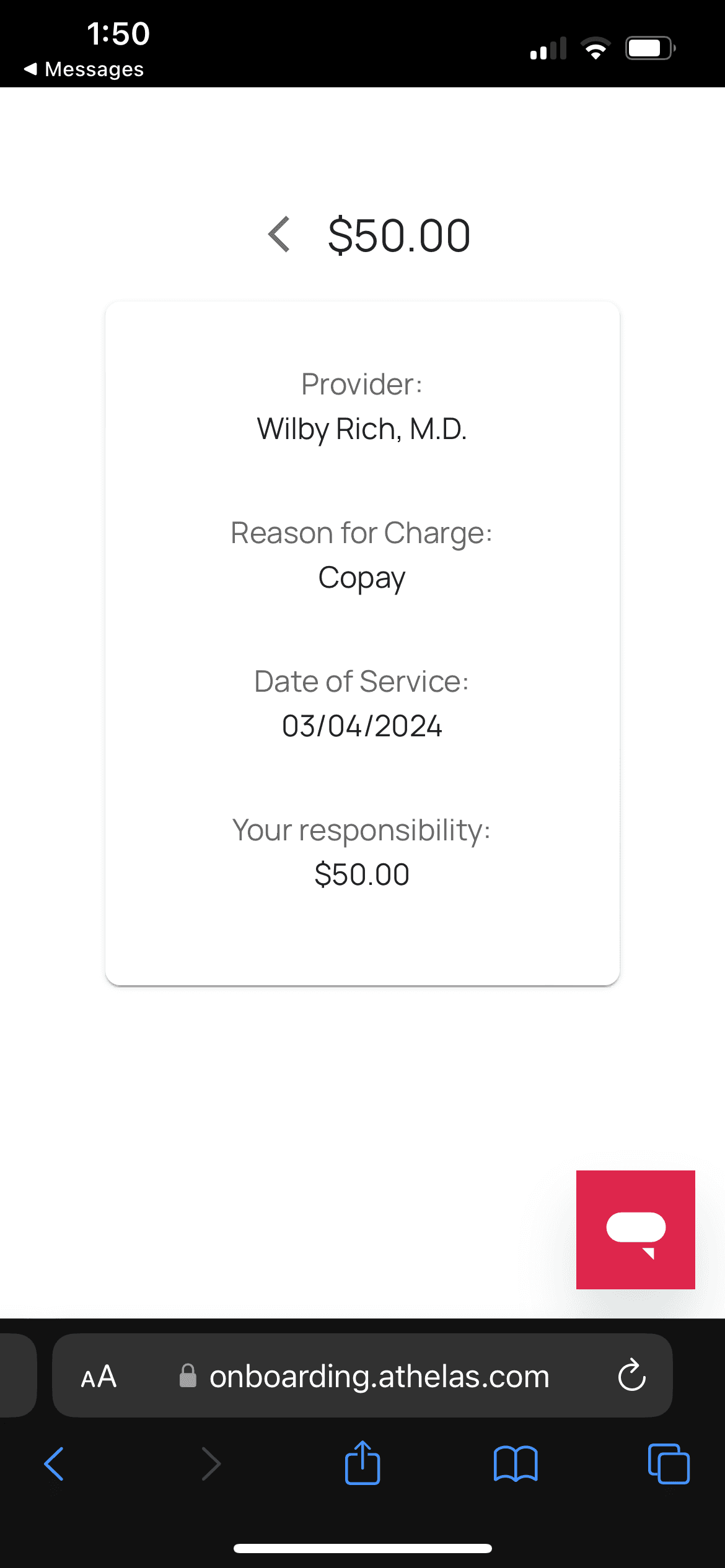
* When they tap Confirm Amount, a standard credit card information form appears (if their card info is already saved, they can choose to Pay with Card on File).
<img src="https://mintcdn.com/training_air/q8pITbPCucK2cZpD/images/insights_front_desk/patient_statements/send_patient_statements_via_emailtext/send_patient_statements_via_emailtext_11.png?fit=max&auto=format&n=q8pITbPCucK2cZpD&q=85&s=d4d8e6fc16e2444e621d0cb54931ab76" alt="" width="1170" height="2532" data-path="images/insights_front_desk/patient_statements/send_patient_statements_via_emailtext/send_patient_statements_via_emailtext_11.png" />

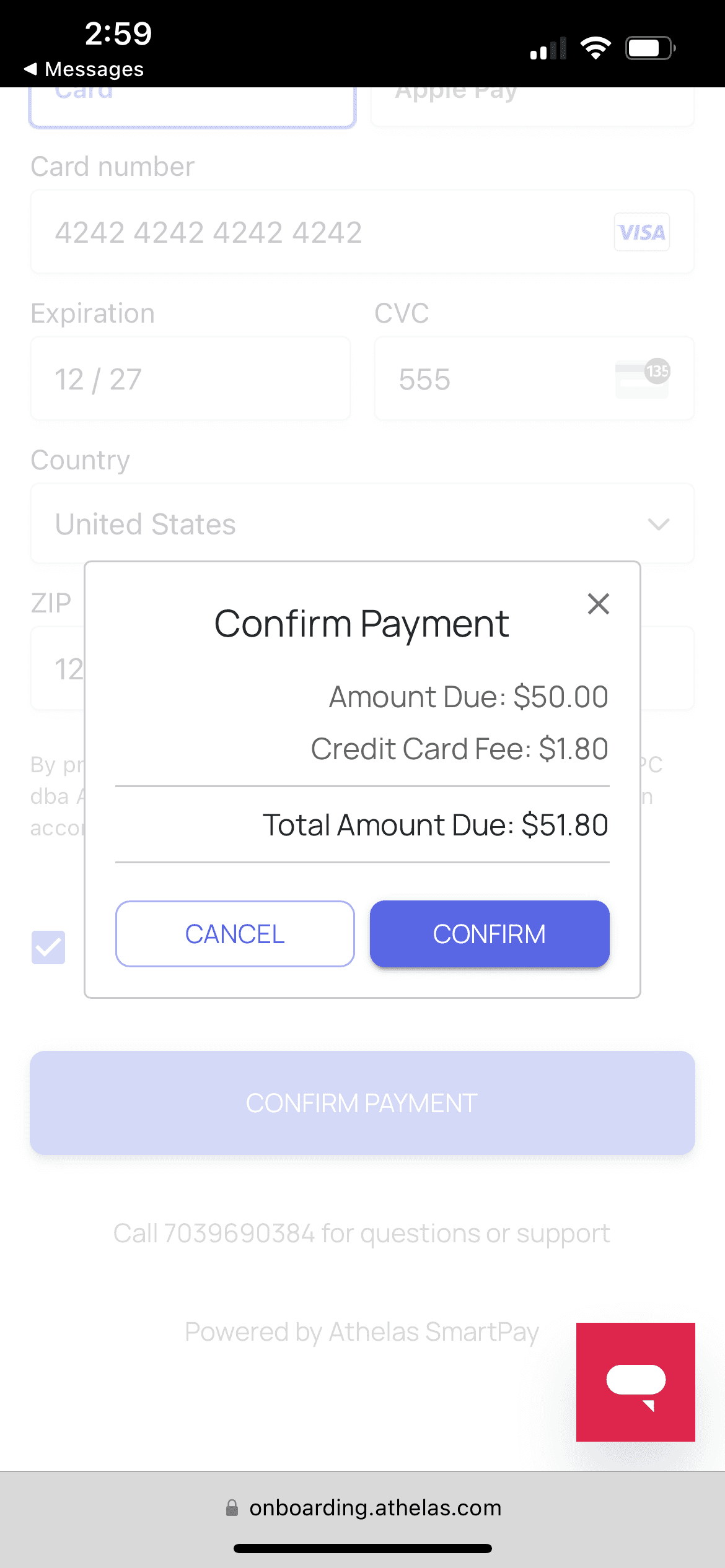
* After their card information is filled in, they can Confirm Payment:
<img src="https://mintcdn.com/training_air/q8pITbPCucK2cZpD/images/insights_front_desk/patient_statements/send_patient_statements_via_emailtext/send_patient_statements_via_emailtext_12.png?fit=max&auto=format&n=q8pITbPCucK2cZpD&q=85&s=4c140e0314e81e8d57c3516ab94106da" alt="" width="1170" height="2532" data-path="images/insights_front_desk/patient_statements/send_patient_statements_via_emailtext/send_patient_statements_via_emailtext_12.png" />

* Once the payment has gone through successfully, patients will receive a text receipt. Finished!