> ## Documentation Index
> Fetch the complete documentation index at: https://trainings.air.athelas.com/llms.txt
> Use this file to discover all available pages before exploring further.
# How to Post a Remittance Manually
#### Custom Adjustments (aka. Manual Adjustments)
A Custom Adjustment allows you to create a tailored adjustment that isn’t captured by standard posting actions like write-offs, negations, or push-to-PR. Use this when you need to manually adjust amounts for a procedure or encounter to accurately reflect your financial records.
Custom adjustments are flexible: you can specify amounts for any column, including charges, payments, denied amounts, patient responsibility, or other adjustments.
**How it works:**
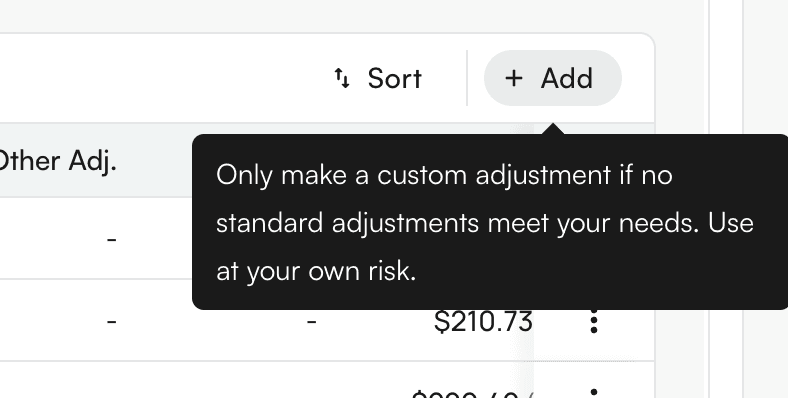
* In the **Payment Items Table**, click the **+ Add** button located beside the sort button.
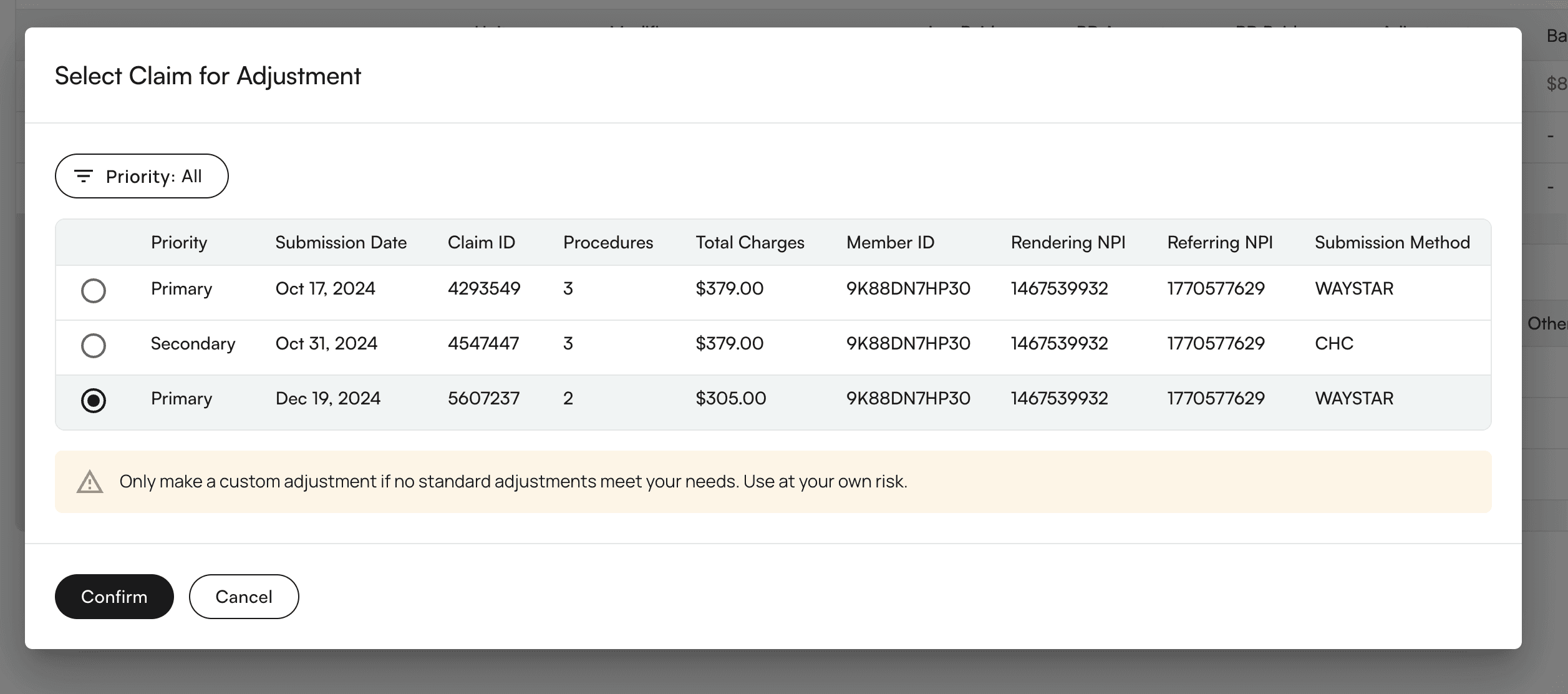
 * Select the **claim** that should be associated with the new custom adjustment and click **Confirm**. A **purple preview row** with empty values will appear in the ledger.
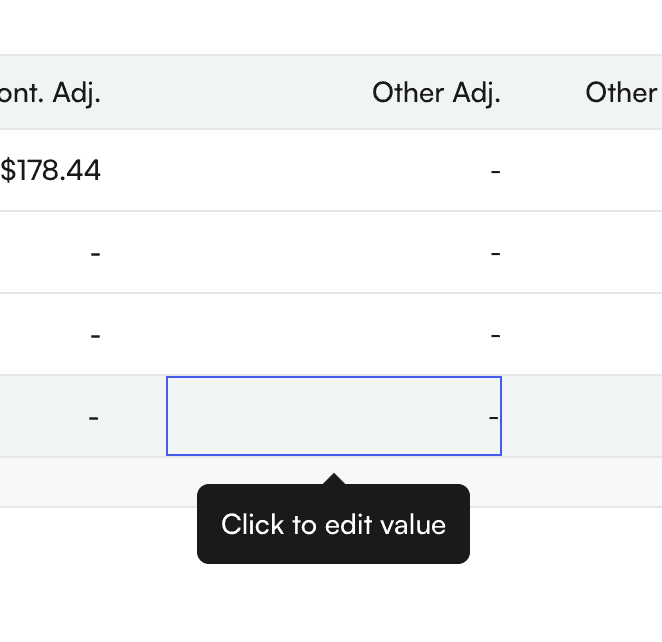
 * Click on the cells in the preview row to edit and manually specify amounts in any column to reflect the desired correction. Press “Enter” or click outside of the cell to save the changes. You can adjust charges, payments, denied amounts, PR, other adjustments, etc.
 * Review the preview. Crossed-out values with updated values beside them will show how the custom adjustment affects encounter-level and (if applicable) procedure-level balances. Click the **undo** button in the right-most column to remove the custom adjustment if needed.
 * Once the amounts are correct, click **Confirm Posting** to permanently apply the custom adjustment to the ledger.