> ## Documentation Index
> Fetch the complete documentation index at: https://trainings.air.athelas.com/llms.txt
> Use this file to discover all available pages before exploring further.
# Self-service Credentialing
#### Overview
The Self-Serve Credentialing Matrix is a centralized tool designed to simplify and standardize how providers and insurance companies manage credentialing requirements. It provides an at-a-glance reference for the credentialing status of each provider–payer relationship, ensuring clarity, compliance, and faster decision-making.
Credentialing is a critical process that validates whether providers meet the requirements of insurance companies to deliver care under their plans. Traditionally, this information is fragmented, requiring manual lookups and repeated back-and-forth. The self-serve credentialing matrix eliminates that friction by giving all stakeholders immediate visibility into credentialing statuses.
#### How would it help?
* **Efficiency** – Cuts down on time spent searching for or verifying credentialing requirements.
* **Transparency** – Provides providers and payers with a shared source of truth.
* **Scalability** – Supports onboarding, cross-coverage, and expanding provider networks with minimal administrative overhead.
#### Key concepts
| **Term** | **Meaning** |
| -------------------- | ----------------------------------------------------------------------------------------------------------------------------------------------------------------------- |
| Provider | A healthcare professional or organization (e.g., physician, nurse practitioner, clinic) delivering care to patients. |
| Insurance company | A payer organization that contracts with providers to cover healthcare services for its members. |
| Provider credentials | The qualifications, licenses, certifications, and verifications required for a provider to be approved by an insurance company. |
| Credentialing group | A set of providers managed together for credentialing purposes, often by specialty, practice, or organizational affiliation. |
| Credentialed | Indicates whether a provider is fully approved and recognized by the insurance company to deliver covered services. |
| Cosigner required | Shows whether the provider can deliver services only under supervision, requiring a credentialed provider’s cosignature (e.g., trainees, newly licensed practitioners). |
| Credentialing type | Type of credentialing. Includes `GROUP`, `INDIVIDUAL`, `UNKNOWN`, `PENDING`, `NONE` |
#### Selecting credentialing type values
* You can select either of the 3 values:
| **Is credentialed?** | **Cosigner required?** | **Allowed?** |
| -------------------- | ---------------------- | ------------ |
| ✅ | ❌ | ✅ |
| ❌ | ✅ | ✅ |
| ❌ | ❌ | ✅ |
| ✅ | ✅ | ❌ |
* Group to selection of values:
| Credentialing type | Can select `Is Credentialed?` | Can select `Cosigner required` |
| ------------------ | ----------------------------- | ------------------------------ |
| Group | ✅ | ❌ |
| Individual | ✅ | ❌ |
| Unknown | ✅ | ✅ |
| Pending | ✅ | ✅ |
| None | ✅ | ✅ |
#### Provider credentials
#### Adding a provider credential
**Steps:**
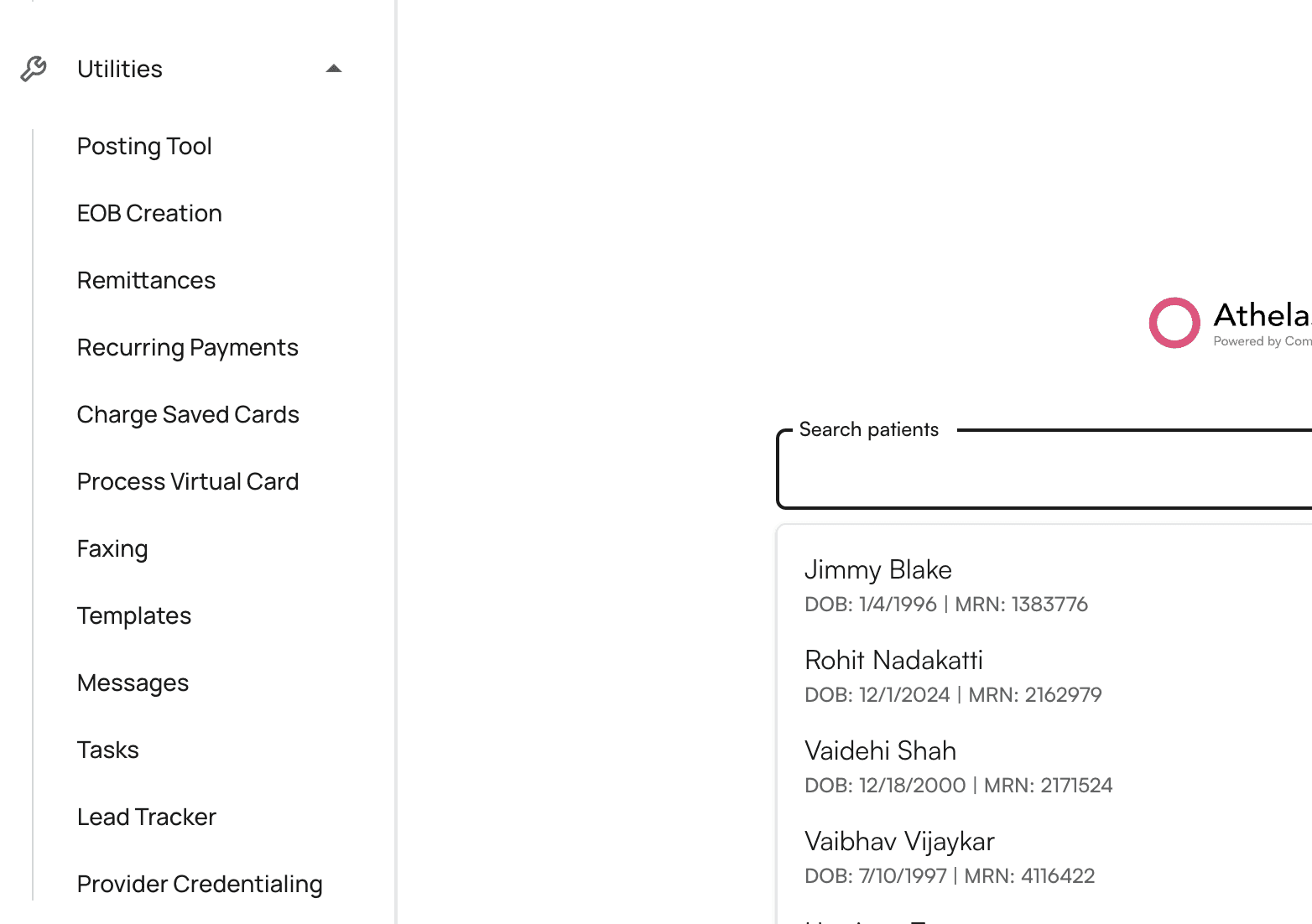
* Click on `+ Add Credentialing` button once navigating to ‘Provider Credentialing’ tab within Utilities
* Select the provider name from the list of providers from the site.
* Select the insurance company from the list of insurance companies.
* Select the credentialing type. Based on the credentialing type, you would get the options to modify `Credentialed` and `Cosigner required`.
* Click on `Submit`.
* The provider credentialing entry would be created.
#### Bulk edit provider credentials
**Steps:**
* In the table, you can select multiple rows by clicking on the empty checkboxes to the left of the row.
* You can select multiple rows across different providers, insurance companies, and credentialing groups.
* You have the ability to change the:
* `Credentialing type`
* `Credentialed`
* `Cosigner Required`
* You can either keep the existing values for these rows, or apply the same settings to all rows.
* Click on `Submit` to reflect your changes.
* **Example video:**
#### Select all results in a filter for bulk editing
When a filter is applied, a prompt to select all the results for bulk editing shows up.
#### Credentialing Group
Credentialing group allows you to bundle multiple insurance companies under one group, so when you get credentialed for a group, you can apply the same configuration.
💡 **Important Notes:**
* An Insurance company can be part of multiple credentialing groups.
* Groups are mutually exclusive with individual insurance selection in the Add Credential modal
* You can select multiple groups when adding credentials to credential a provider with all insurances across those groups
#### Creating Credentialing Groups
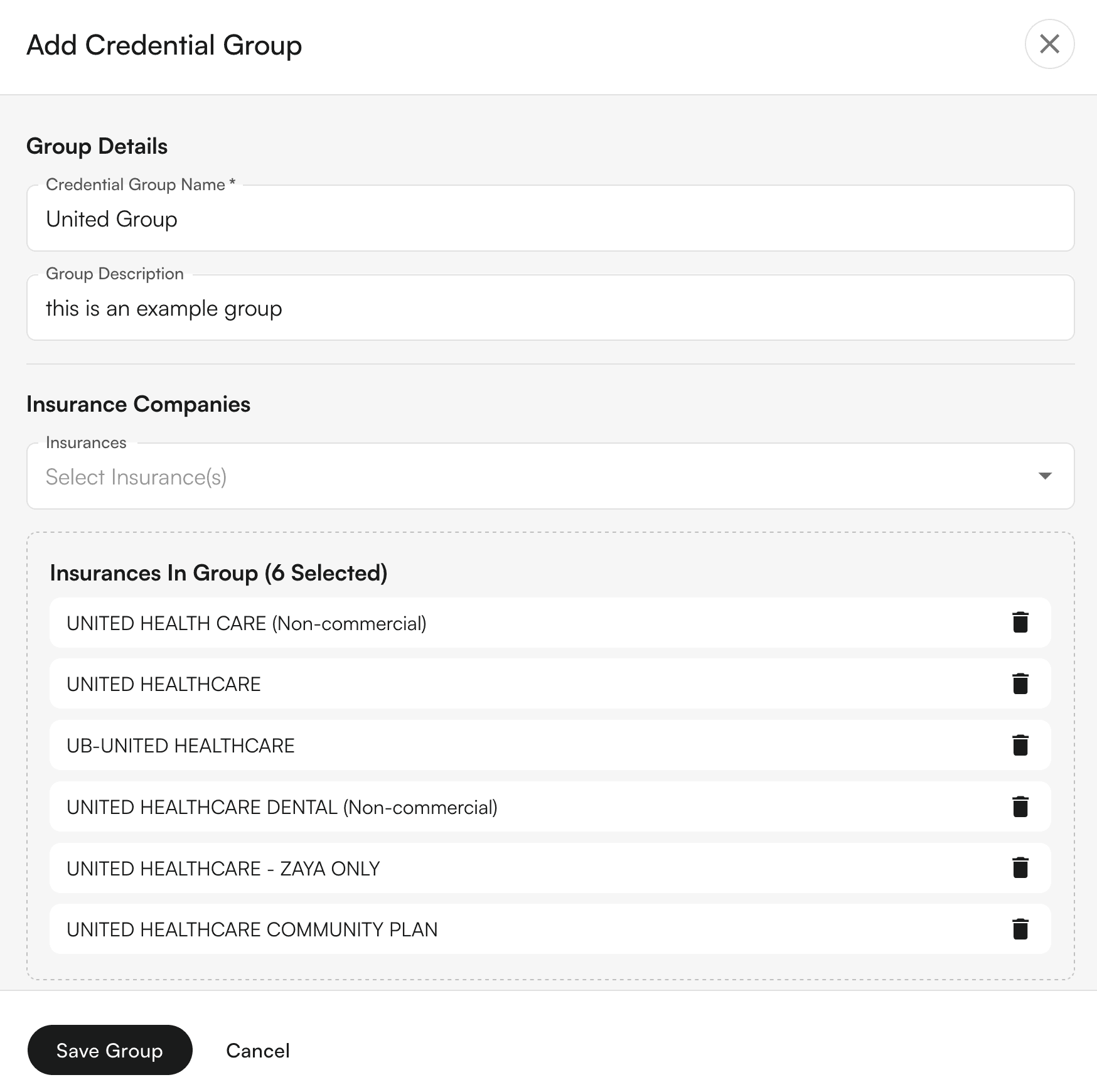
* **Navigate to Provider Credentialing page**
* **Click the "+ Credential Group" split button** in the top right
* **Fill out the group details:**
* Enter a group name (e.g., "Optum Group", "Medicaid Plans")
* Add an optional description
* Select insurance companies to include in the group
* **Click "Save Group"** to create the group
#### Editing Credentialing Groups
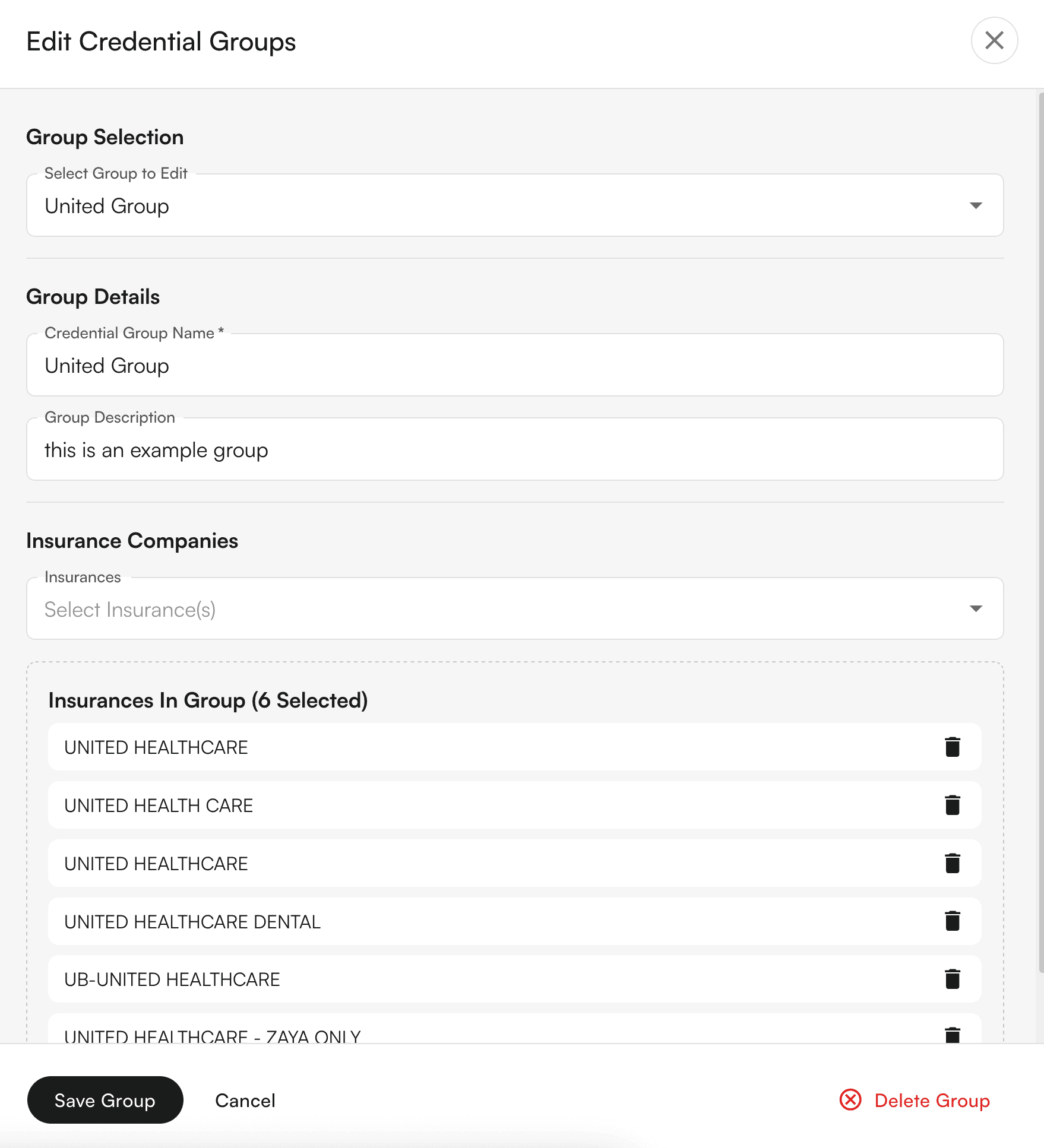
* **Click the dropdown arrow** on the "Credential Group" button
* **Select "Edit Credential Group"**
* **Choose the group** you want to edit from the dropdown
* **Modify the details** as needed (name, description, insurance companies)
* **Click "Save Group"** to update, or **"Delete Group"** to remove it
#### Adding Credentials Using Groups
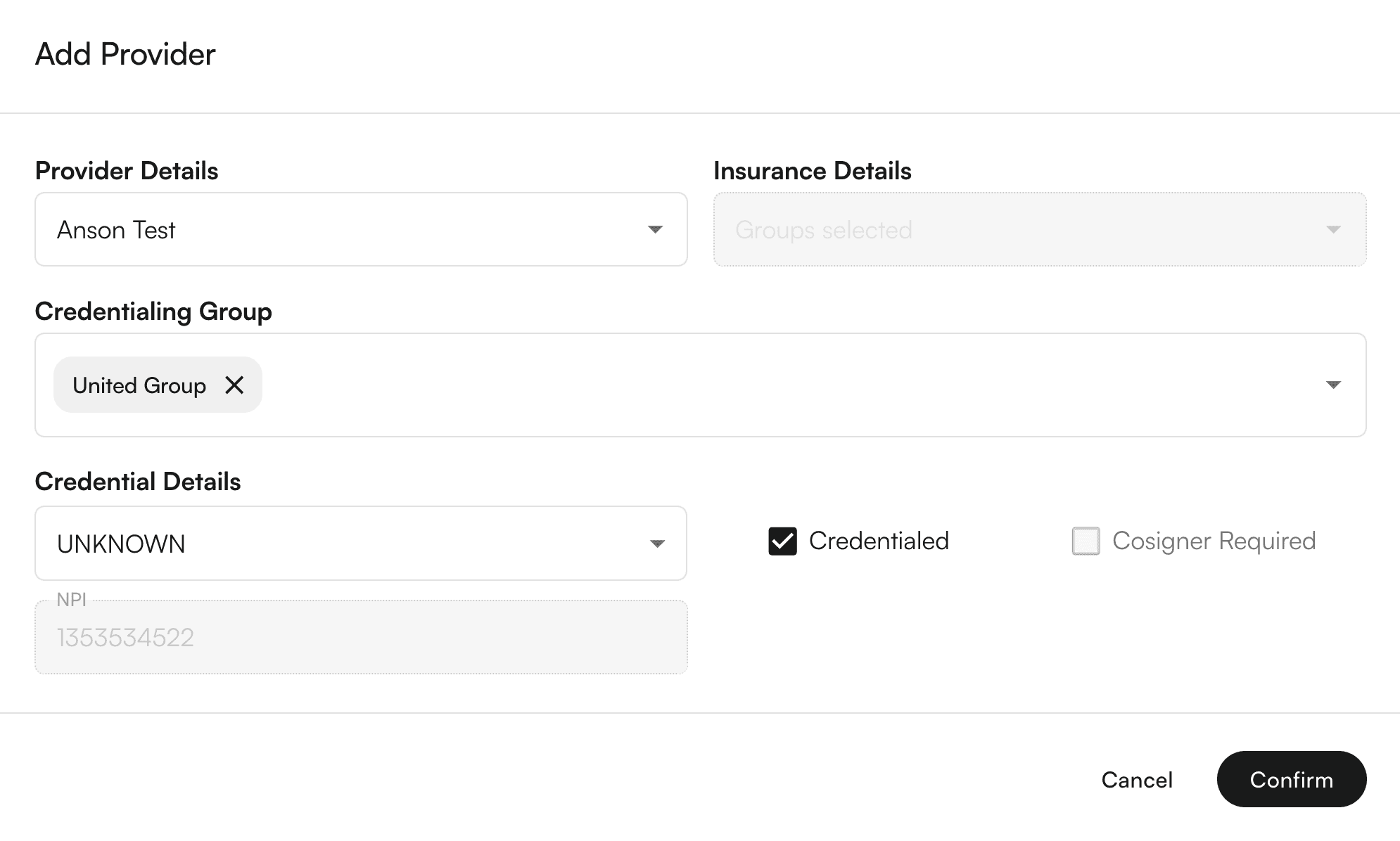
* **Click "Add Credentialing"** to open the credential modal
* **Select a provider**
* **Choose your credentialing approach:**
* **Individual**: Select a specific insurance company, OR
* **Group**: Select one or more credentialing groups
* **Set credential details** (type, status, cosigner requirements)
* **Click "Confirm"** - the system will automatically create individual credentials for each insurance in the selected groups
#### Viewing Group Information
* **Table Column**: The "Credentialed Group" column shows which groups each provider belongs to
* **Filtering**: Use the new "Credentialing Group" filter to view only providers who qualify for specific groups
* **Group Qualification**: Providers only appear in a group if they have credentials for ALL insurance companies in that group
#### Deleting a credentialing group
You can also delete a credentialing group.
**Steps:**
* Click on the credentialing group, then the down arrow icon, then `Edit Credentialing group`
* Select the group to be edited.
* On the bottom of the drawer, you can see the `Delete credentialing group`.
* A confirmation modal appears. On click of `Delete Group`, the credentialing group would be Permanently deleted!
#### Using credentialing group as filters
**Steps:**
* Click the `+ Filter` button above the table. This will show various filters. Select `Credentialing Group`
* You can search for various groups.
* Click on each row to select/deselect the credentialing group.
* On click, the table would load the filtered rows.
#### Using credentialing groups to add credentials
**Steps:**
* Click on `+ Add Credentialing` button
* Select the provider name from the list of providers from the site.
* Select the credentialing group from the existing list of credentialing groups.
* Select the credentialing type. Based on the credentialing type, you would get the options to modify `Credentialed` and `Cosigner required`.
* Click on `Submit`.
* The provider credentialing entries for provider + insurance companies under the credentialing group would be created.
 * Select the provider name from the list of providers from the site.
* Select the insurance company from the list of insurance companies.
* Select the credentialing type. Based on the credentialing type, you would get the options to modify `Credentialed` and `Cosigner required`.
* Click on `Submit`.
* The provider credentialing entry would be created.
#### Bulk edit provider credentials
**Steps:**
* In the table, you can select multiple rows by clicking on the empty checkboxes to the left of the row.
* You can select multiple rows across different providers, insurance companies, and credentialing groups.
* You have the ability to change the:
* `Credentialing type`
* `Credentialed`
* `Cosigner Required`
* You can either keep the existing values for these rows, or apply the same settings to all rows.
* Click on `Submit` to reflect your changes.
* **Example video:**
#### Select all results in a filter for bulk editing
When a filter is applied, a prompt to select all the results for bulk editing shows up.
#### Credentialing Group
Credentialing group allows you to bundle multiple insurance companies under one group, so when you get credentialed for a group, you can apply the same configuration.
💡 **Important Notes:**
* An Insurance company can be part of multiple credentialing groups.
* Groups are mutually exclusive with individual insurance selection in the Add Credential modal
* You can select multiple groups when adding credentials to credential a provider with all insurances across those groups
#### Creating Credentialing Groups
* **Navigate to Provider Credentialing page**
* **Click the "+ Credential Group" split button** in the top right
* Select the provider name from the list of providers from the site.
* Select the insurance company from the list of insurance companies.
* Select the credentialing type. Based on the credentialing type, you would get the options to modify `Credentialed` and `Cosigner required`.
* Click on `Submit`.
* The provider credentialing entry would be created.
#### Bulk edit provider credentials
**Steps:**
* In the table, you can select multiple rows by clicking on the empty checkboxes to the left of the row.
* You can select multiple rows across different providers, insurance companies, and credentialing groups.
* You have the ability to change the:
* `Credentialing type`
* `Credentialed`
* `Cosigner Required`
* You can either keep the existing values for these rows, or apply the same settings to all rows.
* Click on `Submit` to reflect your changes.
* **Example video:**
#### Select all results in a filter for bulk editing
When a filter is applied, a prompt to select all the results for bulk editing shows up.
#### Credentialing Group
Credentialing group allows you to bundle multiple insurance companies under one group, so when you get credentialed for a group, you can apply the same configuration.
💡 **Important Notes:**
* An Insurance company can be part of multiple credentialing groups.
* Groups are mutually exclusive with individual insurance selection in the Add Credential modal
* You can select multiple groups when adding credentials to credential a provider with all insurances across those groups
#### Creating Credentialing Groups
* **Navigate to Provider Credentialing page**
* **Click the "+ Credential Group" split button** in the top right
 * **Fill out the group details:**
* Enter a group name (e.g., "Optum Group", "Medicaid Plans")
* Add an optional description
* Select insurance companies to include in the group
* **Click "Save Group"** to create the group
* **Fill out the group details:**
* Enter a group name (e.g., "Optum Group", "Medicaid Plans")
* Add an optional description
* Select insurance companies to include in the group
* **Click "Save Group"** to create the group
 #### Editing Credentialing Groups
* **Click the dropdown arrow** on the "Credential Group" button
* **Select "Edit Credential Group"**
#### Editing Credentialing Groups
* **Click the dropdown arrow** on the "Credential Group" button
* **Select "Edit Credential Group"**
 * **Choose the group** you want to edit from the dropdown
* **Modify the details** as needed (name, description, insurance companies)
* **Click "Save Group"** to update, or **"Delete Group"** to remove it
* **Choose the group** you want to edit from the dropdown
* **Modify the details** as needed (name, description, insurance companies)
* **Click "Save Group"** to update, or **"Delete Group"** to remove it
 #### Adding Credentials Using Groups
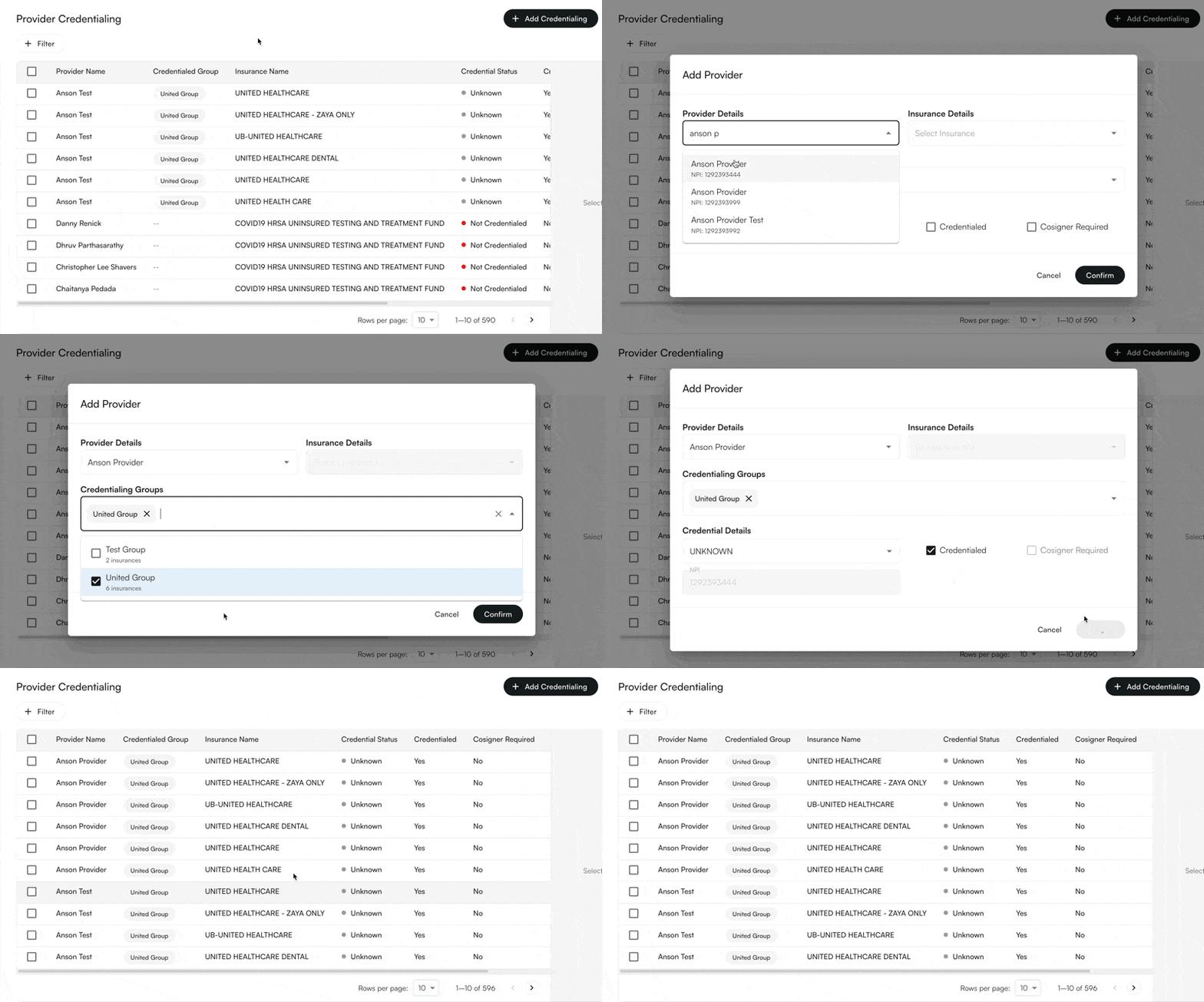
* **Click "Add Credentialing"** to open the credential modal
* **Select a provider**
* **Choose your credentialing approach:**
* **Individual**: Select a specific insurance company, OR
* **Group**: Select one or more credentialing groups
#### Adding Credentials Using Groups
* **Click "Add Credentialing"** to open the credential modal
* **Select a provider**
* **Choose your credentialing approach:**
* **Individual**: Select a specific insurance company, OR
* **Group**: Select one or more credentialing groups
 * **Set credential details** (type, status, cosigner requirements)
* **Click "Confirm"** - the system will automatically create individual credentials for each insurance in the selected groups
* **Set credential details** (type, status, cosigner requirements)
* **Click "Confirm"** - the system will automatically create individual credentials for each insurance in the selected groups
 #### Viewing Group Information
* **Table Column**: The "Credentialed Group" column shows which groups each provider belongs to
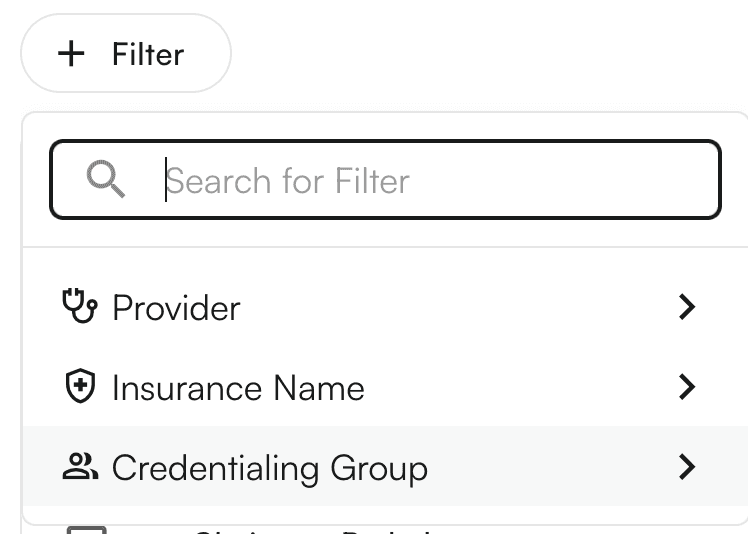
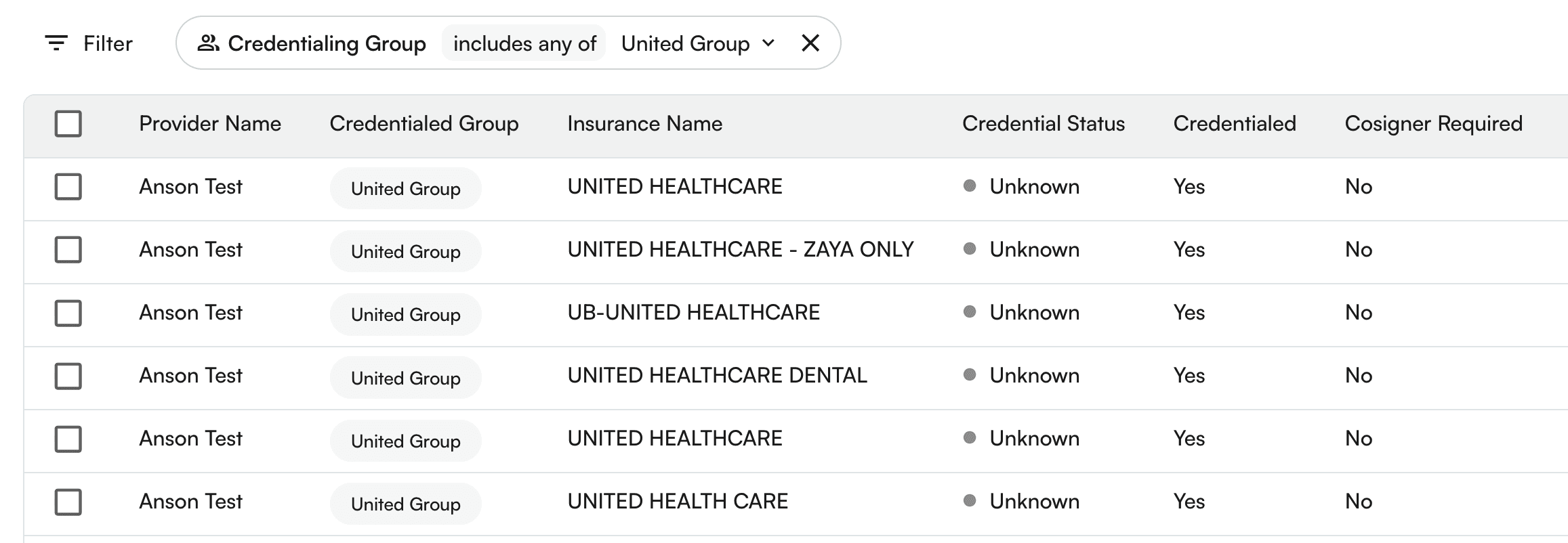
* **Filtering**: Use the new "Credentialing Group" filter to view only providers who qualify for specific groups
#### Viewing Group Information
* **Table Column**: The "Credentialed Group" column shows which groups each provider belongs to
* **Filtering**: Use the new "Credentialing Group" filter to view only providers who qualify for specific groups
 * **Group Qualification**: Providers only appear in a group if they have credentials for ALL insurance companies in that group
 #### Deleting a credentialing group
You can also delete a credentialing group.
**Steps:**
* Click on the credentialing group, then the down arrow icon, then `Edit Credentialing group`
* Select the group to be edited.
* On the bottom of the drawer, you can see the `Delete credentialing group`.
* A confirmation modal appears. On click of `Delete Group`, the credentialing group would be Permanently deleted!
#### Using credentialing group as filters
**Steps:**
* Click the `+ Filter` button above the table. This will show various filters. Select `Credentialing Group`
* You can search for various groups.
* Click on each row to select/deselect the credentialing group.
* On click, the table would load the filtered rows.
#### Using credentialing groups to add credentials
**Steps:**
* Click on `+ Add Credentialing` button
* Select the provider name from the list of providers from the site.
* Select the credentialing group from the existing list of credentialing groups.
* Select the credentialing type. Based on the credentialing type, you would get the options to modify `Credentialed` and `Cosigner required`.
* Click on `Submit`.
* The provider credentialing entries for provider + insurance companies under the credentialing group would be created.
#### Deleting a credentialing group
You can also delete a credentialing group.
**Steps:**
* Click on the credentialing group, then the down arrow icon, then `Edit Credentialing group`
* Select the group to be edited.
* On the bottom of the drawer, you can see the `Delete credentialing group`.
* A confirmation modal appears. On click of `Delete Group`, the credentialing group would be Permanently deleted!
#### Using credentialing group as filters
**Steps:**
* Click the `+ Filter` button above the table. This will show various filters. Select `Credentialing Group`
* You can search for various groups.
* Click on each row to select/deselect the credentialing group.
* On click, the table would load the filtered rows.
#### Using credentialing groups to add credentials
**Steps:**
* Click on `+ Add Credentialing` button
* Select the provider name from the list of providers from the site.
* Select the credentialing group from the existing list of credentialing groups.
* Select the credentialing type. Based on the credentialing type, you would get the options to modify `Credentialed` and `Cosigner required`.
* Click on `Submit`.
* The provider credentialing entries for provider + insurance companies under the credentialing group would be created.