> ## Documentation Index
> Fetch the complete documentation index at: https://trainings.air.athelas.com/llms.txt
> Use this file to discover all available pages before exploring further.
# Getting Started as a Biller: Errors, Rejections & Denials
This guide outlines the core RCM workflow pages in Insights, how they differ, and when to use each. While all of these pages relate to claims that require attention, they represent different stages in the claim lifecycle—from data entering the system to the payer’s final decision.
For a hands-on walkthrough of the Claims Page, see [**Getting Started as a Biller**](/insights_onboard/getting_started_as_a_biller) and the [**Claim Details Page**](/insights_biller/claim_details/claim_details_page).
## Claims Page
The **Claims Page** is the primary workspace for billers to interact with individual claims. It consolidates encounter data, claim metadata, rule outcomes, submission history, and payer responses in one place.
**When to use:**
* Reviewing claim-level details end to end
* Validating rule outcomes and submission history
* Training on how claims move from creation → submission → payer response
### Find What You Need to Work On
The Claims Page shows you all encounters in your system. With thousands of claims, the key is filtering down to exactly what you need.
**Use filters to focus your work**
Click **Filter** at the top of the page to narrow down your list. You can filter by:
* **Encounter Status** — Draft, Ready for Review, Approved, Submitted, Denied
* **Assignment** — Claims assigned to you, others, or unassigned
* **Insurance Provider** — Specific payers
* **Claim Amount** — Dollar value ranges
* **Age** — How long the claim has been in the system
* **Date Ranges** — Creation, submission, or payment dates
Combine multiple filters to get exactly what you need. For example: "Show me all Blue Cross claims over \$500 that are ready for review."
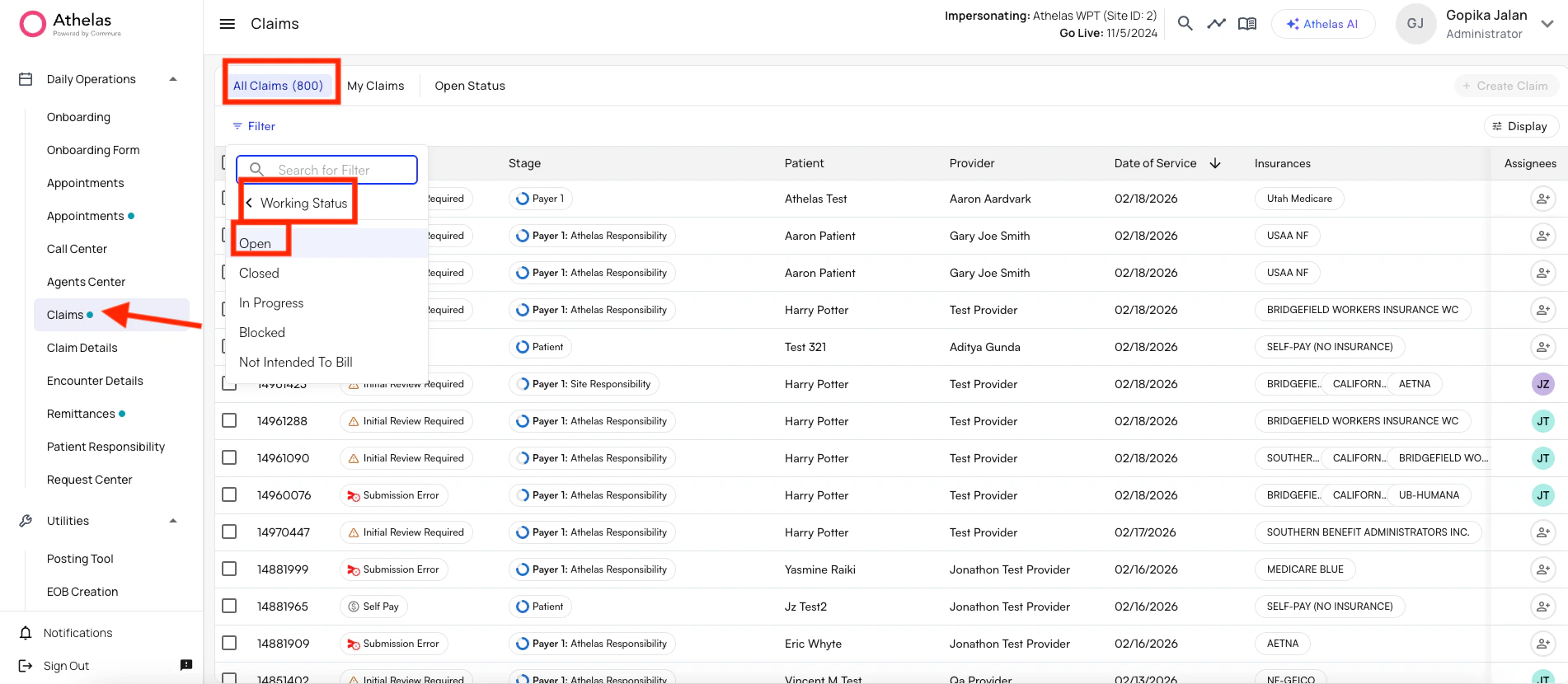 ### Understanding Claim Statuses
As claims move through your workflow, they have different statuses:
| **Status** | **What It Means** | **What To Do** |
| :------------------- | :------------------------------------- | :------------------------------- |
| **Draft** | Incomplete information | Complete missing fields |
| **Ready for Review** | Complete and waiting for biller review | Review for accuracy, fix errors |
| **Approved** | Reviewed and ready to submit | Final verification, then submit |
| **Submitted** | Sent to payer | Monitor for response |
| **Paid** | Payment received | Reconcile and close |
| **Denied** | Rejected by payer | Review reason, correct, resubmit |
## Open Encounters
An **open encounter** is a claim that has been stopped for site review before going through the submission funnel. It remains in an "open" status until you review it; after review, it can be submitted or corrected.
**How to view Open Encounters:**
1. Log in to Insights.
2. Navigate to the **Claims** page.
3. Open **Filter** and set:
* **Working Status:** Open
* **Service Date Range:** Your go-live or backfill date (as needed)
4. Scroll to the **Tags** column to see which rule stopped this encounter from closing.
5. Click into the encounter, review based on the tag, and make any changes.
6. Click **Submit** at the top right when ready.
### Understanding Claim Statuses
As claims move through your workflow, they have different statuses:
| **Status** | **What It Means** | **What To Do** |
| :------------------- | :------------------------------------- | :------------------------------- |
| **Draft** | Incomplete information | Complete missing fields |
| **Ready for Review** | Complete and waiting for biller review | Review for accuracy, fix errors |
| **Approved** | Reviewed and ready to submit | Final verification, then submit |
| **Submitted** | Sent to payer | Monitor for response |
| **Paid** | Payment received | Reconcile and close |
| **Denied** | Rejected by payer | Review reason, correct, resubmit |
## Open Encounters
An **open encounter** is a claim that has been stopped for site review before going through the submission funnel. It remains in an "open" status until you review it; after review, it can be submitted or corrected.
**How to view Open Encounters:**
1. Log in to Insights.
2. Navigate to the **Claims** page.
3. Open **Filter** and set:
* **Working Status:** Open
* **Service Date Range:** Your go-live or backfill date (as needed)
4. Scroll to the **Tags** column to see which rule stopped this encounter from closing.
5. Click into the encounter, review based on the tag, and make any changes.
6. Click **Submit** at the top right when ready.
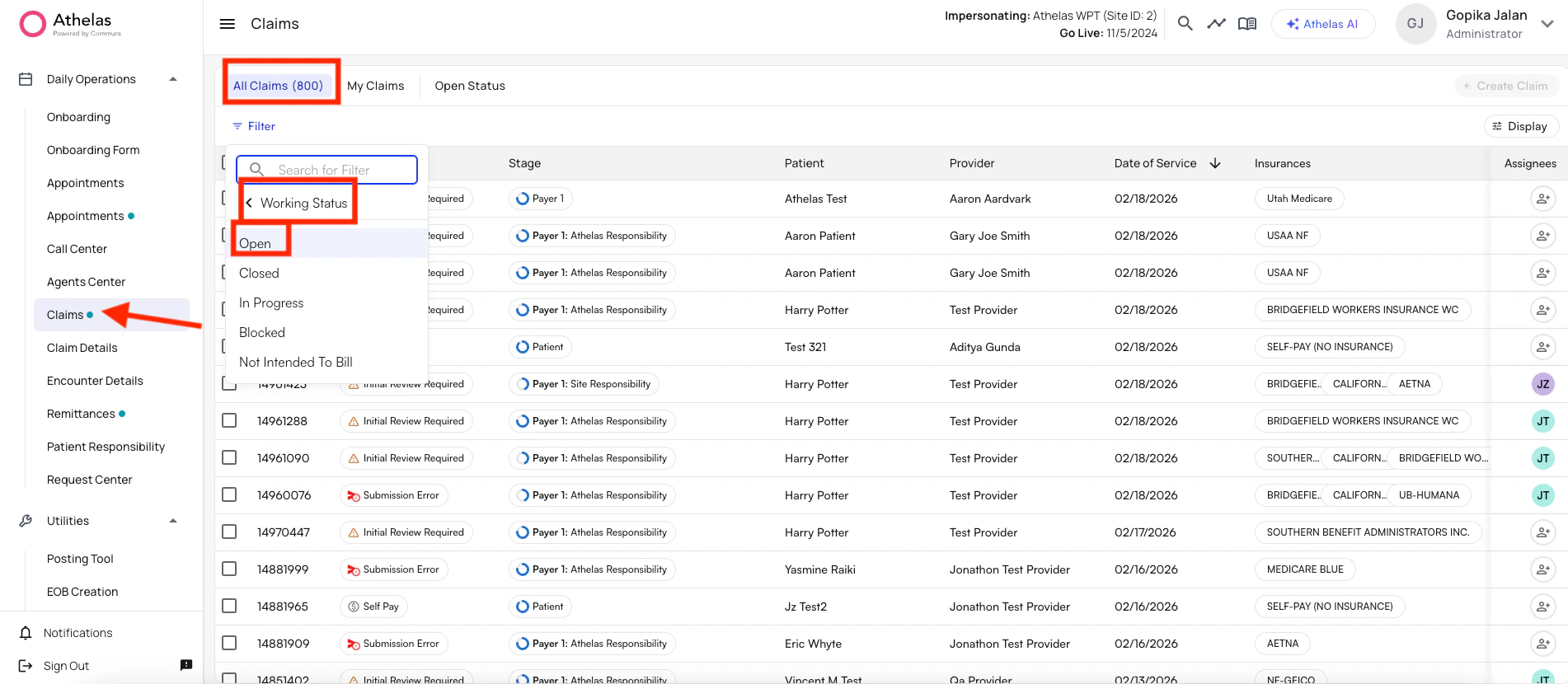 You can save these filters as a view: set your filters, then click **Save** in the top right.
## Action Items: The Four Types
Claims that need attention appear in different places depending on **where** in the lifecycle the issue occurred. The table below summarizes the four types.
| **Stage** | **Origin** | **Where It Occurs** | **Has Claim Been Submitted?** |
| :-------------------- | :---------------------- | :-------------------- | :---------------------------- |
| **Import Errors** | EHR → Athelas | Between systems | No |
| **Submission Errors** | Athelas | Internal rules engine | No |
| **Rejections** | Clearinghouse / Gateway | Post-submission | Yes (not adjudicated) |
| **Denials** | Payer | Post-adjudication | Yes |
All Import Errors, Submission Errors, Rejections, and Denials are initially assigned to **Athelas Responsibility**. The Athelas team works to resolve these and submit or resubmit the claim when possible.
If your team must provide additional information or take action, the claim is moved to the **More Information Required** bucket. You are responsible for monitoring and managing this bucket across the Import Errors, Submission Errors, Rejections, and Denials tabs.
Timely and consistent management of More Information Required is critical for claim turnaround and the efficiency of your practice’s RCM operations.
## Import Errors
**Definition:** An **Import Error** occurs when encounter or claim-related data fails to fully move from the EHR into Insights. These errors happen before a claim is created or sent to the clearinghouse.
**How to view Import Errors:**
1. Log in to Insights.
2. Navigate to **Action Items** > **Import Errors**.
You can save these filters as a view: set your filters, then click **Save** in the top right.
## Action Items: The Four Types
Claims that need attention appear in different places depending on **where** in the lifecycle the issue occurred. The table below summarizes the four types.
| **Stage** | **Origin** | **Where It Occurs** | **Has Claim Been Submitted?** |
| :-------------------- | :---------------------- | :-------------------- | :---------------------------- |
| **Import Errors** | EHR → Athelas | Between systems | No |
| **Submission Errors** | Athelas | Internal rules engine | No |
| **Rejections** | Clearinghouse / Gateway | Post-submission | Yes (not adjudicated) |
| **Denials** | Payer | Post-adjudication | Yes |
All Import Errors, Submission Errors, Rejections, and Denials are initially assigned to **Athelas Responsibility**. The Athelas team works to resolve these and submit or resubmit the claim when possible.
If your team must provide additional information or take action, the claim is moved to the **More Information Required** bucket. You are responsible for monitoring and managing this bucket across the Import Errors, Submission Errors, Rejections, and Denials tabs.
Timely and consistent management of More Information Required is critical for claim turnaround and the efficiency of your practice’s RCM operations.
## Import Errors
**Definition:** An **Import Error** occurs when encounter or claim-related data fails to fully move from the EHR into Insights. These errors happen before a claim is created or sent to the clearinghouse.
**How to view Import Errors:**
1. Log in to Insights.
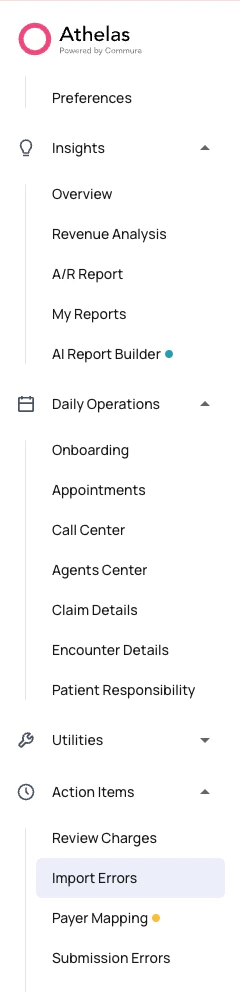
2. Navigate to **Action Items** > **Import Errors**.
 ### Import Errors: Common Causes
Import errors typically happen when:
* **Missing key details** — A patient or encounter is missing essential information.
* **New entities not yet added** — A new provider was added in your EHR but not yet in Athelas.
* **Missing insurance information** — A patient is missing their insurance member ID.
* **Unrecognized codes** — An encounter uses a custom CPT code that Athelas does not recognize.
* **Potential duplicates** — A patient appears to be a duplicate, and Athelas pauses import for investigation.
### How Import Errors Work
* **Detection** — When data cannot be properly imported, it is flagged as an import error.
* **Categorization** — Errors are grouped by type (e.g., "Invalid place of service code").
* **Prioritization** — The dashboard shows errors by total value and number of affected claims.
* **Resolution** — Some errors are resolved by the Athelas Ops team; others require action from your team.
### Resolving Import Errors
You can address import errors by:
* **Updating your EHR** — Fix missing or incorrect data in your EHR so it can flow into Athelas.
* **Using the Import feature** — Click the blue **Import** button to open the encounter creation flow and correct data directly in Insights.
* **Working with Athelas** — Contact your Athelas representative for new providers/facilities or to create import rules.
Review import errors weekly to catch issues early. Notify Athelas when adding new providers or facilities. Most errors are simple missing fields that can be fixed in your EHR; the corrected data will flow into Athelas during the next overnight import.
**Note:** The goal is to work toward zero outstanding import errors so all eligible encounters are captured for claim submission.
## Submission Errors
**Definition:** A **Submission Error** occurs when a claim is prevented from leaving Insights and transmitting successfully to the clearinghouse or payer. These errors may be triggered by system validation failures or configured blocking rules that stop the claim before submission.
Common causes include:
* Missing modifiers on procedure codes
* Incorrect diagnosis codes (ICD-10)
* Invalid addresses
* Clearinghouse rule violations
* Incorrect CPT codes
* Typos in patient, billing, or provider information
* Missing required fields (e.g., DOB, insurance ID, provider NPI)
* Invalid characters in the claim data
* Incorrect insurance information
These claims are **pre-submission** and fully controllable within Insights.
**How to view Submission Errors:**
1. Log in to Insights.
2. Navigate to **Action Items** > **Submission Errors**.
### Import Errors: Common Causes
Import errors typically happen when:
* **Missing key details** — A patient or encounter is missing essential information.
* **New entities not yet added** — A new provider was added in your EHR but not yet in Athelas.
* **Missing insurance information** — A patient is missing their insurance member ID.
* **Unrecognized codes** — An encounter uses a custom CPT code that Athelas does not recognize.
* **Potential duplicates** — A patient appears to be a duplicate, and Athelas pauses import for investigation.
### How Import Errors Work
* **Detection** — When data cannot be properly imported, it is flagged as an import error.
* **Categorization** — Errors are grouped by type (e.g., "Invalid place of service code").
* **Prioritization** — The dashboard shows errors by total value and number of affected claims.
* **Resolution** — Some errors are resolved by the Athelas Ops team; others require action from your team.
### Resolving Import Errors
You can address import errors by:
* **Updating your EHR** — Fix missing or incorrect data in your EHR so it can flow into Athelas.
* **Using the Import feature** — Click the blue **Import** button to open the encounter creation flow and correct data directly in Insights.
* **Working with Athelas** — Contact your Athelas representative for new providers/facilities or to create import rules.
Review import errors weekly to catch issues early. Notify Athelas when adding new providers or facilities. Most errors are simple missing fields that can be fixed in your EHR; the corrected data will flow into Athelas during the next overnight import.
**Note:** The goal is to work toward zero outstanding import errors so all eligible encounters are captured for claim submission.
## Submission Errors
**Definition:** A **Submission Error** occurs when a claim is prevented from leaving Insights and transmitting successfully to the clearinghouse or payer. These errors may be triggered by system validation failures or configured blocking rules that stop the claim before submission.
Common causes include:
* Missing modifiers on procedure codes
* Incorrect diagnosis codes (ICD-10)
* Invalid addresses
* Clearinghouse rule violations
* Incorrect CPT codes
* Typos in patient, billing, or provider information
* Missing required fields (e.g., DOB, insurance ID, provider NPI)
* Invalid characters in the claim data
* Incorrect insurance information
These claims are **pre-submission** and fully controllable within Insights.
**How to view Submission Errors:**
1. Log in to Insights.
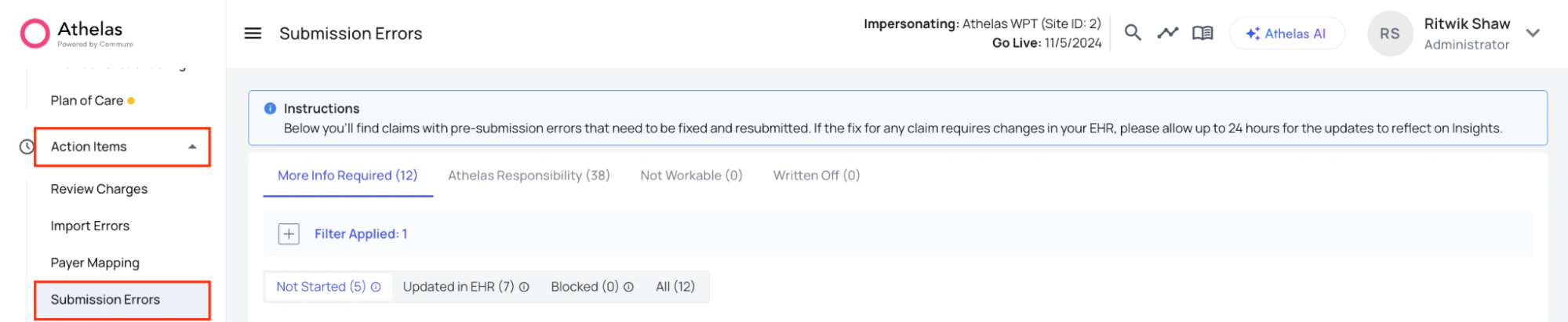
2. Navigate to **Action Items** > **Submission Errors**.
 ### Types of Submission Errors
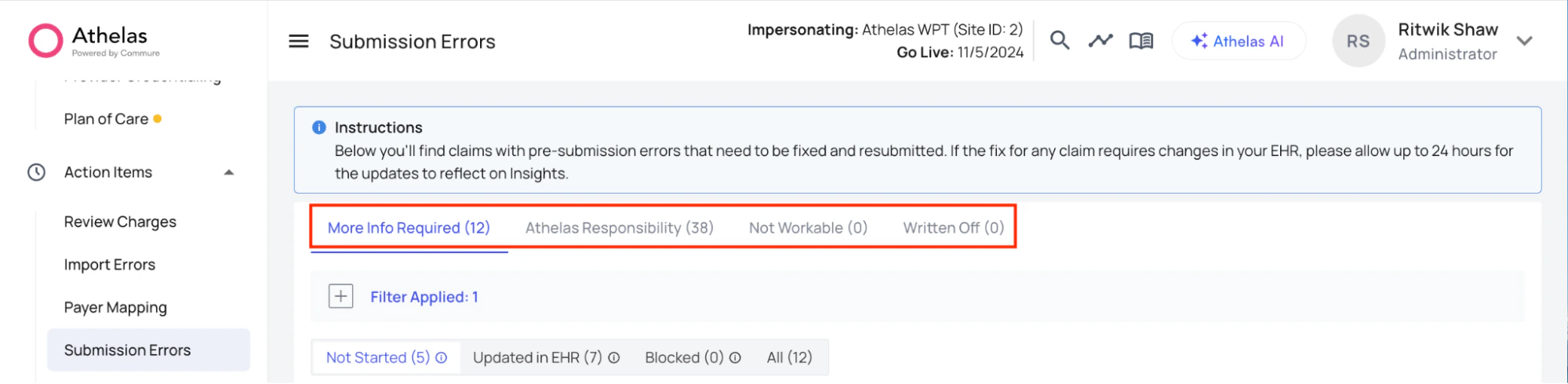
Claims are organized into these buckets:
* **More Info Required (Site Responsibility)** — Claims that require information only your practice can provide. These need timely action from your staff and are the most actionable category.
* **Athelas Responsibility** — Claims where Athelas already has what’s needed to fix and resubmit. Athelas will correct and resubmit these automatically.
* **Not Workable** — Claims deemed unworkable (e.g., duplicates, claims already submitted elsewhere, or regrettable cases such as missed deadlines).
* **Written Off** — Claims your team has marked as irretrievable loss; no further action will be pursued.
### Types of Submission Errors
Claims are organized into these buckets:
* **More Info Required (Site Responsibility)** — Claims that require information only your practice can provide. These need timely action from your staff and are the most actionable category.
* **Athelas Responsibility** — Claims where Athelas already has what’s needed to fix and resubmit. Athelas will correct and resubmit these automatically.
* **Not Workable** — Claims deemed unworkable (e.g., duplicates, claims already submitted elsewhere, or regrettable cases such as missed deadlines).
* **Written Off** — Claims your team has marked as irretrievable loss; no further action will be pursued.
 ### How to Resolve Submission Errors
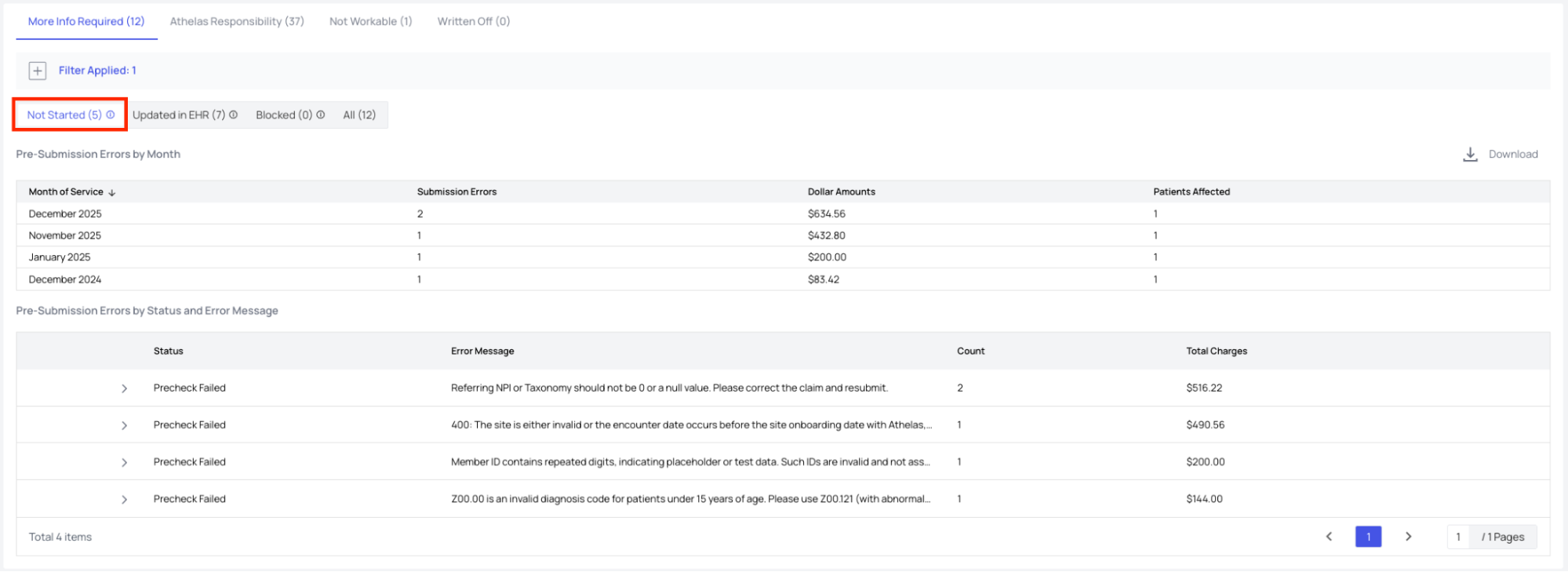
Your responsibility is to work through the queue under **More Information Required**, which uses sub-statuses to track progress:
* **Not Started** — No action taken yet.
* **Updated in EHR** — Corrections made in the EHR, waiting for overnight import.
* **Blocked** — Contact Athelas for resolution. This status can sometimes be used as a hold; consult your Athelas representative for workflows.
**To resolve a claim:**
1. View the list of claims under **Not Started**.
2. Expand the error by clicking the **>** next to the error **Status**.
### How to Resolve Submission Errors
Your responsibility is to work through the queue under **More Information Required**, which uses sub-statuses to track progress:
* **Not Started** — No action taken yet.
* **Updated in EHR** — Corrections made in the EHR, waiting for overnight import.
* **Blocked** — Contact Athelas for resolution. This status can sometimes be used as a hold; consult your Athelas representative for workflows.
**To resolve a claim:**
1. View the list of claims under **Not Started**.
2. Expand the error by clicking the **>** next to the error **Status**.
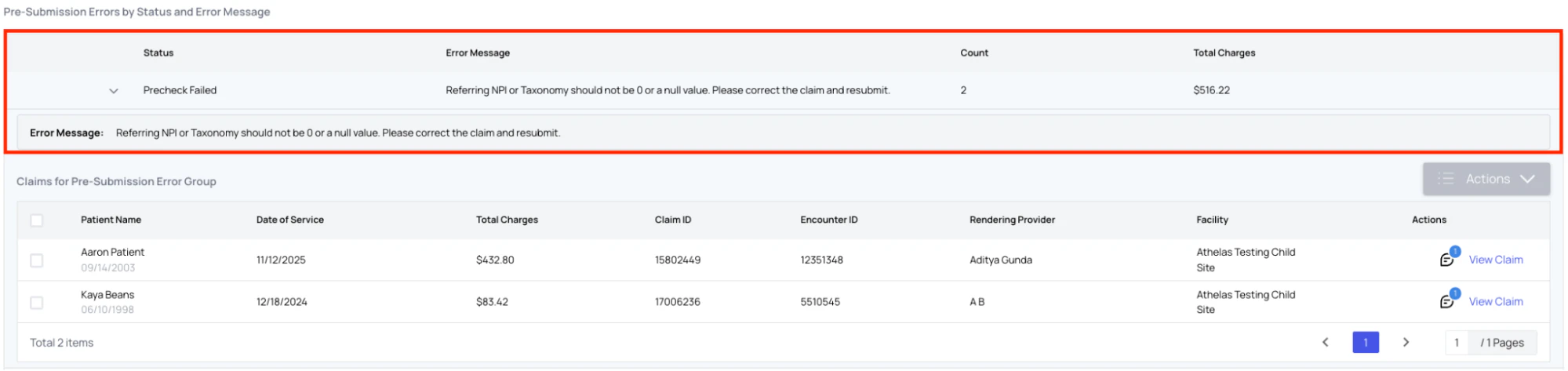
 3. View all claims with that error status and message. Select a claim, then click **Actions** to see available steps.
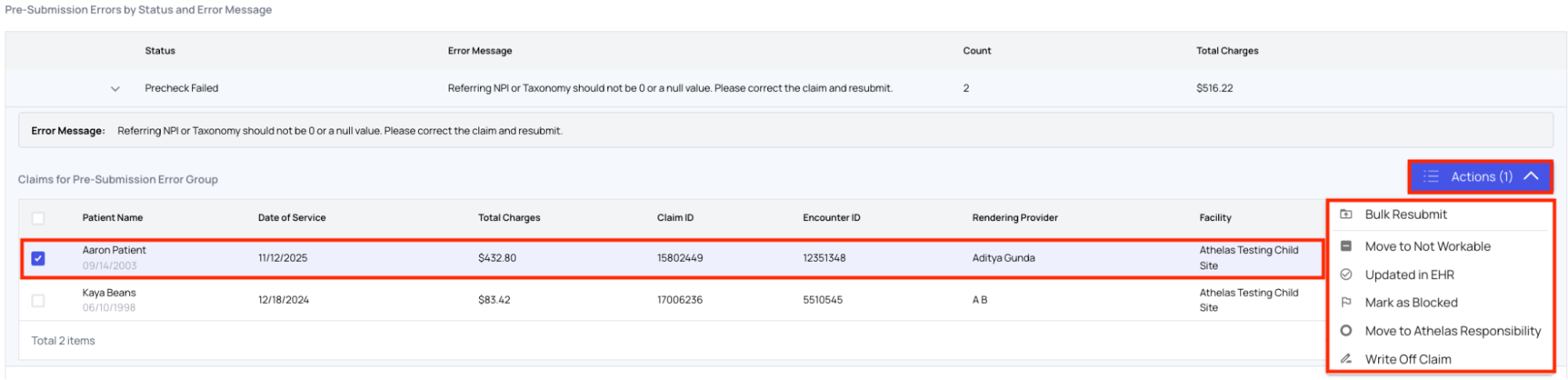
 4. Based on what you do, mark the claim as:
* **Updated in EHR** — You fixed data in the EHR; Athelas will pull the update and submit.
* **Mark as Blocked** — You need help from Athelas.
* **Move to Not Workable** — The claim cannot be worked (technical or regrettable reasons).
* **Write Off Claim** — You do not want to pursue the claim.
4. Based on what you do, mark the claim as:
* **Updated in EHR** — You fixed data in the EHR; Athelas will pull the update and submit.
* **Mark as Blocked** — You need help from Athelas.
* **Move to Not Workable** — The claim cannot be worked (technical or regrettable reasons).
* **Write Off Claim** — You do not want to pursue the claim.
 **Note:** Claims may move back and forth between More Information Required and Athelas Responsibility if more information is needed after a claim has been moved to the review queue.
## Rejections
**Definition:** A **Rejection** occurs when a claim is returned by the clearinghouse or payer gateway due to formatting, compliance, or eligibility issues. The claim is never accepted for adjudication. These are not payer decisions—they are technical or validation failures after the claim was submitted.
A rejected claim is effectively invisible to the insurance company because it was never accepted into their system. This creates significant risk for timely filing. Rejections should be reviewed and resolved promptly.
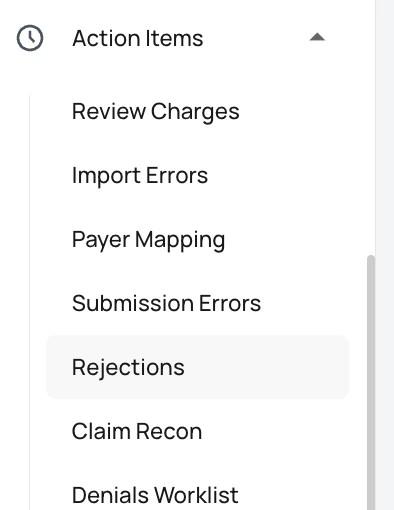
Rejections are reviewed and managed on the **Rejections** page under **Action Items**.
**Note:** Claims may move back and forth between More Information Required and Athelas Responsibility if more information is needed after a claim has been moved to the review queue.
## Rejections
**Definition:** A **Rejection** occurs when a claim is returned by the clearinghouse or payer gateway due to formatting, compliance, or eligibility issues. The claim is never accepted for adjudication. These are not payer decisions—they are technical or validation failures after the claim was submitted.
A rejected claim is effectively invisible to the insurance company because it was never accepted into their system. This creates significant risk for timely filing. Rejections should be reviewed and resolved promptly.
Rejections are reviewed and managed on the **Rejections** page under **Action Items**.
 ### Rejection Buckets
On the Rejections page, claims are organized into:
| **Bucket** | **Meaning** |
| :------------------------- | :------------------------------------------------------------------------------------------------------------------------------------------------------------------- |
| **More Info Required** | Your practice needs to provide additional information or make corrections. Action is needed from your team before the claim can be resubmitted. |
| **Athelas Responsibility** | Athelas is actively working on the claims. No action is required from your practice; Athelas has what’s needed to resolve and resubmit (e.g., within about 15 days). |
| **Not Workable** | Claims unworkable due to technicalities (e.g., duplicates, already processed elsewhere) or regrettable cases (e.g., missed deadlines). |
| **Written Off** | Your practice has decided to abandon collection; no further action will be taken. |
### Rejection Buckets
On the Rejections page, claims are organized into:
| **Bucket** | **Meaning** |
| :------------------------- | :------------------------------------------------------------------------------------------------------------------------------------------------------------------- |
| **More Info Required** | Your practice needs to provide additional information or make corrections. Action is needed from your team before the claim can be resubmitted. |
| **Athelas Responsibility** | Athelas is actively working on the claims. No action is required from your practice; Athelas has what’s needed to resolve and resubmit (e.g., within about 15 days). |
| **Not Workable** | Claims unworkable due to technicalities (e.g., duplicates, already processed elsewhere) or regrettable cases (e.g., missed deadlines). |
| **Written Off** | Your practice has decided to abandon collection; no further action will be taken. |
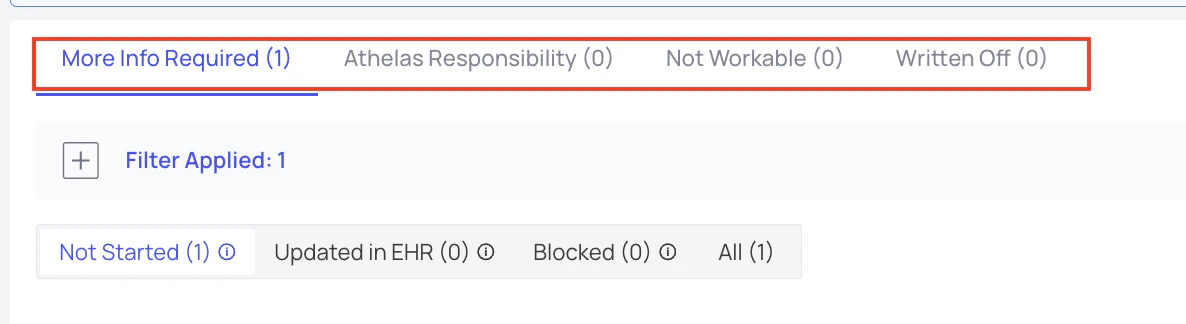 For claims in **More Info Required**, you’ll see sub-groups: **Not Started**, **Updated in EHR**, **Blocked**, and **All**.
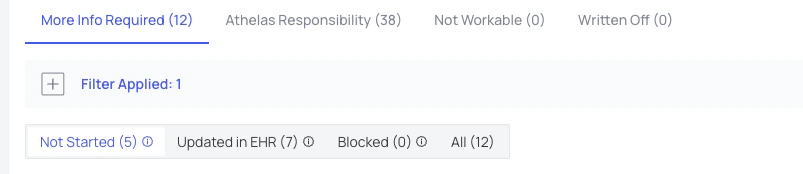 * **Not Started** — Rejected claims that require action from your practice but haven’t been worked yet.
* **Updated in EHR** — Your staff made corrections in the EHR and marked them "Updated in EHR." You should actually update the claim in the EHR before marking this status. Once marked, Athelas will pull corrections and resubmit within about 24 hours.
* **Not Started** — Rejected claims that require action from your practice but haven’t been worked yet.
* **Updated in EHR** — Your staff made corrections in the EHR and marked them "Updated in EHR." You should actually update the claim in the EHR before marking this status. Once marked, Athelas will pull corrections and resubmit within about 24 hours.
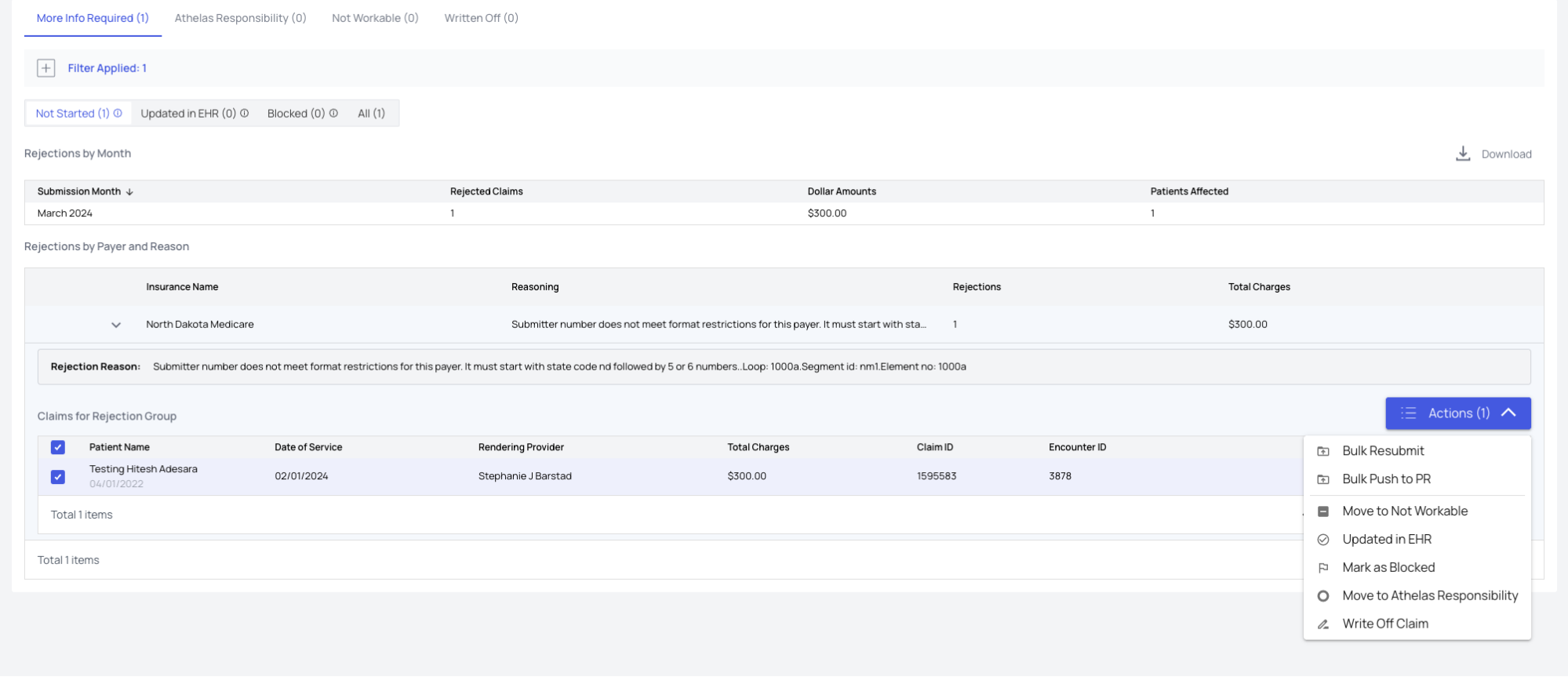 * **Blocked** — Your practice has indicated it cannot fix the rejection and needs help from Athelas. Contact your Athelas representative for workflows.
 **Not Workable** means the claim cannot be fixed due to technical or timing issues. **Written Off** is a business decision by your practice to stop pursuing payment.
To handle a rejected claim you can: view rejection details in the **Reasoning** column or Encounter Timeline; resubmit a single claim via **Actions** > **Edit Claim Form & Resubmit**; or update information in your EHR, then in Insights select **Updated in EHR** so Athelas can re-extract and resubmit.
For step-by-step resubmission, see [**How to resubmit a single claim**](/insights_biller/claim_details/how_to_resubmit_a_single_claim) and [**How to resubmit claims in bulk**](/insights_biller/claim_details/how_to_resubmit_claims_in_bulk).
## Denials
**Not Workable** means the claim cannot be fixed due to technical or timing issues. **Written Off** is a business decision by your practice to stop pursuing payment.
To handle a rejected claim you can: view rejection details in the **Reasoning** column or Encounter Timeline; resubmit a single claim via **Actions** > **Edit Claim Form & Resubmit**; or update information in your EHR, then in Insights select **Updated in EHR** so Athelas can re-extract and resubmit.
For step-by-step resubmission, see [**How to resubmit a single claim**](/insights_biller/claim_details/how_to_resubmit_a_single_claim) and [**How to resubmit claims in bulk**](/insights_biller/claim_details/how_to_resubmit_claims_in_bulk).
## Denials
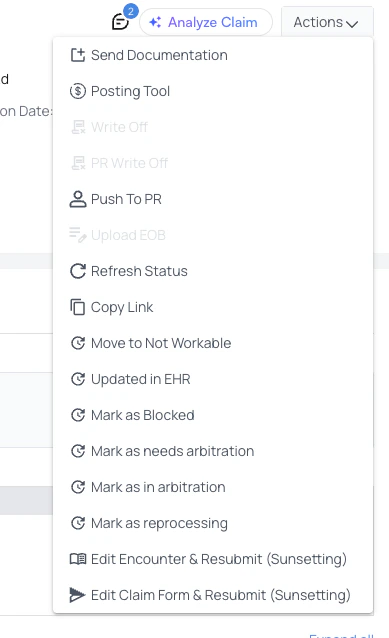 **Definition:** A **Denial** is a formal decision from the payer after the claim has been received and adjudicated. The payer has reviewed the claim and decided that payment will not be made (in full or in part). The Denials Worklist is designed to point you at the most impactful denials to work.
For analytics and trends, see the [**Denials Analysis**](/insights_biller/analytics/the_denials_analysis_page) page.
On the **Denials Worklist** (under **Action Items**), denied claims appear in these buckets:
| **Bucket** | **Meaning** |
| :------------------------- | :--------------------------------------------------------------------------------------------------------------------------------------------------------------------------------------------------------------------------------------------------- |
| **Site Action Required** | Your top priority—denials that need immediate attention from your practice. Your team must make updates in the EHR; after corrections, mark as "Updated in EHR" and claims move to Athelas Responsibility and are resubmitted within about 24 hours. |
| **Athelas Responsibility** | No action required from you; Athelas handles these. Claims you’ve marked "Updated in EHR" also move here. You can review if you want, but Athelas has them queued. |
| **Not Workable** | No available actions will lead to approval (e.g., duplicates, timely filing missed, already processed elsewhere). Review and write off; these are categorized as Unavoidable (technical) or Regrettable (could have been salvaged). |
**Definition:** A **Denial** is a formal decision from the payer after the claim has been received and adjudicated. The payer has reviewed the claim and decided that payment will not be made (in full or in part). The Denials Worklist is designed to point you at the most impactful denials to work.
For analytics and trends, see the [**Denials Analysis**](/insights_biller/analytics/the_denials_analysis_page) page.
On the **Denials Worklist** (under **Action Items**), denied claims appear in these buckets:
| **Bucket** | **Meaning** |
| :------------------------- | :--------------------------------------------------------------------------------------------------------------------------------------------------------------------------------------------------------------------------------------------------- |
| **Site Action Required** | Your top priority—denials that need immediate attention from your practice. Your team must make updates in the EHR; after corrections, mark as "Updated in EHR" and claims move to Athelas Responsibility and are resubmitted within about 24 hours. |
| **Athelas Responsibility** | No action required from you; Athelas handles these. Claims you’ve marked "Updated in EHR" also move here. You can review if you want, but Athelas has them queued. |
| **Not Workable** | No available actions will lead to approval (e.g., duplicates, timely filing missed, already processed elsewhere). Review and write off; these are categorized as Unavoidable (technical) or Regrettable (could have been salvaged). |
 Within **Site Action Required**, you’ll see:
* **Not Started** — New denials that need your attention; review and determine corrections.
* **Awaiting EHR Updates** — Your staff has indicated corrections were made in the EHR but haven’t yet been marked "Updated in EHR" in Insights. Once Athelas imports the data, these will be resubmitted and drop off the denials dashboard.
* **Blocked** — Your team needs help from Athelas to resolve the denial. Use this when you’re stuck and cannot determine the solution.
Within **Site Action Required**, you’ll see:
* **Not Started** — New denials that need your attention; review and determine corrections.
* **Awaiting EHR Updates** — Your staff has indicated corrections were made in the EHR but haven’t yet been marked "Updated in EHR" in Insights. Once Athelas imports the data, these will be resubmitted and drop off the denials dashboard.
* **Blocked** — Your team needs help from Athelas to resolve the denial. Use this when you’re stuck and cannot determine the solution.
 Check the denials worklist daily, focus on **Site Action Required** first, and periodically review **Not Workable** to either write them off or take one final attempt at correction. When reviewing, start with older dates of service to avoid timely filing issues, and consider sorting by highest denied balances for the largest revenue impact.
## FAQ
**Import and Submission Errors** happen before a claim is successfully sent to the payer: import errors between your EHR and Athelas, submission errors inside Athelas (validation or blocking rules). **Rejections** happen after you submit—the clearinghouse or gateway returns the claim for technical/format/eligibility reasons, so the payer never adjudicates it. **Denials** happen after the payer has received and adjudicated the claim and decided not to pay (in full or in part).
Claims in **More Information Required** need something only your practice can provide—for example, a correction in the EHR, updated insurance information, or documentation. You are responsible for monitoring this bucket across Import Errors, Submission Errors, Rejections, and Denials. Timely management is critical for claim turnaround.
Claims are only categorized as Unavoidable vs Regrettable after a **denial**, not a rejection. You’ll see those subcategories on the Denials page when a claim has been denied and placed in Not Workable.
**Not Workable** means the claim cannot be successfully fixed or resubmitted due to technical or timing issues (e.g., duplicate, missed timely filing). **Written Off** is a business decision by your practice to stop pursuing payment from the payer or patient. Both mean no further collection action, but the reason differs.
From the Rejections or Denials worklist, open the claim and use **Actions** to edit and resubmit. For one claim, use [**How to resubmit a single claim**](/insights_biller/claim_details/how_to_resubmit_a_single_claim). For many at once, use [**How to resubmit claims in bulk**](/insights_biller/claim_details/how_to_resubmit_claims_in_bulk).
Check the denials worklist daily, focus on **Site Action Required** first, and periodically review **Not Workable** to either write them off or take one final attempt at correction. When reviewing, start with older dates of service to avoid timely filing issues, and consider sorting by highest denied balances for the largest revenue impact.
## FAQ
**Import and Submission Errors** happen before a claim is successfully sent to the payer: import errors between your EHR and Athelas, submission errors inside Athelas (validation or blocking rules). **Rejections** happen after you submit—the clearinghouse or gateway returns the claim for technical/format/eligibility reasons, so the payer never adjudicates it. **Denials** happen after the payer has received and adjudicated the claim and decided not to pay (in full or in part).
Claims in **More Information Required** need something only your practice can provide—for example, a correction in the EHR, updated insurance information, or documentation. You are responsible for monitoring this bucket across Import Errors, Submission Errors, Rejections, and Denials. Timely management is critical for claim turnaround.
Claims are only categorized as Unavoidable vs Regrettable after a **denial**, not a rejection. You’ll see those subcategories on the Denials page when a claim has been denied and placed in Not Workable.
**Not Workable** means the claim cannot be successfully fixed or resubmitted due to technical or timing issues (e.g., duplicate, missed timely filing). **Written Off** is a business decision by your practice to stop pursuing payment from the payer or patient. Both mean no further collection action, but the reason differs.
From the Rejections or Denials worklist, open the claim and use **Actions** to edit and resubmit. For one claim, use [**How to resubmit a single claim**](/insights_biller/claim_details/how_to_resubmit_a_single_claim). For many at once, use [**How to resubmit claims in bulk**](/insights_biller/claim_details/how_to_resubmit_claims_in_bulk).