> ## Documentation Index
> Fetch the complete documentation index at: https://trainings.air.athelas.com/llms.txt
> Use this file to discover all available pages before exploring further.
# Additional Context Feature
#### Overview
The **Additional Context** feature allows healthcare providers to enhance AI-generated documentation by adding supplementary information to scribe notes.
You can provide context in two ways:
* **Audio Recording** – Capture additional conversation or dictate details
* **Text Input** – Type additional context or patient details
Adding context helps improve the **accuracy and completeness** of documentation.
#### Accessing the Additional Context Feature
##### Location
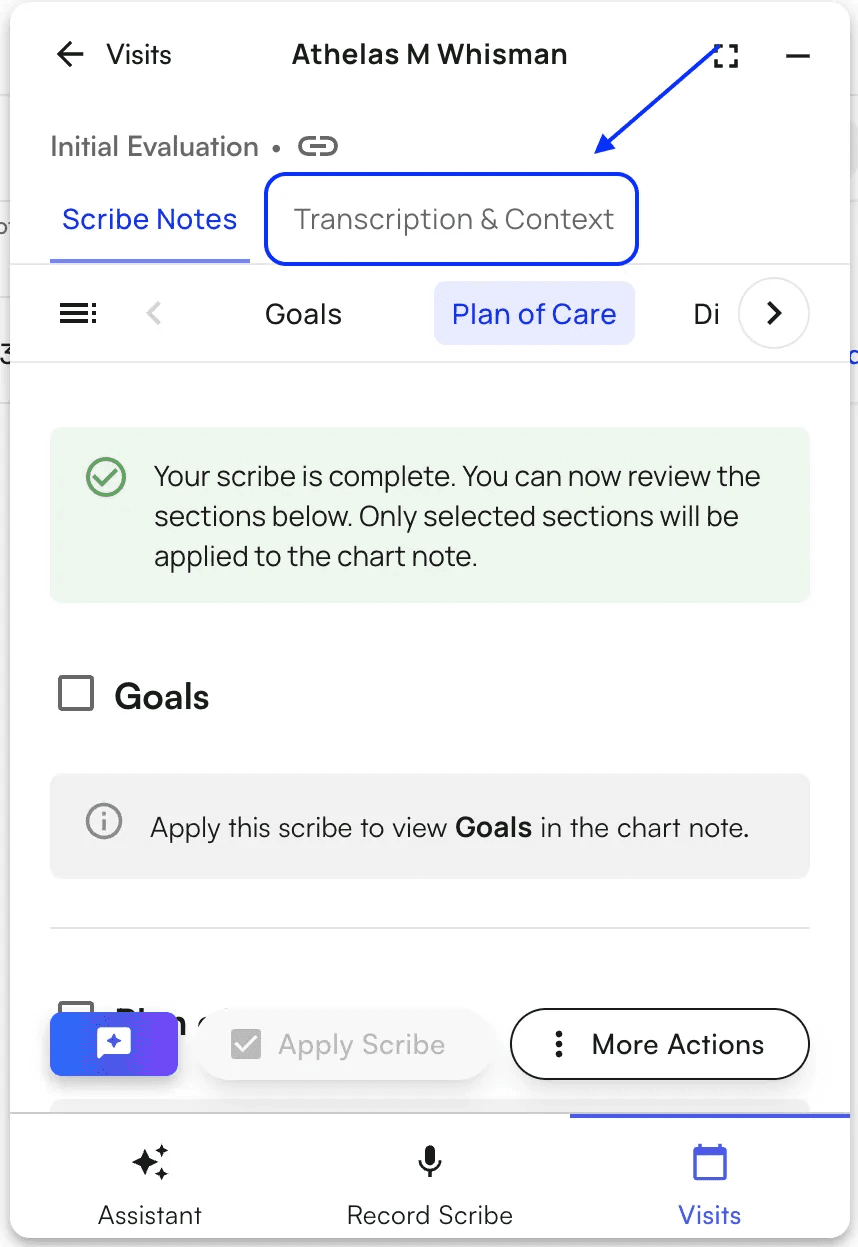
The feature is available on the **Completed Scribe Page** after a scribe session is completed.
##### How to Use
* Navigate to a completed scribe session
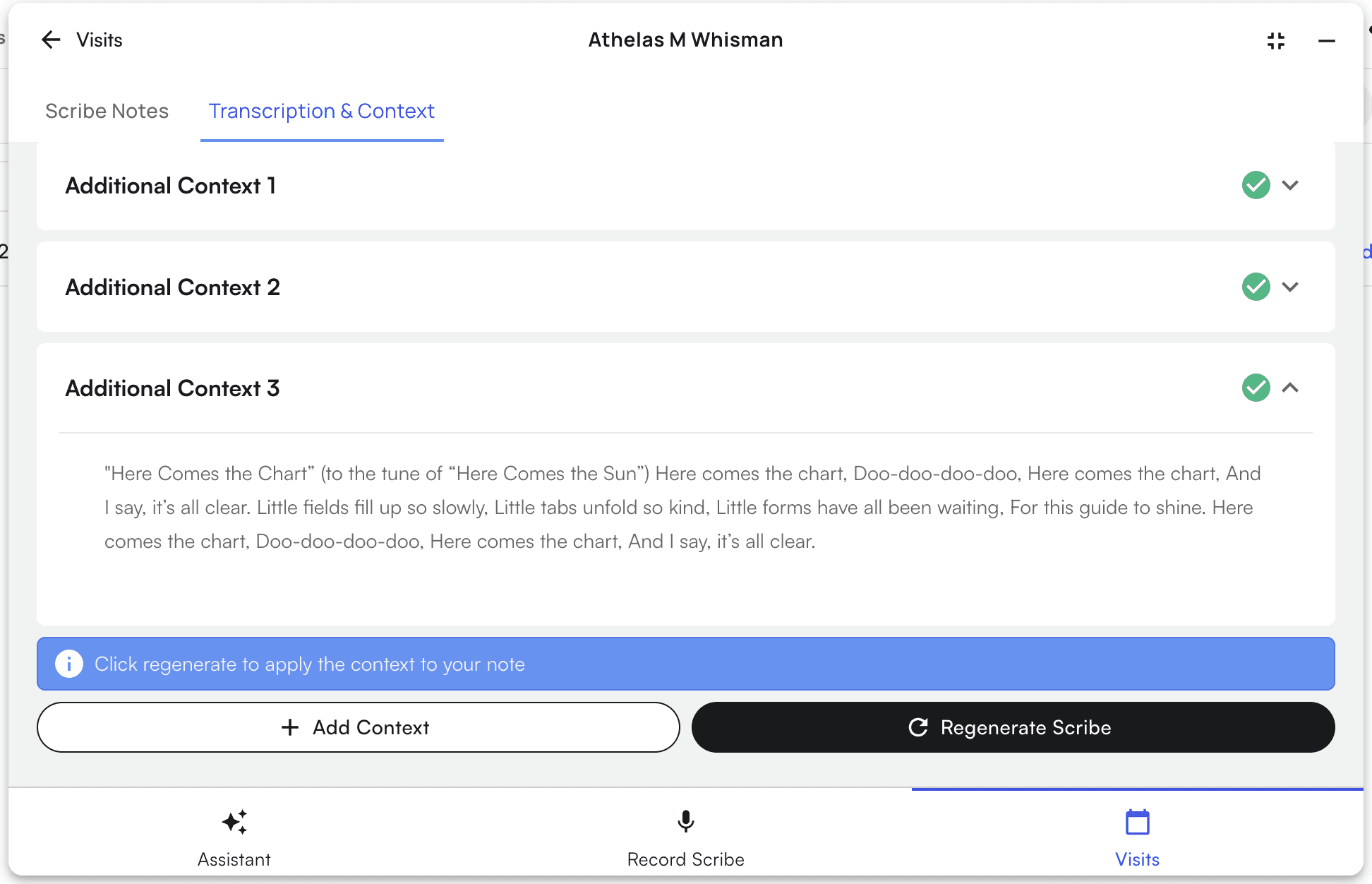
* Click on the new **“Transcription & Context”** Tab
* Click **“Add Context”**
* The **Additional Context dialog** will open
* Add context via text or audio (*click the drop-downs below* **↓** for specific details on both methods)
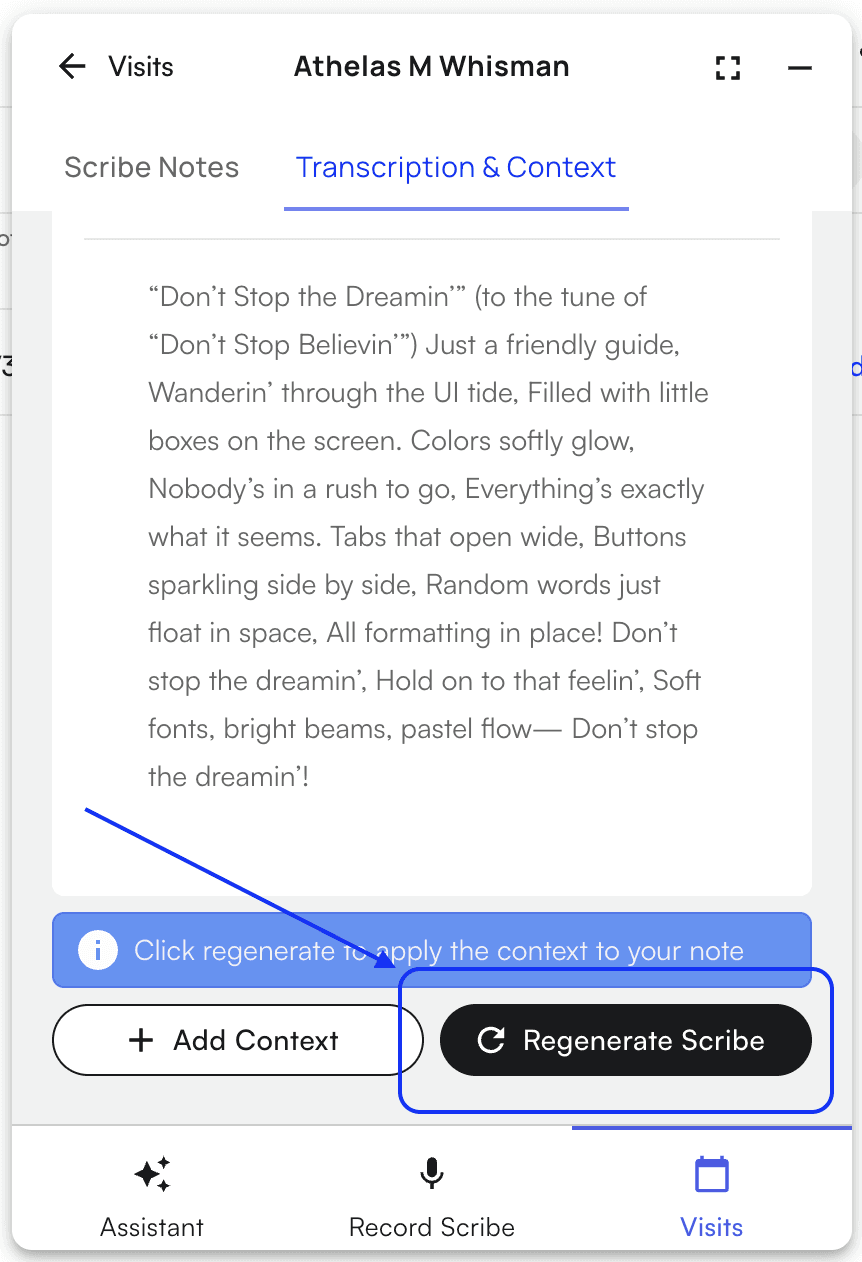
* Click regenerate scribe after adding all relevant context
 #### Using Audio Mode 🎙️
##### When to Use
Use audio when you want to:
* Capture additional patient conversation (such as a multi-part appointment)
* Capture lab or test results after the initial recording
* Longer additions
* Add context while multitasking
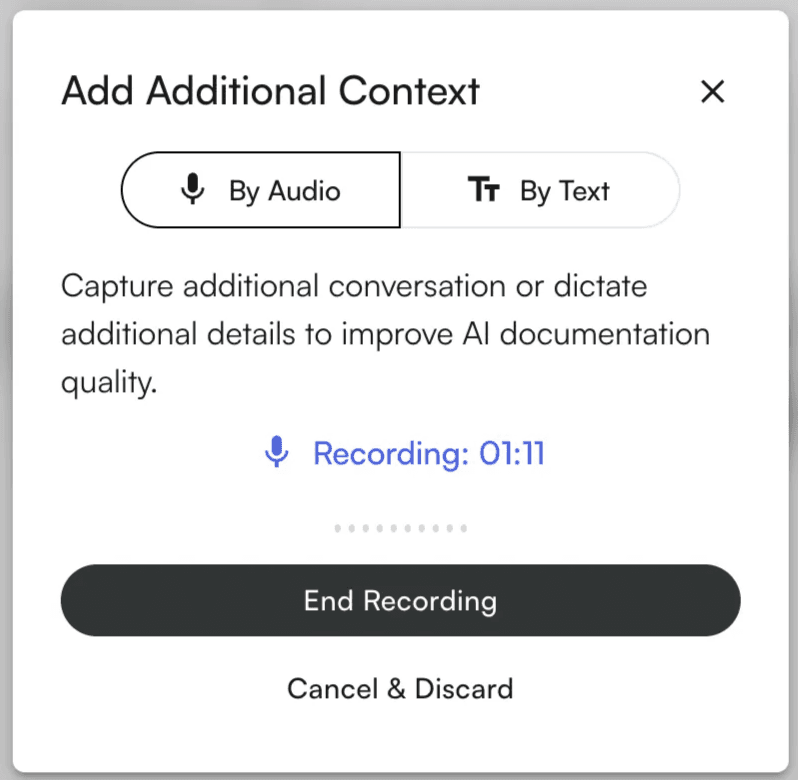
##### Steps to Use
* **Click the "Add Context" button**
* “By Audio” is selected by default
* **Start Recording**
* Click **“Record Audio”**
* Grant microphone permissions if prompted
* Recording begins immediately
* **End Recording**
* Click **“End Recording”**
* Audio uploads automatically
* Upload progress bar shows percentage
* **Completion**
* Success notification appears
* Dialog closes automatically
* Audio context begins processing
##### Recording Controls
* **End Recording** → Saves and uploads
* **Cancel & Discard** → Stops recording without saving
##### Tips For Audio Recording
* Record in a quiet environment
* Use a good quality microphone
* Check the mic level indicator
* Speak clearly and at a moderate pace
#### Using Audio Mode 🎙️
##### When to Use
Use audio when you want to:
* Capture additional patient conversation (such as a multi-part appointment)
* Capture lab or test results after the initial recording
* Longer additions
* Add context while multitasking
##### Steps to Use
* **Click the "Add Context" button**
* “By Audio” is selected by default
* **Start Recording**
* Click **“Record Audio”**
* Grant microphone permissions if prompted
* Recording begins immediately
* **End Recording**
* Click **“End Recording”**
* Audio uploads automatically
* Upload progress bar shows percentage
* **Completion**
* Success notification appears
* Dialog closes automatically
* Audio context begins processing
##### Recording Controls
* **End Recording** → Saves and uploads
* **Cancel & Discard** → Stops recording without saving
##### Tips For Audio Recording
* Record in a quiet environment
* Use a good quality microphone
* Check the mic level indicator
* Speak clearly and at a moderate pace
 #### Using Text Mode 💬
##### When to Use
Use text input for:
* Specific patient details
* Structured or concise information
* Quick additions
##### Steps to Use
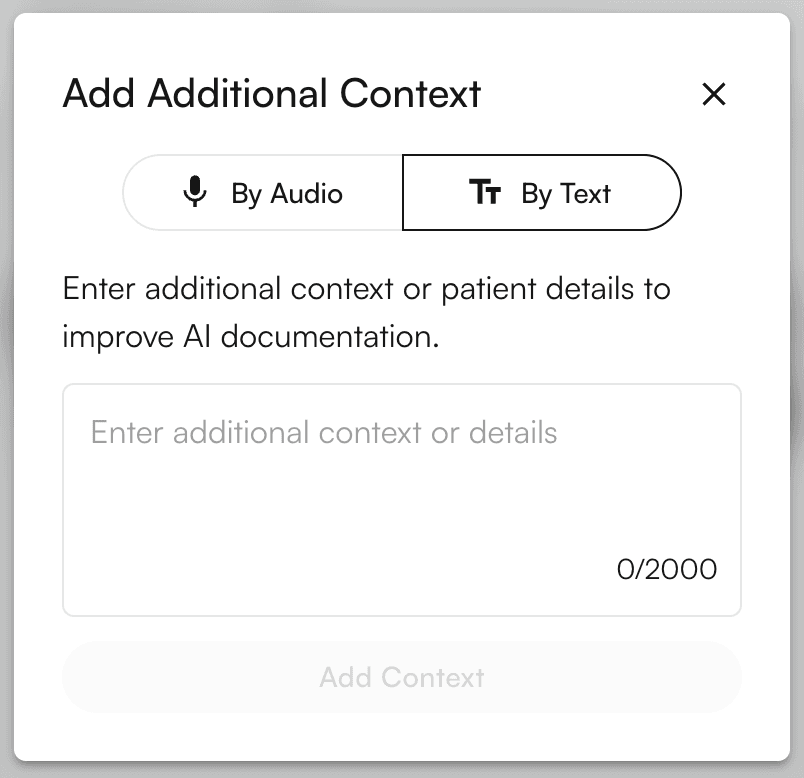
* **Click the "Add Context" button**
* **Switch to Text Mode**
* Click **“By Text”**
* **Enter Context**
* Type additional information (max 2,000 characters)
* **Submit Context**
* Click **“Add Context”**
* Context is added
* Dialog closes automatically
##### Tips For Text Input
* Be clear and concise
* Organize logically
* Include relevant terminology
* Use abbreviations when appropriate
* Monitor character counter
#### Using Text Mode 💬
##### When to Use
Use text input for:
* Specific patient details
* Structured or concise information
* Quick additions
##### Steps to Use
* **Click the "Add Context" button**
* **Switch to Text Mode**
* Click **“By Text”**
* **Enter Context**
* Type additional information (max 2,000 characters)
* **Submit Context**
* Click **“Add Context”**
* Context is added
* Dialog closes automatically
##### Tips For Text Input
* Be clear and concise
* Organize logically
* Include relevant terminology
* Use abbreviations when appropriate
* Monitor character counter
 #### Troubleshooting
##### Audio Recording Issues 🎙️
* **Problem:** "Failed to start recording"
**Solution:** Check browser microphone permissions
* Click the lock icon in your browser
* Allow microphone access
* Refresh the page and try again
* **Problem:** Low audio levels
**Solution:**
* Check microphone connection
* Adjust input settings
* Ensure correct microphone is selected
* **Problem:** Upload fails
**Solution:**
* Check your internet connection
* Retry recording
* Contact support if issue persists
##### Text Input Issues 💬
* **Problem:** "Add Context" button disabled
**Solution:**
* Type at least one character (not just spaces)
* **Problem:** Reached character limit
**Solution:**
* Remove unnecessary text
* Or submit current entry and start a new one
#### What Happens Next ⏭️
* Click **“Regenerate Scribe”**
* The AI processes a new scribe with your existing transcript along with your additional context
* Check the **“Scribe Notes”** tab to see your scribe progress
* Updated scribe appears with new context applied
#### Troubleshooting
##### Audio Recording Issues 🎙️
* **Problem:** "Failed to start recording"
**Solution:** Check browser microphone permissions
* Click the lock icon in your browser
* Allow microphone access
* Refresh the page and try again
* **Problem:** Low audio levels
**Solution:**
* Check microphone connection
* Adjust input settings
* Ensure correct microphone is selected
* **Problem:** Upload fails
**Solution:**
* Check your internet connection
* Retry recording
* Contact support if issue persists
##### Text Input Issues 💬
* **Problem:** "Add Context" button disabled
**Solution:**
* Type at least one character (not just spaces)
* **Problem:** Reached character limit
**Solution:**
* Remove unnecessary text
* Or submit current entry and start a new one
#### What Happens Next ⏭️
* Click **“Regenerate Scribe”**
* The AI processes a new scribe with your existing transcript along with your additional context
* Check the **“Scribe Notes”** tab to see your scribe progress
* Updated scribe appears with new context applied
 #### Multiple Context Entries 📚
* You can add multiple entries (audio or text)
* All added context is used during regeneration
#### Multiple Context Entries 📚
* You can add multiple entries (audio or text)
* All added context is used during regeneration
 #### Reminders❕
* **Be Specific** — Include precise missed details
* **Ensure Completeness** — Add all info before regenerating
* **Review Before Regenerating**
* **Prioritize Quality** — Relevant and accurate over length
If issues persist:
* Contact your **system administrator**
* Submit a **support ticket**
* Report **bugs or feature requests** to the dev team
#### Reminders❕
* **Be Specific** — Include precise missed details
* **Ensure Completeness** — Add all info before regenerating
* **Review Before Regenerating**
* **Prioritize Quality** — Relevant and accurate over length
If issues persist:
* Contact your **system administrator**
* Submit a **support ticket**
* Report **bugs or feature requests** to the dev team