> ## Documentation Index
> Fetch the complete documentation index at: https://trainings.air.athelas.com/llms.txt
> Use this file to discover all available pages before exploring further.

# Auto-apply KX Modifier

#### Overview

The KX HCPCS modifier signals that “requirements specified in the medical policy have been met” and that services are medically necessary beyond a payer’s threshold (most commonly Medicare outpatient therapy thresholds for PT/OT/SLP). It attests that supporting documentation exists in the medical record. (Sources: [APTA](https://www.apta.org/your-practice/payment/medicare-payment/coding-billing/therapy-cap), [NGS Medicare](https://www.ngsmedicare.com/web/ngs/physical-therapy/occupational-therapy/speech-therapy?selectedArticleId=305496))

#### Why we need it

* Compliance: Medicare requires KX on claim lines once the beneficiary’s annual therapy threshold is exceeded (PT+SLP combined, and OT separately). Without KX, claims at/above the threshold can be denied.
* Payment continuity: KX allows medically necessary therapy to continue beyond the threshold, with the understanding those services may be subject to targeted medical review (generally over \$3,000).

#### Types of Thresholds for Medicare

**PT/SLP vs OT Medicare threshold remaining**

* PT/SLP and OT are tracked in two separate “buckets” each calendar year. For CY2025 the thresholds are:

* PT + SLP combined: \$2,410

* OT: \$2,410

* Deductible and coinsurance count toward these amounts.

* “Threshold remaining” = threshold amount − total allowed therapy spend to date in that bucket (per calendar year)

#### CPT Codes that require a KX Modifier

**Physical & Occupational Therapy**

| CPT Code  | Description                                                                                  |
| --------- | -------------------------------------------------------------------------------------------- |
| **97110** | Therapeutic exercise (per 15 min)                                                            |
| **97112** | Neuromuscular reeducation                                                                    |
| **97116** | Gait training therapy                                                                        |
| **97140** | Manual therapy techniques                                                                    |
| **97530** | Therapeutic activities                                                                       |
| **97535** | Self-care/home management training                                                           |
| **97542** | Wheelchair management training                                                               |
| **97750** | Physical performance test or measurement                                                     |
| **97760** | Orthotic fitting and training                                                                |
| **97761** | Prosthetic training                                                                          |
| **97763** | Orthotic/prosthetic management & training (follow-up)                                        |
| **97150** | Group therapeutic procedures (must document medical necessity individually for each patient) |
| **97597** | Selective debridement (when part of therapy plan)                                            |

**Speech-Language Pathology (SLP)**

| CPT Code  | Description                                         |
| --------- | --------------------------------------------------- |
| **92507** | Treatment of speech, language, voice, communication |
| **92508** | Group speech therapy                                |
| **92526** | Treatment of swallowing dysfunction                 |
| **92609** | Therapeutic use of speech-generating device         |

**Common Occupational Therapy CPT Codes That Require the KX Modifier (when over threshold)**

| CPT Code  | Description                                       |
| --------- | ------------------------------------------------- |
| **97110** | Therapeutic exercise                              |
| **97112** | Neuromuscular re-education                        |
| **97116** | Gait training therapy                             |
| **97150** | Group therapy                                     |
| **97140** | Manual therapy                                    |
| **97530** | Therapeutic activities (e.g., reaching, grasping) |
| **97535** | Self-care/home management training                |
| **97537** | Community/work reintegration training             |
| **97542** | Wheelchair management training                    |
| **97750** | Physical performance test                         |
| **97755** | Assistive technology assessment                   |
| **97760** | Orthotic training                                 |
| **97761** | Prosthetic training                               |
| **97763** | Orthotic/prosthetic follow-up                     |

#### When would be KX modifier auto-applied?

* Patient has Medicare benefits applicable to outpatient therapy for the encounter
* **Auto-apply KX modifier preference** is enabled
* Rendering provider’s discipline maps to PT/SLP or OT for Medicare service type
* The CPT code is in the qualifying therapy list for that service type (PT/SLP vs OT)
* The calculation year is the appointment’s calendar year
* The patient’s Medicare therapy threshold remaining for that service type is ≤ 0 (i.e., threshold exceeded)
* KX isn’t already on the line; it’s appended alongside other therapy modifiers (e.g., GP/GO/GN)
* If a precomputed “threshold remaining” value is supplied and indicates exceeded, it’s used

#### Configuration

Setting PT/OT threshold on a per-patient level

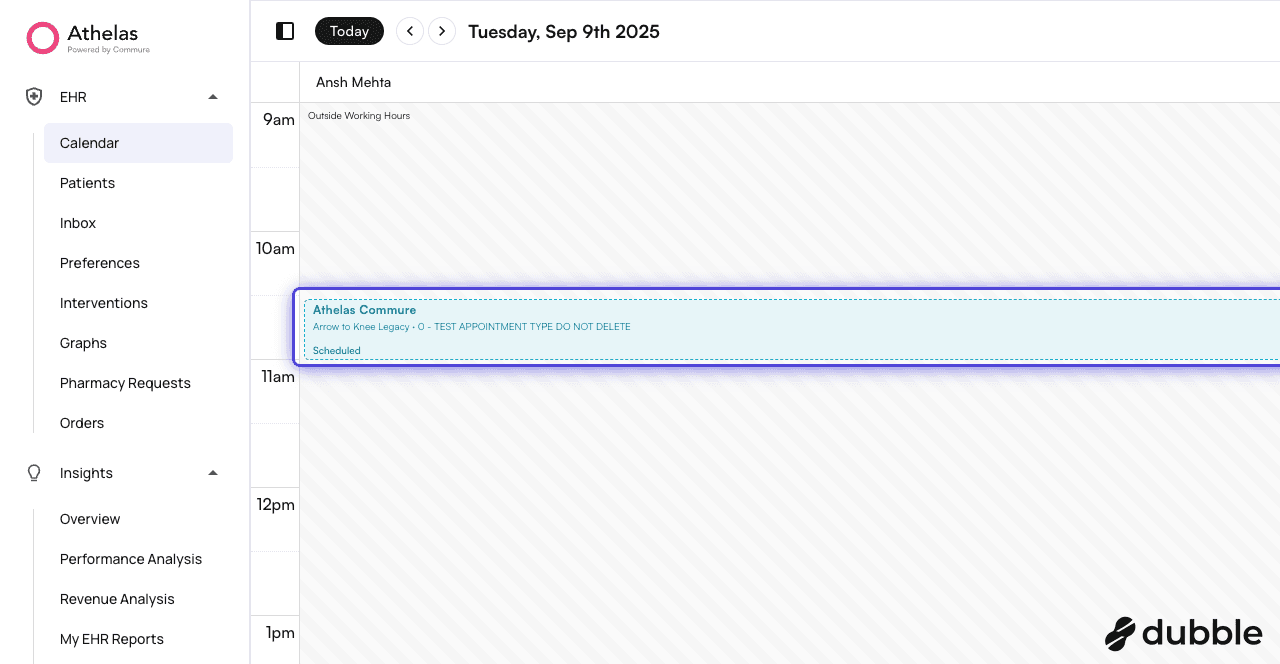
1. On EHR > Calendar, click on any calendar cell.
<img src="https://mintcdn.com/training_air/8O3TdE849rjX-oLi/images/insights_provider/chart_notes/auto_apply_kx_modifier/auto_apply_kx_modifier_1.png?fit=max&auto=format&n=8O3TdE849rjX-oLi&q=85&s=b03d49b44ceaea7963bd18503cfcd46d" alt="" width="1280" height="664" data-path="images/insights_provider/chart_notes/auto_apply_kx_modifier/auto_apply_kx_modifier_1.png" />

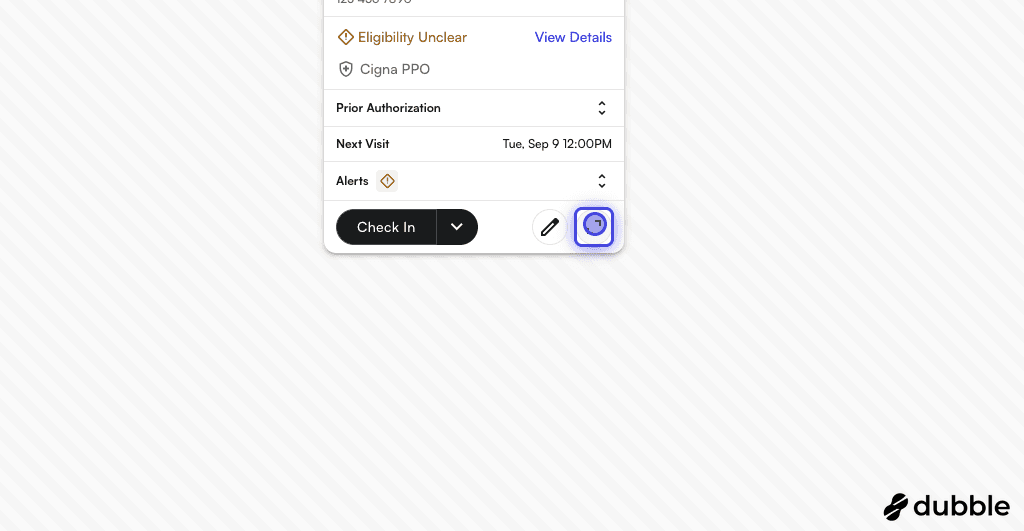
2. Click on the expand content

<img src="https://mintcdn.com/training_air/1OTktnvnR_26kPvS/images/insights_provider/chart_notes/auto_apply_kx_modifier/auto_apply_kx_modifier_2.png?fit=max&auto=format&n=1OTktnvnR_26kPvS&q=85&s=3de2b6ffaa6e2e0ce8e1a4f8c3abf57f" alt="" width="1024" height="531" data-path="images/insights_provider/chart_notes/auto_apply_kx_modifier/auto_apply_kx_modifier_2.png" />

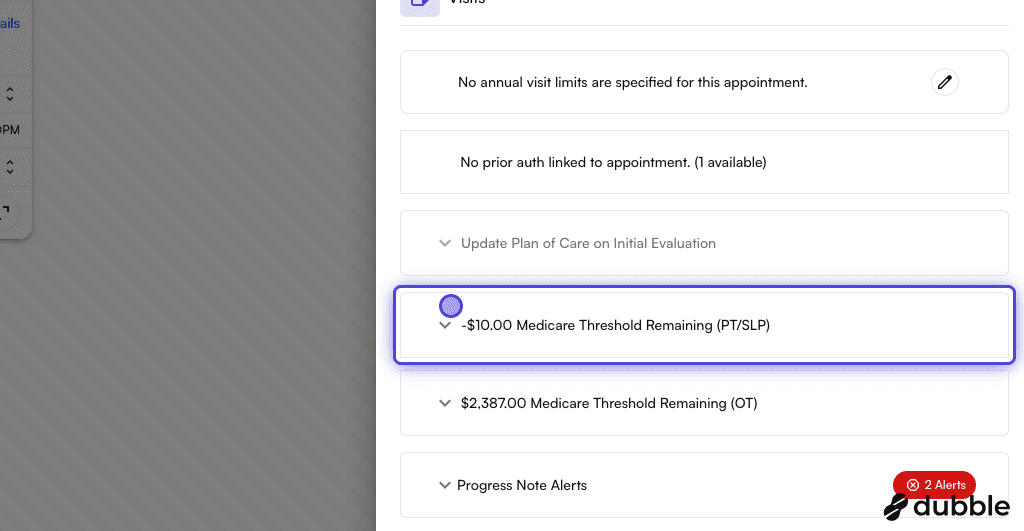
3. On Appointment Details drawer > visits, expand the "Medicare Threshold Remaining"
<img src="https://mintcdn.com/training_air/1OTktnvnR_26kPvS/images/insights_provider/chart_notes/auto_apply_kx_modifier/auto_apply_kx_modifier_3.png?fit=max&auto=format&n=1OTktnvnR_26kPvS&q=85&s=4f2c6348ee59a6be2a5b1730adcbb302" alt="" width="1024" height="531" data-path="images/insights_provider/chart_notes/auto_apply_kx_modifier/auto_apply_kx_modifier_3.png" />

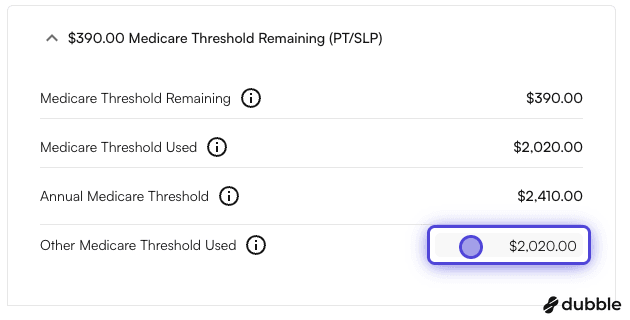
4. Click on "Other Medicare Threshold Used".

You can modify the value according to your preference.
<img src="https://mintcdn.com/training_air/1OTktnvnR_26kPvS/images/insights_provider/chart_notes/auto_apply_kx_modifier/auto_apply_kx_modifier_4.png?fit=max&auto=format&n=1OTktnvnR_26kPvS&q=85&s=6ac28501c955288147385926f5823a10" alt="" width="630" height="320" data-path="images/insights_provider/chart_notes/auto_apply_kx_modifier/auto_apply_kx_modifier_4.png" />

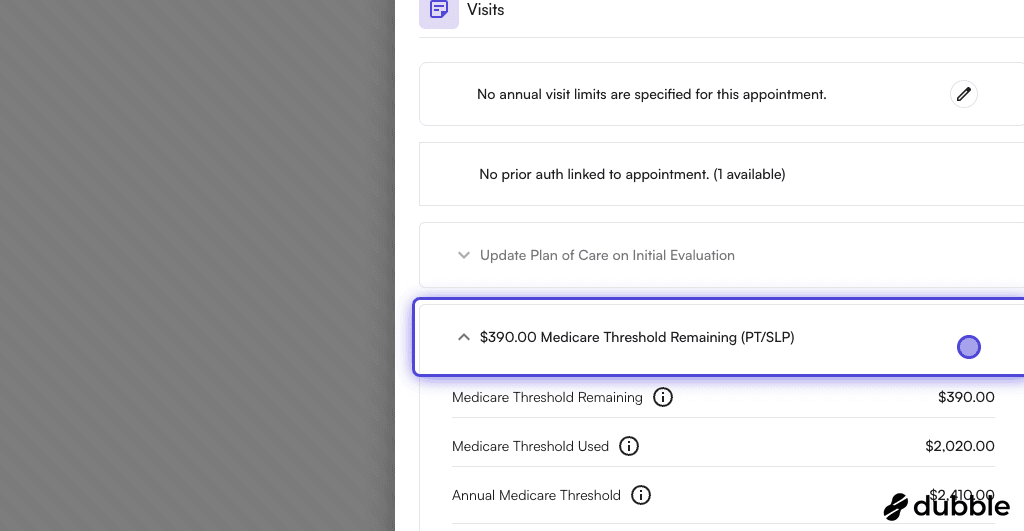
5. You can see the updated remaining value

\$390.00 Medicare Threshold Remaining (PT/SLP)
<img src="https://mintcdn.com/training_air/1OTktnvnR_26kPvS/images/insights_provider/chart_notes/auto_apply_kx_modifier/auto_apply_kx_modifier_5.png?fit=max&auto=format&n=1OTktnvnR_26kPvS&q=85&s=2649f67d397c9b5b67af1ab89937e109" alt="" width="1024" height="531" data-path="images/insights_provider/chart_notes/auto_apply_kx_modifier/auto_apply_kx_modifier_5.png" />

#### Enabling auto-apply KX modifier preference

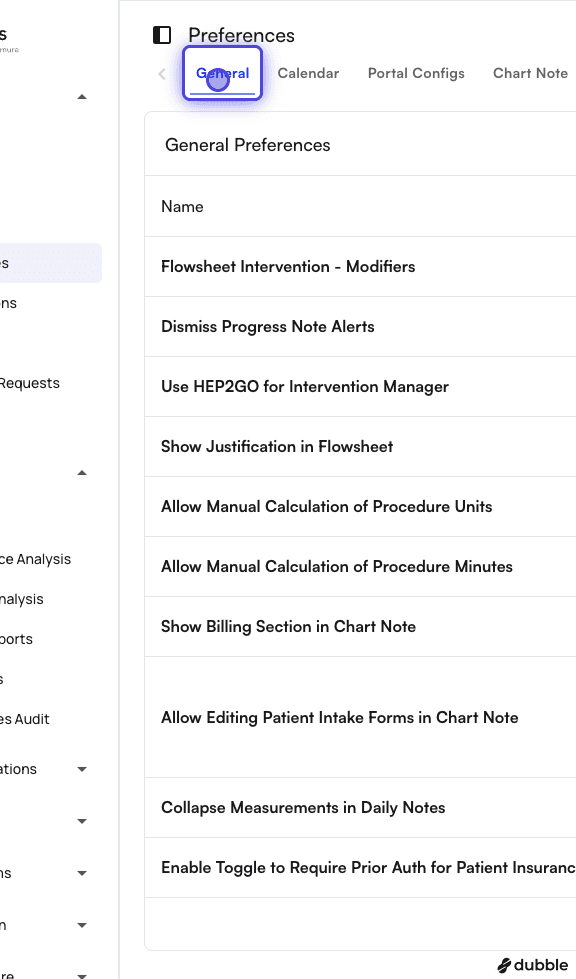
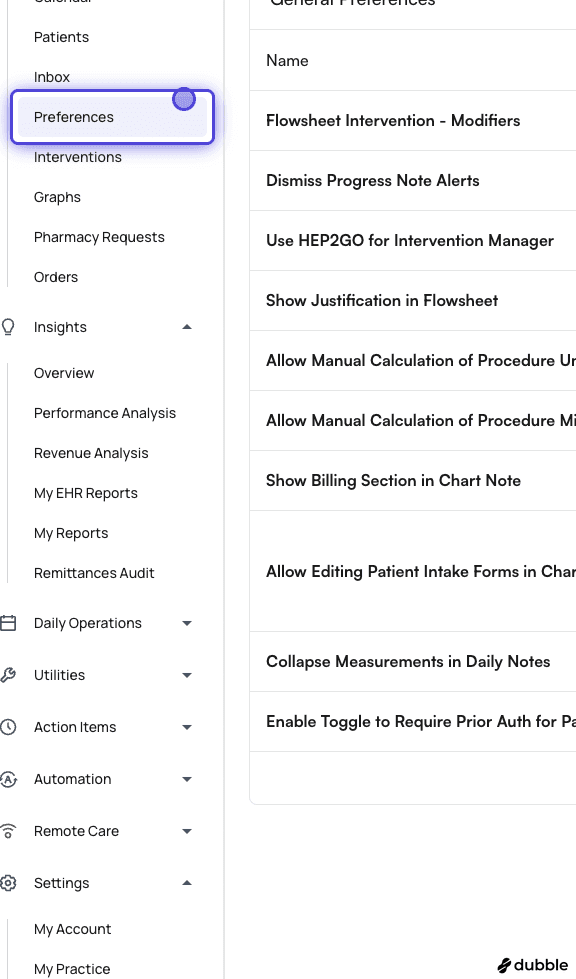
1. Go on EHR > Preferences
<img src="https://mintcdn.com/training_air/1OTktnvnR_26kPvS/images/insights_provider/chart_notes/auto_apply_kx_modifier/auto_apply_kx_modifier_6.png?fit=max&auto=format&n=1OTktnvnR_26kPvS&q=85&s=c1301a4a3ce0867c47b79850c27aef54" alt="" width="576" height="979" data-path="images/insights_provider/chart_notes/auto_apply_kx_modifier/auto_apply_kx_modifier_6.png" />

2. Click on General Tab

<img src="https://mintcdn.com/training_air/1OTktnvnR_26kPvS/images/insights_provider/chart_notes/auto_apply_kx_modifier/auto_apply_kx_modifier_7.png?fit=max&auto=format&n=1OTktnvnR_26kPvS&q=85&s=c6e69b1e4f04eb978d3a56b8ae165287" alt="" width="576" height="979" data-path="images/insights_provider/chart_notes/auto_apply_kx_modifier/auto_apply_kx_modifier_7.png" />

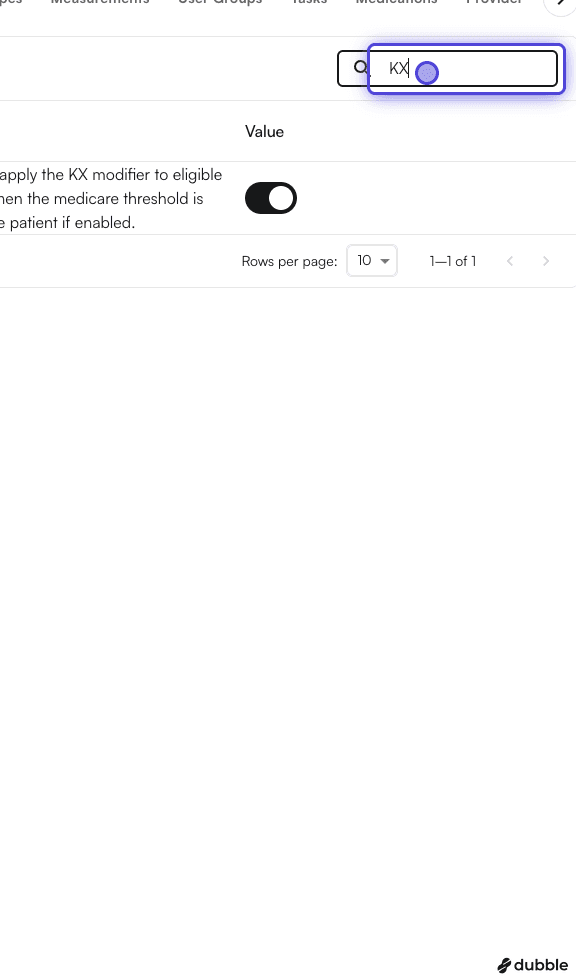
3. In the search box, type "KX"

<img src="https://mintcdn.com/training_air/1OTktnvnR_26kPvS/images/insights_provider/chart_notes/auto_apply_kx_modifier/auto_apply_kx_modifier_8.png?fit=max&auto=format&n=1OTktnvnR_26kPvS&q=85&s=acb0bb4491737b9554b12b4e1c100bfc" alt="" width="576" height="979" data-path="images/insights_provider/chart_notes/auto_apply_kx_modifier/auto_apply_kx_modifier_8.png" />

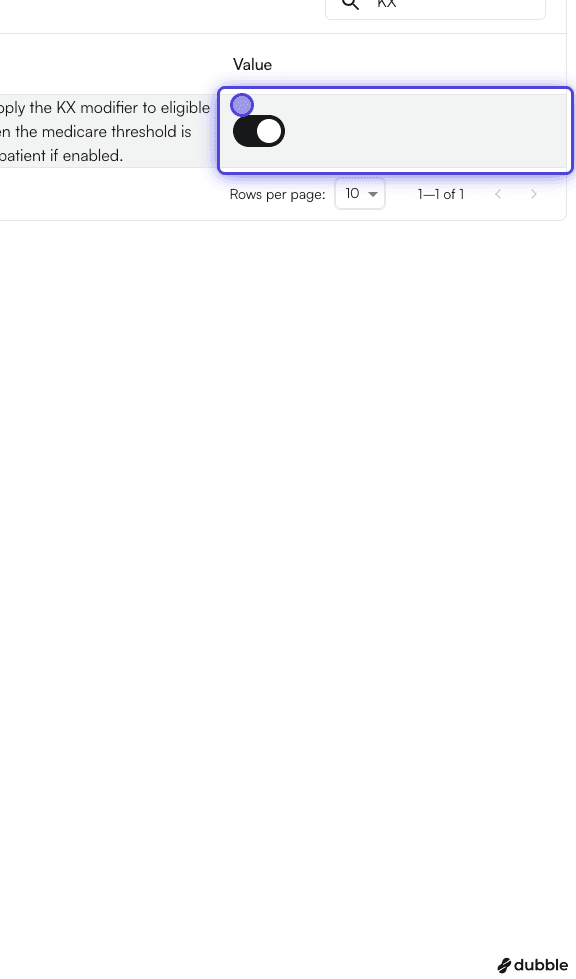
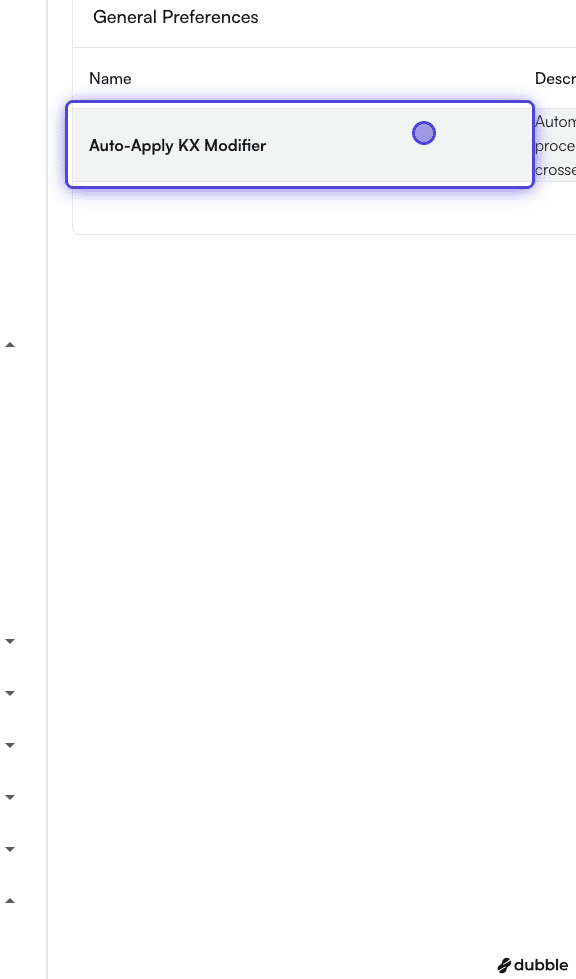
4. You would see an entry titled "Auto-Apply KX Modifier"
<img src="https://mintcdn.com/training_air/1OTktnvnR_26kPvS/images/insights_provider/chart_notes/auto_apply_kx_modifier/auto_apply_kx_modifier_9.png?fit=max&auto=format&n=1OTktnvnR_26kPvS&q=85&s=081f3d309710d8c331b3dc0c4016ab45" alt="" width="576" height="979" data-path="images/insights_provider/chart_notes/auto_apply_kx_modifier/auto_apply_kx_modifier_9.png" />

5. Click on the switch to enable it

<img src="https://mintcdn.com/training_air/8O3TdE849rjX-oLi/images/insights_provider/chart_notes/auto_apply_kx_modifier/auto_apply_kx_modifier_10.png?fit=max&auto=format&n=8O3TdE849rjX-oLi&q=85&s=888cd9a44bbba5d034486bf283f61763" alt="" width="576" height="979" data-path="images/insights_provider/chart_notes/auto_apply_kx_modifier/auto_apply_kx_modifier_10.png" />

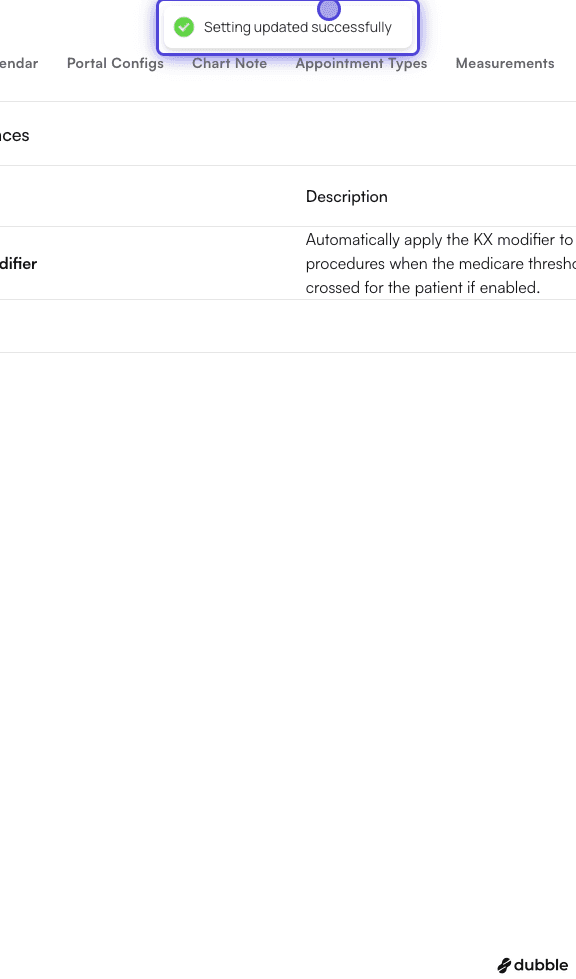
6. Once you click it, you will see the message "Setting updated successfully"

Click on the switch again if you want to turn it off.
<img src="https://mintcdn.com/training_air/1OTktnvnR_26kPvS/images/insights_provider/chart_notes/auto_apply_kx_modifier/auto_apply_kx_modifier_11.png?fit=max&auto=format&n=1OTktnvnR_26kPvS&q=85&s=e67c7ca6fcdc4d87eea6bd54f8547e7d" alt="" width="576" height="979" data-path="images/insights_provider/chart_notes/auto_apply_kx_modifier/auto_apply_kx_modifier_11.png" />

#### Setting KX modifier traits on a template

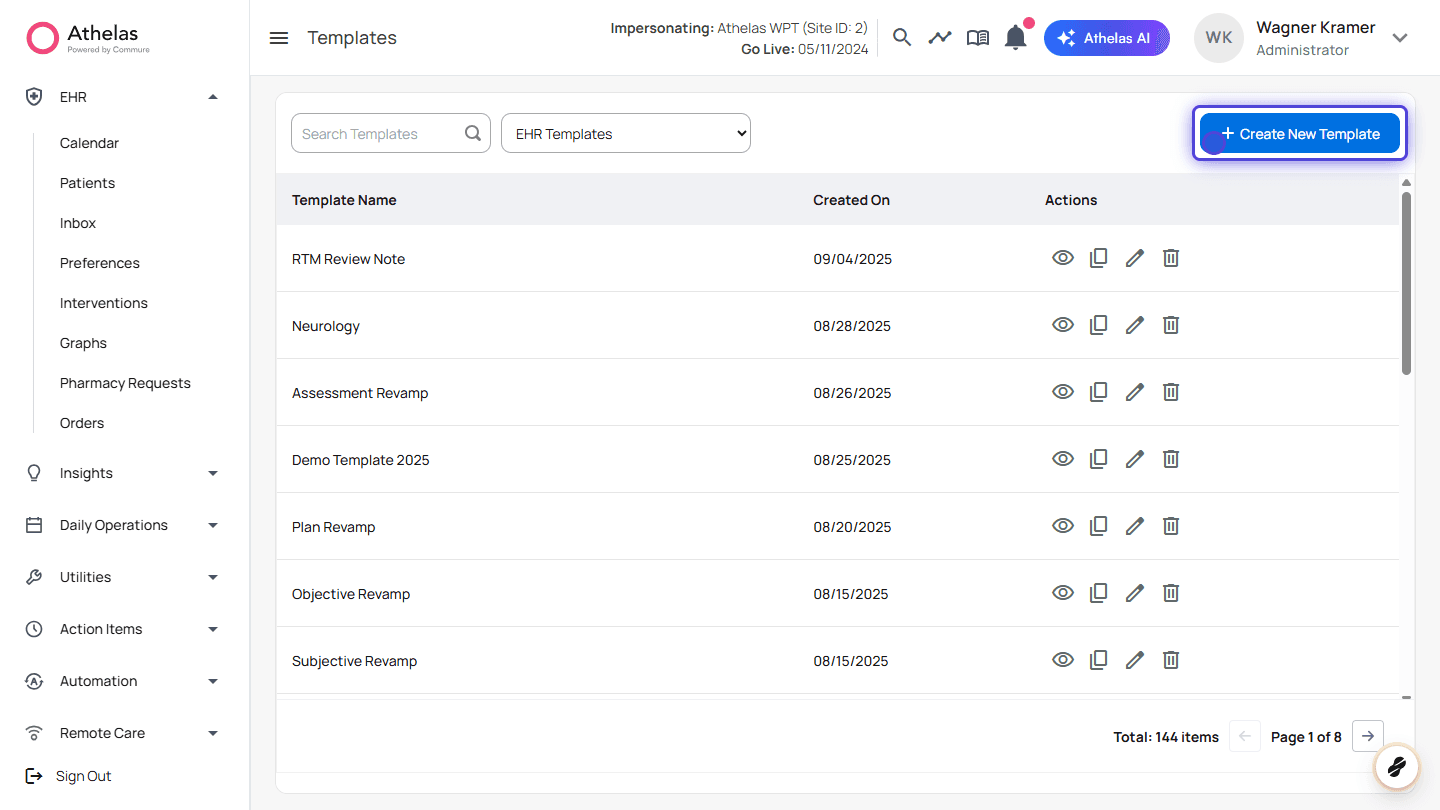
1. Go to Templates Page
<img src="https://mintcdn.com/training_air/1OTktnvnR_26kPvS/images/insights_provider/chart_notes/auto_apply_kx_modifier/auto_apply_kx_modifier_12.png?fit=max&auto=format&n=1OTktnvnR_26kPvS&q=85&s=1975f4c20e79f28de23e494cec055d20" alt="" width="1440" height="810" data-path="images/insights_provider/chart_notes/auto_apply_kx_modifier/auto_apply_kx_modifier_12.png" />

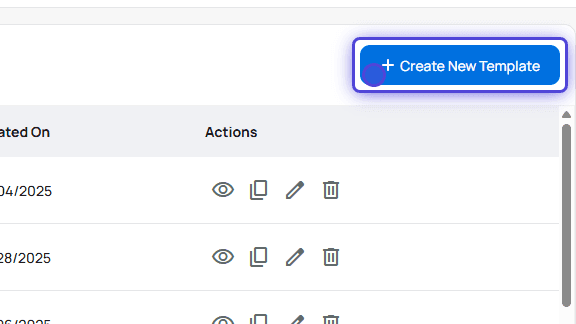
2. Create or edit a Template

<img src="https://mintcdn.com/training_air/1OTktnvnR_26kPvS/images/insights_provider/chart_notes/auto_apply_kx_modifier/auto_apply_kx_modifier_13.png?fit=max&auto=format&n=1OTktnvnR_26kPvS&q=85&s=957368cc885d6e5dc1a21b7e53fe5138" alt="" width="576" height="324" data-path="images/insights_provider/chart_notes/auto_apply_kx_modifier/auto_apply_kx_modifier_13.png" />

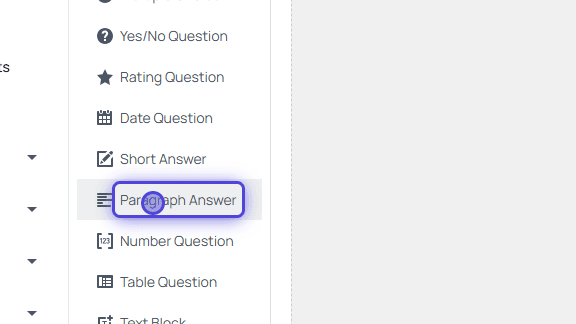
3. Drag and drop Paragraph Answer

Only “Paragraph Answer” supports question traits at the moment
<img src="https://mintcdn.com/training_air/1OTktnvnR_26kPvS/images/insights_provider/chart_notes/auto_apply_kx_modifier/auto_apply_kx_modifier_14.png?fit=max&auto=format&n=1OTktnvnR_26kPvS&q=85&s=ec3e978539d41c8e42bf596d321765ed" alt="" width="576" height="324" data-path="images/insights_provider/chart_notes/auto_apply_kx_modifier/auto_apply_kx_modifier_14.png" />

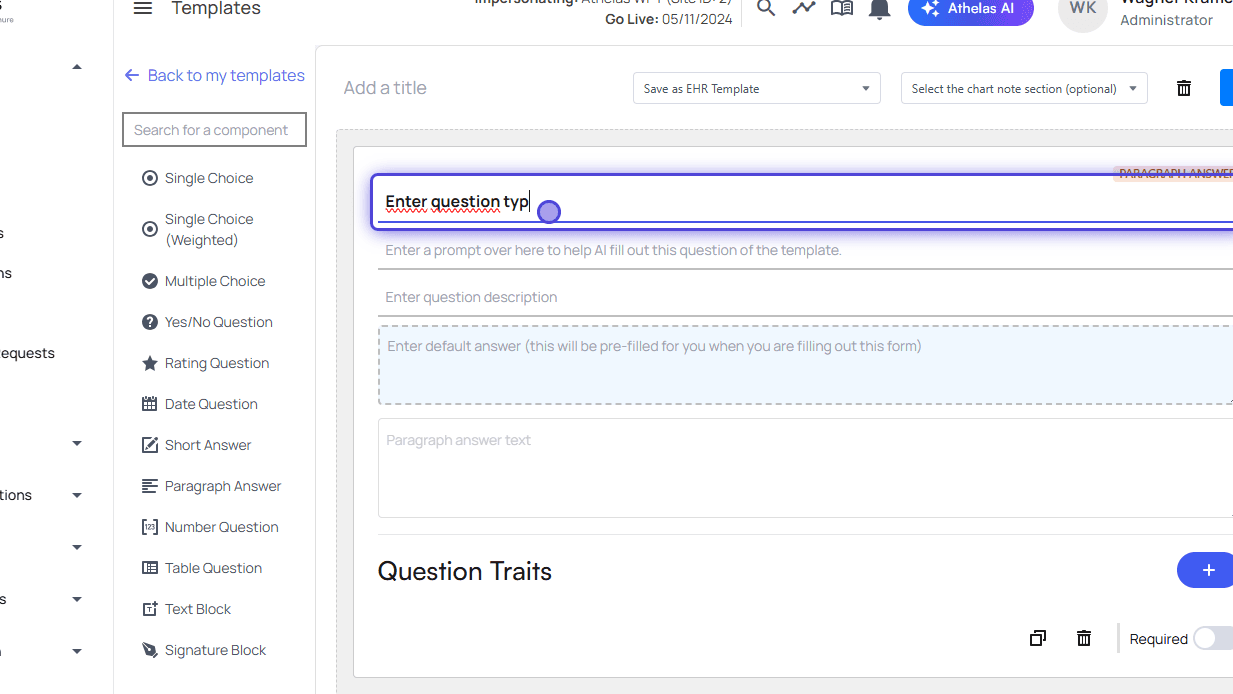
4. Fill the form

<img src="https://mintcdn.com/training_air/1OTktnvnR_26kPvS/images/insights_provider/chart_notes/auto_apply_kx_modifier/auto_apply_kx_modifier_15.png?fit=max&auto=format&n=1OTktnvnR_26kPvS&q=85&s=e7ae8a43cec1b9c8e6bd4843bda4f70f" alt="" width="1233" height="694" data-path="images/insights_provider/chart_notes/auto_apply_kx_modifier/auto_apply_kx_modifier_15.png" />

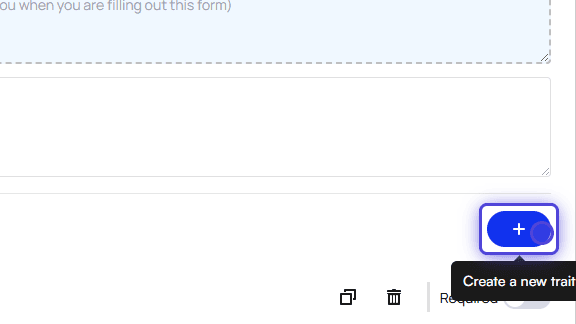
5. Click on Create a new trait

<img src="https://mintcdn.com/training_air/1OTktnvnR_26kPvS/images/insights_provider/chart_notes/auto_apply_kx_modifier/auto_apply_kx_modifier_16.png?fit=max&auto=format&n=1OTktnvnR_26kPvS&q=85&s=a06773f841044804a0308e154cef1d39" alt="" width="576" height="324" data-path="images/insights_provider/chart_notes/auto_apply_kx_modifier/auto_apply_kx_modifier_16.png" />

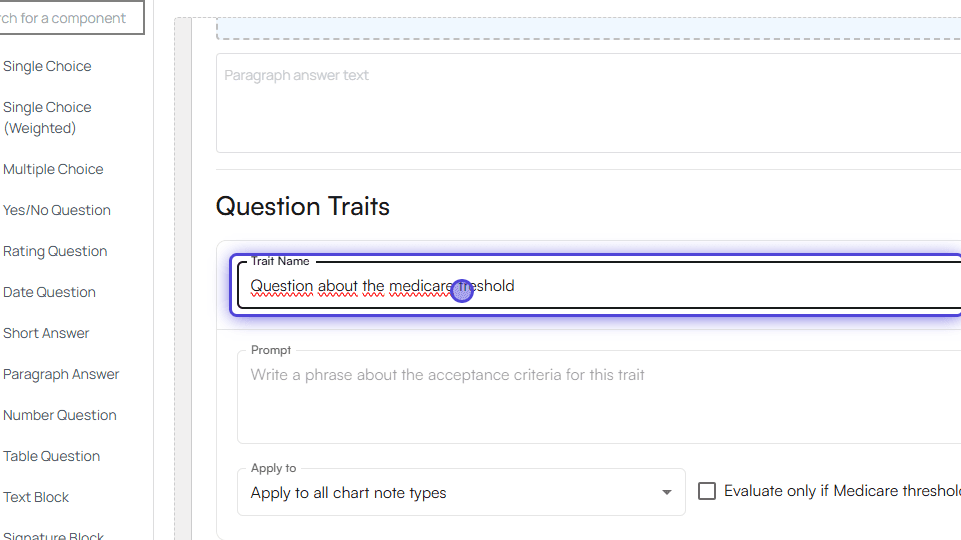
6. Type in the trait name

<img src="https://mintcdn.com/training_air/1OTktnvnR_26kPvS/images/insights_provider/chart_notes/auto_apply_kx_modifier/auto_apply_kx_modifier_17.png?fit=max&auto=format&n=1OTktnvnR_26kPvS&q=85&s=b584db25f47cfaf56c0d72c60386fcc0" alt="" width="961" height="540" data-path="images/insights_provider/chart_notes/auto_apply_kx_modifier/auto_apply_kx_modifier_17.png" />

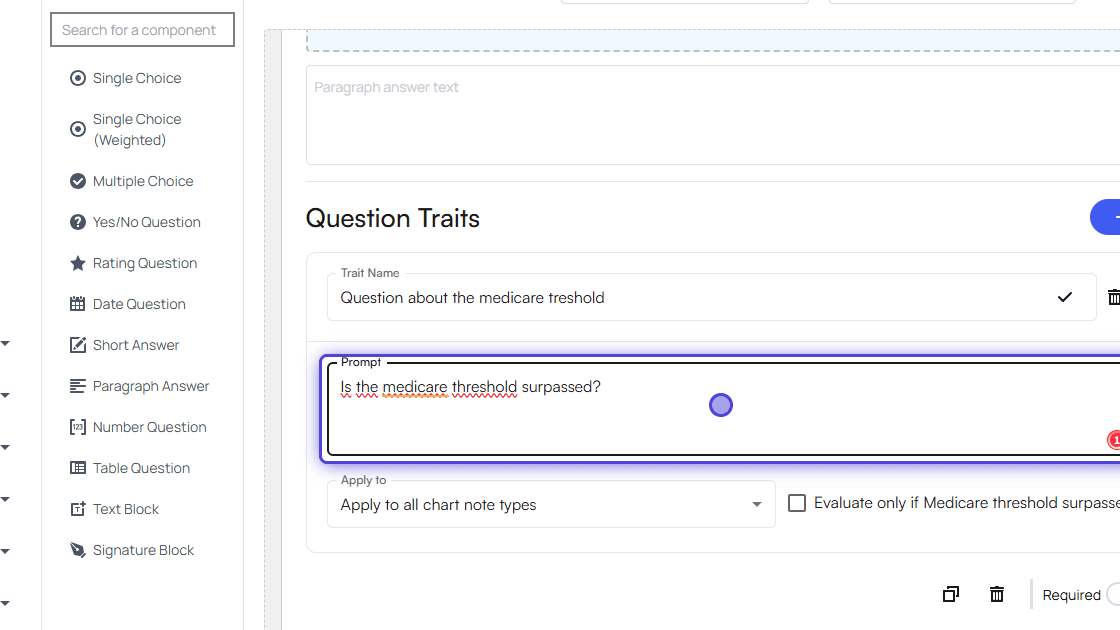
7. Type in a prompt that should be evaluated
<img src="https://mintcdn.com/training_air/1OTktnvnR_26kPvS/images/insights_provider/chart_notes/auto_apply_kx_modifier/auto_apply_kx_modifier_18.png?fit=max&auto=format&n=1OTktnvnR_26kPvS&q=85&s=bb946d50004cf79a02dfe46a58d2f34a" alt="" width="1120" height="630" data-path="images/insights_provider/chart_notes/auto_apply_kx_modifier/auto_apply_kx_modifier_18.png" />

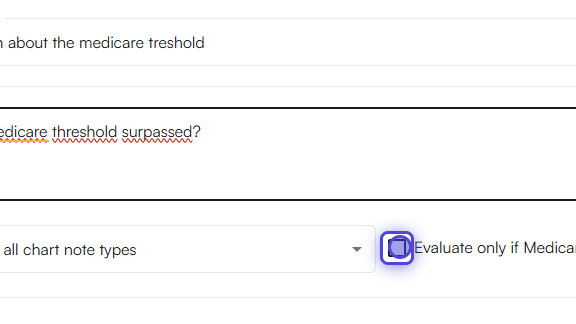
8. Click on Evaluate only if Medicare has been reached
<img src="https://mintcdn.com/training_air/1OTktnvnR_26kPvS/images/insights_provider/chart_notes/auto_apply_kx_modifier/auto_apply_kx_modifier_19.png?fit=max&auto=format&n=1OTktnvnR_26kPvS&q=85&s=af6d9c70b15ff0eb0f918fc5f168991f" alt="" width="576" height="324" data-path="images/insights_provider/chart_notes/auto_apply_kx_modifier/auto_apply_kx_modifier_19.png" />

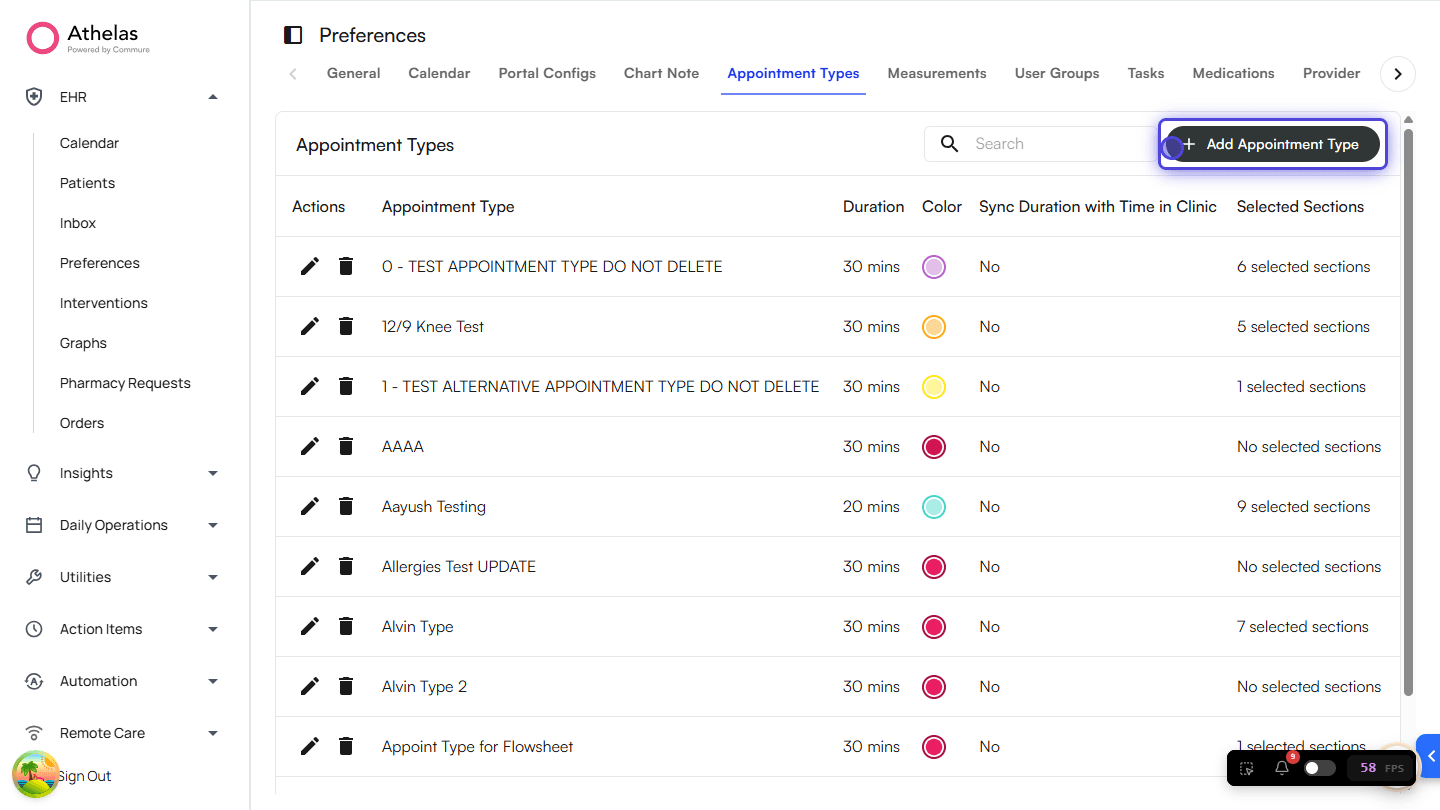
9. Go to EHR Preferences > Appointment Types
<img src="https://mintcdn.com/training_air/1OTktnvnR_26kPvS/images/insights_provider/chart_notes/auto_apply_kx_modifier/auto_apply_kx_modifier_20.png?fit=max&auto=format&n=1OTktnvnR_26kPvS&q=85&s=8336d5821b72ccde972c8f6395b6b6c4" alt="" width="1440" height="810" data-path="images/insights_provider/chart_notes/auto_apply_kx_modifier/auto_apply_kx_modifier_20.png" />

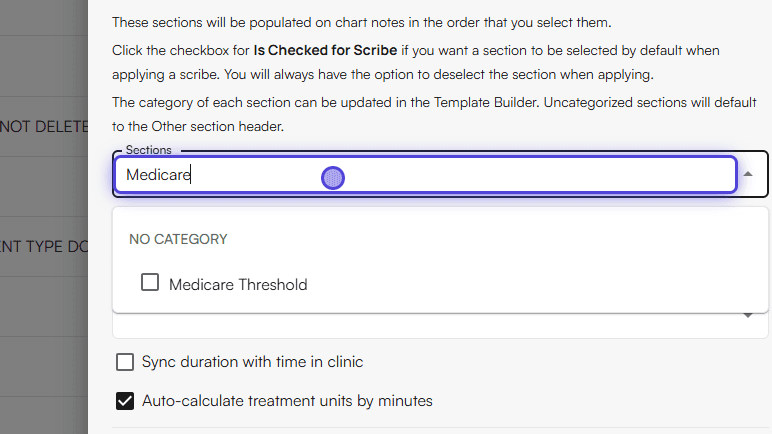
10. Add the new template to an Appointment Type
<img src="https://mintcdn.com/training_air/1OTktnvnR_26kPvS/images/insights_provider/chart_notes/auto_apply_kx_modifier/auto_apply_kx_modifier_21.png?fit=max&auto=format&n=1OTktnvnR_26kPvS&q=85&s=00af601c6d5c6fac6b311764d3036af8" alt="" width="772" height="434" data-path="images/insights_provider/chart_notes/auto_apply_kx_modifier/auto_apply_kx_modifier_21.png" />

11. Done! Now start using the Appointment Type you set up.

#### Usage

**Applying the KX modifier in the Treatment section**

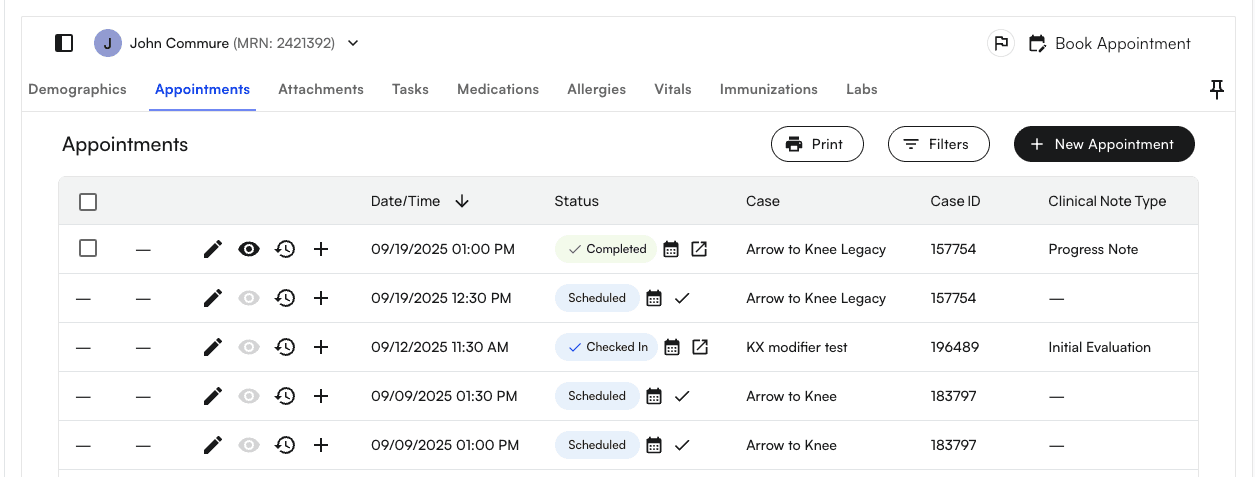
1. Go to a Appointment section of any selected Patient
<img src="https://mintcdn.com/training_air/1OTktnvnR_26kPvS/images/insights_provider/chart_notes/auto_apply_kx_modifier/auto_apply_kx_modifier_22.png?fit=max&auto=format&n=1OTktnvnR_26kPvS&q=85&s=2988ca63eb090485b6318ba21715b657" alt="" width="1255" height="477" data-path="images/insights_provider/chart_notes/auto_apply_kx_modifier/auto_apply_kx_modifier_22.png" />

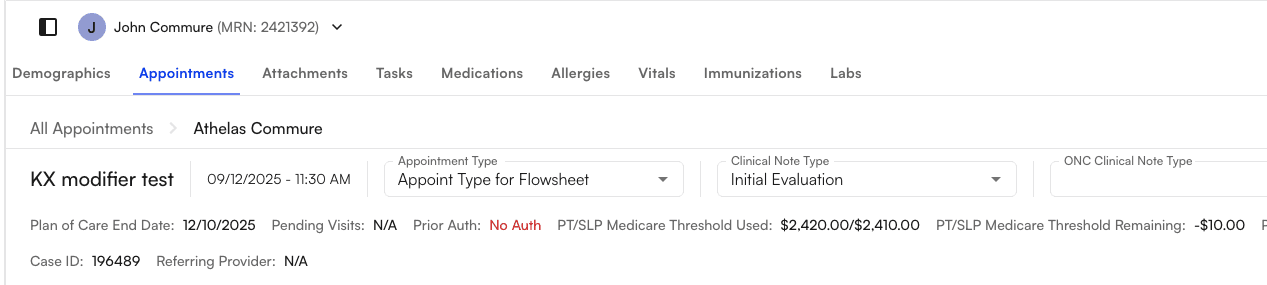
2. You’ll notice that for Medicare thresholds, there are two types: the PT/SLP Medicare Threshold and the OT Medicare Threshold.
<img src="https://mintcdn.com/training_air/1OTktnvnR_26kPvS/images/insights_provider/chart_notes/auto_apply_kx_modifier/auto_apply_kx_modifier_23.png?fit=max&auto=format&n=1OTktnvnR_26kPvS&q=85&s=2994cd26fee59e5d781859090c96c405" alt="" width="1267" height="285" data-path="images/insights_provider/chart_notes/auto_apply_kx_modifier/auto_apply_kx_modifier_23.png" />

3. Check if the remaining Medicare threshold (e.g., PT/SLP) is negative (i.e., the threshold has been crossed).

<img src="https://mintcdn.com/training_air/1OTktnvnR_26kPvS/images/insights_provider/chart_notes/auto_apply_kx_modifier/auto_apply_kx_modifier_24.png?fit=max&auto=format&n=1OTktnvnR_26kPvS&q=85&s=0aab26e213f82d5515e1b795df583585" alt="" width="721" height="61" data-path="images/insights_provider/chart_notes/auto_apply_kx_modifier/auto_apply_kx_modifier_24.png" />

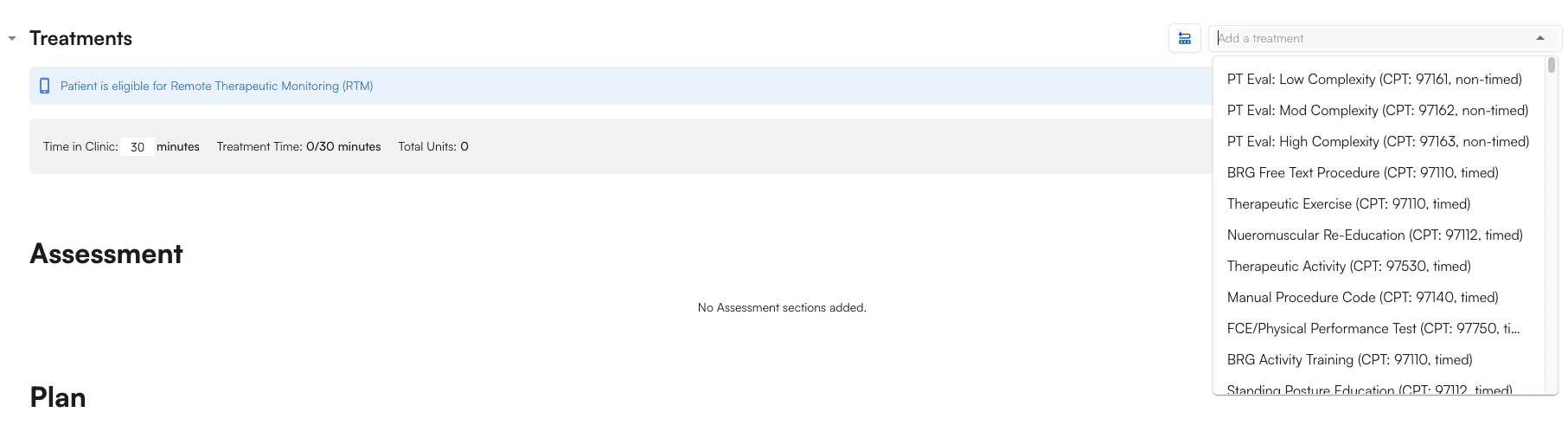
4. Scroll down to the Treatment section, where you can search for and choose a CPT code.
<img src="https://mintcdn.com/training_air/1OTktnvnR_26kPvS/images/insights_provider/chart_notes/auto_apply_kx_modifier/auto_apply_kx_modifier_25.png?fit=max&auto=format&n=1OTktnvnR_26kPvS&q=85&s=c553a43a42da0a5e167ef8ccb6f07be0" alt="" width="1813" height="506" data-path="images/insights_provider/chart_notes/auto_apply_kx_modifier/auto_apply_kx_modifier_25.png" />

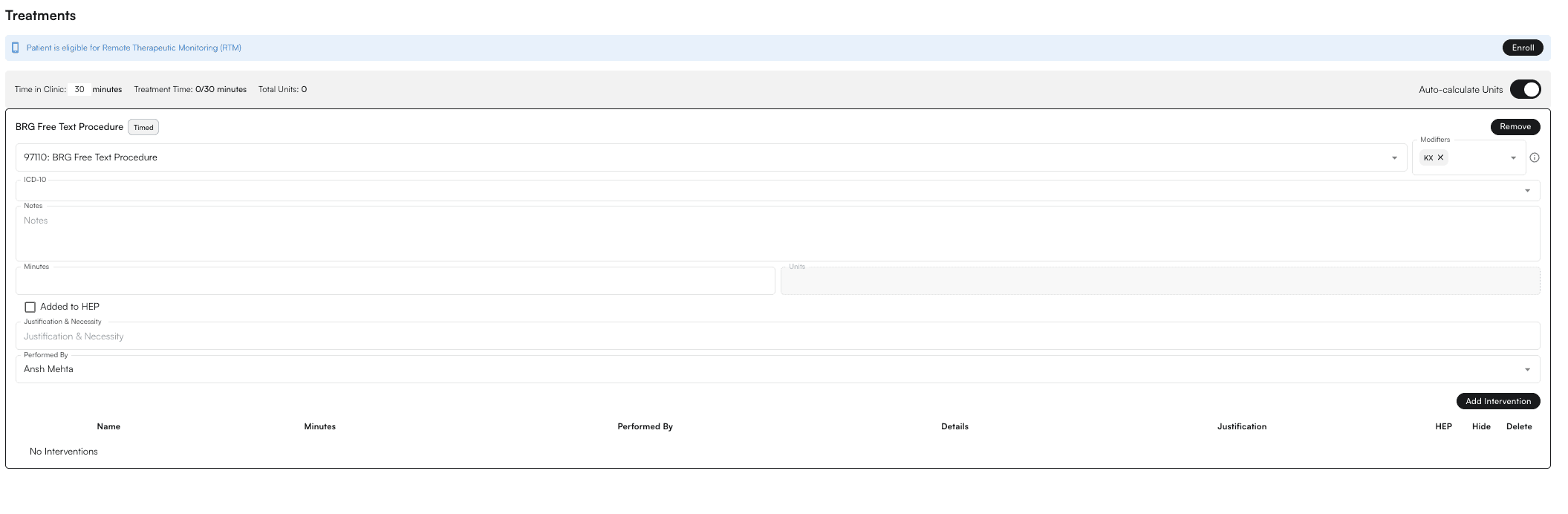
5. Select one of the procedures (i.e., CPT codes) that is KX-modifier qualified (e.g., 97110)
<img src="https://mintcdn.com/training_air/1OTktnvnR_26kPvS/images/insights_provider/chart_notes/auto_apply_kx_modifier/auto_apply_kx_modifier_26.png?fit=max&auto=format&n=1OTktnvnR_26kPvS&q=85&s=526a63267421f92ef53695e66a2c9577" alt="" width="2111" height="692" data-path="images/insights_provider/chart_notes/auto_apply_kx_modifier/auto_apply_kx_modifier_26.png" />

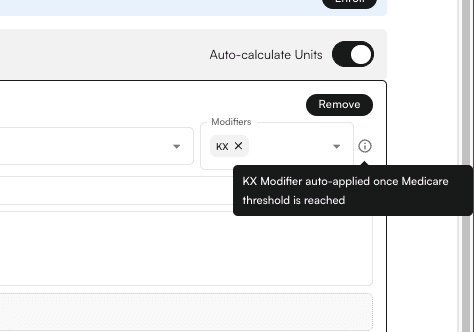
6. After adding the qualified procedure, the KX modifier is automatically applied with a tooltip.
<img src="https://mintcdn.com/training_air/1OTktnvnR_26kPvS/images/insights_provider/chart_notes/auto_apply_kx_modifier/auto_apply_kx_modifier_27.png?fit=max&auto=format&n=1OTktnvnR_26kPvS&q=85&s=2e1ce42d06e0926b367d54af85914e51" alt="" width="474" height="332" data-path="images/insights_provider/chart_notes/auto_apply_kx_modifier/auto_apply_kx_modifier_27.png" />

#### Applying the KX modifier in the Flowsheet Intervention section

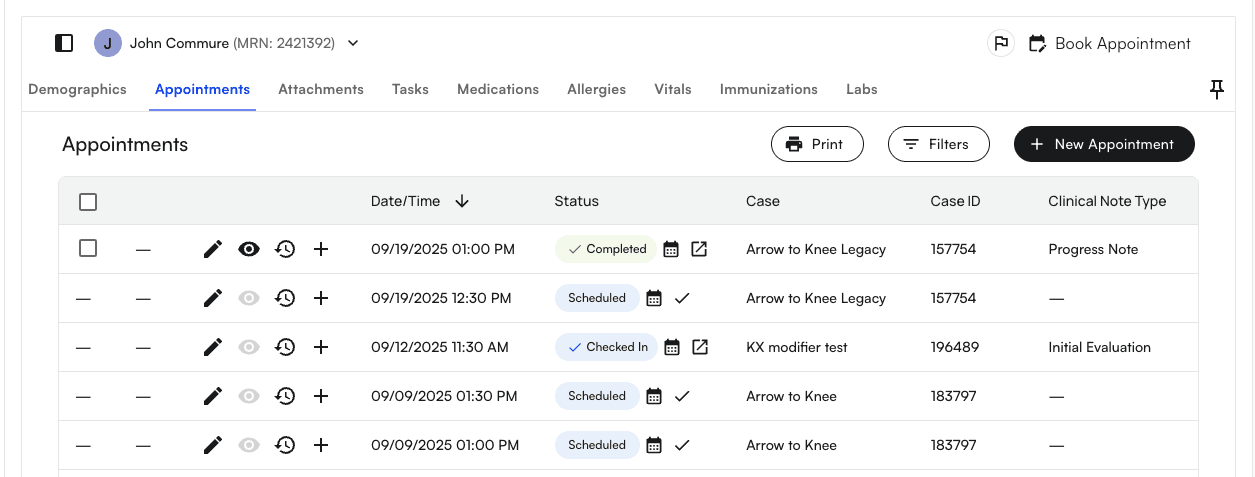
1. Go to a Appointment section of any selected Patient
<img src="https://mintcdn.com/training_air/1OTktnvnR_26kPvS/images/insights_provider/chart_notes/auto_apply_kx_modifier/auto_apply_kx_modifier_28.png?fit=max&auto=format&n=1OTktnvnR_26kPvS&q=85&s=45226a0c06d6d3b51404e744b7f6a0a5" alt="" width="1255" height="477" data-path="images/insights_provider/chart_notes/auto_apply_kx_modifier/auto_apply_kx_modifier_28.png" />

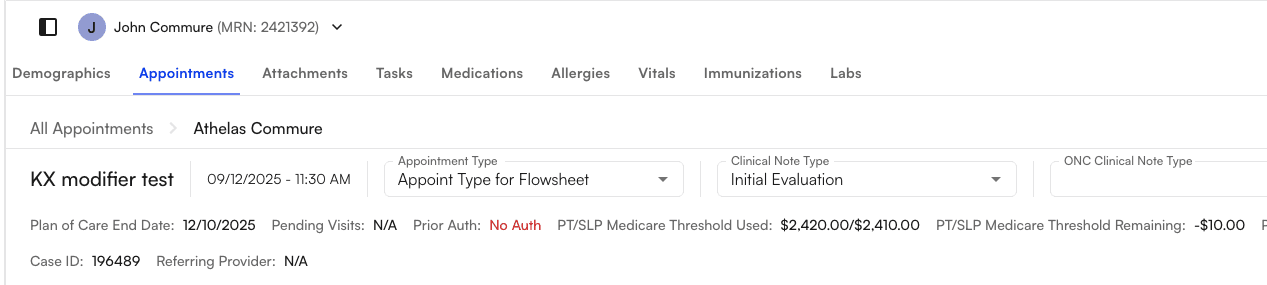
2. You’ll notice that for Medicare thresholds, there are two types: the PT/SLP Medicare Threshold and the OT Medicare Threshold.
<img src="https://mintcdn.com/training_air/1OTktnvnR_26kPvS/images/insights_provider/chart_notes/auto_apply_kx_modifier/auto_apply_kx_modifier_29.png?fit=max&auto=format&n=1OTktnvnR_26kPvS&q=85&s=c812531ed74efbe7e8b369b40a44fb3a" alt="" width="1267" height="285" data-path="images/insights_provider/chart_notes/auto_apply_kx_modifier/auto_apply_kx_modifier_29.png" />

3. Check if the remaining Medicare threshold (e.g., PT/SLP) is negative (i.e., the threshold has been crossed).

<img src="https://mintcdn.com/training_air/1OTktnvnR_26kPvS/images/insights_provider/chart_notes/auto_apply_kx_modifier/auto_apply_kx_modifier_30.png?fit=max&auto=format&n=1OTktnvnR_26kPvS&q=85&s=57569e5d943227893b79a05680b6a586" alt="" width="721" height="61" data-path="images/insights_provider/chart_notes/auto_apply_kx_modifier/auto_apply_kx_modifier_30.png" />

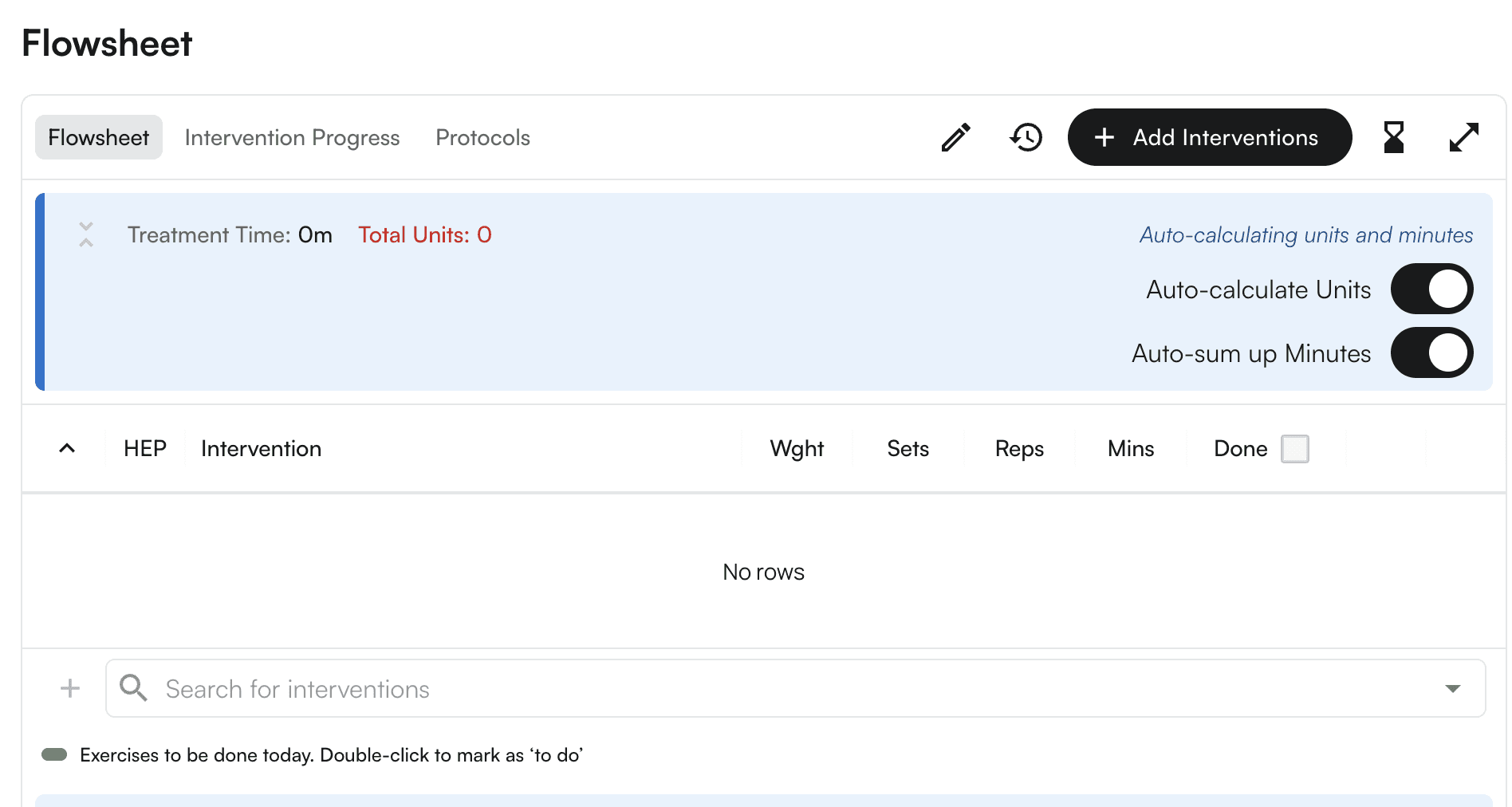
4. Scroll down to the Flowsheet section, where you can search for and choose a CPT code(i.e. “Search For Intervention).
<img src="https://mintcdn.com/training_air/1OTktnvnR_26kPvS/images/insights_provider/chart_notes/auto_apply_kx_modifier/auto_apply_kx_modifier_31.png?fit=max&auto=format&n=1OTktnvnR_26kPvS&q=85&s=ec4b4ce047d79912d542ba6dccbb252e" alt="" width="1896" height="1012" data-path="images/insights_provider/chart_notes/auto_apply_kx_modifier/auto_apply_kx_modifier_31.png" />

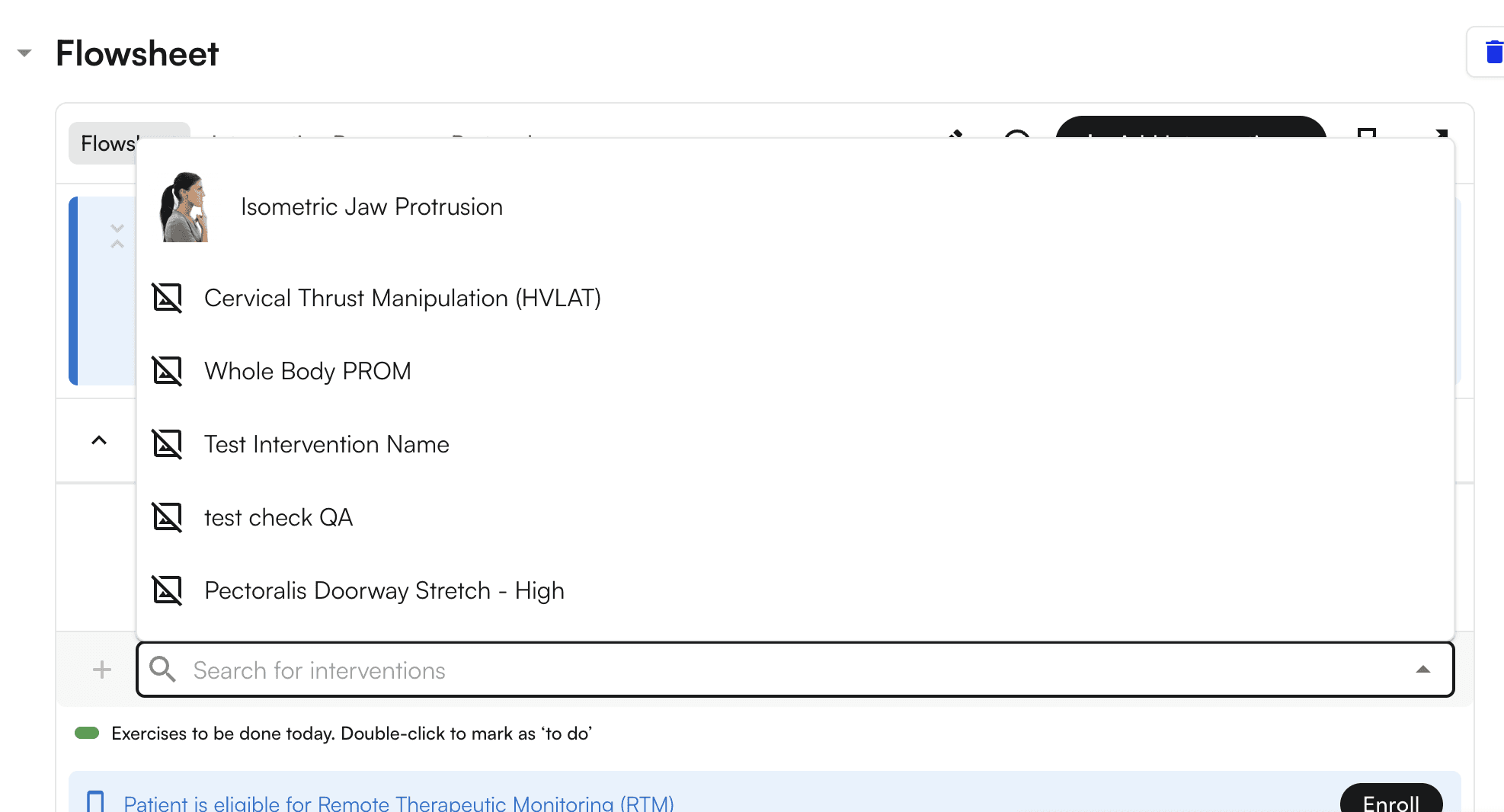
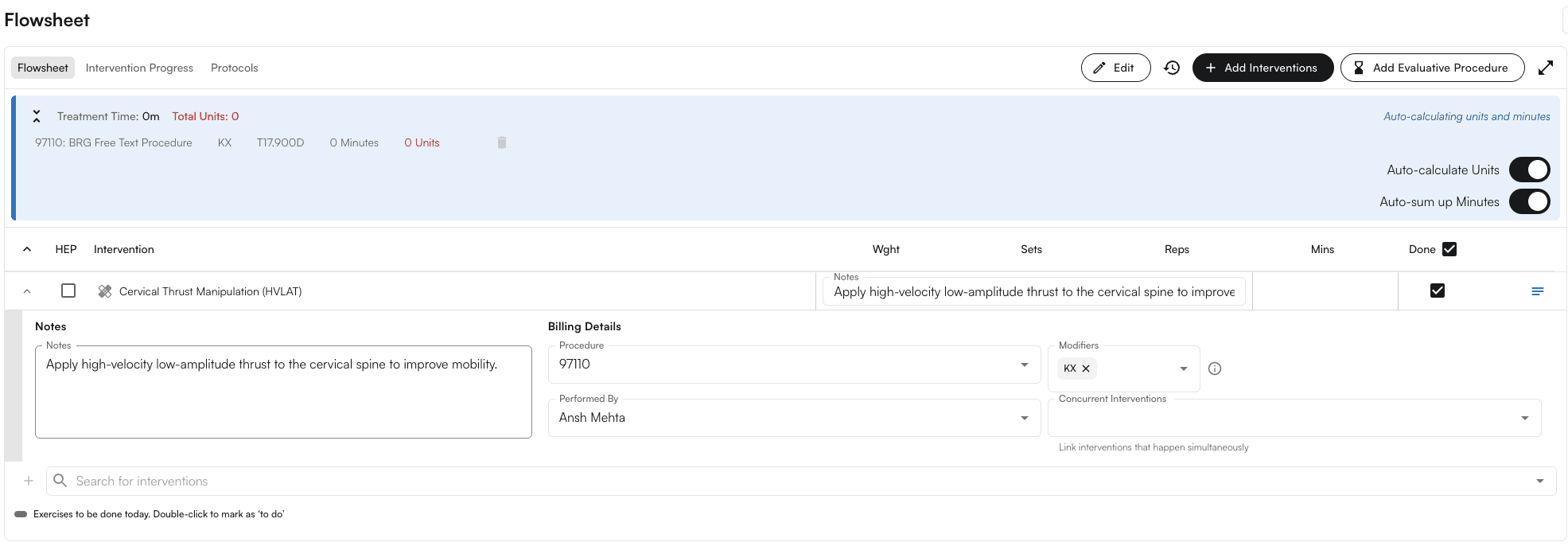
5. Select one of the interventions (e.g., Cervical Thrust Manipulation (HVLAT)).
<img src="https://mintcdn.com/training_air/1OTktnvnR_26kPvS/images/insights_provider/chart_notes/auto_apply_kx_modifier/auto_apply_kx_modifier_32.png?fit=max&auto=format&n=1OTktnvnR_26kPvS&q=85&s=e6bc635a3b3d510844927bab1e72f66e" alt="" width="1974" height="1066" data-path="images/insights_provider/chart_notes/auto_apply_kx_modifier/auto_apply_kx_modifier_32.png" />

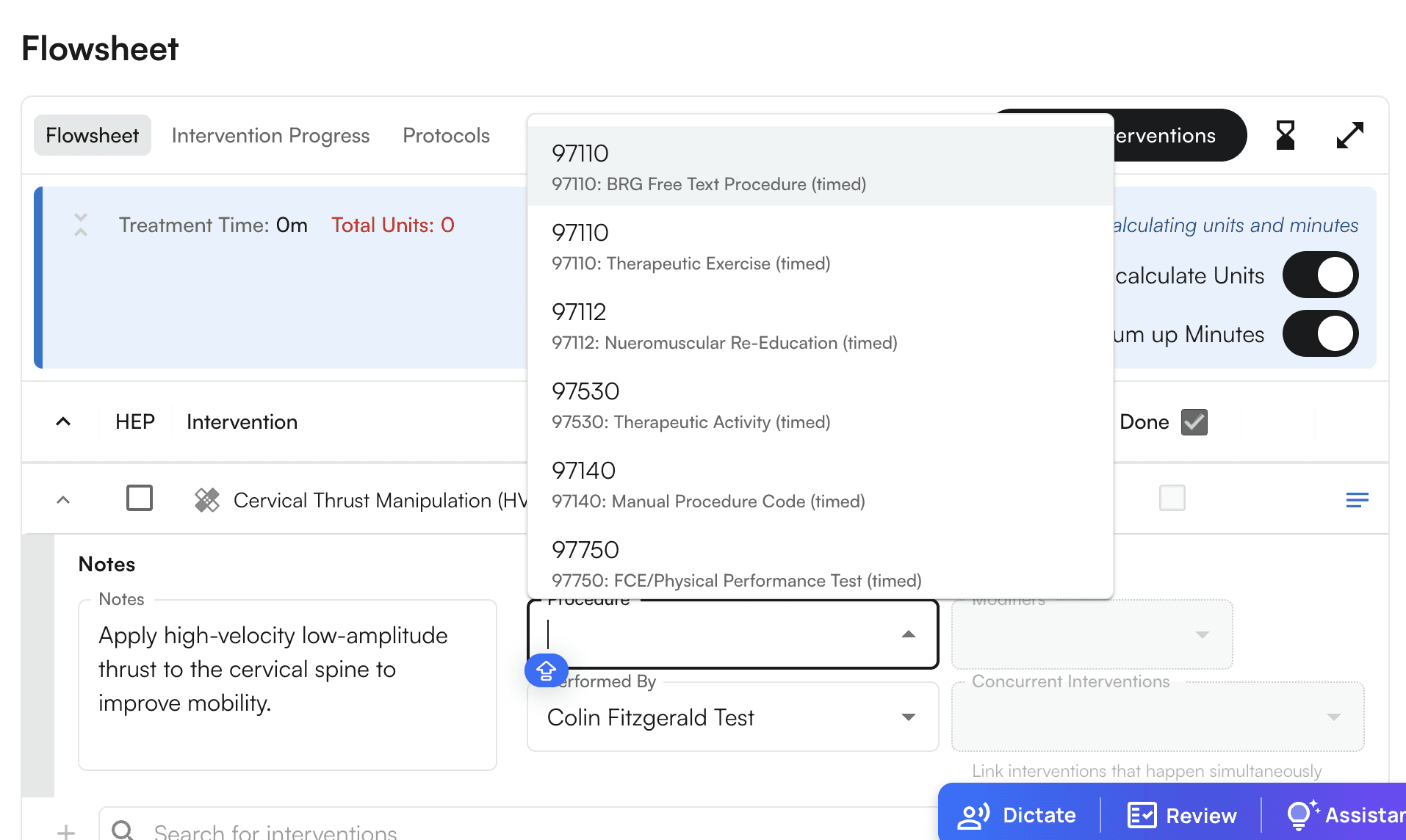
6. Select one of the procedures (i.e., CPT codes) that is KX-modifier qualified (e.g., 97110)
<img src="https://mintcdn.com/training_air/1OTktnvnR_26kPvS/images/insights_provider/chart_notes/auto_apply_kx_modifier/auto_apply_kx_modifier_33.png?fit=max&auto=format&n=1OTktnvnR_26kPvS&q=85&s=d13c998599c093421addf990e2e47c84" alt="" width="1914" height="1144" data-path="images/insights_provider/chart_notes/auto_apply_kx_modifier/auto_apply_kx_modifier_33.png" />

7. Now Mark it as Done

<img src="https://mintcdn.com/training_air/1OTktnvnR_26kPvS/images/insights_provider/chart_notes/auto_apply_kx_modifier/auto_apply_kx_modifier_34.png?fit=max&auto=format&n=1OTktnvnR_26kPvS&q=85&s=c778c1687f55e48830639fa0038ef543" alt="" width="1874" height="970" data-path="images/insights_provider/chart_notes/auto_apply_kx_modifier/auto_apply_kx_modifier_34.png" />

8. The KX modifier will be applied automatically, and you can also see the tooltip.
<img src="https://mintcdn.com/training_air/1OTktnvnR_26kPvS/images/insights_provider/chart_notes/auto_apply_kx_modifier/auto_apply_kx_modifier_35.png?fit=max&auto=format&n=1OTktnvnR_26kPvS&q=85&s=3e55ff5749af757a2e54e1b500918f18" alt="" width="1971" height="686" data-path="images/insights_provider/chart_notes/auto_apply_kx_modifier/auto_apply_kx_modifier_35.png" />