> ## Documentation Index
> Fetch the complete documentation index at: https://trainings.air.athelas.com/llms.txt
> Use this file to discover all available pages before exploring further.
# Navigating Flowsheets
View the Flowsheets tab within your Chart notes: In order to add flowsheets as a feature onto a chart note, select it as a one of the sections to add, “Select Sections”
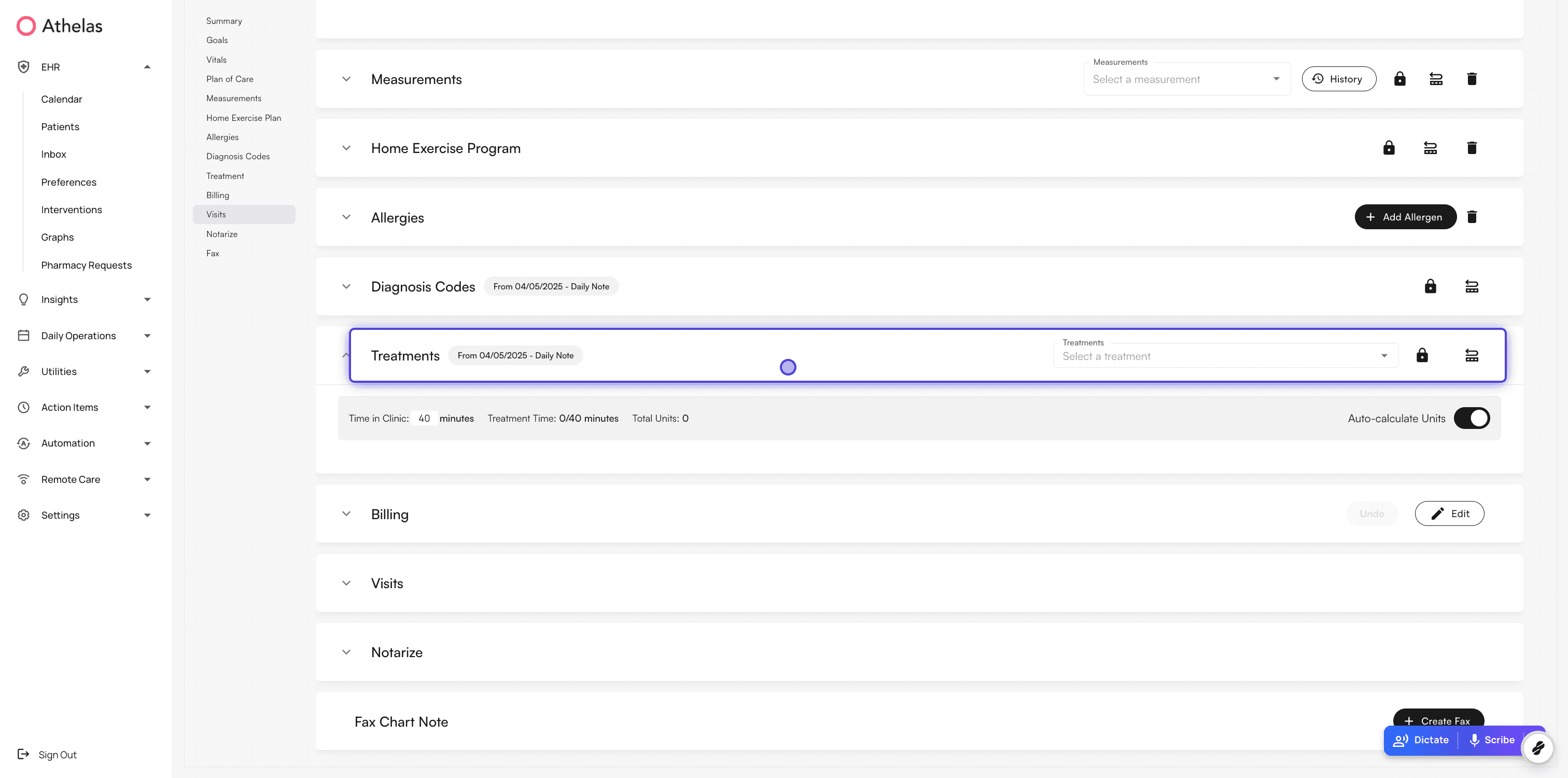
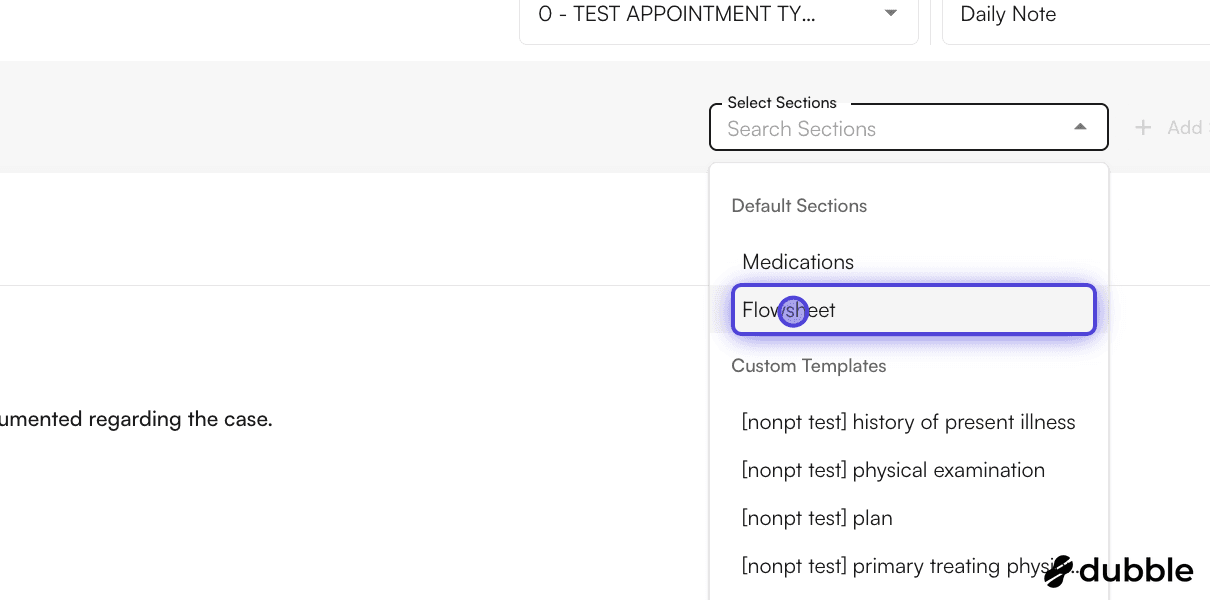 Adding flowsheets to the chart note will remove treatments
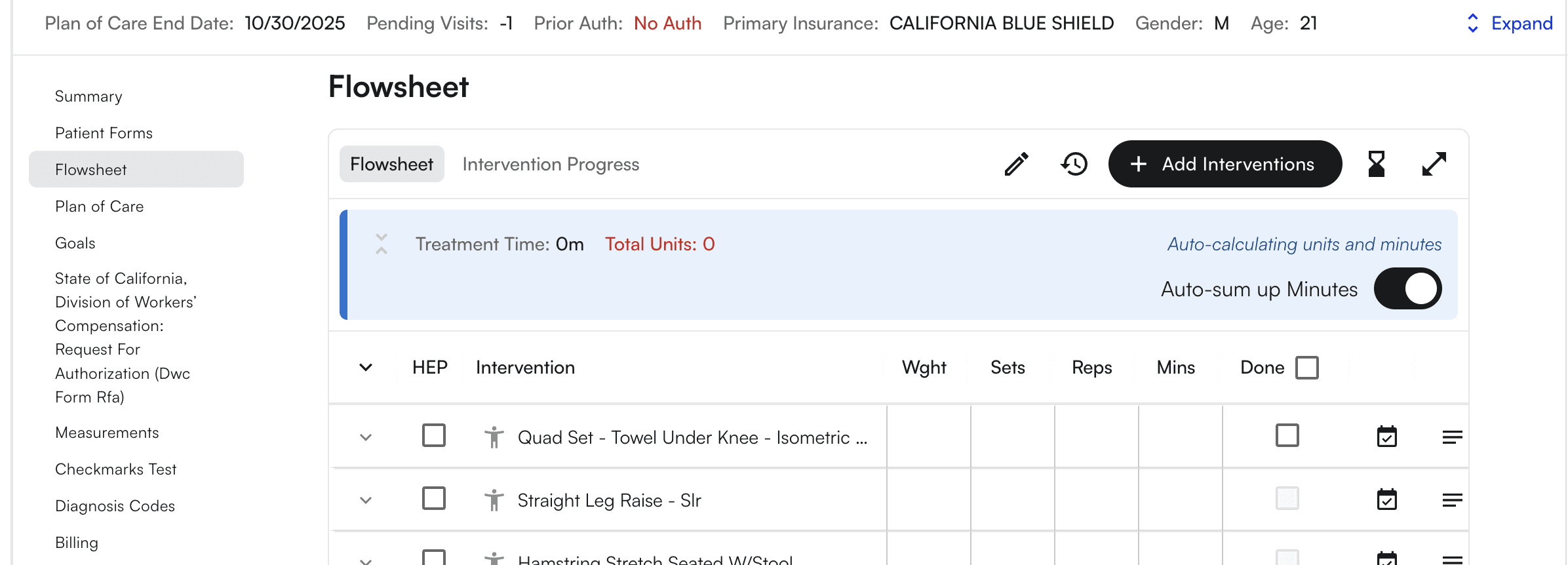
 * Add an intervention - “+Add Interventions” through the Intervention manager in the nav bar, or within the chart note itself
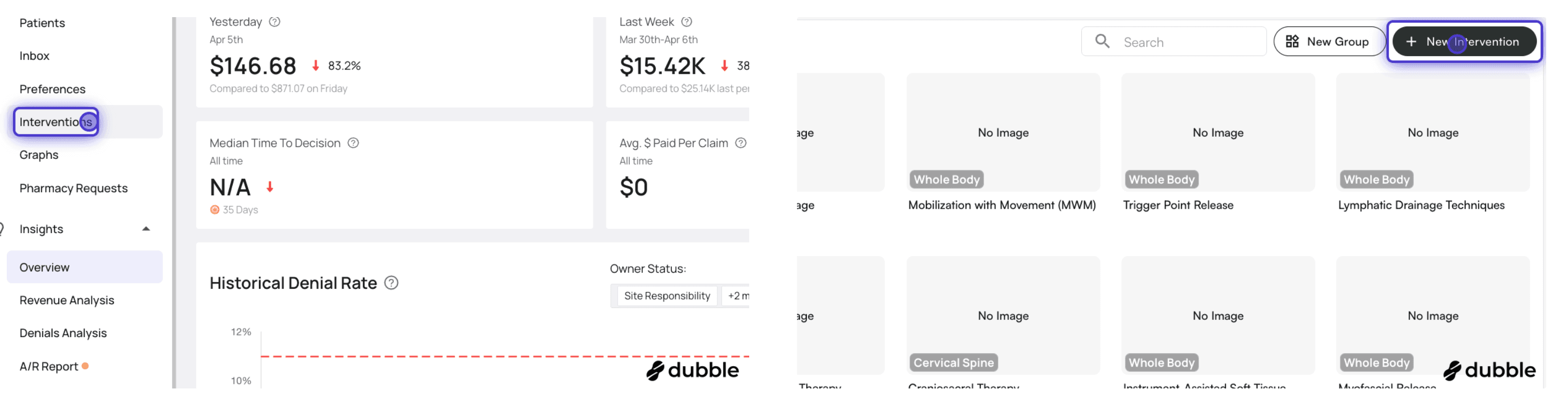
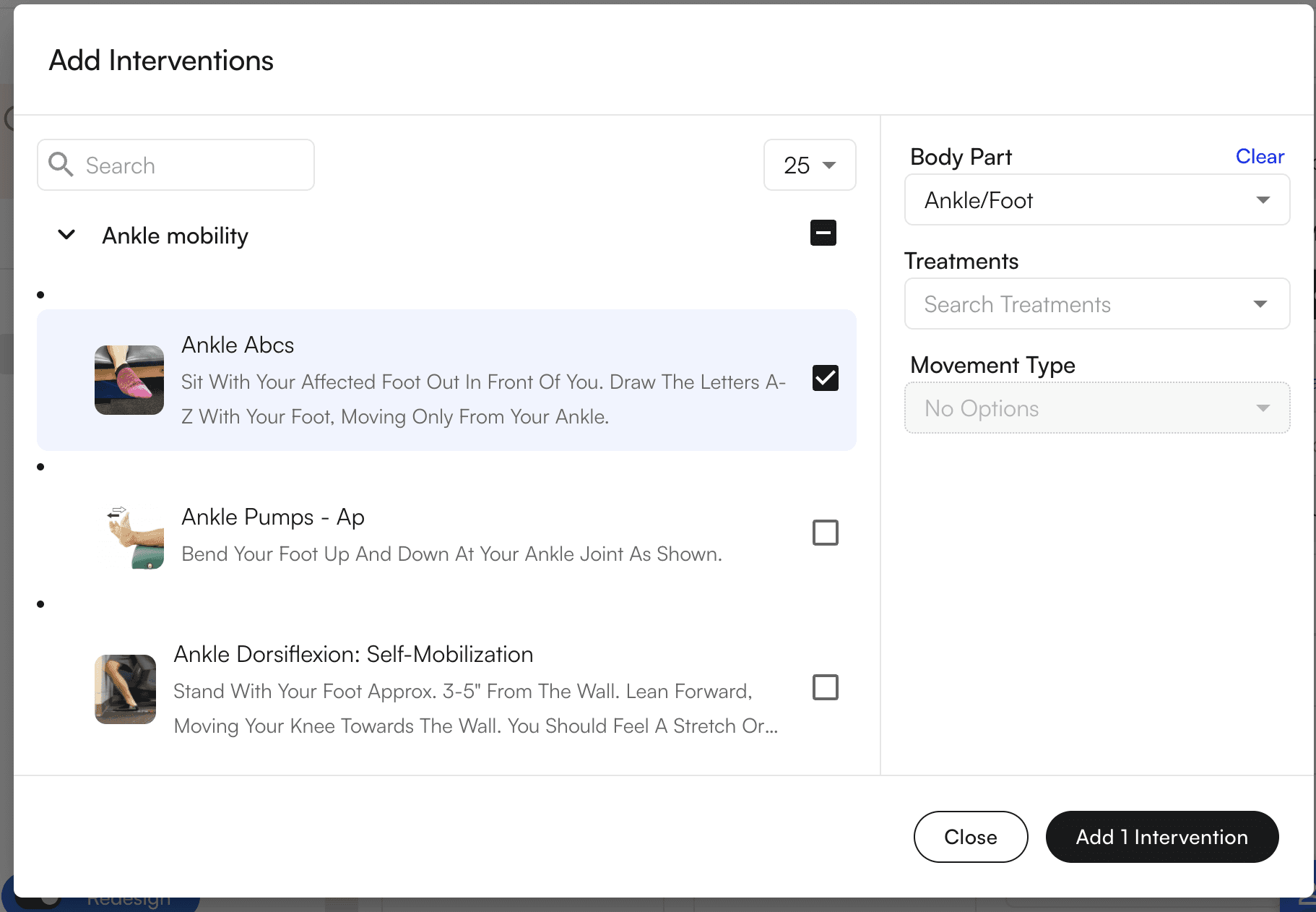 Clicking the add interventions button will add all selected interventions to the flowsheet (currently in the order in which they were selected).
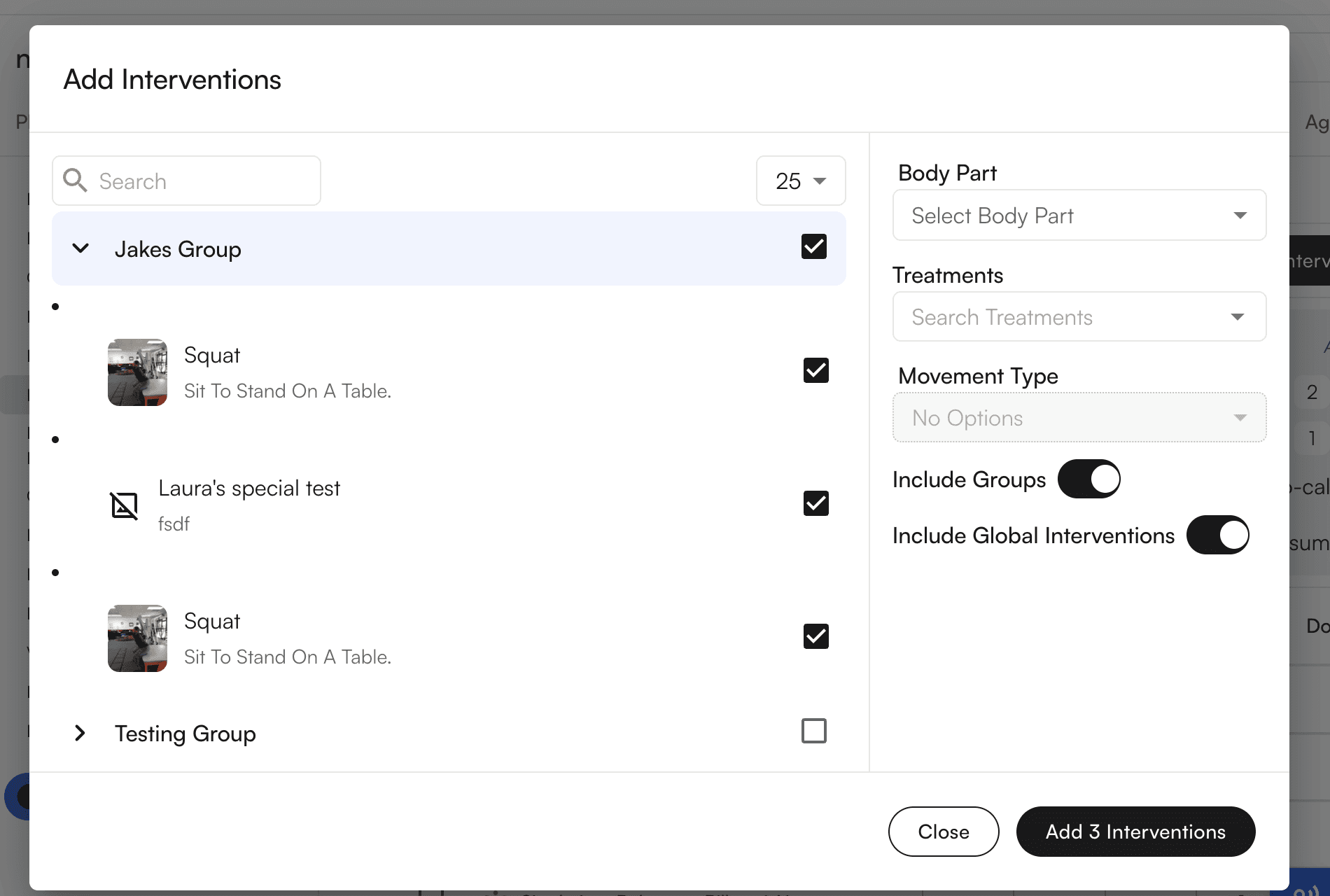
 * You can now select groups of interventions, reducing repetitive data entry
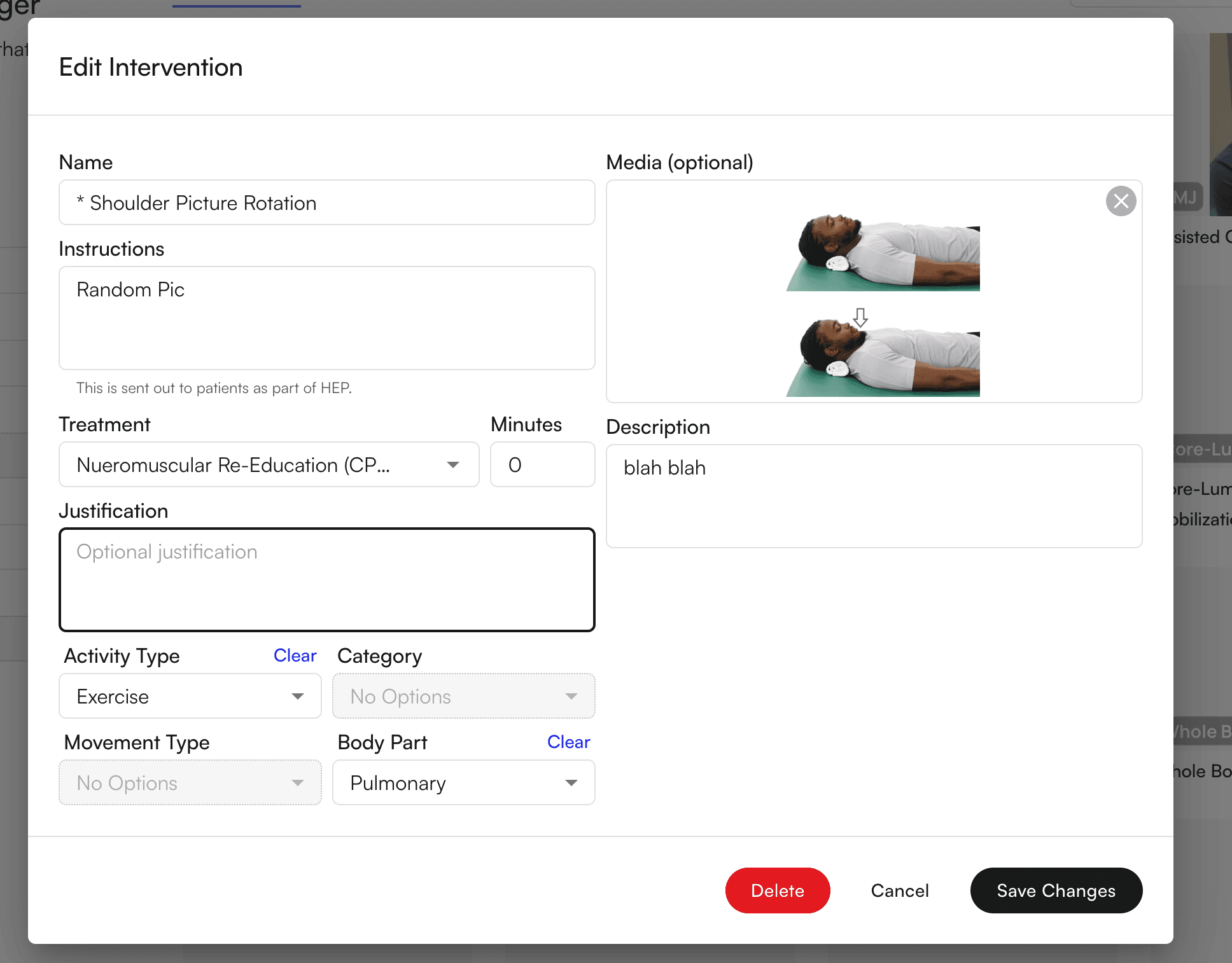
 * When editing an Intervention, you can also auto-populate flowsheets with intervention details and exercise parameters
* Configure tying interventions to treatments, which means when interventions are added to the flowsheet, the configured treatment/CPT code will auto-populate as well
* When editing an Intervention, you can also auto-populate flowsheets with intervention details and exercise parameters
* Configure tying interventions to treatments, which means when interventions are added to the flowsheet, the configured treatment/CPT code will auto-populate as well
 * Select a Procedure code in the Intervention drop down, and mark each intervention as done
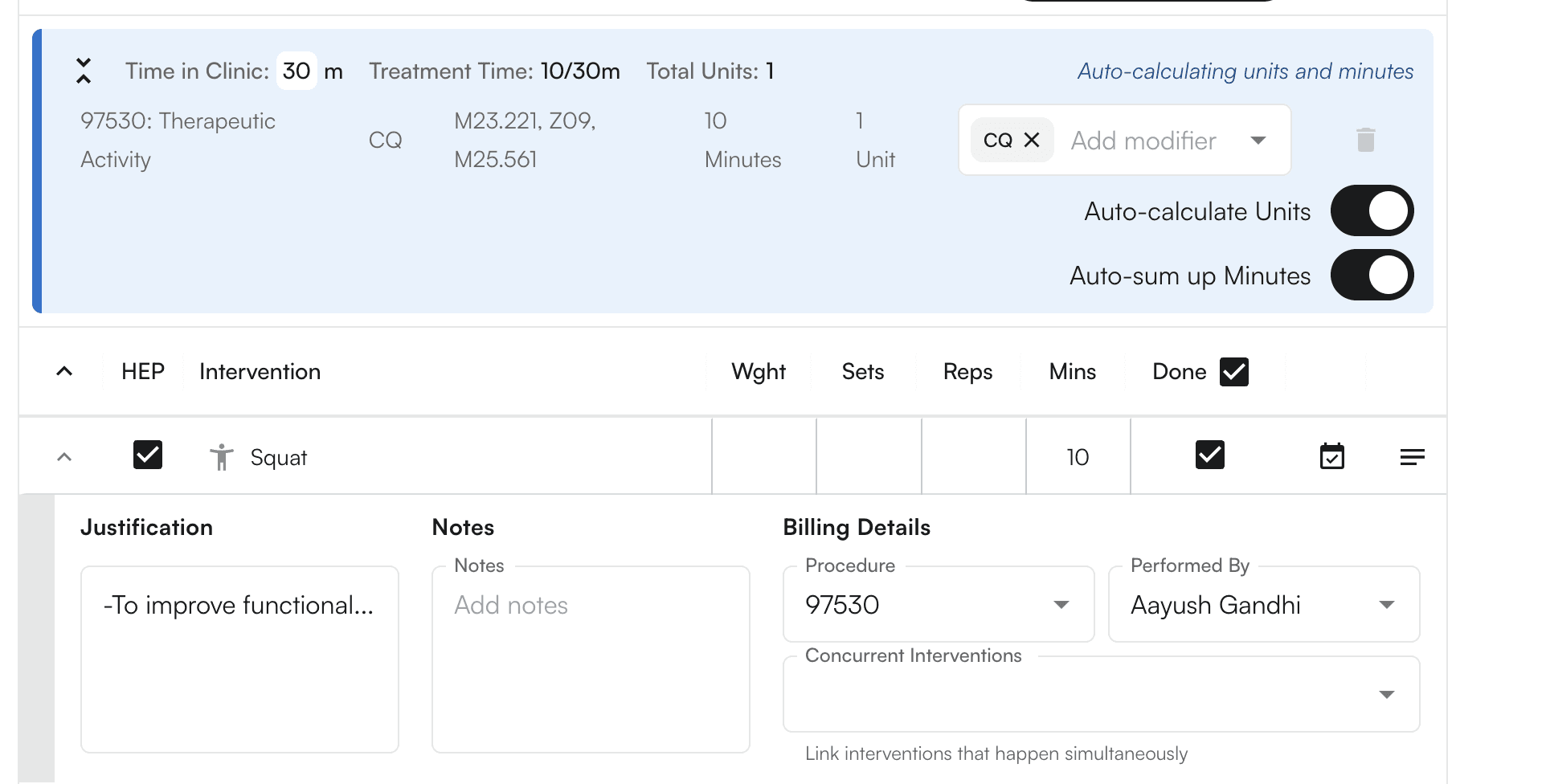 * You must select a procedure code in order to mark an intervention as done, and the treatment time and units will auto populate
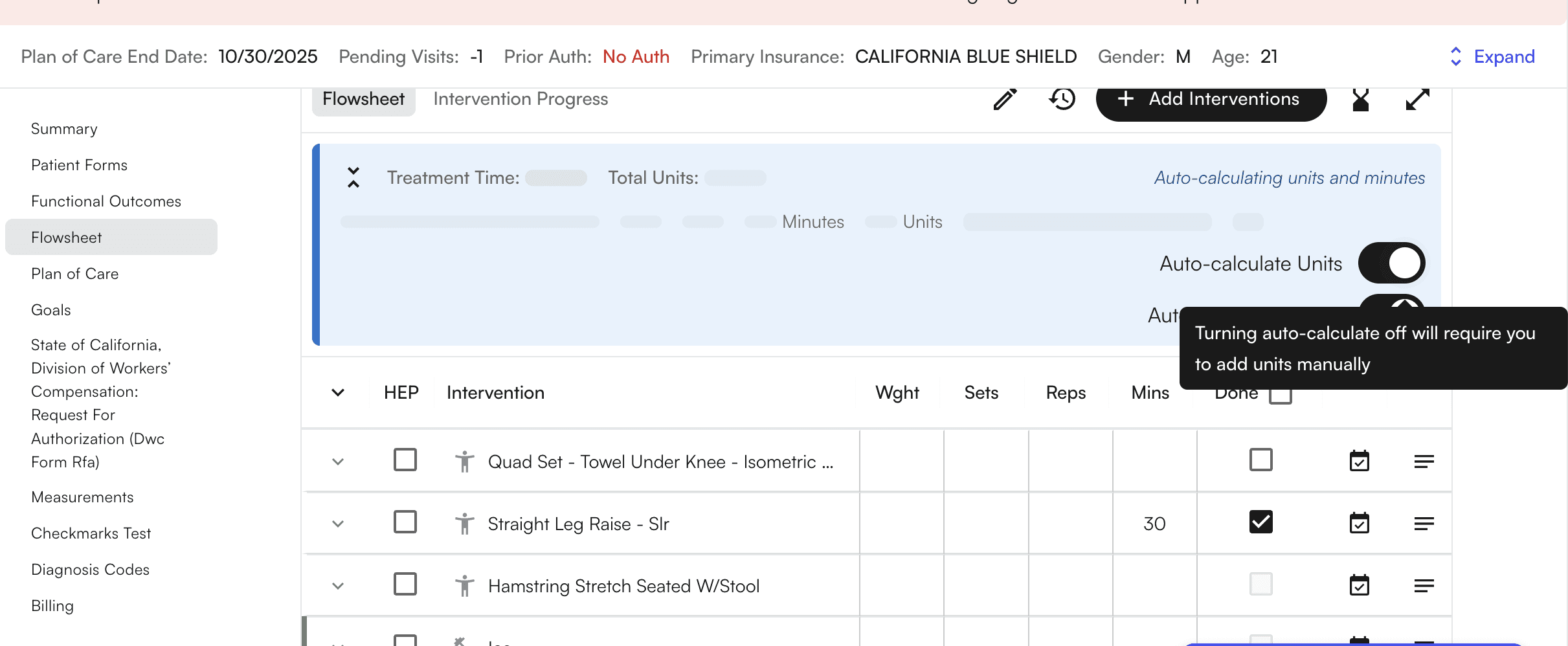
* You can configure your flowsheets by de-selecting “Auto-calculate Units” and/or “Auto-sum up Minutes” toggles to allow manual calculations- These toggles are default turned on
* You must select a procedure code in order to mark an intervention as done, and the treatment time and units will auto populate
* You can configure your flowsheets by de-selecting “Auto-calculate Units” and/or “Auto-sum up Minutes” toggles to allow manual calculations- These toggles are default turned on
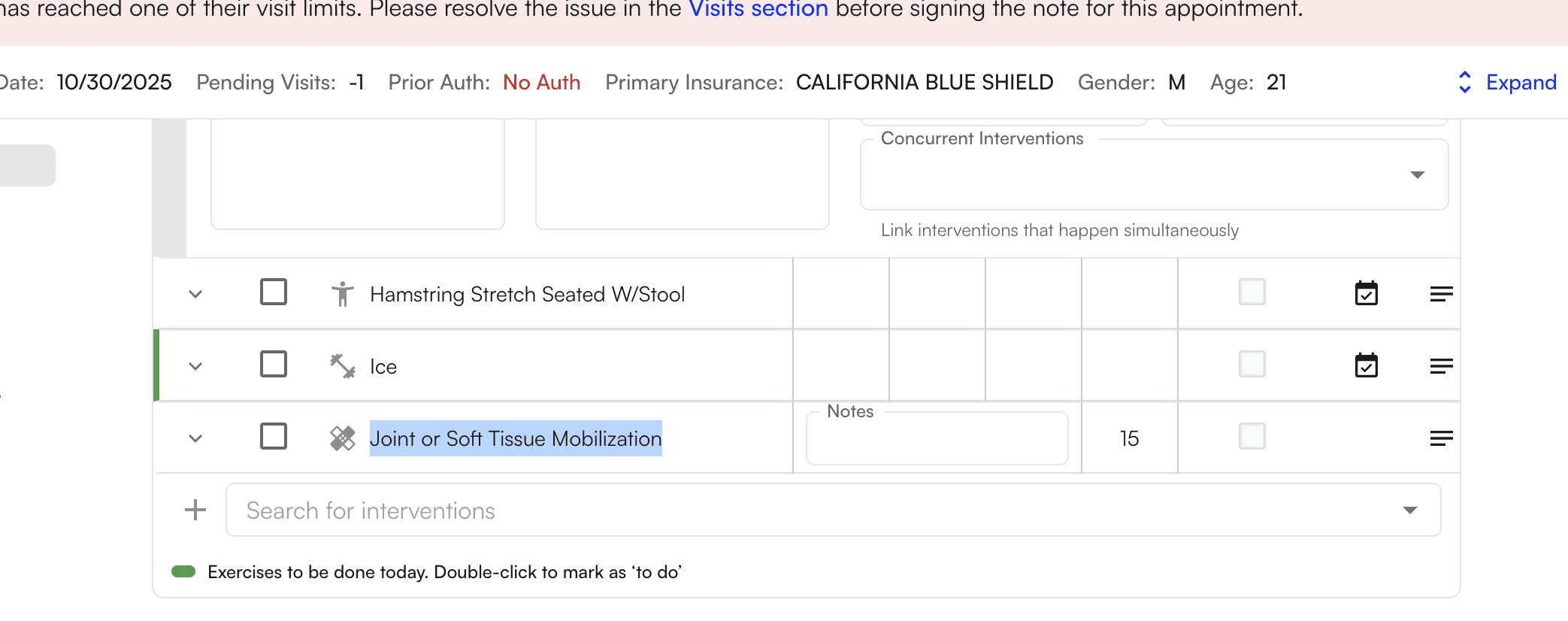
 * You can also double click on an intervention in order to mark as “TO-DO”, and a green highlight will emerge
 #### Adding Home Exercise Programs
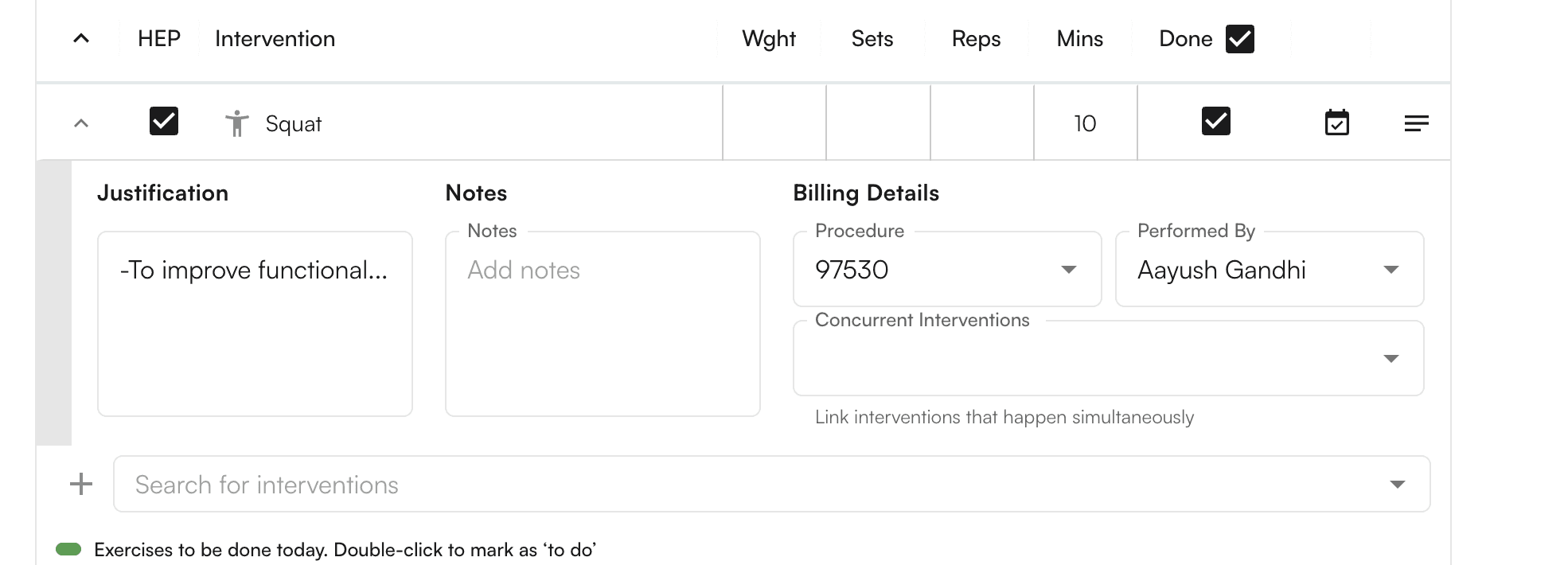
By clicking the checkbox for an intervention marked as `HEP`, this will add this to a staging area where a Home Exercise Program can be prepared.
#### Adding Home Exercise Programs
By clicking the checkbox for an intervention marked as `HEP`, this will add this to a staging area where a Home Exercise Program can be prepared.
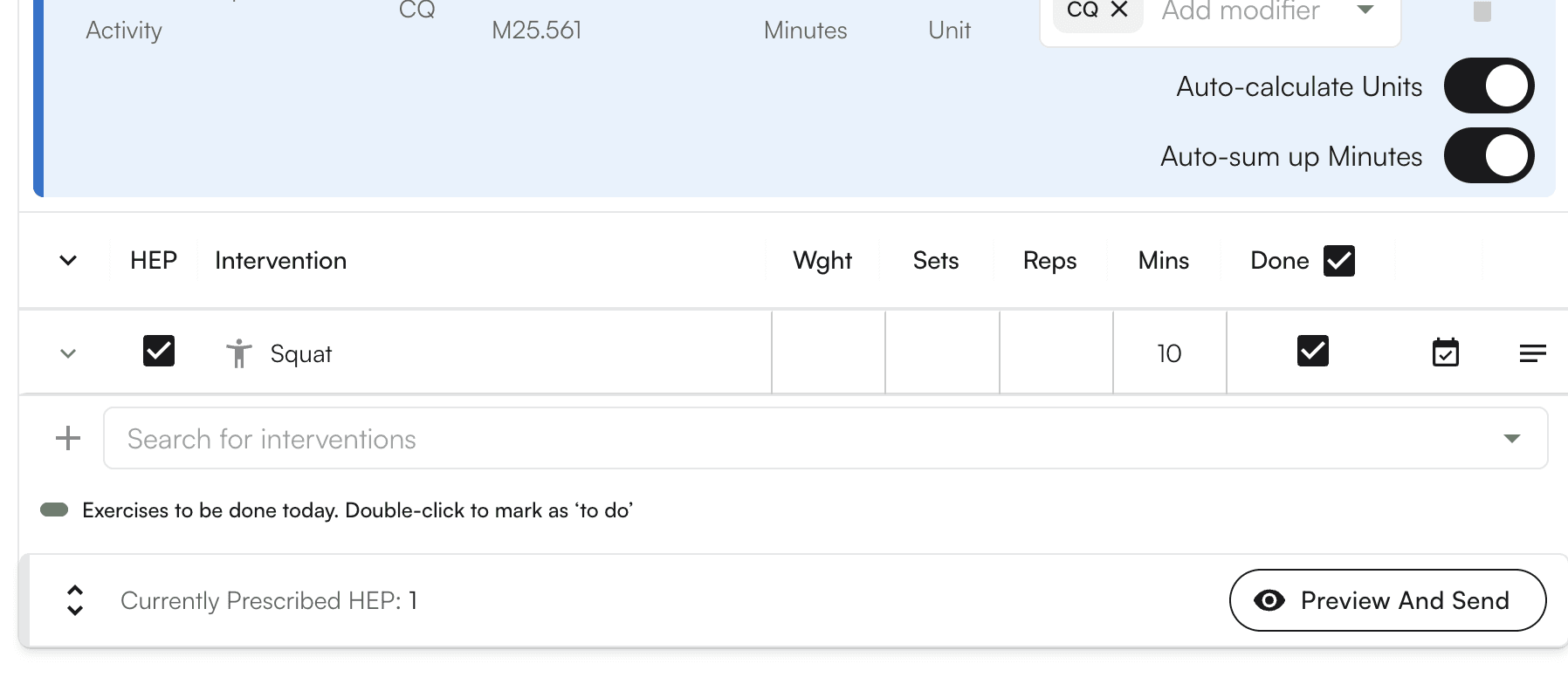 Clicking the caret for HEP will open up the dropdown to assign any additional notes to the HEP section on a per intervention basis.
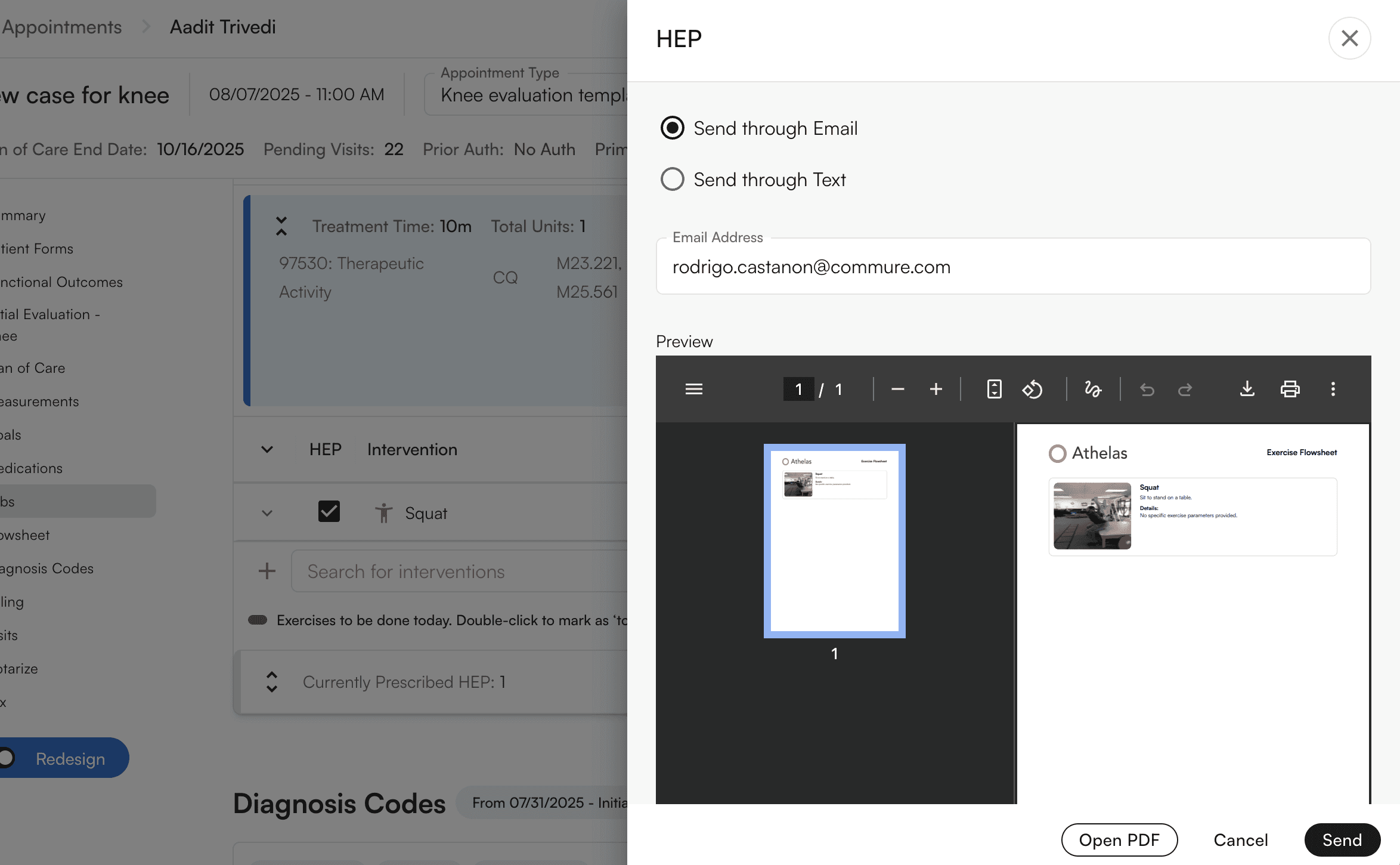
 You can “Preview and Send” to email, text and print the PDF
 #### Adding Evaluative Procedure
Often times, evaluative procedures may exist outside of being specified to a particular intervention. As such, we allow you to specify this from within the flowsheets feature and manage them independently.
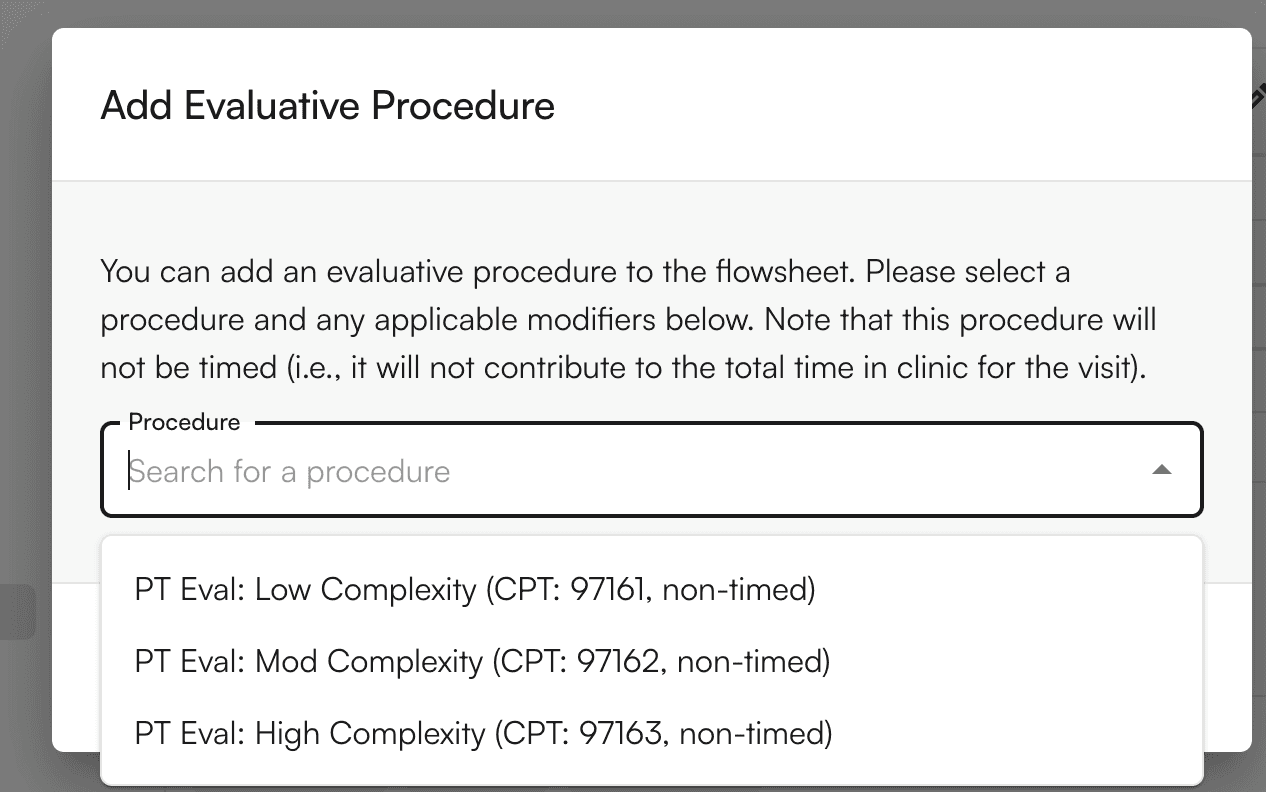
Clicking Add Evaluative Procedure will bring up a modal where these CPT codes can be selected.
#### Adding Evaluative Procedure
Often times, evaluative procedures may exist outside of being specified to a particular intervention. As such, we allow you to specify this from within the flowsheets feature and manage them independently.
Clicking Add Evaluative Procedure will bring up a modal where these CPT codes can be selected.
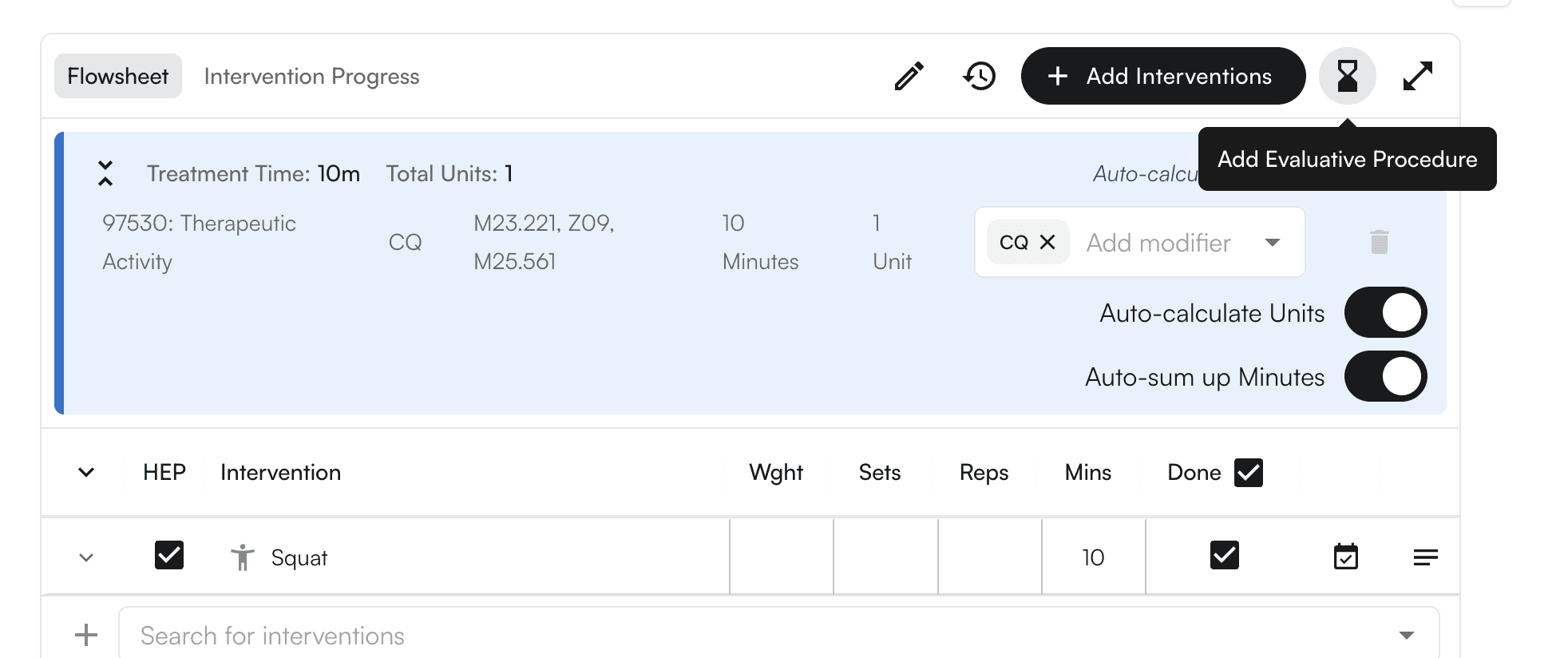
 These evaluative procedures will be available in the blue header along with all procedures added from the interventions.
Evaluative procedures can be removed from here directly if needed.
These evaluative procedures will be available in the blue header along with all procedures added from the interventions.
Evaluative procedures can be removed from here directly if needed.
 #### Viewing Intervention Progress
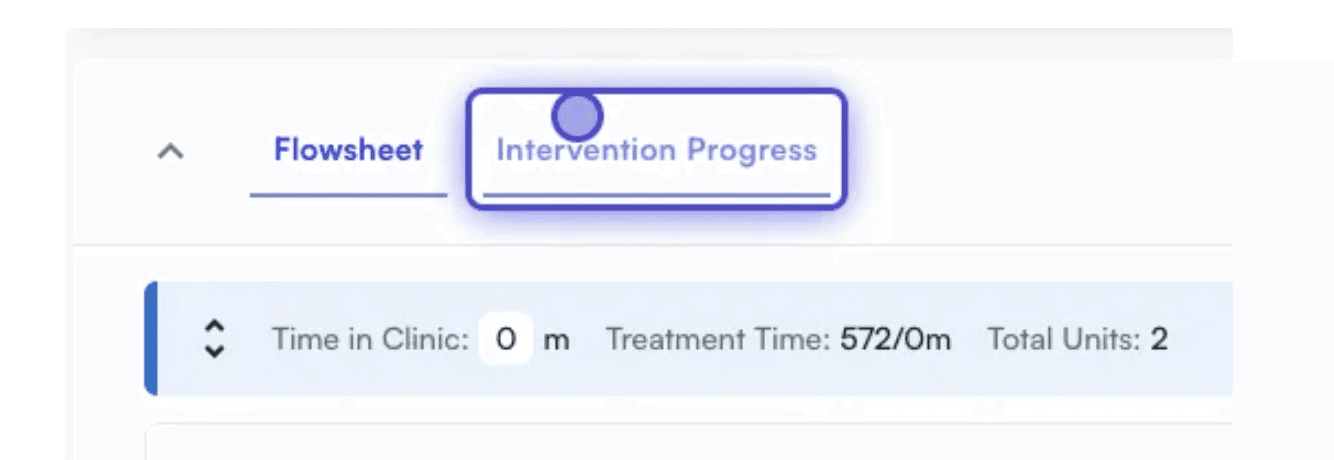
Click on `Intervention Progress`in the Flowsheet section to view the stats from all previous interventions
#### Viewing Intervention Progress
Click on `Intervention Progress`in the Flowsheet section to view the stats from all previous interventions
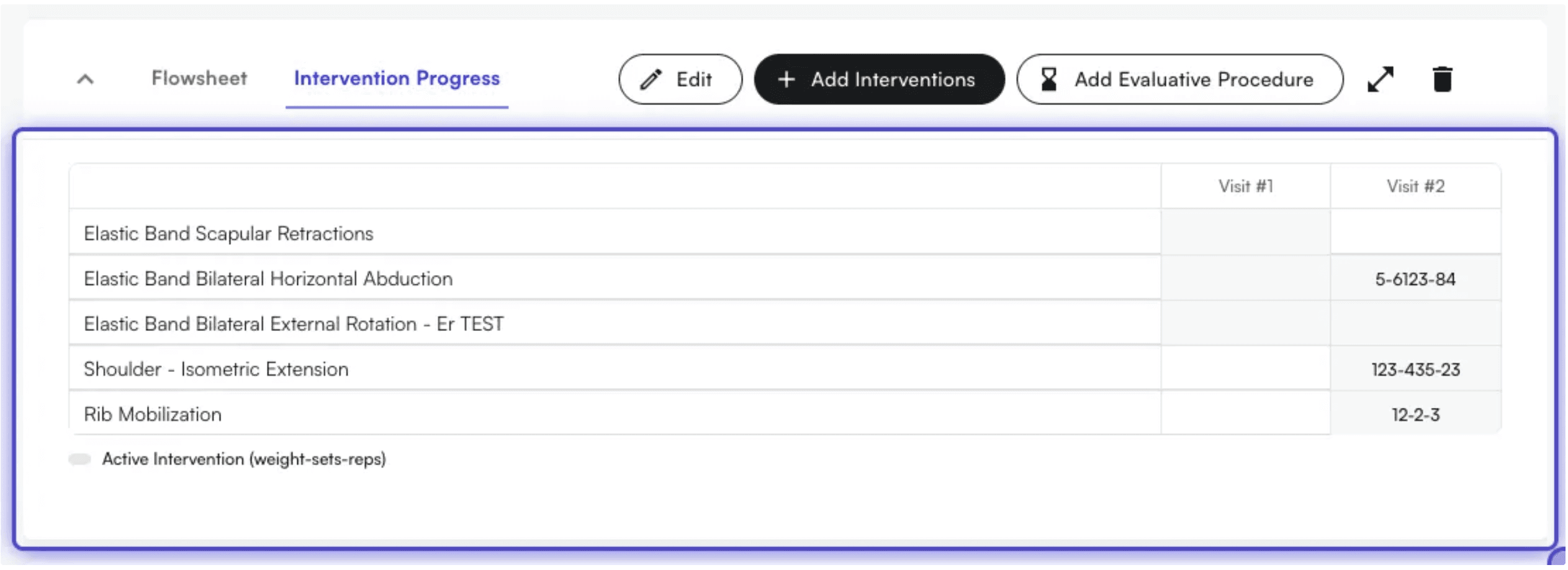 If an intervention was performed for a specific visit, the background will be grey. The text inside the cells corresponds to the weight-sets-reps.
#### Viewing Intervention History
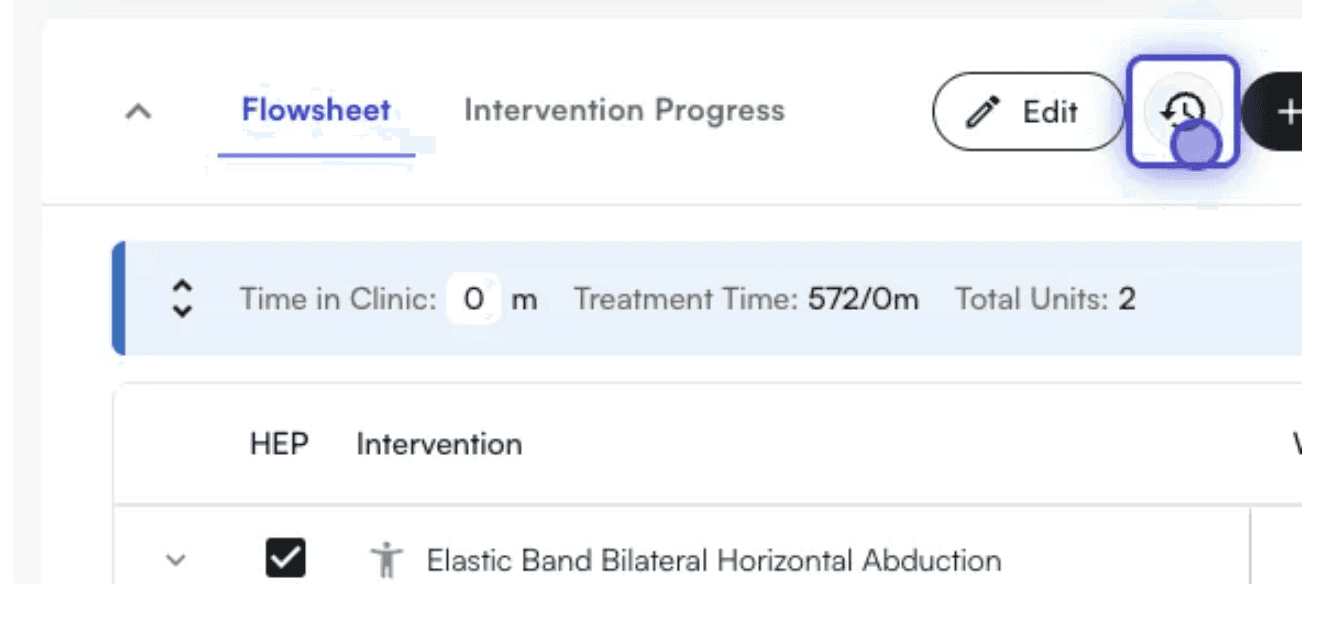
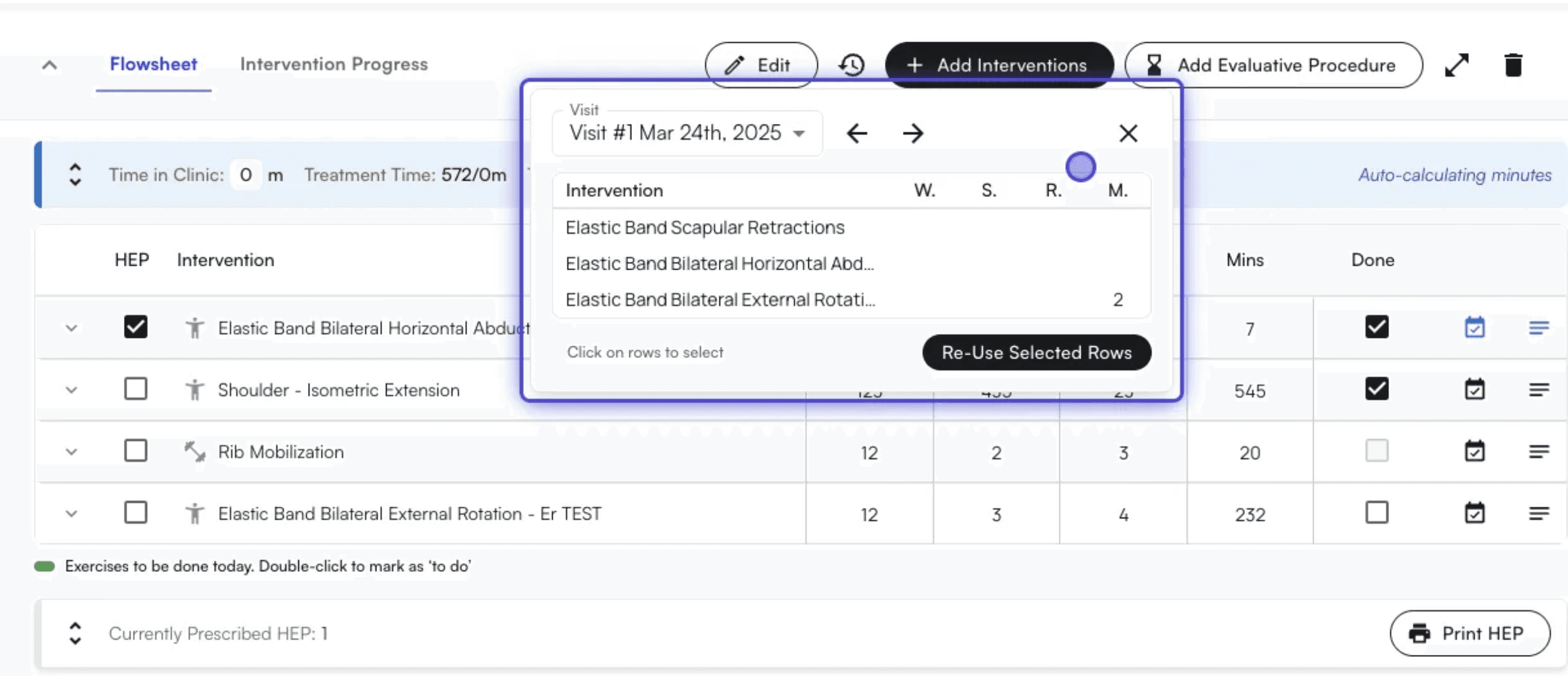
To view intervention history, click on the History icon on the Flowsheet section in the chart note
If an intervention was performed for a specific visit, the background will be grey. The text inside the cells corresponds to the weight-sets-reps.
#### Viewing Intervention History
To view intervention history, click on the History icon on the Flowsheet section in the chart note
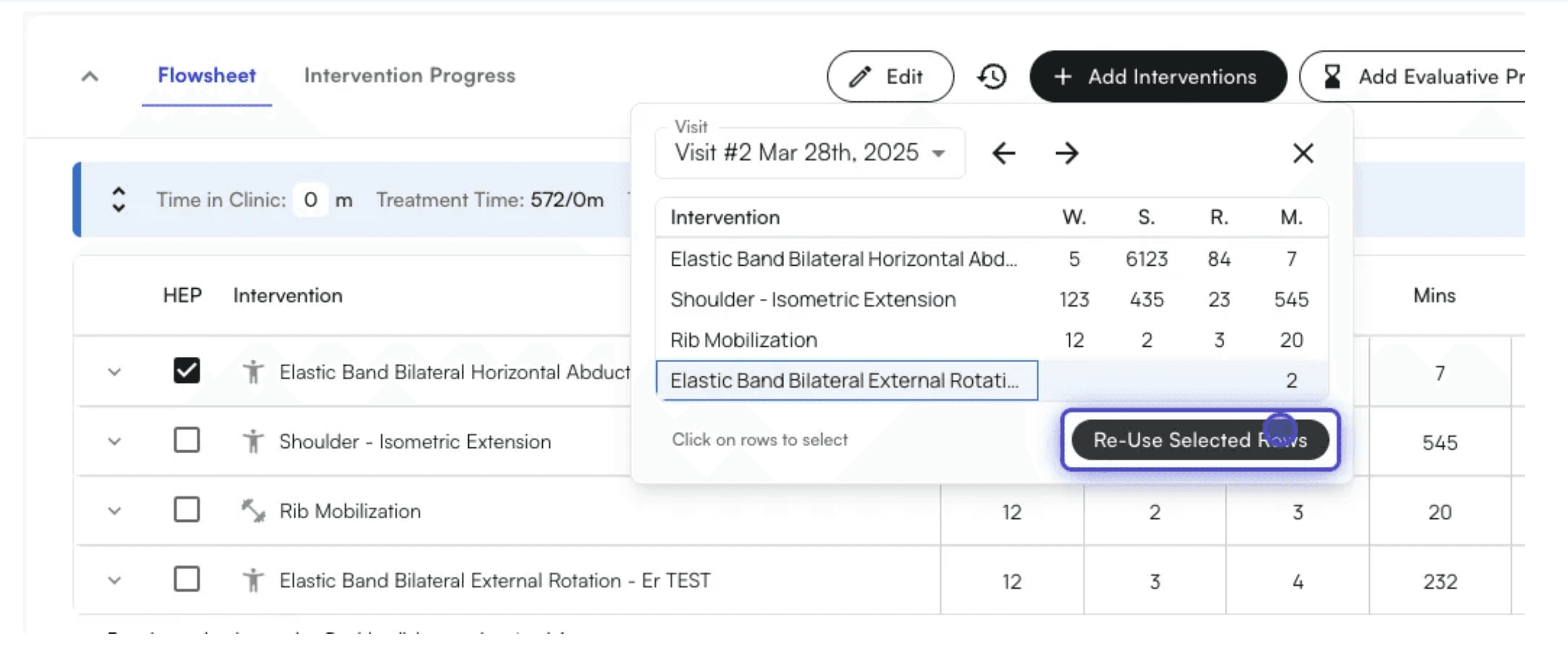
 From there you can see a visit by visit history of interventions, including the weights, sets, repetitions and minutes
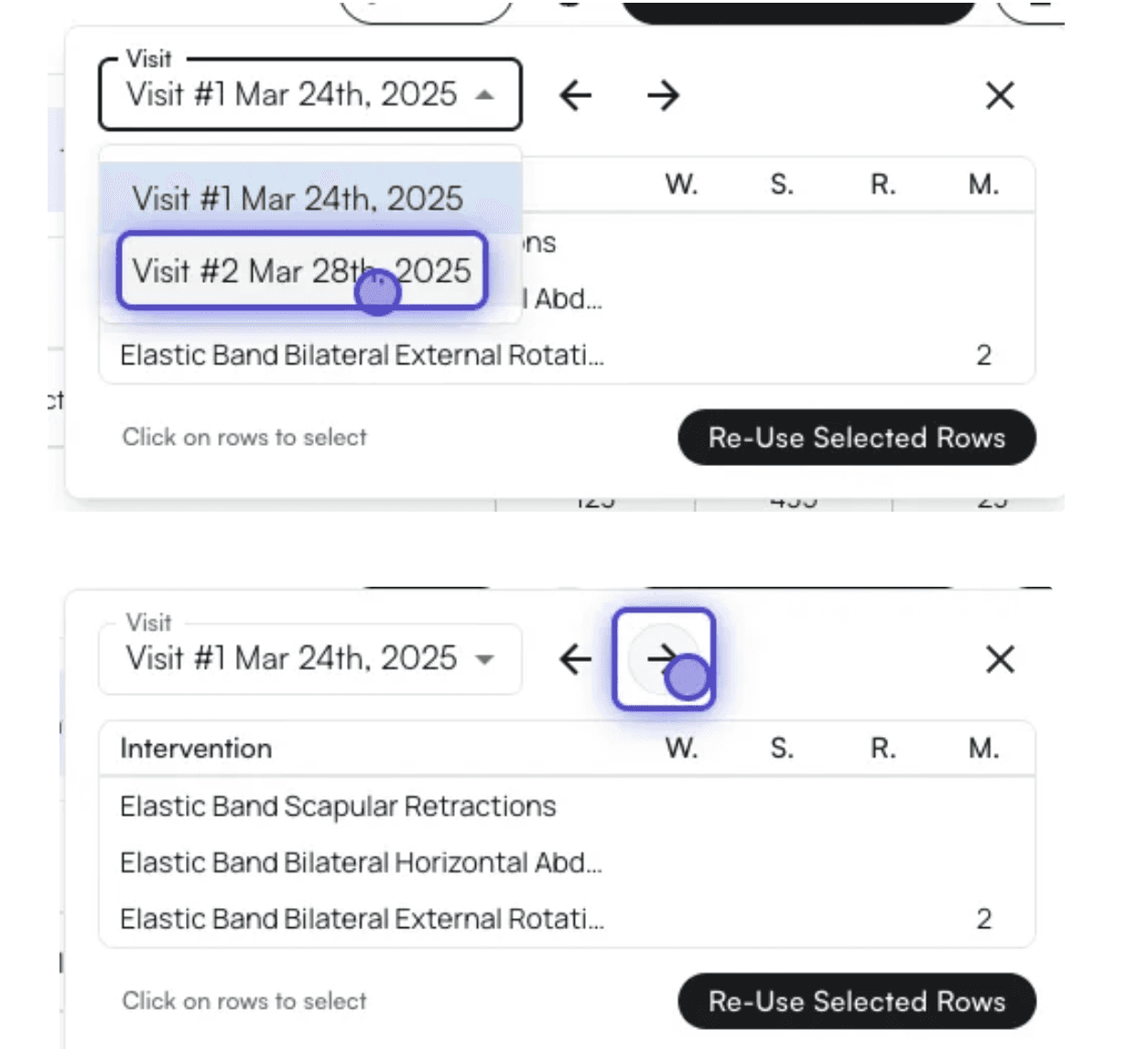
 You can select which Visit to view either through the Select dropdown, or by clicking the forward and back buttons
 You can click on an intervention to select an intervention. You can select several interventions at once. To un-select an intervention, simply click it again
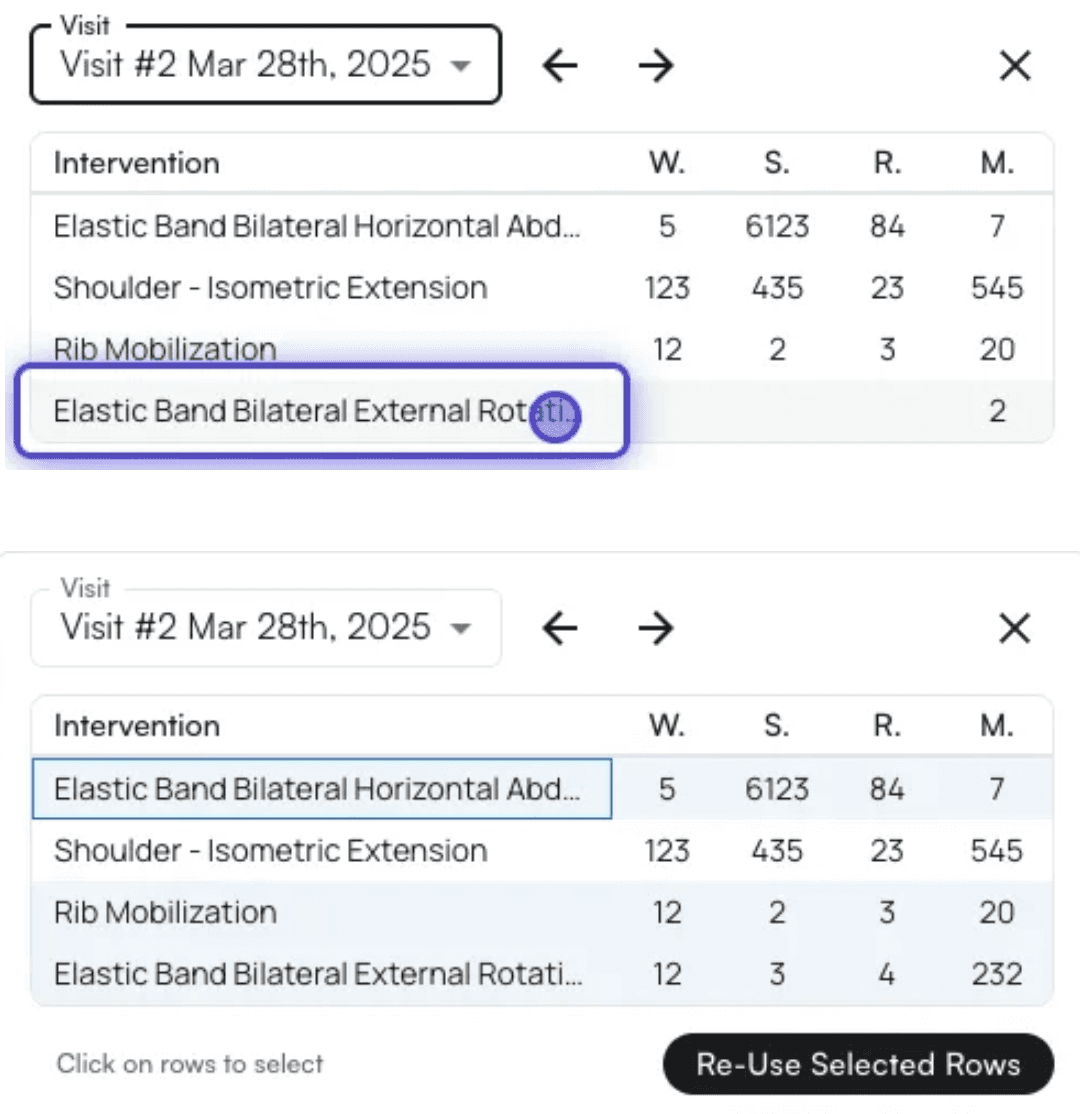 After selecting interventions you want to re-use the values from, click the Re-Use Selected Rows button, and that data will be pulled into the current visit