> ## Documentation Index
> Fetch the complete documentation index at: https://trainings.air.athelas.com/llms.txt
> Use this file to discover all available pages before exploring further.
# View Patient's Appointments
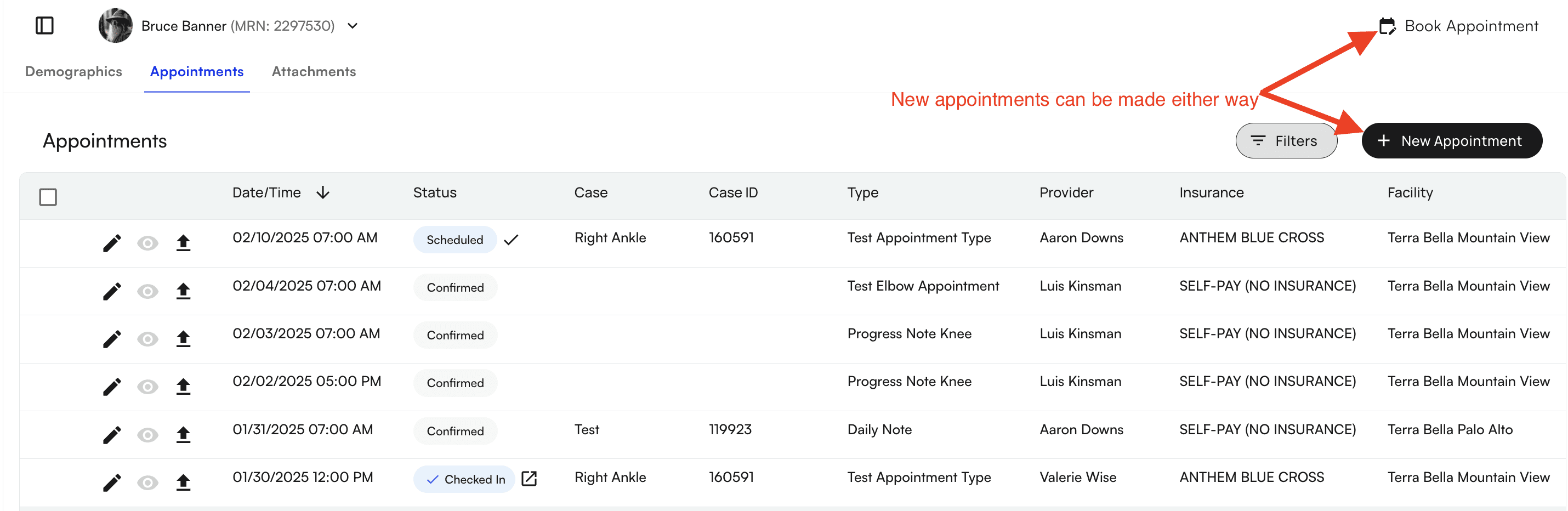
The appointments tab is where you can see all upcoming and past appointments for the patient. You are also able to create new appointments here, though you are able to do so on any tab in the patient’s profile as well.
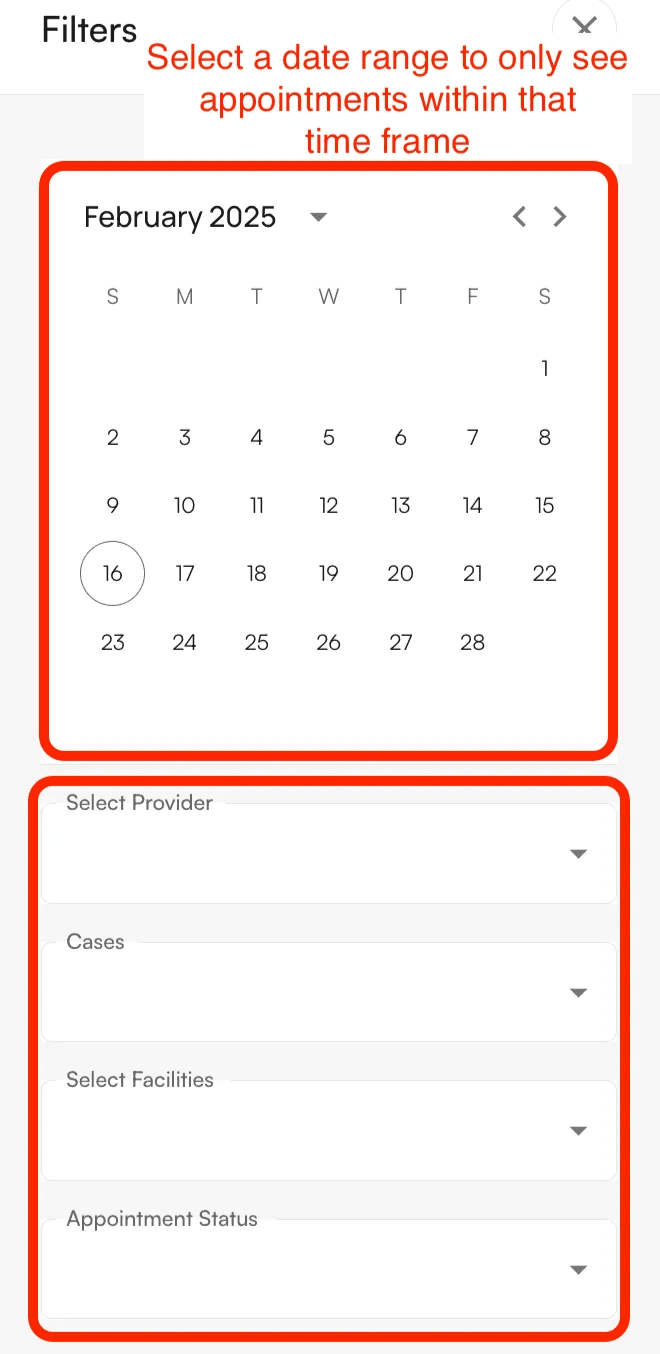
 This list of appointments can be easily filtered by clicking on the *Filters* icon which will open up a side panel with several options.
Selecting a date, or date range on the calendar will only show appointments for the date(s) selected. Additional filters include:
* Providers
* Cases
* Facilities
* Appointment Status
You can combine different filters to find specific appointments that the patient has/ had.
This list of appointments can be easily filtered by clicking on the *Filters* icon which will open up a side panel with several options.
Selecting a date, or date range on the calendar will only show appointments for the date(s) selected. Additional filters include:
* Providers
* Cases
* Facilities
* Appointment Status
You can combine different filters to find specific appointments that the patient has/ had.
 In the table, you’ll be able to view the different statuses of their appointments:
* **Cancelled**
* Clicking on the eye icon will show the cancellation reason
* **Confirmed**
* The patient has confirmed their appointment via their appointment reminder text/ email
* An Appointment can only be updated to Confirmed if “Confirmed” via completion of the patient’s intake form
* Front office staff are unable to “Confirm” an appointment for a patient
* **Checked** **In**
* Clicking on the box arrow icon will open up the chart note
* **Scheduled**
* Clicking on the checkmark will check in the patient for that appointment
* **Completed**
* Clicking on the box arrow icon will open up the completed chart note
In the table, you’ll be able to view the different statuses of their appointments:
* **Cancelled**
* Clicking on the eye icon will show the cancellation reason
* **Confirmed**
* The patient has confirmed their appointment via their appointment reminder text/ email
* An Appointment can only be updated to Confirmed if “Confirmed” via completion of the patient’s intake form
* Front office staff are unable to “Confirm” an appointment for a patient
* **Checked** **In**
* Clicking on the box arrow icon will open up the chart note
* **Scheduled**
* Clicking on the checkmark will check in the patient for that appointment
* **Completed**
* Clicking on the box arrow icon will open up the completed chart note
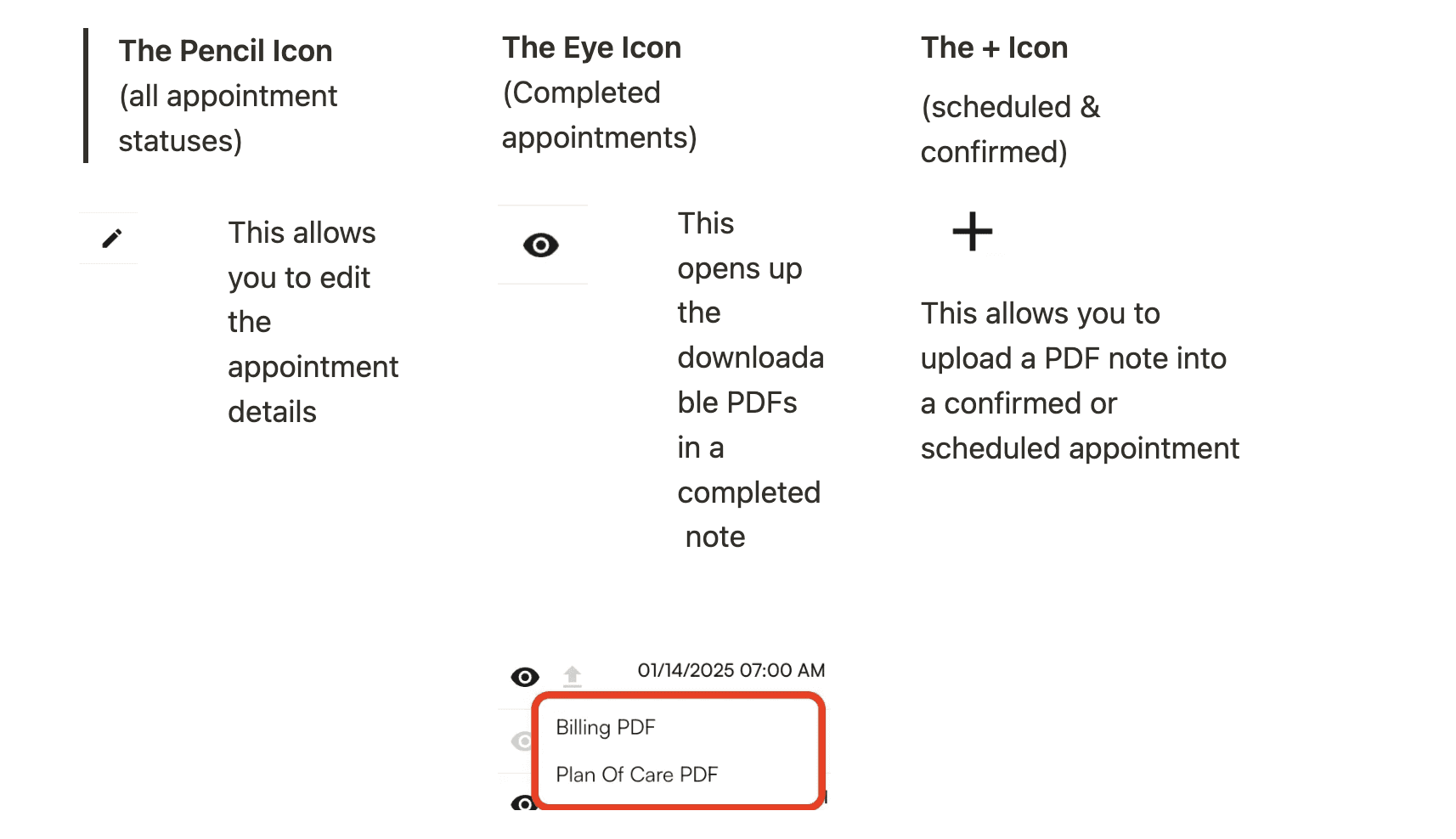
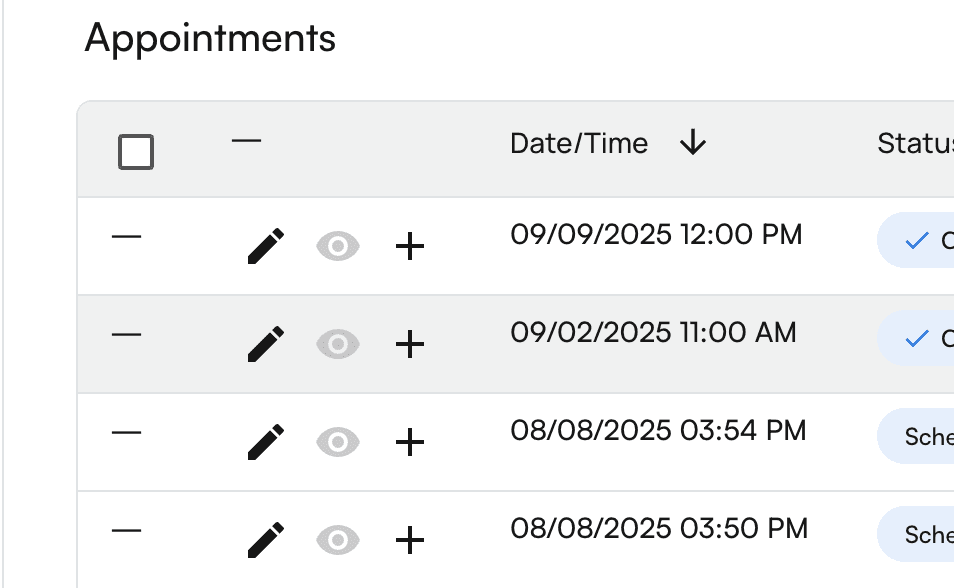 To the left of the appointment date/time are 3 icons:
 #### Faxing Through Appointments
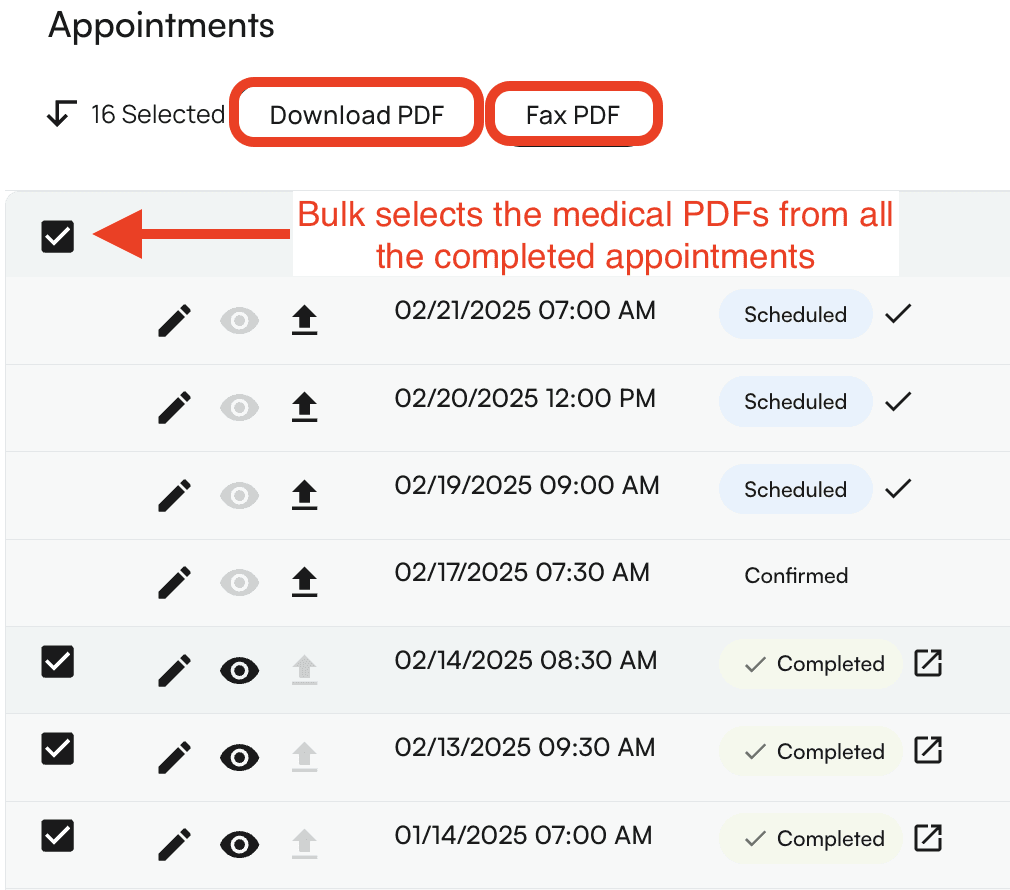
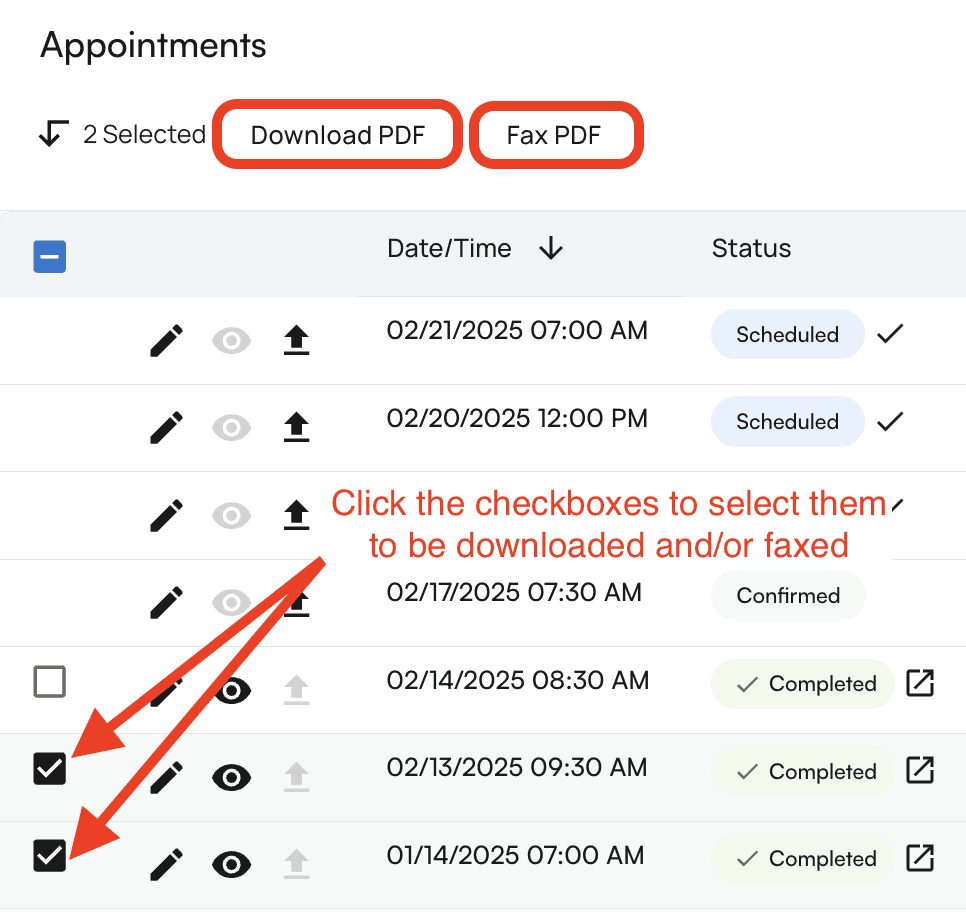
You can easily bulk fax and download PDFs by clicking on the checkbox at the very top of the appointments table. All of the completed appointments will have a checkbox next to them. You’ll be able to uncheck any that you don’t want to download or simply check the boxes next to the appointments you’d like to download or fax.
#### Faxing Through Appointments
You can easily bulk fax and download PDFs by clicking on the checkbox at the very top of the appointments table. All of the completed appointments will have a checkbox next to them. You’ll be able to uncheck any that you don’t want to download or simply check the boxes next to the appointments you’d like to download or fax.
 #### Faxing through Chart Note
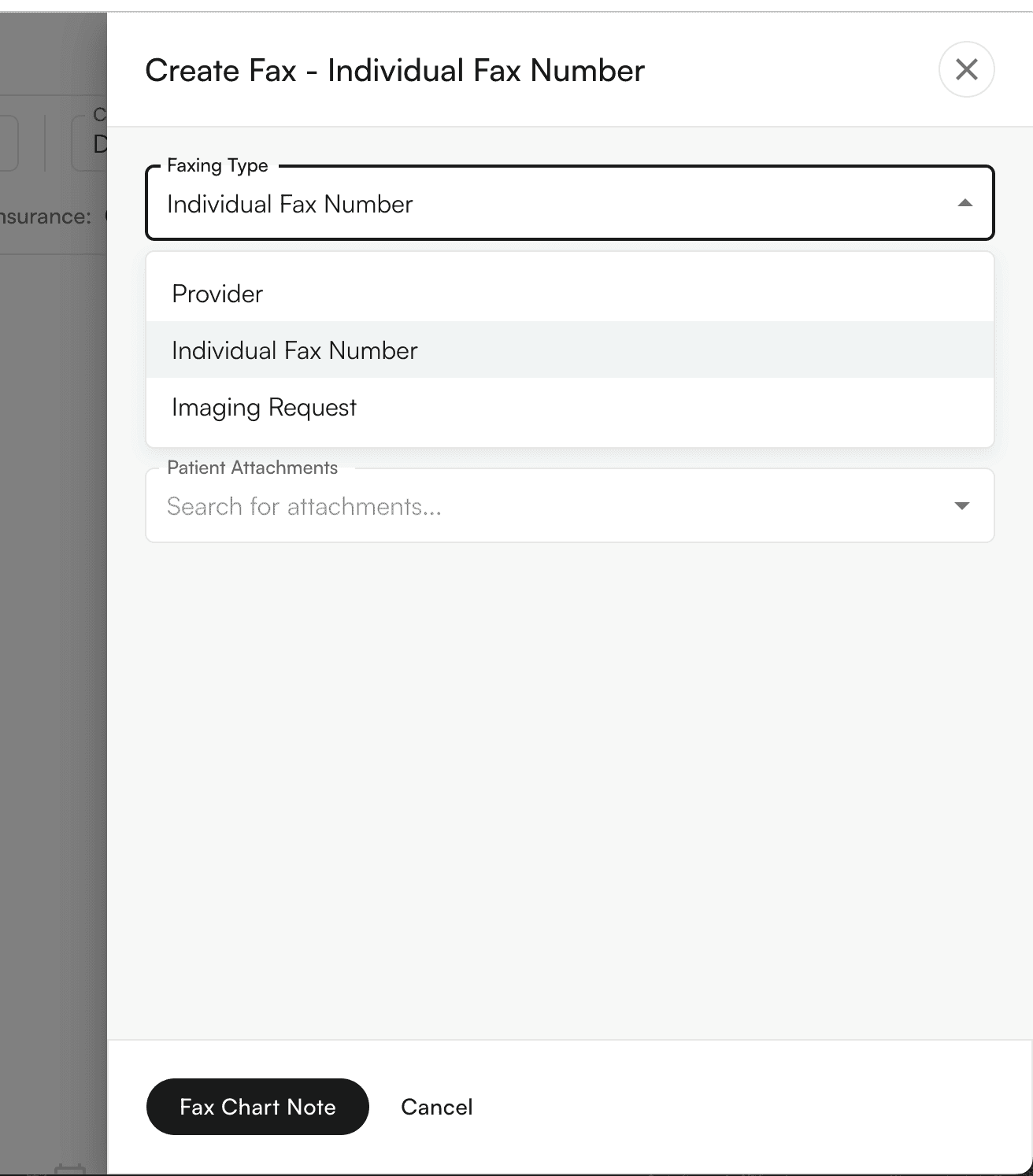
Providers can also Fax the chart note through the Chart note itself. Navigate to the "Fax" section of the Chart note. You can “+ Create Fax”, select the Faxing Type, and input required information:
#### Faxing through Chart Note
Providers can also Fax the chart note through the Chart note itself. Navigate to the "Fax" section of the Chart note. You can “+ Create Fax”, select the Faxing Type, and input required information: