> ## Documentation Index
> Fetch the complete documentation index at: https://trainings.air.athelas.com/llms.txt
> Use this file to discover all available pages before exploring further.
# Practice Manager
Practice Manager is for practices that already have a billing team and want to keep it. Your billers work the whole revenue cycle themselves, from building claims through posting and patient statements, and every number you see opens to the claims behind it.
You get the flagship product our RCM Managed Services customers use, with your team at the controls.
## How Practice Manager fits your EHR
Practice Manager handles billing, not clinical records. Your EHR, ours or someone else's, only changes how charges reach billing:
* **If you stay on your current EHR:** Practice Manager syncs appointments, encounters, charges, and patient files from it on a schedule. 50+ EHRs are supported.
* **If you are on Air:** billing and the chart live in one system, so a signed note becomes a billable charge with nothing to sync.
* **If you are migrating to Air:** billing keeps running throughout, so collections never pause for the cutover.
A few capabilities only apply on Air, mainly scheduling and check-in. Those rows are marked.
## Who configures what
Athelas pre-configures the billing rules that apply globally, plus the plumbing every practice needs. You configure everything specific to your practice.
* Billing rules that apply globally, as the foundation you build on
* EDI and ERA enrollments with every payer
* Your Stripe account and the card readers you order
* The connection to wherever your clinical records live
* Automatic claim creation, so your rules build the claim as soon as the charge arrives
* Your own site-specific billing rules
* Submission rules and timing
* Your patient statement cadence
* Practice, provider, and staff setup
* Reviewing, correcting, and resubmitting claims
Athelas runs one-time onboarding and training during launch, so none of this starts from a blank page.
## What your team owns
Nobody outside your practice touches a claim. The queue is yours end to end.
Your team runs the day to day:
* **Claim review.** Correct and resubmit whatever the rules could not finish.
* **Denials and appeals.** Grouped by reason, payer, and dollars at risk.
* **Posting.** Remittances, adjustments, and patient payments.
* **Patient statements.** Your cadence, your branding.
* **Patient billing calls.** Every inbound billing call reaches your team.
* **Claim assignment.** Group the worklist by owner so each biller has their own list.
Four things need a person on a payer line, and that person is yours:
* **Prior authorization.** Eligibility shows coverage. Confirming whether a service needs authorization takes a call.
* **Workers' comp.** Registration and follow-up, with real fields for it rather than workarounds.
* **Paper payers.** You build the claim as usual and your team mails it.
* **Eligibility gaps.** When a payer is not reachable through the clearinghouse, your team calls directly.
## How the platform is built
Practice Manager rests on three pillars. Every capability we offer belongs to one of them.
### Automations
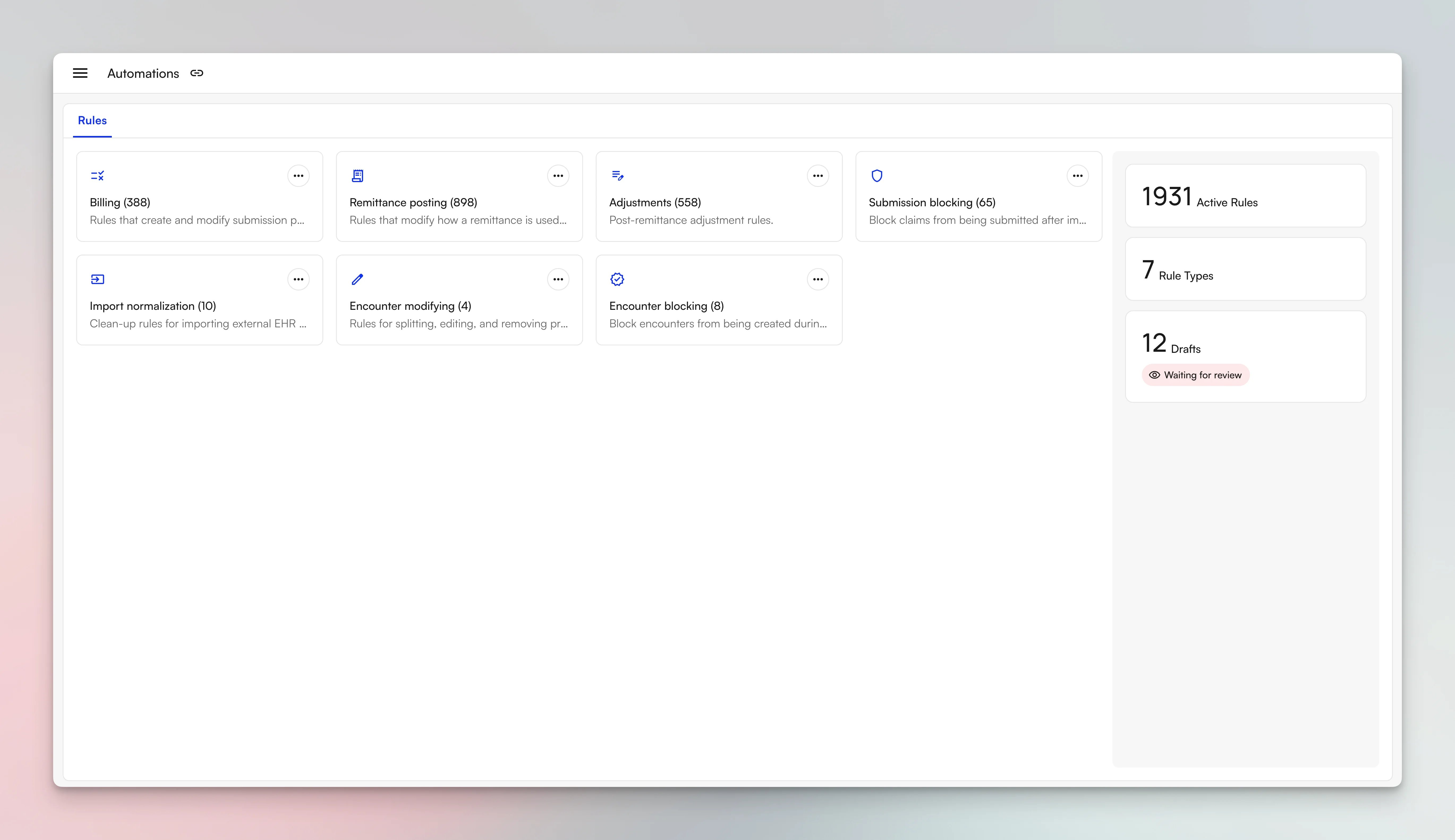 **Work less.** Your rules do the rote work, so your team can focus on what's more important.
Eligibility runs on every encounter rather than just initial evaluations. Patient responsibility is calculated from live benefits before the patient arrives. Payment plans charge themselves once configured. Deposits match themselves to the claims they actually paid.
Rules are grouped by what they act on, from building and modifying claims before submission to posting remittances and taking adjustments. New rules stay as drafts until you review and turn them on.
### Workspaces
**Work less.** Your rules do the rote work, so your team can focus on what's more important.
Eligibility runs on every encounter rather than just initial evaluations. Patient responsibility is calculated from live benefits before the patient arrives. Payment plans charge themselves once configured. Deposits match themselves to the claims they actually paid.
Rules are grouped by what they act on, from building and modifying claims before submission to posting remittances and taking adjustments. New rules stay as drafts until you review and turn them on.
### Workspaces
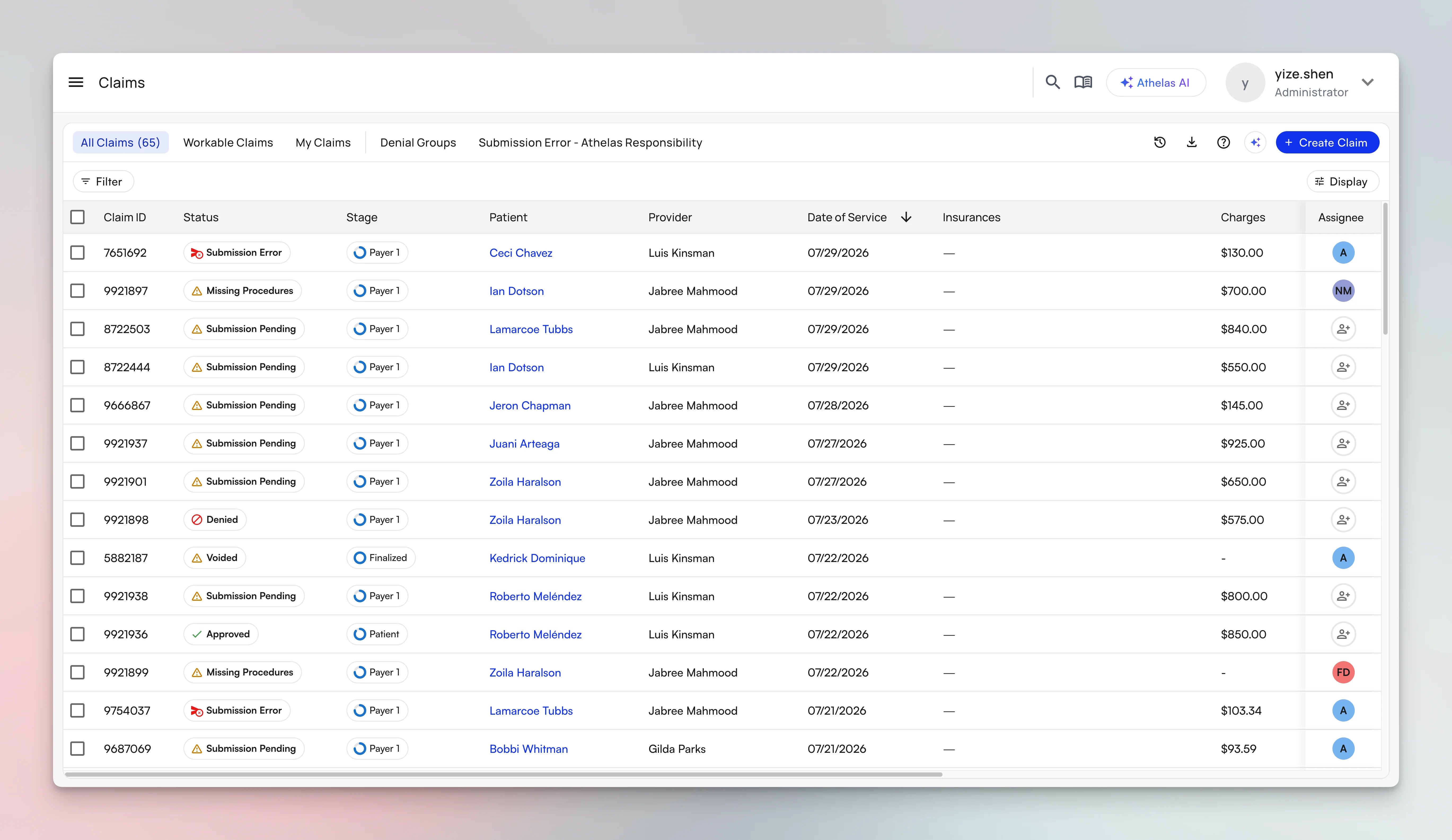 **Work fast.** One person can now act on hundreds of claims at once.
Claims, denials, remittances, appointments, and patients each get their own workspace, with deep filters, saved views per user, and bulk actions.
Every claim carries its status, stage, and owner on the same row, so a biller can tell what a claim is waiting on without opening it. Assign and group claims by owner so each biller works their own list.
### Analytics
**Work fast.** One person can now act on hundreds of claims at once.
Claims, denials, remittances, appointments, and patients each get their own workspace, with deep filters, saved views per user, and bulk actions.
Every claim carries its status, stage, and owner on the same row, so a biller can tell what a claim is waiting on without opening it. Assign and group claims by owner so each biller works their own list.
### Analytics
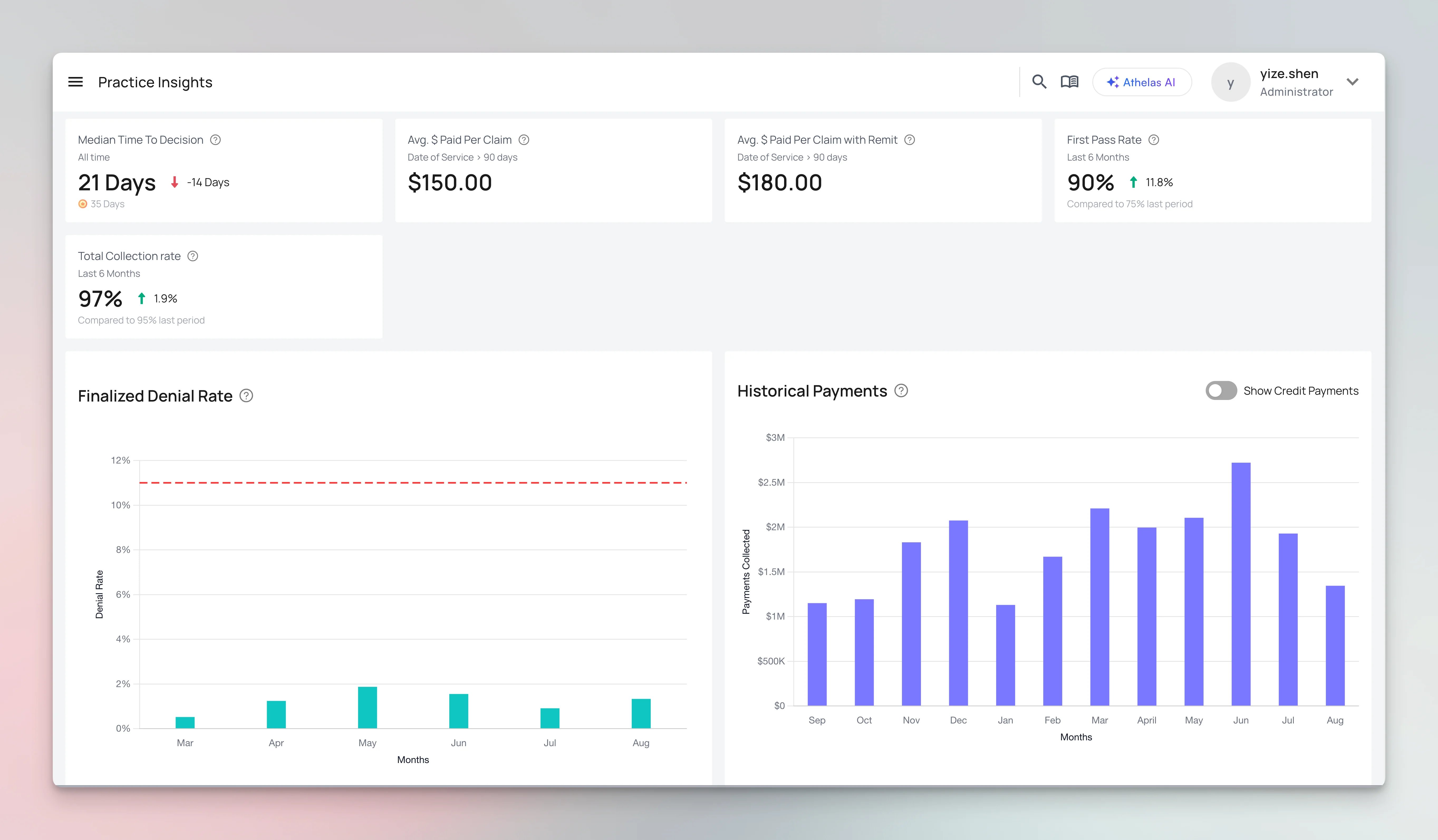 **Work smart.** See what's working and where you can improve.
Track the throughput of your automations and your billing team, and the financial outcome of every month. Every number opens to the claims behind it.
First-pass rate, collection rate, time to decision, and denial rate all sit on one screen, each compared against the prior period so a trend is visible without building a report.
## Browse the catalog
The catalog follows the shape of a biller's day: one section per stage of the revenue cycle, in the order the work happens. Setup comes first because it is what you configure once, before the first claim goes out, and that is where the charge master lives.
Roles and permissions, practice and provider settings, credentialing, and the charge master.
Reminders, eligibility, prior auth, digital intake, kiosk check-in, and collecting at the counter.
The rules engine, claim scrubbing before submission, and the claims workspace.
Remittance intake, posting, working denials, and the reports leadership asks for.
Patient responsibility, statements, SmartPay, and payment plans.
Deposit verification, reconciliation reports, refunds, and month-end close.
Every capability on one page, if you would rather scan than browse.
## How to read the tables
Every capability in the catalog is included in Practice Manager. Each row describes the capability and links to its guide. Two markers flag the exceptions:
| Marker | Meaning |
| :---------------------------------------------------------------------------------------- | :------------------------------------------------------------------------------------------------------------------------------------------------- |
| **Beta** | In product and working, but still being refined or not yet fully self-serve for every site. Ask your Athelas team about turning the capability on. |
| **Needs Air** | Only for practices running Air as their EHR. |
**Work smart.** See what's working and where you can improve.
Track the throughput of your automations and your billing team, and the financial outcome of every month. Every number opens to the claims behind it.
First-pass rate, collection rate, time to decision, and denial rate all sit on one screen, each compared against the prior period so a trend is visible without building a report.
## Browse the catalog
The catalog follows the shape of a biller's day: one section per stage of the revenue cycle, in the order the work happens. Setup comes first because it is what you configure once, before the first claim goes out, and that is where the charge master lives.
Roles and permissions, practice and provider settings, credentialing, and the charge master.
Reminders, eligibility, prior auth, digital intake, kiosk check-in, and collecting at the counter.
The rules engine, claim scrubbing before submission, and the claims workspace.
Remittance intake, posting, working denials, and the reports leadership asks for.
Patient responsibility, statements, SmartPay, and payment plans.
Deposit verification, reconciliation reports, refunds, and month-end close.
Every capability on one page, if you would rather scan than browse.
## How to read the tables
Every capability in the catalog is included in Practice Manager. Each row describes the capability and links to its guide. Two markers flag the exceptions:
| Marker | Meaning |
| :---------------------------------------------------------------------------------------- | :------------------------------------------------------------------------------------------------------------------------------------------------- |
| **Beta** | In product and working, but still being refined or not yet fully self-serve for every site. Ask your Athelas team about turning the capability on. |
| **Needs Air** | Only for practices running Air as their EHR. |