
Definitions: Chart Note Templates
Templates are the building blocks of your clinical notes. Each template is a **section **within your Chart Note (e.g., Plan of Care, Goals, Measurements, Treatments, Medications).You can also create custom sections for your own questions under Subjective, Objective, Assessment, or Plan. Templates are designed to be general so they can be reused across many appointment types.
Definitions: Appointment Types
Appointment types are the frameworks for your visits. You can mix and match templates and their order to create the exact chart note you want for each type of appointment.We recommend creating general Appointment Types that can be used across use-cases. E.g. A general Initial Eval note can be customized for a Hip Injury case by creating custom groups for Hip injuries within Measurements, Treatments, Interventions or Text Snippets.
Appointment Type Management
You can create and manage custom appointment types, each with its own settings, clinical note structure, and optional CPT codes.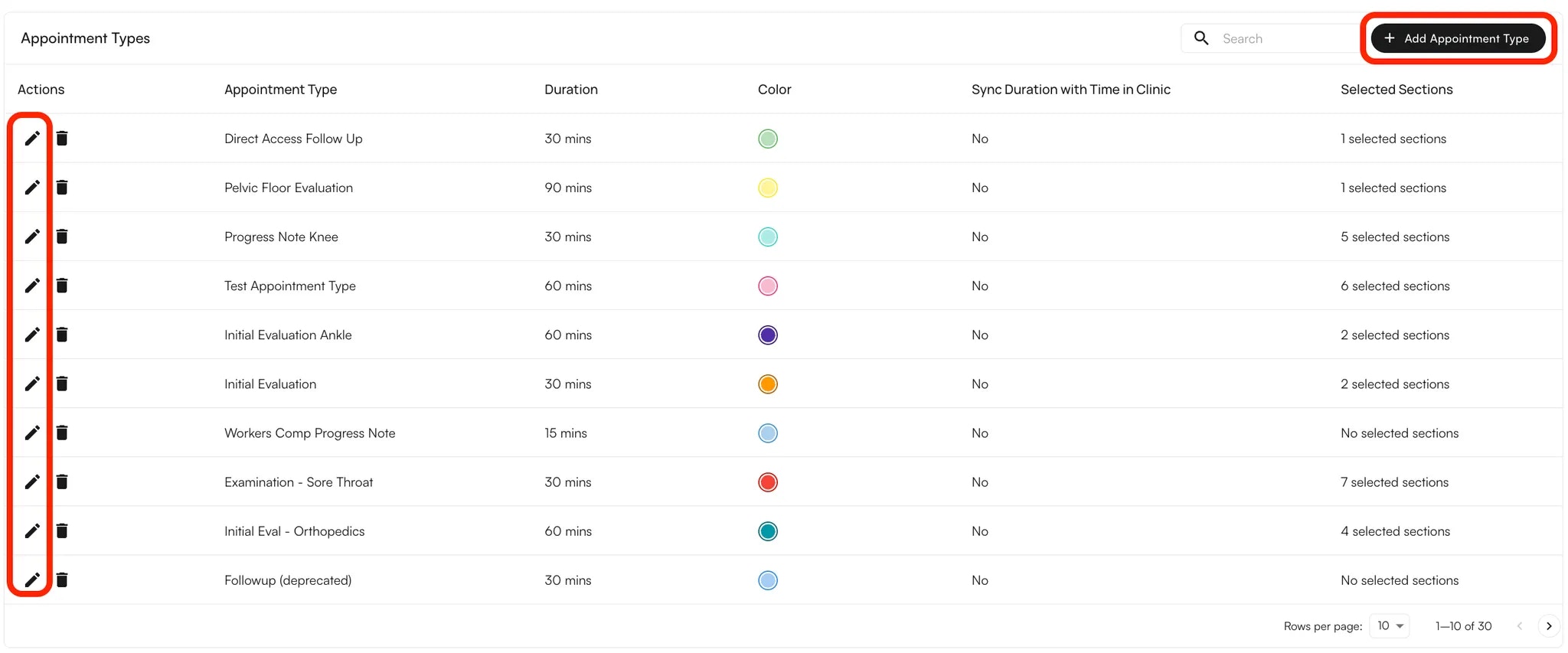
Custom Appointment Types
- Navigate to the Preferences tab in the left navigation pane and open Appointment Types.
- Click + Appointment Type in the top-right corner or click on the pencil icon to edit an existing appointment
- Enter the Name, Duration, and Color for the appointment type.
- Select the sections to include (and their order).
- You can choose to make them available for the Scribe to write into.
- For Flowsheet, Services, or Treatments, turn on Is Checked for Scribe to preselect all available service codes when a provider reviews the completed Scribe. Leave it off to start with no service codes selected.
- If you include Measurements, you can set default measurements to auto-populate whenever this Appointment Type is scheduled.
- (Optional) Sync duration with in-clinic time (the time spent with the patient in-clinic will be reflected on the Calendar)
- (Optional) Assign CPT codes that will auto-populate for this appointment type.
- Select a default clinical note type, then click Create.
- You can edit or delete appointment types from the same tab at any time.
External & Internal Appointment Types
External appointment types are what patients see when booking through the Patient Portal. Internal appointment types are what your team sees in Air. Mapping internal types to an external type lets you simplify online booking without losing the internal detail your staff relies on.To create or edit mappings:
- Navigate to Calendar Preferences.
- Open the Appointment Types tab.
- Create an External Appointment Type, then select the Internal Appointment Types that map to it.
- (Optional) Choose a default internal mapping. This determines which internal appointment type is selected when automatic scheduling is on.
IE Knee, IE Lumbar, and IE Lower Extremity to a single external appointment type called Initial Evaluation.See Reserve Blocks for how external appointment types interact with reserve-block scheduling rules.FAQ
What's the difference between an external and an internal appointment type?
What's the difference between an external and an internal appointment type?
External appointment types are shown to patients in the Patient Portal. Internal appointment types are shown to your staff in Air. You can map multiple internal types to one external type to simplify what patients need to choose.
Can one internal appointment type map to multiple external appointment types?
Can one internal appointment type map to multiple external appointment types?
No. Each internal appointment type can map to only one external appointment type.
Where do patients see external appointment types?
Where do patients see external appointment types?
Patients see external appointment types when booking through the Patient Portal online scheduling flow.