
Calendar Timings
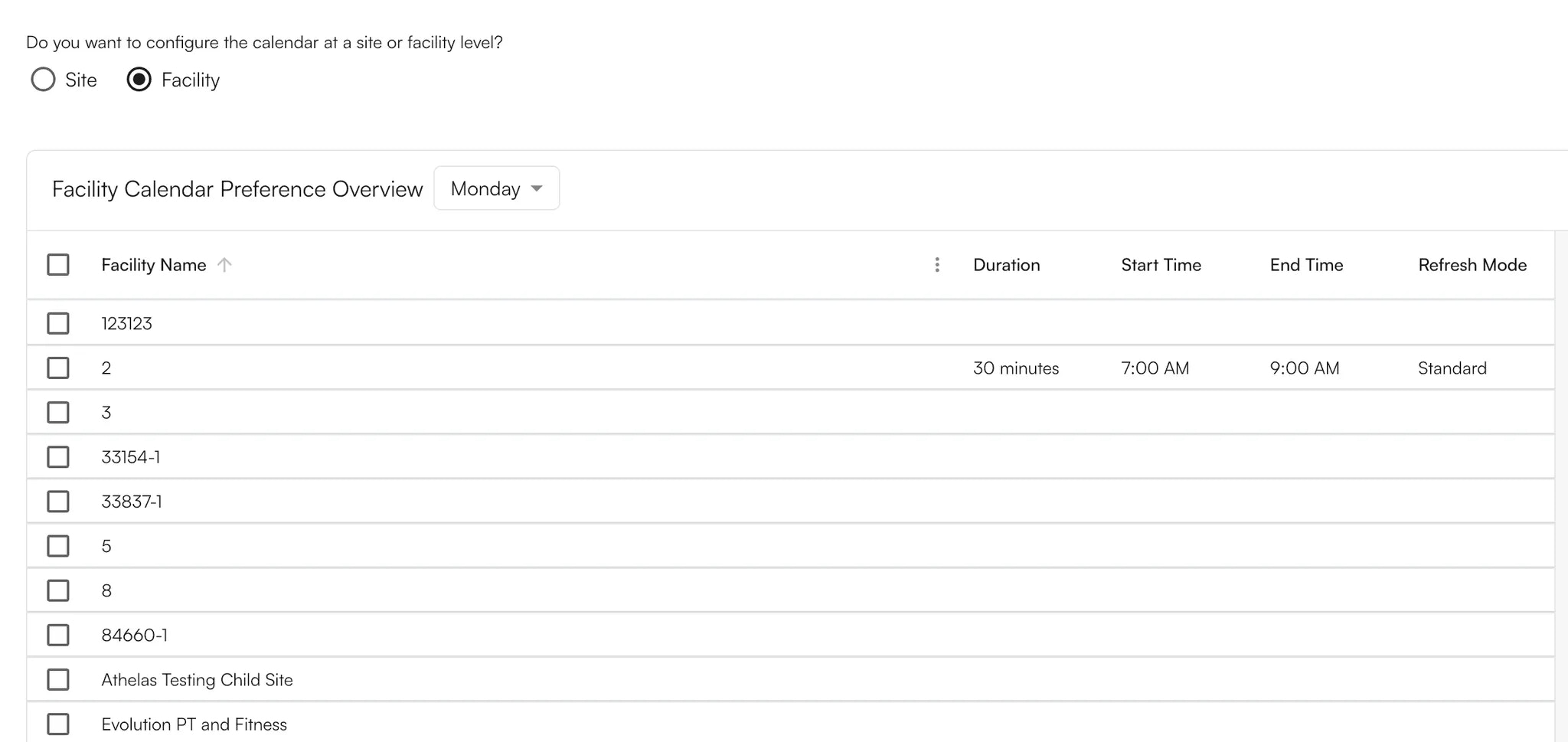
Calendar Timings: Set Calendar start and end times in Preferences → Calendar → Start & End Times.By default, Calendars display 6:00 AM – 8:00 PM. This applies at the site level, meaning all Facilities follow the same schedule unless otherwise configured.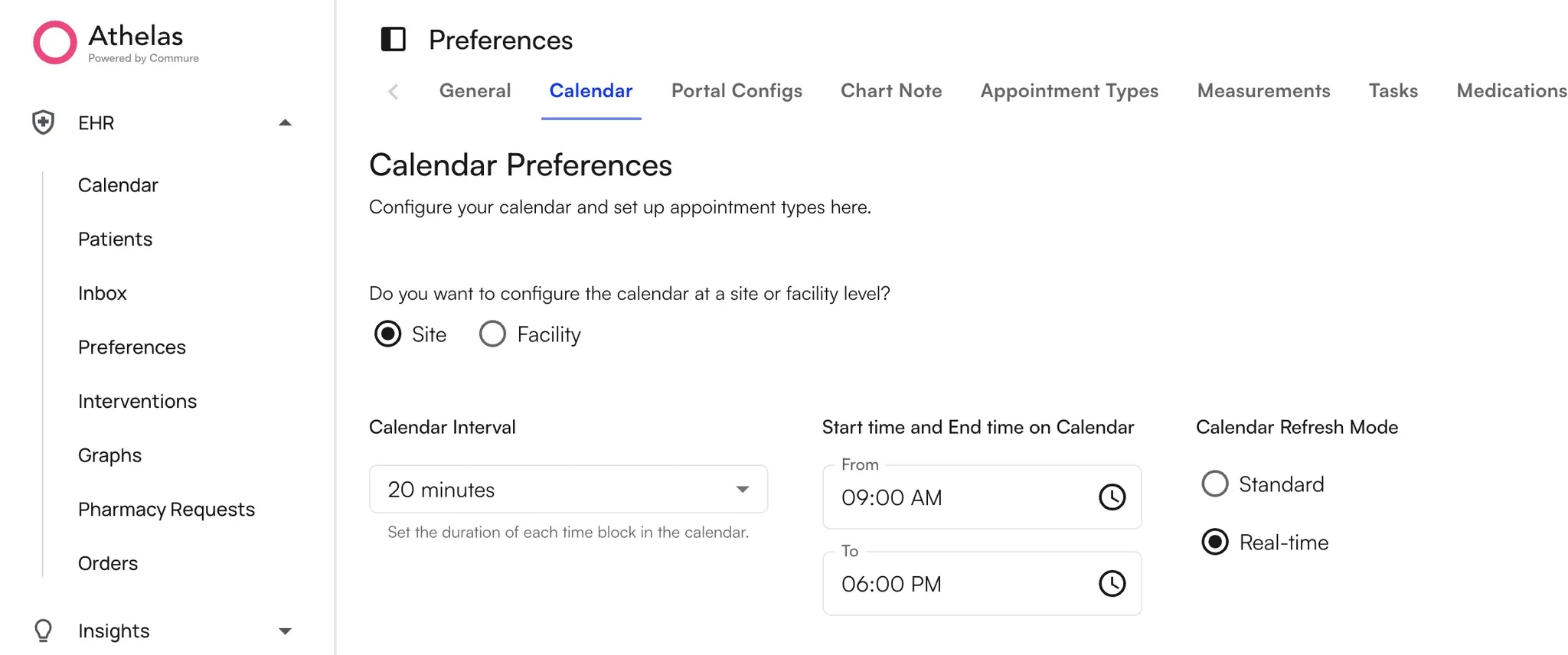
Calendar Intervals
**Calendar Interval: **Set the duration of each time block in the calendar(ranges from 5min - 30min)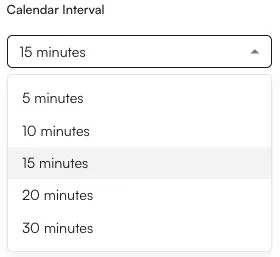
Calendar Refresh Mode
Calendar Refresh Mode: Choose how frequently your Calendar updates:
- Standard Refresh Mode: Updates only when the browser is refreshed.
- Real-Time Refresh Mode: Updates instantly. For example, if front desk staff create, cancel, edit, or check in appointments, the Calendar reflects the changes immediately.
Calendar Settings
You can update the following from the Preferences Tab on the left navigation bar:
| Use High Contrast Mode | When enabled, calendar elements will use higher contrast for better accessibility and readability. |
|---|---|
| Open Calendar Tooltip on Hover | When enabled, the calendar tooltip will open on hover. |
| Show Supervising Provider in Tooltip | When enabled, the calendar tooltip will display the supervising provider’s name if available. |
| Show Facility Name in Calendar Block | When enabled, the facility name will be displayed on appointment blocks in the calendar when multiple facilities are selected. |