

| Term | Meaning |
|---|---|
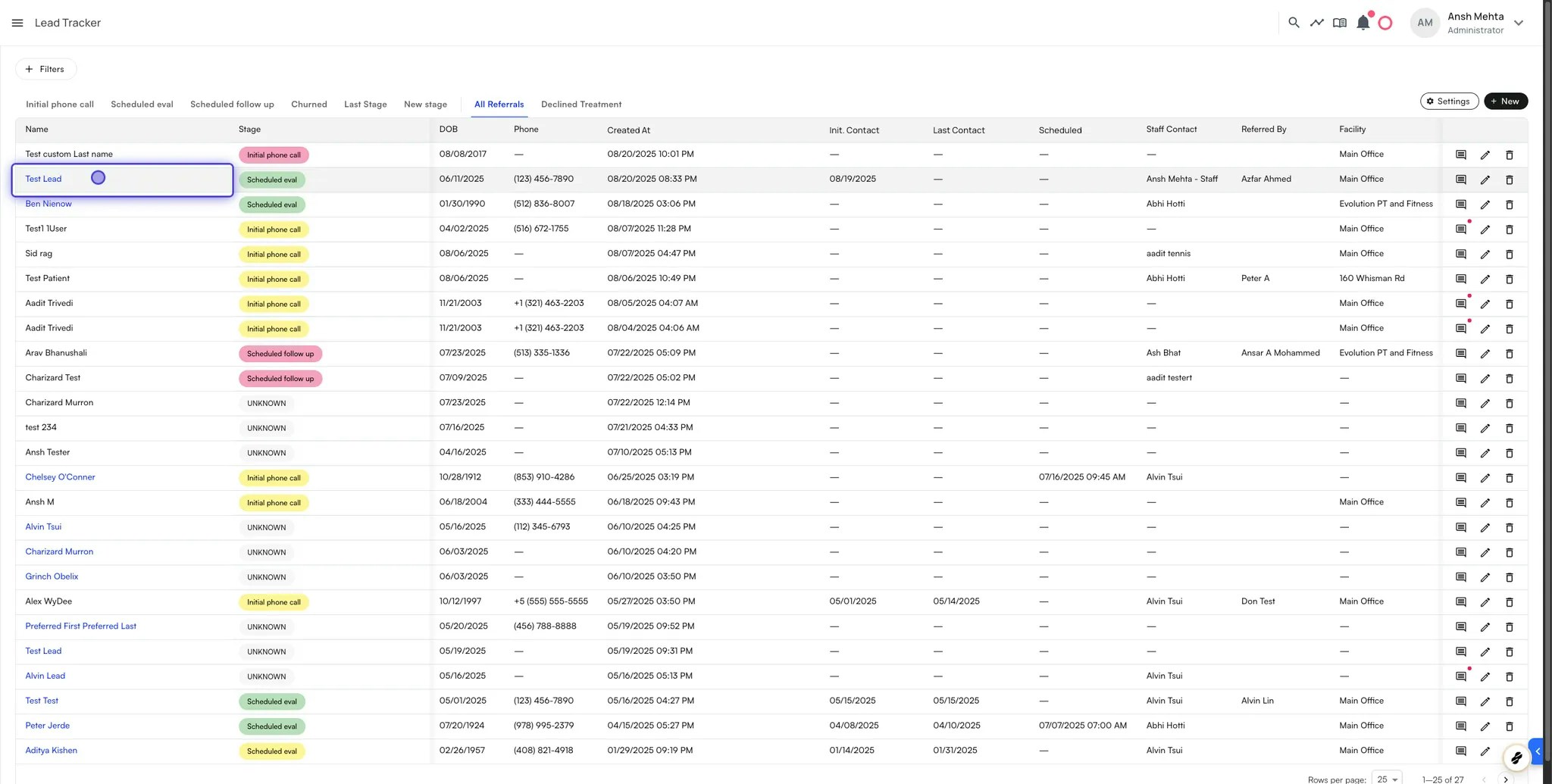
| Lead | A potential patient record with key metadata (e.g., referral type, stage). |
| Reporting category | Groups stages for reporting purposes (e.g., Converted, In Progress). |
| Stage | The main phase a lead passes through (e.g., New, Contacted, Converted). |
| Sub-stage | Specific steps within a stage for more granular tracking. |
| Referral type | Categorizes the source of a lead (e.g., Provider, Online Form, Fax). |
| Treatment Declined | Marks leads that declined treatment, useful for reporting and tracking. |
Setting up the Lead Tracker
Lead Stages
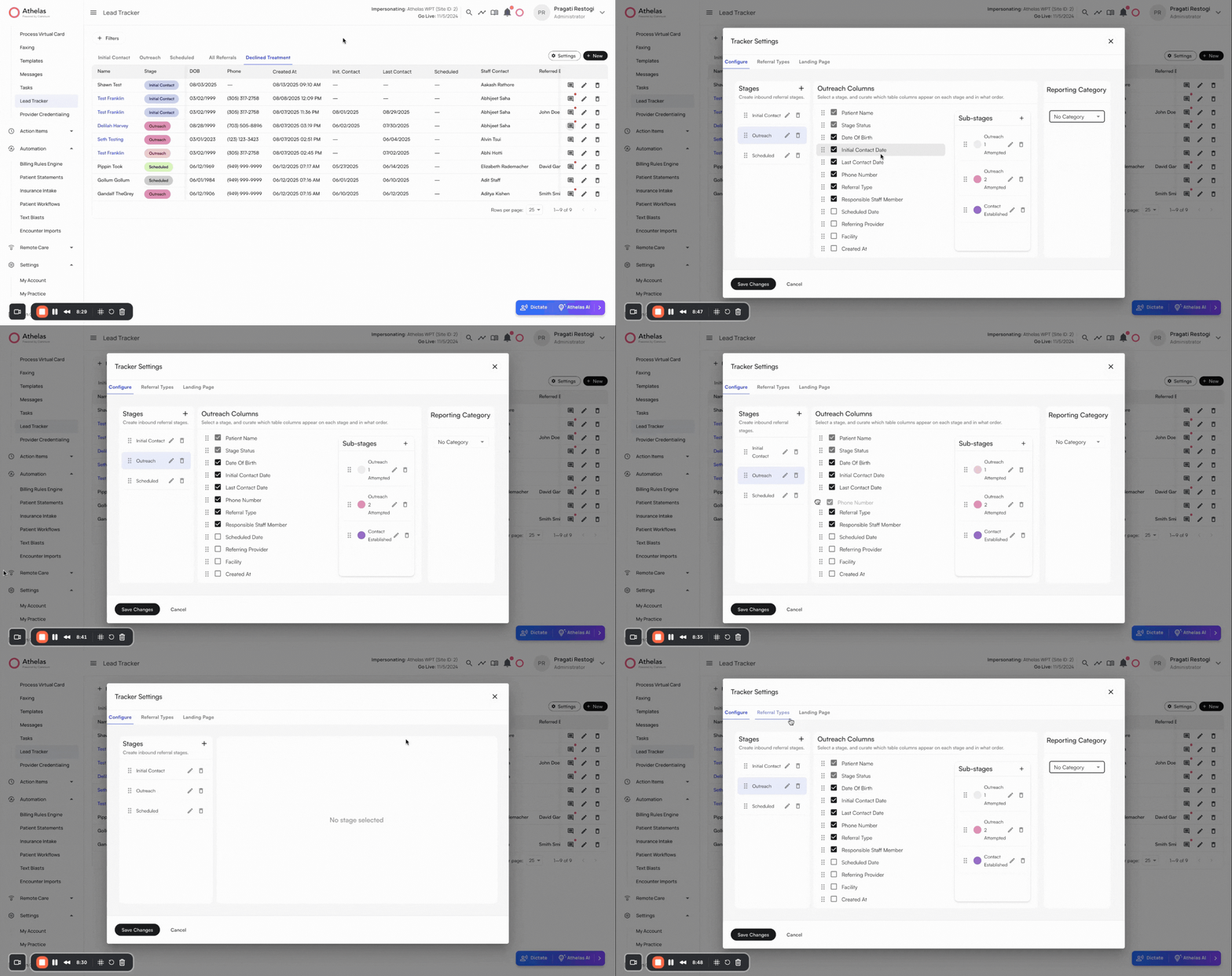
- Go to Lead Tracker > Settings.
- Click + Add Stage to create a new stage.
- Edit, rename, reorder, or delete stages as needed.
- Configure stage details:
- Columns to display
- Sub-stages
- Reporting category (By default, a stage belongs to No Category, modified reporting category would be reflected in the performance analysis - KPI dashboard)
- Add sub-stages by clicking + Add Sub-stage.
- Customize sub-stages with names, unique colors, and order. You can show/hide and even change the ordering of the stage
- Assign a reporting category (default = No Category).
- Click Save Changes to confirm.
Reporting Categories
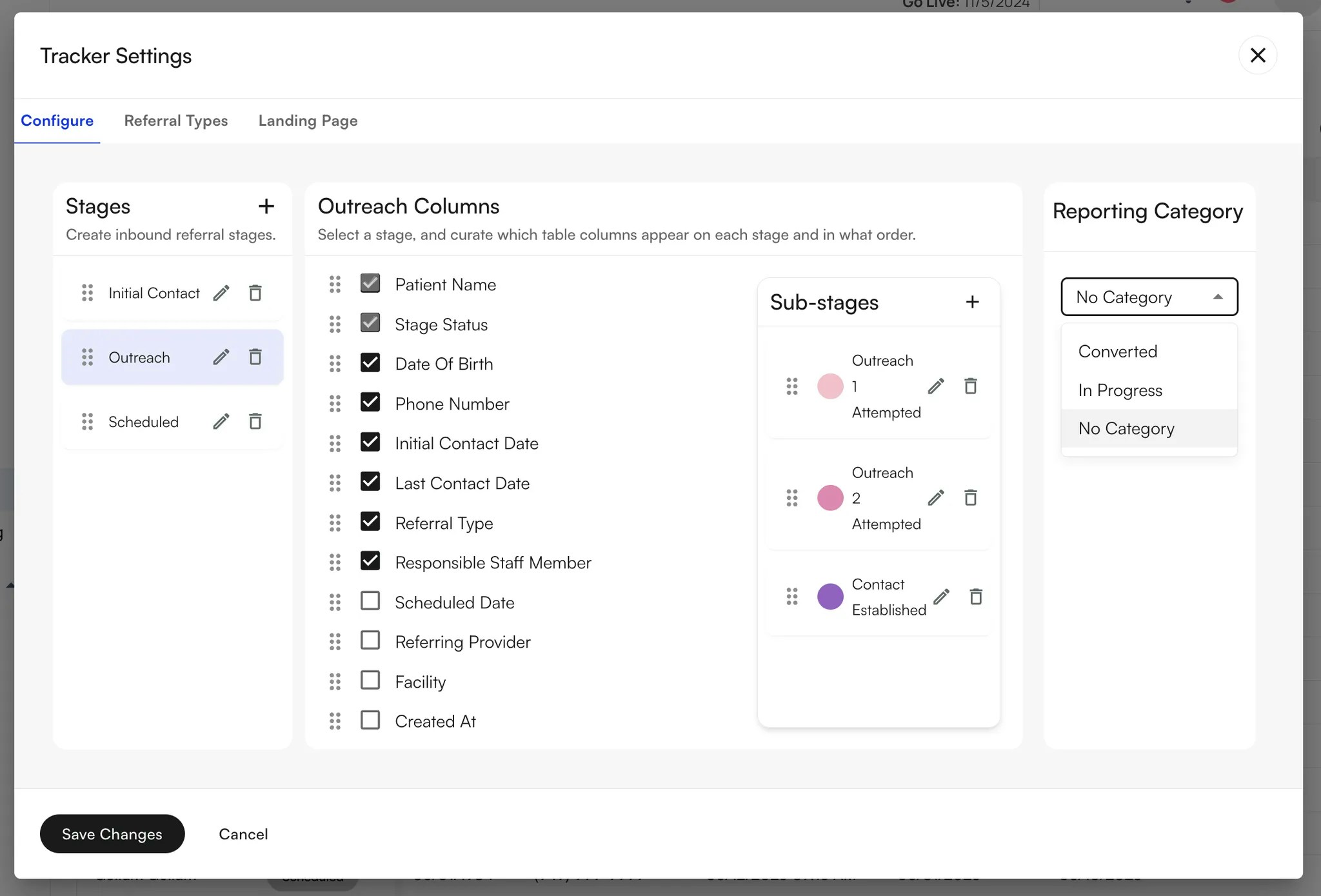
- In Lead Tracker > Settings, open Stages.
- Under Reporting Category, choose:
- Converted
- In Progress
- No Category (default)
- Save changes.
Referral Types
- In Lead Tracker > Settings, open the Referral Types tab.
- Click + Add New to create a new referral type.
- Edit names of the referral types with the pencil icon.
- Delete referral types if no longer needed.
- Click Save Changes to confirm.
Managing Leads
Creating a Lead
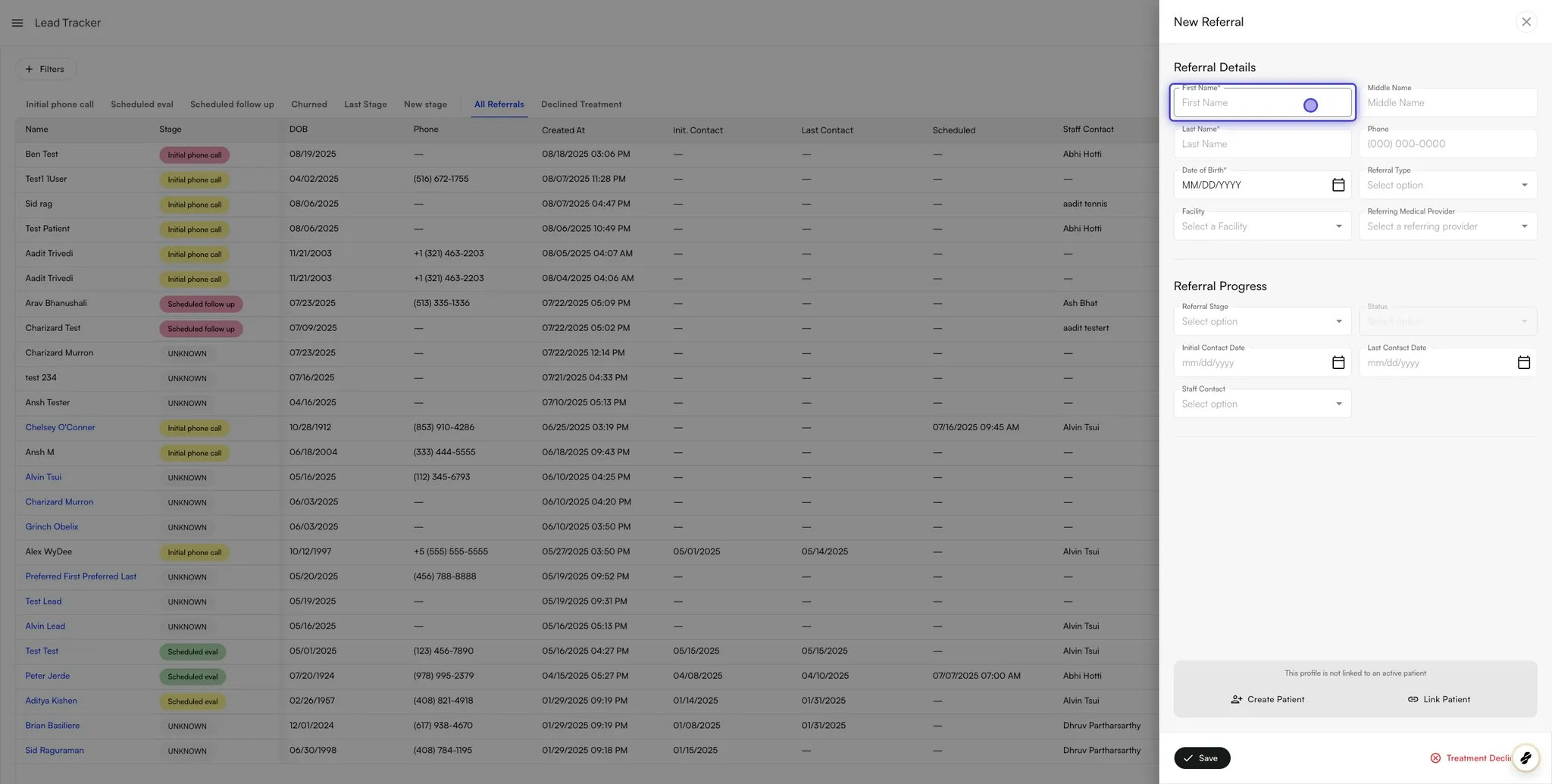
- Click + New.
- Enter patient’s First Name, Last Name, and DOB.
- Select referral type.
- Assign a facility and referring provider (optional).
- Choose referral stage and sub-stage.
- Add first/last contact dates.
- Assign responsibility to a staff member.
- Link patient - leads can be linked one-time to a new or existing patient or not be linked to any patient (if there is not enough information). While linking, Air will automatically suggest patients.
- Click Save.
Updating a Lead Status
- Click on the pencil icon on the right of a lead
- Update referral stage, sub-stage and last contacted details.
- Scheduled status: To move a lead status to scheduled you can update the status and click on the patient name to open the patient’s profile and schedule an appointment.
-
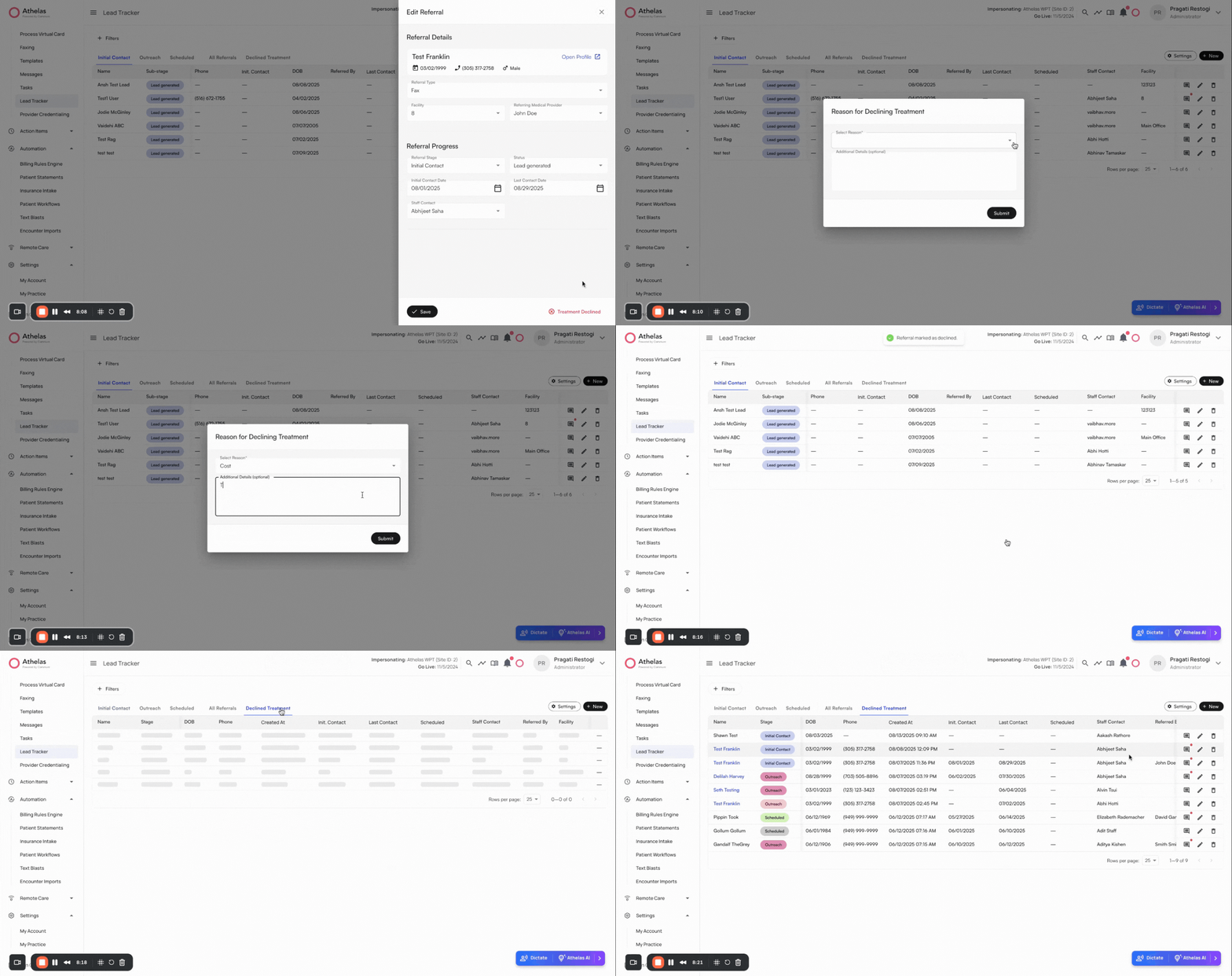
Treatment declined: Click Treatment Declined on the bottom right in red of the edit lead pop-up and select a reason. Leads marked declined can be tracked in the Declined Treatment tab. This status can be undone if needed.
Automatic lead creation from Faxes
If enabled, inbound faxes can automatically generate new leads.
- Inbound faxing:
- The inbound faxes received at site will be saved and automatically be processed by a GPT-powered document parser if the feature flag is enabled.
- The system will analyze the document to detect a referral section containing lead information.
- The GPT model will attempt to extract the following structured fields:
- First Name (Required)
- Middle Name (Optional)
- Last Name (Required)
- Date of Birth (DOB) (Required)
- Phone Number (Optional)
- Validation
- A lead will only be created if First Name, Last Name, and DOB are all successfully extracted.
- If any of the required fields are missing or ambiguous, the lead creation will be skipped.
- Lead Creation
- A new lead object will be created in the system.
- The referral type will be set to “Fax”.
- The lead will be placed in the first referral stage, ready for front-desk or intake review.
- Leads generated through this process will be saved with note: Automatically imported through inbound fax
View Lead Tracker Reporting
Note: You will need to select a category of your preference for each Lead stage to ensure its tracked in the Report. Options include Converted, In Progress, No Category (Default selection)To view the report:
-
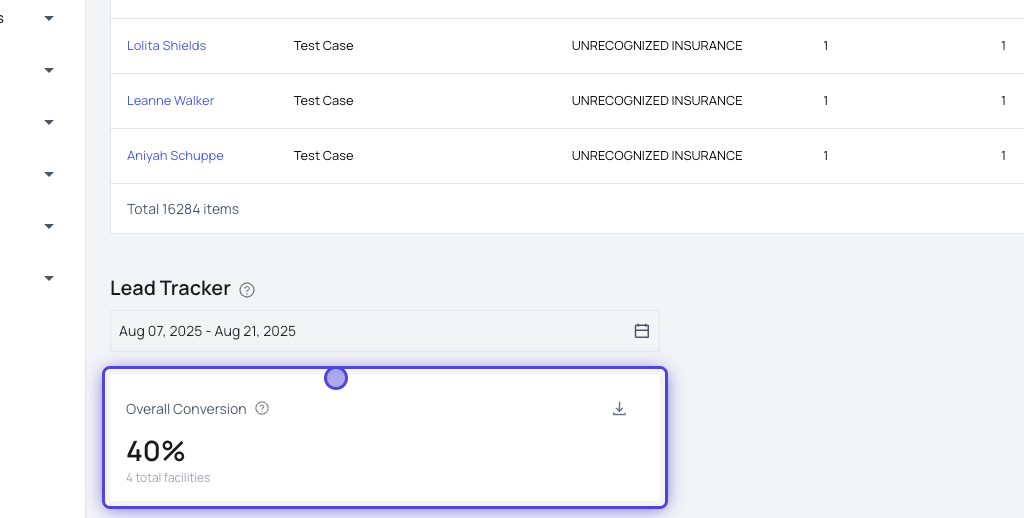
Go to Insights > Performance Analysis > Lead Tracker.
-
View metrics such as:
- Total leads created
- Total leads converted (Calculated based on leads in the stage with a reporting category as Converted)
- Conversion % (Total leads converted / Total leads created)
- Therapy Refused % (Total Treatment Declined / Total leads created)
- In Progress (Calculated based on leads in the stage with a reporting category as In Progress OR No Category)
- In Progress % (Total In Progress / Total leads created)
- Breakdowns are shown per facility and as totals.
-
Reports can be downloaded as CSV.

Creating a Custom Landing Page
You can collect leads directly from your website using a branded landing page. Forms filled by potential interested patients on the site will directly feed in to the lead tracker.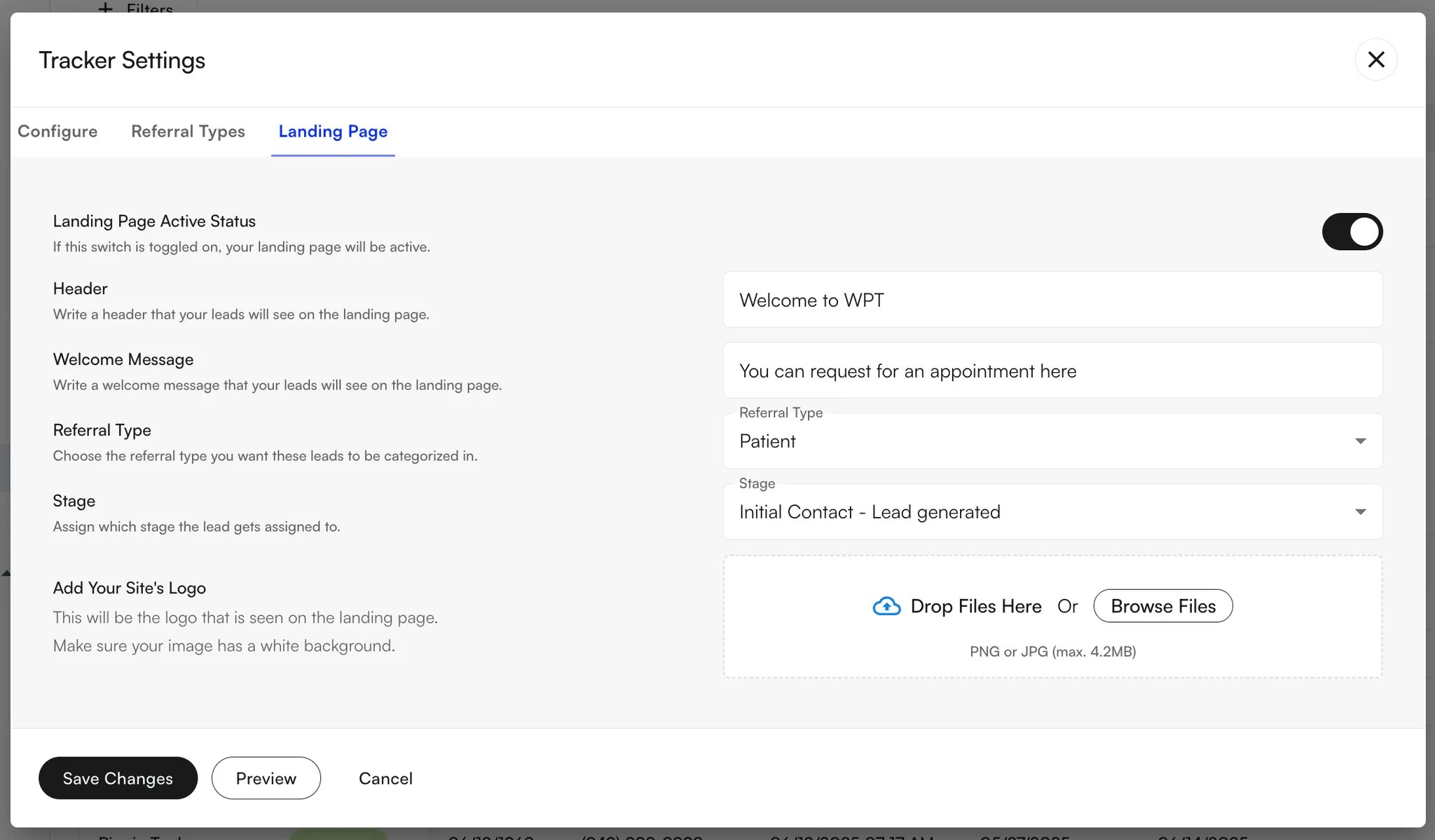

- Go to Lead Tracker > Settings > Landing Page
- Toggle Landing Page Active ON.
- Configure required fields:
- Header (max 30 chars): Main title visitors will see
- Welcome message (max 255 chars): Subtitle / description
- Referral type: Select how leads from the website will be categorized in the tracker
- Stage assignment: Assign which pipeline stage these leads will be placed in
- Logo (PNG/JPG, max 4.2MB): Site branding image
- Save changes.
- You will find the external website link in the Preview button