
Navigate your Chart Note
Click “Get Started” to start the demo. Click on the fullscreen icon on the top right of the demo to zoom in
Opening a Chart Note
✨Smart Tip: Ask Athelas AI to navigate you to the relevant Chart Note. You can also use Voice Mode.
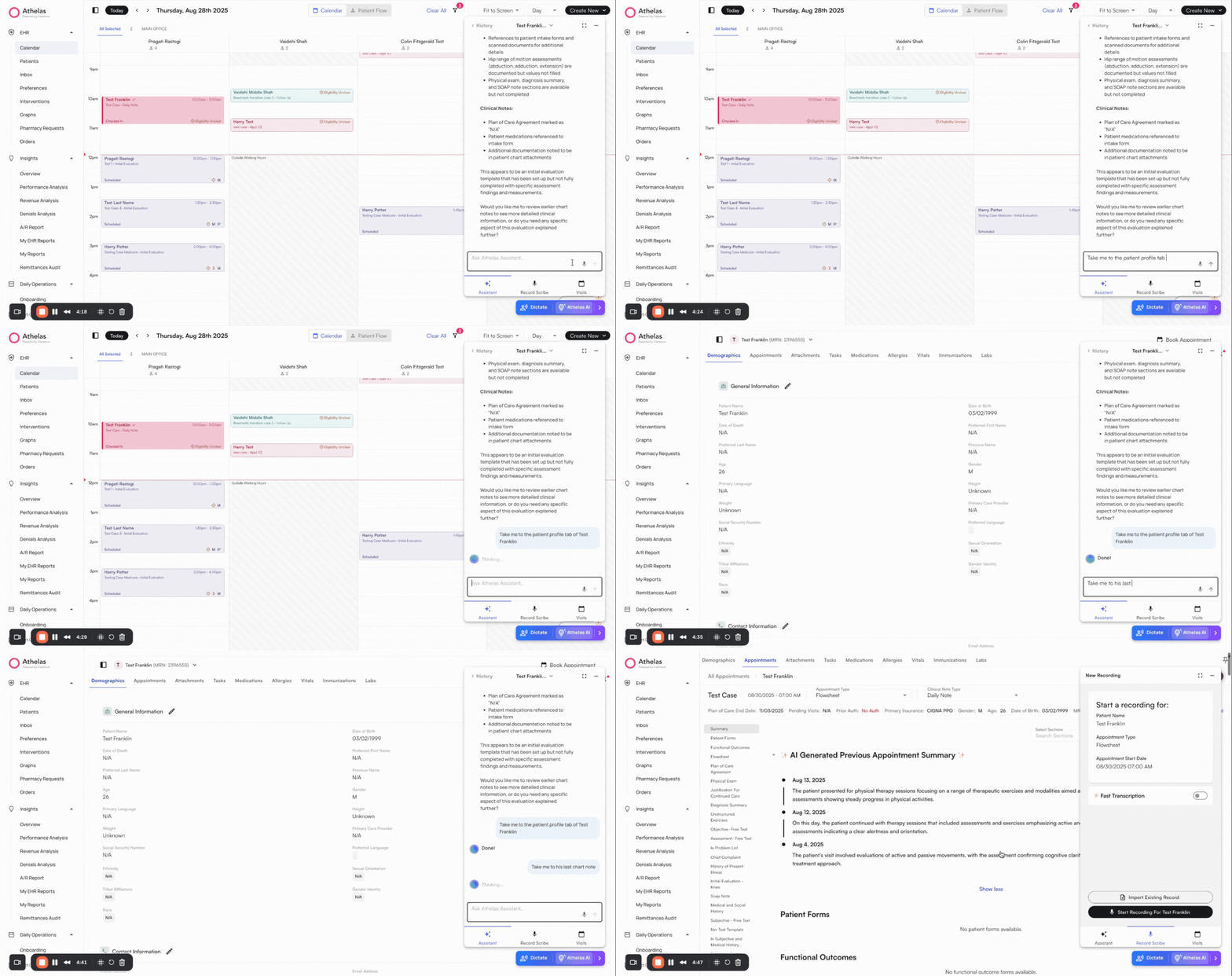
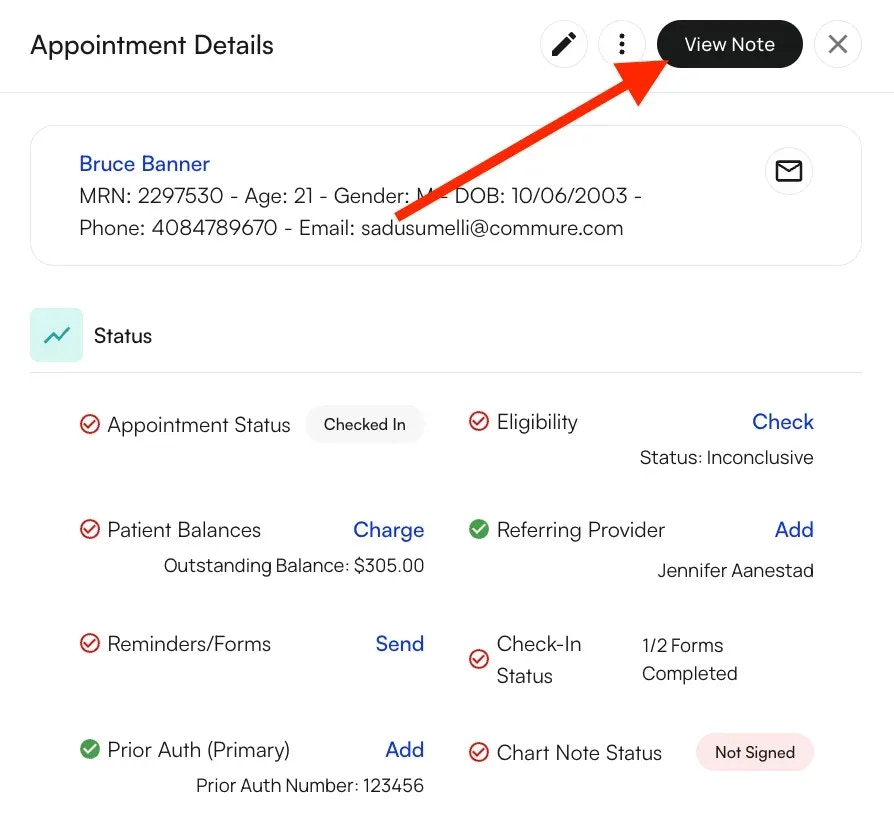
- Open the Calendar.
- Select the desired Appointment.
- Click View Note in the top-right corner.
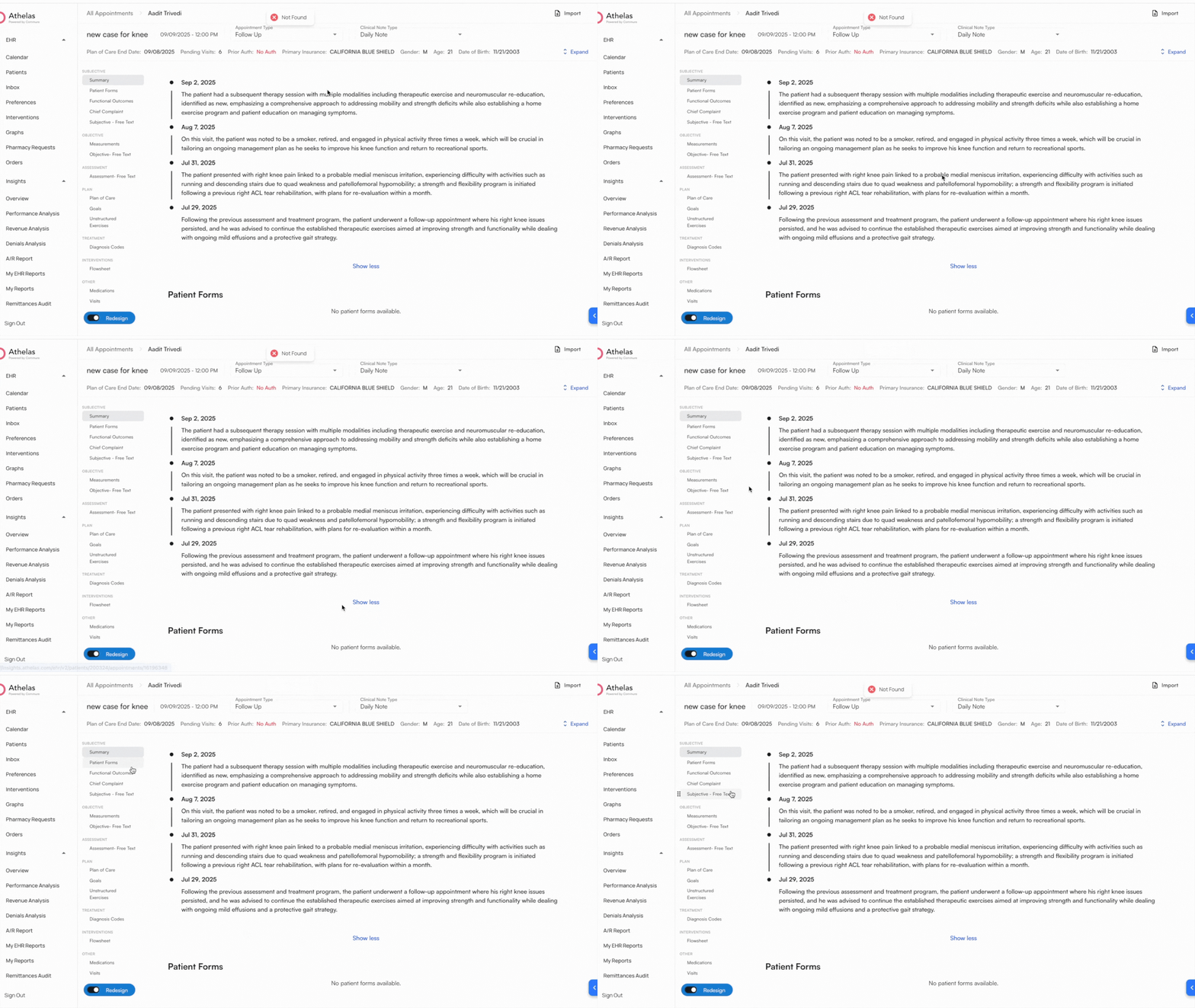
- Once opened, patient details appear in the top bar, with Chart Note sections listed in the left sidebar.
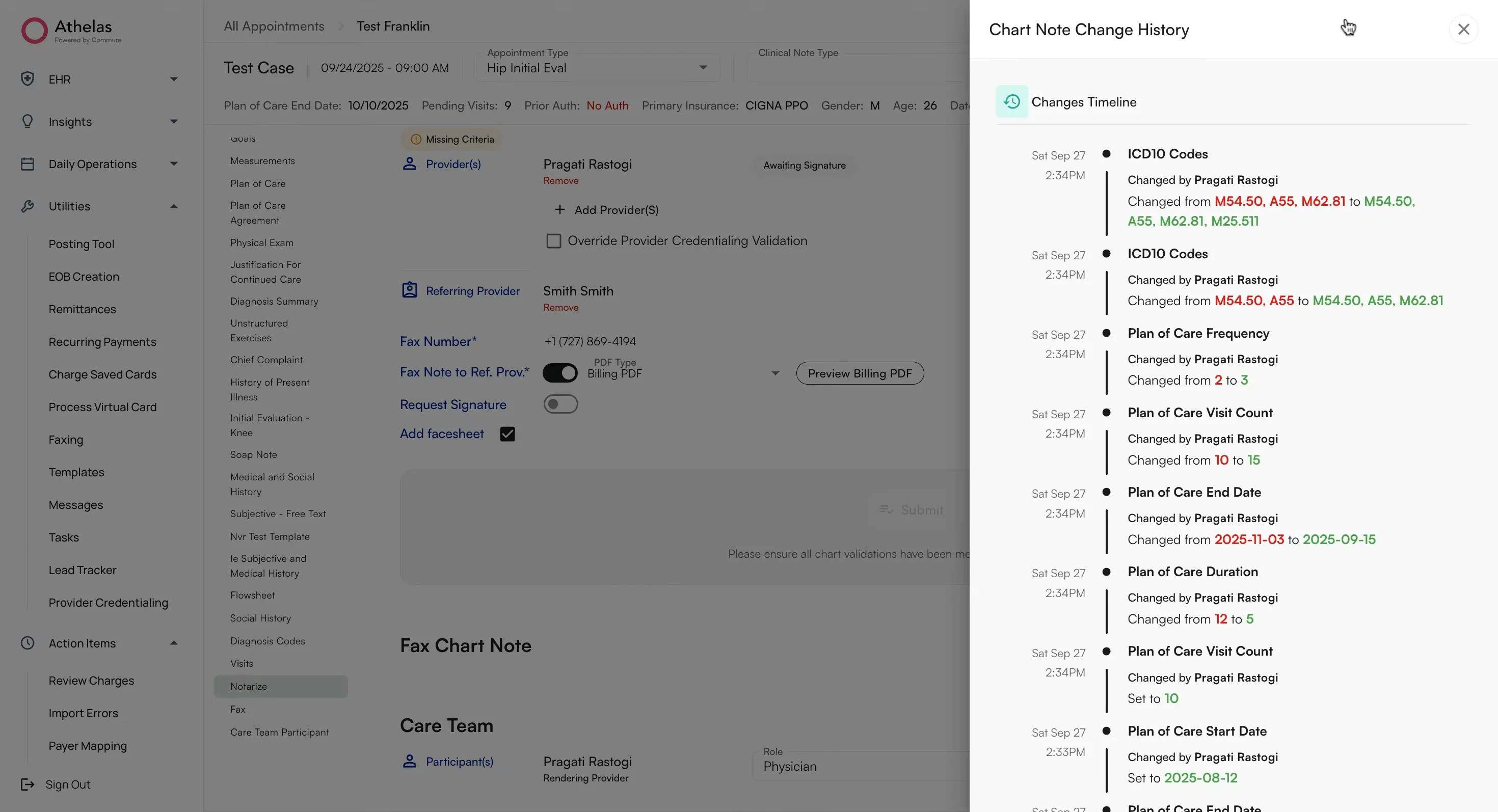
Plan of Care
When selecting Plan of Care, you will be prompted to enter: Start Date and End Date,Frequency & Units, Duration & Units, Visit Count.The visit count will auto-count down every session and be available to review in the Calendar and Chart Note.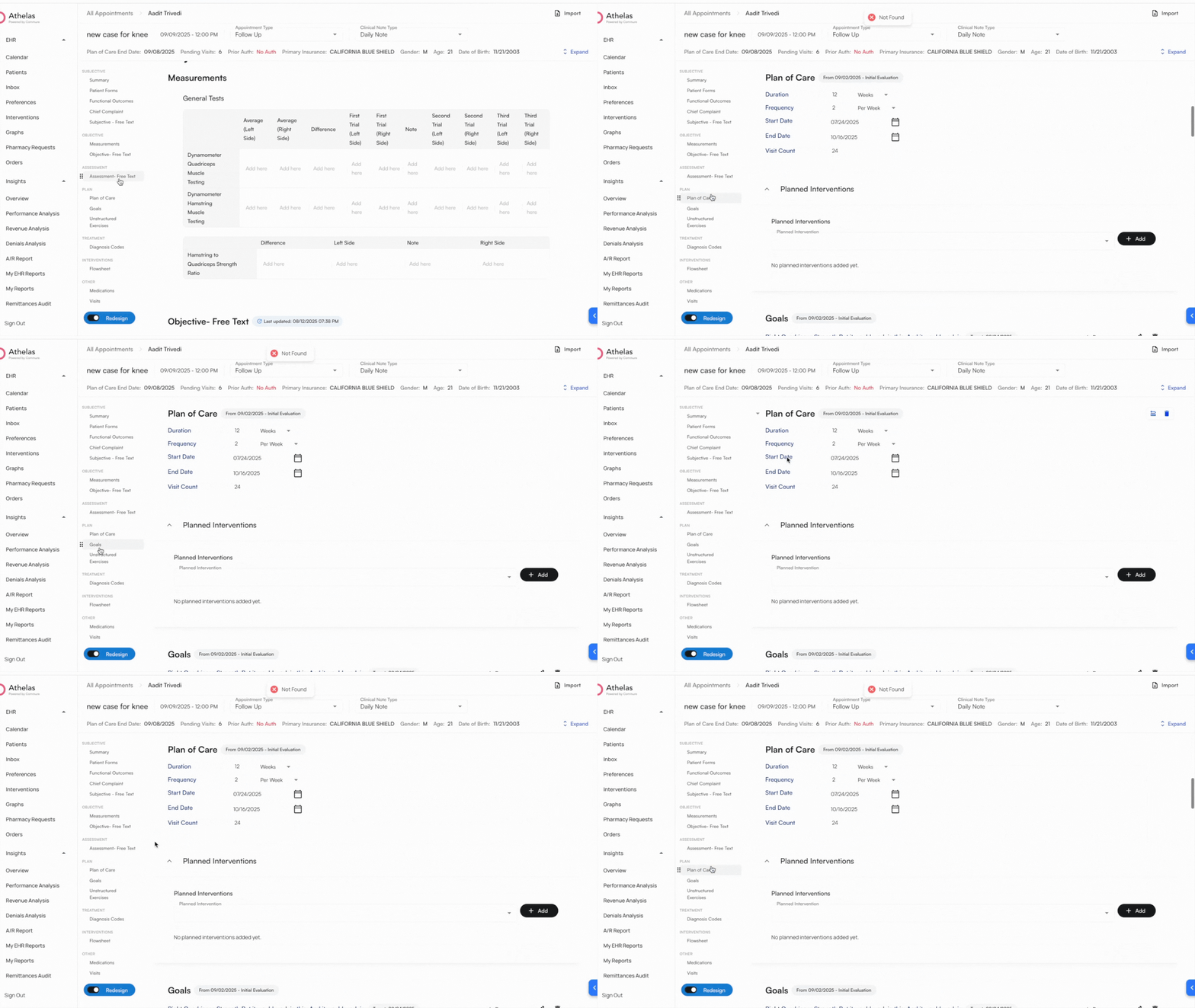
✨ Smart Tip: If you enter a Start Date, Frequency, and Duration, the system will automatically calculate the End Date and Visit Count.
Diagnosis Codes
Diagnosis Codes will be auto-populated through Scribe, however, you are recommended to review them in detail before submitting the chart note.To manually add a **Diagnosis Code: **Select ICD-10 codes from the drop down. Click on the Reorder List button to review the code list and drag codes to reorder them.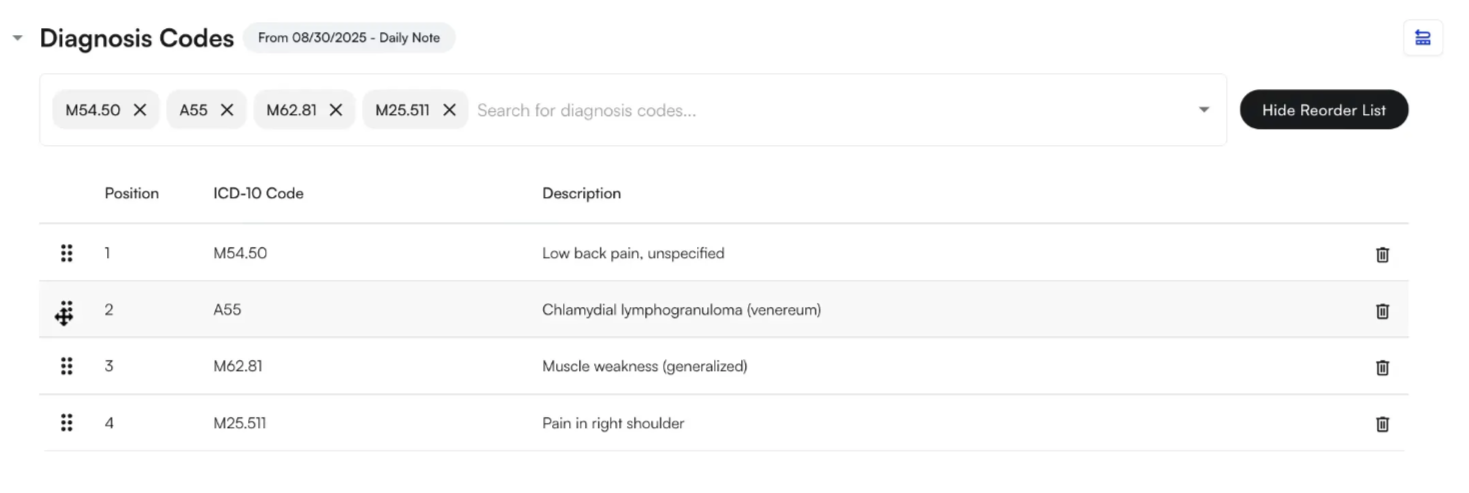
Other sections in the Chart Note
In addition to the Plan of Care and Diagnosis sections, you can view other sections such as: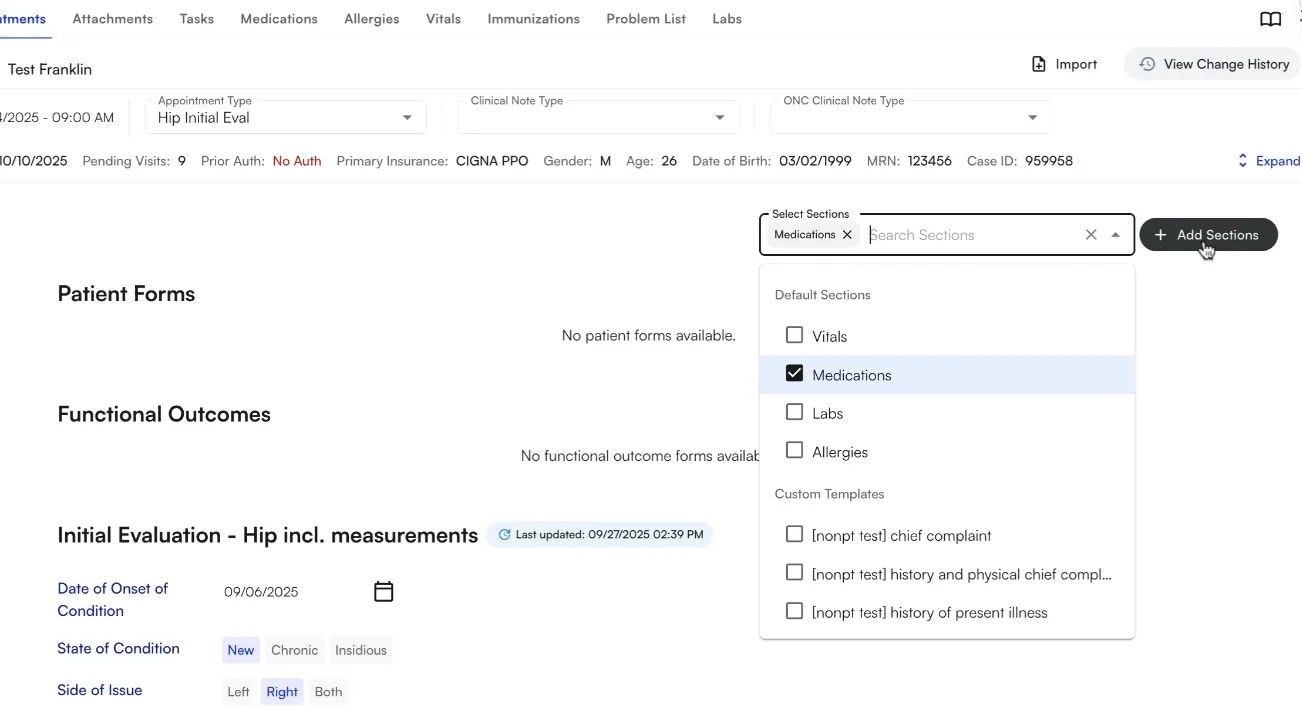
- Goals
- Treatments
- Visits
- Medications and Prescriber Agents
- Flowsheets
- Measurements
- Functional Outcome Measurements
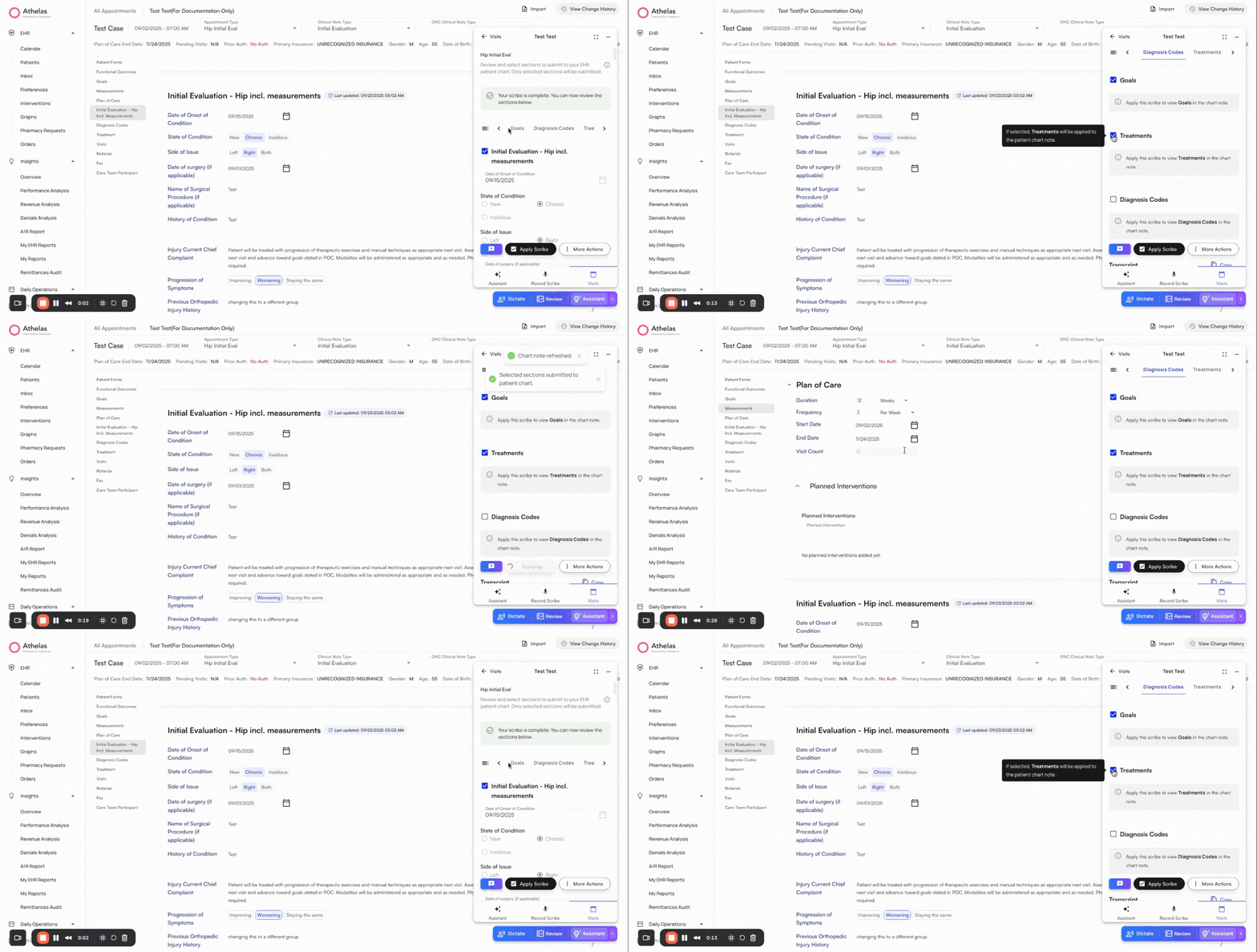
Smart fill your Chart Note using AI Scribe
Click “Get Started” to start the demo. Click on the fullscreen icon on the top right of the demo to zoom in
Patient Consent for Scribe
Re-confirm patient consent before recording. Patient consent will be taken as part of the Patient Intake Form
Record using Scribe
- Click the blue button in the bottom-right corner to open the AI Widget
- Select Scribe
- Click Start Recording. You can minimize the widget and continue working within the EHR
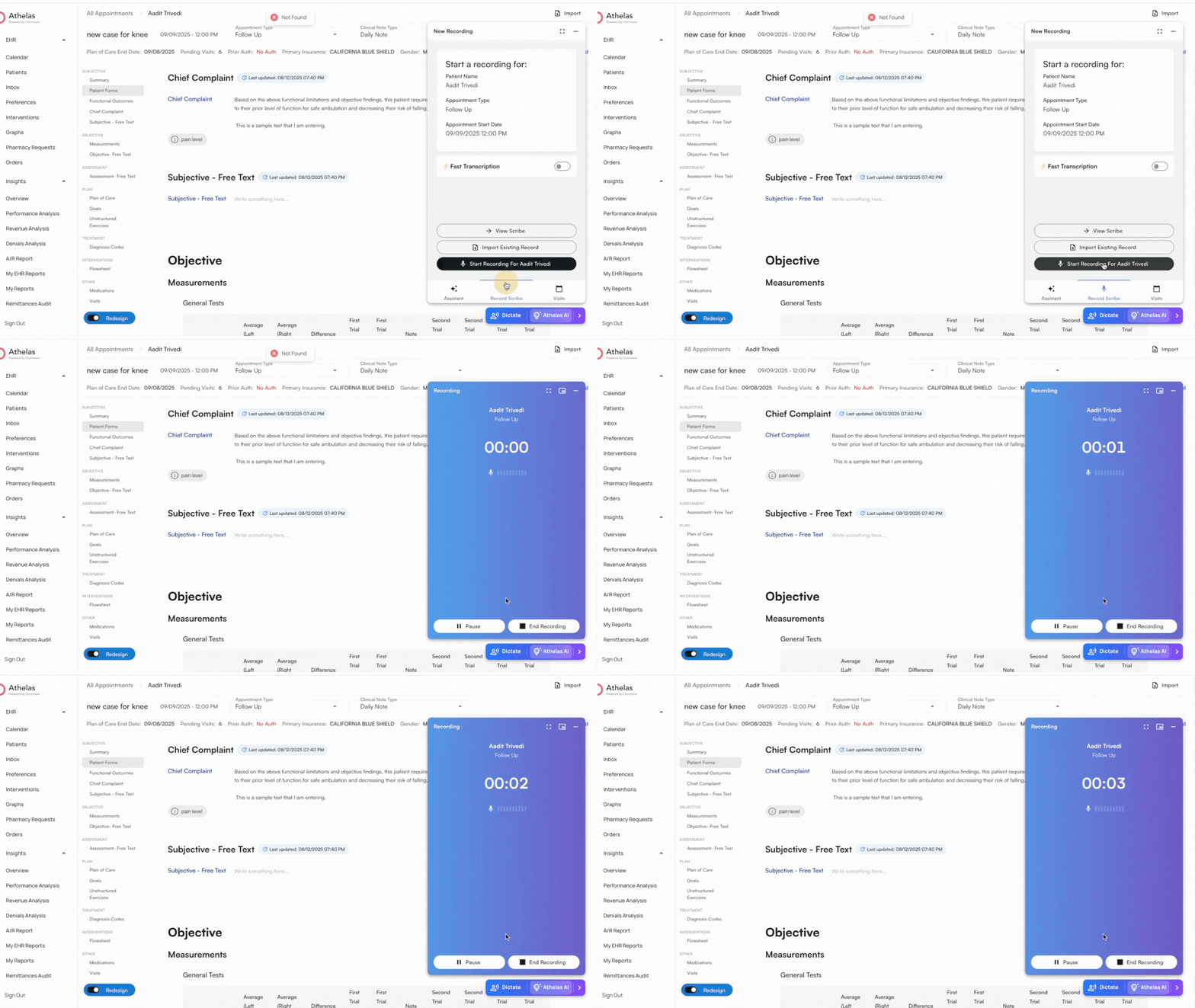
-
End or cancel the recording when finished
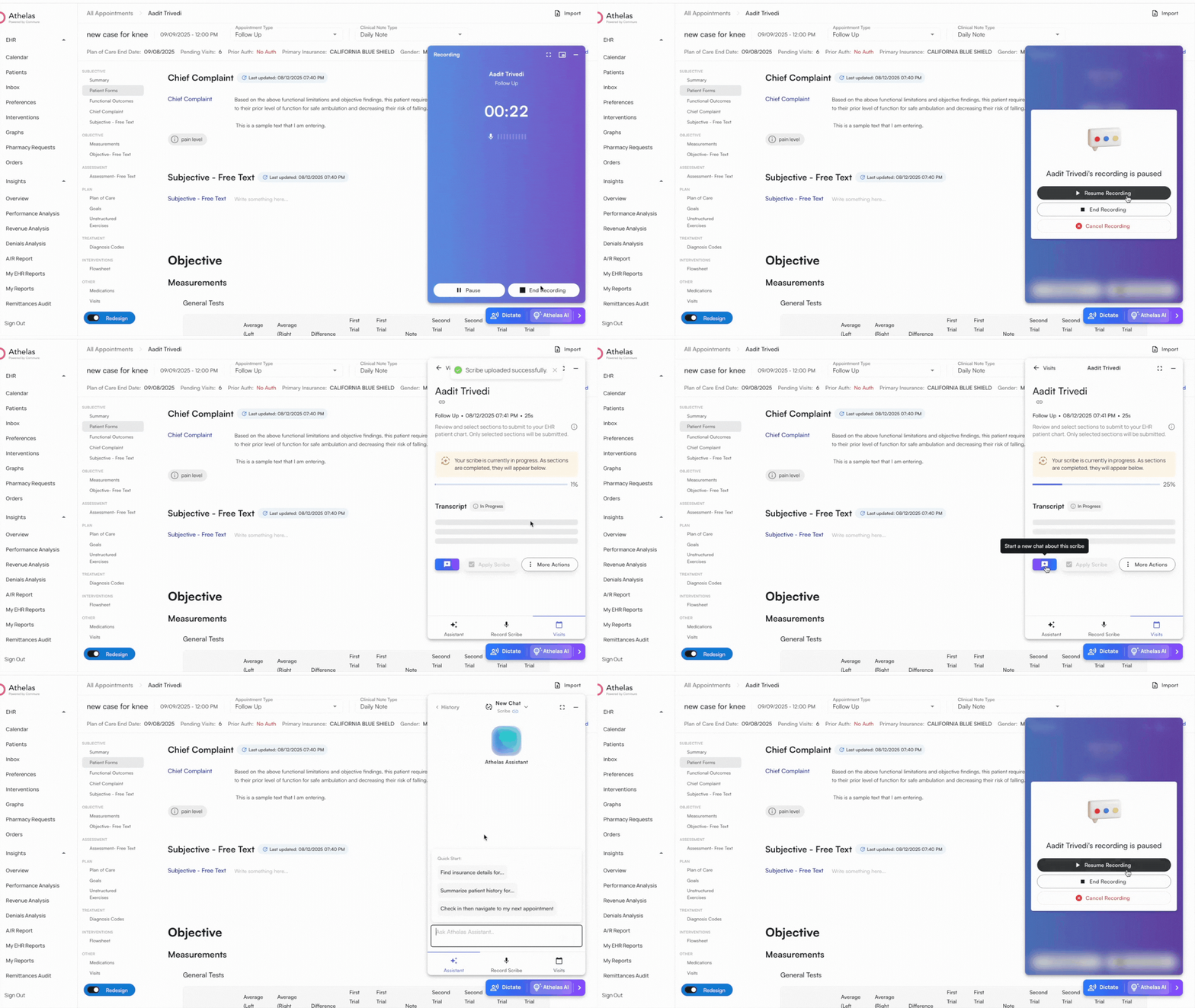
✨ Smart Tip: While uploading, you can start a new chat on the script to ask questions about the current consultation recording.
Apply scribe
- Review the generated content in the Scribe Application Page. Scroll through the Tabs to review all sections
- Each section includes a checkbox to apply or exclude the scribe output into the Chart Note.
- Click Apply Scribe
- **Note: **Scribe can auto-populate all sections, however, we recommend filling the flowsheet interventions manually.
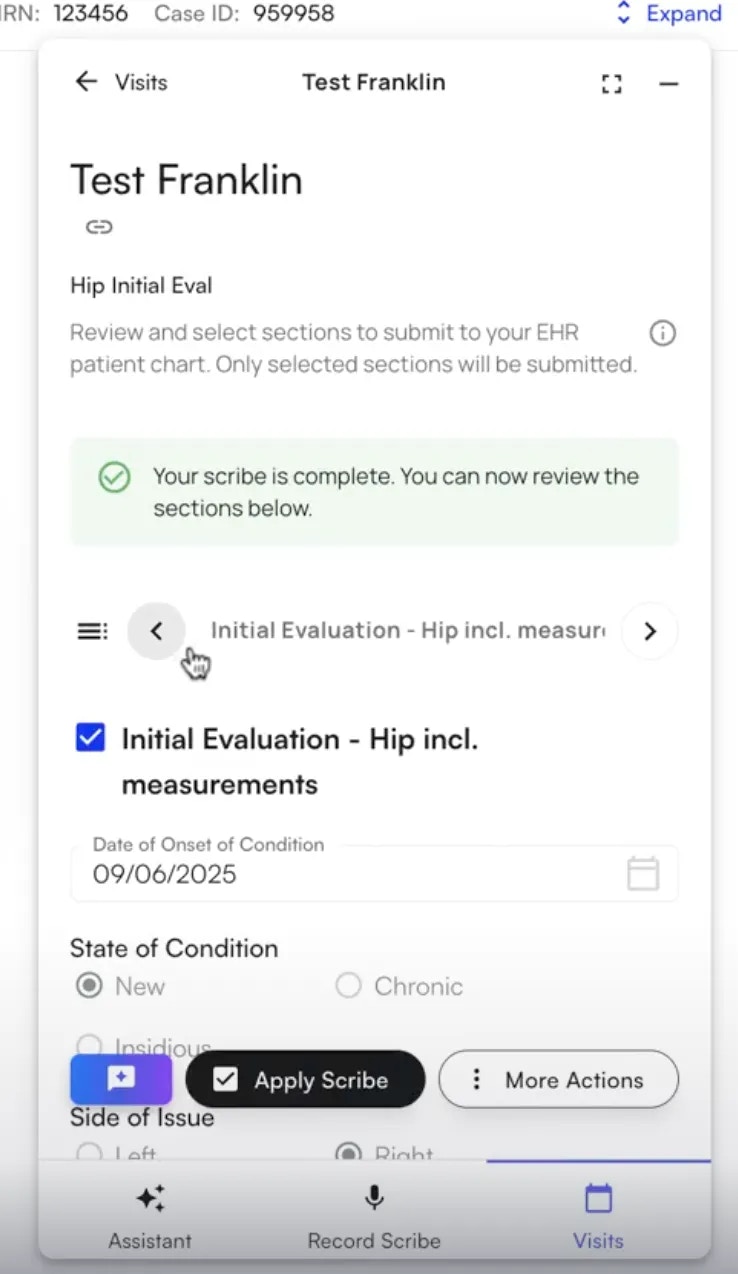
✨ Smart Tip: Use Reapply Scribe to restore the most recent recording if you need to revert back. This is helpful if you’ve edited fields after scribing.
Quickly access scribes
The Visits tab provides a quick view of today’s appointments. It displays only the appointments assigned to your provider.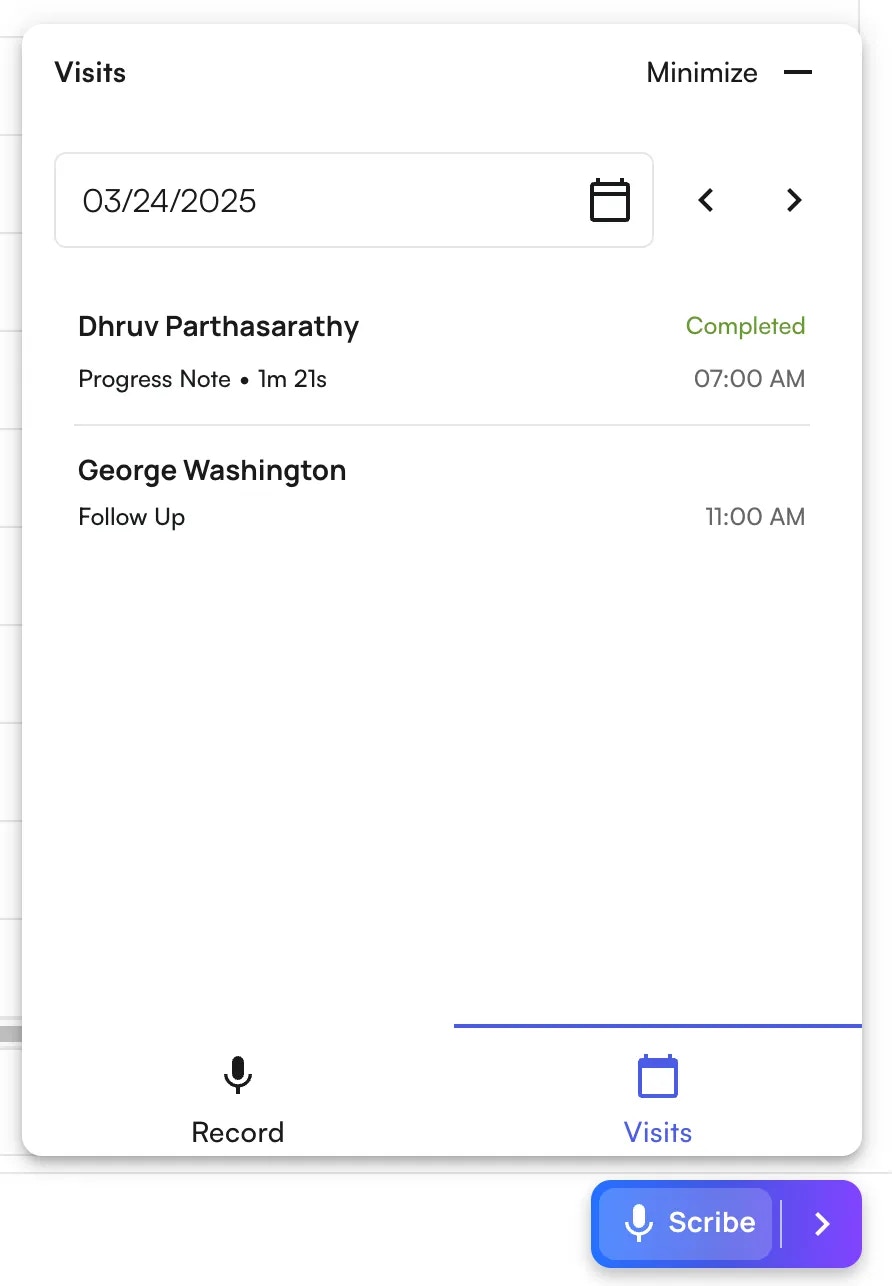
- If a scribe already exists for an appointment, clicking the appointment opens the Scribe Application Page, where you can review and apply the scribe to the patient’s Chart Note.
- If no scribe exists, clicking the appointment opens the New Recording Page, where you can start a new audio recording for the visit.
Update your text using Athelas AI
Select the text and click on Cmd / Ctrl + K. Select the update type to the text.You can choose to select or reject the change which will automatically update in the Chart Note.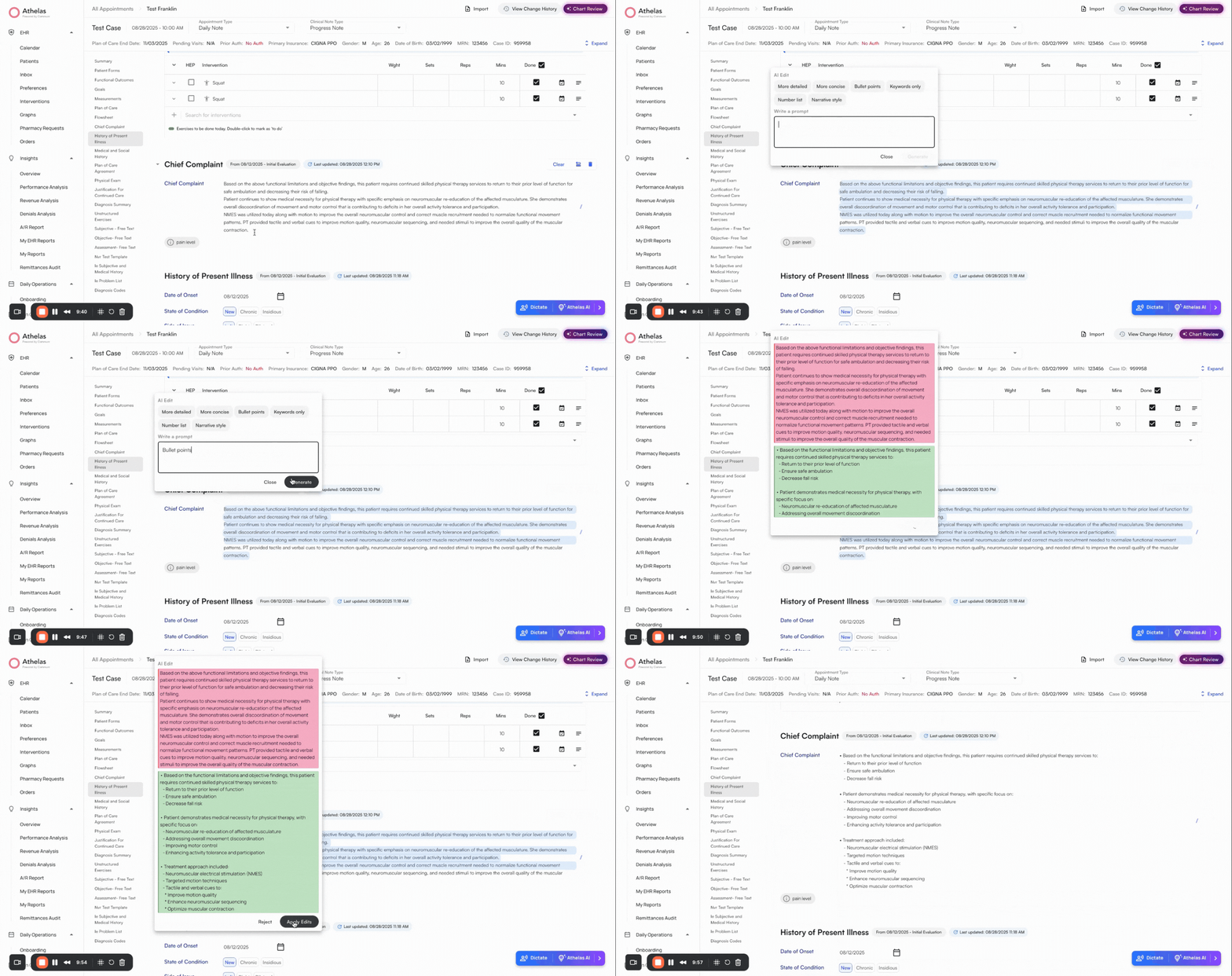
Review Section Updates
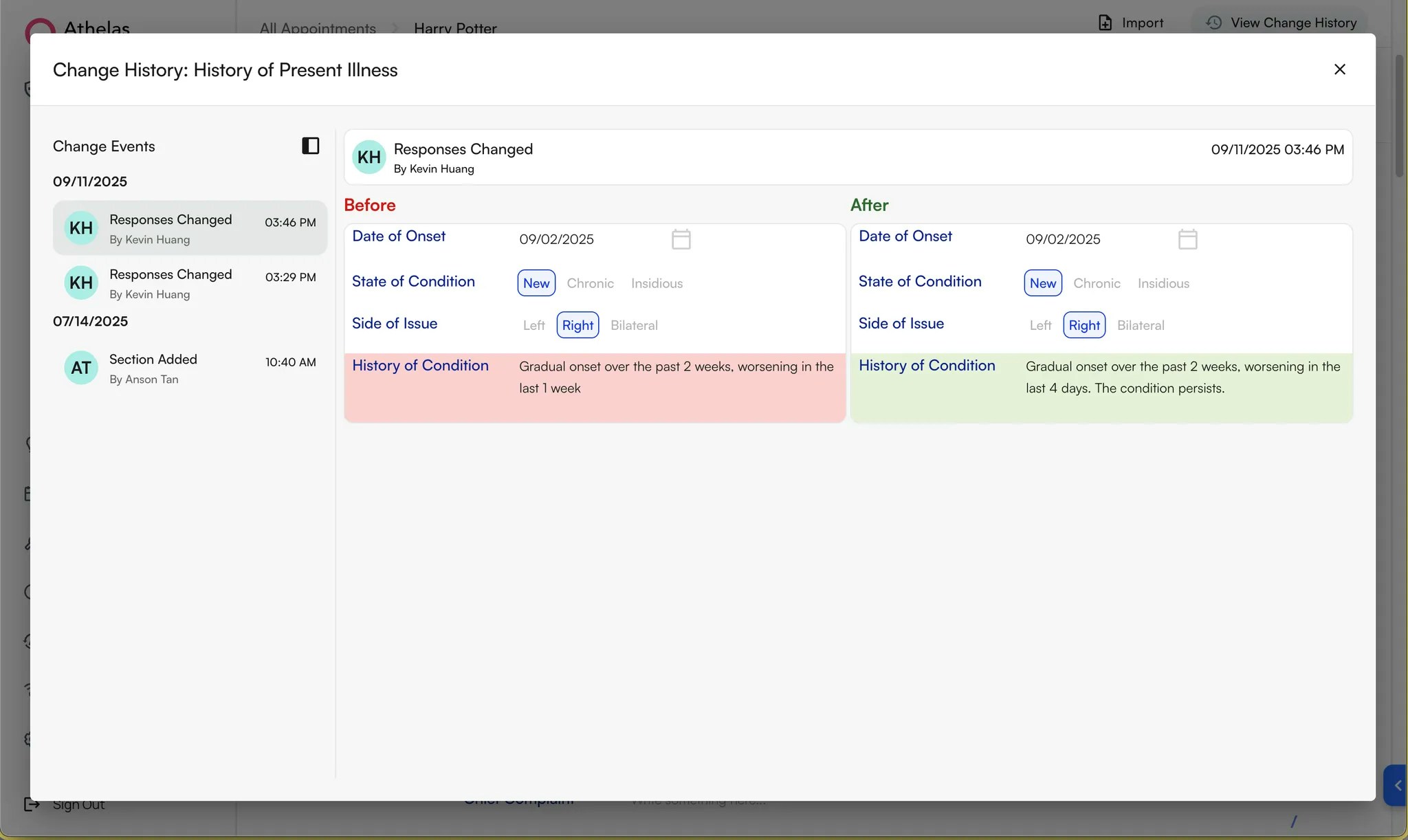
Click the “Last updated” button in the heading of a section to view updates made.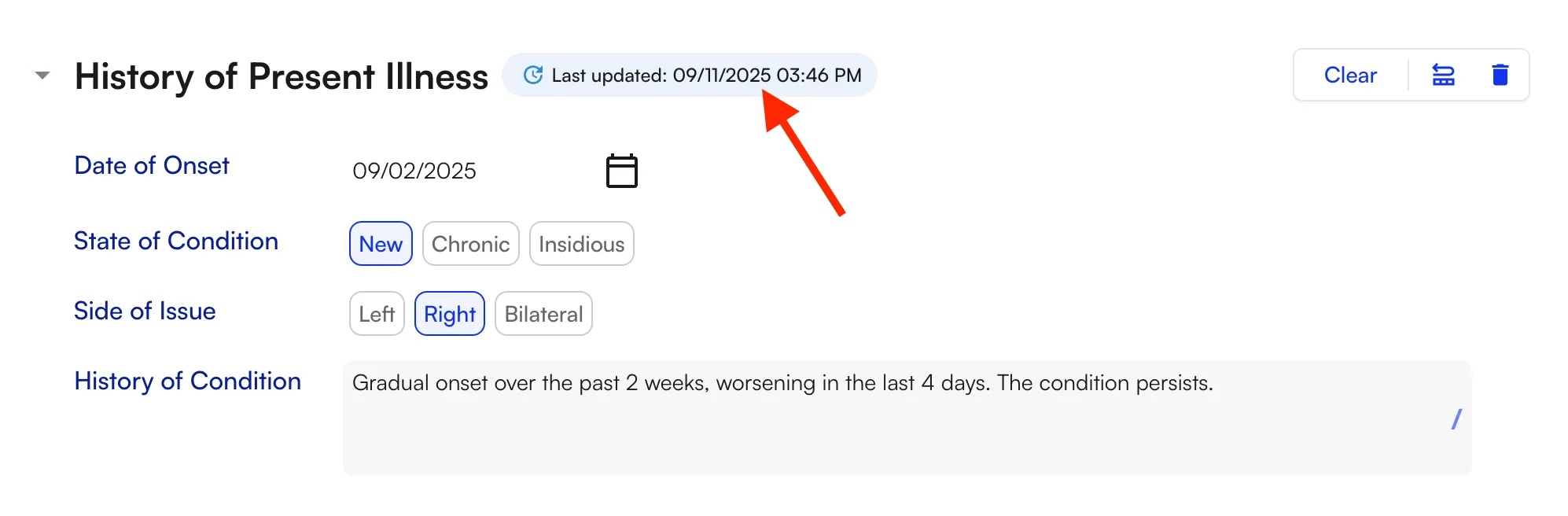
Other ways to fill your Chart Note
Dictate into a section
More details: EHR Dictation v1 User GuideOnce a note is generated, you have the option to add more content through a direct dictation. Dictation allows you to use your voice to enter text directly into a Chart Note.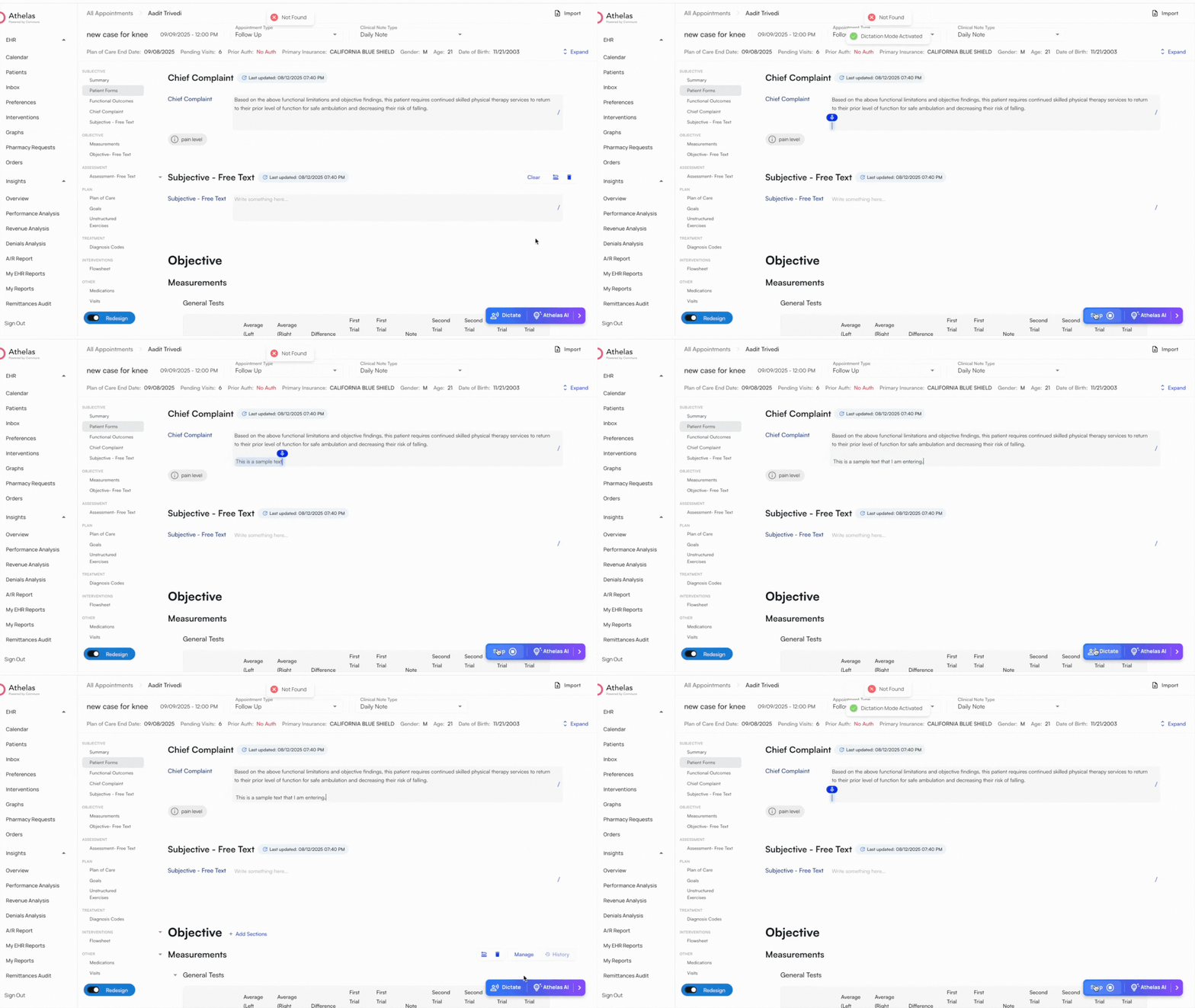
- Open Athelas AI and click Dictate.
- Speak normally and watch text appear in real time.
- Smart punctuation automatically inserts commas, periods, and question marks based on sentence structure.
- Click Stop to end dictation.
Pull from a previous Chart Note
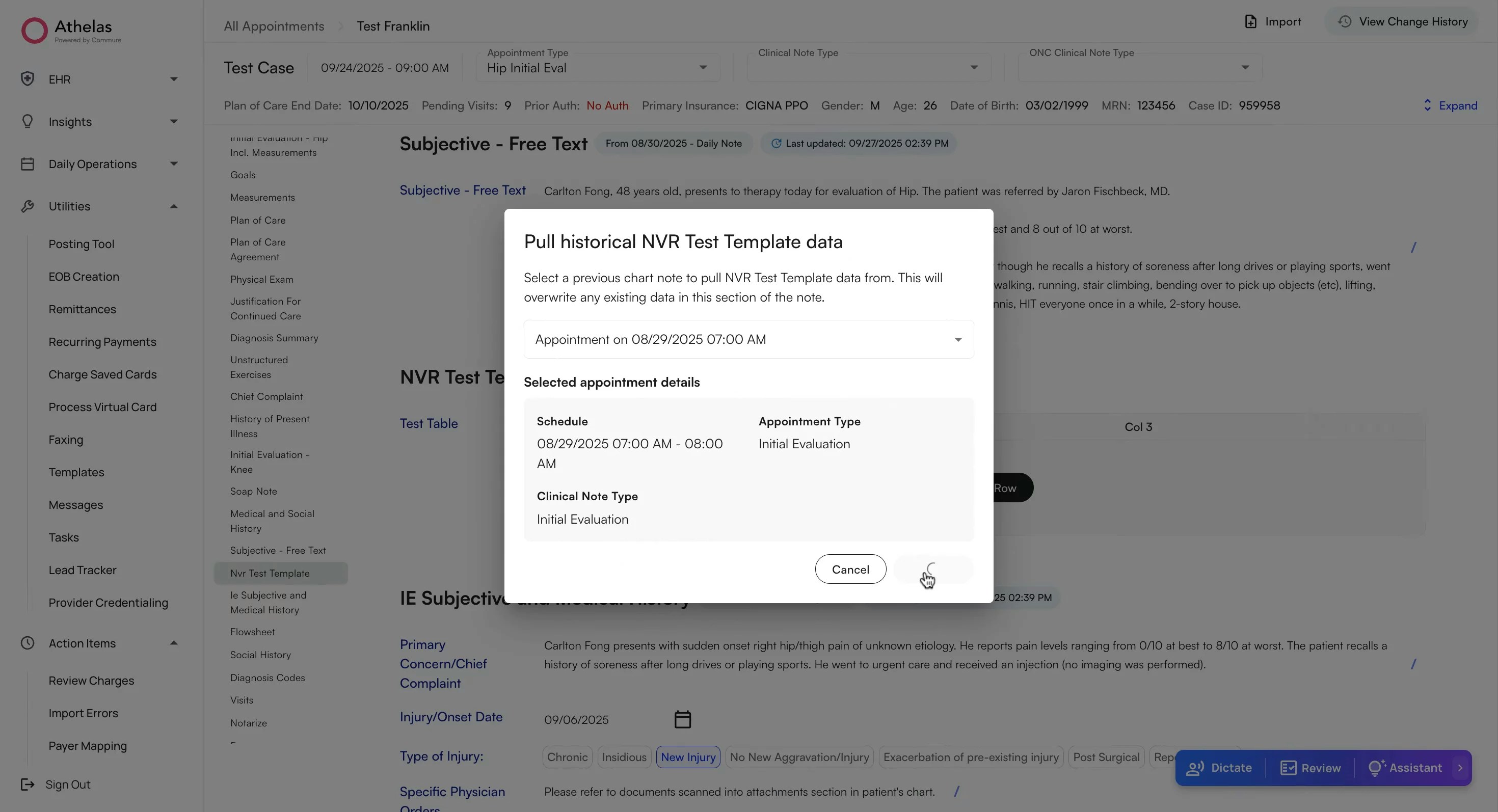
Click the curled arrow icon in any section to import data from a patient’s prior Chart Note.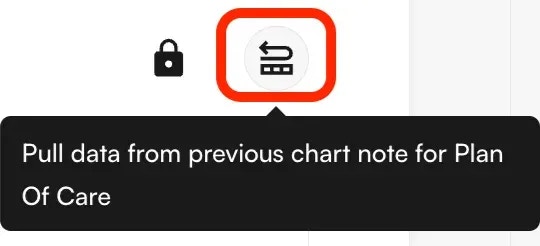
Use pre-defined Text Snippets
Type ”/” in a text field to quickly insert pre-made text snippets.Note: You can customize your text snippets from the Preferences tab.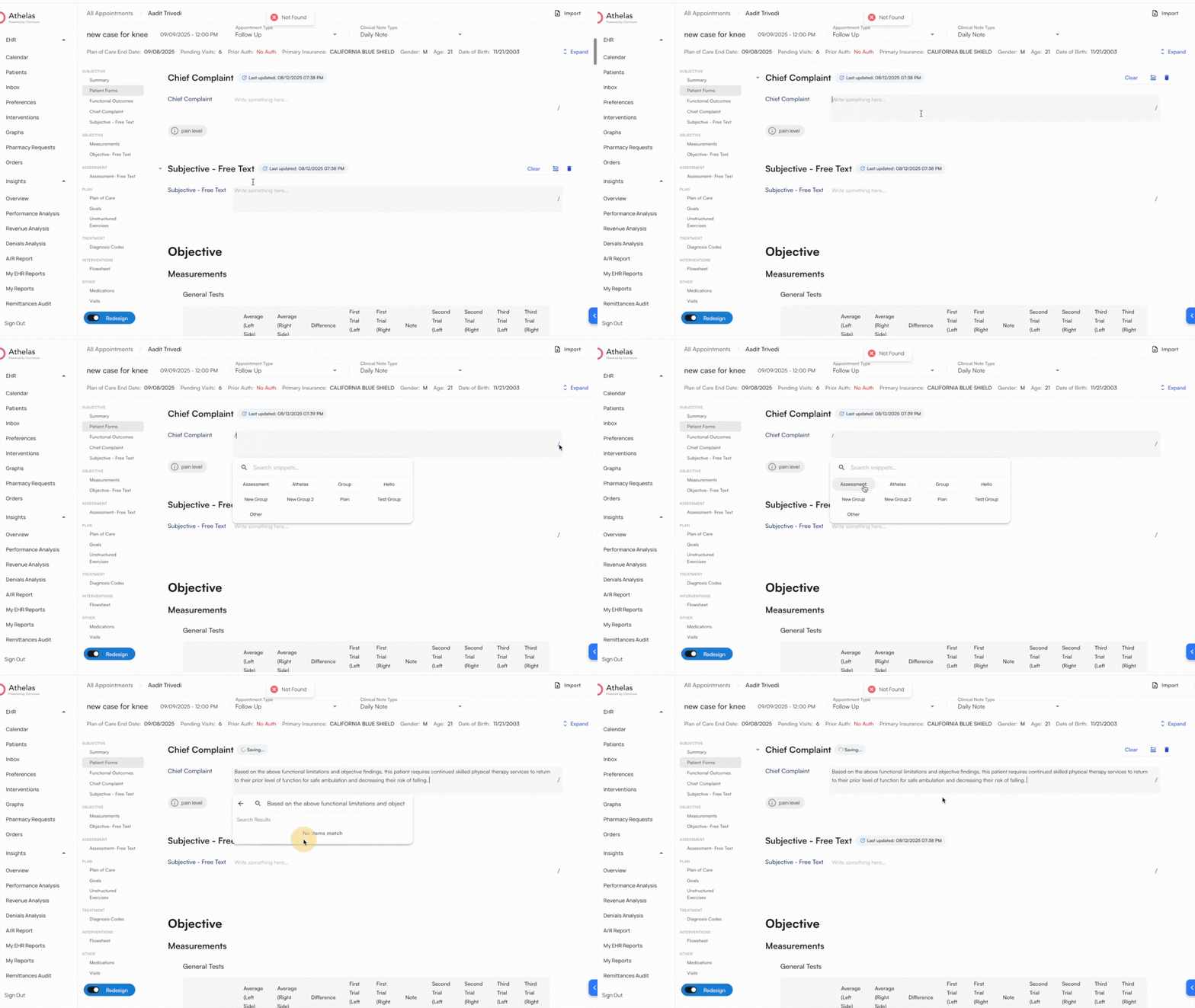
Sign & Submit
Click “Get Started” to start the demo. Click on the fullscreen icon on the top right of the demo to zoom in
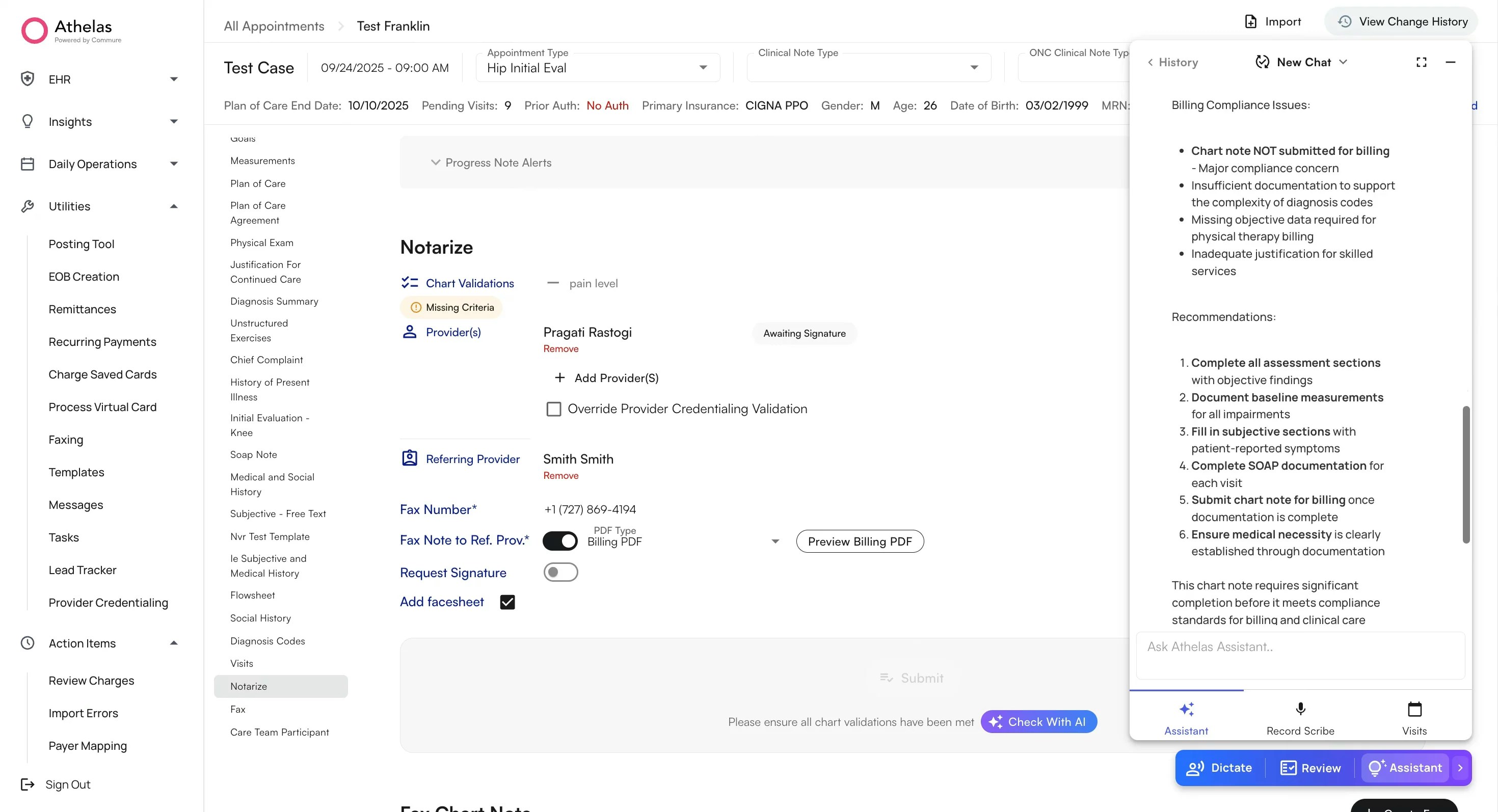
Compliance Checks with Athelas AI
Compliance checkmarks ensure that specific details required for compliance are captured in the Chart Note.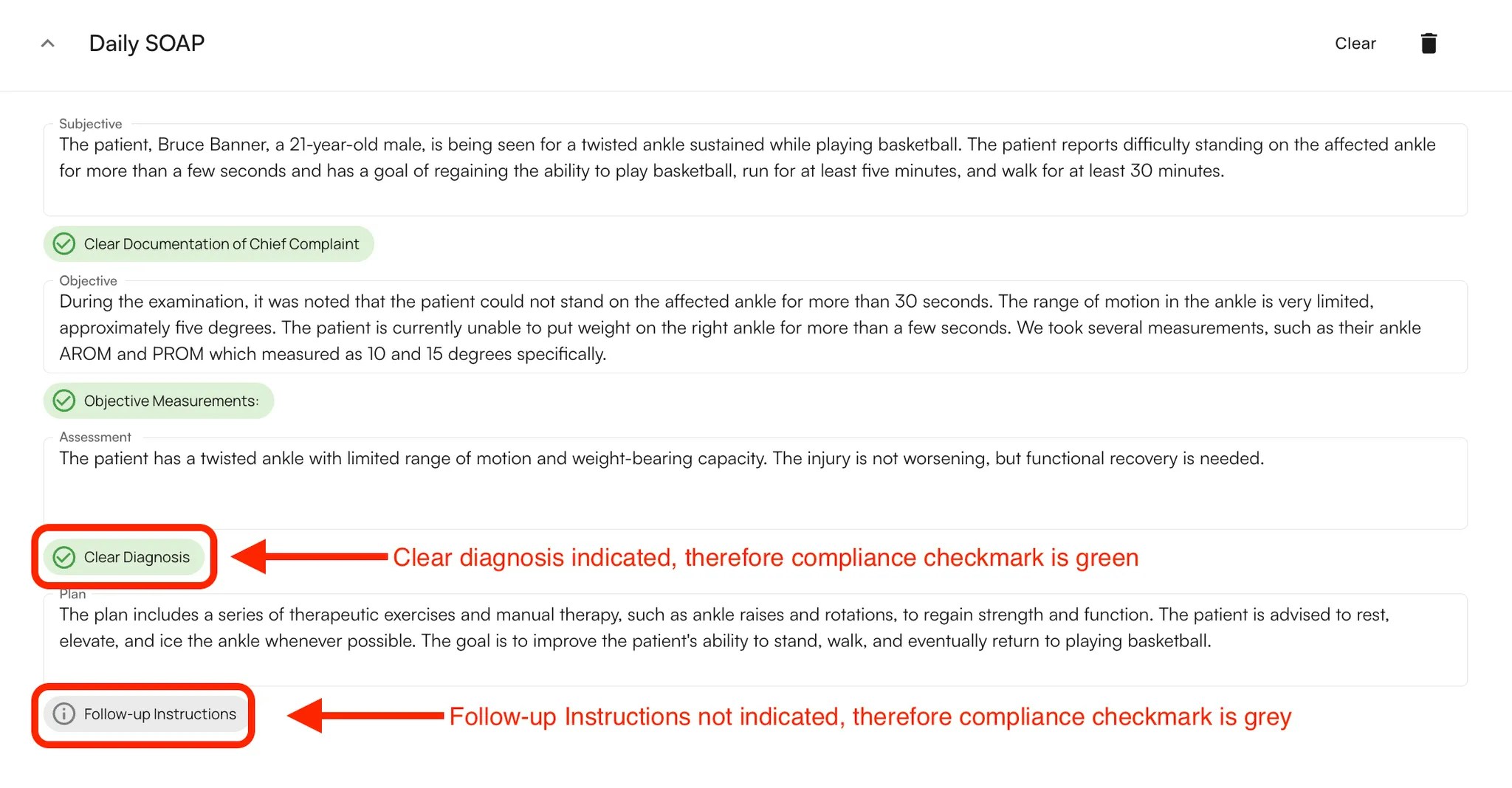
- If the detail is missing, the checkmark appears grey.
- Once the detail is documented, the checkmark turns green.
- You will get a compliance score out of 100
-
Additional recommendations to ensure no billing compliance issues related to the Chart Note.
Sign a Note
The signature section compiles all compliance validations for review. Here, the rendering provider and any co-signers can sign the note.**Note: **If you do not need a supervising provider’s signature you can amend the preferences from the Providers Tab within Preferences.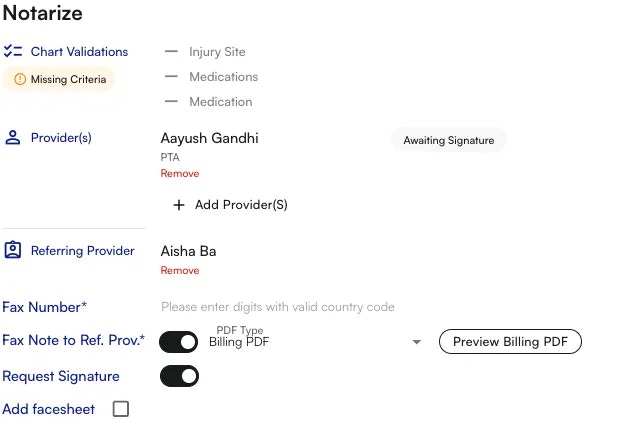
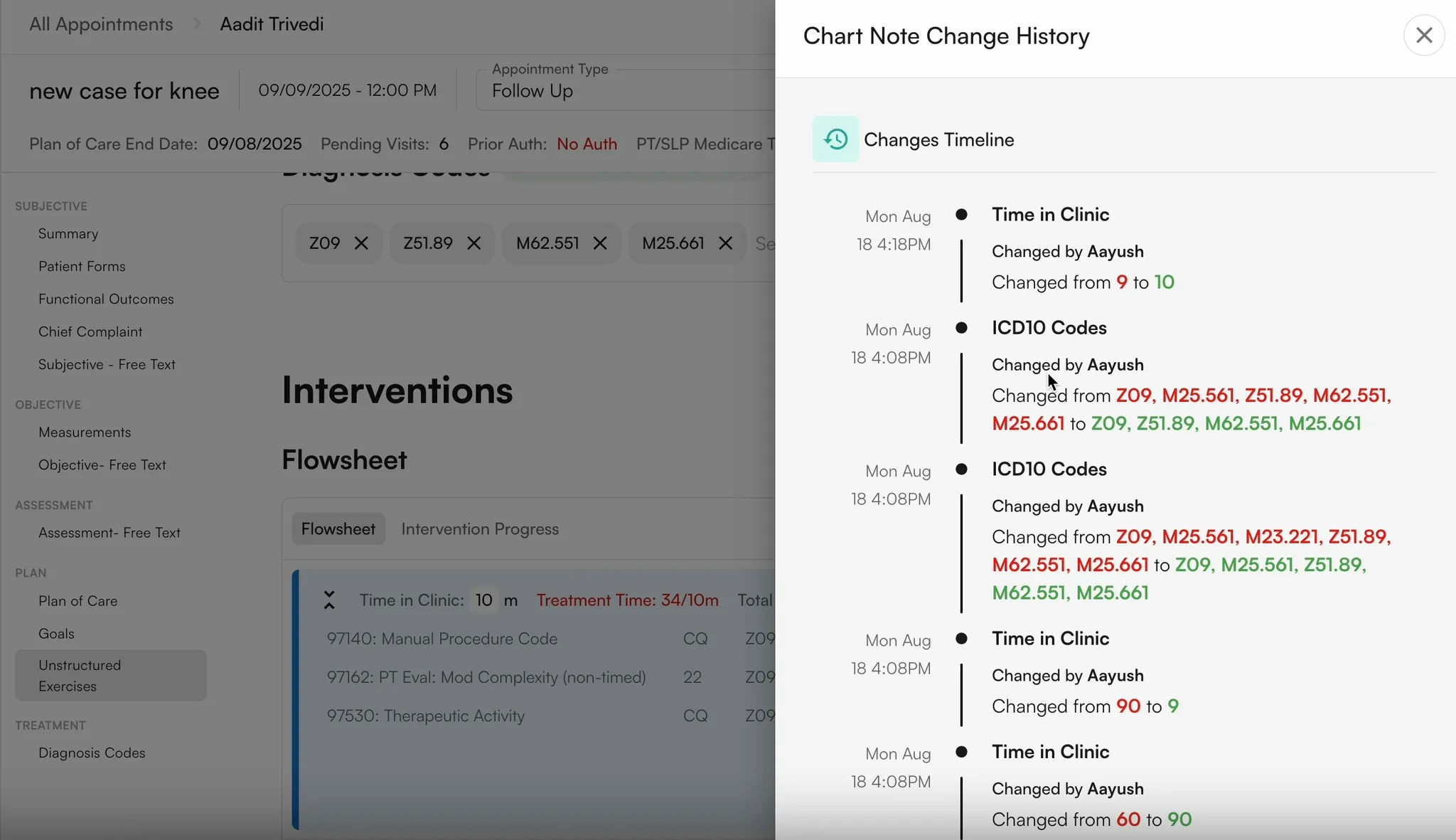
- To fax the encounter to a referring provider, select their name from the dropdown, enter their fax number, and check Fax note to referring provider.
- You may also include a signature request section if needed.
Preview Chart Note
Navigate to Notarize within the Chart Note and select Preview Billing PDF (next to Fax to Ref. Provider).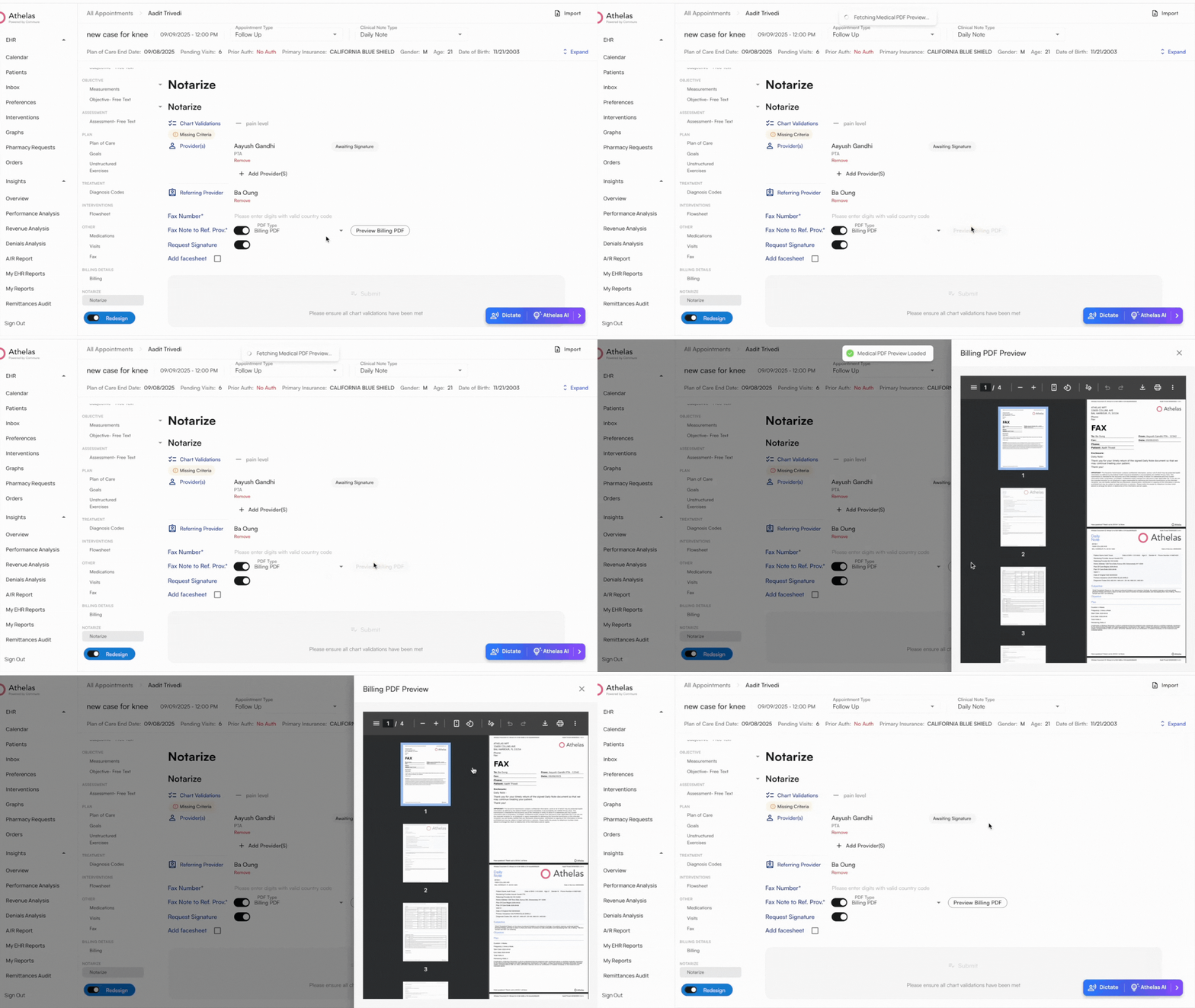
Submit Encounter
- Sign the note under Notarize and click Submit.
- If the patient has future appointments scheduled, you can choose to update them with the completed note.
- Next, you’ll be asked if you’d like to review the appointment in RCM/Billing. Click View Encounter Details or View Claim Details, or simply click Complete.
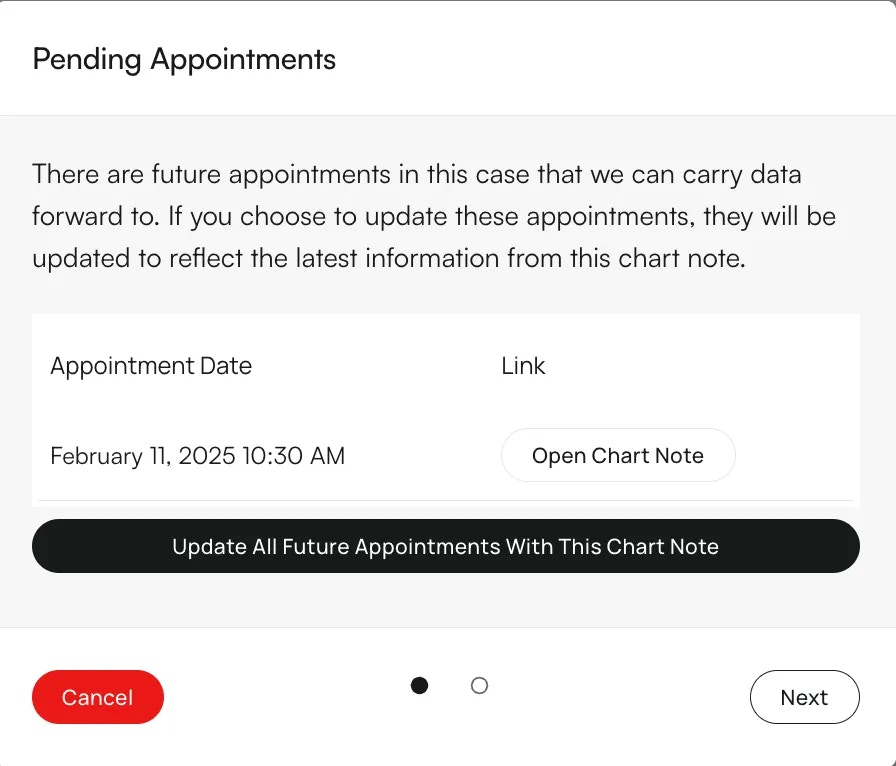
Post Submission
Once you sign & submit a Chart Note, you can:
View and download updated Note
View and download updated Note
Once a Chart Note is completed, it becomes visible in the Appointments section of the Patient’s Profile.
Fax a Chart Note
Fax a Chart Note
To fax a completed chart note, click “+Create Fax” at the bottom of the note. A side panel will open where you can choose the fax type.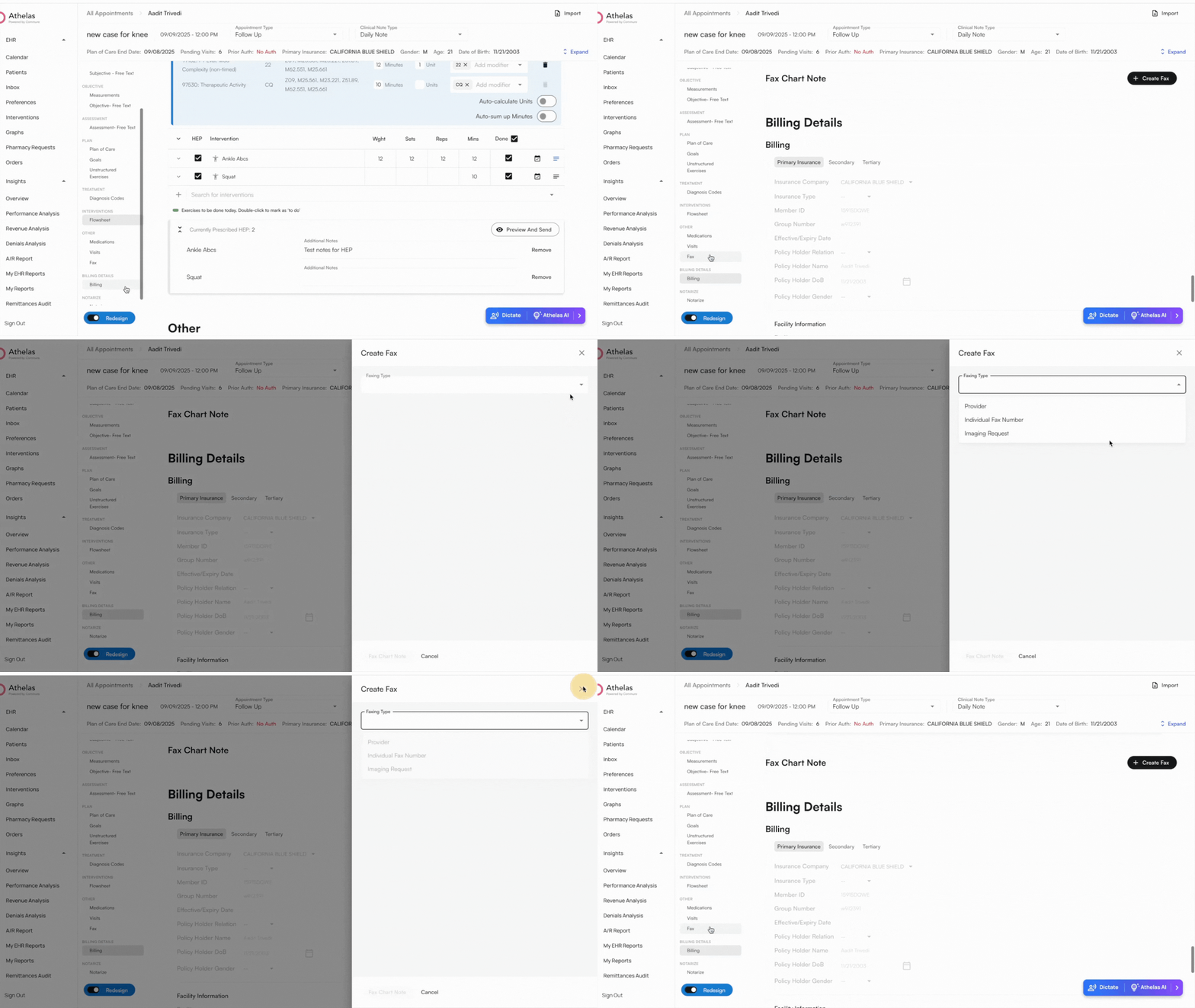
- Provider: Select from a dropdown of referring providers within Air. If a fax number is saved for the provider, it will auto-populate.
- Individual Fax Number: Enter any fax number manually to send the completed chart note.
- Imaging Request: Sends the chart note along with an imaging request. This includes diagnosis codes, procedure codes, rule-out information, result medium, attachments, and imaging facility details.
Discharge your Patient
Discharge your Patient
- If the patient is in-office: Change your Chart Note to a Discharge Note to automatically adjust the template and included sections.
- **If the patient does not visit the office: **Discharge the patient from the case table within the Patient Profile
FAQs
I can’t see my patient’s past chart notes from my old EHR
Import Records for Past AppointmentsContext:
- Plan of Care details may not be migrated from the old EHR into Athelas Air.
- For returning patients seen in Air for the first time, providers will need to reference their previous documentation and set up the Plan of Care in Air.
- This is a one-time step: once entered, the Plan of Care will automatically carry forward from note to note.
- Go to the Patient’s Profile → **Appointments **and locate the **date of service **of the latest Progress note / Initial Eval appointment for the case.
- Go to Attachments, search for the date of service corresponding to the note from which you want to carry forward the measurements.
-
Click the eye icon to view the PDF, then download the PDF to your device.
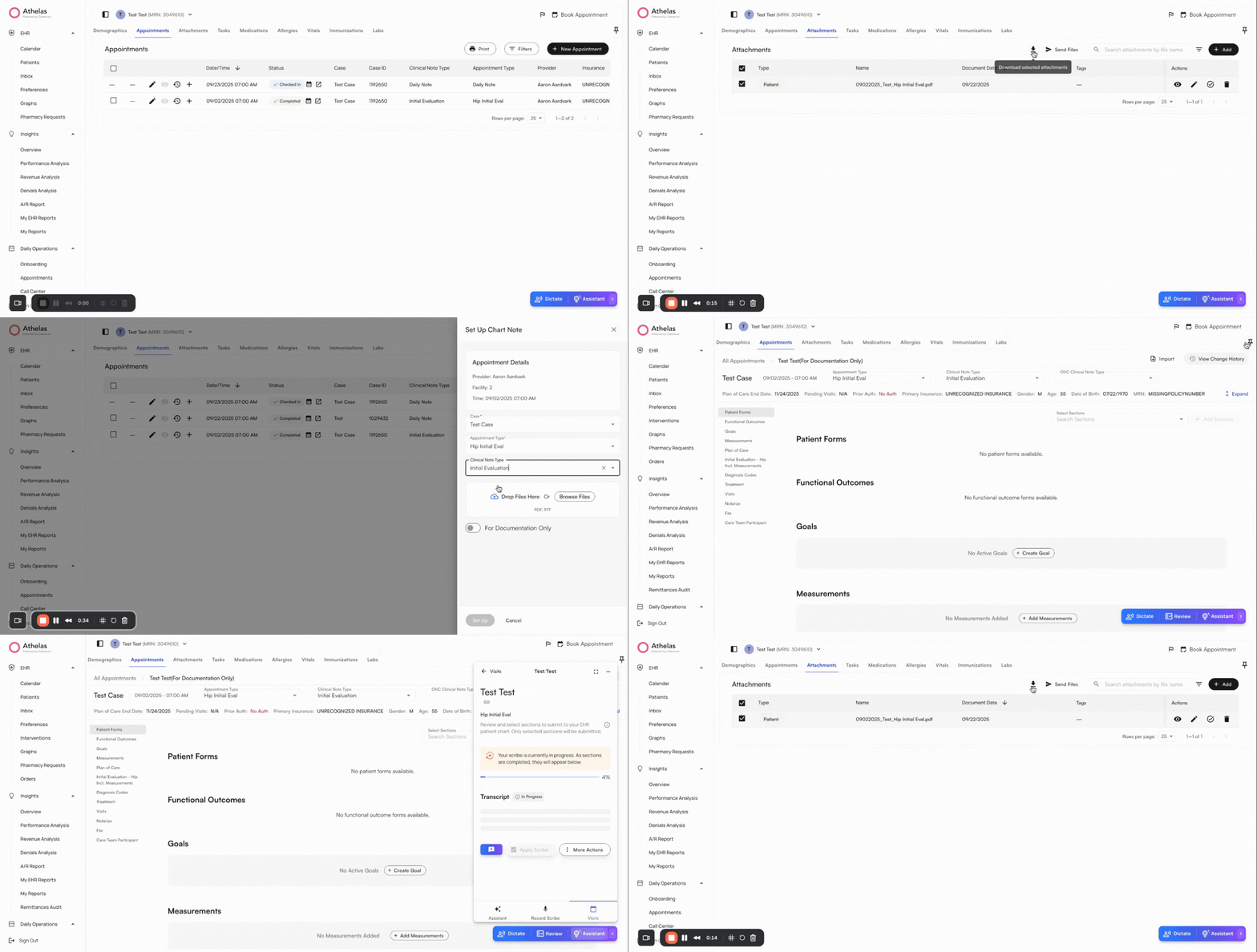
- Go back to the **Appointments **Tab
- Click the + icon to the right of the appointment → Set Up Chart Note.
- Select the right Case, Appointment Type, and Clinical Note Type [Progress Note, Initial Evaluation, etc.]
- Select For Documentation Only. This option ensures the imported chart note is not billable.
- Select Set-up. This will open the chart note on a new screen
- Click on **Import **at the top right → Upload the attachment → Scribe processes the PDF.
- Track progress by clicking into **Athelas AI → **Select the sections you would like to pull and **Apply Scribe **to desired sections once complete.
-
Review, edit if needed, and exit (auto-saves, no signature required). This information should then start pulling into all future notes made on Air.